Managing cookie consent on a WordPress site doesn’t have to feel like a legal minefield. With rules like GDPR and CCPA tightening every year, keeping your site compliant matters more than ever. If you want to handle cookies without slowing your site down, you’re in the right place. Let’s walk through the best tools available so you can pick the one that fits your workflow.
Key Takeaways
- Dashboard integration saves time by keeping compliance work inside WordPress.
- Google Consent Mode v2 support matters if you use Google Ads or Google Analytics in Europe.
- Automatic scanning stops rogue trackers from slipping past your setup.
- Visual customization keeps your banner on-brand instead of a generic legal box.
- Consent logging gives you a clear record for audit readiness and peace of mind.
Why You Need a Reliable Compliance Solution in 2026
Privacy rules move fast, and what worked a couple of years ago may not cut it today. With major updates to global privacy standards, a text box that just says “we use cookies” no longer meets the legal bar. Visitors expect real control over their data, and regulators are actively enforcing it.
One of the biggest shifts is the near-universal need for Google Consent Mode v2. If your site reaches EU or UK visitors and you run Google Analytics or Google Ads, you need to send verified consent signals back to Google, or your tracking data won’t flow correctly. A modern compliance tool keeps that data clean and your legal bases covered.
Beyond the legal side, a smooth privacy banner builds trust the moment someone lands on your site. A clean banner tells visitors you respect their privacy and run a well-managed site. A clunky one that slows your page down can push people away before they read a word.

What to Look For in a WordPress Privacy Solution
Comparing your options can get overwhelming fast, so focus on a handful of non-negotiable features. Here’s what to check before turning on any compliance tool:
- Automated script blocking: A good cookie banner needs to do more than display a message. It should actively stop tracking scripts from running until the visitor clicks “Accept.” (Plenty of basic tools miss this part.)
- Deep customization controls: Your privacy banner needs to match your color scheme, typography, and brand voice. A mismatched banner looks off and can lower opt-in rates.
- Geo-targeting capability: This lets you show a specific banner to European visitors while keeping a lighter approach for visitors from regions with fewer privacy requirements.
- Consent logs and audit trails: If a privacy inquiry ever comes up, you need to be able to prove when and how a specific visitor gave their consent.
Stick to these core elements and you’ll steer clear of heavy tools that drag down server performance, building a foundation that keeps your site fast, legal, and professional.
Complete Comparison of Cookie Consent Alternatives
To help you see how the leading options stack up at a glance, here’s a straightforward comparison covering dashboard integration, core support features, and the best use case for each tool.
| Tool Name | Native WordPress Dashboard | Consent Mode v2 Support | Best Suited For |
|---|---|---|---|
| Cookie Consent | Yes (Built-in) | Yes | WordPress users wanting complete dashboard-native compliance |
| Cookiebot | No (External Cloud) | Yes | Large multi-platform networks and corporate sites |
| CookieYes | No (External Cloud) | Yes | Websites needing simple cross-platform management |
| Complianz | Yes (Built-in) | Yes | Users looking for a detailed legal wizard process |
| iubenda | No (External Cloud) | Yes | Teams needing full privacy policy document generation |
| OneTrust | No (External Cloud) | Yes | Enterprise-level organizations with complex compliance teams |
The Best Cookie Consent Alternatives for WordPress
Now that we’ve covered the basics, let’s look at each option in more depth, how it works, what it offers, and where it shines, so you can make a confident, informed choice.
Cookie Consent
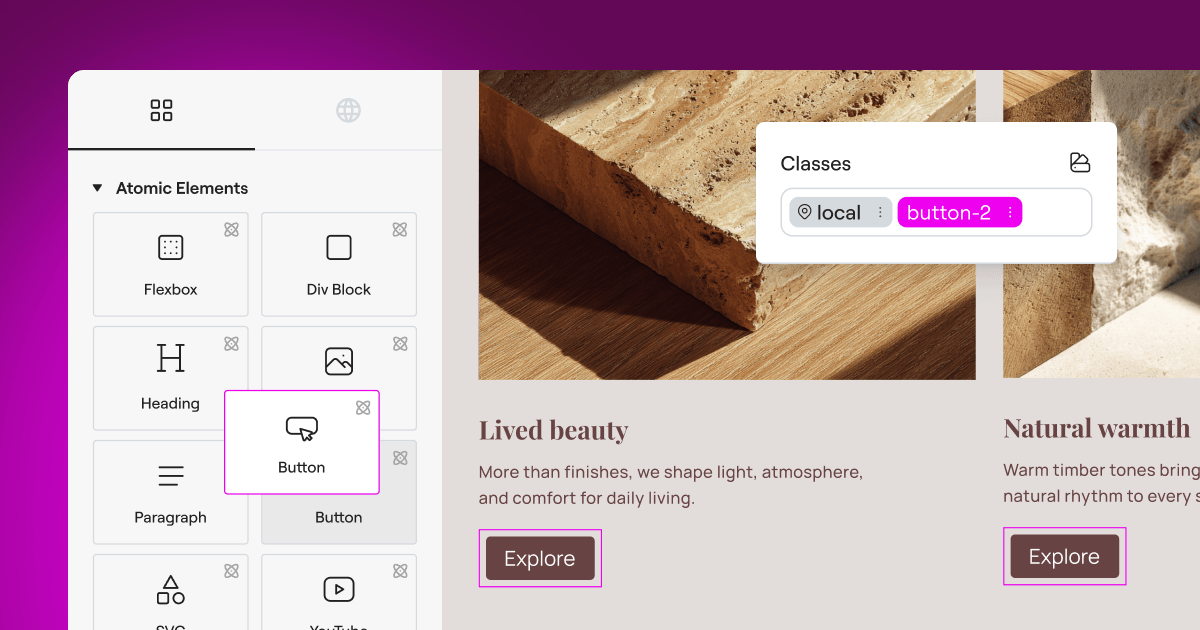
The first option on this list is Cookie Consent, a native compliance tool from the creators of Elementor. Instead of logging into an outside site to manage privacy settings, it runs entirely from your WordPress dashboard, keeping your workflow simple and fast when you’re already juggling everything else a site needs.
Setup takes under five minutes, a relief if you don’t have time for a lengthy configuration process. It matches your site’s design automatically, colors and styles included, without a line of custom code. If you want built-in compliance without an external SaaS platform, this is a strong place to start.

- Builds custom banners using your existing theme styles and typography, so your site stays on-brand.
- Scans your site for active cookies and categorizes them automatically.
- Records secure consent logs directly inside your WordPress database for easy auditing.
- Supports Google Consent Mode v2 natively to keep your tracking data accurate.
- Targets specific geographic regions so visitors only see banners when legally required.
- Simplifies compliance through a clean 3-step setup wizard that runs in under five minutes.

Because it’s built directly into WordPress, Cookie Consent avoids the performance lag that often comes with loading third-party cloud scripts. If you want a straightforward, integrated way to handle privacy without leaving your editor, it’s hard to beat. It’s part of the Elementor compliance toolkit, alongside tools like Web Accessibility.
Cookiebot
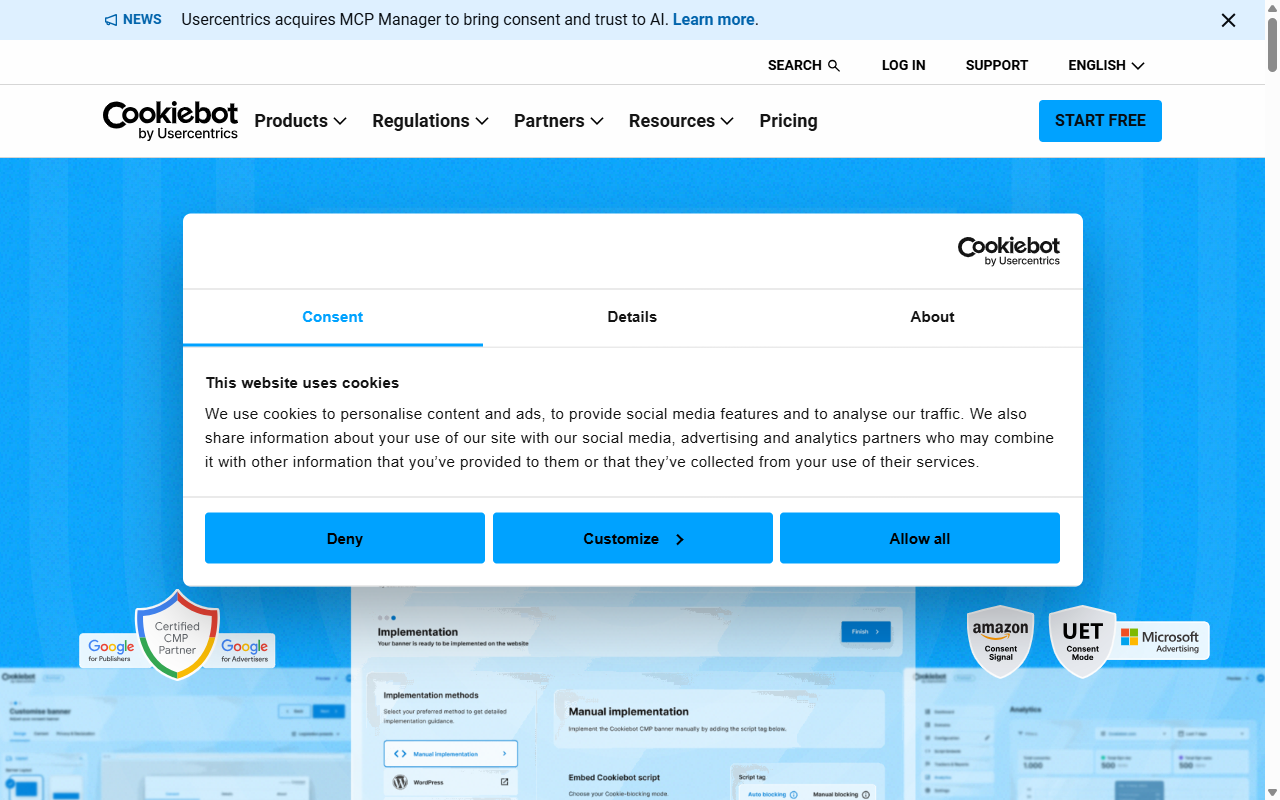
Cookiebot is an established, cloud-based consent platform that works across many web platforms, including WordPress. It’s well regarded for deep scanning technology that finds even well-hidden tracking scripts. Since it’s an external service, you’ll manage settings and view compliance logs through the Cookiebot cloud dashboard rather than WordPress admin.
- Automates monthly cookie scans to detect and categorize new tracking scripts on your site.
- Blocks third-party cookies and trackers automatically until the visitor gives explicit consent.
- Stores user consent data securely in the cloud for up to twelve months.
- Generates a dynamic cookie declaration page you can embed into your privacy policy.
- Translates your compliance banners into dozens of languages automatically based on visitor location.
- Supports Google Consent Mode v2 to keep your analytics running properly.
For large networks or corporate sites running properties across WordPress, Shopify, and custom HTML, Cookiebot is a dependable option. If you’d rather keep site management under one login, the external interface adds a step to your daily workflow.
CookieYes
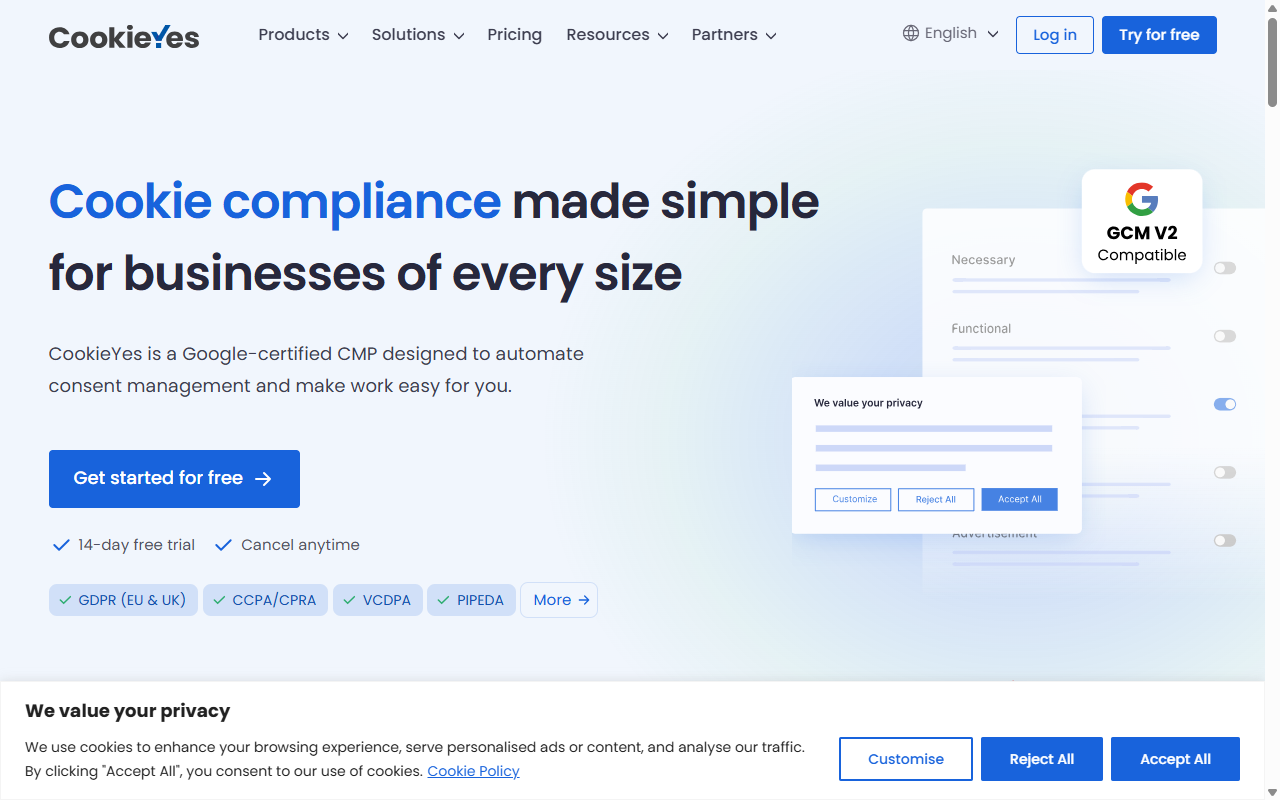
CookieYes is a popular cloud-based tool that keeps compliance approachable for site owners at any experience level, with an intuitive interface and quick setup. Like other external systems, it connects your WordPress site to its cloud app via a lightweight connector script, so you control banners from its web portal.
- Tracks user consent records in a clean, web-based cloud dashboard.
- Connects with major content management systems using a single unified interface.
- Customizes the layout, colors, and behavior of your banners with simple toggle options.
- Scans your site code to flag tracking cookies and scripts automatically.
- Respects Global Privacy Control signals sent by privacy-focused browsers.
- Generates custom cookie policies with a built-in legal policy generator.
CookieYes stands out for customer support and clean visual design, with a solid entry-level plan that keeps it accessible for most users. For agencies managing several client sites across different hosts, the centralized cloud panel is genuinely helpful, even without a native tool’s tight integration.
Complianz
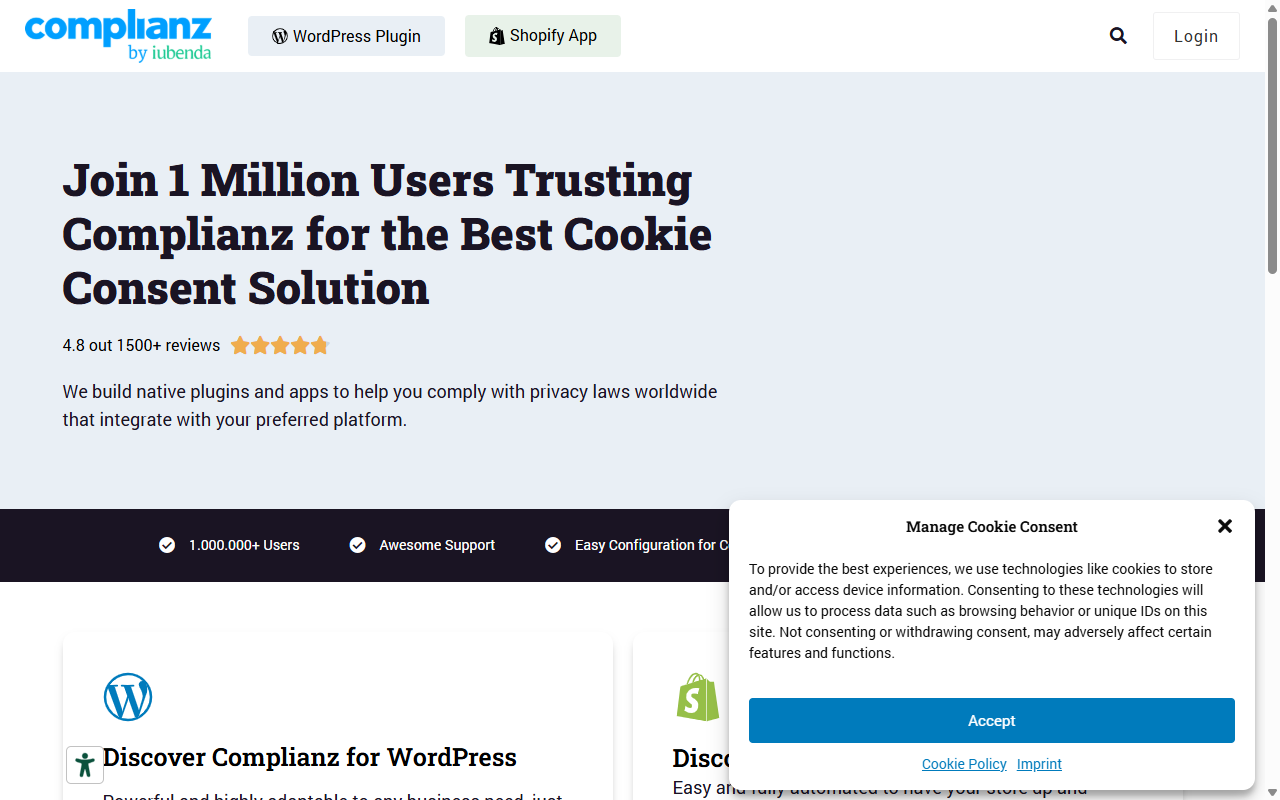
Complianz is a dedicated privacy tool built specifically for WordPress. It takes a methodical approach, walking you through a detailed questionnaire about your business practices, audience, and data habits. Based on your answers, it configures your site to match regional laws like GDPR, CCPA, or DSGVO.
- Guides you through a step-by-step configuration wizard to assess your exact legal needs.
- Blocks scripts from social media networks and third-party embeds before consent is given.
- Generates customized legal documents that automatically update when laws change.
- Detects regional privacy requirements automatically using dynamic visitor IP detection.
- Records anonymous user consent statistics to help you monitor opt-in rates.
- Integrates with popular WordPress form builders and e-commerce checkout systems.
Complianz is thorough, which makes it popular among developers who need to meet strict legal rules across countries. The setup can run long because of the legal wizard, but it leaves you confident you’ve covered every requirement for your situation.
iubenda
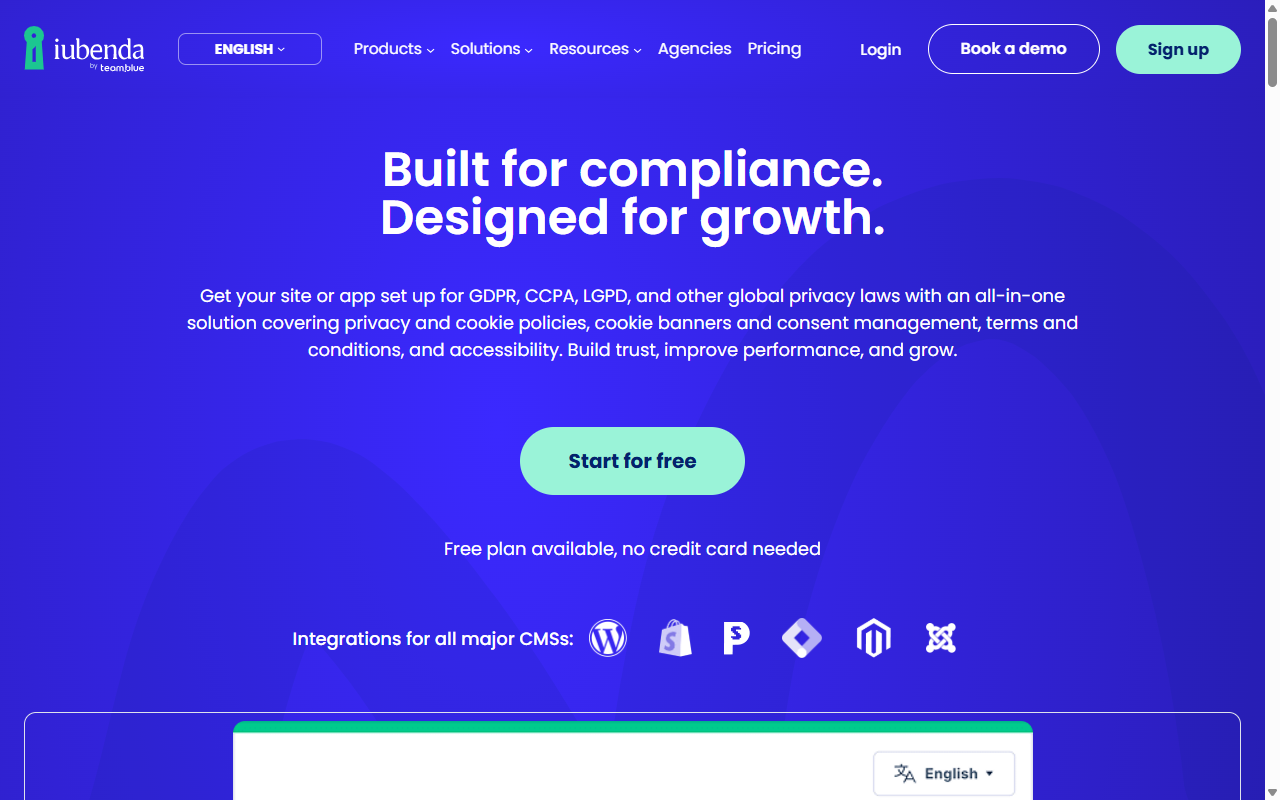
iubenda is a complete compliance suite covering cookie banners, privacy policies, and terms of service documents. Rather than just blocking scripts, it focuses heavily on the legal documents, hosting your legal pages on secure servers and updating them automatically whenever privacy laws change.
- Generates complete, auto-updating privacy policies and terms of service documents.
- Stores verified legal consent records to meet GDPR and CCPA audit requirements.
- Blocks tracking codes automatically before obtaining explicit visitor consent.
- Customizes the styling of compliance notices to fit any website layout.
- Handles complex international frameworks using a single cloud-based interface.
- Exports legal documents in multiple languages to support international audiences.
If you need more than a cookie banner, iubenda is a solid choice for teams that want a legal-focused service. It can feel like a lot if you only want a quick, simple cookie notice, so it’s worth thinking through your actual needs first.
OneTrust
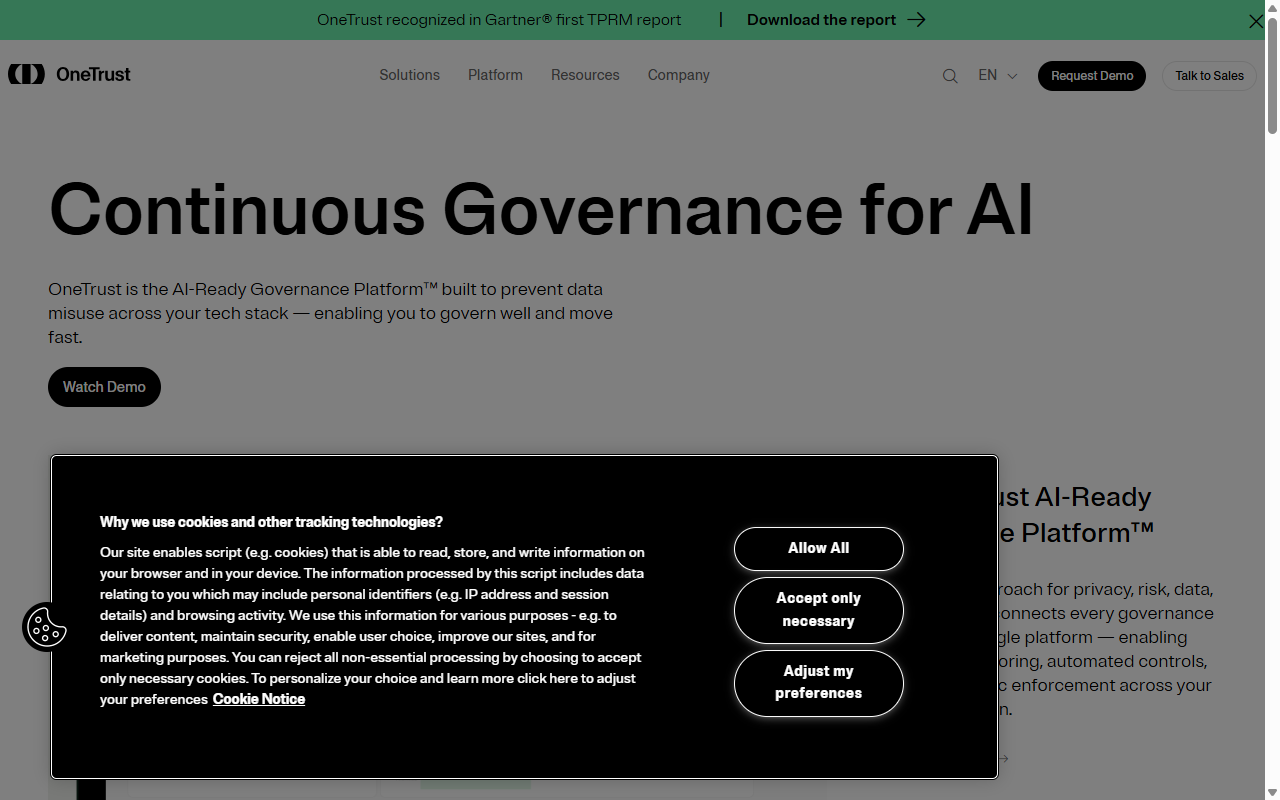
OneTrust is an enterprise privacy management platform designed for large companies, online stores, and global brands with dedicated legal departments. It’s powerful, with a more involved setup than the other options here.
- Manages vast compliance workflows across thousands of websites and mobile applications.
- Scans complex web applications for hidden tracking pixels and security vulnerabilities.
- Builds advanced preference centers so visitors can choose exactly which data to share.
- Customizes cookie consent banners based on detailed, state-by-state regional laws.
- Tracks compliance scores and audit readiness using visual reports and charts.
- Integrates with enterprise tag managers and customer relationship management software.
For standard WordPress sites or small businesses, OneTrust is typically more than you need day to day. But for a large enterprise site with strict compliance guidelines, its depth makes it a recognized standard.
Step-by-Step Guide to Transitioning Your Privacy Setup
If you’re planning to switch from your old privacy setup to a cleaner option, take it step by step. Making the transition without breaking your tracking scripts is easier than it looks when you follow a logical path.
- Audit your current cookies: Run a scan to see which tracking scripts are active on your site before making any changes. (It’s simpler than it sounds.)
- Deactivate conflicting tools: Turn off any old consent banners or header scripts. Running two compliance tools at the same time will cause errors and mess up your page layout.
- Configure your new tool: Activate your chosen tool, set up the visual banner to match your site’s branding, and turn on the automatic cookie categorization feature.
- Enable consent logging: Verify that your new setup is saving user opt-in records so you have a clear, reliable history for your own peace of mind.
- Test your site in incognito mode: Open a fresh private browsing window, visit your site, and confirm that no marketing scripts load before you click “Accept” on your new banner.

Best Practices for Maintaining Privacy Compliance
Setting up your cookie banner is a big milestone, but compliance is an ongoing process. To keep your site running safely and smoothly, it helps to build a few simple habits into your routine:
- Perform regular scans: Every time you install a new social media widget, video player, or analytics script, you might be adding new cookies. A monthly scan keeps your cookie list accurate.
- Review regional updates: Keep an eye on changes in regional laws. If you start getting traffic from a new country, double-check that your tool is configured to support their privacy standards.
- Keep your banners user-friendly: Avoid confusing layouts or design choices that obscure user options. Modern privacy regulators pay close attention to these patterns, and keeping things clear builds better trust with your visitors.
“Maintaining compliance isn’t just about showing a banner; it’s about respecting user choices while keeping your site functioning beautifully. A native solution that lets you manage your settings without bouncing between external dashboards is a real time-saver for busy creators.”
– Itamar Haim, Web Compliance Specialist
Frequently Asked Questions
Do I really need a cookie consent banner on my WordPress site?
Yes, if your site collects any data from visitors located in regions with active privacy laws, such as the European Union (GDPR) or California (CCPA). This includes using standard tools like Google Analytics, Facebook pixels, or even basic contact forms that track user data.
How does Google Consent Mode v2 impact my website?
Google Consent Mode v2 is a system that communicates your visitors’ consent choices directly to Google services. If you serve visitors in the EU or UK and don’t have this configured, Google will limit your ability to measure ad conversions and collect audience data in your analytics reports.
What is the difference between a cloud-based tool and a native WordPress tool?
Cloud-based tools host your settings, cookie lists, and consent logs on external servers, requiring you to use an external dashboard. Native WordPress tools like Cookie Consent run entirely inside your WordPress admin dashboard, keeping your workflow unified and avoiding third-party script lag.
Can I customize the cookie banner to match my site design?
Yes. The best compliance tools let you adjust colors, fonts, button styles, and positions so the banner looks like a natural extension of your brand instead of a generic pop-up.
Do these compliance tools slow down my WordPress site?
Some external tools that load heavy scripts from remote servers can cause minor loading delays. Choosing a native tool that integrates with Elementor helps keep your page speed in good shape by using your existing site framework.
What happens if I do not keep a consent log?
If a privacy regulator audits your site, you may be asked to prove that your visitors actively consented to tracking. Without a secure, time-stamped consent log, it’s difficult to demonstrate legal compliance, which can leave you vulnerable to warnings or fines.
Is there an entry-level plan for these cookie consent tools?
Yes, many options offer an entry-level plan that works well for small blogs or local business sites. Premium plans are typically needed if you run a large e-commerce store, have high traffic volumes, or need advanced geo-targeting features.
How often should I scan my site for new cookies?
Scanning at least once a month is a good habit, or whenever you install a new marketing tool, social share button, or embedded media player. This keeps your user disclosure documentation accurate and up to date.

