
We’ve all been there. You open a website on your phone, ready to read an article or check out a product, and a massive, oddly scaled box swallows half the screen. You try to tap “Reject All,” but the button’s tiny, or it’s hiding behind a chat widget. Designing mobile banners is genuinely tricky: screen space is small and patience is smaller. But the sweet spot between privacy compliance and a good mobile experience is more within reach than it looks. Here’s how to build compliant notices your mobile visitors will actually appreciate.
Key Takeaways
- Prioritize touch target sizes (minimum 48px by 48px) to prevent frustrating mis-taps on small screens.
- Avoid deceptive dark patterns by giving equal visual weight to accept and reject options.
- Use geo-targeting to show strict notices only where regional laws legally require them.
- Optimize for device rotation so your banners remain readable and scrollable in landscape mode.
- Keep script payloads light to protect your mobile page load speeds and Core Web Vitals.
Why Mobile Cookie Design Demands a Different Approach
Designing for a desktop screen is genuinely forgiving. You’ve got plenty of horizontal space for complex privacy options side by side. On mobile, that luxury disappears. Squeeze a desktop layout onto a small viewport and buttons shrink, text gets hard to read, and the whole experience suffers. Mobile users tap with their thumbs, so your design needs to work with natural hand movements and a tight amount of screen space.
On top of that, privacy regulators worldwide are paying closer attention to mobile layouts. They’re actively auditing mobile experiences to check that businesses aren’t using deceptive interfaces to trick people into accepting trackers. If your banner makes it hard to say no, you could face real consequences. A native tool like Elementor’s Cookie Consent lets you manage compliance right from your WordPress dashboard, without loading your mobile layout down with heavy third-party scripts.
Search engines care a lot about mobile performance too, so a poorly coded banner can hurt your rankings. A heavy compliance notice can block your page’s initial render, dropping your Largest Contentful Paint (LCP) score. And if the banner shifts your content down as it loads, your Cumulative Layout Shift (CLS) score takes a hit as well. The good news: the practices below keep your mobile designs light, legally sound, and easy to use.

The 10 Best Mobile Cookie Consent Design Practices in 2026
1. Keep Touch Targets Thumb-Friendly
There’s nothing more frustrating than tapping a button on your phone, only to have your browser register the tap somewhere else entirely. This common issue, often called “fat-finger syndrome,” usually comes down to small, cramped touch targets. When you design mobile cookie banners, your interactive elements need to be big enough for quick, painless tapping.
To keep your site accessible and frustration-free, follow these rules for touch targets:
- Build buttons with a minimum touch area of 48 by 48 physical pixels.
- Add ample spacing (at least 8 pixels) between interactive elements to prevent accidental taps.
- Position primary actions near the bottom of the screen, where they’re easiest for a thumb to reach.
- Keep links separated in your policy text so they don’t overlap on small screens.
Spacing things out this way makes it easier for visitors to make their choices, and it keeps your interface clean and accessible.
2. Maintain Equal Visual Weight for Accept and Reject
It’s tempting to make your “Accept All” button bright and colorful while tucking “Reject All” into a pale gray outline. (This trips a lot of people up.) That might help consent rates in the short term, but privacy regulators increasingly treat it as a deceptive design pattern. In 2026, the guidance is clear: refusing consent has to be just as easy as giving it.
To keep your mobile designs on the right side of the law:
- Use high-contrast text on both buttons so they’re equally readable.
- Make both buttons similar in size and shape.
- Avoid hiding secondary settings behind deep, multi-level submenus.
When you present choices clearly and fairly, you build real trust with your audience. Visitors notice honesty, and they’re more likely to stick around for a brand that respects their privacy choices.
3. Account for Mobile Viewport Rotation
A lot of designers test their work only in portrait mode and forget about people who browse in landscape. When a phone rotates horizontally, the vertical screen height drops fast. If your compliance banner has a fixed height, it can swallow the whole viewport, leaving no room to see your content or even find the close button.
To avoid that, use responsive CSS that adapts to viewport orientation. Set max-height limits and let your banner scroll vertically inside its own container. A well-designed landscape banner should never take up more than 50% of the screen height, so visitors can still get their bearings on your page.
4. Prevent Cumulative Layout Shift (CLS)
Your page shouldn’t jump around as it loads. If a visitor is about to tap a link and your cookie banner suddenly pops in at the top, pushing everything down, they’ll likely tap the wrong thing. That drives up bounce rates and hurts your Core Web Vitals score.
To keep your layout steady, try a bottom-sheet modal that overlays your content instead of pushing it down. If you need an inline banner, reserve a placeholder area in your CSS so the page structure holds while your scripts load. A native tool like Elementor’s Cookie Consent works smoothly with your theme, so you avoid the sudden content jumps that frustrate visitors and hurt performance.
5. Use Geo-Targeting to Avoid Unnecessary Banners
Not every visitor needs to see a strict compliance banner. If someone’s browsing from a country or state with relaxed privacy laws, pushing them through a complex, multi-step consent flow just adds friction for no legal reason.
With geo-targeting, your site detects a visitor’s general location and shows exactly the level of consent their region requires. Visitors from the EU get a strict GDPR-compliant layout, while visitors from regions with lighter rules might see a simple notification or nothing at all. That keeps things smooth for everyone, wherever they’re browsing from.
6. Design Intuitive, Touch-Friendly Granular Toggles
When people want to customize their privacy settings, they shouldn’t run into a wall of tiny checkboxes. Standard desktop HTML checkboxes are notoriously hard to tap accurately on mobile. Use custom-styled toggle switches or large button blocks that visibly change state when tapped instead.
Give each cookie category (analytical, marketing, functional) a clear, descriptive label. When someone flips a toggle, add a subtle transition or color change to confirm the action. (It’s simpler than it sounds, and it makes the interface feel genuinely responsive and polished.)
7. Match Your Visual Brand Identity
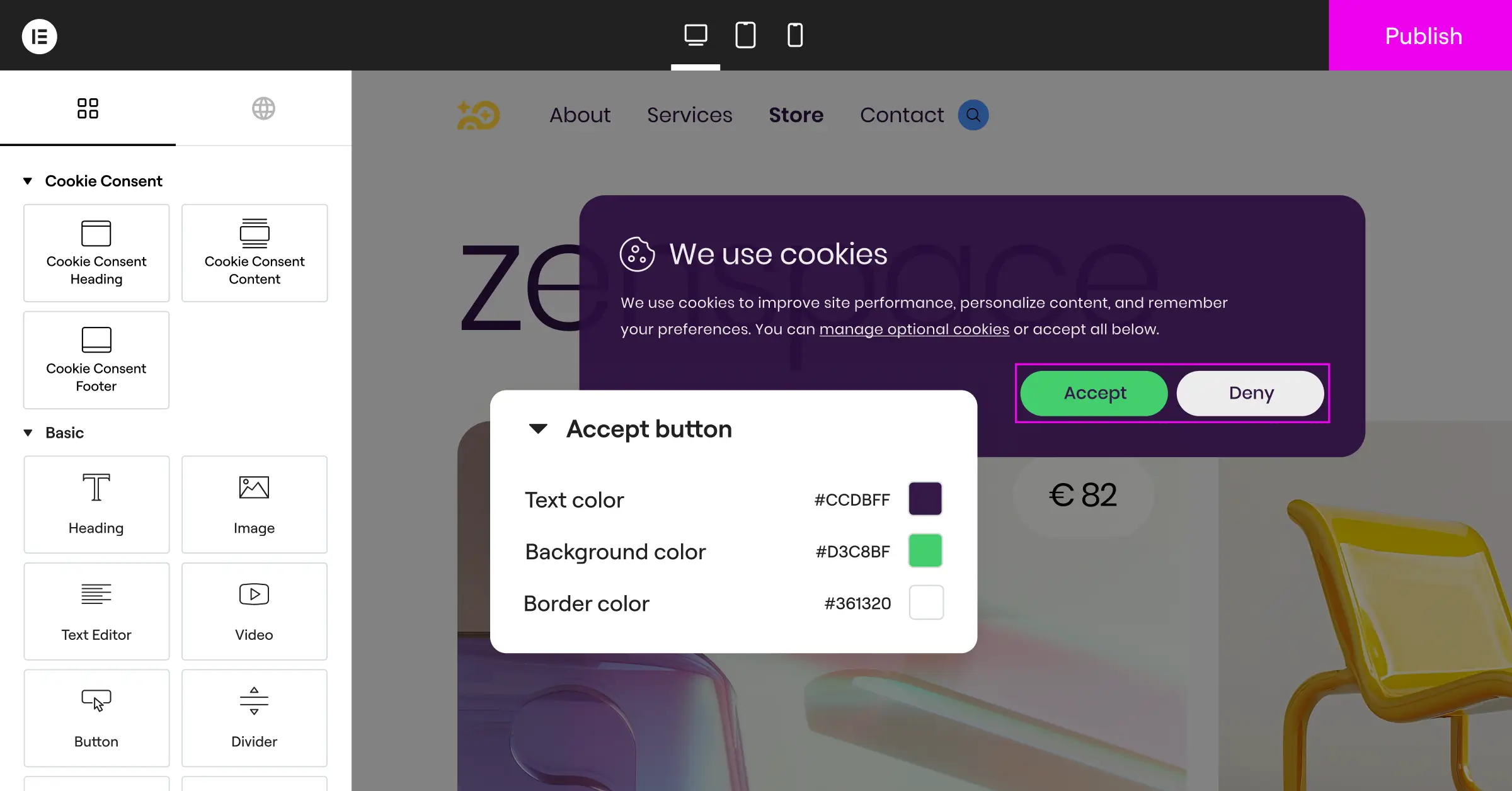
A cookie notice shouldn’t look like a generic third-party pop-up. If your banner uses different fonts, colors, and styles than the rest of your site, visitors might mistake it for an untrustworthy ad or a security warning, and hit the back button.
Your mobile compliance banner should feel like a natural part of your design. Use your brand’s color palette, typography, and button styles so it feels integrated. Many web creators use Elementor to build custom-branded designs, which makes it easy to match your compliance notice directly with your global site styles.
8. Write Clear, Plain-Language Copy
Legal jargon is confusing on a big screen. On mobile, it’s completely overwhelming. Skip the long, dense paragraphs full of legalese. Your visitors should understand exactly what they’re agreeing to in a five-second glance.
Use simple, friendly headlines and short bullet points. Instead of “We use tracking pixels for behavioral remarketing,” try “We use cookies to show you more relevant offers.” Keep your tone approachable and honest, which naturally makes people feel safer about sharing their data.
9. Keep Script Payloads Small for Faster Loading
Mobile devices often run on slower networks or older hardware. If your compliance tool leans on heavy third-party JavaScript frameworks, it’ll slow your whole site down. Every extra millisecond raises the odds a visitor leaves before the page even finishes loading.
Choose a consent tool built on lightweight, vanilla JavaScript and clean CSS. Native WordPress options are often better optimized than heavy external cloud dashboards, since they skip the extra external DNS lookups needed to render your banner. Less weight means faster loads and happier visitors.
10. Support Browser-Level Privacy Signals
Many modern mobile browsers support Global Privacy Control (GPC) signals, a setting that tells websites not to sell or share a visitor’s personal data. Your mobile consent banner should pick up on these signals automatically.
If a visitor has GPC turned on, your banner should respect that choice right away, without showing a frustrating string of pop-ups. Recognizing these signals keeps your site compliant with modern regulations like the CCPA and shows visitors you take their privacy seriously.
“Mobile compliance isn’t just about shrinking your desktop banner. It’s about designing respect for the user’s physical space and cognitive load. The best mobile consent designs feel native to the browsing experience, leaving the user in control without getting in their way.”
– Itamar Haim, Web Compliance Specialist
Comparing Mobile Consent Layout Styles
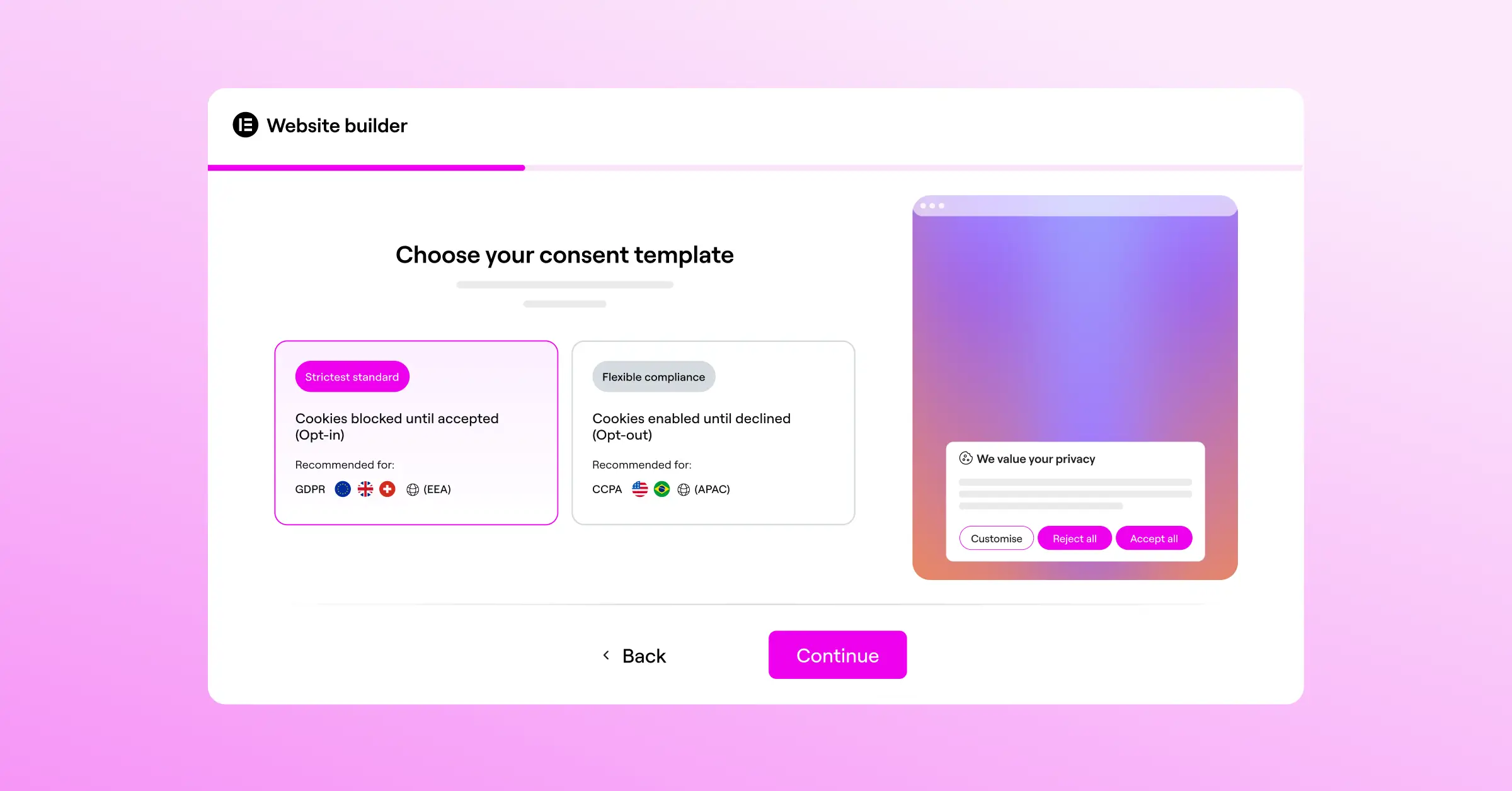
When you’re choosing how to display your privacy options, you’ve got a few layout styles to pick from. Each comes with its own trade-offs in user experience, space, and compliance readiness.
| Layout Style | UX Impact | Compliance Level | Best For |
|---|---|---|---|
| Bottom Sheet | Low (Unobtrusive) | High (Easy to read) | Most mobile sites and e-commerce stores |
| Full Screen Overlay | High (Disruptive) | Very High (Can’t be missed) | Strict compliance environments |
| Top Banner | Medium (Blocks navigation) | Medium (Easy to ignore) | Simple informational notices |
| Centered Modal | High (Blocks central view) | High (Demands action) | Web applications and portals |
Choosing the Right Tools for Mobile Privacy Compliance
To put these design practices into action, you need a compliance tool that’s flexible, light, and easy to customize. Here’s a factual look at some of the most popular consent management options available today.
Elementor Cookie Consent
Cookie Consent is a native privacy capability built directly into the WordPress ecosystem. It lets you manage your entire compliance workflow without dealing with slow external dashboards or complex cloud setups.

- Simplifies setup with a quick, three-step onboarding process.
- Saves time by automatically scanning and categorizing cookies on your site.
- Keeps detailed logs of user consent to assist with regulatory audits.
- Adapts instantly to mobile screens with built-in design controls.
- Integrates smoothly with Google Consent Mode v2 for accurate ad tracking.
- Recognizes automatically Global Privacy Control browser signals.
Cookiebot
Cookiebot is a widely used cloud-based consent management platform that works across multiple website platforms. It handles automated scanning and cookie management through the cloud.
- Scans automatically to find tracking scripts across your entire domain.
- Hosts banners on a global cloud network for fast delivery.
- Supports multiple languages to serve global audiences dynamically.
- Displays widgets to make legal policy updates easier to show.
CookieYes
CookieYes is a compliance tool that offers both cloud-based management and direct integration options for various web builders. It’s popular among small to medium-sized business websites.
- Includes templates that can be styled to match simple brand colors.
- Supports major laws including GDPR, CCPA, and LGPD.
- Features a dashboard to track consent rates and visual statistics.
- Includes geo-targeting to show different layouts to regional users.
Complianz
Complianz is a privacy suite built specifically for WordPress sites. It takes a structured approach to generating legal documents and managing cookies based on regional requirements.
- Generates legal policies based on a step-by-step questionnaire.
- Blocks scripts automatically before a user grants permission.
- Integrates directly with popular WordPress translation tools.
- Includes custom CSS options for advanced developer styling.
iubenda
iubenda is a complete compliance platform designed to help businesses generate privacy policies, cookie policies, and terms of service documents from a central dashboard.
- Auto-updates documents when privacy laws change globally.
- Manages consent across desktop, tablet, and mobile apps.
- Tracks user choices using secure, cloud-hosted records.
- Includes customization through an online visual builder interface.
Frequently Asked Questions
What is the minimum recommended button size for mobile cookie banners?
The standard recommendation for touch targets on mobile screens is at least 48 by 48 physical pixels. That’s the minimum size recommended by WCAG accessibility guidelines, so users can comfortably tap buttons without frustrating mis-taps or accidental selections.
Can a poorly designed mobile cookie banner hurt my SEO?
Yes, it can. If your compliance banner is heavy or poorly optimized, it can slow down your mobile page speeds and hurt your Core Web Vitals. Layout shifts caused by a slow-loading banner can damage your Cumulative Layout Shift (CLS) score, while heavy scripts can delay your Largest Contentful Paint (LCP).
How do I make my mobile banner compliant with GDPR and CCPA?
To comply with these major laws, your banner needs to offer clear choices. Under the GDPR, “Accept” and “Reject” need equal visual prominence, and you can’t pre-tick consent checkboxes. For CCPA, you need a clear way for users to opt out of the sale or sharing of their personal information.
What is the benefit of using a WordPress-native cookie consent tool?
A native capability runs directly inside your WordPress environment, so you don’t need to load external, third-party scripts that slow your site down. It also lets you manage your design, layouts, cookie categories, and compliance logs right from your WordPress dashboard, without jumping between different platforms. You can explore Cookie Consent as part of Elementor’s broader privacy and compliance toolkit.
Should I use a full-screen overlay for mobile cookie consent?
Full-screen overlays make sure a visitor sees your notice, but they can be pretty disruptive to the overall experience. For most websites, a bottom-sheet modal is a better choice, since it lets the visitor see context from the page behind the notice, which makes the browsing experience feel more natural.
Does Google Consent Mode v2 affect mobile banner design?
Google Consent Mode v2 is a technical framework that passes user consent choices to Google services like Google Analytics and Google Ads. It doesn’t change the physical appearance of your mobile banner, but your consent tool needs to support this framework for your mobile ad tracking and analytics to work correctly.
How does geo-targeting help improve the mobile user experience?
Geo-targeting lets your website detect a visitor’s location and only show a cookie banner if it’s legally required in their region. That means visitors from areas with less strict privacy laws skip the unnecessary pop-ups, keeping their mobile experience completely frictionless.
How do I handle cookie banners in mobile landscape mode?
To handle landscape orientation well, use responsive CSS rules with maximum height limits (such as max-height: 50vh) and let your banner scroll vertically inside its container. That keeps the compliance notice from swallowing the horizontal screen, so users can still read and interact with it comfortably.

