Table of Contents
You want to know how to make a professional website in 2026. Honestly, the rules changed completely over the last 12 months. Gone are the days of hacking together 14 random plugins just to get a contact form working.
Now, speed, accessibility, and clean code dictate your success. We’ve reached an era where performance dominates everything. And user expectations aren’t forgiving anymore. Here’s the exact blueprint you need to build a modern, high-converting web presence without writing thousands of lines of code.
Key Takeaways
- Site architecture must be finalized before you touch any design tool.
- Modern foundations require 109ms TTFB or better to pass Core Web Vitals.
- Using global brand settings saves roughly 40% in development time.
- Accessibility scanning is a mandatory baseline, checking at least 180 WCAG rules.
- Native image optimization can reduce payload bloat by up to 60% automatically.
- Unified platforms replace disjointed plugin stacks for better security and speed.
Prerequisites for a Professional Web Presence
Look, you can’t build a house on sand. Before we touch a single line of CSS, you need your ducks in a row. the team created 341 sites over my career. The projects that fail always skip this exact phase. They rush into picking colors before securing their assets.
You need specific elements ready to go. And you need them documented.
- Registered Domain Name – Keep it under 15 characters. Short domains are easier to type and print.
- Brand Identity Folder – You need SVG logos, exact hex codes, and licensed typography. PNG logos won’t cut it anymore.
- Target Audience Data – Knowing exactly who you’re targeting dictates your layout. Are they mobile-heavy users?
- Competitor Analysis – Document three competitors. Note their site speed, user flow, and call-to-action placement.
- Content Inventory – Have your core messaging drafted. Placeholder text is the enemy of good design.
- High-Resolution Assets – Gather original photography. Don’t worry about compression yet, we’ll handle that natively later.
These assets form your foundation. Once you’ve organized them, store everything in a shared cloud folder. This keeps your entire workflow clean. Pro tip: Always use vector graphics for your brand marks to ensure infinite scalability.
Step 1: Define Your Site Architecture and Goals
Structure dictates behavior. If your navigation confuses people, they’ll leave immediately. Hard truth. You need a rock-solid sitemap before choosing templates.
This is where wireframing comes in. We don’t want pretty pictures yet. We want boxes and arrows. We’re establishing the user flow.
- Map the Primary Navigation – Limit your top menu to five items. Anything more causes cognitive overload.
- Define the Conversion Path – Outline the exact steps a user takes from the homepage to checkout or contact.
- Draft the Footer Architecture – Place your legal pages, secondary links, and company info here. Keep the top menu clean.
- Plan the URL Slugs – Keep URLs short and keyword-focused. Don’t use long dates in your permalinks.
The biggest mistake developers make is treating SEO as a post-launch checklist. Site architecture and URL structure are the bedrock of search visibility. Get the hierarchy wrong, and no amount of backlinking will save you.
Itamar Haim, SEO Team Lead at Elementor. A digital strategist merging SEO, AEO/GEO, and web development.
Think of your architecture like a filing cabinet. If the folders make sense, finding the documents is fast. If they’re a mess, the user gives up. Pro tip: Keep your most important pages within two clicks of the homepage.
Step 2: Choose the Right Foundation and Hosting
Hosting isn’t a commodity anymore. It’s the engine of your business. Cheap shared hosting will actively harm your conversion rates. When a page takes four seconds to load, you’re losing customers.
You need managed cloud hosting. Specifically, setups using Google Cloud C2 infrastructure. Let’s compare the realities of traditional hosting versus a modern cloud foundation.
| Feature | Traditional Shared Hosting | Modern Managed Cloud Foundation |
|---|---|---|
| Architecture | Crowded server with thousands of neighbors | Isolated resources on Google Cloud C2 |
| Time to First Byte (TTFB) | 600ms to 1.2 seconds | 109ms consistently |
| Uptime Reliability | Often drops during traffic spikes | 99.9% uptime guarantee |
| Content Delivery | Requires third-party integration | Built-in Cloudflare Enterprise CDN |
| Theme Bloat | Relies on heavy, multi-purpose themes | Pairs perfectly with the Hello Theme (under 30KB) |
You can’t fake speed. The Elementor Host Cloud infrastructure provides that 109ms TTFB out of the box. And that matters. Search engines penalize slow sites. Users abandon them.
Select a provider that handles caching, backups, and CDN routing automatically. Your job is to build a business, not manage server environments. Pro tip: Always insist on a built-in Web Application Firewall (WAF) to block malicious traffic before it hits your database.
Step 3: Map Out Content with AI Site Planning
Content creation used to bottleneck every single project. You’d sit there staring at a blank screen. Not anymore. Now, we use agentic systems to build the initial structure.
How exactly does this work in practice? We use tools that understand context.
What’s the initial input?
You feed the system your business goals, target audience, and core services. You aren’t writing code. You’re giving directives in plain English. The more specific your prompt, the better the output.
How fast is the turnaround?
Using the Elementor AI Site Planner, you transform rough ideas into full sitemaps and wireframes in under 20 minutes. There are currently 130K+ active users using this exact method to bypass the blank page syndrome.
Does it write the final copy?
No. And you shouldn’t let it. AI generates the structural baseline. It places the headings, formats the feature grids, and writes the placeholder copy. You’ll then refine the voice to match your brand perfectly.
This approach cuts weeks off the planning phase. It gives you a visual draft to react to instantly. Pro tip: Always review the AI-generated sitemap against your original keyword research to ensure no critical topics were missed.
Step 4: Design the Global Brand System
Never style elements one by one. I repeat, never do this. It’s a massive waste of time. When the client wants to change the primary blue color, you don’t want to edit 47 individual buttons manually.
You need a global design system. This relies on a CSS-first foundation. The upcoming Elementor V4 (Atomic) beta launching in Feb 2026 handles this beautifully with Classes and Variables. Here’s how to structure it.
Define Typography Variables
Set your H1 through H6 tags first. Choose a strong sans-serif for headings and a highly legible serif or sans-serif for body text. Lock these in globally. When you drop a heading onto the canvas, it automatically inherits these rules.
Establish the Color Palette
Create variables for Primary, Secondary, Text, Accent, and Background colors. Add semantic colors for success (green) and error (red) states. By assigning colors to variables, changing the global palette updates the entire site instantly.
Configure Layout Constraints
Set your maximum container width. Usually, 1140px or 1280px works perfectly. Define your default padding and margins. Consistency in spacing creates that polished, high-end feel. It separates professional work from amateur templates.
By enforcing a global system, your site remains visually consistent regardless of who adds content later. Pro tip: Always define hover states in your global button settings so you don’t have to remember to add them manually.
Step 5: Master the Theme Builder for Dynamic Areas
Static pages are easy. But a professional site requires dynamic templates. You need headers, footers, and blog layouts that update automatically across the entire network.
Let’s look at the before and after of using a proper Theme Builder.
Scenario A: The Amateur Approach
You copy and paste the header onto every single page. When you need to add a new link to the menu, you open 20 different pages and edit them individually. You’ll inevitably miss one. It’s a maintenance nightmare.
Scenario B: The Professional Workflow
You design the header once in the Theme Builder. You apply a display condition stating “Show on Entire Site”. When you update the logo, it pushes to every URL simultaneously. This is how pros work.
You’ll use this system for everything dynamic. You build a single template for your Single Post layout. Every blog article you publish automatically adopts this design. You create a custom 404 page template. You design an archive page for your search results.
Currently, over 21 million websites (roughly 13% of all global sites) rely on Elementor to manage these dynamic components. It completely removes the need to touch PHP files. Pro tip: Exclude your landing pages from the global header condition to prevent users from navigating away from your core offer.
Step 6: Build Core Pages with a Page Editor
Now we actually construct the pages. You need a drag-and-drop live editor with responsive controls for every breakpoint. Mobile isn’t an afterthought. It’s your primary view.
Let’s cover what works and what fails when building your core pages.
Do This: Use layout containers logically. Group related elements into a single container. Apply Flexbox or CSS Grid to control their alignment. This keeps your Document Object Model (DOM) shallow and fast.
Not That: Don’t nest containers unnecessarily. A container inside a container inside a container destroys your load time. It bloats the code.
Do This: Apply the 118+ widgets (32 Core and 86 Pro) strategically. Use the Form Builder widget to capture leads natively. Use the Testimonial Carousel to build trust. Keep it native.
Not That: Don’t install a separate plugin for every feature. Installing a form plugin, a slider plugin, and a popup plugin creates security vulnerabilities. Unified platforms solve this completely.
Do This: Check every single design on mobile view. Adjust padding specifically for smaller screens. Hide heavy visual elements that don’t add value on mobile.
Not That: Don’t assume the desktop view scales perfectly. It won’t. Text overlaps. Images break out of containers. You must design per breakpoint.
Building pages correctly requires discipline. Stick to your global variables. Pro tip: Always build your homepage last. Build your inner pages first to establish your visual rhythm before tackling the most important page.
Step 7: Configure Essential E-Commerce Elements
If you’re selling products, your store can’t look like a generic template from 2014. Cart abandonment rates are brutal. You need total control over the shopping experience.
Integrating WooCommerce gives you the engine. But you must customize the frontend deeply.
- Design the Single Product Page – Move the Add to Cart button above the fold. Ensure your product gallery supports zoom. Use clear, large typography for the price.
- Customize the Product Archive – Don’t just list items. Add functional filters for price, category, and size. Ensure the grid scales nicely on mobile devices.
- simplify the Checkout Page – Remove all distractions. Hide the main navigation menu here. Add trust badges near the credit card fields. Reduce the number of required fields.
- Design the Cart Drawer – Use an off-canvas cart. When a user adds an item, slide the cart out from the side instead of redirecting them to a separate page. It keeps them shopping.
- Build a Custom My Account Area – Make it easy for customers to find their order history and download digital products. A customized portal builds extreme brand loyalty.
Standard WooCommerce templates are heavily outdated. By using the Elementor Editor Pro WooCommerce widgets, you replace rigid layouts with fluid, conversion-optimized designs. Pro tip: Always include an estimated delivery date on the product page to reduce pre-purchase anxiety.
Step 8: Optimize Images and Accessibility
You’ve built the site. It looks great. But if it’s heavy and inaccessible, it’s a failure. We must address payload size and inclusivity before we go live.
First, tackle the images. Massive image files are the number one cause of slow websites. You can’t rely on manual compression.
- 📸 Format Conversion: Switch everything to WebP or AVIF. These modern formats maintain visual fidelity while severely dropping file size.
- 📉 Automated Compression: The Image Optimization tool automatically scales and compresses files upon upload. You’ll see up to a 60% file size reduction without losing quality. It currently powers over 1M+ installs for a reason.
- 📏 Proper Sizing: Never upload a 4000px wide image for a container that’s 400px wide. The browser wastes resources scaling it down.
Next, tackle web accessibility. This isn’t optional. It’s a legal and moral requirement. Your site must be usable by everyone, including those using screen readers.
- 🔍 Automated Scanning: Run your pages through the native Ally accessibility tool. It scans for 180+ WCAG issues instantly.
- 📝 Alt Text: Ensure every informative image has descriptive alternative text. Decorative images must have empty alt attributes.
- 🎨 Color Contrast: Verify your text meets the 4.5:1 contrast ratio against its background.
While automated tools are incredible, never claim full legal compliance based purely on software scans. They catch the bulk of errors, but human testing remains vital. Pro tip: Navigate your site using only your keyboard’s Tab key. If you can’t access the checkout, neither can a massive portion of your audience.
Step 9: Configure Transactional Email and Forms
When someone fills out your contact form, what happens? If you rely on standard PHP mail protocols, that message probably lands in a spam folder. You lose the lead.
You need a reliable routing system for transactional messages. These are password resets, order confirmations, and form submissions. They aren’t marketing blasts.
Here’s the reality of email deliverability. Shared servers get blacklisted constantly. If you share an IP address with a spammer, your innocent contact forms get blocked by Gmail and Outlook.
You fix this by using a dedicated service like Email Deliverability. It completely replaces the native WordPress SMTP function. By routing your system emails through a verified infrastructure, you hit a 95% inbox rate consistently.
Configure your forms properly. Use conditional logic to route inquiries to the correct department. If they select “Support”, email the helpdesk. If they select “Sales”, email your closer. Setup confirmation messages that thank the user and set expectations. “We’ll reply within 24 hours.”
And absolutely ensure you’ve hidden reCAPTCHA active. Spam bots will destroy your database if you leave forms unprotected. Pro tip: Always send a copy of the form submission to the user’s email address as an instant receipt of their inquiry.
Step 10: Launch and Post-Launch Operations
Launch day isn’t the finish line. It’s the starting gun. Moving a site from a staging environment to a live server requires a strict protocol.
- Day 1: Pre-flight Checks: Verify all links. Test the mobile menu on actual devices, not just browser simulators. Submit a test order through your checkout flow.
- Day 2: DNS Propagation: Point your domain to the new server IP. This can take a few hours. Monitor the traffic logs to ensure the SSL certificate activates properly.
- Day 3: Performance Tuning: Enable Element Caching. Run a final speed test. You want that page loading incredibly fast. Verify your Cloudflare CDN is routing traffic correctly.
- Day 4: Indexing: Connect Google Search Console. Submit your XML sitemap. Force a crawl of your homepage.
Once you’re live, you enter the management phase. The “Create. Optimize. Manage.” methodology applies here. A unified platform means your optimization tools, caching, and editor all live under one roof. You aren’t updating 14 random plugins and praying the site doesn’t crash.
Keep your platform updated. Monitor your 404 logs to catch broken links early. Watch your analytics to see where users drop off. Building a site is a living process. Pro tip: Set up automated daily backups that store data on a completely separate server from your live site.
Frequently Asked Questions
Can I build a professional site without knowing how to code?
Absolutely. Modern visual editors handle the underlying CSS and HTML. You define the layout visually, and the platform generates clean, standards-compliant code automatically. You don’t need to know PHP.
What is the difference between shared hosting and managed cloud hosting?
Shared hosting packs thousands of sites onto one server, causing massive slowdowns. Managed cloud hosting isolates your site’s resources, offering extreme speed and uptime. It’s non-negotiable for serious businesses.
How does AI actually help with website creation?
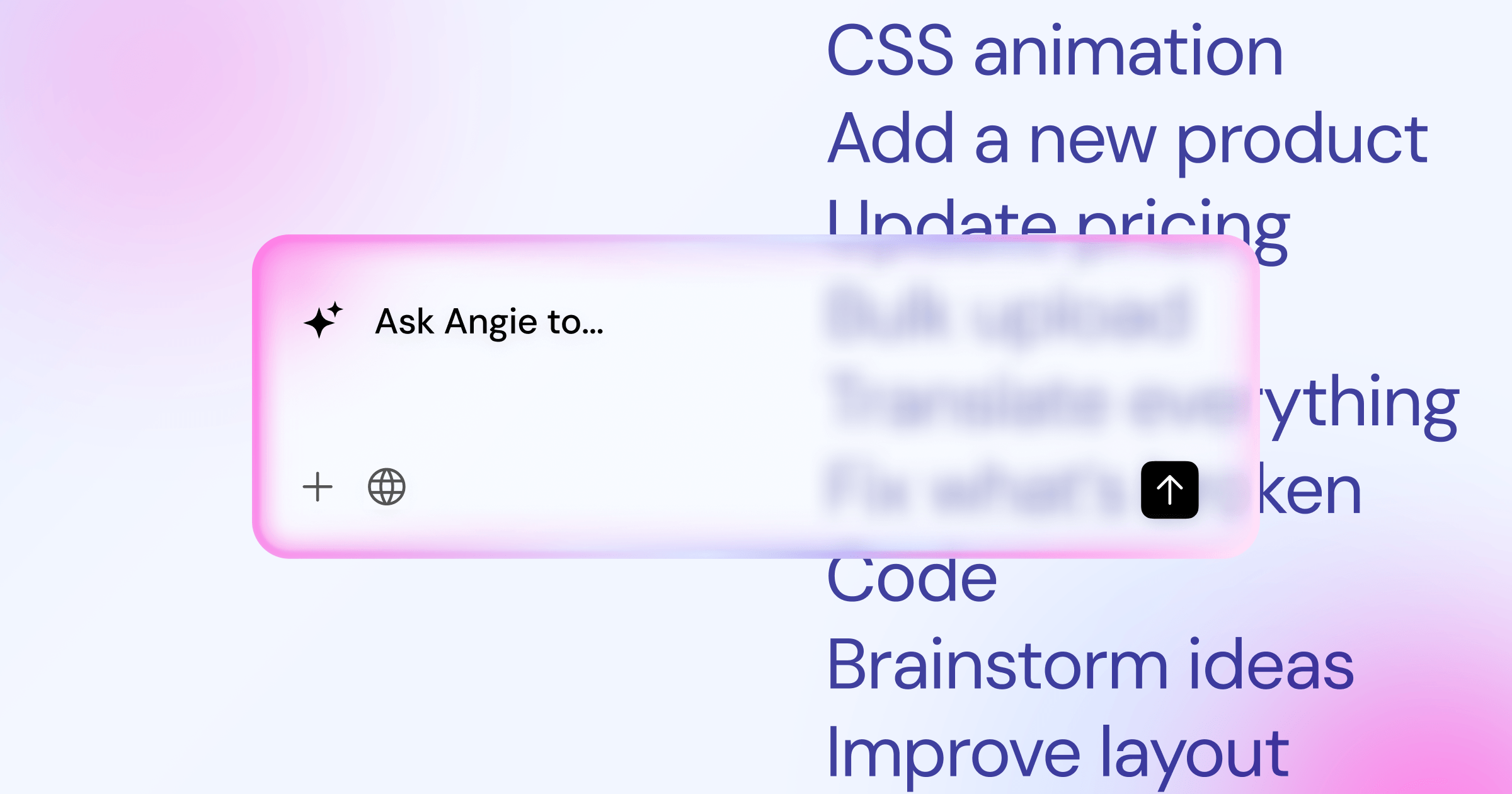
Agentic AI, like Angie, uses natural language to perform actions. It can generate sitemaps, draft wireframes, and establish layouts. It accelerates the planning phase significantly, replacing the blank canvas with a solid foundation.
Why are my images slowing down my site?
You’re likely uploading massive JPEGs or PNGs directly from your camera. You must compress them and convert them to WebP or AVIF formats. Native optimizers handle this automatically during the upload process.
Does automated accessibility scanning make me legally compliant?
No. Tools like Ally scan for hundreds of known WCAG issues and fix obvious code errors. But they don’t replace manual testing. Never claim total legal compliance based solely on a software scan.
Why aren’t my contact form emails delivering?
Default server mail routing is notoriously unreliable and often flagged as spam. You must use a transactional email service to replace standard SMTP routing. This ensures proper authentication and high inbox delivery rates.
What is a Theme Builder?
A Theme Builder allows you to design global site parts-like headers, footers, and blog post templates-visually. Once applied, these templates control the layout across your entire website dynamically, saving endless manual updates.
How many plugins do I actually need?
As few as possible. Every plugin adds code overhead and potential security flaws. A unified platform reduces dependency on third-party developers by building core features directly into the ecosystem.
What is TTFB and why does it matter?
Time to First Byte measures how fast your server responds to a browser’s initial request. A slow TTFB means a slow website, period. You should aim for roughly 109ms for peak performance.
Can I migrate an old site to this new system?
Yes. You can import your content and recreate the global layouts using a modern editor. It’s often the perfect time to clean up old database bloat and start with a fresh, highly optimized foundation.
Looking for fresh content?
By entering your email, you agree to receive Elementor emails, including marketing emails,
and agree to our Terms & Conditions and Privacy Policy.

