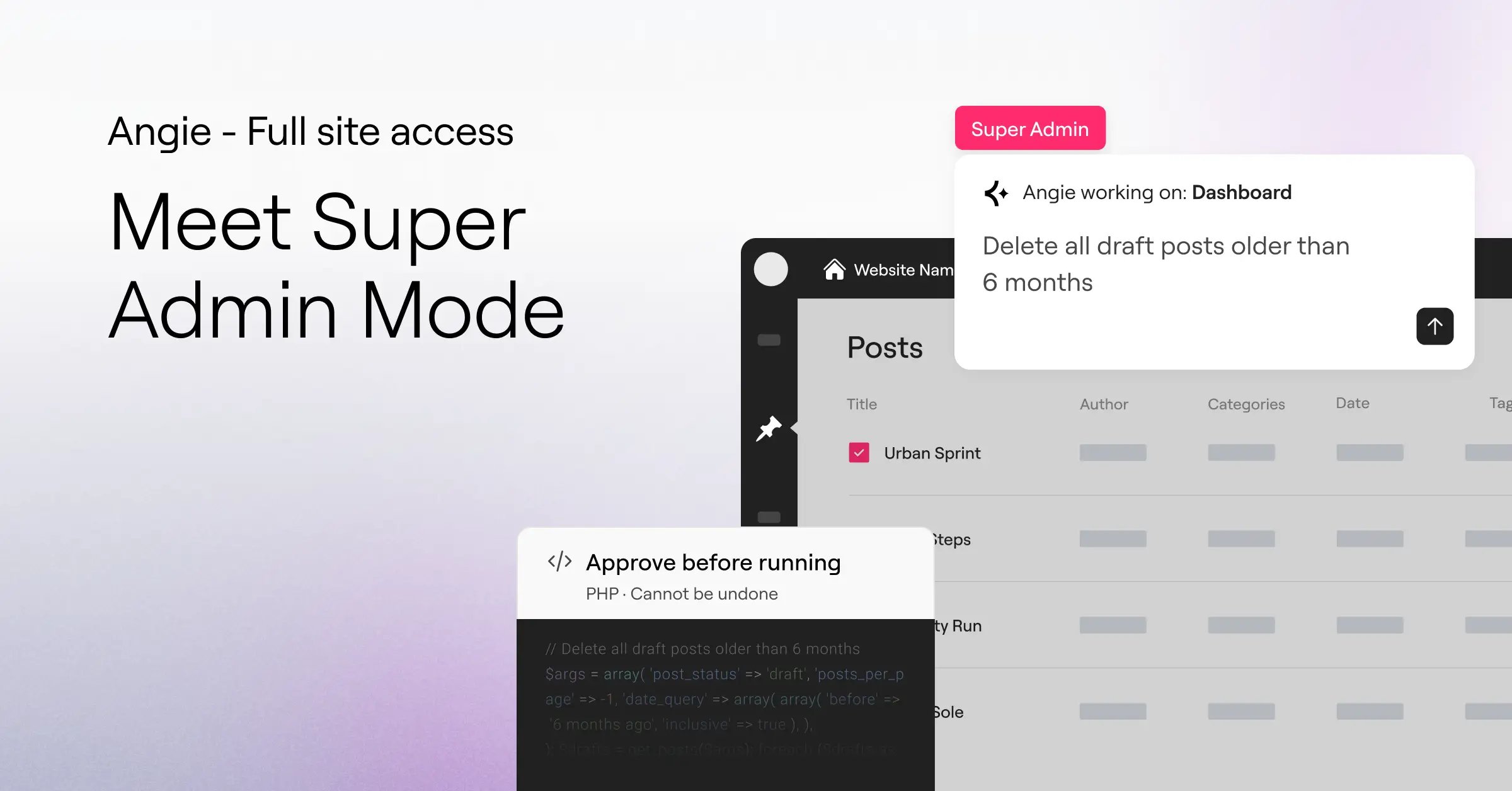
Angie Super Admin Mode: full WordPress access, through natural language
Super Admin Mode is an opt-in capability that gives Angie elevated access to your WordPress installation. When activated, Angie can read and write to the file system, query the database, execute PHP, access WordPress logs, interact with active plugins, and perform operations that would otherwise require WP-CLI, or direct server access. It operates from inside your existing Angie session.
No MCP configuration. No external AI client to set up. No separate plugin to install and connect.
The mode is built for technical WordPress professionals: agency developers maintaining client sites, experienced freelancers running high-traffic stores, and power users who have spent time in wp-config.php. If your day-to-day involves site maintenance at scale, Super Admin Mode is what you’ve been waiting for.
Since Super Admin Mode can execute operations on your website, therefore it should only be used in staging sites, after backup. Once you’re satisfied with the changes, you can update it to production.
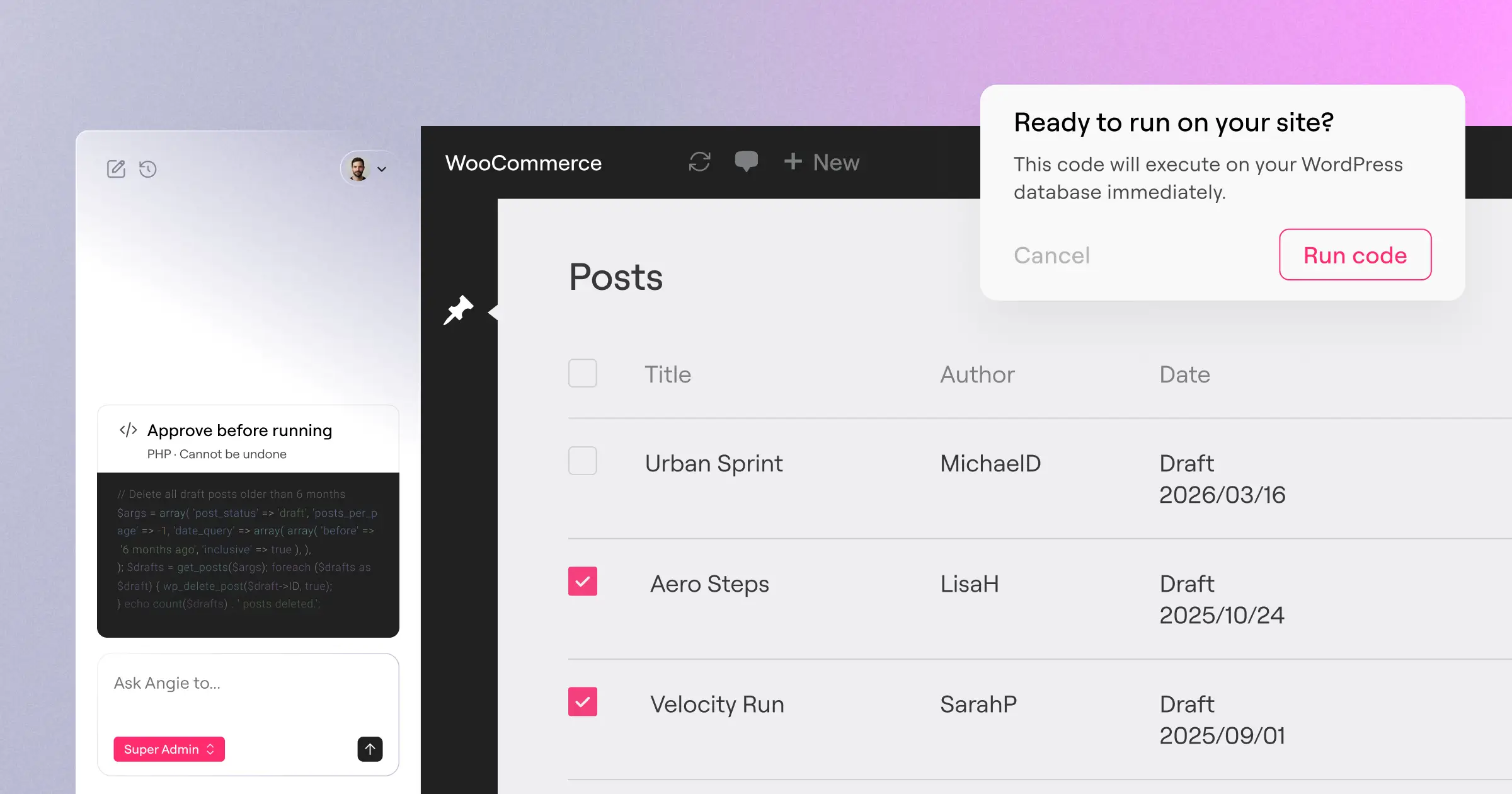
Activating Super Admin mode
Super Admin Mode is off by default. You turn it on through Angie’s settings when you need it, and that decision is deliberate. The mode has root access to your site, and that access should be switched on intentionally, not running passively.
WordPress Dashboard > Angie > Settings > Super Admin Mode > Active
Once enabled, start working in the Angie chat with Super Admin Mode selected.
Run bulk operations across hundreds of records
Managing a pipeline of client installs or a WooCommerce catalogue with thousands of products is where the overhead compounds fast.
With Super Admin mode, you describe the operation and Angie executes it. It reads your actual data model, your active plugins, your post types, your registered meta fields, so the operations it runs are built for your site, not a generic WordPress template. What you get are operations that work against your real site, not a generic WordPress schema.
Examples:
- Find all products over $100 and add a custom metadata field premium_shipping = true – Angie queries your WooCommerce products table, identifies matching records by price, and writes the meta field to each in batch.
- I changed my site URL and now some plugin settings are broken -Angie scans the options table for serialized URLs and updates them across all affected plugins.
- Downgrade all users who haven’t logged in for a year from ‘Editor’ to ‘Subscriber.’ – Angie queries user meta for last login timestamps, filters against the 12-month threshold, and updates the role for each matching account
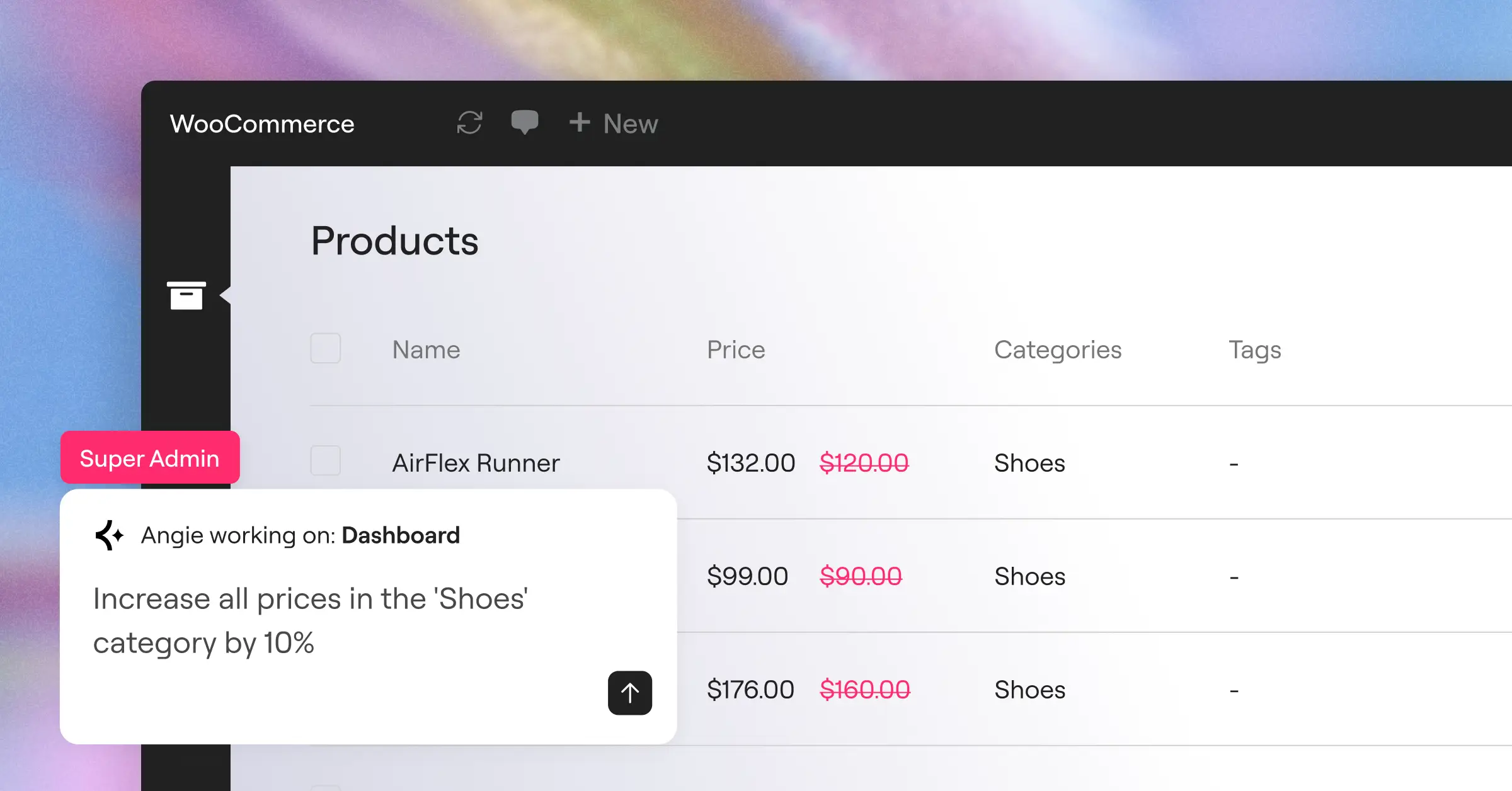
- Increase all prices in the ‘Shoes’ category by 10% – Angie identifies every product assigned to that category, calculates the adjusted prices, and writes the updated values back to the postmeta table.
- Flatten all categories to a maximum of 2 levels, and re-assign orphaned sub-category posts to the closest parent category – Angie maps your full taxonomy tree, identifies terms nested beyond the second level, reassigns their posts up the hierarchy, and removes the orphaned term entries.
For agencies and freelancers doing ongoing site maintenance at volume, or running scheduled content refreshes across a multi-site setup, this is the operation that changes what a single person can handle in a day.
Debug and resolve site errors directly
A broken site is a time-sensitive problem. A PHP notice flooding the debug log, a plugin conflict throwing undefined variable warnings after an update, emails that stopped sending after a config change normally require manually debugging.
Super Admin Mode brings that diagnostic layer into Angie.
Examples:
- Check why my emails aren’t sending – Angie inspects your SMTP configuration, tests connectivity to your mail server, and identifies whether the issue is a misconfigured plugin, a blocked port, or a malformed header.
- Verify if the server can successfully talk to external APIs right now – Angie runs an outbound connectivity check and surfaces any blocked endpoints or firewall rules causing the failure.
- Check my website’s debug log for any issues – Angie reads the actual WordPress error log, groups recurring patterns, and flags the items that need action.
- I moved the site from staging to live, but Elementor images are still pointing to the staging URL – Angie identifies the stale references in the database and updates them to match the live domain.
When something goes wrong, Angie can deactivate a conflicting plugin, modify the relevant hook, or check the database for a malformed option value – without you having to identify the issue.
Keep every client site running without the manual overhead
Routine site maintenance is the tax on running WordPress at scale. Cache clearing, config audits, recovering from plugin failures, cleaning up data corruption left behind by a rushed migration. Most of it is low-skill work, but it still requires someone with server access to do it.
Super Admin Mode handles these operations end to end:
- Clear all website caches – Angie identifies your active cache plugins and flushes them in sequence.
- Check if my wp-config.php settings are loaded securely – Angie audits your config for exposed credentials, debug settings left on in production, and insecure file permissions.
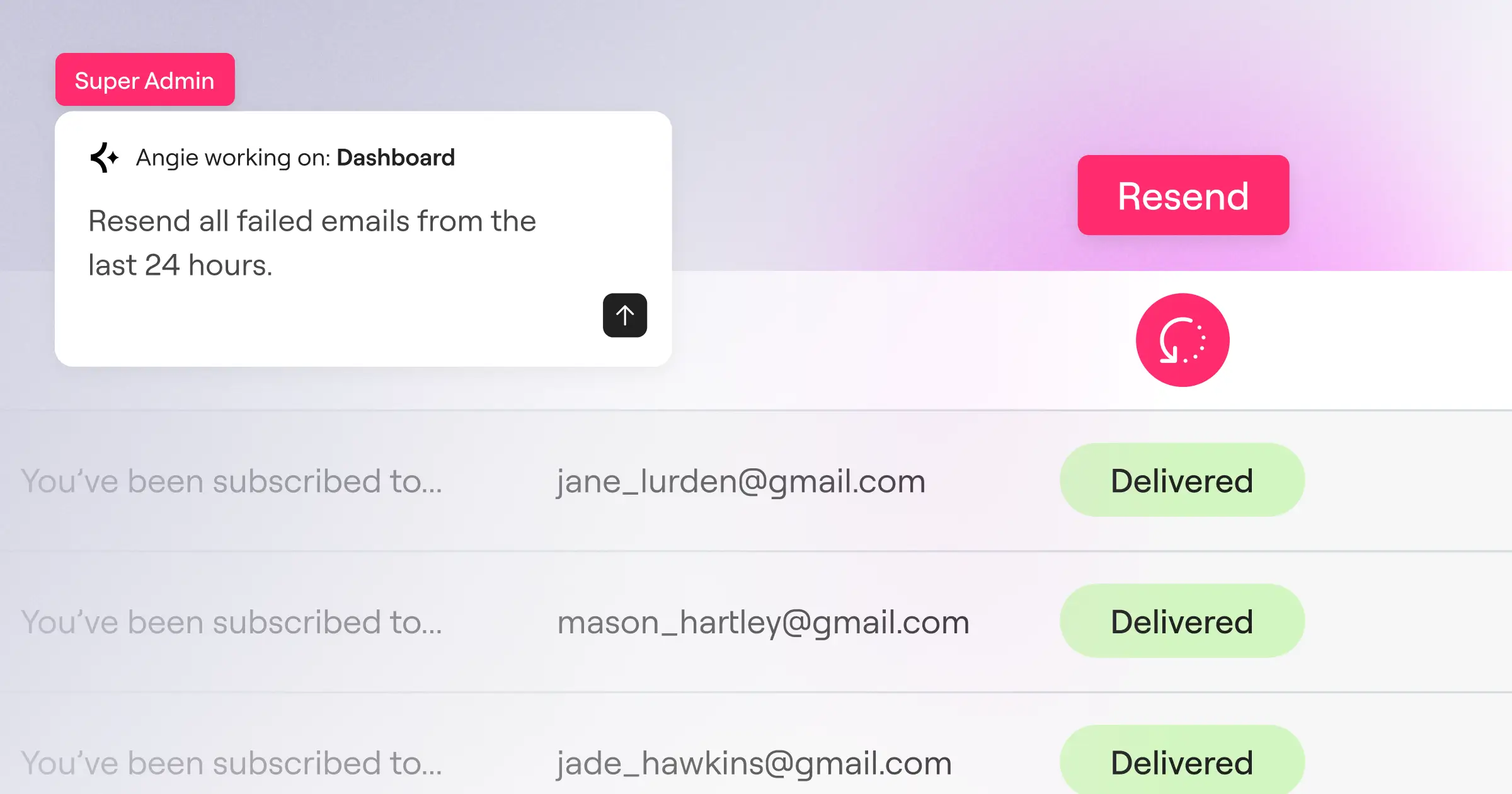
- My SMTP plugin was down yesterday. Resend all form notifications from the last 24 hours – Angie queries your form entries table, identifies submissions from the affected window, and triggers a resend through your configured provider.
- We have 300 products where the ‘Color’ attribute was accidentally created as a custom text field instead of a global product attribute. Fix this – Angie migrates the data from the custom field to the correct taxonomy structure and removes the orphaned meta values.
Close SEO gaps across hundreds of pages at once
Content at scale creates SEO debt. Missing meta descriptions, broken redirects after a category restructure, slugs that weren’t standardised when the site was first built. The kind of work that’s easy to describe and tedious to execute at volume.
- Generate meta descriptions for all posts missing them, using the first 150 characters of the post – Angie queries posts with empty meta fields and populates them in batch.
- We just deleted a major product category; set my redirection plugin to redirect traffic immediately to the homepage to avoid 404s – Angie identifies the orphaned URLs and creates the redirect rules in your active redirects plugin.
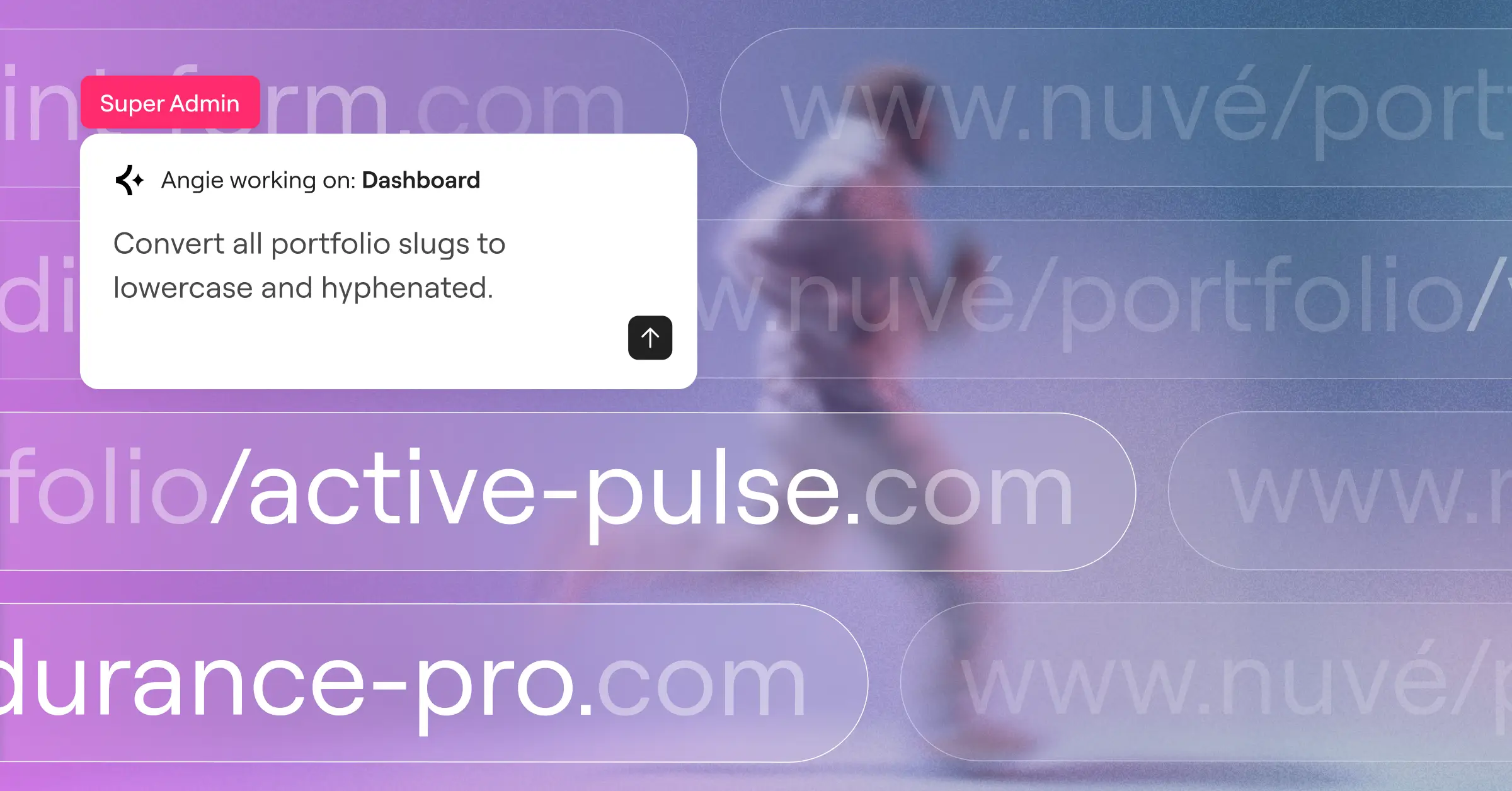
- Change the URL slug of all portfolio items to lowercase, replace underscores with hyphens, and ensure old URLs don’t 404 – Angie updates the slugs, rewrites the database entries, and registers 301 redirects from the old URLs automatically.

Find and fix what’s slowing your site down
Site performance issues often live in places that are hard to surface – the options table, media library, the query layer.
- Our site is slow because the wp_options table has too much autoloaded data. Clean it up – Angie audits autoloaded entries, identifies stale transients and plugin leftovers, and removes the ones that are safe to clear.
- Delete all images in the Media Library that are not actively used in any post content, featured images, or product galleries – Angie cross-references attachment IDs against all usage contexts before removing anything, so nothing live gets deleted.
- Identify the slowest loading page or query happening on the site right now – Angie reads the slow query log (if enabled) or profiles your current database load to surface the bottleneck.

Audit your entire site content in a single pass
Live sites accumulate content problems over time. Placeholder text that made it past QA, dummy images from a migration, broken links that were never caught. Finding them manually across hundreds of pages is the kind of task that rarely gets done.
- Proofread all my pages and suggest fixes — Angie reads your page content and flags spelling errors, grammar issues, and unclear phrasing.
- Find any dummy content (texts, images) and suggest fixes — Angie scans for common placeholder patterns (Lorem Ipsum, generic stock filenames, test post titles) and surfaces them with context.
- Find any broken or empty links and suggest fixes — Angie crawls your internal link structure, checks external URLs for 404s, and identifies anchors pointing to empty hrefs.
Scan, audit, and harden your site before problems surface
Security issues in WordPress are often already in the database by the time someone looks. Hidden injections, admin accounts that were never removed, orphaned tables from plugins installed years ago.
- Search the database for hidden base64 malware injections or rogue <script> tags – Angie runs a pattern scan across post content, options, and user meta looking for obfuscated code that shouldn’t be there.
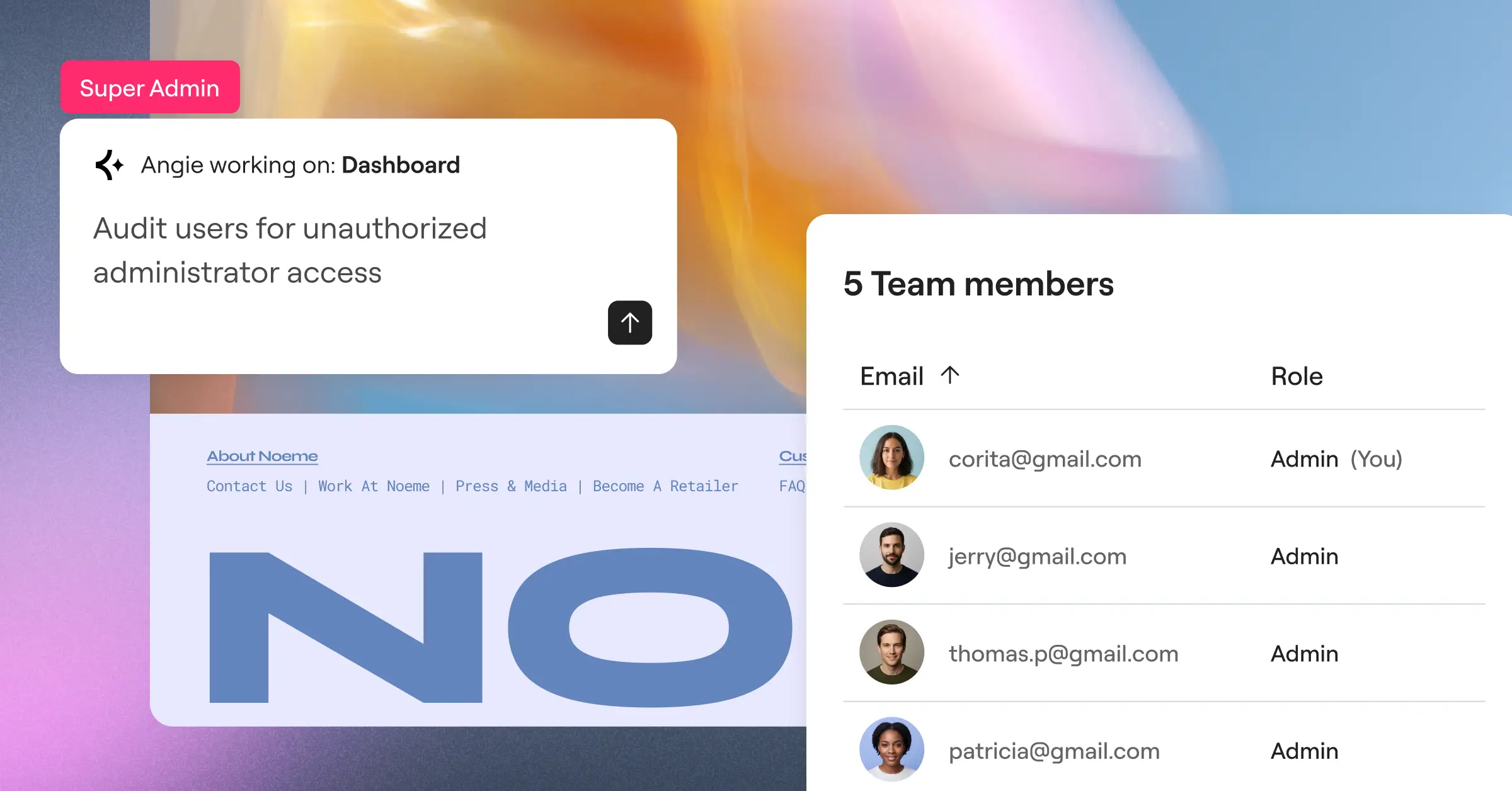
- Audit all users to see if anyone has administrator capabilities who shouldn’t – Angie lists every user with admin or elevated capabilities and flags accounts that appear inactive or anomalous.
- Clean up leftover database tables from plugins I uninstalled years ago – Angie identifies orphaned tables with no active plugin association and presents them for review before removal.
Pro tip
Before running any large bulk operation, ask Angie to describe the scope before it executes. Use a prompt like: “I want to improve the SEO of my pages. Tell me exactly which pages you’d update and what changes you’ll make, don’t execute yet.” Once it’s done – “Now, do the changes’ this gives you a readable dry run to verify scope before anything touches your database. Particularly valuable on production.
Super Admin Mode brings the full WordPress stack into the same place you already work. The same Angie chat, now with access to everything beneath the canvas. For technical WordPress professionals managing sites at scale, it’s a meaningful expansion of what’s possible in a single session.