Model Context Protocol (MCP) is how AI agents connect to the sites and tools they work on. For anyone building with WordPress, there’s now more than one way to make that connection.
The WordPress MCP Adapter, several unofficial servers, and the official Elementor MCP are all available options for connecting your site to your AI client. So which MCP for WordPress should you install?
TL;DR
There are three main ways to connect an AI agent to your site with MCP for WordPress:
- WordPress MCP Adapter: The new MCP plugin from the WordPress project, released on WordPress.org on October 2, 2026. It’s a separate install, still 0.x, and needs WordPress 6.9 or newer. You need to generate an application password in WordPress, then add it and the server endpoint to your AI client’s config yourself.
- Unofficial MCP servers: Separate plugins or repos you download and keep updated yourself. They vary in maintenance, permissions, and what they expose, and most need manual setup too.
- The official Elementor MCP: Built into Elementor, with nothing extra to install. You connect in a few clear steps from your dashboard. Add Angie (Elementor’s AI plugin), and the same connection also reaches the AI Abilities your other plugins register and offer.
Bottom line: If you build with Elementor, you already have an MCP, so you can just activate it and start there.
The WordPress MCP Adapter
On October 2nd, the WordPress MCP Adapter, version 0.7.0, landed on the WordPress.org plugin directory after only being available on Github. It’s the official transport for connecting AI agents to WordPress through the MCP, and it’s a good step for the whole ecosystem.
The WordPress MCP Adapter doesn’t add AI features to your site – it’s a bridge. It allows abilities registered through the Abilities API (for example adding widgets, changing styles, or editing product listings) to become MCP tools, resources, and prompts that an agent can discover and call.
That means what an agent can do through the WordPress MCP Adapter depends on which abilities your site already has. It’s the connection. The abilities come from WordPress and the plugins you run (if they registered abilities).
Abilities are a WordPress standard. They let WordPress itself, and the plugins and tools around it, make their functionality available to AI agents through an MCP connection. Any MCP connection built on that standard can use them. That includes the WordPress MCP Adapter, or the official Elementor MCP with Angie installed.
Choosing your setup: Extra plugins or built-in Elementor
To connect your site to your AI client (Claude, Codex etc.) with the official MCP Adapter, or the unofficial MCP options available, you must install extra plugins.
Adding extra plugins to your site means more to keep updated. In addition, unofficial MCP servers also vary a lot in how actively they’re maintained, which permissions they ask for, what data they store about you and your site, and what they expose to an agent.
The official Elementor MCP is different because it’s already bundled inside Elementor so there’s nothing extra to download. Just having Elementor installed and active on your site is enough to connect to your agent of choice (Elementor version 4.3.0 or higher).
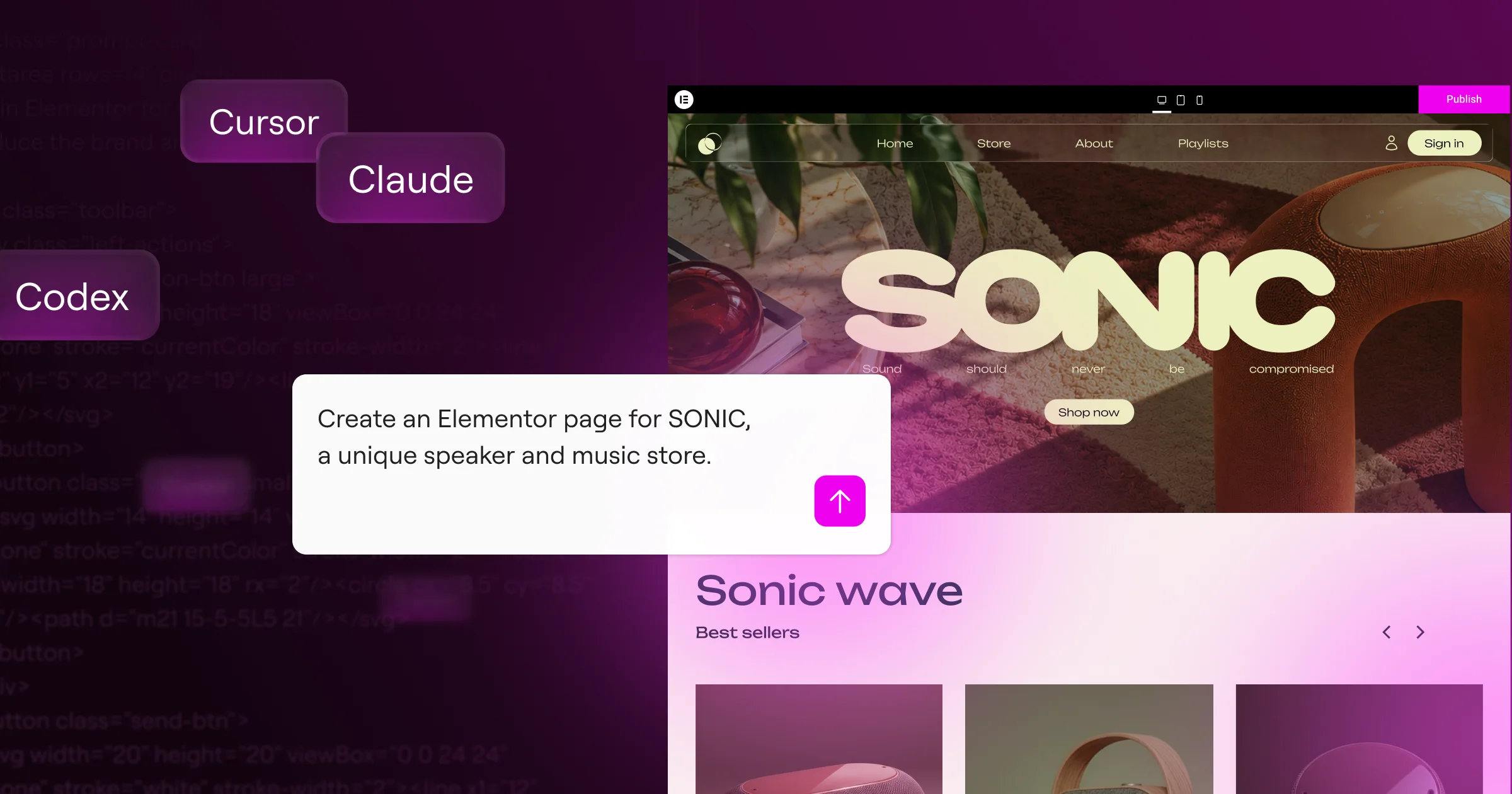
Compare manual setup with a few clear steps
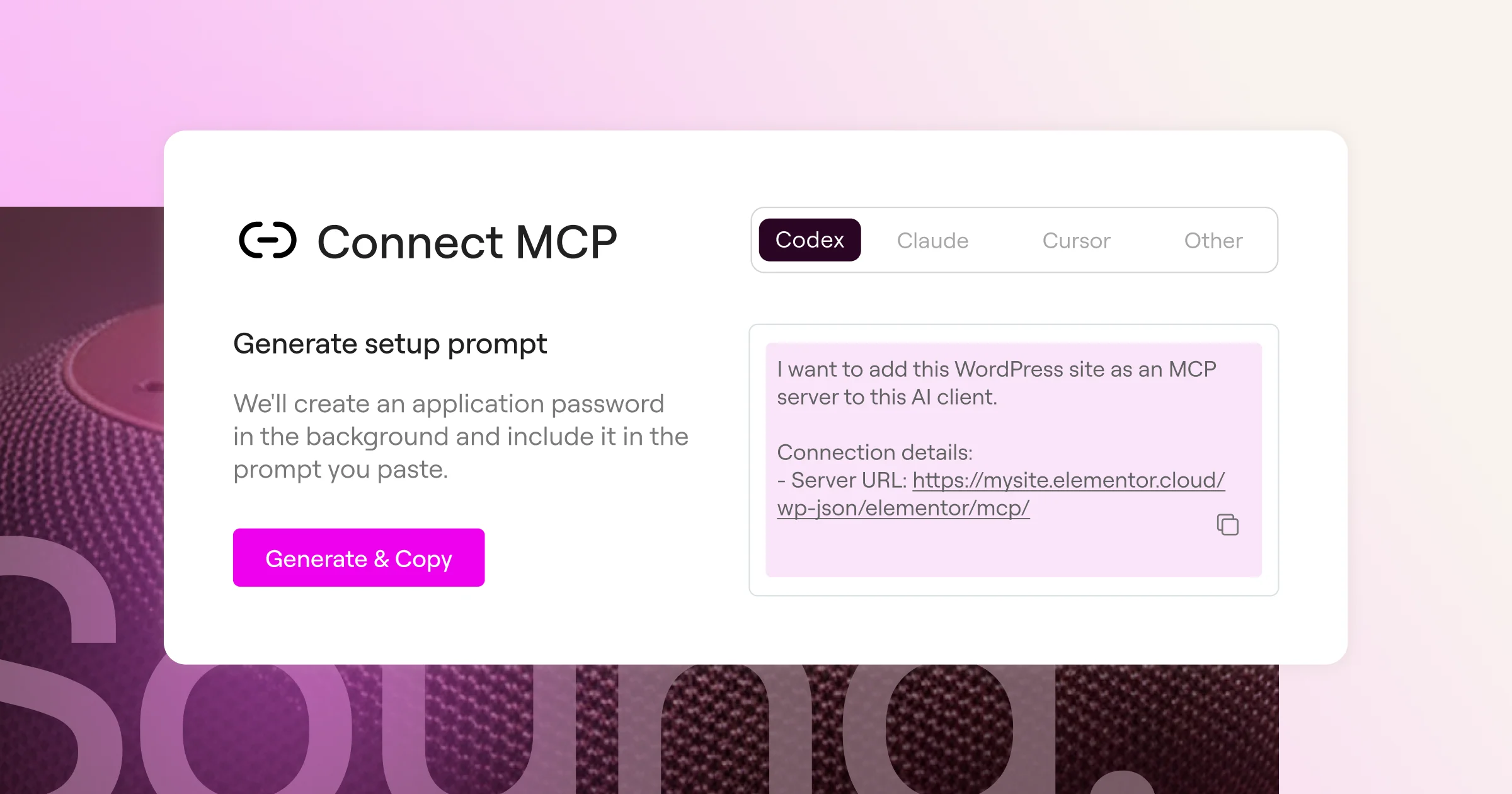
For now, the WordPress MCP Adapter was released without a setup screen or in-product instructions. Connecting to an AI agent is a manual process that is on you.
To connect your agent to WordPress with the MCP Adapter, you first need to generate an application password in WordPress, then configure your AI client to point at the server endpoint inside that client’s own config. That’s workable if you’re comfortable in config files. It’s also the same experience you get with most unofficial MCP servers.
With the official Elementor MCP, you connect in a few steps inside a clear UI in your WordPress dashboard. Go to Elementor > Elementor MCP, pick your AI tool, and follow the steps. Elementor creates the application password for you in the background, so there’s no password to generate and no client config to wire up manually in your AI client. The password stays between your site and your AI tool. Elementor never sees it, and your AI tool connects directly to your site, with nothing in between.
Get more abilities with Pro and Angie
Elementor on its own gets you connected and gives an agent Elementor’s abilities to work with. Elementor Pro and Angie each add more abilities on top of those, including abilities that WordPress core doesn’t offer.
Elementor Pro adds tools for Theme Builder, Loops, Forms, dynamic content, display conditions, and more. Angie is Elementor’s own AI plugin, that can generate custom widget and app development, WP Admin customization, and bulk actions across your site. They widen what an agent can do on your site.
These are additional capabilities you may want to add, regardless of which MCP connection you choose.
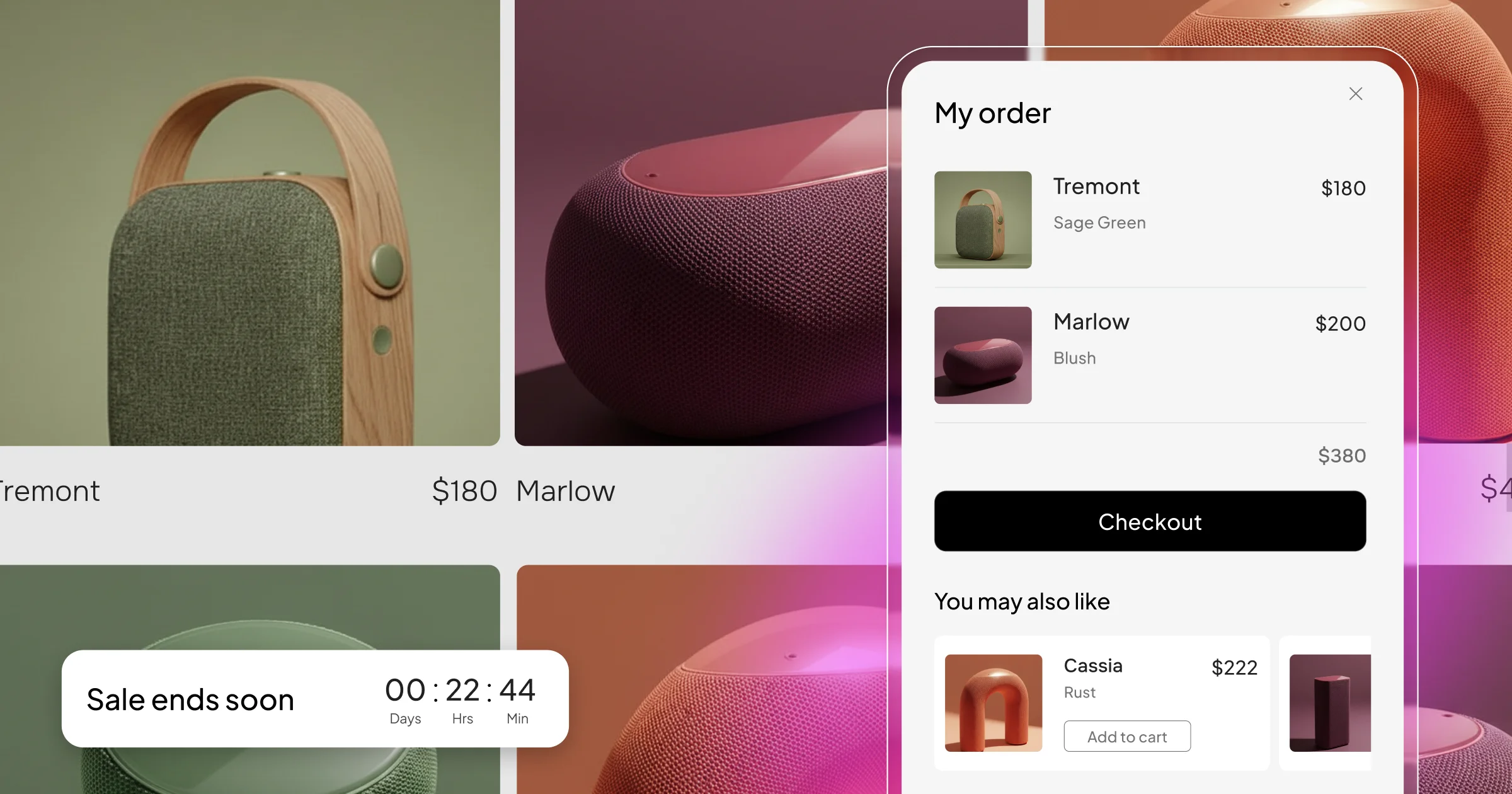
Reach your whole WordPress stack with the MCP
The WordPress MCP Adapter gives an agent one entry point to abilities registered across your site, not just Elementor’s.
With Angie installed, the official Elementor MCP covers that reach too. Your agent can use the abilities your installed plugins register to the Abilities API, from WooCommerce, Yoast, WPForms, Jetpack, ACF, and more.
It’s still a single Elementor connection, set up in the same few steps from your dashboard, Angie brings abilities of its own on top of that reach.
Start with what’s already on your site
If you build with Elementor, start with what you already have. The official Elementor MCP is built in, it connects in a few clear steps, and Elementor is enough to get going.
When you want an agent working across your wider WordPress stack, add Angie. The same connection then reaches the abilities your other plugins register.
Update to the latest Elementor version > Elementor > Elementor MCP.