
Key Takeaways
- Privacy laws require consent before non-essential tracking scripts load, no matter how small your site is.
- Hand-coding script blocks is risky. It often leads to broken layouts, slow pages, or compliance gaps.
- A native WordPress tool like Cookie Consent keeps everything in one dashboard, no external accounts needed.
- Google Consent Mode v2 is essential if you run Google ads or analytics for European traffic, since proper script consent integration is now mandatory.
- Regular script audits matter, because new plugins and third-party tools keep injecting fresh cookies, which is why automated scanning is so useful.
If you’ve ever stared at a privacy audit checklist and felt your stomach drop a little, you’re not alone. Cookie scripts, consent banners, GDPR deadlines, and a dozen third-party trackers all vying for your attention can feel like a lot to handle. The good news is that managing cookie scripts on a WordPress site is more straightforward than it looks once you understand the moving parts, and you don’t need to be a developer to get it right. Whether you run a small blog or a busy e-commerce store, the same core principles apply, so let’s go through them together.
Every time you install an analytics tool, set up a tracking pixel, or embed a video, you’re adding cookie scripts to your WordPress site. These are small pieces of code that run in a visitor’s browser, letting third-party services collect data about how people use your pages. That data helps you understand your audience and run campaigns, but it’s also personal data, which is exactly why privacy laws require you to manage these scripts carefully.

Understanding Cookie Scripts and Why They Matter for Your WordPress Site
There are two main types of cookies you’ll run into. First-party cookies come from your own website and handle basic functions, like keeping a visitor logged in or remembering what’s in their cart. Third-party cookies come from external services, like Google or Meta, and track users across multiple sites. That second group is where privacy regulators focus most of their attention.
Major privacy frameworks, like the General Data Protection Regulation (GDPR) in Europe and the California Consumer Privacy Act (CCPA) in the United States, have strict rules about when and how those scripts can fire. Under the GDPR, you can’t load tracking scripts before a visitor actively consents. If your site fires Google Analytics or a marketing pixel the moment a page opens, you’re likely out of compliance. Keeping those codes paused until a visitor clicks “Accept” is a small change that makes a real legal difference.
The Core Challenges of Managing Cookie Scripts Manually
Some site owners try to handle cookie scripts by editing header files or pasting blocking code straight into theme files. It’s understandable if you want to keep things simple, but this approach tends to create more problems than it solves. One small typo in a PHP or JavaScript file can take your whole site down, leaving visitors with a blank screen and you with a stressful afternoon.
Manual management brings a handful of everyday headaches worth knowing about:
- Render-blocking errors happen when scripts load in the wrong order and pause page rendering, making your site feel sluggish.
- Premature script execution is hard to prevent without complex conditional logic.
- Cache conflicts happen when server-side caching saves a page with scripts already active, then serves that cached version to visitors who never consented.
- Fragmented management across multiple theme files makes it hard to track what’s running where.
- No audit trail means you have no automatic record of user consent, which becomes a problem during a privacy audit.
- Inconsistent styling leaves custom-coded banners looking mismatched next to your carefully designed templates.
To avoid these pitfalls, most WordPress site owners turn to a dedicated consent tool. It lets you organize scripts into logical categories, control when they fire, and keep accurate records, all without touching backend code.
How to Categorize and Audit Your WordPress Cookie Scripts
Before you can block or allow scripts, you need to know exactly what’s running on your site. Many plugins inject scripts quietly in the background, so you might be tracking visitors without even realizing it (this one trips a lot of people up). Running a regular audit is the best way to stay on top of things.
When you audit your site, you’ll sort your cookie scripts into four main groups:
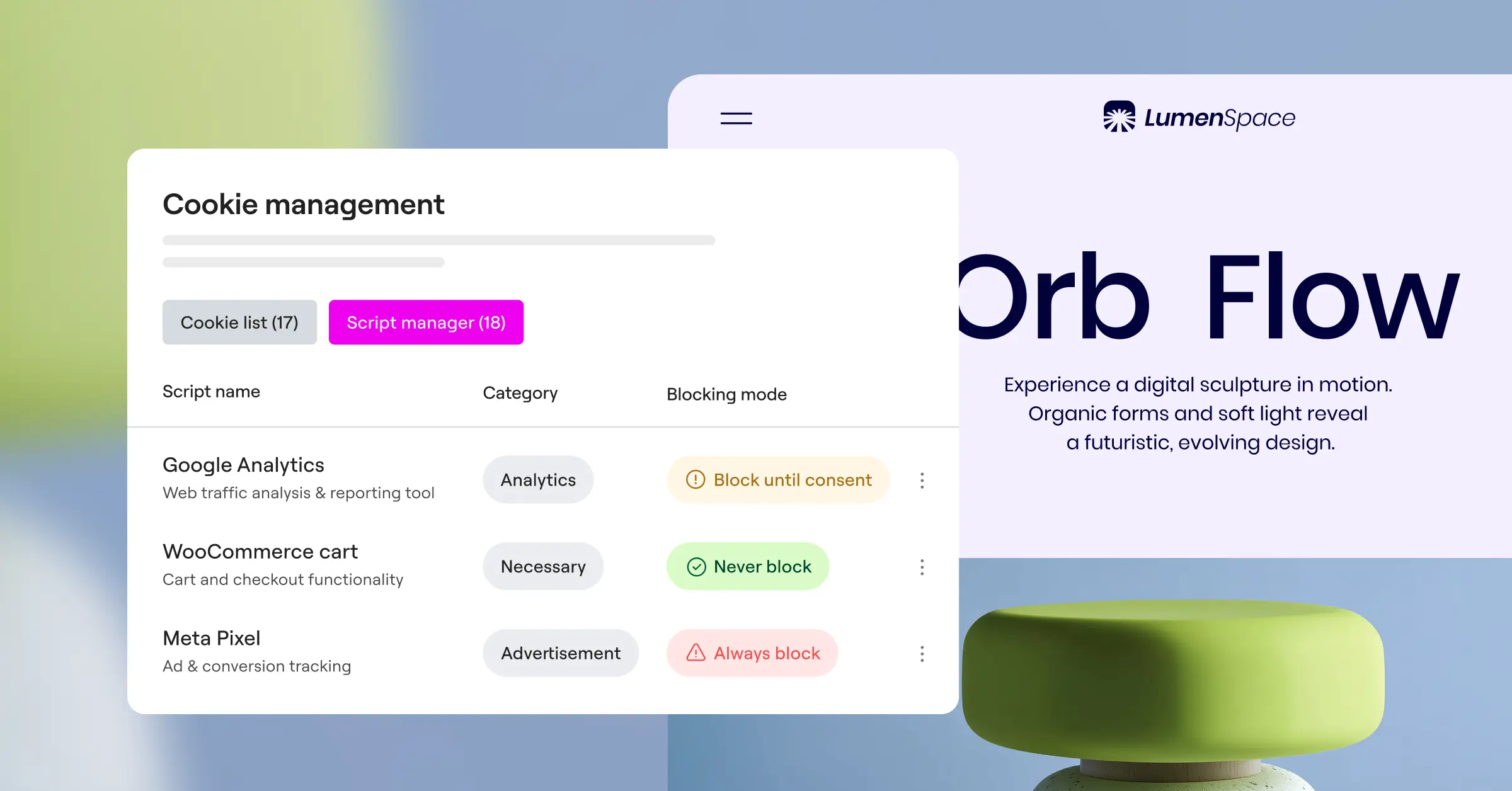
- Strictly Necessary covers scripts essential for basic site operation, like security tools, shopping cart scripts, and login session handlers. You don’t need visitor consent to run these.
- Performance and Analytics includes scripts that gather anonymous data about how people use your site. Google Analytics is the most common example here.
- Functional scripts support helpful but non-essential features, like live chat widgets, video embeds, or language selectors.
- Targeting and Advertising covers scripts that track visitors across websites to build profiles for targeted ads. The Meta Pixel, Pinterest Tag, and Google Ads tracking code belong here.
To run a quick audit yourself, open your site in an incognito window, right-click anywhere on the page, and select “Inspect.” Head to the “Application” tab and look under “Cookies” in the left sidebar, where you’ll see every active cookie and the script that created it. If you spot analytics or ad-network scripts loading before you’ve touched the consent banner, you’ve got some work to do.

Step-by-Step Guide: Managing Cookie Scripts in WordPress
Setting up proper cookie script management doesn’t have to be painful. Follow these steps and you can have your scripts organized and your consent banner live in a single sitting.
Step 1: Check Your Active Plugins and Themes
Start by reviewing your active WordPress plugins for anything that handles marketing, social sharing, embedded video, or web analytics, and write down every tool that might inject tracking scripts. Knowing your starting point makes it easier to configure blocking rules later and catch anything that might slip through.
Step 2: Install a Native Consent Management Tool
Instead of relying on an external service that manages scripts through a separate platform, look for a native WordPress option. The Cookie Consent capability built into Elementor is a strong choice here. Because it’s fully integrated into your dashboard, you don’t need to juggle external accounts, navigate a confusing third-party interface, or pay for a separate platform. It lets you build a banner, scan for cookies, and control script execution right where you already edit content, with setup under five minutes.
Step 3: Run an Automatic Scan
Once your consent tool is set up, run an automatic scan of your site. The scanner crawls your pages, identifies active cookies, and sorts them into the right categories. Unrecognized scripts can be assigned manually, so marketing codes never slip into the “Strictly Necessary” bucket unnoticed.
Step 4: Design a Friendly, Accessible Banner
Your banner should match your brand style while staying easy to read. Avoid tricky language or hiding the “Reject” button in tiny text, and give visitors a clear choice to accept all, reject all, or manage individual preferences. A banner placed at the bottom of the screen stays visible without blocking navigation and feels less intrusive to visitors who just want to browse.
Step 5: Configure Script Blocking and Consent Mode v2
This is the most important step: configure your consent tool to block analytics and advertising scripts until a visitor gives explicit consent. If you serve EU visitors, also enable Google Consent Mode v2, which communicates each visitor’s privacy choice to Google services so your tags adjust behavior based on whether the user said yes or no. It’s now required for EU-facing sites running Google advertising or analytics.
Step 6: Test Your Implementation Thoroughly
Before you call it done, open a fresh incognito window, visit your homepage, and use your browser’s inspector to confirm no tracking cookies load on arrival. Click “Reject” and confirm tracking stays blocked. Then open a new incognito session, click “Accept,” and verify your analytics and advertising scripts fire as expected. It’s a quick check that saves headaches later.
Top WordPress Cookie Script Management Solutions Compared
Choosing the right tool to manage your cookie scripts makes a real difference in your day-to-day workflow. Here’s a factual overview of some of the most widely used options for WordPress users in 2026.
| Solution | Native Dashboard | Design Control | Consent Mode v2 Support | Setup Complexity |
|---|---|---|---|---|
| Elementor Cookie Consent | Yes (Fully Native) | High (Matches your theme) | Yes (Built-in support) | Very Low (Under 5 minutes) |
| Cookiebot | No (External Dashboard) | Medium (Custom CSS required) | Yes (Via connector) | Medium |
| CookieYes | No (Cloud Platform) | Medium (SaaS interface) | Yes (With configuration) | Medium |
| Complianz | Yes (WordPress Admin) | Medium (Settings-based) | Yes (Through settings) | High (Many setup screens) |
| iubenda | No (External Portal) | Medium (Script-based) | Yes (Via code integrations) | High |
External SaaS platforms often bring deep compliance features, but they also push you to manage consent banners outside of WordPress. That can mean slower load times as your site waits on external servers to deliver the consent script. A native tool keeps your data and assets in one place, which cuts load times and makes it easier to keep your brand design consistent across your site.
Advanced Best Practices for Cookie Management in 2026
As privacy regulations keep evolving, basic compliance may not satisfy stricter audits. A few extra practices can help you stay ahead while actually improving the experience for your visitors.
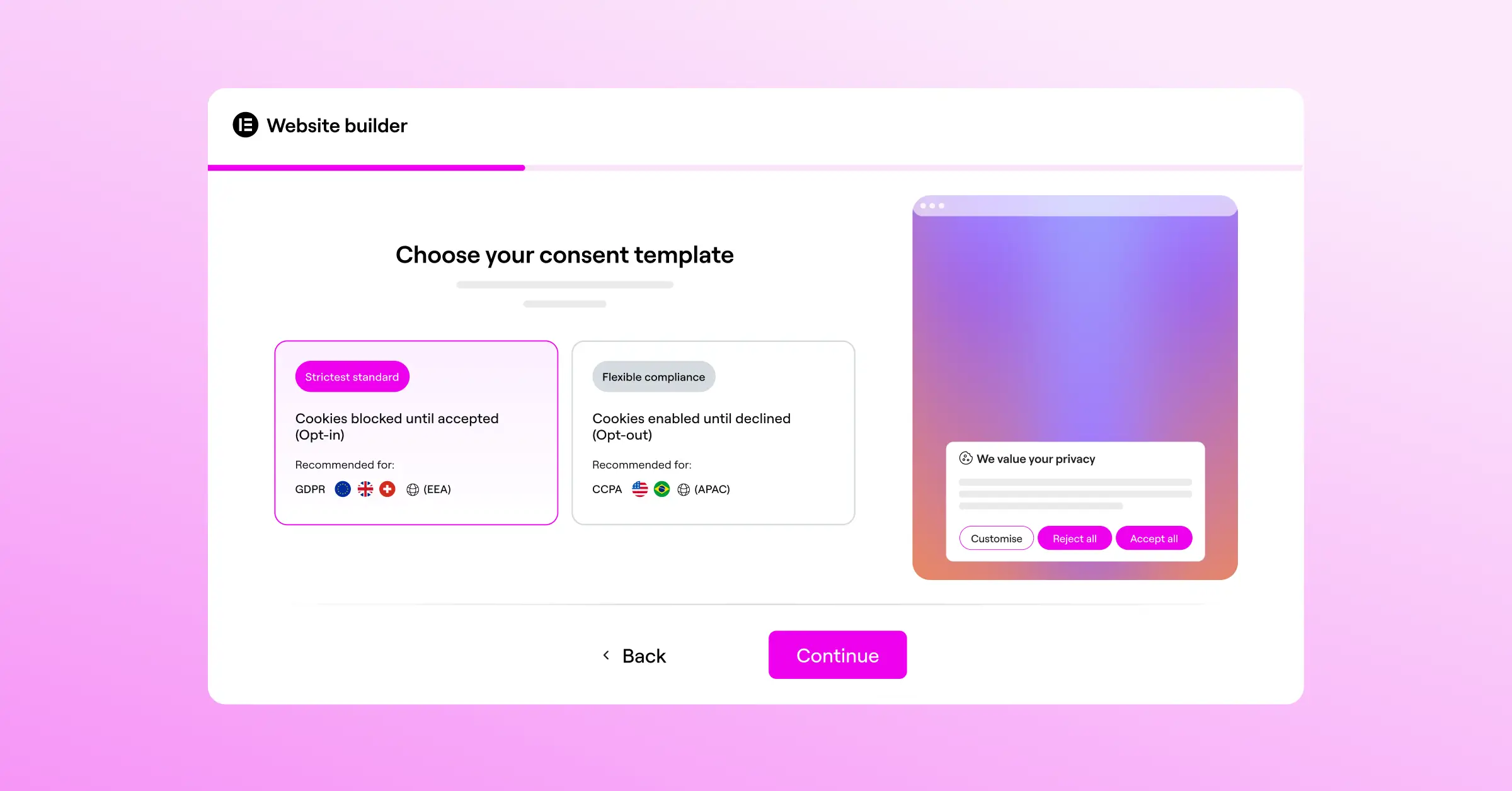
One of the most useful techniques is geo-targeting. Privacy rules differ a lot by location: EU visitors must opt in to cookies before scripts fire, while California visitors may only need an opt-out option. Location-specific banners give your global audience a customized experience that respects local laws, without prompting people for consent they don’t legally need. Cookie Consent includes built-in geo-targeting, so you can set this up without extra tools.
It’s also worth respecting browser-level signals like Global Privacy Control (GPC). Modern browsers let people set a universal opt-out preference, and your consent system should detect that signal automatically and disable tracking scripts right away, even before the visitor clicks anything on your banner.
Finally, pay attention to how your consent tools affect page load speed. Load them asynchronously so they don’t block your visual content from rendering. A clean, lightweight banner avoids layout shifts and keeps your Core Web Vitals healthy, which matters for both search rankings and your visitors’ experience.
“Consent management is no longer just about avoiding a fine; it’s about building user trust. When you integrate your consent tools directly into your CMS, you minimize performance lags and keep your design consistent.” Itamar Haim, Web Compliance Specialist
Troubleshooting Common WordPress Cookie Script Issues
Even with a solid setup, you might run into the occasional script conflict or compliance gap. Here’s how to work through the most common ones without too much stress.
My Tracking Scripts Stopped Working Completely
If your analytics reports suddenly show zero traffic, check your script categorization first. If Google Analytics or your tag manager got placed in “Strictly Necessary” while your blocking script holds back all untagged elements, the scripts might not load at all. Double-check that tracking codes are assigned to “Analytics” or “Targeting” and allowed to fire once a visitor clicks “Accept.”
The Banner Doesn’t Show Up for Cached Users
Caching is great for speed, but it can interfere with cookie banners. If your caching system saves a page where cookies were already accepted, new visitors might never see the banner. To fix this, configure caching to ignore the consent cookie, or use a feature that relies on client-side JavaScript to render the banner regardless of what’s cached.
The Layout Shifts When the Banner Loads
If your cookie banner pops in and pushes your header down the page, search engines may penalize your site for Cumulative Layout Shift (CLS). The fix is a fixed overlay, like a bottom bar or a centered modal, that sits on top of your layout instead of pushing content around, keeping your page stable and protecting your rankings.
Frequently Asked Questions
Do I really need a cookie banner if my site has low traffic?
Yes. Privacy laws like the GDPR and CCPA apply to websites of all sizes, no matter how much traffic they get. If even one visitor arrives from a covered region, you need to follow the rules, and setting up consent early beats scrambling after a complaint lands.
What happens if I don’t block tracking scripts before consent?
If your site fires tracking pixels or analytics scripts before a visitor clicks “Accept,” you’re violating major European privacy laws, and regulators actively audit sites for this. A reliable tool that holds scripts back until consent is given is the only way to stay compliant.
How does Google Consent Mode v2 work?
Google Consent Mode v2 bridges your visitor’s privacy choices and your Google tracking tags. If a visitor declines tracking, it tells your analytics and advertising tags to stop reading or writing cookies. Instead, they send anonymous signals to Google that help estimate conversions without identifying the user.
Can I customize the design of my consent banner?
You absolutely can. Modern consent tools let you customize colors, typography, buttons, and layout. Keeping your banner style consistent with the rest of your site builds trust and makes visitors more comfortable managing their preferences. Elementor’s Cookie Consent includes full design customization right inside the WordPress editor, so you don’t need to touch any code.
Is it possible to show different banners to users in different countries?
Yes, and it’s worth setting up for an international audience. Geo-targeting lets your tool detect a visitor’s location by IP address and show the right legal notice for their region. An EU visitor gets a strict opt-in banner, while a US visitor might see a simpler notice or nothing at all.
Why is a native WordPress solution better than a third-party script?
Native solutions run on your own hosting server, so your site doesn’t need slow external calls every time it loads a consent banner. It also keeps your workflow in one place: manage compliance settings, scripts, and consent logs from your familiar WordPress dashboard without switching platforms.
Does a cookie banner affect my site’s search engine optimization?
It can, if it’s built poorly. Banners that cause layout shifts or accidentally block search engine crawlers can hurt your rankings. A lightweight, well-designed consent tool keeps bots able to index your content normally while giving visitors a fast, stable experience.
How do I know if my cookie banner is legally compliant?
A compliant banner gives visitors a clear, equal choice to accept or reject cookies, plus granular controls so they can accept analytics while rejecting advertising cookies. And it must block all non-essential scripts until consent is given, while keeping secure consent logs you can produce during an audit.

