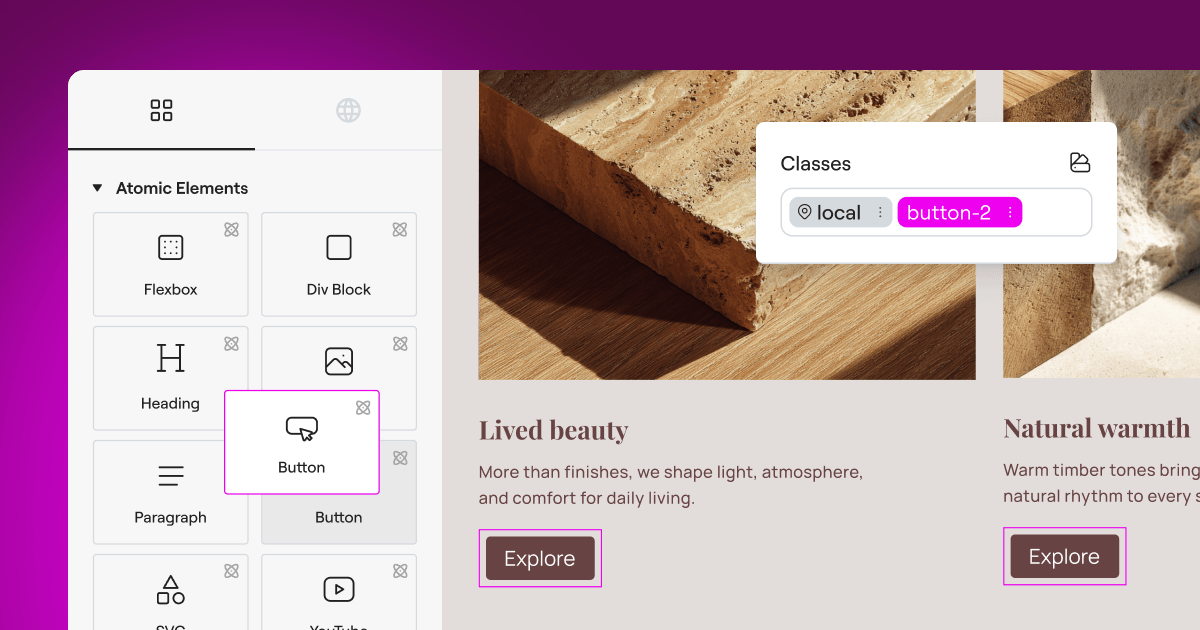
Getting your WordPress site compliant with privacy laws can feel like assembling flat-pack furniture in the dark. You just want a banner that keeps you legal, doesn’t clash with your design, and doesn’t need a law degree to set up. Two names dominate this space: Termly and Cookiebot. We’ll walk through how they compare, where each shines, and which fits your daily workflow, plus how a native WordPress option can simplify the whole approach.
Key Takeaways
- Termly is ideal for small businesses needing an all-in-one compliance suite that includes policy generators.
- Cookiebot excels at automated, deep technical cookie scanning and enterprise-level consent tracking.
- Both platforms fully support Google Consent Mode v2 and Global Privacy Control to keep your tracking and analytics intact.
- For WordPress users, native options like Elementor’s Cookie Consent keep everything inside your dashboard, without external subscriptions.
- Your choice depends on whether you need simple legally generated policies or high-volume automated script blocking.
Understanding the Modern State of Privacy Compliance
Privacy compliance isn’t the simple checkbox it used to be, though it’s more manageable than it sounds once you break it down. Regulators worldwide are issuing real fines to sites that fail to document user choices properly. Whether you run a blog or a busy store, you need a system that respects visitor choices while keeping your tracking intact.
Google Consent Mode v2 has changed things quite a bit. If your site serves EU visitors and uses Google Analytics or Ads, your banner needs to talk directly to Google’s services. Skip that, and your tracking stops flowing, your ad campaigns lose accuracy, and you’re flying blind on performance.

At the same time, regional laws like California’s CPRA and Europe’s GDPR call for different banner setups. You can’t show the same generic popup to everyone; you need the right settings for the right person, based on where they live. That’s why Termly, Cookiebot, and native WordPress options have become central to day-to-day site operations.
Termly vs Cookiebot: Feature Comparison Matrix
Here’s a quick bird’s-eye view of how Termly and Cookiebot measure up, alongside Elementor’s native Cookie Consent capability.
| Feature | Termly | Cookiebot | Elementor Cookie Consent |
|---|---|---|---|
| Dashboard Location | External Cloud Portal | External Cloud Portal | WordPress Native Dashboard |
| Google Consent Mode v2 | Fully Supported | Fully Supported | Fully Supported |
| Global Privacy Control (GPC) | Yes | Yes | Yes |
| Automatic Scanner | Yes (weekly/monthly) | Yes (monthly automated scans) | Yes (cloud-based scanning) |
| Design Customization | Standard Layouts | Highly Customizable (CSS) | Visual Theme Builder Integration |
| Consent Logs | Stored on Termly Cloud | Stored on Cookiebot Cloud | Stored Natively on WordPress |
| Policy Generators | Full Suite Included | Basic Cookie Declaration Only | Built-in Policy Generator |
Setup and Integration Experience
Adding a new tool shouldn’t feel like a puzzle. Here’s how Termly and Cookiebot handle initial configuration.
The Termly Setup Flow
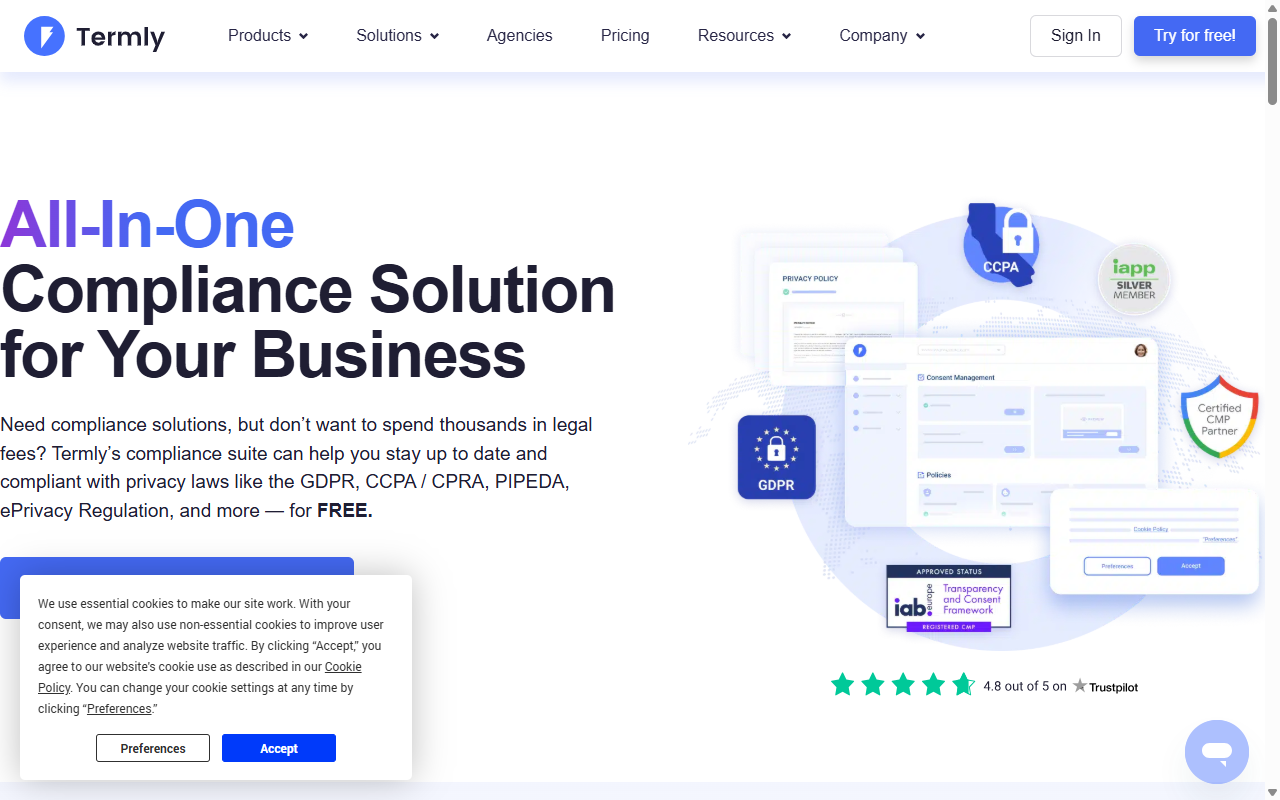
Setting up Termly starts with an account on their external cloud platform, where you configure your banner, copy a code snippet, and paste it into your site’s header.
- Register your account on the Termly dashboard.
- Input your website URL to trigger an initial scan of your active cookies.
- Customize the design, colors, and legal text of your banner inside their builder.
- Generate the integration code snippet.
- Paste the code into your site’s header using a script manager or your theme settings.
This cloud-first approach keeps your WordPress database light, but it means jumping between two sites for something as simple as a banner color change or policy update, and that context-switching adds up fast if you manage more than one site.
The Cookiebot Setup Flow
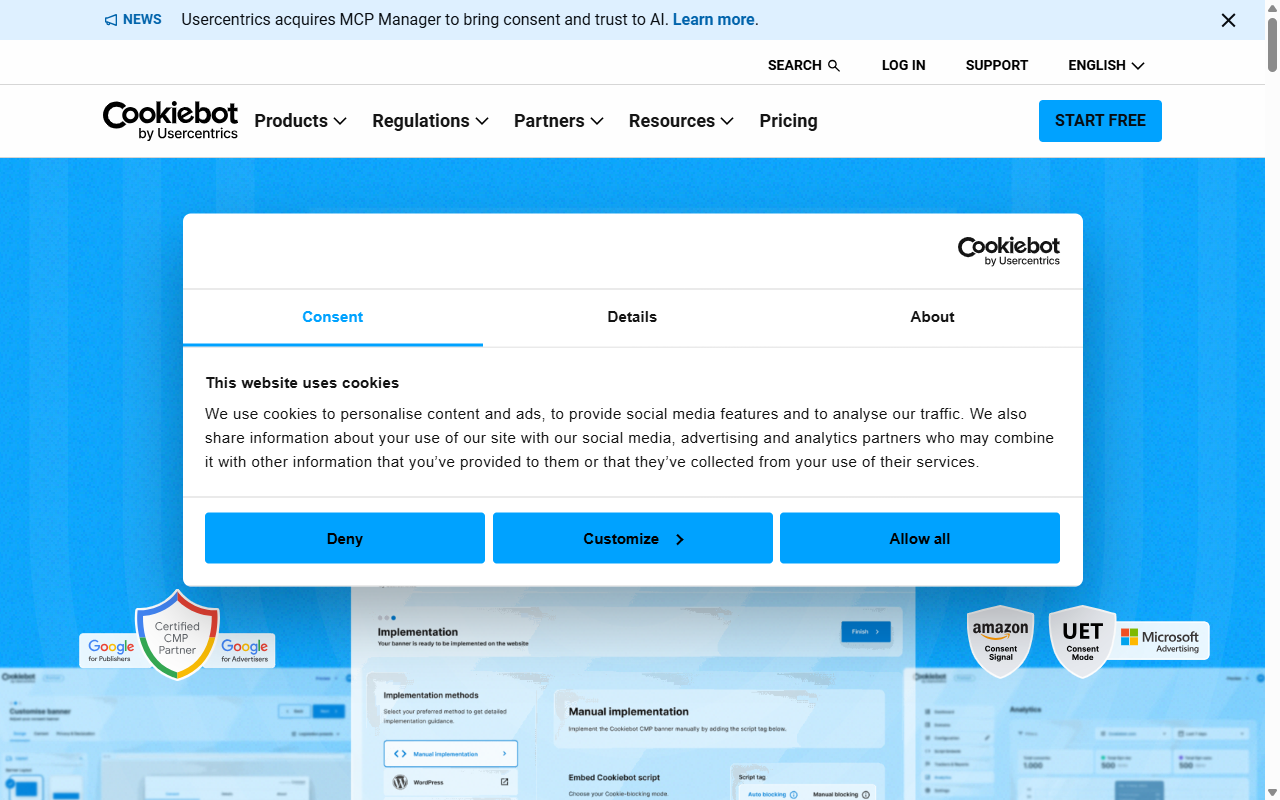
Cookiebot follows a similar external-cloud model, but it’s tailored more toward developers and site owners who want deeper technical controls.
- Create an account on the Cookiebot web manager.
- Add your domain names to the system configuration tab.
- Choose your consent model (explicit consent for GDPR, or opt-out for CCPA).
- Install their helper integration on your WordPress site.
- Insert your unique Domain Group ID into your site settings to link the cloud service.
Cookiebot relies heavily on automatic script blocking: once live, it finds tracking codes and stops them from running before a visitor clicks “Accept.” That’s effective, though it can occasionally block a necessary script, so you may need to add helper attributes manually.
If you’re building your site with Elementor, managing separate external dashboards for design and privacy can feel redundant. Native cookie consent right in your visual editor lets you adjust layouts, update compliance settings, and check logs without leaving your dashboard.

Cookie Scanning and Categorization Capabilities
A consent banner is only as good as the technology behind it. Miss a tracking pixel, and you could be out of compliance without realizing it.
How Termly Handles Script Scanning
Termly scans your site for tracking scripts and sorts them into clear groups visitors can actually understand.
- Scans your site on a scheduled basis to find new cookies.
- Categorizes trackers into essential, performance, analytics, and advertising groups.
- Builds a dynamic cookie policy page that updates itself when new scripts are found.
- Blocks specified tracking scripts automatically until the visitor grants consent.
- Reports any unrecognized cookies so you can manually sort them.
This automated process works well for standard marketing websites that don’t change their tech stack every week.
How Cookiebot Handles Script Scanning
Cookiebot has a well-regarded scanning engine, running deep, multi-page scans that surface hidden trackers simpler tools sometimes miss.
- Detects secure cookies, tracking pixels, and local storage variables.
- Classifies scripts automatically using an extensive global database of known trackers.
- Maintains a public-facing cookie declaration that details the purpose and lifespan of each tracker.
- Updates your active cookie list automatically during its monthly scheduled scans.
- Coordinates with Google Tag Manager to handle consent states across complex setups.
This thorough scanning is genuinely useful for large e-commerce sites running dozens of ad pixels. For a standard local business website, though, it may be more than you need.

Design Customization and Visual Branding
Your cookie banner is often the first thing a visitor sees. If it looks out of place or off-brand, it can undercut the trust you’ve built.
Termly Banner Customization
Termly gives you a clean editor for styling banners, no code required to look polished.
- Matches your site color palette using simple color pickers.
- Positions the consent window as a footer bar, a modal box, or a corner widget.
- Adjusts fonts and button styles to blend in with standard web designs.
- Displays clear opt-out toggles that make it simple for visitors to manage their choices.
The trade-off is that you’re working within Termly’s structural templates, so a highly custom brand layout may feel a bit limited.
Cookiebot Banner Customization
Cookiebot takes a more developer-friendly approach. Its standard templates look clean out of the box, and the real strength is raw customization potential.
- Applies custom CSS to every element of the consent banner.
- Supports custom HTML structures if you want to build a completely unique interface.
- Adapts to dark and light modes depending on system preferences.
- Positions banners anywhere on the page, with full control over animations and display states.
The catch: making Cookiebot look truly on-brand usually means custom CSS, which can mean hours tweaking rules in your child theme if you’re not code-comfortable.
Consent Logging and Legal Audit Readiness
If a regulator ever comes knocking, you need to prove your visitors genuinely opted into tracking. That’s what an audit trail is for.
“Managing privacy compliance in 2026 is no longer just about slapping a banner on your footer. It requires precise script management and verifiable logs to show regulators that you respect user choices at every step.”– Itamar Haim, Web Compliance Specialist
Termly stores visitor consent logs on its secure cloud servers, generating a randomized ID whenever someone accepts or declines your cookies. To access those logs, you log into your Termly account, export a spreadsheet, and filter the data manually.
Cookiebot also keeps detailed, encrypted consent logs on its servers for up to five years, matching the standard period several European regulators require. You can export these logs from your manager panel if you ever face a compliance inquiry.
If you’d rather keep everything centralized, Elementor’s Cookie Consent lets you maintain clear consent logs right inside your own hosting environment, no third-party retention limits or surprise disruptions to worry about.
Multi-Region Compliance and Geo-Targeting
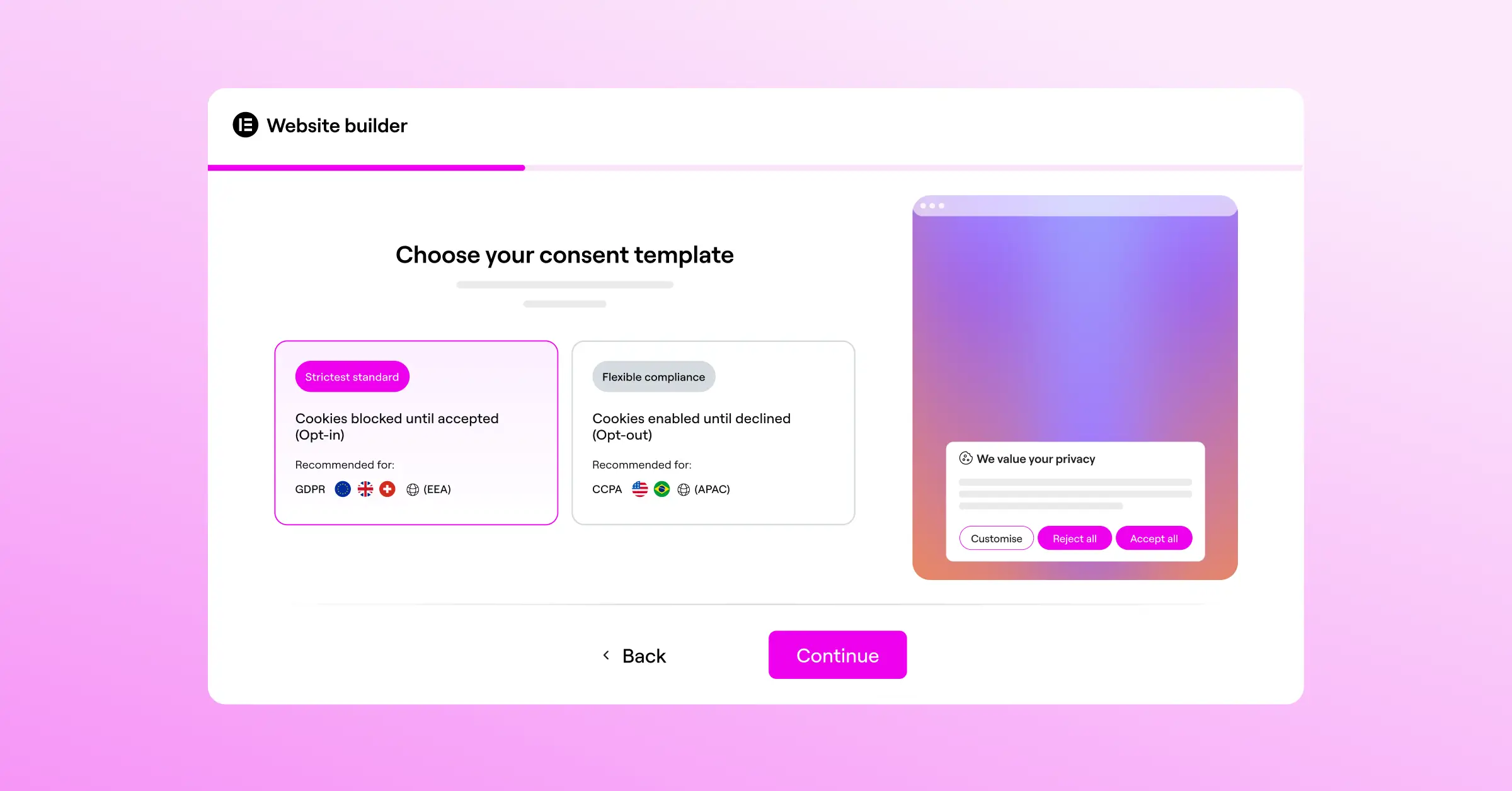
The internet is global, but privacy laws are deeply regional. A visitor from Munich needs to see a strict “opt-in” GDPR banner, while a visitor from Los Angeles might only need an “opt-out” link under California rules.
Termly handles this through automatic IP lookup: it detects a visitor’s general location and shows the right banner configuration, keeping you compliant without interrupting visitors who don’t need the full consent flow.
Cookiebot runs a strong geo-targeting system too, detecting each visitor’s country and applying the legal framework that jurisdiction requires.
- Identifies user location using a global IP database lookup.
- Applies the exact legal standard (GDPR, CCPA, LGPD, or others) instantly.
- Translates the banner copy into one of over 40 supported languages automatically.
- Adjusts button priority based on regional legal requirements (for example, making the “Reject All” button just as prominent as “Accept All” in the EU).
This multi-region support keeps you covered on international legal issues, though both platforms can charge extra for advanced setups, which adds up across several sites.
The Native WordPress Alternative: Elementor Cookie Consent
Third-party SaaS tools like Termly and Cookiebot do the job well, but they bring external script dependencies, monthly costs, and a separate dashboard login. If you already build on WordPress, there’s a more integrated path.
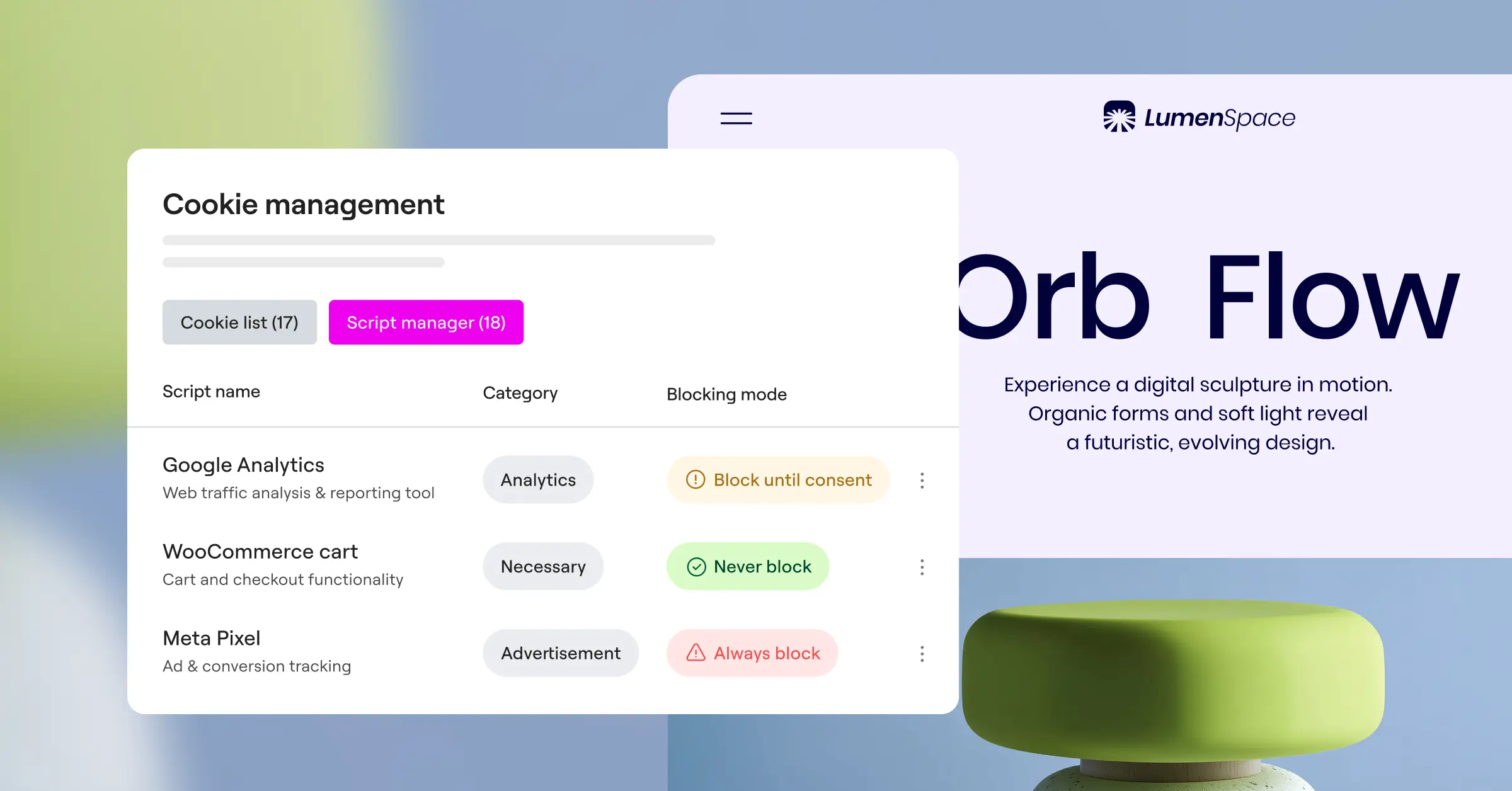
The native Cookie Consent capability in Elementor is built directly into your WordPress dashboard, part of a full suite of compliance tools that also includes Web Accessibility features. That means no heavy external scripts, no extra subscriptions, and no second login to remember.
Here’s what makes the native dashboard approach so practical for WordPress creators:
- Builds beautiful banners using the visual editor you already know, matching your typography and theme styling automatically.
- Configures consent requirements in a few simple clicks, without editing theme files or inserting complex header codes.
- Supports Google Consent Mode v2 and Global Privacy Control out of the box to protect your search rankings and tracking accuracy.
- Logs consent events securely within your own WordPress setup, keeping you ready for audits.
- Reduces external page requests, which helps your pages load faster and improves your core web vitals scores.
By keeping cookie consent native to WordPress, you avoid third-party updates breaking your layout. You handle content, design, and legal compliance from one central admin panel, a genuinely simpler way to stay covered.
Decision Matrix: When to Choose Which Tool
Choosing the right compliance setup comes down to your team size, technical comfort level, and budget. Here’s a practical breakdown to help you decide.
Choose Termly If:
- You need policy generators: If you don’t have a privacy policy, terms of service, or shipping policy yet, Termly’s built-in generators are a real time-saver.
- You want simple, visual styling: If you want to update colors and layouts through a friendly interface without touching code, Termly is approachable and straightforward.
- You run a small business site: If your site has predictable monthly traffic and simple marketing trackers, Termly fits the bill well.
Choose Cookiebot If:
- You have complex tracking setups: If you manage multiple marketing platforms, custom pixels, and advanced Google Tag Manager containers, Cookiebot’s deep scanning is genuinely capable.
- You need deep developer access: If you want to write custom CSS and build unique consent frameworks from scratch, Cookiebot has the tools.
- You operate a high-traffic international site: If you serve large volumes of page views across many countries, Cookiebot’s global infrastructure is built for that scale.
Choose Elementor Cookie Consent If:
- You want everything in one dashboard: If you’d rather not log into multiple external sites to change a banner color or check visitor logs, native WordPress is genuinely convenient.
- You want better site performance: To minimize external script requests and keep your mobile speed scores healthy, native integration is the cleaner path.
- You already use Elementor: If you’re building your pages with Elementor’s tools, the built-in compliance features save you money on extra SaaS subscriptions since it’s already part of your environment.
Frequently Asked Questions
Do I really need a cookie consent banner on my WordPress site?
Yes, if your site collects personal data (IP addresses via analytics, contact forms, or tracking pixels) and gets visitors from regions with active privacy laws like Europe or California. Without a compliant banner, you risk fines, and your marketing tools may stop collecting data you rely on.
What is Google Consent Mode v2 and why should I care?
Google Consent Mode v2 lets your site communicate users’ privacy choices directly to Google services like Analytics and Ads. If you run ads in the European Economic Area, a tool that supports it is necessary for accurate conversion tracking and visitor analytics.
Can I use both Termly and Cookiebot together?
You shouldn’t run two cookie consent banners at once. Doing so confuses visitors, slows your site, and causes scripts to conflict. Pick one reliable tool or native capability and let it handle all your compliance needs.
Does a cookie consent banner slow down my website load times?
External banners relying on large JavaScript files on third-party cloud servers can add to your page load times. That’s one reason a native capability like Elementor’s Cookie Consent is appealing: lightweight code and fewer server requests keep your pages fast.
What is Global Privacy Control (GPC)?
Global Privacy Control is a browser setting that broadcasts a user’s privacy preferences automatically. If a visitor has GPC on, your site needs to treat that as a valid opt-out request. Both third-party tools and native WordPress capabilities support GPC out of the box.
How often should my website be scanned for new cookies?
At least once a month is a good baseline. New cookies can appear whenever you install a plugin, add a social widget, or update marketing pixels. Regular scans keep your public cookie disclosure page accurate and legally up to date.
What is the difference between a privacy policy and a cookie consent banner?
A privacy policy is a legal document explaining how your site collects, uses, and stores personal data. A cookie consent banner is an interactive prompt letting users accept or decline tracking cookies before they’re saved to their browser. You need both to be fully compliant.
Can I style my consent banner to match my brand colors?
Yes. Both Termly and Cookiebot let you customize banners, though Termly leans on simple toggles while Cookiebot often needs custom CSS for deeper styling. Elementor’s native tools let you match fonts, spacing, and colors to the rest of your site.

