Running a website today means taking privacy seriously, and if you’ve ever wondered what’s hiding in your visitors’ browsers, you’re not alone. Add analytics, social buttons, or an embedded video, and you’re probably dropping tracking files onto people’s devices without meaning to. It’s simpler to fix than it sounds, so here are the most reliable ways to audit your site and stay compliant with the privacy rules that matter most.
Key Takeaways
- Regular scans matter since plugins and scripts keep adding new trackers unnoticed.
- WordPress-native tools let you run compliance audits right from your dashboard.
- Browser developer tools give a free, instant way to inspect cookies on any page.
- Google Consent Mode v2 support matters if you serve EU visitors with Google ads.
Why Cookie Scanning Is Essential in 2026
Privacy regulations have gone from a minor detail to a central part of running any site. If your site reaches visitors in the EU, UK, or states like California, you need to know what tracking scripts are active. Beyond legal compliance, a clean tracker inventory builds genuine trust with your audience.
Every time you add a social widget, an analytics pixel, or a video player, it often drops small data files onto visitors’ browsers. These pile up over time, even on carefully managed sites. Regular audits catch hidden trackers before they become a compliance issue.

What Exactly Is a Cookie Scan and How Does It Work?
A cookie scan is an automated or manual process that visits your site the way a regular visitor would, recording what data files show up in the browser. A good tool maps those files, identifies who owns them, and sorts them by purpose.
Scanners typically sort these files into four categories:
- Strictly Necessary: needed for the site to work, like keeping a user logged in or holding cart items.
- Analytical and Performance: help you count visitors and see how they move through your site.
- Functional: remember choices, like a preferred language or region.
- Targeting and Advertising: track browsing habits across sites to serve matched ads.

Grouping your trackers correctly gives visitors clear choices about what data they share, which keeps your business on the right side of the law.
The 10 Best Ways to Scan Your Website for Cookies in 2026
Here’s a look at the best tools and methods available this year, from easy platform tools to browser techniques and dedicated compliance suites.
1. Cookie Consent by Elementor
If you run a WordPress site, you know how frustrating it is jumping between control panels to keep your privacy settings current. The Cookie Consent capability built into Elementor brings your privacy workflow into your dashboard, scanning cookies and scripts automatically with no outside code and fitting cleanly into your theme styles.

- Scans your site to identify active tracking scripts and cookies automatically.
- Categorizes discovered cookies into compliance groups without manual effort.
- Builds custom-branded banners that match your site design.
- Logs visitor consent actions for clean audit trails.
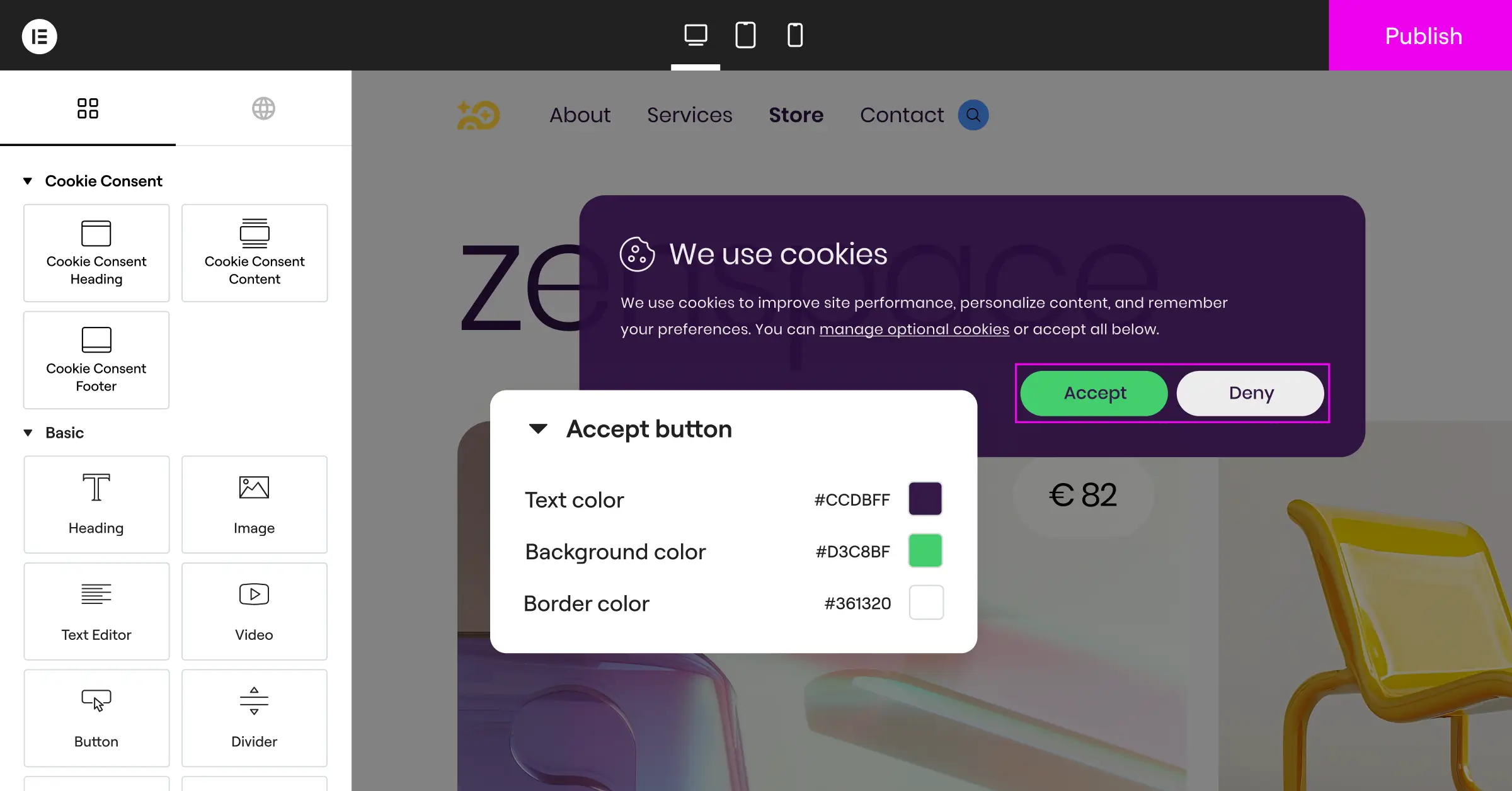
Pros: Runs inside WordPress, five-minute setup, supports Google Consent Mode v2 and Global Privacy Control.
Cons: Best suited to sites in the Elementor ecosystem.
Verdict: The best pick for WordPress users who want one simple, unified way to manage privacy.
2. Chrome Developer Tools (Manual Audit)
For a quick, free look at what’s happening on your site in real time, it’s hard to beat Chrome’s built-in developer tools. Right-click anywhere on your site, choose “Inspect,” then open the Application tab and look for Cookies on the left. You’ll see a live list of every tracker on that page, no signup required.
- Inspects real-time storage settings on any page you visit.
- Displays expiration dates and domain paths for every file.
- Identifies third-party trackers that might run silently.
- Lets you delete trackers to test how your site behaves without them.
Pros: Instant, accurate for real-time testing, great for debugging.
Cons: You check each page one by one, slow on larger sites.
Verdict: A must for confirming your consent banners work on a specific page.
3. Cookiebot
Cookiebot is a well-known cloud-based platform built for privacy compliance. It sends a cloud crawler to check your site on a recurring schedule, works with almost any platform, and produces a detailed declaration report for your privacy policy page.
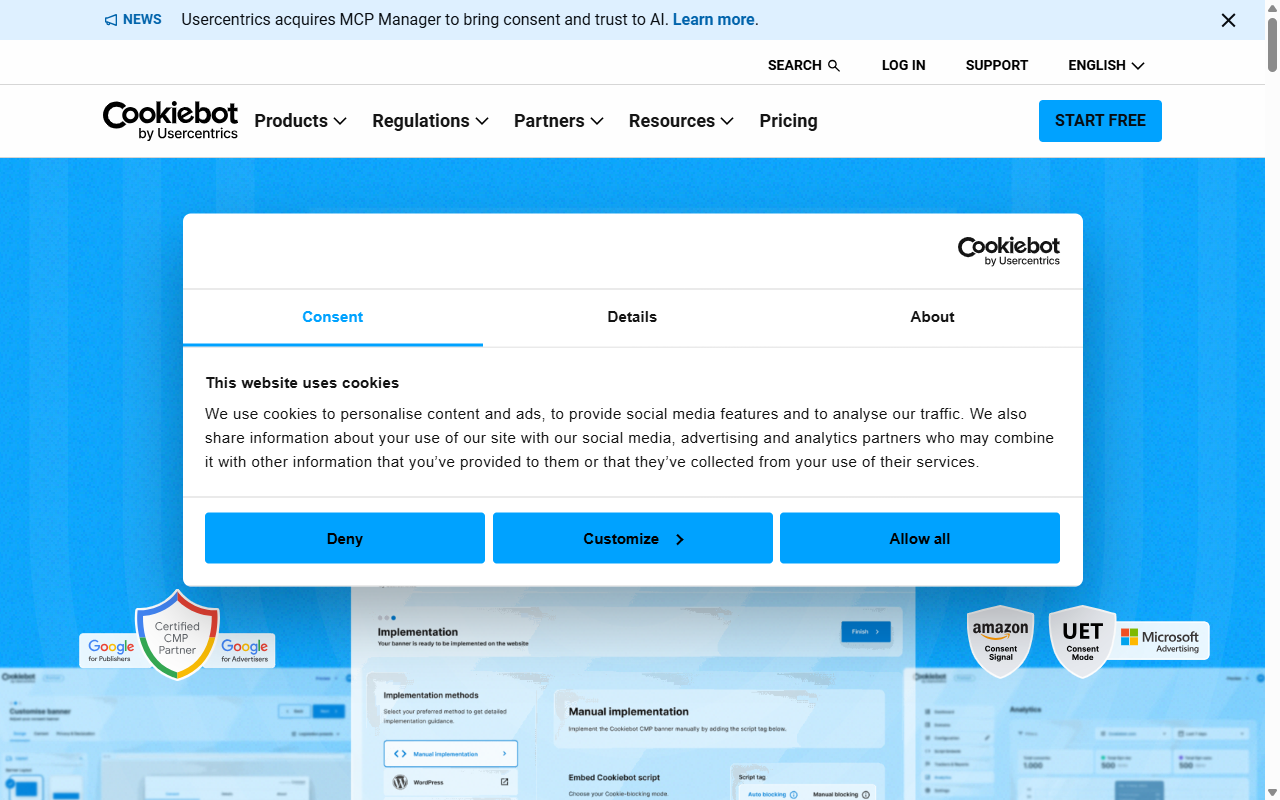
- Crawls your site automatically on a recurring schedule.
- Generates a public-facing cookie declaration for visitors.
- Detects subtle tracking like pixels and local storage keys.
- Blocks unapproved scripts automatically until a user consents.
Pros: Accurate crawler, solid automated reporting, good multilingual support.
Cons: Can get more expensive as your site grows.
Verdict: A reliable, hands-off pick for a set-it-and-forget-it compliance solution.
4. CookieYes
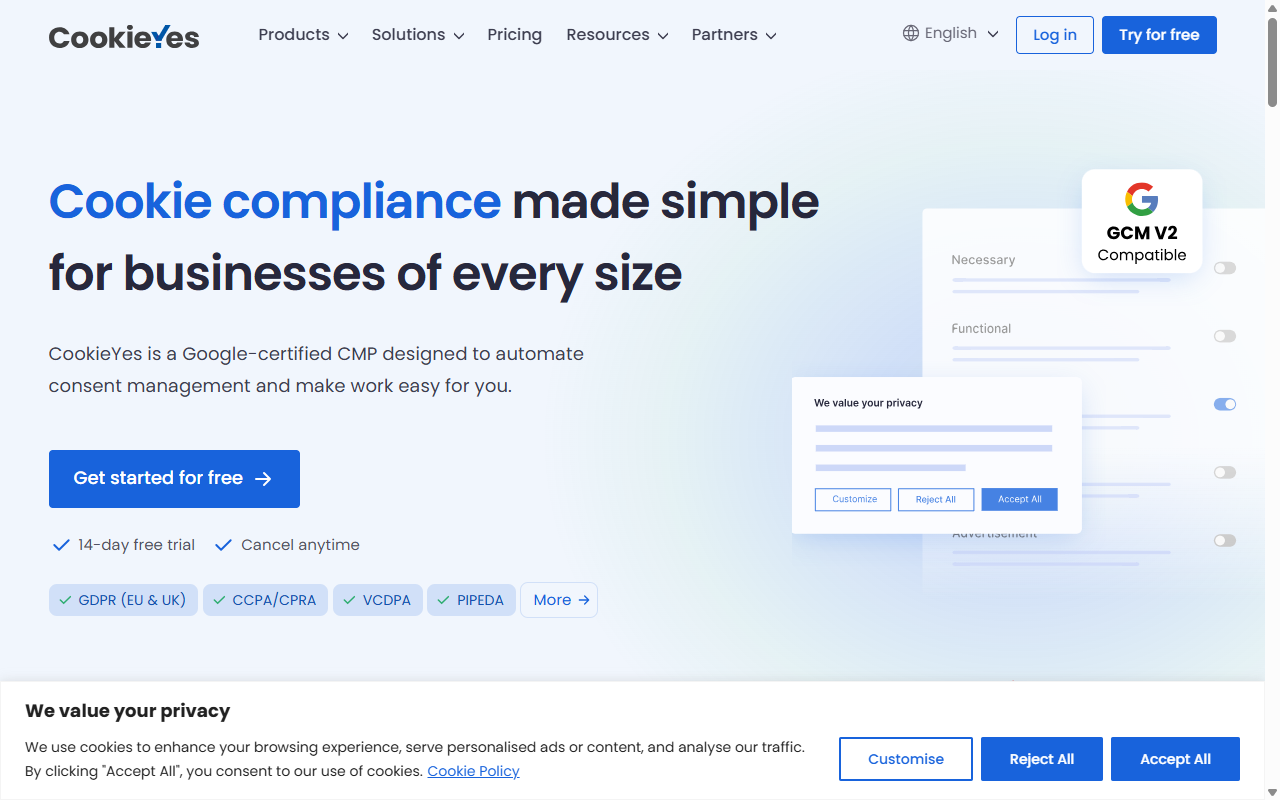
CookieYes is a popular web-based option with a straightforward dashboard for managing consent banners and scripts. Its fast scanner identifies and groups trackers in minutes, a good fit for small business owners without deep technical know-how.
- Scans your pages quickly to generate an active cookie list.
- Builds clean, customizable banners that meet GDPR and CCPA standards.
- Saves user consent choices in a secure, downloadable audit log.
- Supports geo-targeting to show different banners in different regions.
Pros: User-friendly dashboard, quick setup, solid support for privacy laws across countries.
Cons: The entry-level plan limits page count.
Verdict: A solid, well-rounded choice for small to medium-sized sites.
5. Complianz
Complianz is a privacy tool built specifically for WordPress. A wizard-style setup walks you through questions about your site, then generates a privacy policy and a custom consent banner matched to your region (handy if you serve visitors across multiple countries).
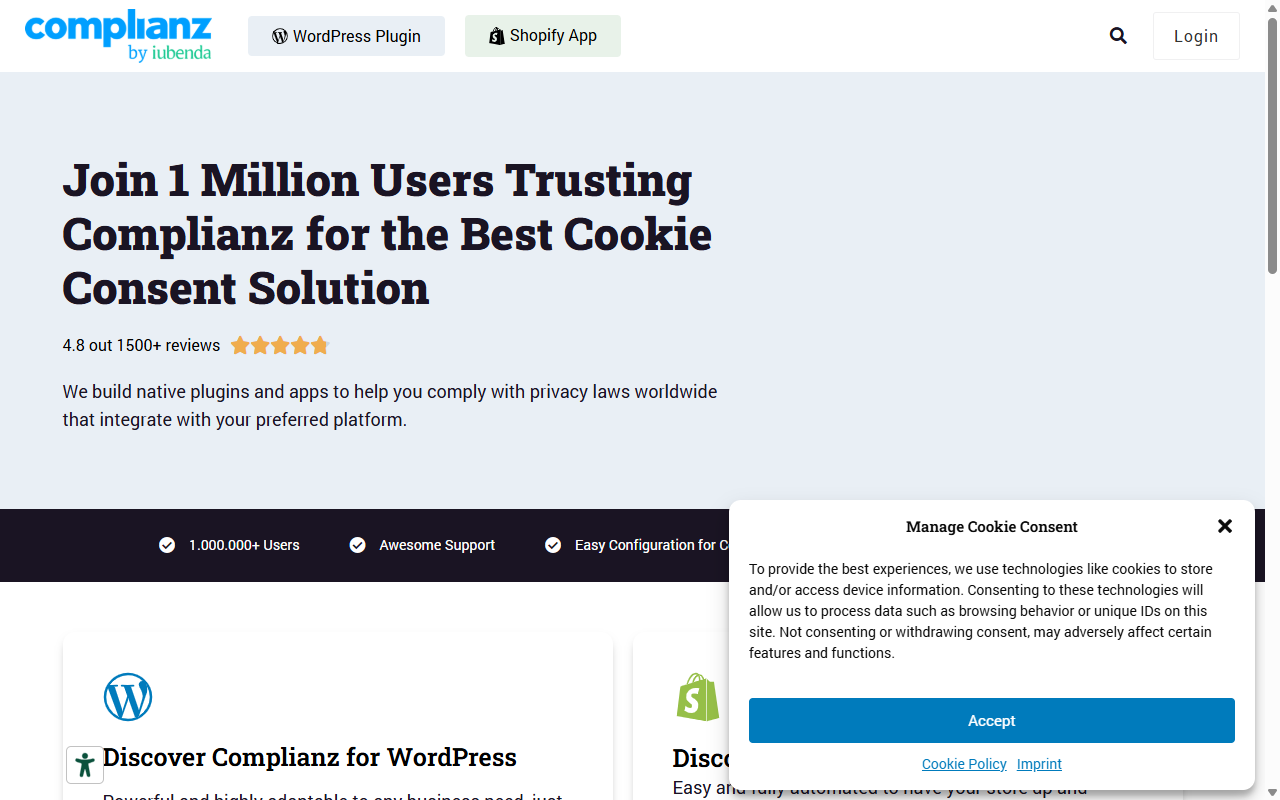
- Guides you through compliance setup with an interactive wizard.
- Scans your local files and plugins for integrated third-party services.
- Generates legally verified privacy policies and cookie declarations.
- Integrates smoothly with popular translation tools.
Pros: Strong regional legal focus and deep WordPress integration.
Cons: The wizard can feel involved for a quick scan.
Verdict: A great pick for owners who need both a consent banner and formal legal documents.
6. iubenda
iubenda takes a broader view of compliance, with a full suite for writing privacy policies, terms of service, and managing cookie consent across multiple sites. Its scanner checks what external tools you use and builds a policy document that updates as international laws change.
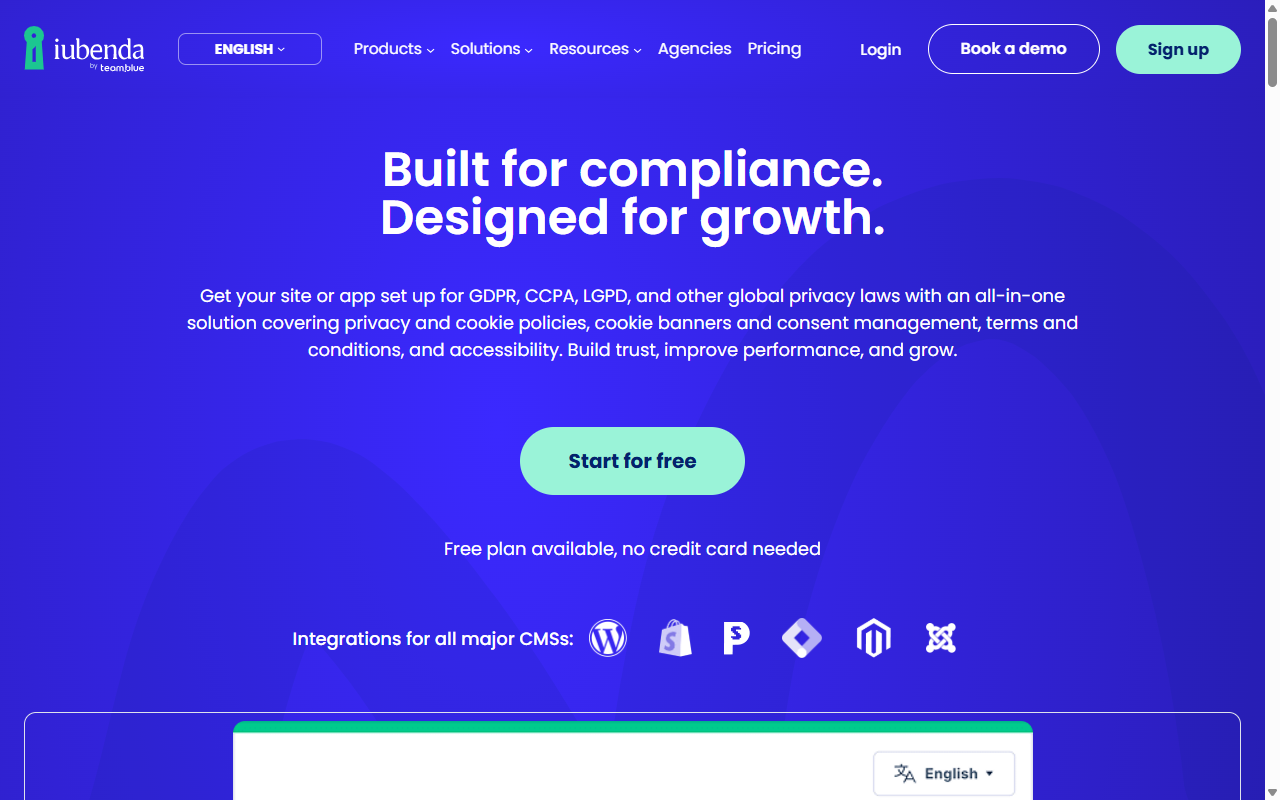
- Analyzes your website configuration to find active third-party integrations.
- Generates detailed legal documents that update as laws evolve.
- Includes customizable cookie banners with built-in consent optimization.
- Tracks consent preferences across desktop, mobile, and native apps.
Pros: Thorough legal backing, good for complex sites, multilingual out of the box.
Cons: The dashboard has a slight learning curve.
Verdict: Ideal for agencies managing compliance documents across several sites.
7. OneTrust
OneTrust is a powerful enterprise-grade privacy and risk management platform, built for large organizations managing complex compliance across hundreds of sites. Its scanning engine searches out hidden trackers and cross-site tracking scripts, producing detailed reports for privacy officers and legal teams.
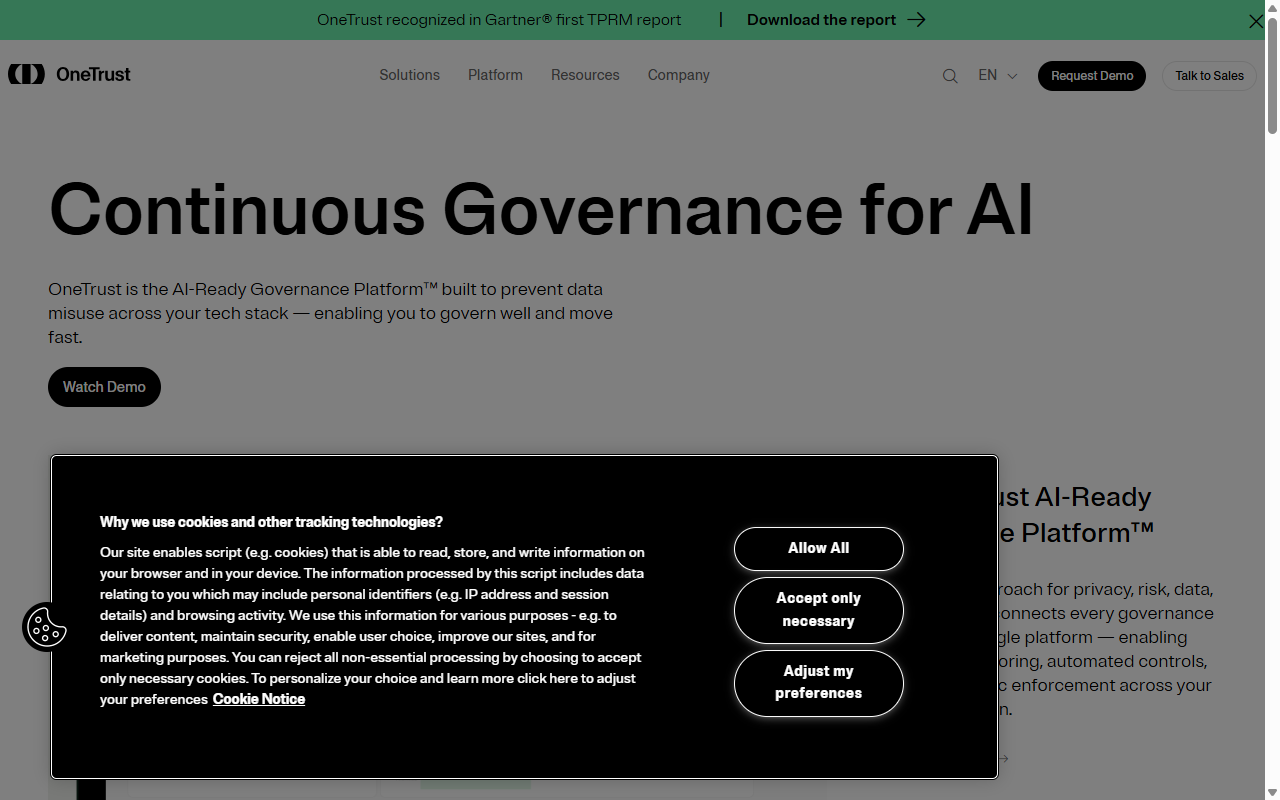
- Crawls large enterprise networks to locate and categorize active trackers.
- Maps data flows across corporate systems and consumer-facing sites.
- Delivers advanced reporting dashboards built for executive and legal review.
- Integrates with corporate tag management systems for centralized control.
Pros: Unmatched depth at the enterprise level, strong risk management and reporting.
Cons: Too complex and costly for simple blogs or small sites.
Verdict: Built for large corporations needing complete tracking maps across the organization.
8. PageSpeed Insights & Lighthouse
Lighthouse, built into PageSpeed Insights, is meant to test speed, but it doubles as a useful way to audit tracking scripts. It’s not a dedicated consent tool, but running an audit flags heavy third-party code, often tracking pixels, chat widgets, and social buttons, free and with no setup.
- Identifies third-party scripts that may be loading trackers.
- Measures the performance impact of your banners and marketing pixels.
- Highlights unused JavaScript files that might hold old tracking code.
- Delivers a free report you can run in seconds.
Pros: No installation, optimizes speed while checking for trackers, completely free.
Cons: Doesn’t categorize specific cookies, so you still need to dig into scripts.
Verdict: A smart starting point to clean up your code and spot heavy tracking scripts.
9. Safari Storage Inspector
If your visitors mostly browse on Apple devices, testing with Safari is worth adding to your routine. Open the Developer menu, then the Web Inspector, and go to the Storage tab to see how your site interacts with Intelligent Tracking Prevention, including which trackers get blocked for Apple users.
- Inspects cookie storage on macOS and iOS rendering engines.
- Monitors how Intelligent Tracking Prevention affects your marketing pixels.
- Tracks local storage and session data in real time.
- Helps you verify your consent banners work on mobile.
Pros: Vital for testing compatibility with Apple’s strict privacy settings.
Cons: Requires an Apple computer to run Safari natively.
Verdict: A good secondary test for iPhone and Mac users.
10. Manual Code and Database Audit
For complete control, you can scan your site’s code and database files by hand, checking what scripts load in your active theme. Find the exact lines pulling in external scripts, and you can stop unwanted tracking files from being created, about as thorough as privacy auditing gets.
- Locates hardcoded tracking scripts hidden in your template files.
- Audits active plugins in your database for background scripts.
- Keeps unexpected trackers from being injected by outdated design assets.
- Gives you complete control over when and how scripts load.
Pros: 100% accurate, leaves no stone unturned, keeps your site clean and fast.
Cons: Requires real technical skill, can take hours on complex sites.
Verdict: The method for owners who want their code fully optimized and under control.
Comparison of the Best Cookie Scanning Methods
Here’s a quick look at how these methods compare for setup time, cost, and ease of use.
| Scanning Method | Platform Type | Best For | Setup Time | Cost Level |
|---|---|---|---|---|
| Cookie Consent by Elementor | WordPress Native | WordPress site owners | Under 5 minutes | Free / Included |
| Chrome DevTools | Browser Tool | Quick manual testing | Instant | Free |
| Cookiebot | Cloud SaaS | Hands-off automation | Medium | Subscription |
| CookieYes | Cloud SaaS | Multi-platform sites | Fast | Free / Premium |
| Complianz | WordPress | Document generation | Medium | Free / Premium |
| iubenda | Cloud SaaS | Complex legal needs | Medium | Subscription |
| OneTrust | Enterprise Cloud | Large organizations | Long | Enterprise |
| Lighthouse / PageSpeed | Web Tool | Performance audits | Instant | Free |
| Safari Inspector | Browser Tool | Apple ecosystem testing | Instant | Free |
| Manual Code Audit | Developer Method | Advanced developers | Long | Free |
Step-by-Step Guide: How to Act on Your Cookie Scan Results
Once your tool finishes scanning, you’ll have a report listing every cookie and script found. Don’t worry if the list looks long, here’s a simple plan to clean things up.
Step 1: Review and Clean Up Your Active Scripts
Look at your list of trackers and ask whether you actually need all of them. You’ll often find old tracking pixels left from ended ad campaigns, or widgets for social networks you no longer use. Removing these old scripts helps in two ways:
- It improves your page loading speeds right away, good for SEO.
- It cuts the number of tracking files you need to list in your privacy policy.
Step 2: Set Up Your Consent Management System
With a clean list of necessary trackers, configure your banner to block these scripts until visitors accept them. On WordPress, a native solution like the Cookie Consent capability in Elementor makes this easy, letting you group your scripts, apply brand colors, and keep your banner working smoothly on desktop and mobile.

Step 3: Keep Your Public Policies Up to Date
Your privacy policy and cookie disclosure pages need to match your scan results, so update these with:
- The exact names of the tracking files your site uses.
- Who owns those files (Google or Meta, for example).
- What those files are used for, like analytics or targeted marketing.
- How long those files stay on the visitor’s device before expiring.
Step 4: Establish a Regular Audit Schedule
A cookie scan isn’t a one-time task. Every time you update a plugin, add a marketing tool, or embed a video, new trackers can slip onto your site. Make it a habit to run a fresh scan every month, or whenever you make major layout changes.
Expert Insights on WordPress Cookie Compliance
To put this in perspective, we asked a professional who works with web standards and privacy rules daily.
“Compliance isn’t just about avoiding fines; it’s about respecting your visitors’ choices. When you use a native tool to audit and manage your site’s cookie consent, you ensure that privacy settings are deeply integrated into the user experience, rather than feeling like an annoying afterthought.”
– Itamar Haim, Web Compliance Specialist
When your privacy tools fit naturally into your setup, you’re far more likely to keep them updated, protecting your business and your visitors. If you’re on WordPress, the Cookie Consent capability from Elementor is worth a serious look.
Frequently Asked Questions
Do I really need a cookie banner if my site is small?
Yes, most likely. Privacy laws like the GDPR protect users based on where they live, not where your business is based. If you get visitors from Europe or California and use tools like Google Analytics, you’re legally required to get consent first.
What happens if I ignore cookie compliance?
Small blogs are rarely hit with immediate fines, but ignoring compliance still carries real risk. Ad platforms like Google can suspend your ad accounts if they detect tracking data sent without proper consent.
What is Google Consent Mode v2 and why should I care?
Google Consent Mode v2 is a framework that lets your site communicate visitors’ privacy choices directly to Google’s advertising and analytics tools. If you run Google ads and have EU visitors, supporting this framework keeps your tracking and conversion data accurate.
Can a standard tool handle cookie scanning natively on WordPress?
Many traditional tools rely on external servers and databases to crawl your site. A built-in capability like Cookie Consent by Elementor lets you manage scans, organize scripts, and display banners right from your dashboard.
How often should I scan my website for cookies?
A good rule of thumb is once a month, plus a quick audit whenever you install a new plugin, embed a social widget, or update your design.
Do strictly necessary cookies require user consent?
No, they don’t. Trackers genuinely required for your site to work, like keeping cart items or managing secure logins, can load without prior consent. You still need to mention them in your privacy policy.
Can I customize the look of my consent banner?
Absolutely. Modern consent tools let you customize your banner’s layout, fonts, colors, and button options to match your brand and build visitor trust.

