Table of Contents
10 Best WordPress Code Snippets Plugins in 2026
By late 2026, WordPress powers 43.5% of all websites globally, and how developers manage custom PHP, CSS, and JavaScript has changed with it. Pasting code into a heavy child theme file is outdated advice that can wreck your site’s stability.
A dedicated wordpress code snippets plugin gives you modular control: your site stays protected from fatal errors, and your logic stays organized instead of buried in one giant file. Crashes happen, but outdated methods make them more likely.
Key Takeaways
- Market shift – 70% of intermediate WordPress users now prefer snippet plugins to functions.php edits, dodging update wipeouts.
- Performance gains – Swapping 10 single-purpose plugins for custom snippets cuts load time by 150ms-300ms on average.
- Security mandate – A 21% rise in reported vulnerabilities makes strict syntax validation essential, not optional.
- PHP 8.3 compliance – 2026 core requirements demand strict typing, so top plugins now run real-time syntax checks.
- Execution methods matter – File-based storage gets you close to 0ms execution overhead compared to heavy database calls.
Why Modular Code Beats Functions.php Bloat in 2026
For years, the advice was pasting custom code straight into your theme’s functions.php file. That’s aged badly: update your theme and you lose every customization, and one syntax typo triggers the dreaded White Screen of Death.
Finding one block buried in a 2,000-line file is its own nightmare. Modular code management fixes this by separating your logic from your theme, so your work survives redesigns and updates.
- Keeps running even after a full frontend redesign.
- Lets you toggle scripts on or off like mini-plugins for easy troubleshooting.
- Catches fatal PHP errors before they take your site offline.
- Syncs favorite scripts from a central library across client projects.
1. WPCode: The Industry Heavyweight
With over 2 million active installations, WPCode leads the snippet market. Formerly Insert Headers and Footers, it’s now a full logic engine with a cloud library of 2,000+ verified snippets, letting you disable Gutenberg, add Google Analytics, or adjust WooCommerce checkout fields in one click.
- Loads scripts only for logged-in users or specific pages.
- Places code exactly where needed, like before post content or inside the cart.
- Saves custom blocks to the cloud and syncs them across sites.
- Rolls back to a previous version if an edit causes trouble.
Pricing: Free version available. Pro tiers run $49/year (Basic) to $399/year (Elite).
Pros:
- Cloud library cuts development time on new builds.
- Strong integration with WooCommerce and Easy Digital Downloads.
- Free version is generous for simple tracking scripts.
- Revisions work as an automatic backup for your logic.
Cons:
- Dashboard can feel overwhelming for absolute beginners.
- Advanced conditional logic sits behind premium tiers.
- Free version shows fairly frequent upgrade prompts.
- Database storage adds a bit of overhead versus file-based options.
Verdict: WPCode is the industry standard, ideal for agencies wanting a syncable library of ready-made solutions.
2. Code Snippets Pro: The Developer’s Safety Net
Code Snippets Pro holds strong with over 1 million active installs and a 4.5-star rating, anchored by its “Safe Mode,” which reportedly prevents site crashes in 95% of cases involving a fatal syntax error.
Running PHP directly in your admin dashboard is inherently risky. A snippet manager with strict syntax validation isn’t just a convenience; it’s a critical security layer for modern WordPress builds.
Itamar Haim, SEO Expert and Digital Strategist specializing in search optimization and web development.
- You write your custom PHP function in the built-in IDE.
- The real-time PHP 8.3 checker flags missing semicolons or deprecated variables.
- You assign a scope: everywhere, admin only, or frontend only.
- If the code triggers a fatal error, Safe Mode deactivates that block automatically.
Pricing: $39/year for one site, $79/year for 10 sites, $149/year for unlimited sites.
Pros:
- Clean interface that feels native to WordPress.
- Error catching that genuinely works.
- Lets you export snippets into standalone plugins.
- Strong multisite network support.
Cons:
- Cloud library isn’t as deep as WPCode’s.
- Conditional logic options are less visual.
- CSS/JS management feels secondary to PHP handling.
- Base tier skips built-in revision history.
Verdict: The safer pick for developers managing client sites, where one typo shouldn’t take down production.
3. Advanced Scripts: Built for Pure Performance
Advanced Scripts by Clean Plugins takes a different approach: a premium-only tool built around site speed and developer experience, with no heavy dashboard or upsells. It natively supports LESS and SCSS compilation in the browser.
- Compiles SCSS styling code automatically into minified CSS.
- Hosts your custom scripts from external domains or CDNs.
- Runs logic only for admins or chosen user roles.
- Opens a distraction-free, full-screen Zen mode editor.
Pricing: $30/year for a single site, or a $150 lifetime license.
Pros:
- Lifetime license is a strong value for agencies.
- SCSS support removes the need for separate tools.
- Interface looks great and runs fast.
- No bloat or dashboard notifications.
Cons:
- No free version to try first.
- No large pre-built script library.
- Steeper learning curve for non-developers.
- Updates can lag behind major WordPress releases.
Verdict: Suits performance-obsessed power users who write SCSS regularly; the lifetime deal is hard to beat.
4. FluentSnippet: The Database Bypass Approach
FluentSnippet, from the WPManageNinja team, targets a real bottleneck: most plugins store code in the `wp_options` table, slowing high-traffic sites on every load. It uses file-based storage instead, for a claimed near 0ms execution time overhead.
- Keeps your database clean and free of bloat.
- Reads faster from physical files than database queries, aiding caching.
- Scans generated files for strict PHP compliance before execution.
- Runs on a lightweight, low-memory footprint.
Pricing: Currently free, on a generous model.
Pros:
- Execution speed hard to match, thanks to file-based architecture.
- Clean, modern interface.
- Strong automatic error handling prevents syntax crashes.
- Great fit for high-traffic environments.
Cons:
- Needs specific server permissions to write files, which can clash with stricter security setups.
- Newer to the market, so community and integrations are still growing.
- Skips advanced conditional logic for e-commerce checkouts.
- No cloud synchronization yet.
Verdict: The top choice for high-traffic sites where every millisecond counts.
5. Woody Code Snippets: The Marketer’s Ad Manager
Woody Code Snippets (Woody ad snippets) fills a niche for marketers, bloggers, and publishers who inject ads, banners, and rich media, not just developers writing PHP. Define a block once and set global rules to automate placement.
- Inserts an ad script automatically after the 3rd paragraph of every blog post.
- Turns complex HTML/JS blocks into simple `[woody_ad]` shortcodes for manual placement.
- Serves higher-paying desktop ads and optimized mobile units by device.
- Drops saved blocks directly into the native WordPress block editor.
- Wraps specific post types in custom HTML wrappers for styling.
Pricing: Free core plugin. Premium unlocks advanced logic and display rules.
Pros:
- Strong automation for in-content ad placement.
- Visual editor that’s easy for non-technical users.
- Flexible shortcode system.
- Solid support for custom post types.
Cons:
- Not built primarily for complex PHP logic management.
- Interface feels a bit dated next to newer alternatives.
- Can get confusing with hundreds of different ad blocks.
- Best targeting features need the premium version.
Verdict: Works well for content creators and niche site owners injecting ad scripts into their content.
6. Header Footer Code Manager: The Tracking Tag Specialist
Header Footer Code Manager (HFCM) skips PHP execution and focuses on one job: managing tracking scripts like Google Analytics 4, the Meta Pixel, or Hotjar. There’s no backend logic to touch, just HTML and JavaScript output where tracking platforms need it.
- Create a new block and paste your raw JS tag from your analytics provider.
- Pick the display location: Header, Footer, or Before/After Content.
- Choose device logic: all devices, desktop only, or mobile only.
- Define the page scope: entire site, specific posts, or only the checkout success page.
- Hit save, and the tag goes live instantly with no risk of a PHP crash.
Pricing: Free. Pro version available for network-wide multisite management.
Pros:
- Genuinely intuitive interface for marketers and SEOs.
- No risk of breaking your site; handles frontend output only.
- Strong, granular control over specific pages and posts.
- Device-specific targeting that helps mobile page speed.
Cons:
- Not built for backend PHP customization.
- Skips built-in syntax highlighting for complex JavaScript.
- Can’t replace functions.php edits.
- No central cloud library for agencies.
Verdict: The ideal pick for marketing teams managing critical tracking infrastructure without needing a developer.
7. Simple Custom CSS and JS: The Designer’s Tool
Simple Custom CSS and JS focuses on frontend customization: when a pre-built theme needs overridden visual elements or custom interactivity, it gives you an isolated space with a full-width editor and proper linting, so styles survive theme updates.
- Prints code directly in the HTML ``, or enqueues it as an external file.
- Compresses your custom styles automatically to save bandwidth.
- Lets Pro users preview CSS changes before pushing them live.
- Applies custom CSS to the dashboard itself, handy for branding the backend for clients.
Pricing: Free core. The Pro version costs $48.50.
Pros:
- External file generation supports better browser caching.
- Minification improves frontend performance.
- Syntax highlighting makes editing CSS easy.
- Styling the admin dashboard is a nice bonus for agencies.
Cons:
- Doesn’t handle PHP logic at all.
- Pro upgrade cost may feel high for purely frontend features.
- No native SCSS compiler, unlike Advanced Scripts.
- File generation can occasionally clash with aggressive caching plugins.
Verdict: Strong for designers tweaking theme aesthetics, keeping frontend work separate from core functionality.
8. Post Snippets: The Content Editor’s Variable Engine
Post Snippets works differently: instead of injecting scripts globally, it turns custom blocks into reusable variables for your content. Build a pricing table, updating stat, or API call once, then deploy it via a shortcode.
- Builds shortcodes that accept custom variables (e.g., `[my_button color=”red” url=”/sale/”]`).
- Runs dynamic server-side logic directly inside a blog post.
- Fits legacy shortcode workflows smoothly into the block editor.
- Moves complex content variables between staging and production environments.
Pricing: 100% Free.
Pros:
- Turns static content into dynamic, programmable layouts.
- Custom variables make shortcodes highly adaptable.
- Completely free, with no hidden premium tiers.
- Helps keep consistency across hundreds of posts.
Cons:
- Not designed for global header/footer tag management.
- PHP execution inside post content carries real security risk if user roles aren’t tightly managed.
- Interface is basic, with no modern styling.
- Requires a decent grasp of shortcode architecture.
Verdict: An excellent niche tool for technical writers building reusable content components and dynamic data displays.
9. Scripts n Styles: Granular Page-Level Control
Sometimes a script shouldn’t run globally: a heavy JavaScript library needed for one landing-page calculator hurts your Core Web Vitals if loaded everywhere. Scripts n Styles fixes that with meta boxes on individual post and page edit screens.
- Adds custom CSS or JS to a single URL directly from the editor screen.
- Sets site-wide fallback rules that you can still override on a per-page basis.
- Blocks lower-level authors from injecting raw HTML or scripts.
- Deregisters default theme scripts on specific pages to save bandwidth.
Pricing: Free (Open Source).
Pros:
- Real performance gains from preventing script loading on unnecessary pages.
- Meta box approach keeps page-specific code tied directly to its content.
- Open-source and entirely free.
- Solid security controls over who can add scripts.
Cons:
- Interface feels outdated and utilitarian.
- Code gets scattered across multiple pages, making global audits harder.
- No central dashboard to see every active script at a glance.
- Skips advanced PHP syntax checking.
Verdict: The tool for localizing code on one or two pages while protecting global load times.
10. My Custom Functions: The Minimalist Safety Valve
For users who find cloud syncing and conditional logic overkill, My Custom Functions offers one simple text window for pasting a PHP fix. Unlike editing functions.php directly, it wraps your input in a safety net that blocks execution on a mistake.
- Handles all your custom PHP in one single window.
- Checks your code for fatal errors before saving.
- Switches every custom function on or off with one master toggle.
- Highlights basic syntax to help you spot obvious typos.
Pricing: Free.
Pros:
- Easiest learning curve of any tool on this list.
- Lightweight, with minimal impact on WordPress core.
- Strong error prevention for beginners.
- No confusing menus or settings to configure.
Cons:
- Code can get disorganized fast if you add too many functions to the single window.
- No individual snippet toggling; it’s all or nothing.
- No dedicated CSS or JavaScript management.
- No cloud backup or revision history.
Verdict: The perfect minimalist alternative to functions.php for beginners adding one or two functions safely.
Comparison Matrix: Structuring Your Toolkit
Which tool fits depends on your technical comfort level and your site’s architecture. Here’s how the top contenders handle execution and storage:
| Plugin Name | Execution / Storage Method | Cloud Library | Best For |
|---|---|---|---|
| WPCode | Database (wp_options) | Yes (2,000+ items) | Agencies needing a massive library |
| Code Snippets Pro | Database (wp_options) | Yes (Limited) | Developers needing strict error handling |
| Advanced Scripts | Database & File Generation | No | Performance purists writing SCSS |
| FluentSnippet | File-system only | No | High-traffic sites needing 0ms overhead |
| HFCM | Database (Frontend Output) | No | Marketers managing tracking tags |
Integrating Snippets Within the Elementor Ecosystem
Running a modern site? You might not need a third-party plugin, since fewer plugins is always a smart move. Already in the ecosystem? Elementor Pro includes a solid Custom Code feature built into the dashboard.
It lets you inject scripts into the `
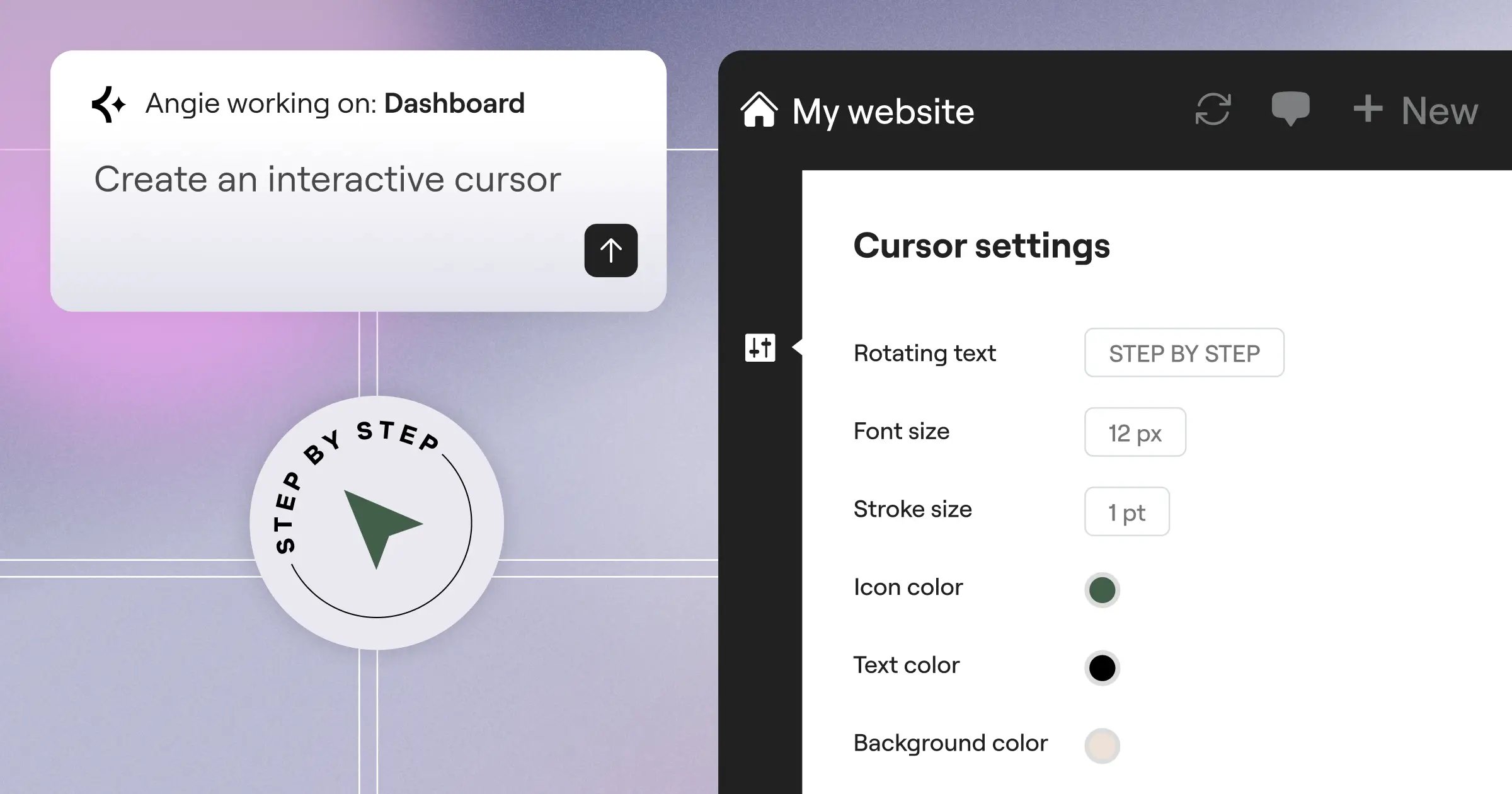
`, ``, or footer with precise display conditions, targeting specific post types and managing user-role visibility without extra installs.For a more advanced approach, the Angie by Elementor agentic AI lets you generate production-ready WordPress assets and code through natural language, cutting manual scripting work.
That said, complex backend PHP logic still needs a dedicated plugin: WPCode for versatility, Code Snippets Pro for developer safety, or FluentSnippet for execution speed.
Frequently Asked Questions
Will a snippet plugin slow down my site?
Generally, no. Replacing several single-purpose plugins with one snippet plugin usually speeds things up. File-based tools like FluentSnippet have close to zero performance impact.
What happens if I deactivate the snippet plugin?
All the custom code and logic you added stops working right away, and your site reverts to default. The code stays saved in the database, so reactivating restores your customizations.
Can I use PHP 8.3 specific functions?
Yes. By 2026, WordPress core strictly enforces modern PHP standards. Plugins like Code Snippets Pro include real-time syntax checkers that support PHP 8.3, so strict typing won’t trigger false errors.
Is it better to use a child theme or a snippet plugin?
A snippet plugin is generally safer and more flexible. Child themes tie to your design framework, so switching themes loses those functions. Snippet plugins keep your logic independent of your design.
How do I backup my code snippets?
Most premium snippet managers offer an export feature, letting you download logic as a JSON file or standalone plugin. Standard database backups also capture any snippets stored in wp_options.
Can these plugins manage my Google Analytics tags?
Absolutely. Tools like WPCode and HFCM manage GA4 tags, Meta Pixels, and other tracking scripts well, letting you inject them site-wide without touching core files.
What is “Safe Mode” in snippet plugins?
Safe Mode is an error-handling feature. If broken PHP would normally crash your site (the White Screen of Death), Safe Mode catches the fatal error, deactivates that snippet, and keeps your site online.
Looking for fresh content?
By entering your email, you agree to receive Elementor emails, including marketing emails,
and agree to our Terms & Conditions and Privacy Policy.