Key Takeaways
- Privacy laws require transparent, user-approved data collection for all website visitors.
- Google Consent Mode v2 is now vital if you serve European visitors and use Google analytics or ad services.
- Keeping compliance native to WordPress reduces external dependencies and speeds up your load times.
- A clear privacy policy and regular cookie audits keep your website prepared for regulatory checks.
If you run a WordPress site, you’ve probably heard plenty about privacy law lately, and it can feel like a lot of acronyms at once. Compliance gets simpler once you break it into steps, which is what we’ll cover here, so your site stays protected and your visitors keep trusting you.
You don’t need a law degree for any of this. Privacy compliance really just means being a good host, tell visitors what data you collect, ask before you collect it, and you’re most of the way there. Once it’s in place, keeping it current means the occasional audit and an updated document.
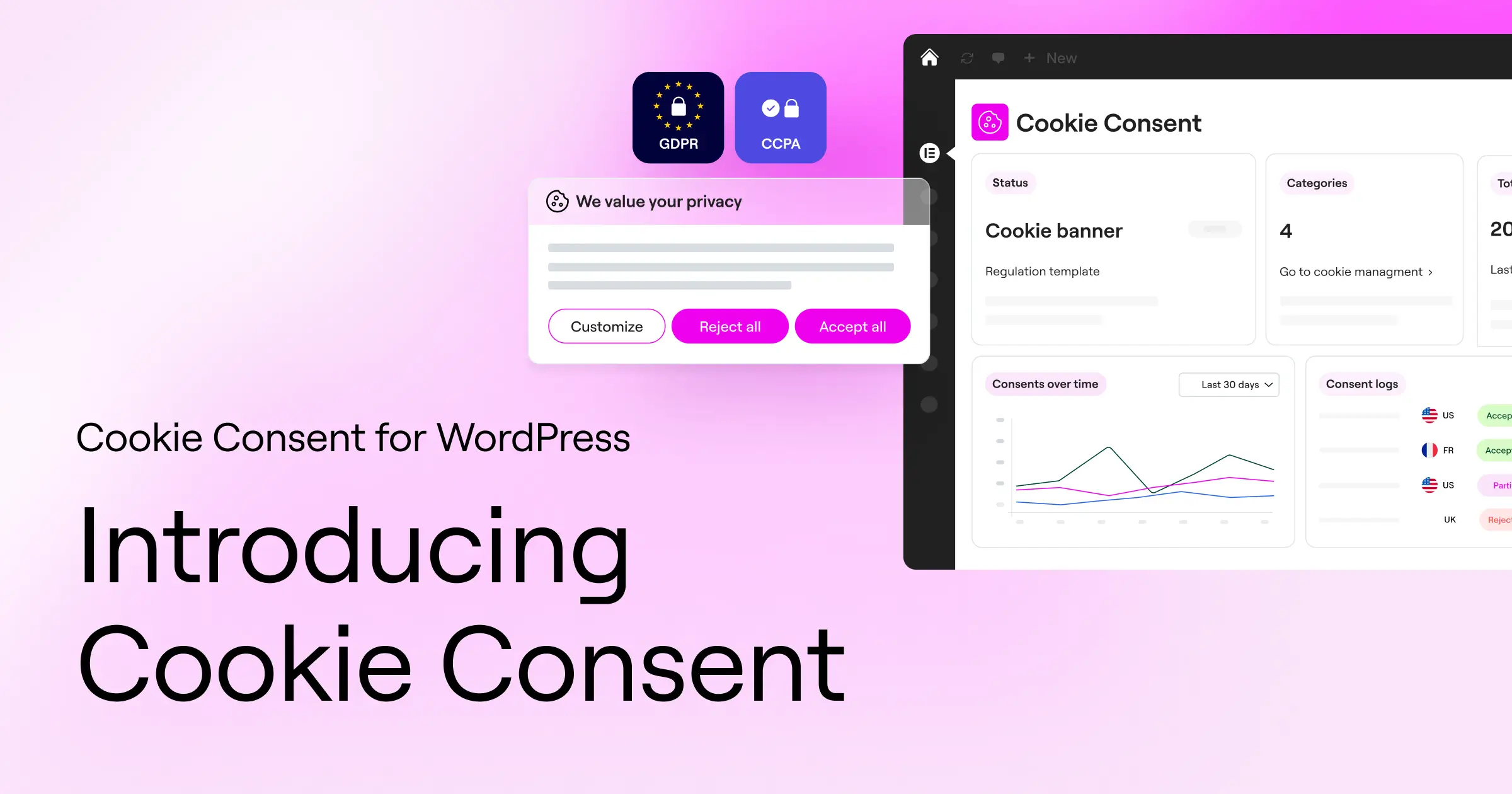
A few regulations matter most. The General Data Protection Regulation (GDPR) protects visitors in the European Union, and the California Consumer Privacy Act (CCPA) protects people in California, with other states and countries introducing their own versions too. Since your site can be visited from anywhere, aiming for a high privacy standard keeps you covered no matter where your audience comes from.
Understanding Website Privacy Compliance in 2026
The privacy landscape has shifted a lot lately. A simple banner on your homepage isn’t enough anymore, visitors expect real control over how their data gets tracked, stored, and shared. If your site runs analytics, tracking pixels, or even a basic contact form, privacy rules apply to you.
Regulators are paying closer attention to small and medium sites now, not just the big tech names. The good news is modern tools make this approachable, most of the heavy lifting happens behind the scenes, and once you’re set up, staying current just means an occasional scan and update.
It also helps to know the differences between the main privacy frameworks. GDPR requires explicit consent before loading non-essential cookies. CCPA works more on an opt-out model, where cookies can load by default, but you must give visitors a clear way to stop that tracking. The EU’s ePrivacy Directive sets cookie-specific rules that work alongside the GDPR. Knowing which rules apply to your audience lets you configure your consent tool correctly from day one.
10 Best Practices for Website Privacy Compliance
Here are ten practical steps for making your WordPress site fully compliant, each one straightforward enough to put into practice right away.
1. Conduct a Regular Cookie Audit
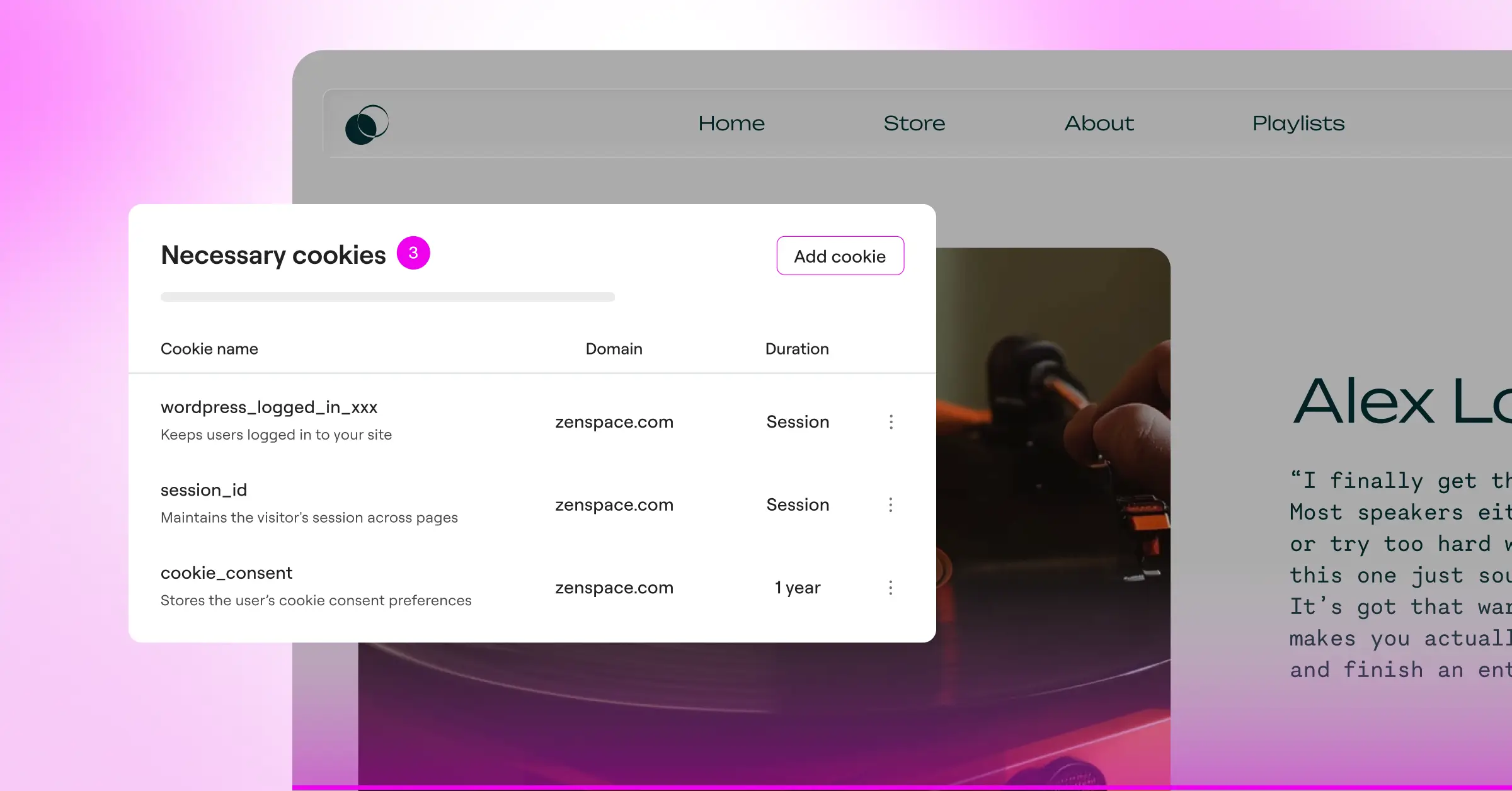
You can’t manage what you don’t know about. Over time, your site picks up cookies from social embeds, video players, analytics tools, and third-party widgets. A regular scan is the first step to seeing what’s actually running under the hood.
Use a tool that automatically identifies and groups trackers into categories, then use that list to explain what each cookie does in your privacy documentation. Aim to scan at least once a month, since theme and plugin updates can quietly add new cookies without you noticing.
- Identifies active tracking scripts on your pages.
- Categorizes cookies into functional, analytical, and marketing buckets.
- Keeps your cookie list updated automatically after each scan.
- Spots unauthorized scripts that shouldn’t be running.
- Explains what each cookie does in language you can reuse in your privacy documentation.
- Saves your team hours of manual developer checks every month.
2. Implement a Clear Privacy Policy
Your privacy policy shouldn’t read like legal jargon. Write it in plain language any visitor can follow, telling people what you collect, why, how long you keep it, and who you share it with.
Make the page easy to find, most owners link it in the global footer so it’s reachable from anywhere. When your data practices change, update the policy and note the revision date at the top. A built-in policy generator can save you time if you’re unsure what needs covering.
- Write in clear, accessible language rather than dense legal talk.
- List every third-party service that receives your user data.
- Explain how visitors can request to have their personal data deleted.
3. Use a Native Cookie Consent Solution
Many consent tools send visitors to external dashboards or load heavy scripts from third-party servers, which can slow your pages down. A native approach is easier on both performance and your visitors’ experience, and keeping everything inside your WordPress admin cuts out a layer of complexity.
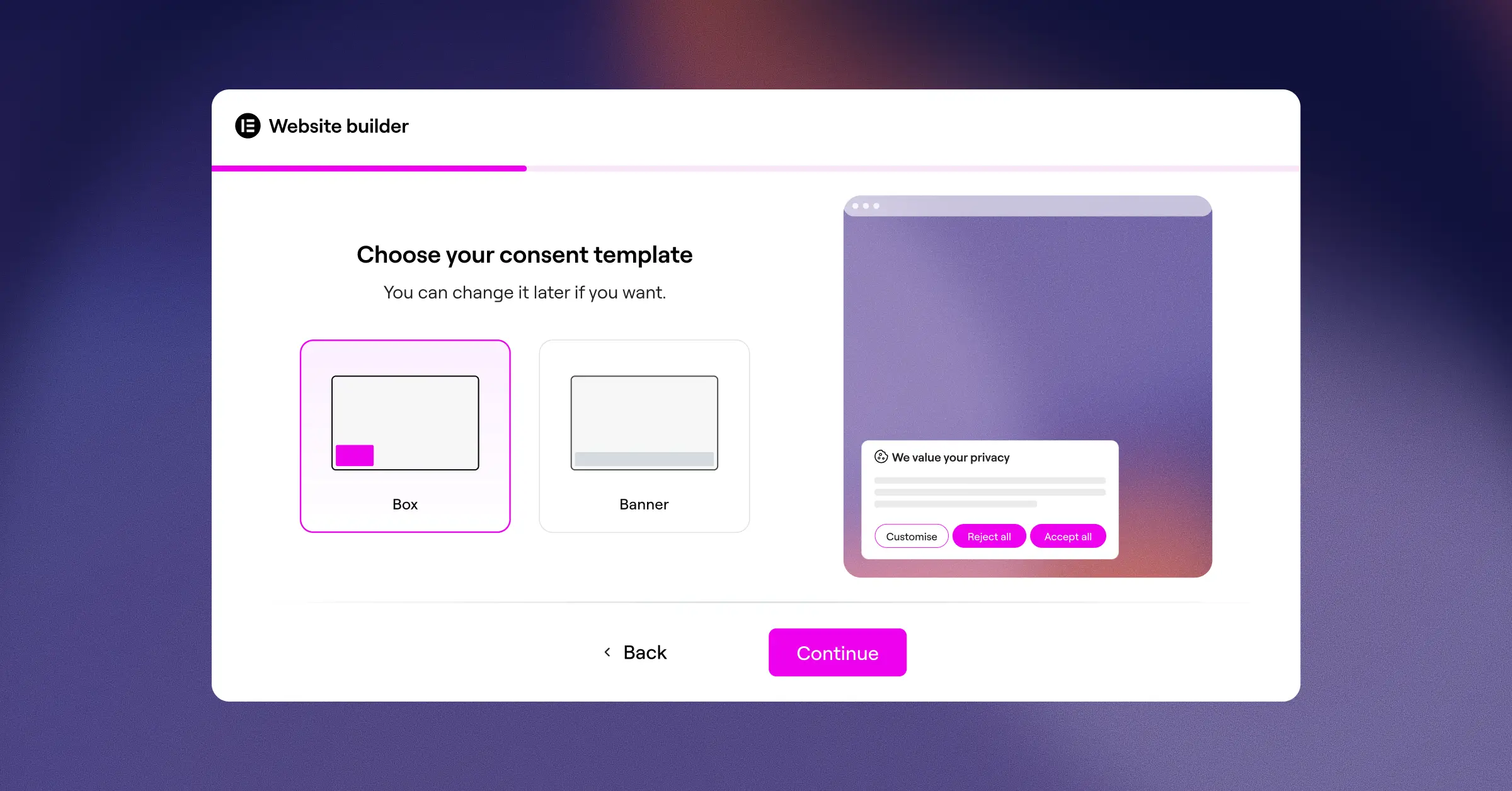
This is where Elementor’s Cookie Consent tool shines. It’s built natively for WordPress, so you handle GDPR and CCPA requirements right from your dashboard, no separate platforms or extra logins required. You set up consent banners, scan your pages, and keep your logs all in one place.
“Managing privacy on your website shouldn’t mean jumping between five different cloud platforms. A native approach to consent management keeps your data clean, your site fast, and your compliance team happy.”
– Itamar Haim, Web Compliance Specialist
Getting started takes about five minutes. The three-step setup wizard walks you through connecting your site, configuring your banner, and turning on the cookie scan, faster than it takes to read a standard terms-of-service agreement.
4. Enable Google Consent Mode v2
If you use Google Analytics, Google Ads, or Tag Manager, you need Google Consent Mode v2. It tells Google’s servers what each visitor agreed to, so when someone declines cookies, Google’s tools skip storing personal data while you still capture basic, non-personal traffic numbers.
Without it, you risk losing conversion data for your marketing campaigns, and could face account restrictions on traffic from the European Economic Area. A modern consent tool turns this into a simple toggle instead of a developer project.
5. Support Global Privacy Control (GPC)
Global Privacy Control is a browser-level setting that lets users declare their privacy preferences universally. When someone turns it on, their browser signals every site they visit that they’d like to opt out of having their data sold or shared.
Supporting GPC is a key part of staying compliant with state-level privacy laws in the US. Your consent tool should detect this signal automatically and respect the user’s choice, so visitors never have to manually decline your banner every time they show up. It’s one of those small details that makes a real difference to privacy-aware visitors.
6. Practice Data Minimization
The safest approach to personal data is simply not collecting what you don’t need. Before adding a new field to a checkout form or newsletter signup, ask whether it’s genuinely necessary for your business. It’s simpler than it sounds, and it keeps your database cleaner over time.
If you’re collecting phone numbers, home addresses, or birthdates without a clear purpose, it might be time to trim those fields. Shorter forms are faster to complete, and less data collected means less data you’d ever have to protect if something goes wrong.
7. Secure Contact Forms and User Data
Contact forms are one of the most common ways sites collect personal information. Every submission gets processed, often stored in your database or emailed out, so the whole pathway needs to stay secure.
Make sure your site runs on a valid SSL certificate so form data travels encrypted, and add a checkbox asking users to confirm they agree with your privacy policy before submitting. That gives you a clear consent record and keeps your data collection transparent and compliant.
- Protects user data in transit with active SSL encryption.
- Includes a consent checkbox for every form submission.
- Cleans out old entry logs from your database on a regular schedule.
- Restricts form database access to approved staff only.
- Sends form notifications using secure mail pathways.
- Informs users clearly about how their submitted details will be used.
8. Establish Data Processing Agreements (DPAs)
Whenever you use an external service, an email platform, a CRM, a cloud host, you’re sharing user data with them. Under modern privacy rules, you’re responsible for making sure they protect that data as carefully as you do.
Most reputable services offer a Data Processing Agreement you can sign online, legally binding the provider to handle your users’ information safely. Keep copies of these agreements somewhere organized, so you’ve got proof of your compliance efforts if an auditor ever asks for documentation.
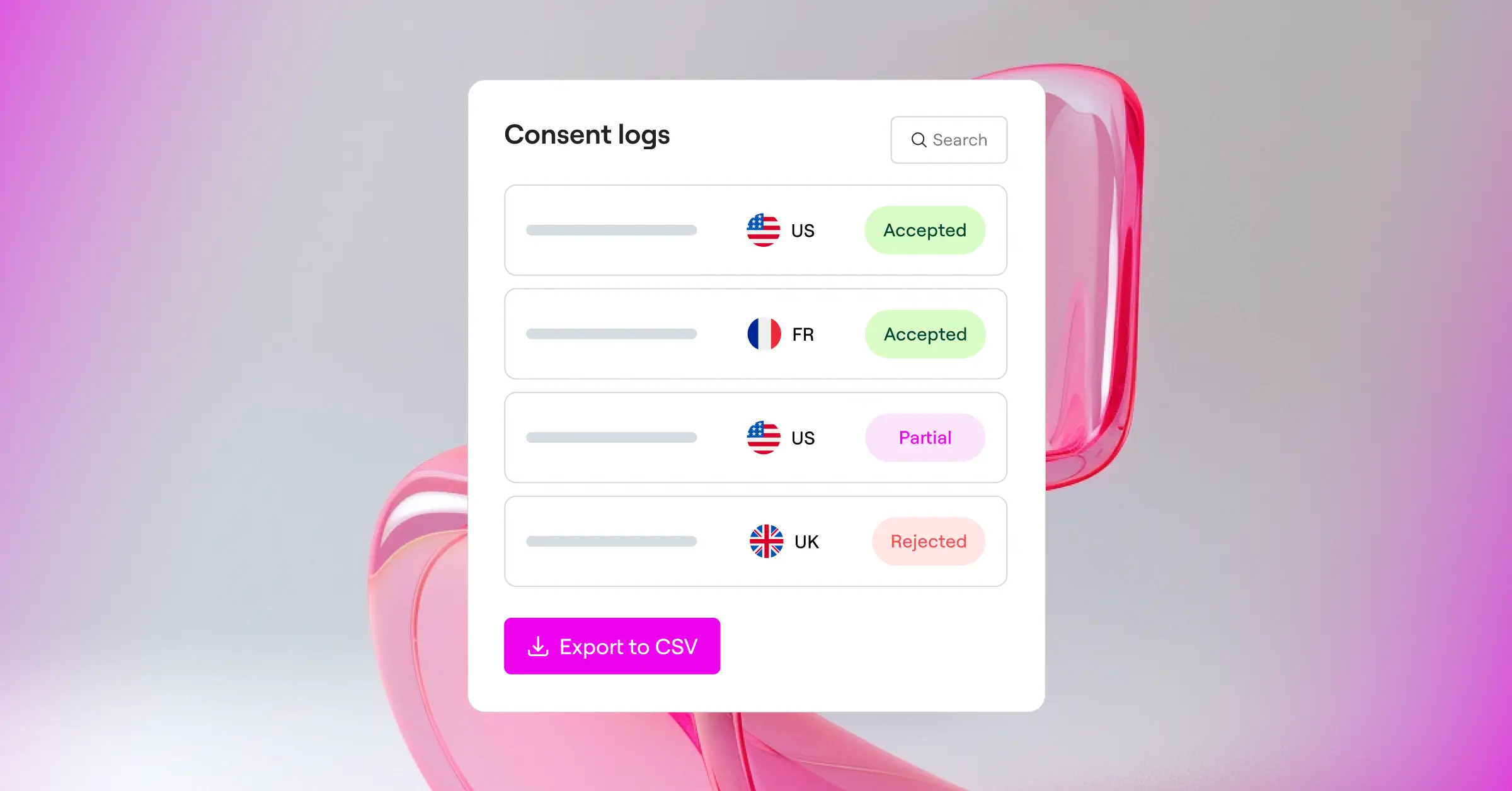
9. Maintain Consent Logs for Audit Readiness
A cookie banner is a good start, but it won’t help much if you can’t prove visitors actually interacted with it. A regulator reviewing your site will want an audit trail showing when someone consented and what they chose.
These logs are stored using anonymous identifiers rather than personal details, so keeping them carries no privacy risk of its own. Having this history on hand gives you real peace of mind, and a good consent management tool builds it automatically in the background, so you don’t have to think about it.
10. Run Regular Compliance and Accessibility Checks
Compliance has more than one side. Alongside cookie consent, it’s worth making sure your site is accessible to everyone, including people who rely on assistive technologies like screen readers. A truly compliant site is both private and usable.
Pairing your cookie consent tool with Elementor’s Web Accessibility capability rounds out your compliance picture, and both tools work natively within WordPress, so you’re not adding more external platforms to juggle. It’s worth checking how your banners and popups behave with keyboard navigation and screen readers, since that interaction matters for accessibility standards as much as it does for your visitors’ experience.
Comparing Top Consent Management Tools
Finding the right tool for your WordPress site can make a real difference in your daily workflow. Some options require you to manage everything on a completely separate platform, while others let you run it all from your WordPress admin. Here’s a factual look at how the top tools compare.
| Feature / Capability | Cookie Consent | Cookiebot | CookieYes | Complianz | iubenda | OneTrust |
|---|---|---|---|---|---|---|
| Dashboard Location | WordPress Native | External Cloud | External Cloud | WordPress Native | External Cloud | External Cloud |
| Setup Time | Under 5 Minutes | Moderate | Moderate | Moderate | Longer | Longer (Enterprise) |
| Google Consent Mode v2 | Supported (Built-in) | Supported | Supported | Supported | Supported | Supported |
| Entry-Level Plan Available | Yes | Yes (Limited) | Yes (Limited) | Yes (Limited) | Yes (Limited) | Trial only |
| Customization | Full Brand Control | Basic Templates | Basic Templates | Good Control | Template-Based | Highly Custom |
Each of these tools has its own strengths. If you’re running a large enterprise with legal teams across many countries, OneTrust offers deep compliance reporting built for that scale, and Cookiebot and CookieYes offer capable cloud-based control panels for standard business sites. But if you want your site fast, your costs manageable, and no extra dashboards to log into, a WordPress-native option is usually the more comfortable fit.
When choosing a solution, look for features that actually simplify your workflow. A good tool should:
- Track consent choices without slowing down page rendering.
- Build custom banner designs that match your theme colors and branding.
- Connect with Google Consent Mode v2 automatically.
- Pull cookie categories from a secure, regularly updated cloud library.
- Keep consent logs stored safely for potential audits.
- Apply geo-targeting so banners only appear in regions where they’re required.
How to Configure Privacy Compliance on WordPress
Ready to get your site compliant? Here’s a clear walkthrough of the setup, and it’s easier than it looks. Most of the core pieces come together in just a few minutes.
- Install and activate your chosen compliance tool. Head to your dashboard, add the capability, and run the initial setup wizard to connect it to your site.
- Scan your website for cookies. Let the automatic scanner look through your pages, stylesheets, and scripts to build your custom cookie list.
- Configure your consent banner. Choose your layout, match the colors to your brand, and select which regions should see the banner.
- Turn on Google Consent Mode v2. Toggle this option in your settings so your marketing tags respect your visitors’ choices automatically.
- Publish and test your setup. Open an incognito browser window, visit your site, and confirm that cookies are blocked until you click “Accept.”
Once those steps are done, your site is in great shape, protecting your visitors’ personal information and staying aligned with privacy requirements around the world.
And if you want to take your compliance further, Elementor One bundles Cookie Consent with other native capabilities, including Web Accessibility, giving you a full compliance toolkit in one place, managed from your dashboard.
Frequently Asked Questions
Do small business websites really need cookie consent?
Yes. Many privacy laws apply to any site that collects personal data, regardless of size. If you use tools like Google Analytics, you’re collecting IP addresses and behavior data, which requires consent under regulations like the GDPR.
What is Google Consent Mode v2 and is it mandatory?
It’s a framework that lets your website communicate visitors’ consent choices directly to Google’s services. It’s not a legal requirement on its own, but Google requires it for personalized advertising or conversion tracking on visitors in the European Economic Area.
Can I just write my own privacy policy?
You can, but it needs to cover the legal requirements for every region your visitors live in. A built-in policy generator or a specialist consult is a good way to make sure you don’t miss any key disclosures.
Does a cookie banner slow down my WordPress site?
Some external tools that load heavy scripts from third-party servers can slow your pages down. A native WordPress capability keeps the code lightweight and local, so your site stays fast while remaining compliant, one of the main reasons to go native.
What happens if I do not comply with GDPR or CCPA?
Non-compliance can lead to warnings, reputational damage, and in serious cases, financial penalties from regulators. Taking proactive steps to respect user data is the best way to avoid all of that.
How often should I run a cookie scan on my site?
Once a month is a good rule of thumb. Automatic updates to themes, tools, or embedded media can add new trackers without your knowledge, so regular scans keep your cookie declarations accurate.
What is the difference between opt-in and opt-out consent?
Opt-in consent, required by the GDPR, means tracking cookies can’t load until the user explicitly agrees. Opt-out consent, used under laws like the CCPA, lets cookies load by default but requires a clear way for visitors to stop it.
How does Global Privacy Control (GPC) work?
Global Privacy Control is a browser-level setting where users declare their privacy preferences once. When a compliant consent tool detects that signal, it automatically respects the opt-out, so visitors never need to click through a popup banner on each site they visit.