Running a successful WooCommerce store is exciting, but data privacy can feel overwhelming at first. If you sell to customers in the EU or UK, keeping your site compliant with GDPR isn’t optional. Don’t worry, you don’t need to be a lawyer or a systems engineer to get this right. With the right native tools and a clear plan, you can protect your customers and your business without losing your peace of mind.
Key Takeaways
- GDPR compliance is mandatory if your store serves any customers in the EU or UK, no matter where your business is based.
- Native consent tools simplify management by keeping your setup, consent logs, and banners inside your WordPress dashboard.
- Google Consent Mode v2 is essential for running Google Ads and analytics while staying compliant with modern privacy rules.
- Data minimization is key, meaning you should only collect and keep customer data you actually need to complete orders.
- WooCommerce has built-in privacy tools that make it easy to clean up old accounts and order histories automatically.
Why GDPR Matters for Your WooCommerce Store in 2026
Digital privacy rules keep tightening. A passive notice banner at the bottom of the page used to be enough, but not anymore. Regulators now actively review ecommerce sites, and if your store sets marketing cookies or sends abandoned cart emails before getting real permission, you could face warning letters or fines.
But compliance isn’t only about dodging fines. It’s a real chance to build trust with your audience. When visitors see that you respect their data, they feel more comfortable handing over their card details, and a transparent consent system tells shoppers they’re dealing with a professional, customer-first business.
The landscape has also shifted with the wide adoption of Google Consent Mode v2. If you use Google Analytics or Ads to grow your store, you need to pass consent signals to Google directly, or your tracking stops working correctly and your campaigns lose accuracy. Wiring this into your store sounds complicated, but a few solid tools make it genuinely simple.
Introducing Cookie Consent: Your Native Compliance Solution
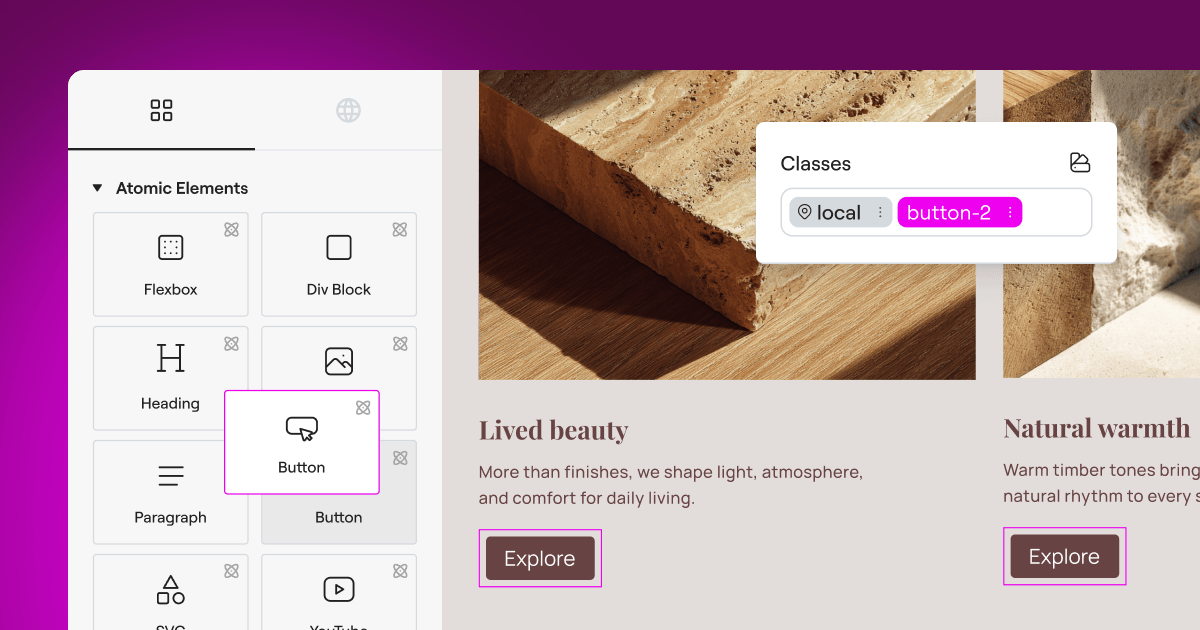
To keep your site compliant without slowing it down, we recommend Cookie Consent by Elementor. This native tool lets you manage GDPR and CCPA compliance right from your WordPress dashboard, no outside platforms or messy third-party scripts needed.
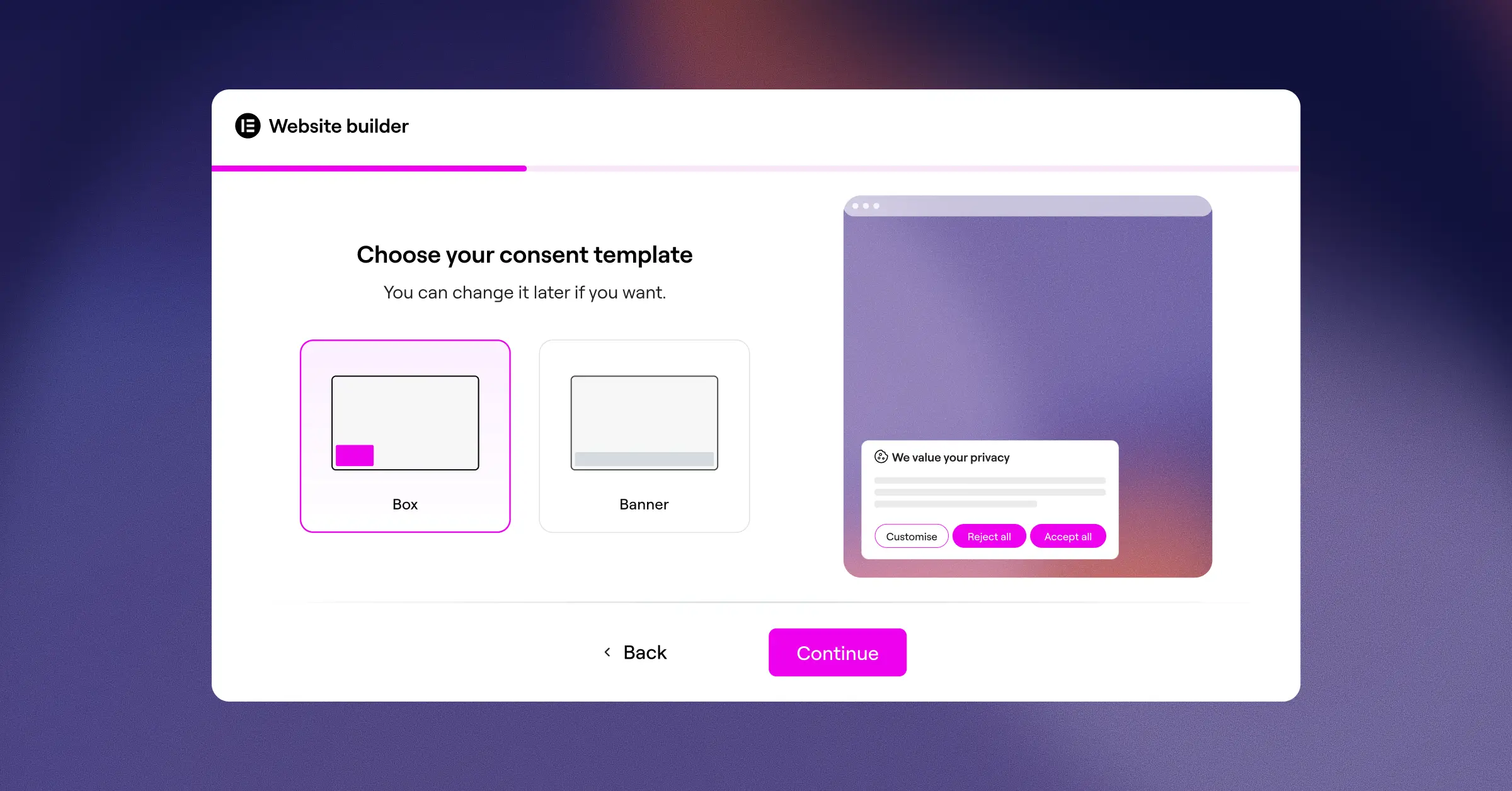
Because this tool is built natively for WordPress, it fits your theme styles and layout without friction. You can build, customize, and publish your consent notices in under five minutes, while keeping your site light and avoiding scripts that slow down mobile checkout. Here are the core capabilities it brings to your store:
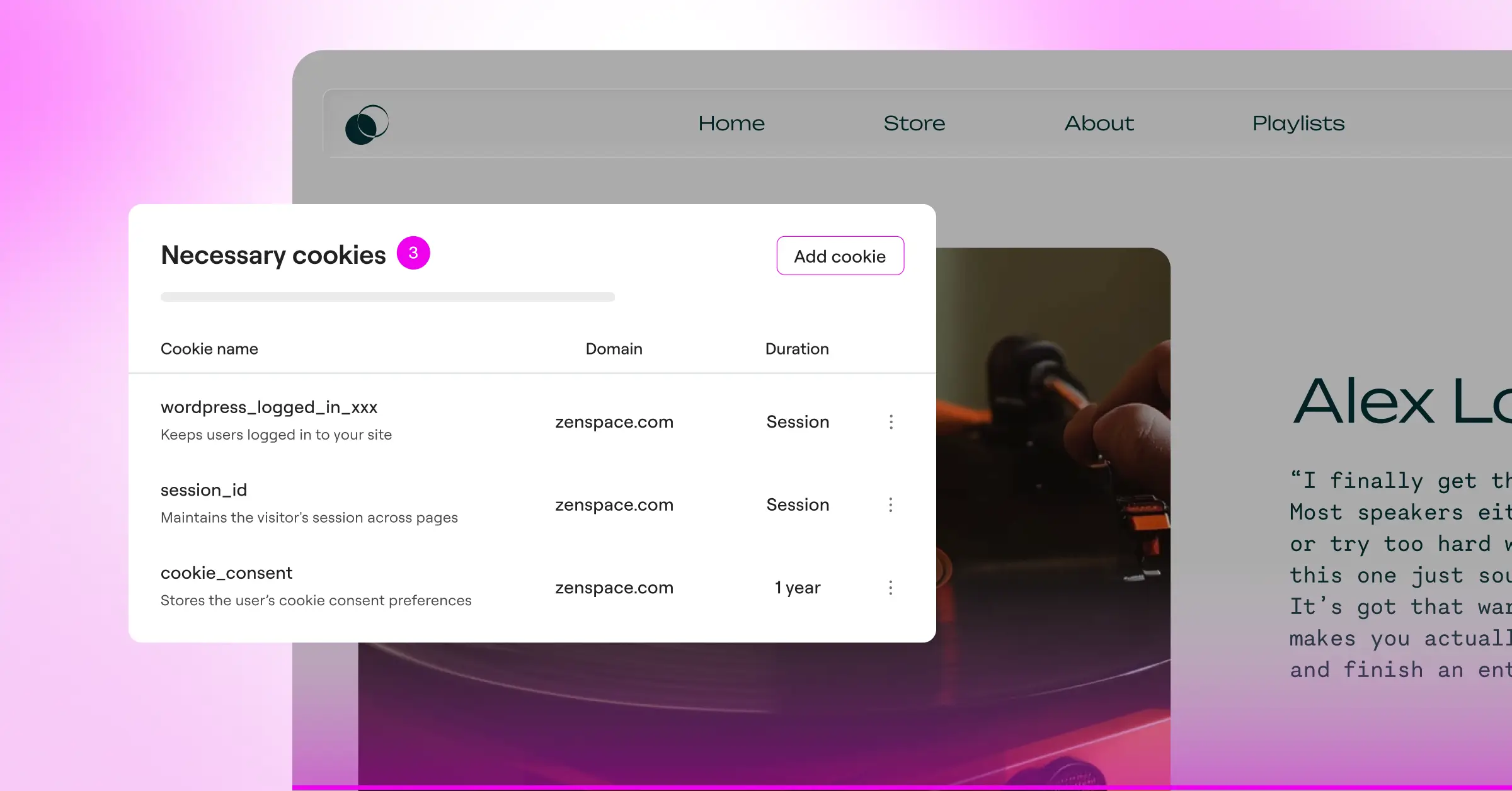
- Scans your entire site automatically to identify, categorize, and organize cookies within minutes.
- Builds custom consent banners that match your branding, colors, and typography.
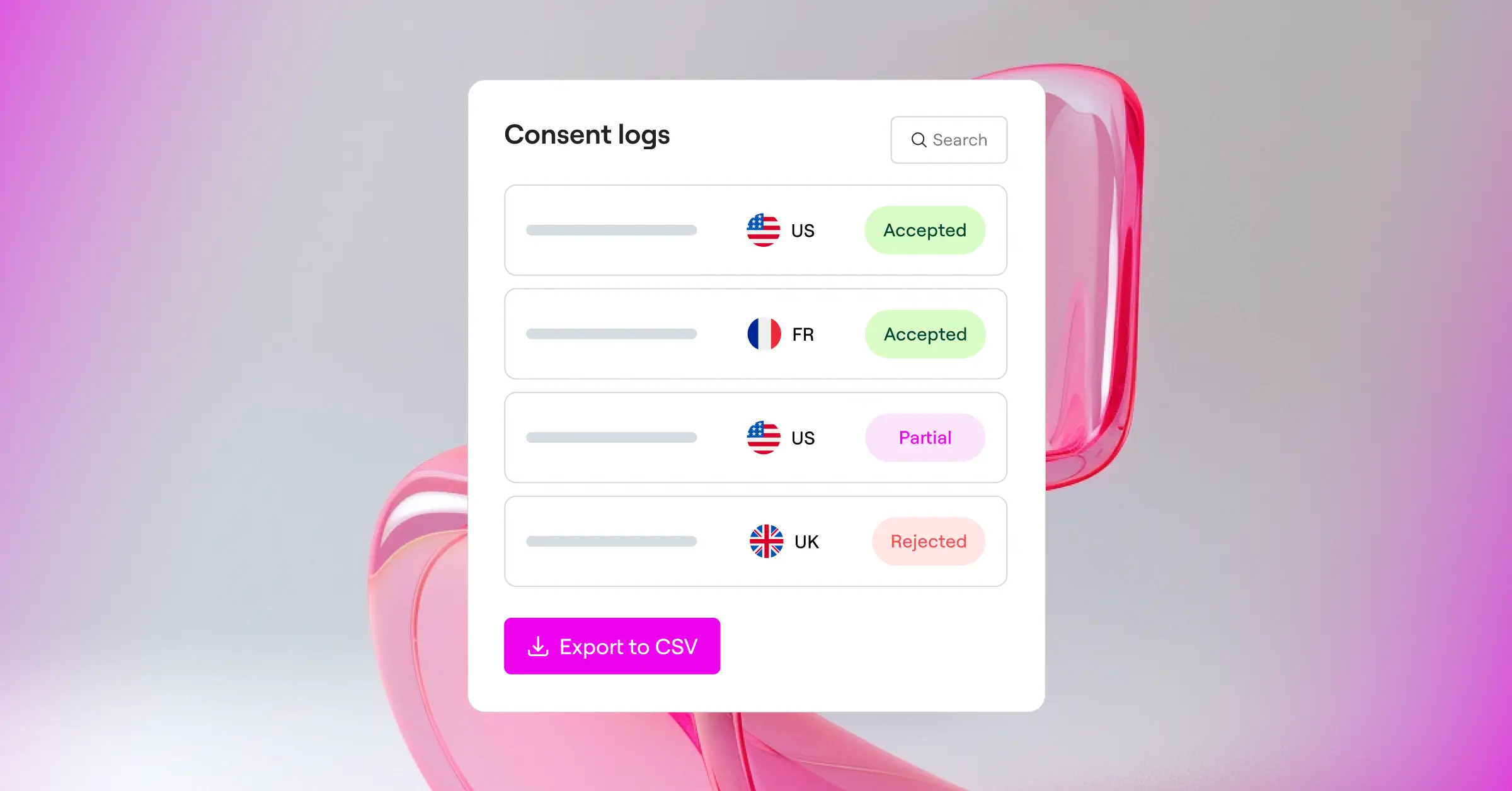
- Logs visitor consent choices securely to keep an accurate audit trail.
- Tracks user locations to show the right banner based on local privacy laws, like GDPR or CCPA.
- Connects directly with Google Consent Mode v2 to share consent signals with your marketing tools.
- Pulls regional templates from the cloud so you don’t have to design banners from scratch.
Going native like this means skipping expensive monthly subscriptions for outside consent managers. It’s already part of your dashboard, so you can check compliance status, update banners, and view logs in one workspace. (Simpler than piecing together three different add-ons, we promise.)
Step 1: Audit Your Customer Data Touchpoints
Before you can protect customer data, you need to know where it comes from and where it goes. Map your store’s touchpoints so you can explain them in your privacy policy and set up the right consent triggers.
Here are the most common ways your store collects data, from the checkout form to the tracking scripts running in the background:
- The Checkout Process – Customers enter names, addresses, emails, phone numbers, and payment details to buy your products.
- User Account Creation – Visitors can create an account, saving their purchase history, shipping addresses, and profile details in your database.
- Marketing and Analytics Scripts – Tools like Google Analytics, Facebook Pixel, and Pinterest tags track behavior, page views, and cart additions.
- Newsletter Signup Forms – Popups and footer forms collect email addresses for weekly promotions or discount codes.
- Product Reviews and Comments – Customers leave names, emails, and opinions on product pages, saved in your database.
Once mapped, configure your cookie consent tool to handle each touchpoint correctly. Marketing pixels, for example, need to stay blocked until a visitor clicks “Accept.” If they fire before consent, your store is technically out of compliance.
Step 2: Update Your Store’s Privacy Policies and Checkout Forms
Your privacy policy is the legal foundation of your store. Write it in plain language, since you legally can’t hide behind jargon. Explain what you collect, why, how long you keep it, and who you share it with.
Here are the essential sections your privacy policy needs. A policy generator can help you draft these, but review them so they fit your business:
- What personal data you collect – Names, emails, addresses, IP addresses, and payment details.
- Why you collect this data – You need it to ship orders, process payments, and improve the shopping experience.
- Third-party data sharing – Disclose any shipping companies, payment processors, or marketing services that handle customer data.
- How long you keep data – Explain your retention policies (for example, keeping order logs for tax purposes).
- The customer’s legal rights – Tell users how to request a copy of their data or ask you to delete it completely.
Once your privacy policy is ready, update your checkout page too. Add a small, unchecked checkbox that links to your privacy policy. Customers must actively click it to confirm they agree before placing an order. Never pre-check this box, since GDPR strictly prohibits pre-checked consent.
Step 3: Configure WooCommerce Account Privacy Settings
WooCommerce already includes several features that make GDPR compliance easier to manage. You don’t need extra tools for basic data retention or cleanup, just the settings already in your dashboard.
Go to your WordPress admin panel and open WooCommerce > Settings > Accounts & Privacy. This section controls how customer accounts are managed and how long personal data stays in your database. Here’s how to configure these options for solid compliance:
- Guest Checkout – Decide if customers can buy without an account. It’s good for privacy since it minimizes data saved on your server.
- Account Creation – Let customers create accounts at checkout or on the “My Account” page, with a clear privacy notice shown there too.
- Account Erasure Requests – Check the boxes that let you remove personal data from orders and downloads on request, honoring “right to be forgotten” requests.
- Personal Data Retention – Choose how long you keep inactive, pending, failed, cancelled, and completed orders. Keeping data indefinitely is a compliance risk, so set reasonable limits.
Automating these cleanup tasks protects your business too, less exposed data if your site ever has a security issue, thanks to regularly purged old records, a real win for both security and privacy.
Comparing Cookie Consent Tools for WordPress in 2026
You’ll find several compliance tools on the market. Some run entirely inside WordPress, while others need an external cloud platform, so it’s worth comparing your options.
Here’s how the top tools compare across key features, ease of use, and setup speed:
| Feature / Capability | Cookie Consent (Elementor) | Cookiebot | CookieYes | Complianz | iubenda |
|---|---|---|---|---|---|
| Platform Type | WordPress-Native | External Cloud | External Cloud | WordPress-Native | External Cloud |
| Setup Time | Under 5 minutes | 15-30 minutes | 15-30 minutes | 20-45 minutes | 30-60 minutes |
| Google Consent Mode v2 | Supported (Built-in) | Supported | Supported | Supported | Supported |
| Consent Logs | Saved in Dashboard | Stored in Cloud | Stored in Cloud | Saved in Dashboard | Stored in Cloud |
| Design Customization | Full theme integration | Limited templates | Basic CSS options | Standard templates | Basic styling |
Keeping everything inside the Elementor ecosystem keeps your admin dashboard clean and helps avoid database bloat. You don’t have to worry about outside scripts failing and breaking your banner.
Advanced Compliance: Google Consent Mode v2 and Script Management
If you run paid ads on Google, you’ve probably heard of Google Consent Mode v2. This framework passes your visitors’ cookie choices to Google’s services. If someone rejects marketing cookies, Google’s tags adjust so they skip storing user data, but still send basic, anonymous conversion signals.
Setting this up manually used to mean complex coding and hours of testing in Google Tag Manager. The native cookie consent tool handles this automatically in the background, bridging visitor choices and Google’s ad systems without you writing a line of JavaScript.
To make sure your advanced tracking stays fully compliant, work through this basic checklist:
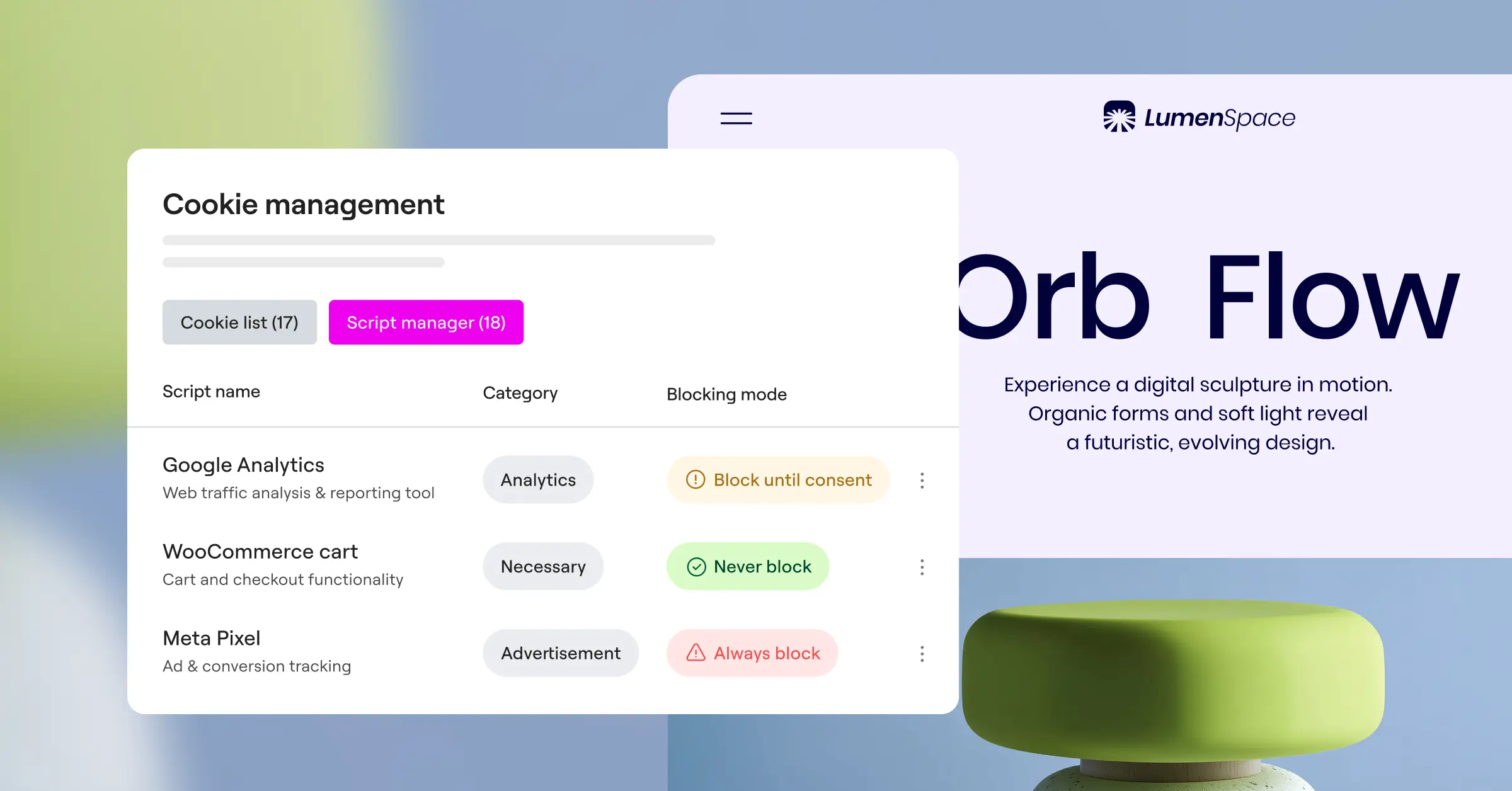
- Block marketing scripts from loading until the visitor clicks “Accept” on your consent banner.
- Enable Consent Mode within your cookie consent settings to pass user decisions directly to Google.
- Categorize your scripts properly so essential site features still work even if a user rejects analytics cookies.
- Respect Global Privacy Control (GPC) signals sent automatically by modern web browsers.
- Test your setup using your browser’s developer console to confirm no advertising cookies are set before consent is granted.
This setup keeps your store in good standing with ad platforms and regulators, so you can keep running effective campaigns while honoring every visitor’s privacy.
“True compliance on WordPress isn’t about adding more popups. It’s about understanding how your site collects data and giving your visitors honest, transparent control over their privacy right from their first visit.”
– Itamar Haim, Web Compliance Specialist
How to Handle Subject Access and Data Erasure Requests
Under GDPR, customers have two important rights: the Right to Access their data and the Right to be Forgotten. Anyone can ask for a full copy of what you’ve saved about them, or ask you to delete it entirely.
Handling these requests might sound like a headache, but WordPress and WooCommerce already have built-in export and erasure tools, no digging through database tables by hand. You can do the whole process from your admin dashboard in a few clicks.
If a customer contacts you to exercise their rights, follow these steps to handle the request safely:
- Verify their identity – Make sure the person making the request actually owns the email and account tied to the data.
- Find the tool – In your WordPress admin, go to Tools > Export Personal Data or Tools > Erase Personal Data.
- Enter their email address – Type in the user’s email and click “Send Request,” which asks them to confirm.
- Complete the process – Once they confirm, click the button to generate their download file or erase their data permanently.
- Verify payment records – You may be legally required to keep order invoices for tax and accounting laws, even after erasing their account. GDPR allows you to retain this financial data for legal compliance.
A clear, documentable process for these requests shows you’re a professional business owner, and it keeps you ready for whatever comes your way.
Final Checklist for Your WooCommerce Store’s Compliance
Let’s run through a quick final checklist. Check off all of these, and you can feel confident your store is ready to welcome visitors from the EU, UK, and beyond:
- Active Banner – Your cookie consent banner is live, clear, and visible to all new visitors.
- Prior Consent – No tracking cookies or pixels load before a visitor clicks “Accept.”
- Clear Privacy Policy – Your privacy policy is up to date and linked clearly in your footer and checkout.
- Unchecked Checkboxes – All checkout consent checkboxes are unchecked by default.
- Consent Logs – Your system is actively saving consent choices in your dashboard for audit records.
- Consent Mode – Google Consent Mode v2 is fully operational for your marketing tools.
You’ve got this. These steps protect your brand and keep your store growing safely for years to come. Compliance is just a natural part of running a modern, professional online business.
If you want to go further with your privacy setup, Elementor’s Cookie Consent capability covers banner design, consent logs, and Google Consent Mode v2 support in one place. It pairs naturally with Elementor’s Web Accessibility tool, which helps your store meet WCAG standards, and you can explore both as part of Elementor One.
Frequently Asked Questions
Does my US-based store need to comply with GDPR?
Yes. GDPR is based on where your customer lives, not your business. If someone from the EU visits and buys something, their data still falls under GDPR. Regional banners in your cookie consent tool handle this without changing the experience for local buyers.
What is Google Consent Mode v2 and is it mandatory?
It passes your visitors’ consent choices to Google’s analytics and ad services. It’s not a government law, but Google requires it for personalized advertising and tracking in the European Economic Area, or your ad tracking stops reporting accurately.
Can I still send abandoned cart emails under GDPR?
You can, but be careful about consent. You can’t email guests who haven’t opted in. Add a clear marketing opt-in checkbox at checkout, and only target customers who’ve actively checked it.
Do I have to keep consent logs for years?
Under GDPR, you need to prove a visitor gave consent before you set tracking cookies or collected data. Secure consent logs in your WordPress dashboard are the easiest proof, and they double as your audit trail if a regulator asks.
Is it better to use a native tool or an external cloud-based tool?
For most WordPress sites, a native tool like Elementor’s Cookie Consent is the practical choice. It keeps your site fast, lets you design your banner in your visual builder, and saves you monthly fees to third-party providers.
Does GDPR apply to wholesale and B2B WooCommerce stores?
Yes. Even a wholesale or B2B store gathers names, work emails, IP addresses, and phone numbers from real people, so you need to comply exactly like a retail business does.
What happens if a customer asks me to delete their order history?
You need to remove their personal information, but GDPR has an exception for data you’re legally required to keep, like tax records. You can anonymize their account while keeping the invoice to satisfy local tax authorities.
Can I block EU users from my site entirely to avoid GDPR?
Some sites geo-block EU visitors, but that shrinks your audience and makes your brand look unwelcoming. A native cookie consent tool is affordable enough that complying beats locking out a market.
Do I need to pay a lawyer to write my privacy policy?
Having a legal professional review your policy is the safest option, but many small business owners start with quality compliance generators instead. Just update your policy whenever you add new tools or marketing services.