Keeping a WordPress site compliant with cookie laws can feel like a lot, especially when you’re not sure which cookies your site is quietly setting in visitors’ browsers. Good news: you don’t need to be a developer for a clear picture, and with the right tools, you can audit your site and stay compliant with GDPR and CCPA without losing sleep over it.
Key Takeaways
- Compliance is mandatory: GDPR and CCPA require you to know and declare every cookie your site uses.
- WordPress-native is easiest: Scanning and consent in your dashboard saves time and skips third-party headaches.
- Automation saves hours: Manual audits work for small sites, but automated tools keep your policy current.
- Consent v2 matters: If you’re targeting European visitors, your scanner and banner need Google Consent Mode v2.
The Cookie Problem: Why Scanning Matters in 2026
Every time you add a share button, embed a video, or install an analytics tool, your site quietly drops new cookies into visitors’ browsers, and regulators under GDPR and CCPA are watching for tracking without clear permission. If you serve visitors in the UK, EU, or North America, you’re required to show an accurate, categorized list of the cookies you use, and you can’t declare what you don’t know about. A regular, automated scan keeps that declaration matching reality, builds trust, and keeps you clear of fines.
How Cookie Scanning Works Behind the Scenes
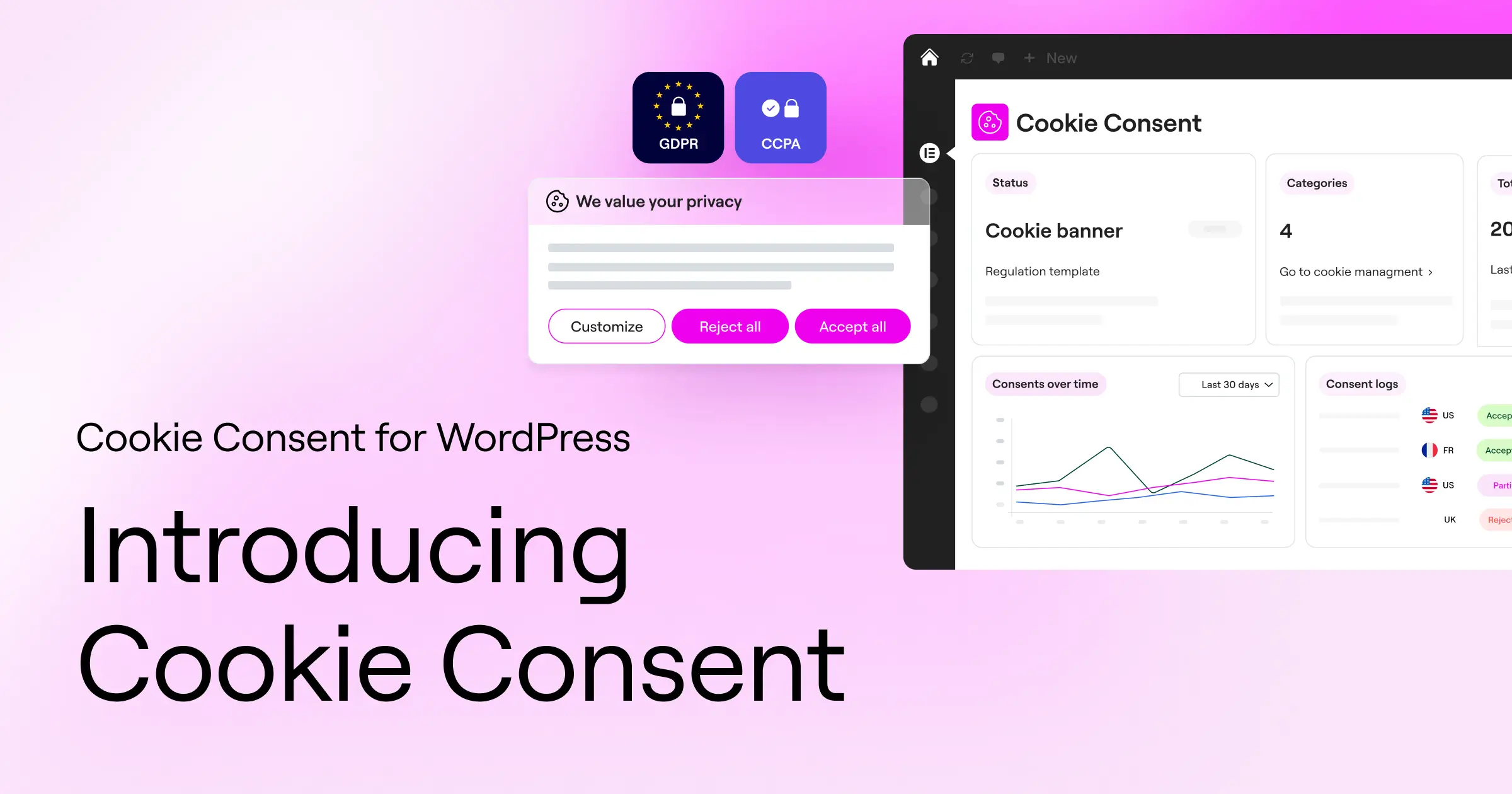
A cookie scanner behaves like a real visitor: it sends an automated crawler to your home page, then clicks through your links the way a person would, triggering every script, tracker, and widget on your site. It checks your browser storage, logs each cookie and tracking script it finds, then sorts them into categories: strictly necessary, analytical, functional, or marketing. That list feeds your cookie banner, so visitors can give informed consent before non-essential tracking starts.
How to Prepare Your Website Before Running a Cookie Scan
Before you hit scan, spend a few minutes prepping your site so the results come back accurate.
- Clear your page cache: Active caching can stop tracking scripts from loading for the crawler, leading to incomplete results.
- Temporarily disable firewall blocking: Security tools sometimes mistake the crawler for a malicious bot and block it.
- Identify your third-party integrations: List the external tools you’re running, like Google Analytics, Facebook Pixel, or embedded videos.
- Check your staging environment: If you’re testing changes, run a trial scan there first to catch rogue scripts.
10 Best Ways to Scan Your Website for Cookies
Here’s a look at the best tools and methods for scanning your site in 2026, a mix of WordPress-native tools, cloud platforms, and manual checks.
1. Cookie Consent by Elementor
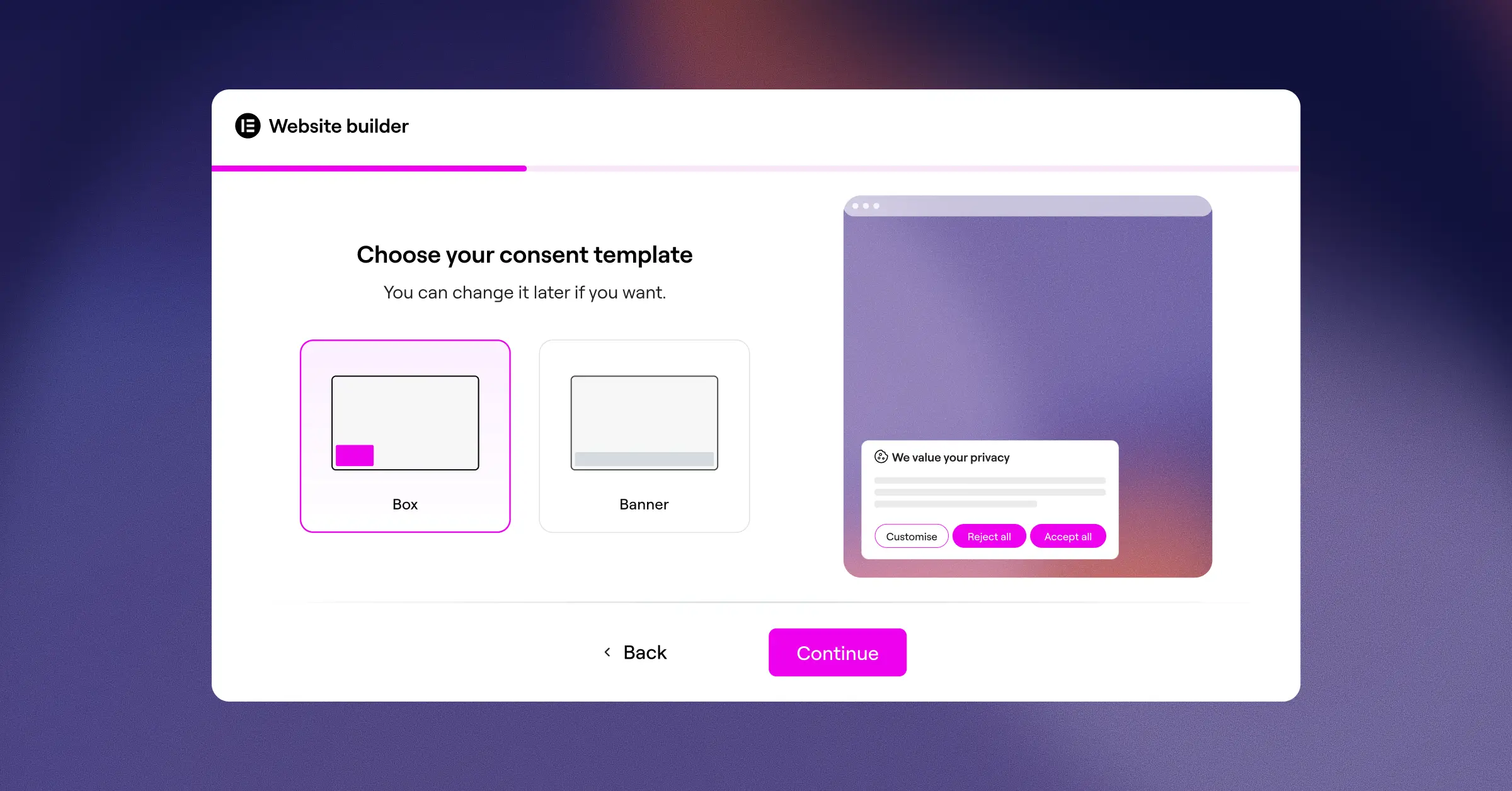
We’re starting with Cookie Consent, Elementor‘s native cookie consent capability for WordPress: no external account, no script to paste into your header files. Setup takes three steps and about five minutes, the built-in scanner runs automatically in the background sorting your cookies and building a clean audit log, and because it’s part of the Elementor ecosystem, you can style your banner to match your brand with familiar visual controls. It also fully supports Google Consent Mode v2 and Global Privacy Control (GPC) for EU traffic.
- Scans your site automatically to sort cookies into categories.
- Builds a localized consent banner matching your brand styling.
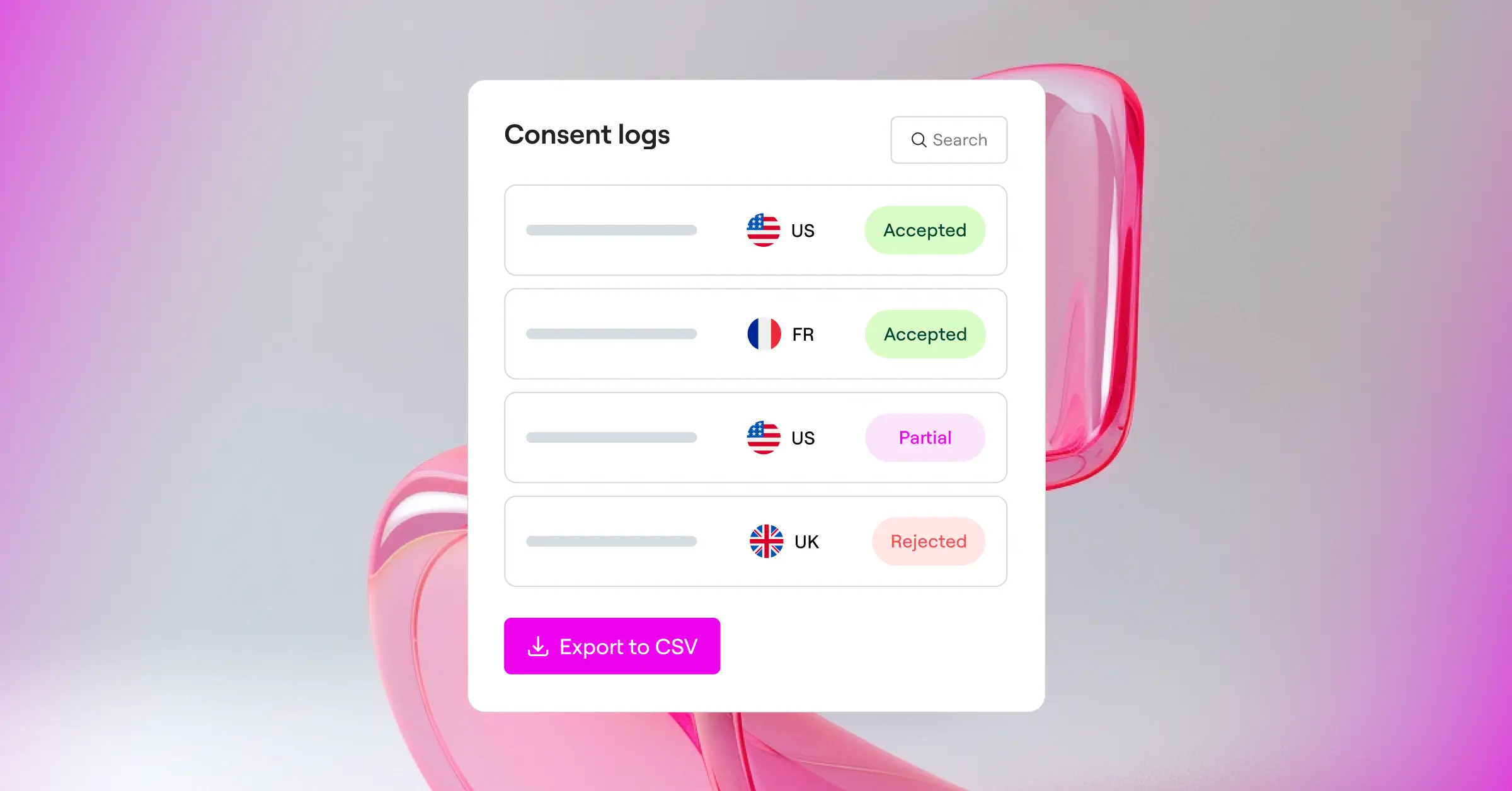
- Logs consent choices securely for a clear audit trail.
- Supports geo-targeting to show banners by visitor location.
- Generates a cookie policy page that updates as your scripts change.
Pros: Fully native to WordPress, sets up in under five minutes, matches your brand perfectly.
Cons: Best suited for WordPress and Elementor sites.
Verdict: The best choice for one native place to handle scanning and consent banners together.
2. Cookiebot
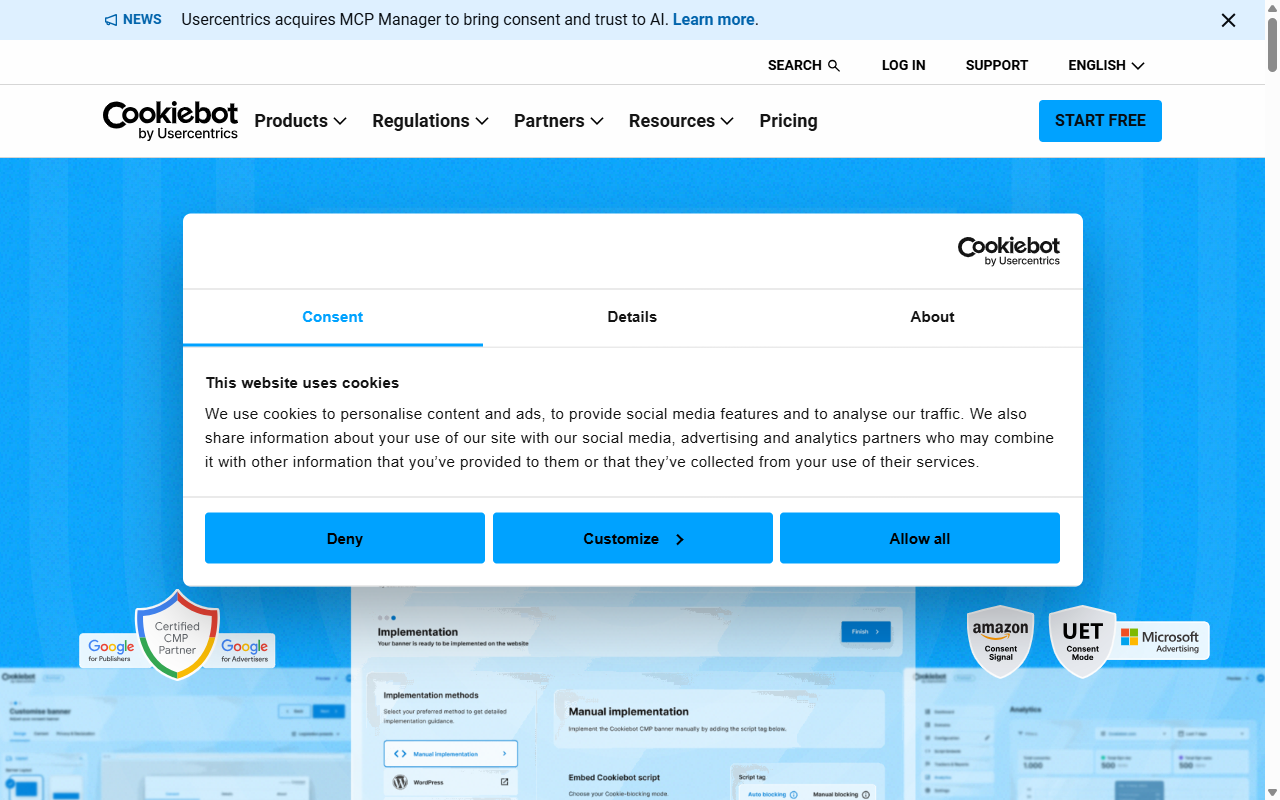
Cookiebot is an established, cloud-based consent tool built around deep automated scanning. It runs a thorough monthly scan, catching even hard-to-find tracking cookies, and works independently of your platform via a script snippet controlling what loads on your frontend.
- Crawls your site monthly to catch new tracking technologies.
- Categorizes cookies automatically using a large global database.
- Holds scripts back until the visitor sets their privacy preferences.
- Gives visitors a widget for changing consent preferences anytime.
- Delivers automated compliance reports to your inbox.
Pros: Accurate scanning, a strong cookie database, easy multi-language setup.
Cons: Pricier on larger sites; banner styling takes some CSS.
Verdict: Solid if you’re fine with an external dashboard.
3. CookieYes
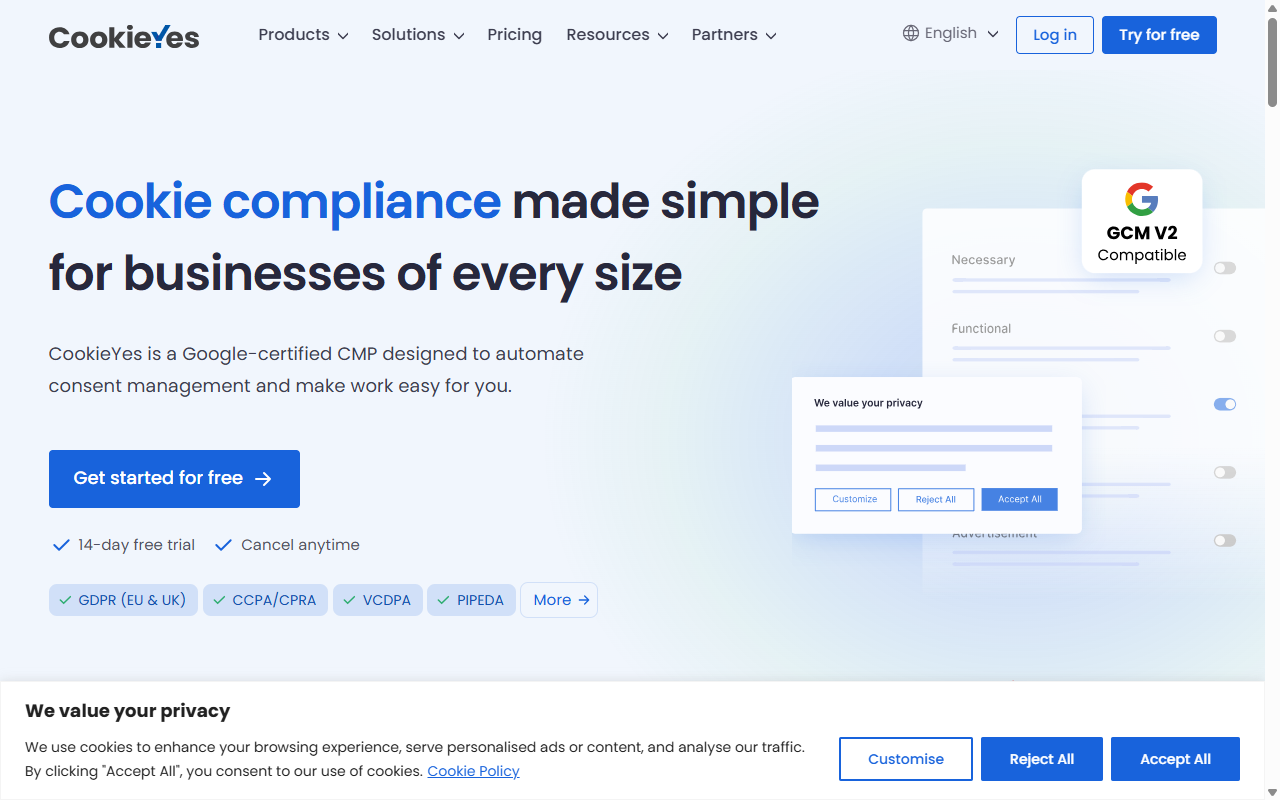
CookieYes is a widely used cloud-based consent tool that integrates easily with WordPress. Its clean interface gets a scanner running quickly, with a fast, reliable engine for categorizing cookies, an easy entry point for a straightforward cloud solution.
- Discovers cookies, trackers, and pixels in a single click.
- Maintains a clear consent record for GDPR audits.
- Supports script blocking so tracking waits for consent.
- Translates consent banners automatically into dozens of languages.
- Integrates with major tag managers for your marketing scripts.
Pros: Friendly dashboard, quick installation, solid support.
Cons: Entry-level plan limits page scans; setup happens outside WordPress.
Verdict: Capable for an external-dashboard workflow.
4. Complianz
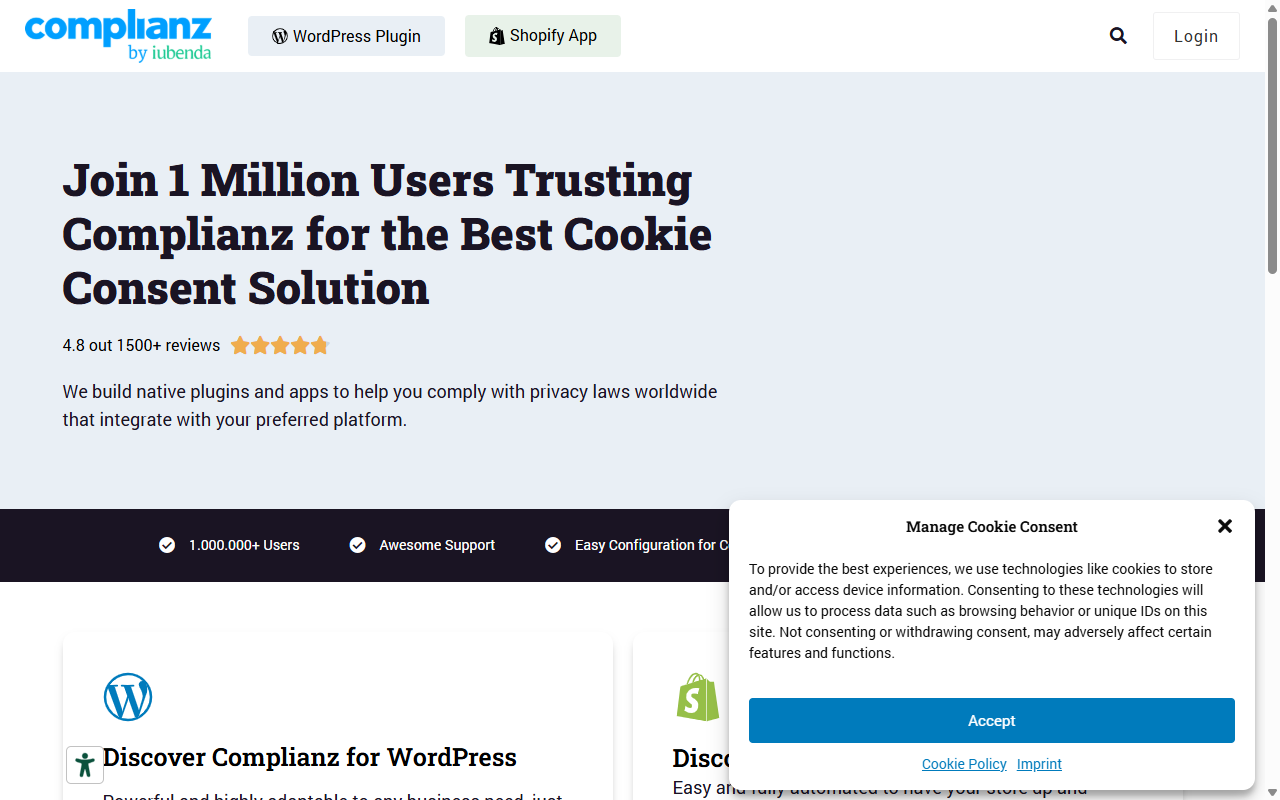
Complianz is a privacy suite built for WordPress. Its step-by-step wizard configures your legal documents and runs local cookie scans, checking your active themes and tools for background trackers.
- Runs localized cookie scans right from your WordPress server.
- Generates legal documents like cookie policies and terms of service.
- Integrates with WordPress privacy features to manage data requests.
- Blocks integrations like Google Maps and YouTube until consent.
- Adapts your privacy banner to regional privacy laws.
Pros: Educational wizard, deep WordPress integration, native legal documents.
Cons: Plenty of legal questions to work through; server-side scans add some load.
Verdict: Strong for a full legal wizard built into WordPress.
5. iubenda
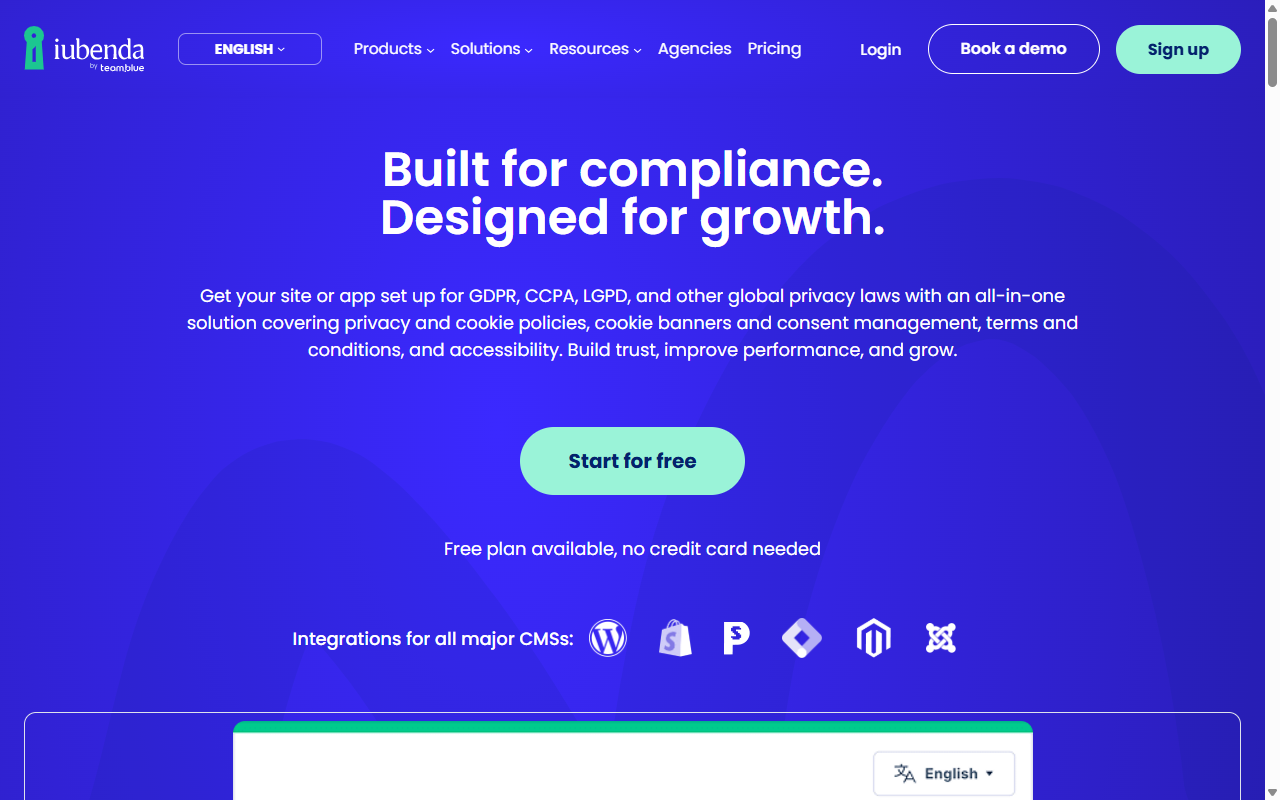
iubenda has a full suite of compliance tools: cookie scanning, privacy policy generation, and terms management. Its scanner runs from a central dashboard, populating your privacy documents with the trackers it finds.
- Scans your site and writes your cookie policy automatically.
- Keeps legal policies current as regulations shift globally.
- Includes customizable banners for multiple regional laws.
- Stores consent logs securely for easy compliance tracking.
- Supports integration with Google Tag Manager and other script tools.
Pros: Strong at generating legal text, auto-updates policies, manages multiple sites in one account.
Verdict: Best for a documented, complete legal-compliance approach alongside scanning.
6. OneTrust
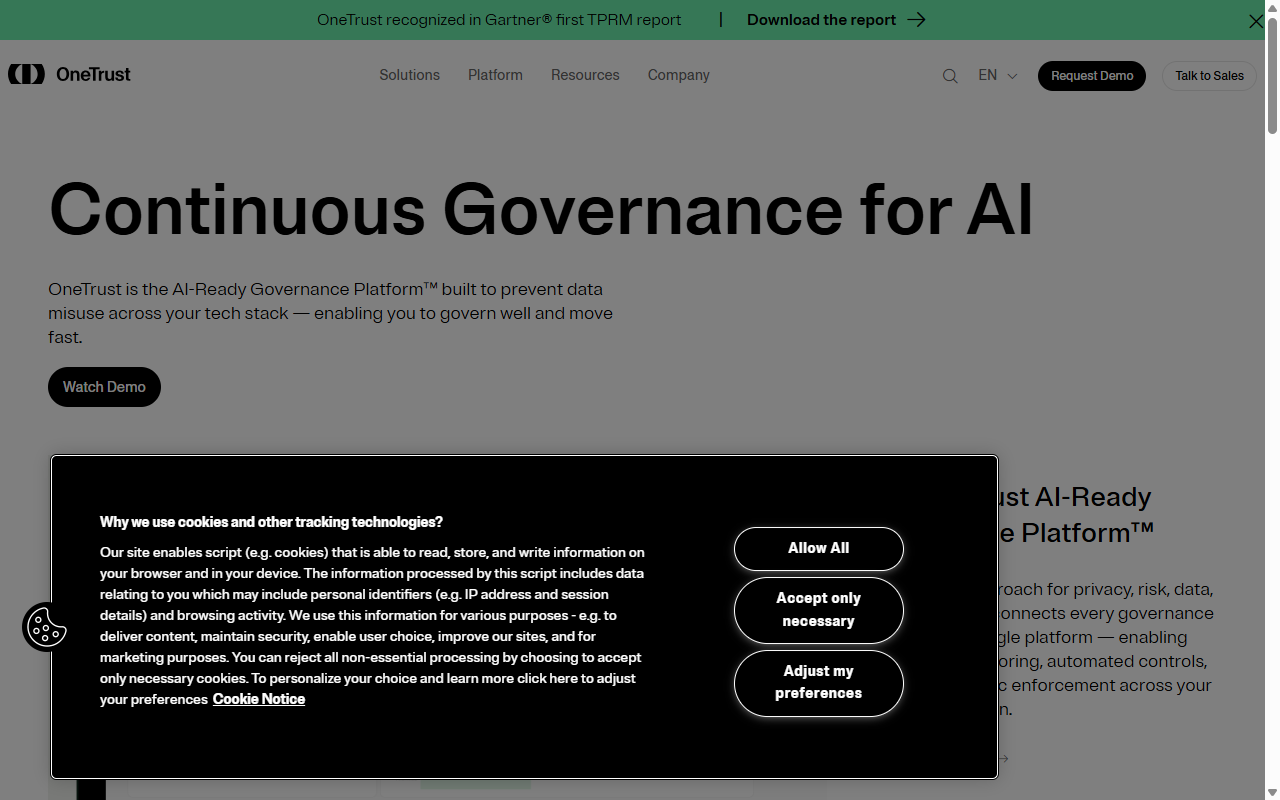
OneTrust is an enterprise-level privacy platform with deep scanning, detailed compliance reporting, and heavy customizability, built for large organizations that need reporting depth simpler tools can’t match.
- Performs thorough audits to surface hidden trackers and scripts.
- Categorizes cookies using enterprise-grade regulatory databases.
- Manages consent preferences across multiple domains and apps.
- Delivers reporting dashboards built for compliance teams.
- Secures consent logs in an encrypted, audit-ready format.
Pros: Deep scanning and regulatory analysis, customizable for large organizations.
Cons: Overkill for small to medium sites; long setup and learning curve.
Verdict: The standard for enterprise teams, more than most independent sites need.
7. Chrome Developer Tools (Manual Method)
If you want to know exactly what cookies your site is dropping, your browser’s built-in developer tools give you a live, accurate view of every cookie loading, a solid sanity check that costs nothing.
- Reveals every cookie active in your browser.
- Shows each cookie’s domain, expiration, and security parameters.
- Lets you delete cookies individually to test site behavior.
- Tracks network requests to see which scripts call home.
- Identifies storage data simpler scanners might miss.
Pros: Free, instant, and shows what’s happening on your device.
Cons: No automation, manual page-by-page checking, no policy or banner built in.
Verdict: A great manual check for confirming your consent tool is working.
8. Cookie Metrix
Cookie Metrix is a simple web tool: paste your URL in and it runs an immediate, external audit, a fast look at what your home page loads with no software or account required.
- Tests your site instantly, no account or email needed.
- Generates a clean, readable report of your cookie profile.
- Highlights cookies missing modern secure or HTTP-only flags.
- Gives a quick grade of your compliance readiness.
- Identifies which domains are dropping cookies on your visitors.
Pros: Instant, hassle-free, simple interface, great for quick checks.
Cons: Scans only the entered URL on the entry-level plan; no consent banner.
Verdict: Good for a quick homepage audit to confirm your setup works.
9. EditThisCookie Extension
EditThisCookie is a popular, free Chrome extension that lets you inspect, edit, create, and delete cookies on any page you visit, handy for testing your site’s behavior before and after a visitor accepts your banner.
- Displays a dropdown of every cookie on the page.
- Lets you modify cookie values to test different states.
- Clears cookies quickly to re-trigger your banner easily.
- Exports your cookie data in JSON for analysis.
- Protects your testing by blocking specific cookies manually.
Pros: Fast, visual, great for testing consent banner behavior.
Cons: Manual, browser-based testing only, no site-wide automation.
Verdict: Handy for confirming your setup actually blocks scripts before consent.
10. Lighthouse and Puppeteer (Advanced Dev Method)
For developers managing dozens of client sites, automating cookie scans through code is genuinely powerful: pair Google Lighthouse with a Puppeteer script to build a custom auditing scanner that runs right inside your deployment pipeline.
- Automates deep crawls using headless Chrome instances.
- Integrates into your staging or deployment pipelines.
- Generates performance, accessibility, and privacy reports in one pass.
- Saves scan history to track compliance over time.
- Triggers user actions, like clicks, to surface hidden scripts.
Pros: Fully customizable, scalable, no ongoing subscription costs.
Cons: Needs real coding skill, no visual interface, no consumer-facing banner.
Verdict: Best for developers and agencies building custom compliance workflows.
Cookie Scanning Tools Comparison
Here’s a quick look at how the top options compare on integration, ease of use, and core capabilities.
| Tool Name | Integration Type | Google Consent Mode v2 | Ease of Setup | Best For |
|---|---|---|---|---|
| Cookie Consent by Elementor | WordPress Native | Full Support | Very Simple (3-Step Setup) | WordPress & Elementor Sites |
| Cookiebot | Cloud-Based | Full Support | Moderate | Automated Monthly Audits |
| CookieYes | Cloud-Based | Full Support | Simple | Simple External Dashboard Control |
| Complianz | WordPress Native | Full Support | Moderate (Wizard) | Legal Policy Generation in WP |
| iubenda | Cloud-Based | Full Support | Moderate | Multi-Language Legal Compliance |
| OneTrust | Cloud-Based | Full Support | Complex | Enterprise Compliance Teams |
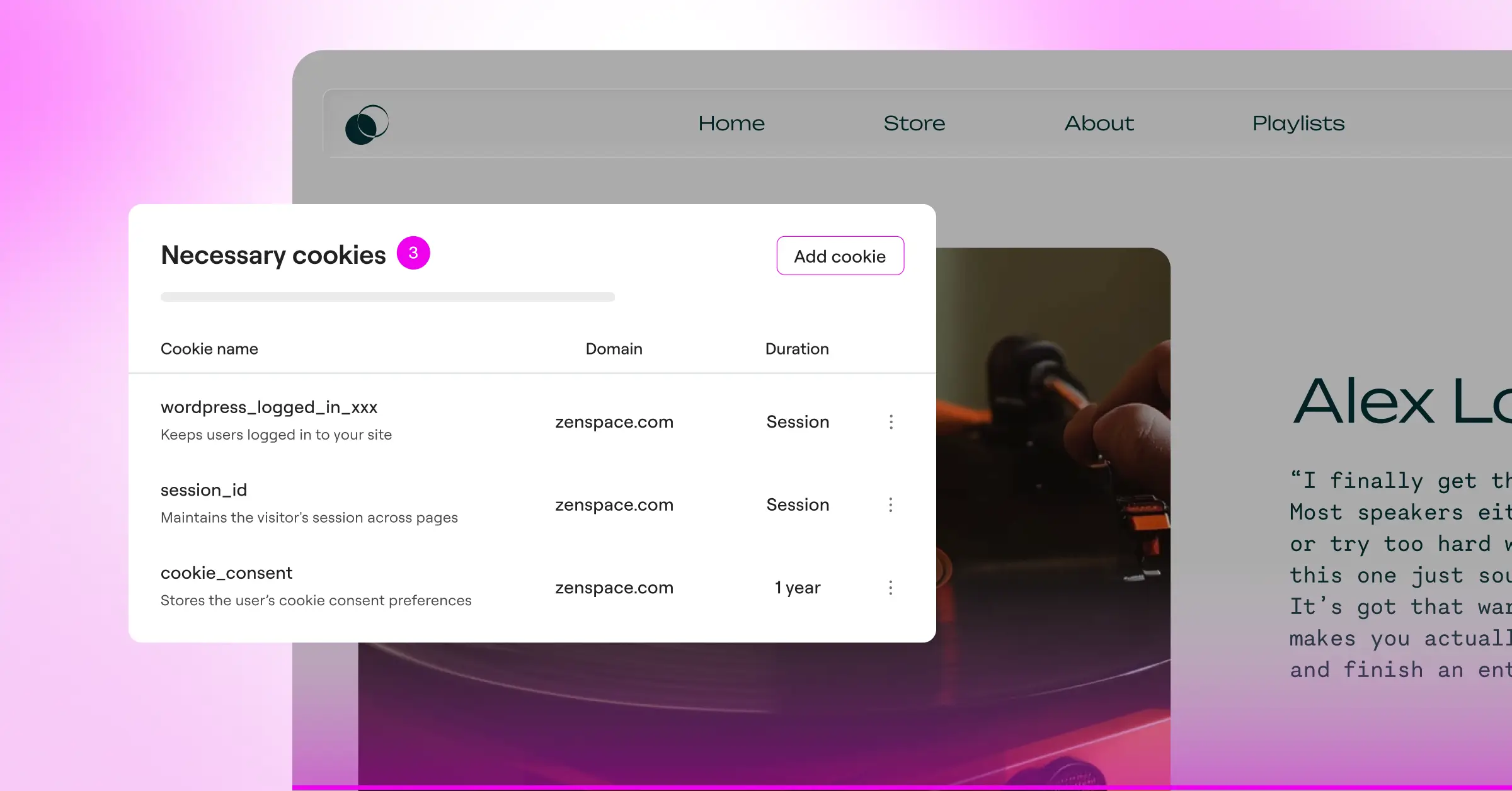
Using a native dashboard tool to scan and manage cookies keeps your site synchronized with your styling rules. When your consent tool lives where your content does, compliance becomes part of your workflow rather than a technical chore.
– Itamar Haim, Web Compliance Specialist
Step-by-Step: How to Run a Manual Cookie Scan via Browser DevTools
Want to run a quick check right now? Follow these steps to confirm your cookie consent banner is actually blocking scripts before a visitor clicks “Accept.”
- Open an Incognito Window: A clean slate, with no old cookies or login sessions interfering.
- Open Developer Tools: Right-click the page and choose Inspect, or press F12 (Cmd+Option+I on a Mac).
- Find the Application Tab: Click Application at the top of the developer pane, or the double-arrow icon if it’s hidden.
- Expand the Cookies Section: In the left sidebar, open Storage, expand Cookies, and click your domain name.
- Inspect the Cookie List: Check the “Domain” column for third-party scripts setting cookies before you’ve interacted with your banner.
What to Do After Your Cookie Scan is Complete
Running the scan is only half the job. Once you’ve got a full list of active cookies, organize that data so your site stays compliant.
- Review and Categorize: Make sure analytics, functional, and marketing cookies aren’t marked “Strictly Necessary.”
- Update Your Cookie Policy: Use your scanner’s generator, or update your policy page manually, listing the name, purpose, and lifespan of each cookie found.
- Verify Blocked Scripts: Double-check non-essential scripts don’t run until a visitor clicks “Accept.”
- Schedule Recurring Scans: Since you’ll add new tools over time, run scans weekly or monthly to catch changes.
Frequently Asked Questions
How often should I scan my website for cookies?
Aim for at least once a month. If you run a dynamic site, regularly adding tools or embedded videos, a weekly scan is worth it. Regular scans keep your cookie policy accurate without much thought.
Can I just write a cookie policy manually without scanning my site?
You can, but it’s hard to keep accurate over time. Modern sites run background scripts, pixels, and widgets that drop cookies you might not know about. An automated scanner is the most reliable way to match your declarations to reality.
What happens if I don’t have a cookie consent banner on my site?
If your site serves visitors under the GDPR (Europe) or CCPA (California) without a compliant banner, you risk warning letters or fines from regulators. A proper banner also builds trust with your audience, so it’s worth the setup time.
What is Google Consent Mode v2 and do I need it?
It’s a framework Google requires for any site using Google Analytics or Google Ads that targets the European Economic Area (EEA). It passes visitors’ consent choices to Google’s tags so they can adjust behavior. If you run ads in Europe, you need it.
Will running a cookie scanner slow down my WordPress site?
No, it won’t slow things down for real visitors. The crawl runs in the background, typically on external servers or as a lightweight scheduled task, and a well-optimized banner uses lightweight code with virtually no impact on page speed.
What is the difference between first-party and third-party cookies?
First-party cookies are set by your own domain, typically for essentials like keeping someone logged in or remembering their cart. Third-party cookies come from external domains, like Google, Facebook, or ad networks, and mainly track behavior across sites for marketing.
Do I need cookie consent if I only use Google Analytics?
Yes. Standard Google Analytics installs drop tracking cookies to measure behavior and site performance. Under the GDPR, those count as analytical cookies, so you need clear, informed consent before they load.
How do I block cookies from loading before a visitor consents?
You need a consent tool that supports script blocking. Set up correctly, it intercepts tracking scripts (like Google Tag Manager or Facebook Pixel) and holds them back until the visitor clicks “Accept.” Cookie Consent by Elementor handles this natively from your WordPress dashboard.
Is there a difference between GDPR and CCPA cookie banner requirements?
Yes. Under the GDPR (Europe), you need an opt-in model, so non-essential cookies wait for explicit consent. Under the CCPA (California), you can use an opt-out model, loading cookies right away but giving visitors a way to opt out via a “Do Not Sell My Personal Info” link.