Table of Contents
Building a website used to mean weeks of manual coding or fighting with rigid templates, but the rules have completely changed for 2026. Now AI handles the heavy lifting.
You’re not just a builder anymore, you’re more like an art director, guiding intelligent systems to produce custom code, layouts, and copy in minutes.
Key Takeaways
- Efficiency Gains – AI automation reduces total website creation time by 60% to 70%.
- Market Growth – The AI web development sector is hitting $14.27 billion in 2026.
- WordPress Dominance – 43.5% of all websites run on WordPress, offering the largest AI plugin ecosystem.
- Agentic Frameworks – Tools like Angie by Elementor now execute tasks automatically via the Model Context Protocol (MCP).
- Performance Impact – A mere 1-second delay causes a 7% drop in conversions, making AI optimization crucial.
- Image Costs – In-editor AI generation offsets external tools like Midjourney, which cost around $60 per month.
Prerequisites: What You Need Before Starting
You can’t build a modern site on a weak foundation. AI tools need modern server environments, so if your host runs outdated PHP versions, you’ll hit constant timeouts.
Here’s the part nobody mentions: a successful AI build needs specific accounts and access levels ready before you write a single prompt. The AI in web development market is huge, but you only need a handful of tools to start.
Get these core pieces in place first:
- High-Performance Hosting – Choose managed hosting like Elementor Cloud, which delivers a 109ms Time to First Byte (TTFB) and ranks number one for Core Web Vitals.
- WordPress Installation – Start with a clean, fresh install. WordPress powers 43.5% of all websites, making it the standard for this workflow.
- Elementor Editor Pro – Anchors your entire build. The Elementor ONE subscription ($168/year) bundles the editor, AI Site Planner, and priority support.
- A Lightweight Theme – Start with a blank canvas. Heavy themes clash with AI-generated CSS.
- Agentic AI Plugin – Install the free Angie by Elementor plugin from the WordPress repository.
- External AI Accounts – Optional, but helpful. Set up ChatGPT Plus or Claude for offline brainstorming.
This setup might feel like a lot, but getting the architecture right now saves real headaches later.
Defining Your Site Architecture with AI Strategy
Staring at a blank screen is the fastest way to kill your momentum, but you don’t need to guess what pages your business needs. You just need to ask the right questions.
About 73% of businesses now use or plan to use AI for content and site planning, and they’re not doing it manually anymore. You’ll use the Elementor AI Site Planner for this, turning a simple text description into a fully mapped wireframe.
Here’s how to generate your architecture:
- Define the Core Identity – Open the AI Site Planner and input your exact niche. Don’t say ‘a bakery.’ Say ‘a gluten-free vegan bakery in Austin targeting health-conscious millennials.’
- Generate the Sitemap – Click the generation button, and the AI outputs a logical page hierarchy. It usually suggests Home, About Us, Menu, Online Ordering, and Contact.
- Refine User Personas – Ask the AI to define two primary user personas from your prompt. This shapes your conversion paths.
- Establish the User Process – Map out how a visitor moves from the homepage to a completed sale, and make sure every page has a trackable goal.
- Export to Wireframes – Convert the approved sitemap directly into structural wireframes within the editor.
The secret is specificity. Vague prompts yield generic, useless sitemaps, so give the machine exact constraints.
Supercharging Your Build with Angie Agentic AI
Most AI tools just spit out text or code snippets you then have to copy, paste, and debug yourself. Angie by Elementor changes that.
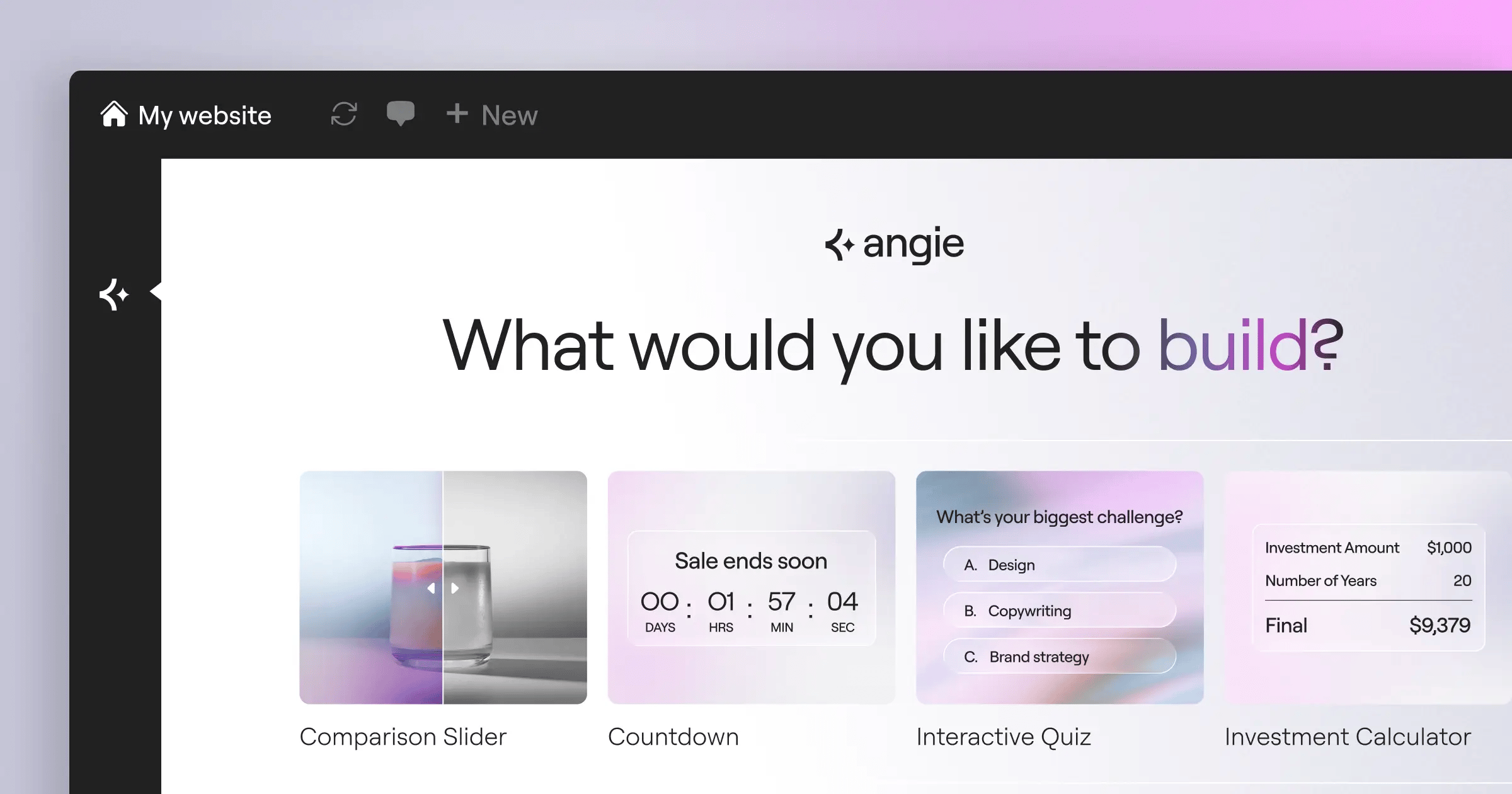
Angie is an agentic AI framework built for WordPress. It doesn’t just suggest solutions, it executes tasks across your whole installation, and it’s free to install.
Because it runs on the Model Context Protocol (MCP), Angie automatically inherits your site’s context, knowing your plugins, active theme, and database structure.
You can ask Angie to handle complex tasks using plain language:
- Custom Elementor Widgets – Prompt Angie to build a custom pricing calculator widget, and it writes the PHP, JS, and CSS, then registers it in your Elementor panel.
- WordPress Admin Snippets – Hides specific dashboard menus from client accounts the moment you ask. Angie writes and deplows the snippet instantly.
- Custom Post Types – Type a prompt like ‘Create a custom post type for Real Estate Listings with taxonomies for property type and location,’ and Angie builds it in seconds.
- Front-End Snippets – Generate complex scroll animations or custom tracking scripts without ever touching a code editor.
- Visual Apps – Build interactive elements like mortgage calculators or booking calendars straight from a text idea.
You might worry about AI breaking your live site, but you don’t need to. Angie operates inside a strict, safe experimentation sandbox, and you review and test every piece of code before it goes live. That gives you full control, taking you from a raw idea to a production-ready feature in minutes.
Selecting and Customizing Your AI-Ready Theme
Your theme choice decides how well AI can actually work with your site. Pick a heavy theme from a marketplace and you’ll be fighting conflicting styles all day. The AI writes clean CSS, but a bloated theme will override it anyway.
That’s why the Hello Theme makes sense here. It weighs under 30KB and gives you a blank slate. Research shows 75% of consumers judge a company’s credibility purely on design aesthetics, so a fight-free theme matters.
Mobile traffic now makes up 58.67% of global website visits, so your base theme needs to be responsive by nature. The Hello Theme handles that natively, freeing your AI tools to focus on layouts instead of patching broken mobile viewports.
Before generating any layouts, define your Global Styles first. Skip this and your AI-generated sections will look chaotic. Set your primary, secondary, text, and accent colors, and define your typography scale for headings and body text.
Once you set these global rules, Elementor AI respects them. Every new container it generates pulls your exact brand colors and fonts automatically, keeping things visually consistent across the whole site without manual tweaking.
Pro tip: define your global line-heights with relative units (em or rem) instead of pixels. AI-generated text blocks scale much better across screen sizes that way.
Generating Layouts and Containers with Elementor AI
Designing custom layouts from scratch eats up a huge amount of time, but the ‘Build with AI’ feature inside Elementor Editor Pro changes that math. Business surveys show a 60% to 70% reduction in build times with these automated design tools.
You don’t need to drag individual widgets around anymore. You just prompt the system for entire sections, like this:
- Initiate the AI Builder – Click the AI icon inside an empty container, and a prompt window appears.
- Describe the Structure – Type a highly specific request. ‘Generate a hero section with a two-column layout. Left column needs a large headline, subheadline, and two call-to-action buttons. Right column needs an image placeholder.’
- Review the Output – The AI presents three layout variations. Choose the one that best matches your wireframe.
- Apply and Refine – Insert the chosen layout, and the system converts it into Atomic Elements using CSS-first architecture.
- Add Custom CSS – Select a specific widget, open the AI code assistant, and prompt: ‘Add a subtle hover effect that scales the element by 1.05 and adds a soft shadow.’
Why does this work so well? Elementor’s V4 Atomic architecture relies on CSS classes and variables, so the AI generates clean, lightweight code that loads instantly. It’s building a proper, scalable foundation, not just adding inline styles.
Crafting High-Conversion Copy with AI Writing Tools
Generic AI copy reads like a robot wrote it. It lacks soul, personality, and persuasion, and if you accept the first draft, your conversion rates will tank.
But used correctly, AI-driven personalization creates a 15% increase in conversion rates. The trick is feeding it strict brand guidelines and proper frameworks. Google’s updates confirm content ranks based on E-E-A-T (Experience, Expertise, Authoritativeness, and Trustworthiness), not on whether a human or machine typed the words.
AI doesn’t replace the need for deep subject matter expertise. It simply translates your unique human experience into structured, search-friendly formats at scale. Your job is to provide the raw insight; the AI’s job is to format it for Google and the user.
Itamar Haim, SEO Team Lead at Elementor. A digital strategist merging SEO, AEO/GEO, and web development.
So how do you write good copy with AI? You constrain it. Never ask for ‘a paragraph about my services,’ that guarantees boring text. Instead, set firm rules for the AI writer.
Enforce these constraints in your prompts:
- Tone and Voice – Specify the exact tone. ‘Write in a confident, punchy, conversational tone. Use short sentences.’
- Target Audience – Tell the AI exactly who’s reading. ‘The reader is a stressed small business owner looking for bookkeeping help.’
- Formatting Rules – Demand specific structures. ‘Output the benefits as a bulleted list with bold lead-in phrases.’
- Banned Words – Give the AI a negative prompt. ‘Don’t use words like innovative, modern, or complete.’
- Goal Orientation – State the conversion goal. ‘End the section with a compelling hook that leads to the contact form.’
Always generate three distinct headline variations and test them against each other. The first output is rarely the winner.
Creating Custom Visuals with AI Image Generators
Stock photography makes your website look cheap. Users spot the same forced smiles from fifty other corporate sites, and custom photoshoots are expensive and slow.
Professional AI image generation bridges that gap. Tools like Midjourney cost around $60 per month for professional plans, but you can skip external subscriptions with the native image generator inside Elementor, keeping your whole workflow in one browser tab.
Are AI images always perfect? No, you’ll occasionally see weird hands or impossible physics, but for abstract hero backgrounds, product mockups, and atmospheric textures, the technology holds up well.
You can also use AI for image editing. If a client hands you a photo too narrow for a hero banner, use the Generative Fill feature. It reads the existing image and expands the background to fit your container dimensions without stretching the subject.
Pro tip: add specific camera angles and lighting styles to your image prompts. ‘Cinematic lighting, 35mm lens, shallow depth of field’ gets you far better results than ‘a picture of an office.’
Optimizing for SEO, Speed, and Performance
A beautiful site means nothing if it takes ten seconds to load. A 1-second delay in page load time causes a 7% reduction in conversions, and 93% of online experiences start with a search engine, so your code needs to be fast and search-friendly too.
You can’t rely on manual optimization anymore. The modern approach uses AI to handle tedious technical SEO and performance tasks automatically.
Tools like Elementor Image Optimization automatically convert massive PNG files into lightweight WebP or AVIF formats, often achieving up to a 60% file size reduction. You don’t have to compress images in Photoshop before uploading, the system handles it on the fly.
| Optimization Task | Traditional Manual Method | AI-Automated Method (2026) |
|---|---|---|
| Image Compression | Manual export, bulk smushing via third-party plugins. | Auto-conversion to AVIF, served via Cloudflare Enterprise CDN. |
| Schema Markup | Writing complex JSON-LD arrays by hand or buying premium plugins. | AI reads page context and generates perfect JSON-LD instantly. |
| CSS Generation | Writing custom stylesheets, managing massive global files. | AI generates scoped, atomic CSS classes only where needed. |
| Accessibility Fixes | Manual auditing against WCAG guidelines over several weeks. | Web Accessibility scans 180+ issues and applies fixes automatically. |
You should also use AI to generate your Schema markup. Ask Angie to review your service page and write the appropriate LocalBusiness or Service schema code, then paste that code into the custom code area of your page. Search engines love this structured data.
Launching, Testing, and Post-Launch AI Maintenance
Building the site is only the first phase. Maintaining it used to require a dedicated retainer, but now AI agents handle most of your post-launch work.
AI engines now assist in writing roughly 46% of all new code worldwide, and that extends well past launch day. You still need a strict pre-launch checklist to catch strange errors or hallucinated facts.
Run through these checks before you make your domain public:
- Mobile Breakpoint Review – Click through every page manually on a physical mobile device, since AI layouts occasionally misjudge padding on small screens.
- Fact-Checking Copy – Read every single paragraph carefully. AI writers will confidently invent statistics or features your business doesn’t actually offer.
- Form Functionality – Submit a test entry through every contact form, and confirm your Email Deliverability transactional emails are routing properly.
- Accessibility Audit – Run the Web Accessibility scanner, which checks over 180 distinct WCAG issues and automatically fixes missing alt text and contrast errors.
- Speed Benchmarking – Run the site through Google PageSpeed Insights. Follow the steps above and you should hit green scores across the board easily.
After launch, set up an automated schedule and ask your AI tools to review your content quarterly. They can flag new search trends and suggest specific content refreshes, keeping your pages relevant without a massive manual overhaul every year.
Frequently Asked Questions
Why does my AI-generated layout look broken on mobile?
AI sometimes prioritizes desktop aesthetics and forgets to apply relative scaling, so you’ll need to manually adjust padding and font sizes in the mobile breakpoint settings. Using REM units instead of pixels fixes this permanently.
How do I fix ‘hallucinated’ facts in my AI-written copy?
You can’t expect AI to know your specific business history. Always provide a detailed source document in your prompt, and if it hallucinates, correct the prompt constraints and regenerate the text block.
Is AI-generated code safe for my website’s security?
Yes, as long as you use reputable tools. Angie operates within a strict, safe experimentation sandbox. It won’t execute malicious database queries, and you always review the generated code before pushing it live.
How can I reduce the ‘AI-look’ and make my site feel more human?
Stop using generic prompts. Inject your actual brand voice guidelines into the text AI. For images, blend AI-generated backgrounds with real photos of your actual team or products to ground the design.
Does using AI hurt my Google search rankings?
No. Google explicitly stated in its 2024-2025 updates that it rewards high-quality content based on E-E-A-T, regardless of how it was produced. Focus on the value of the information, not the tool used to write it.
Can I build an entire eCommerce store using just AI?
You can generate the layouts, product descriptions, and foundational code with AI. You’ll still need to manually configure your payment gateways, shipping zones, and tax settings for legal compliance.
What happens if I deactivate the Angie plugin later?
The code and widgets Angie generates are standard WordPress and Elementor assets. They remain fully functional even if you remove the plugin, and you keep complete ownership of everything it builds.
Looking for fresh content?
By entering your email, you agree to receive Elementor emails, including marketing emails,
and agree to our Terms & Conditions and Privacy Policy.