The Elementor MCP (Model Context Protocol) beta officially introduces MCP support, opening Elementor up to the AI tools you already use. The Elementor MCP exposes website-building capabilities through WordPress AI Abilities, allowing compatible tools, such as Claude Code, Claude Desktop, Codex, and Cursor, to connect and build directly inside your site using native Elementor structures.
What Can AI Tools Do with the Elementor MCP?
Once connected, an AI tool can work with the core building blocks of an Elementor site:
- Build atomic pages and layouts – generate atomic structures and full pages in one step, structured with content and styling.
- Edit or redesign existing atomic pages and layouts – point the AI at an atomic page you already have and have it rework the layout, not just add to it.
- Use Elementor’s design system – create and apply classes and variables, reorder classes, set hover and other states, and adjust responsive breakpoints.
- Create and manage theme parts – build site-level templates like headers, footers, archives, and popups, complete with display conditions.
- Work with components – Place existing components, fill in their fields, or create new ones.
- Connect dynamic content – connect post fields, custom fields, taxonomies, and other dynamic data.
- Create custom widgets and Admin experiences – generate custom pricing calculators, interactive forms, 3D carousels and more. Add personalized dashboards and theme the entire WP Admin. Requires Angie to be installed.
- Content management, debugging and maintenance – bulk update products and posts across hundreds of records, debug errors and fix SEO gaps on your site. Requires Angie to be installed.
- Act as a single WordPress entry point – connect the Elementor MCP, and your AI tool gets access to every ability registered to the WordPress Abilities API, including WooCommerce, Yoast, WPForms, Jetpack, ACF, and more. Requires Angie to be installed.
Native Elementor MCP Structure Keeps You in Control

Everything generated with the Elementor MCP is saved as a draft rather than published. What comes back is real, editable Elementor structure, ready to open in the visual editor and finish by hand. Using the Elementor MCP is entirely optional, and the standard Elementor Editor remains unchanged.
What you hand off stays the same too. Clients and teammates still get real Elementor structure they can open and edit in the Editor, not code they don’t understand.
If the Editor and an AI tool try to modify the same page at the same time, Elementor detects the conflict, notifies you, and gives you the option to refresh or discard changes before continuing.
Integrating Elementor MCP into Your Existing Workflow
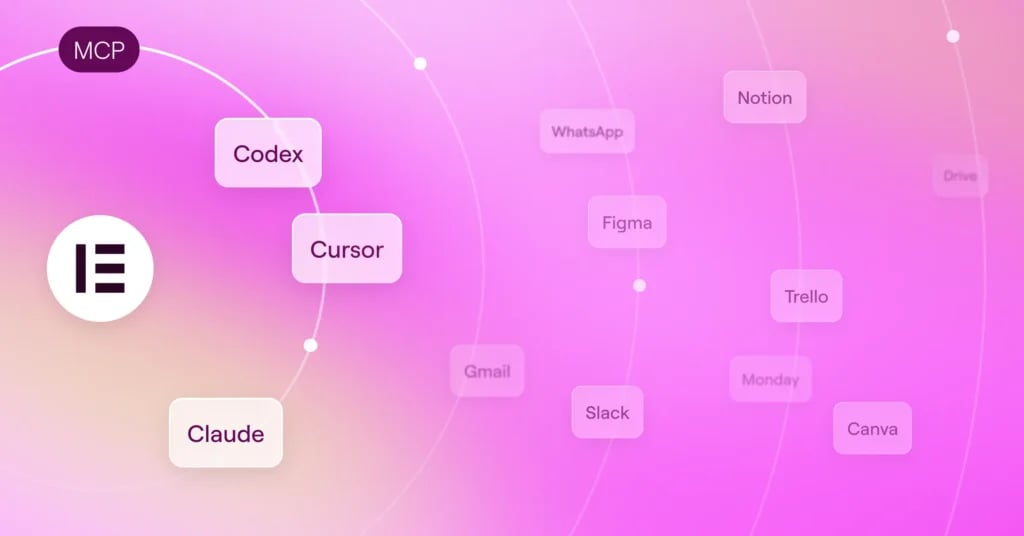
Your AI tool already connects to Figma, Google Drive, Notion, WhatsApp, and many others. Now it can bring what it finds there straight into Elementor: a design from Figma, a doc from Drive, a brief from Notion or a WhatsApp message, turned into real Elementor content.
If your AI tool can read it, whether that’s a spec, a set of comments, a screenshot, or a whole file, it can carry that context straight through into the page, section, or component it builds for you. You keep working the way you already do across your other tools, and Elementor becomes the place that context lands directly.
How to Set Up and Connect to the Elementor MCP Beta
First you’ll need to become a beta tester:
- Go to Elementor > Editor > Tools > Version Control
- Enable the beta tester feature
- Go to Dashboard > Updates, and update to the latest beta version
- Make sure you have the Atomic Editor activated: go to Elementor > Editor > Settings > Atomic Editor > Activate
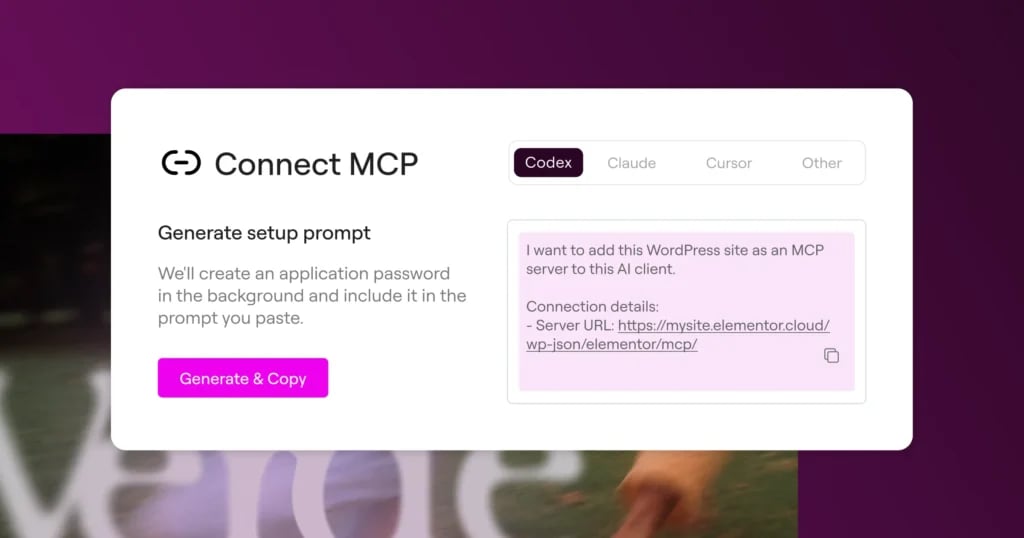
The new “Elementor MCP” page, under Elementor in the WordPress dashboard, lets you connect external AI tools with Elementor. Access is limited to site admins, and the connection is per site.
You’ll be able to choose from Claude Code, Claude Desktop, Codex, Cursor, or “Other” for any additional MCP-compatible tool.
Connecting is quick: generate and copy a setup prompt for your AI tool of choice, and Elementor creates the required application password in the background, including it in the prompt for you. If you’d rather handle it yourself, a manual configuration option is available too.
The cost of using the Elementor MCP depends on your chosen AI tool’s pricing. Elementor’s pricing follows its existing plan structure: basic sections and features can be generated for free, while Pro elements require a Pro plan.