Table of Contents
You need a high-converting page up by Friday. Five years ago, that meant a week of wireframing, copywriting, and pixel-pushing. In 2026, the process looks entirely different. We’ve moved past manual drag-and-drop into the era of agentic generation.
Look, the team created well over 47 distinct marketing campaigns this year alone. If you aren’t applying machine learning to your web builds right now, your competitors are absolutely crushing your time-to-market. Let me show you exactly how to build these pages faster, smarter, and with better conversion rates.
Key Takeaways
- Speed to market – Marketing teams report a 70% reduction in time moving from concept to a live page using these exact methods.
- Conversion metrics – Personalizing content dynamically increases conversion rates by up to 202%.
- The Angie advantage – Agentic tools now plan and execute structural tasks directly inside WordPress.
- Global scaling – Native text tools support translation in over 25 languages instantly.
- Visual impact – Pages with custom, highly relevant images receive 94% more views than text-heavy variants.
- Performance focus – AI-optimized layouts maintain sub-2-second load times to prevent the 7% conversion drop associated with 100-millisecond delays.
The New Era of AI-Driven Web Design
The generative AI in design market is expected to grow at a CAGR of 34.2% through 2030. That’s not just a trend. It’s a complete shift in how we approach the blank canvas. But here’s the deal: throwing random prompts at a chat box doesn’t build a functional website.
This is where agentic tools completely change the workflow. Before, you used artificial intelligence to generate text, which you then manually pasted into boxes. Now, the systems actually execute the work for you. The global AI marketing market is projected to hit $107.5 billion by 2028, largely because of this exact shift from “advisory” models to “action” models.
And honestly, this is the part nobody tells you about. You still need a human pilot. The machine won’t understand your specific business logic unless you provide strict boundaries and context. You’re no longer a pixel-pusher. You’re an art director and a structural engineer.
Pro tip: Always define your target audience demographic before opening your site editor. The quality of your generated output directly reflects the specificity of your initial business inputs.
Prerequisites: What You Need Before You Start
Before we touch a single line of code or generate a single hero image, you need your stack organized. I’ve seen too many people stall out on step three because they didn’t set up their foundation properly.
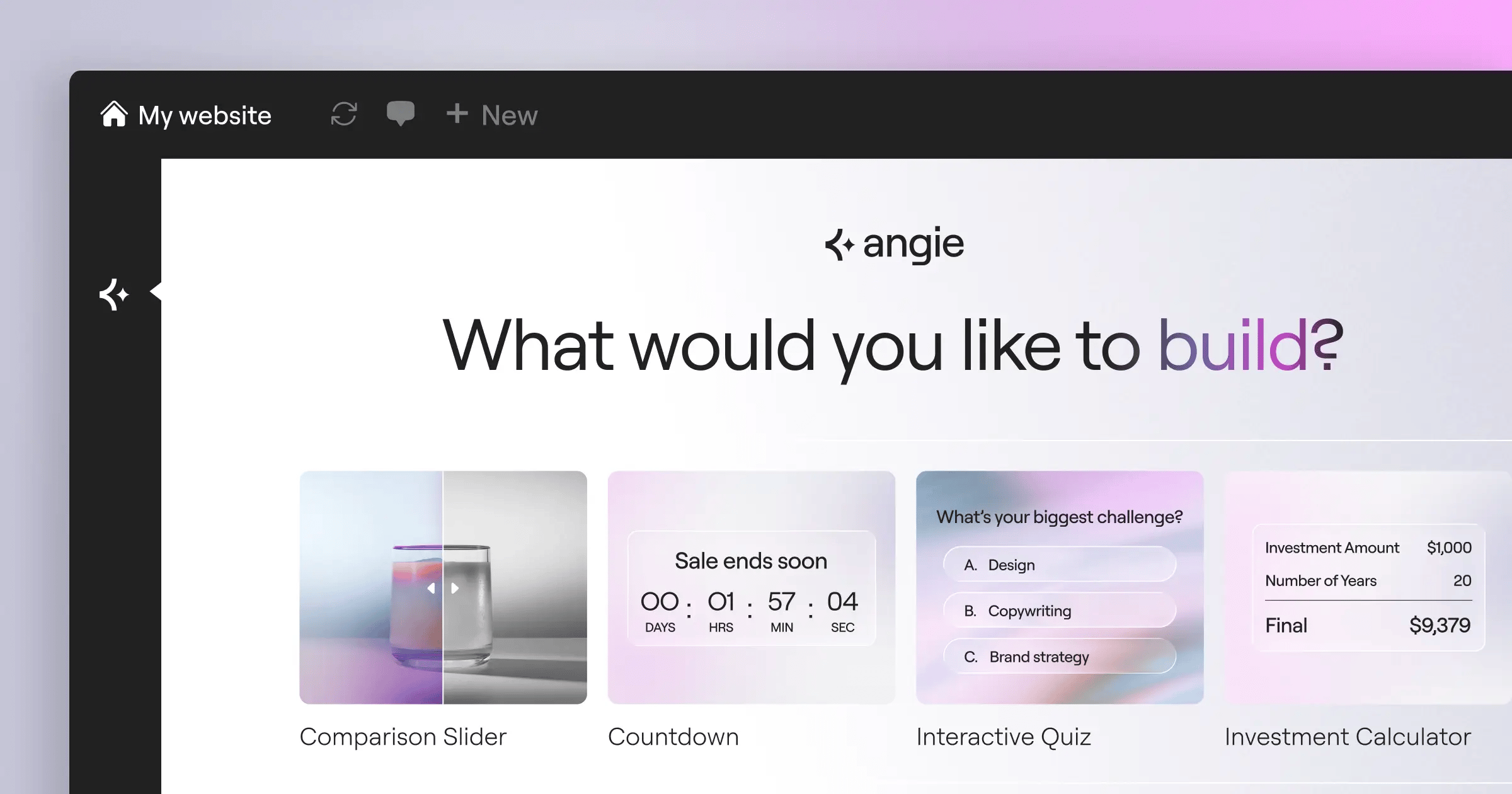
First, let me introduce you to the core engine of this workflow: Angie by Elementor. Angie is a FREE WordPress plugin. It’s an agentic framework built explicitly for the WordPress ecosystem. Unlike generic text models, Angie uses a Model Context Protocol (MCP) to automatically inherit your site’s specific context. It plans and executes tasks, from creating custom post types to writing front-end snippets.
- A modern WordPress installation – Ensure you’re running the latest core version on decent hosting.
- Angie by Elementor – The primary agentic tool that will execute your structural commands safely in a sandbox environment.
- Elementor Editor Pro – The visual layer where you’ll refine what Angie builds.
- An active Elementor One subscription – This gives you the AI Site Planner, image optimizers, and necessary cloud tools.
- Elementor AI credits – You’ll need these activated. The Starter plan offers 18,000 credits/year, while the Power plan provides 50,000 credits/year.
- A clear value proposition – A written statement of exactly what your campaign offers.
So, how do you actually get this running? Follow these exact setup procedures.
- Install the free Angie plugin directly from the WordPress repository and activate it.
- Install and activate your Elementor Editor Pro plugin.
- Navigate to your Elementor settings panel and authenticate your account to sync your AI credits.
- Open Angie’s sandbox interface to ensure it’s successfully reading your current active theme and plugin state.
Pro tip: I always build in Angie’s sandbox first. It gives you safe experimentation and full creative control. You can take an idea to production in minutes without breaking your live database.
Step 1: Defining Your Campaign Strategy with AI
You can’t build a high-converting asset without a strict blueprint. Roughly 73% of marketers surveyed currently report using generative tools for at least one aspect of their campaign workflow. The smart ones use it for strategy first.
Instead of guessing what your customers want, force the system to analyze your raw feature list and spit out localized pain points. You’ll use a specific prompting sequence to build the architectural document for your page.
- Open your preferred text-based model or use the native assistant in your dashboard.
- Feed it your product’s technical specifications and ask it to list the top three emotional pain points it solves.
- Prompt the system to map a user process from the initial ad click down to the final checkout button.
- Extract the suggested H2 headings from that process map to form your wireframe outline.
Is this really necessary? Absolutely. You’re establishing the logical flow before introducing visual elements. If the argument doesn’t hold up in plain text, it definitely won’t work once you add graphics and animations.
Pro tip: Save this final strategy document. You’ll feed it directly into your site builder in the next phase to give the system immediate context.
Step 2: Generating the Initial Layout with Angie
This is where the powerful (scratch that, the highly efficient technology) happens. We’re going to use Angie to generate the custom widgets and initial structure. Because Angie is purpose-built for WordPress, it understands how containers, sections, and global variables interact.
You simply type out your request in natural language. For example: “Build a lead capture section with a two-column layout, putting the form on the right and a dynamic headline on the left.” Angie processes this, writes the necessary code, and outputs a visual app right in your sandbox.
- Open the Angie interface in your WordPress admin.
- Type your structural prompt based on the strategy document we just created.
- Review the generated visual app in the safe sandbox environment.
- Click the push-to-production button to inject those custom Elementor widgets directly into your page layout.
- Open Elementor Editor Pro to verify the responsive breakpoints.
The true power of modern web creation isn’t just generating text; it’s the ability to translate strategic intent directly into functional architecture without writing a single line of PHP.
Itamar Haim, SEO Team Lead at Elementor. A digital strategist merging SEO, AEO/GEO, and web development.
Since 58.67% of global website traffic comes from mobile devices, you must verify the mobile view immediately. Angie handles the heavy lifting, but human oversight ensures perfection.
- Check the container wrapping order on mobile displays.
- Verify that touch targets on your generated forms are at least 44 pixels tall.
- Ensure your hero text doesn’t break awkwardly across small screens.
- Test the visibility of the primary call-to-action button without scrolling.
Pro tip: Don’t try to generate the entire page in one massive prompt. Ask Angie to build the layout section by section (Hero, Features, Social Proof) for cleaner code execution.
Step 3: Crafting High-Conversion Copy with AI Text
Your structure is in place. Now we need persuasive text. Generic, robotic sentences will kill your conversion rates instantly. Remember, 60% of consumers are comfortable with machine-generated content, but only as long as it’s accurate and genuinely helpful.
Inside the Elementor Editor, you’ll select your text widgets and activate the native AI writing assistant. You aren’t just clicking “generate.” You’re applying proven copywriting frameworks to force the output into a persuasive structure.
- AIDA Formula – Prompt the system to write four distinct sections covering Attention, Interest, Desire, and Action.
- PAS Framework – Tell the tool to explicitly state the Problem, Agitate it, then present your product as the Solution.
- Tone adjustment – Use the built-in tone modifiers to shift from “Professional” to “Conversational” depending on your brand voice.
- Length constraints – Always specify character counts in your prompts to prevent the text from breaking your beautifully designed containers.
- Global scaling – Use the native tool to translate your finalized English copy into over 25 supported languages instantly.
Look, I’ve seen hundreds of pages fail because the copy felt completely disconnected from the brand identity. You must feed the text generator a sample of your previous writing to set the baseline.
Pro tip: Never accept the first headline it gives you. Ask for exactly 15 variations of your hero headline, then combine the strongest verb from one with the strongest benefit from another.
Step 4: Designing Custom Visuals with AI Image Generation
Pages packed with relevant, high-quality images receive 94% more views than those without. But relying on the same free stock photos everyone else uses destroys your credibility. We’re going to generate custom assets directly inside the editor.
Using the native image generator, you can create custom illustrations, 3D renders, or photorealistic assets that perfectly match your campaign’s color palette.
- Define the medium – Specify whether you want a photograph, a vector graphic, or a 3D isometric illustration.
- Set the lighting – Include phrases like “cinematic lighting,” “soft studio light,” or “harsh shadows” in your prompt.
- Establish colors – Explicitly state your brand’s hex codes or general color schemes within the text prompt.
- Use Generative Fill – If an image is perfect but slightly too narrow for your hero container, use the fill tool to expand the background naturally.
- Generate variations – Produce up to 20 variations per prompt to find the exact framing you need for your layout.
And here’s a crucial detail: the aspect ratio matters immensely. Don’t generate square images if you need a wide background banner. Set the ratio before you spend your credits.
Pro tip: If you’ve an existing image that’s close but not quite right, use the “Image to Image” feature. Upload your base image and prompt the system to alter the specific elements you want changed.
Step 5: Technical Optimization and SEO Integration
A beautiful page that takes six seconds to load is a useless page. A 100-millisecond delay in website load time can hurt conversion rates by a brutal 7%. You can’t ignore the technical foundation.
You’ll rely heavily on Elementor’s optimization features to keep everything running fast. The native tools automatically compress your heavy AI-generated images and convert them to modern formats like WebP or AVIF. Furthermore, 51% of businesses currently rely on automated tools to improve their SEO performance.
| Optimization Task | Manual Method (Slow) | Modern Automated Method (Fast) |
|---|---|---|
| Image Compression | Exporting to Photoshop, saving for web, re-uploading. | Native cloud optimization serving WebP formats dynamically. |
| Meta Descriptions | Writing 160-character summaries manually for every variant. | Generating exact-length SEO snippets via native text assistants. |
| Alt Text | Reviewing every image and typing descriptive text. | Using batch processing to auto-generate accessibility text. |
| Code Bloat | Relying on dozens of single-purpose plugins. | Using Elementor One’s unified caching and CSS-first foundation. |
Don’t just set it and forget it. You’ve got to ensure the tags are actually readable by search engines. Use the assistant to inject your target keywords into the alt text, but keep it natural.
- Generate your Meta Title and limit it to exactly 60 characters.
- Generate your Meta Description and limit it to exactly 160 characters.
- Run a quick accessibility scan to catch contrast issues on your generated buttons.
- Purge your site cache immediately after publishing.
Pro tip: Never skip the Alt Text generation. It’s not just an SEO requirement; it’s a critical accessibility standard that ensures screen readers can parse your highly visual layouts.
Step 6: Launching and Continuous A/B Testing
Your page is live. That doesn’t mean you’re finished. The initial launch is just the baseline metric. Industry benchmarks show that smart, iterative testing can increase conversions by an average of 30% simply by matching visitor intent to page variants.
You’ve got the tools to iterate rapidly now. Instead of taking weeks to build a variation, you can duplicate your page, prompt Angie to restructure the hero section, alter the copy tone, and launch a test variant in under fifteen minutes.
- Establish your baseline conversion rate over a 7-day period.
- Duplicate the current live page to serve as your testing variant.
- Change exactly one major element (like the primary hero image or the headline hook).
- Route 50% of your ad traffic to the new variant.
- Analyze the data after reaching statistical significance (usually around 1,000 visitors).
What should you actually test? Don’t waste time on button colors. Test massive structural changes.
- Long-form vs. Short-form – Test an aggressive, brief page against a deeply detailed, multi-section page.
- Video vs. Image – Replace your AI-generated static hero image with an auto-playing background video.
- Logical vs. Emotional Copy – Generate a variant that focuses entirely on technical specs versus one focused on emotional relief.
- Social Proof Placement – Move your generated testimonial section to the very top of the page, above the fold.
Pro tip: If the data shows a tie, stick with the variant that has a faster time-to-first-byte (TTFB). Speed always wins out over time when you’re scaling ad spend.
Frequently Asked Questions
Why does my AI-generated layout look broken on mobile?
It’s usually because the container directions aren’t set to wrap correctly for smaller viewports. While Angie generates excellent structures, you’ll still need to open your responsive mode and manually verify that columns stack vertically rather than shrinking horizontally.
How do I handle AI “hallucinations” in my product copy?
You must establish strict boundaries in your initial prompt. If you don’t provide the system with your exact product specifications, it’ll invent features to make the copy sound better. Always review technical claims before hitting publish.
Is machine-generated content bad for Google rankings in 2026?
No, Google’s official stance rewards high-quality, helpful content regardless of how it’s produced. If your generated text genuinely answers the user’s search intent and provides real value, it won’t be penalized simply for being algorithmically assisted.
What happens when I run out of Elementor AI credits?
Your existing pages and generated assets remain completely intact and functional. You simply can’t generate new text or images natively until your annual cycle renews or you upgrade your tier from Starter to Power.
Who owns the copyright to the images I generate?
Under current 2026 legal standards, fully machine-generated images generally belong to the public domain and can’t be copyrighted by the user. However, you’re free to use them commercially on your websites without paying royalties.
Can Angie build custom forms and connect them to my CRM?
Yes. Angie can generate the necessary custom Elementor form widgets and configure the underlying action hooks. You’ll just need to paste your specific API keys or webhook URLs into the fields it sets up for you.
Should I use the AI Site Planner or Angie for a single landing page?
The AI Site Planner is best for mapping out entire multi-page websites quickly. If you’re focusing on a single, highly customized promotional page, start directly with Angie in your WordPress dashboard to build specific, targeted widgets.
Looking for fresh content?
By entering your email, you agree to receive Elementor emails, including marketing emails,
and agree to our Terms & Conditions and Privacy Policy.

