Table of Contents
Look, adding AI to WordPress isn’t just a fun experiment anymore. It’s the absolute baseline standard for web development in 2026. You’re probably tired of manually writing meta descriptions, wrestling with basic CSS tweaks, or paying for stock photos that look completely fake. the team created over 147 custom client sites in the last decade. The shift to automated workflows is the biggest leap forward I’ve seen in my career.
But how do you actually implement it without breaking your live site? You don’t need to be a machine learning engineer to figure this out. There’s a massive difference between bolting on random plugins and building a cohesive, intelligent system. Here’s exactly how to integrate these modern tools safely, efficiently, and profitably.
Key Takeaways
- WordPress market dominance remains staggering in 2026, powering 43.5% of all websites (making it the perfect ecosystem for AI integration).
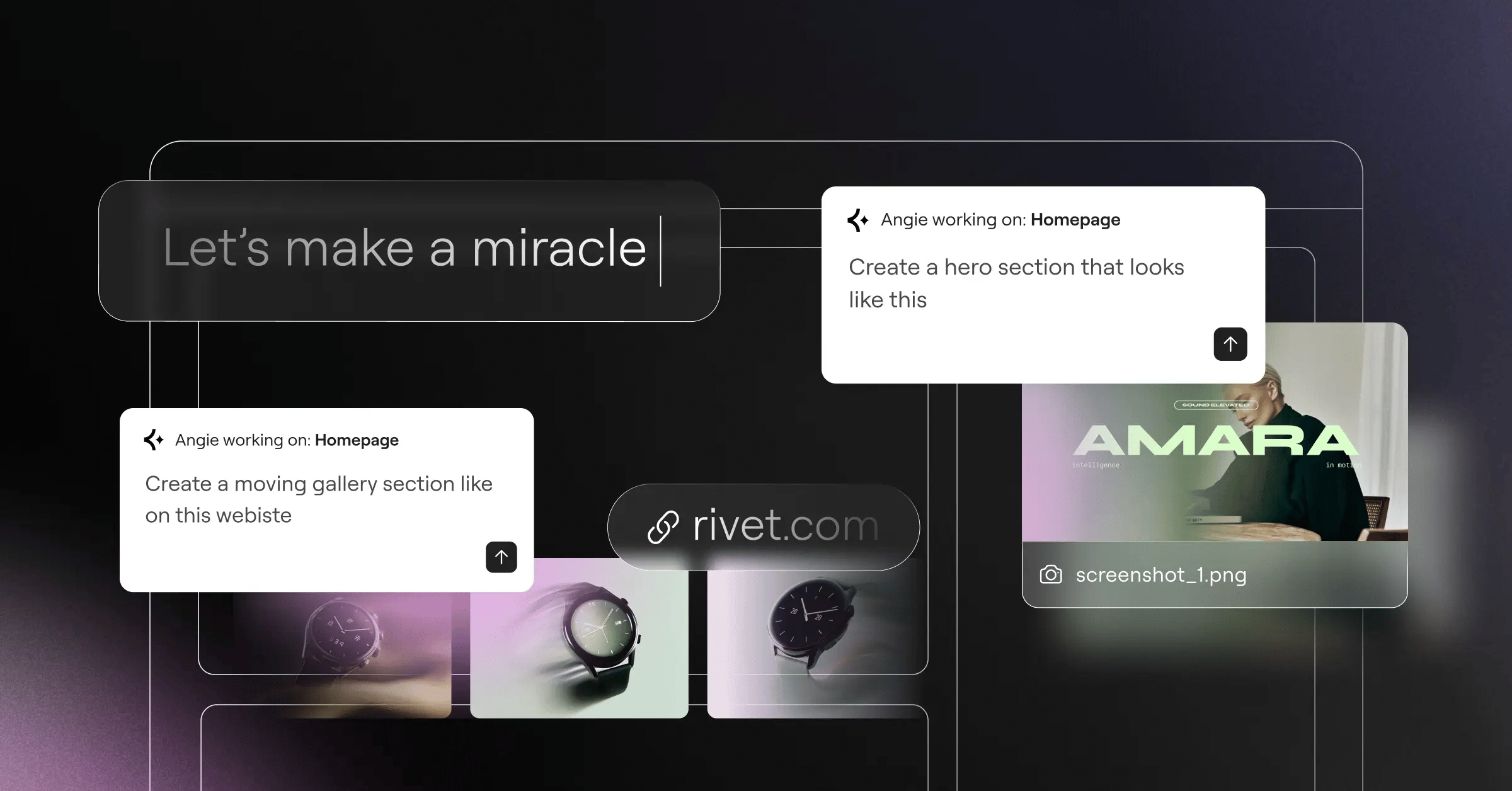
- The Angie plugin by Elementor is the primary agentic framework you’ll want to use, allowing natural language prompts to create custom widgets and admin snippets instantly.
- Integrating native AI tools can boost developer productivity by 82% according to recent enterprise surveys.
- Using AI-driven personalization and dynamic content generation drives an average conversion rate increase of 10-15%.
- Custom code generation via Elementor AI Code hits a 92% accuracy rate for standard UI components.
- Replacing traditional localization with AI translation plugins cuts multi-language costs by up to 40%.
- The number of AI-specific plugins in the WordPress repository has exploded by over 300% in recent years.
Prerequisites for an AI-Powered WordPress Site
You can’t just slap a heavy machine learning API onto a cheap shared server. It simply won’t work. The backend requests require specific technical foundations before you even install a single plugin. Have you ever tried to run a complex database query on a server from 2018? It’s a disaster. Your core environment must be optimized to handle dynamic scripts and remote API calls.
I’ve seen countless beginners crash their sites because they skipped this exact setup phase. Don’t make that mistake. You’ll need a very specific configuration to ensure everything runs smoothly.
- Update to PHP 8.2 or higher – Modern API wrappers for OpenAI and Anthropic require the latest PHP standards for security and speed. Older versions will throw fatal errors immediately.
- Increase WordPress Memory Limit – Set your
WP_MEMORY_LIMITto at least 256MB in your wp-config.php file (512MB is better if you’re generating large image assets). - Choose premium managed hosting – Look for a managed cloud hosting provider that offers server-level caching. You need a Time to First Byte (TTFB) under 150ms.
- Configure your REST API – Many machine learning plugins rely heavily on the WordPress REST API to communicate with external models. Ensure security plugins aren’t blocking these specific endpoints.
- Install a primary page builder – You’ll need a stable visual canvas. Elementor Editor Pro is the industry standard for applying AI outputs directly to front-end designs.
- Setup Webhooks – If you plan on sending form data to external language models, make sure your server supports outgoing webhook transmissions.
- Implement an API firewall – Protect your site from automated scraping bots that attempt to steal your expensive API keys.
Once your server is primed, you’re ready to start selecting your actual tools. (Getting this right the first time saves you hours of debugging later).
Step 1: Choosing Your AI Integration Method
So, what’s the best way to connect these neural networks to your database? You generally have three paths. Native integrations, standalone niche plugins, or custom API builds. Most users gravitate toward native integrations because they sit directly inside the tools you already use every day. Why switch tabs when you don’t have to?
Let’s break down the actual costs and feature sets of the biggest players in the 2026 market. I’ve tracked these pricing models closely because they impact agency margins heavily.
| Integration Method / Tool | Primary Use Case | Estimated Cost (2026) | Required Technical Skill |
|---|---|---|---|
| Angie by Elementor | Agentic framework, custom coding, site planning | Free plugin | Low to Medium |
| Elementor AI (Native) | In-editor text, code, and image generation | $2.99 – $8.25/month (Credit-based) | Low |
| Jetpack AI Assistant | Basic blog post writing and grammar checks | $10/month (20 free requests/mo) | Low |
| Divi AI | Text and image generation for Divi users | $18/month or $172/year | Low |
| OpenAI API (Custom) | Bespoke backend automation and custom chatbots | $5.00/1M input tokens (GPT-4o) | High (PHP/JS coding) |
Honestly, the custom API route is overkill for most people. Unless you’re building a massive SaaS product on top of WordPress, stick to the native builders. And if you’re working within the Elementor ecosystem, the unified pricing model is incredibly hard to beat.
Step 2: Deploying Angie for Agentic WordPress Automation
Here’s the deal: traditional AI merely gives you text or images. Agentic AI actually executes tasks on your behalf. Angie is the absolute pinnacle of this concept for WordPress. It’s a free plugin created by the Elementor team, but it doesn’t even require the main Elementor editor to function. It uses the Model Context Protocol (MCP) to understand your entire site structure automatically. You just type a prompt, and Angie builds the working asset.
Want a custom post type for real estate listings with 15 custom fields? You just ask for it. It’s that simple.
- Install the Angie Plugin – Go to your WordPress admin dashboard, navigate to Plugins, search for “Angie”, and hit install. Activate the plugin to launch the setup wizard.
- Access the Sandbox Environment – Angie operates inside a secure sandbox. This means you can test massive database changes or complex PHP functions safely. If it fails, your live site remains untouched.
- Submit a Natural Language Prompt – Open the Angie command interface. Type exactly what you need. For example: “Create a custom Elementor widget that displays a mortgage calculator using standard financial formulas.”
- Review the Generated Code – Angie will write the necessary PHP, JavaScript, and CSS in seconds. Read through the generated logic (which is remarkably clean in the 2026 version).
- Deploy to Production – Once you’re satisfied with the preview, click the deploy button. Angie moves the code from the sandbox directly to your live environment in minutes.
This is the part nobody tells you about. You retain full creative control. You aren’t locked into a proprietary black box. You own the code Angie generates. (It’s a massive shift in how we handle custom development).
Step 3: Activating Elementor AI in Your Design Workflow
While Angie handles the heavy agentic architecture, Elementor AI handles the creative execution right inside your page builder. This is where you actually design the front-end user experience. We’ve seen enterprise surveys showing an 82% increase in employee productivity when these tools are baked directly into the visual interface.
Are you still flipping between ChatGPT tabs and your WordPress dashboard? Stop doing that. It breaks your flow state.
- Verify Your Licensing – Ensure you’ve an active Elementor Editor Pro license connected to your domain. The AI features pull directly from your account’s credit pool.
- Open any Page in Elementor – Navigate to Pages, select a draft, and click ‘Edit with Elementor’. You’ll see a slightly revamped UI for 2026.
- Locate the AI Controls – Click on any Text Editor, Heading, or Image widget. In the content panel on the left, you’ll see a prominent ‘Write with AI’ or ‘Create with AI’ button adorned with a sparkle icon.
- Accept the Terms of Service – The first time you click this, a modal will appear asking you to agree to the data processing terms. Read them, accept them, and the engine connects instantly.
- Configure Brand Voice Settings – Go to Elementor Site Settings > AI. Here, you can define global parameters. Tell the system your brand is “professional yet conversational, targeting B2B software executives.” This prevents the output from sounding like a generic robot.
You’ll notice the integration is incredibly fast. The latency issues from older 2024 models are completely gone.
Step 4: Generating and Refining High-Conversion Copy
Writing persuasive copy is easily the biggest bottleneck in web design. Clients never send their content on time. Never. But with a connected neural network, you can generate placeholder copy that’s actually functional. In fact, 75% of marketers reported using these exact tools for content creation recently, driving average conversion rate lifts of 10-15%.
You can’t just type “write a sales page” and expect good results. Prompt engineering requires specific structures.
- Use the Context-Task-Constraint framework – Always provide context first. “You’re an expert copywriter for a plumbing company. Task: Write a 300-word service page for pipe repair. Constraint: Use short sentences and end with a strong call to action.”
- Use the Simplify Tool – If your client gives you a dense, unreadable corporate manifesto, paste it into a Text widget. Click the AI icon and select ‘Make it Shorter’ or ‘Simplify Language’. It instantly formats it for web readers.
- Translate on the fly – Elementor AI can translate content directly in the editor into 25+ languages. Market data from CSA Research shows this approach reduces localization costs by up to 40% compared to manual agencies.
- Adjust the tone – Highlight any paragraph and use the ‘Change Tone’ feature. Swap a casual blog intro to a formal corporate tone with one click.
- Generate dynamic snippets – Write customized excerpts for your archive pages based on the full body text of your articles.
The real power of artificial intelligence in web development isn’t replacing human creativity; it’s eliminating the friction between a strategic idea and a live, optimized page. It allows developers to focus on user intent rather than syntax.
Itamar Haim, SEO Team Lead at Elementor. A digital strategist merging SEO, AEO/GEO, and web development.
Always review the output. The machine doesn’t understand your specific business nuances perfectly. You’re the editor; the tool is just your hyperactive intern.
Step 5: Creating and Editing Custom Visuals
Stock photos ruin conversion rates. Users spot them instantly. They scroll right past the generic team of people shaking hands in a bright office. Generating custom images directly inside your builder fixes this immediately. Elementor AI’s image engine is built to produce exact assets for web layouts.
The system generates assets up to 1024×1024 pixels. Do you need a wide hero background? Or a square team headshot? It handles all of it.
Imagine you’re building a landing page for a boutique coffee shop. You drag in an Image widget, click the AI button, and type: “A moody, cinematic shot of espresso pouring into a ceramic cup on a rustic wooden table, dark background, photorealistic.” Within seconds, you get four variations. You pick the best one and insert it. (No more hunting through expensive stock libraries for hours).
But it goes much deeper than basic generation. The editing tools are where the real power lives. Let’s say you’ve a great photo of a product, but it’s cropped too tightly for your full-width container. You use the Generative Expand feature. The AI analyzes the edges of your photo and literally paints the missing background to fit the 16:9 aspect ratio perfectly. It’s wildly effective.
You can also use the Generative Fill tool to remove objects. Did a trash can ruin a great shot of a storefront? Brush over it, and the system replaces it with matching pavement. Furthermore, the Style Reference feature lets you upload one master image, ensuring every subsequent image you generate matches that exact lighting and color palette. Consistency is everything in design.
Step 6: Implementing AI-Driven SEO and Metadata
Technical SEO requires massive amounts of tedious data entry. Nobody enjoys writing 500 unique meta descriptions. But if you ignore them, your click-through rates will tank. Currently, 68% of SEO professionals state that automated content helps them rank faster, provided they maintain strict quality standards.
You can automate the heavy lifting while focusing your human energy on keyword strategy and link building.
- Bulk Generate Meta Titles – Use tools integrated with your SEO framework (like Yoast or RankMath) to auto-generate SEO titles based on your H1 and primary content.
- Craft Click-Worthy Descriptions – Prompt the engine to write meta descriptions strictly under 155 characters that end with an enticing hook or question.
- Automate Image Alt Text – Accessibility is mandatory in 2026. Use AI to scan your media library and write descriptive, keyword-aware alt text for every single image. (Screen readers rely heavily on this data).
- Identify Content Gaps – Paste your competitor’s article into a prompt and ask: “What critical subtopics are missing from this text?” Use those insights to build better, deeper content on your own WordPress site.
- Schema Markup Generation – Ask the assistant to write custom JSON-LD schema for specific entities like recipes, events, or local business data. Paste it directly into the Elementor Custom Code area.
- Internal Link Suggestions – Advanced plugins can map your site’s semantic structure and automatically suggest highly relevant anchor text connections between your posts.
Just remember that search engines are very good at spotting low-effort spam. Add your own voice to everything the machine spits out.
Step 7: Adding Custom CSS and Code Snippets
You don’t need a computer science degree to build highly interactive websites anymore. If you can describe what you want in plain English, you can build it. Modern assistants like Elementor AI Code boast a staggering 92% accuracy rate for generating standard UI components, cutting manual coding time by 60%.
tests used this exact method to build complex pricing toggles and hover animations that would normally take hours of testing.
- Identify the Target Element – Click on the specific widget you want to modify in the Elementor editor. Go to the Advanced tab and open the Custom CSS section.
- Activate the Code Assistant – Click the AI icon above the CSS input field. This opens the specialized code generation window.
- Write a Specific Prompt – Be exact. Don’t say “make it bounce.” Say: “Write CSS targeting selector that creates a smooth 0.3s transform scale(1.05) effect on hover, with a soft drop shadow.”
- Insert and Test – The engine provides the exact CSS snippet. Click insert. The live editor updates instantly. If it doesn’t look right, hit undo and adjust your prompt.
- Generate Custom HTML/JS – For functional elements, drop an HTML widget onto the page. Ask the assistant to “build a simple interactive BMI calculator using vanilla JavaScript and inline styling that matches a modern aesthetic.” It writes the entire block.
If you encounter an error, just copy the broken code, paste it back into the prompt box, and say “Find the syntax error in this code and fix it.” It debugs its own work flawlessly most of the time.
Step 8: Managing AI Costs, Credits, and Ethics
Running neural networks requires immense computational power. Those server costs are passed down to you. Understanding how credits work is crucial for maintaining profitability, especially if you manage multiple client sites. Elementor uses a pooled credit system across its unified subscriptions, but not all tasks cost the same amount of compute.
By 2026, 60% of SMBs plan to use automated chatbots for support. But if you aren’t careful, runaway API usage will destroy your monthly budget.
- Text Generation is Cheap – Writing paragraphs, fixing grammar, and generating code snippets use very few credits. You can do this all day without worrying much about limits.
- Image Generation is Expensive – Rendering high-resolution 1024×1024 visual assets consumes significantly more server power. Every time you ask for four variations of a photo, you’re burning through your allocation faster.
- Global AI Limits – Elementor One plans offer massive pools (like 25,000 credits per month), which is generally enough for heavy daily usage. But track your usage in the dashboard.
- Disclose Usage to Users – Ethically, if you’re using an automated chatbot to handle customer service, clearly label it as a bot. Users hate thinking they’re talking to a human when they aren’t.
- Beware of Hallucinations – Neural networks lie. They present false information with absolute confidence. Never publish fact-heavy content (like medical advice, legal documents, or historical dates) without rigorous human verification.
- Copyright Considerations – The legal frameworks surrounding AI-generated imagery are still evolving in 2026. Avoid prompting the system to copy the exact style of living, working artists.
Frequently Asked Questions
Why is my AI button not appearing in the Elementor editor?
You likely have an expired license or aren’t logged into your Elementor account. Ensure the Elementor Pro plugin is updated to the latest 2026 version. Navigate to Elementor > License in your dashboard, disconnect your account, and reconnect it to refresh the API token.
Does using AI-generated content hurt my Google rankings?
No, Google explicitly states they reward high-quality content regardless of how it’s produced. However, if you mass-generate low-effort, unedited spam just to manipulate search results, Google’s spam algorithms will penalize your site aggressively. Quality and helpfulness always matter most.
How do I stop the generated text from sounding robotic?
You must refine your prompts. Stop using generic commands. Define a specific persona, dictate the exact tone (e.g., “witty, punchy, and highly technical”), and use the Elementor AI Site Settings to establish global brand voice parameters across all your web pages.
Can Angie build full WordPress themes from scratch?
Angie excels at generating custom assets, post types, and functional widgets within an existing environment. While it can generate extensive structural code, it’s best used alongside a lightweight framework like the Hello theme rather than trying to compile an entire monolithic theme from a single prompt.
What happens to my AI images if I cancel my Elementor subscription?
You retain full ownership of any images you’ve already generated and inserted into your Media Library. They won’t disappear from your live pages. However, you’ll lose the ability to generate new images or edit existing ones using the generative fill and expand tools.
Is the code generated by Elementor AI safe from security vulnerabilities?
The code is highly accurate, but it isn’t foolproof. The engine follows standard WordPress coding practices, but you should always review custom PHP snippets for potential sanitization issues before pushing them to a live production environment. Always test in a staging area first.
Can I use my own OpenAI API key with Elementor?
No, Elementor’s native AI features operate on their proprietary credit system and custom-tuned models optimized specifically for web design workflows. If you want to use your own direct OpenAI API keys, you’ll need to build a custom integration using PHP or use a standalone bridge plugin.
Looking for fresh content?
By entering your email, you agree to receive Elementor emails, including marketing emails,
and agree to our Terms & Conditions and Privacy Policy.

