
You’ve put real work into your site: building pages people want to read, bringing visitors in the door. So when your analytics show a sudden drop in tracked traffic, it stings, and you’re not alone. Privacy rules now require active permission before non-essential cookies load, leaving a lot of site owners with gappy marketing data and real frustration.
Here’s the good news: improving your consent numbers doesn’t take complex coding, invasive tactics, or a law degree. With clear banner design, friendly copy, and the right native tool, you can get more visitors comfortable saying yes, while staying fully compliant.
Let’s walk through how, step by step.
Key Takeaways
- Design transparency: Clear, readable layouts earn significantly more opt-ins than cluttered, confusing banners.
- Location awareness: Showing targeted cookie messages based on a visitor’s location avoids frustrating users who don’t need them.
- Frictionless experience: Placing buttons in intuitive spots helps users make quick, comfortable decisions.
- Native tools: Keeping consent management inside your WordPress dashboard prevents third-party script lag.
- Consent Mode v2: Correct integration preserves vital marketing analytics even when users choose to opt out.
Why Opt-In Rates Matter in the 2026 Web Environment
The privacy landscape has shifted a lot, and it’s not shifting back. Silent, unprompted tracking just isn’t viable anymore. Regulators actively enforce rules like the General Data Protection Regulation (GDPR) in Europe and the California Consumer Privacy Act (CCPA) in the United States, so the challenge is protecting user choice while still gathering the insight you need to grow.
When visitors land on your site, their first interaction is often your cookie banner. If it feels intrusive, confusing, or untrustworthy, some people leave before reading a single word. Others click “Deny All” because it’s the easiest way out, leaving your marketing team flying blind. (This one trips people up far more than you’d expect.)
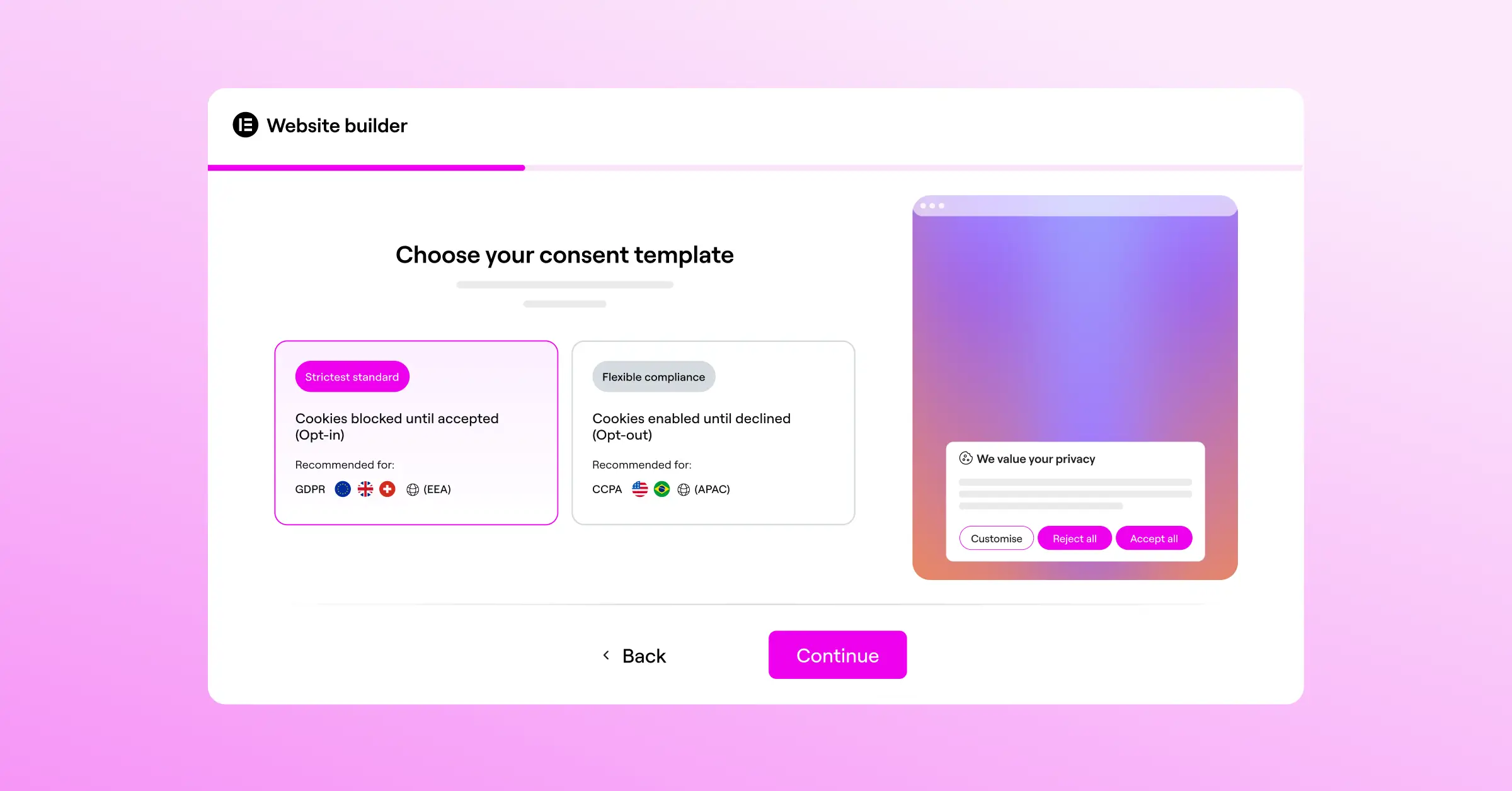
To keep your analytics healthy, make the opt-in process as reassuring and straightforward as you can. In 2026, earning trust is the only sustainable path to good data. Higher consent rates mean better ad targeting, more reliable conversion tracking, and a clearer picture of how visitors experience your site built with Elementor.
Introducing Cookie Consent: Your Native WordPress Compliance Solution
Plenty of site owners have leaned on external platforms to handle cookie notices. These services often slow load times, require a separate dashboard, and clash with theme styles. That’s why a native WordPress tool makes such a difference.
With Cookie Consent, the native cookie consent capability from Elementor, you manage your whole compliance strategy right inside your existing WordPress admin. No messy integrations, no external accounts, no code snippets to copy and paste, and your site keeps loading fast.

Here’s what the capability does for you from day one:
- Builds beautiful consent notices directly inside your familiar WordPress interface.
- Scans your site automatically to discover, list, and categorize active tracking cookies.
- Coordinates with Google Consent Mode v2 to communicate user preferences directly to Google services.
- Saves anonymous consent logs so you have a clear, reliable audit trail for compliance regulators.
- Adjusts banner visibility using geo-targeting to show notices only where legally required.
- Translates your consent language automatically using built-in multilingual banner options.
Because this capability is built into your WordPress environment, you can launch a compliant banner in under five minutes, freeing you to focus on design and copy, not technical conflicts.
How to Design an Honest, High-Converting Consent Banner
Your banner’s design plays a huge role in how visitors respond. A cold, legal-warning-style banner makes people rush to close it or reject everything. One that feels like a natural extension of your brand makes visitors comfortable enough to say yes.
Should You Use a Banner, Bar, or Modal?
Where you place your consent message changes how visitors interact with your site. You’ve got a few main layout options to consider:
- The Bottom Banner Bar – This is the least disruptive option. It sits quietly at the bottom of the viewport, letting people read your content before choosing. It’s great for user experience but can pull lower initial opt-in rates simply because it’s easy to ignore.
- The Corner Toast Notification – A small box that slides into the bottom-right or bottom-left corner. It feels friendly and modern without blocking the main reading area, balancing visibility with respect for your reader’s attention.
- The Centered Modal Overlay – A more visible popup that asks for a choice before the visitor continues. This gives you higher visibility, but use it carefully: a blocked-access feel can frustrate visitors, so keep the design warm and welcoming.
How to Align Your Brand Colors and Style
One of the most common mistakes is leaving your banner with its default, generic styling. When your site has a dark, elegant theme and a bright white unstyled box shows up at the bottom, it can look like something broke.
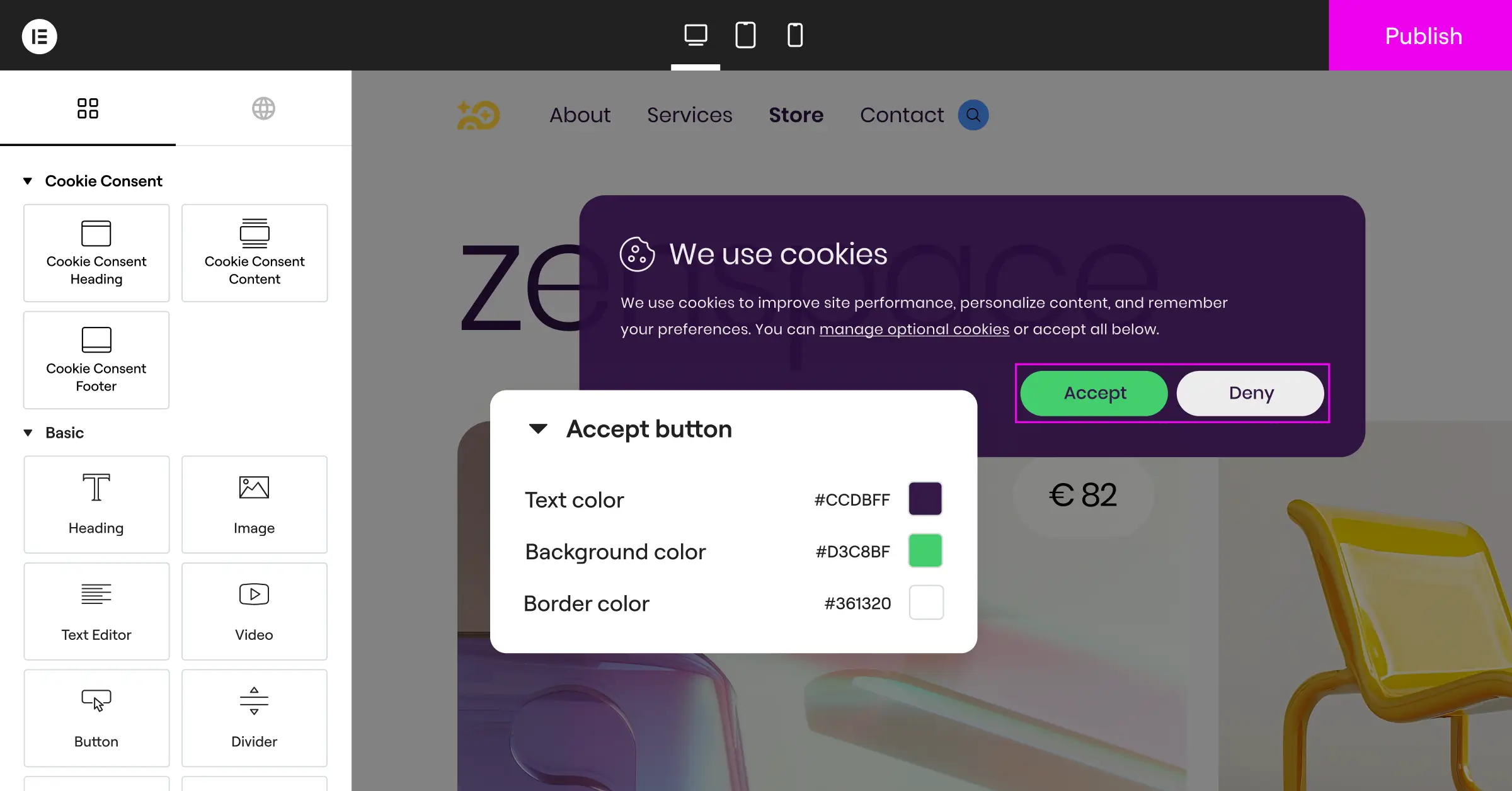
Match your banner’s typography, border radius, and color palette to the rest of your site. When it looks like a native part of your page, visitor anxiety drops, and visual consistency becomes one of the easiest ways to lift your opt-in numbers.
Where Should You Place Your Call-to-Action Buttons?
Button layout matters more than people expect. To stay compliant with modern regulations, steer clear of deceptive design patterns that make it genuinely hard for users to decline tracking.
Make sure both your “Accept” and “Decline” buttons are clearly visible and easy to tap, especially on mobile. Use your primary brand color for the accept action and a softer outline or neutral background for the settings or decline option. This guides the eye naturally without being manipulative. Giving equal prominence to accept and reject isn’t just a legal requirement, it builds real trust.
Copywriting Secrets for Better Consent Rates
The words you choose have a real impact on how people respond. Most cookie banners lean on cold, generic legalese that sounds intimidating. Writing your banner copy with warmth and clarity, and explaining exactly why you collect data and how it helps the visitor, makes a surprising difference.
Instead of something like:
“We use cookies to track user data for analytics and marketing purposes under GDPR compliance laws.”
Try something more approachable:
“We use cookies to save your site preferences and understand what content you love most. It helps us keep our guides free and easy to read!”
Here are some direct ways to improve your banner copy:
- Focuses on the benefits of tracking, like personalized recommendations and faster page load speeds.
- Simplifies legal jargon so any reader can understand exactly what they’re agreeing to.
- Keeps the tone friendly and conversational, matching the personality of your brand.
- Assures visitors that their data is secure and won’t be sold to third parties.
- Links clearly and simply to your privacy policy page for full transparency.
Treat your visitors like people rather than compliance checkboxes, and you’ll break down the defensiveness so many web users feel when they hit a privacy prompt. A little warmth goes a long way.
The Technical Side: Script Loading and Google Consent Mode v2
Improving your consent rate isn’t only about design and copy, technical performance matters too. If your cookie banner loads slowly or delays the rest of your site, your bounce rate climbs before anyone reads the banner text.
When you use a native capability built for Elementor, the scripts are optimized for your WordPress environment. They don’t block page rendering, which keeps your core web vitals and search rankings in good shape. Slow third-party scripts are a common trap that native WordPress tools sidestep entirely.
“Implementing a clear, native consent process isn’t just about legal safety. It’s a fundamental trust builder that respects your audience’s privacy while preserving the high-quality analytics you need to grow your business online.”
– Itamar Haim, Web Compliance Specialist
You’ll also want to be running Google Consent Mode v2. This is a framework Google built to help site owners adjust how their Google tags behave based on a user’s consent status. If a visitor declines cookies, Google services like Google Analytics 4 and Google Ads adjust dynamically. Instead of tracking full user data, they use privacy-safe, anonymous modeling to fill in your reporting gaps. (It’s simpler than it sounds, and your marketing team will appreciate it.)
Using Google Consent Mode v2 means you don’t lose all your tracking data when a visitor clicks “Decline.” You keep compliant, modeled data so you can still measure conversions and marketing performance accurately, without going against anyone’s privacy preferences.

Comparing Top Consent Management Tools for WordPress
To help you see how different solutions handle these requirements, here’s a factual comparison of several popular consent management tools available for WordPress sites.
| Feature Category | Cookie Consent (Elementor) | Cookiebot | CookieYes | Complianz | iubenda |
|---|---|---|---|---|---|
| Platform Integration | Native WordPress dashboard | External cloud platform | External cloud platform | WordPress dashboard | External cloud platform |
| Setup Time | Under 5 minutes | Requires configuration | Requires configuration | Multi-step wizard | Multi-step setup |
| Google Consent Mode v2 | Fully integrated | Supported via script | Supported via script | Supported | Supported via code |
| Geo-Targeting | Built-in feature | Paid tiers only | Paid tiers only | Supported | Paid tiers only |
| Design Customization | Native brand editor | Custom CSS required | Custom CSS required | Theme setting options | Custom CSS required |
Choosing a tool that lives inside your WordPress environment cuts setup complexity from the start. There’s no need to copy embed codes or juggle browser tabs to check your consent logs.
Advanced Strategies to Improve Your Consent Performance
Once your basic native consent banner is running smoothly, you can layer in more targeted optimization techniques to push your opt-in rates higher, all while keeping your site clean, professional, and fully compliant.
Implement Smart Geo-Targeting
One of the most effective ways to protect your global opt-in rates is to use geo-targeting. Privacy laws vary a lot depending on where your visitor is located. Visitors from the European Union require strict opt-in options before any cookies are set. Visitors from other regions may not need to see these prompts at all, or they might only need a simple disclosure.
If you show a heavy, restrictive cookie popup to a visitor from a region with relaxed privacy laws, you add unnecessary friction. Geo-targeting inside your cookie consent capability lets you display specific banner versions based on the visitor’s country, so your global experience stays smooth without prompting people who don’t need the full flow.
Run A/B Tests on Your Notice Layouts
Don’t assume your first design is the best one. Experimenting with different layouts helps you find the sweet spot between user experience and consent conversion.
Keep these steps in mind:
- Compare Banner Placements – Try running a bottom banner bar for a month, then test a corner toast notification. Compare the opt-in rates to see which style your audience responds to.
- Adjust Action Language – Test casual, friendly button labels against more formal options like “Agree” and “Settings” to see what feels right to your visitors.
- Refine Accent Colors – Check whether matching your button color directly to your brand’s highlight color improves response rates compared to neutral gray buttons.
Keep Your Cookie Lists Automatically Categorized
Your visitors deserve to know what they’re consenting to. When someone clicks “Settings” or “Preferences” on your banner, they should see an honest list of cookies sorted by purpose. These typically include:
- Necessary – Essential tracking required for logins, shopping carts, and site security.
- Preferences – Functional options that remember user settings like dark mode or language choices.
- Statistics – Analytics tracking that helps you count visits and understand popular content anonymously.
- Marketing – Ad tracking that delivers relevant campaigns based on browsing habits.
The automatic cookie scanning built into your native WordPress tool keeps these lists accurate with no manual effort, and when visitors see an organized, honest cookie list, their confidence in your brand goes up.
Building Long-Term Visitor Trust and Compliance
At its core, increasing your opt-in rate is about building a real relationship with the people who visit your site. Privacy compliance isn’t a hurdle to jump over, it’s a genuine opportunity to show your audience you respect them. When you make privacy simple, consistent, and transparent, visitors reward you with their trust.
Using native capabilities like Cookie Consent by Elementor simplifies your technical workflows and delivers a professional experience visitors can feel. You’ve got this, and the process is a lot easier than it might seem when you have the right tools inside your dashboard.
Frequently Asked Questions
What is a good cookie consent opt-in rate?
A typical baseline for standard websites sits somewhere between 40% and 60%. But with a friendly, brand-integrated banner with clear copy and thoughtful placement, opt-in rates can climb above 70% or even 80%. Keeping your design warm and native to your WordPress site is the most reliable way to get there.
Does a cookie banner hurt my WordPress site speed?
It can, if you’re using an external third-party compliance script that needs to fetch files from another server. That’s why a native tool like Cookie Consent is useful: it loads directly from your own WordPress hosting environment, so there’s no extra network request slowing down your page.
What happens to my tracking if a visitor declines cookies?
If a visitor declines consent, your site must block non-essential tracking scripts immediately. With Google Consent Mode v2 integrated, Google services use anonymous, non-identifying signals to model conversion data, so your analytics stay active without violating your visitor’s choice.
Is it legal to block access to my site until a user accepts cookies?
In many regions, including the EU under GDPR, so-called “cookie walls” that block site access until a user accepts are considered non-compliant. Visitors must have a free, unforced choice. It’s more effective, and safer legally, to earn consent through honest copy and clear design.
How often should I scan my site for new cookies?
Run a scan whenever you install a new feature, update your theme, or add new marketing tags. A monthly scan is a good habit too, keeping your cookie categories and consent logs current.
What is Global Privacy Control (GPC) support?
Global Privacy Control is a browser-level setting that lets users declare their privacy preferences once across the web. Modern cookie consent tools can detect this signal automatically and respect the user’s choice without requiring a banner click at all.
Do I need consent logs for GDPR and CCPA audits?
Yes. Regulatory bodies require proof that visitors gave active, informed consent before any personal data tracking took place. A native dashboard that keeps anonymous consent logs gives you a clear audit trail if your business faces a compliance review.
Can I customize the look of my banner to match my theme exactly?
Absolutely. With native design tools, you can control the colors, borders, fonts, buttons, and animations on your consent banners, so your privacy notices look like an intentional part of your site rather than a generic afterthought.

