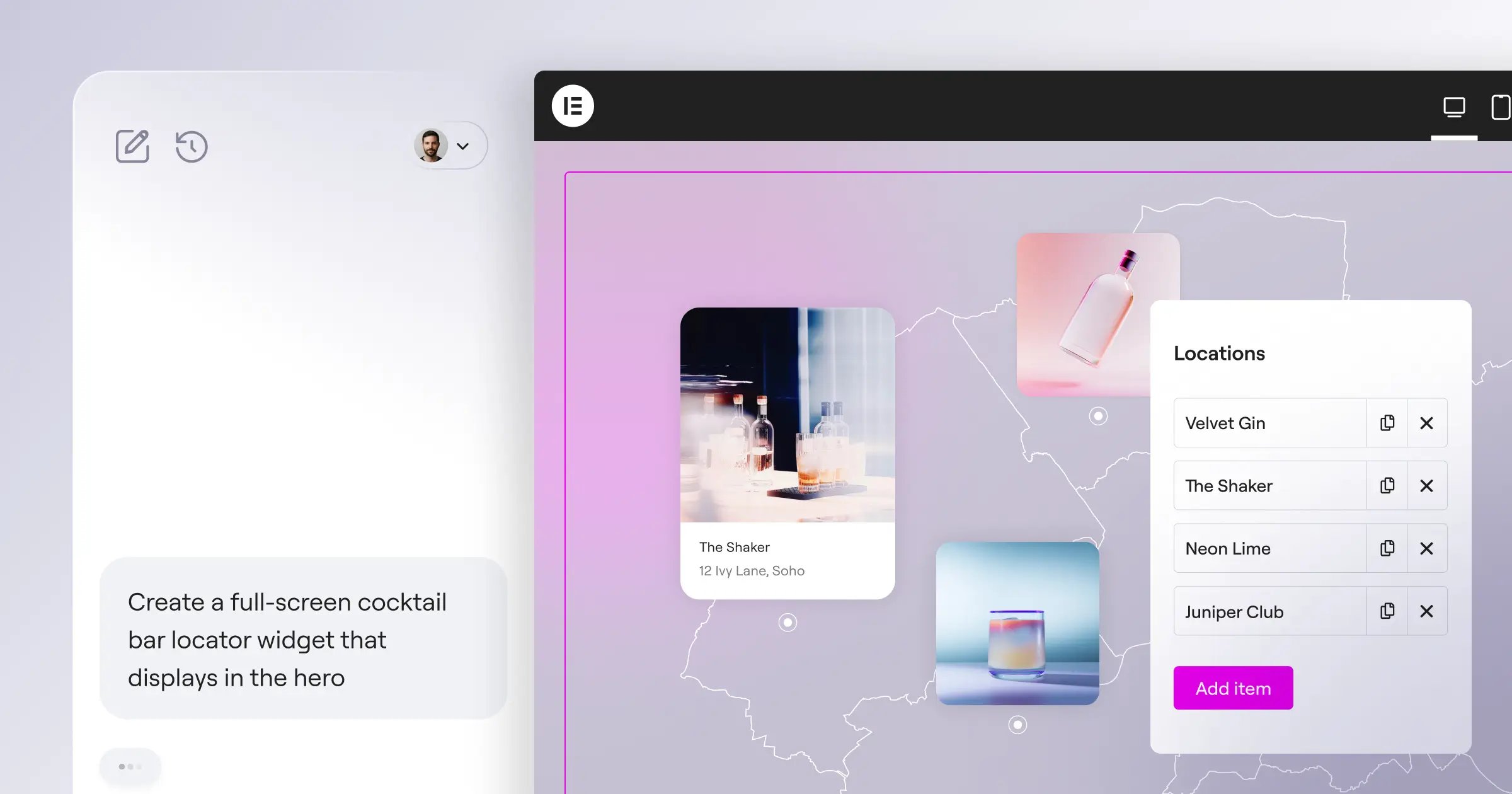
Building a website used to mean wrestling with confusing code or paying a developer thousands of dollars. If you’re a small business owner, that can feel daunting. But things have changed. In 2026, a beautiful, fast website is within reach even if you’ve never written a line of code, and with the right visual tool, you can build a site that looks like an agency made it.
Key Takeaways
- No-code builders let you design visually, no HTML or CSS needed.
- Hosted platforms handle security and maintenance; WordPress-based builders give more ownership.
- Visual editors show your site exactly as you build it.
- Mobile-responsive design comes standard on most modern platforms.
- Your best choice depends on whether you want a simple page, a full store, or a customizable marketing site.
What Makes a Website Builder Friendly for Beginners?
It’s easy to get lost in jargon when picking a platform, but you don’t need to worry about servers, databases, or configurations. Good beginner tools keep that complexity tucked away, showing changes as you make them. Here’s what’s worth looking for:
- Live visual editing that shows changes in real time.
- Pre-built templates so you’re not starting from a blank page.
- Drag-and-drop tools for moving images, text, and buttons.
- Managed security without constant manual updates.
- Built-in contact forms and lead-capture tools.
- Automatic mobile layouts for phones, tablets, and desktops.
How to Prepare Before Picking Your Tool
Spend a few minutes organizing your thoughts before picking a platform. You don’t need a full blueprint, just a direction:
- Define your goal. Selling products, showing a portfolio, blogging, or just listing hours and contact details?
- Gather your brand elements. Your logo, two or three main colors, a couple of clean fonts.
- Draft your core pages. Write your Home, About, and Services copy in a word processor first.
Once these basics are ready, dropping them into your platform is easy. Let’s look at the best options.
“WordPress combined with a modern visual editor gives small businesses the best of both worlds: complete data ownership and visual simplicity.”
– Itamar Haim, Web Development Specialist
Comparison of the Best Website Builders in 2026
Here’s a quick look at how the top platforms compare: features, target audience, and hosting model.
| Website Builder | Platform Type | Primary Target Focus | Ease of Use for Beginners |
|---|---|---|---|
| Wix | Hosted Builder | General Business Sites | Very High |
| Squarespace | Hosted Builder | Creative & Portfolio Sites | High |
| Elementor Website Builder | WordPress visual builder | Custom Business & Marketing Sites | High (with huge design freedom) |
| WordPress.com | Hosted WordPress | Blogs & Content Sites | Medium |
| Webflow | Hosted Visual Design Platform | Designers & Custom Agencies | Medium-Low (steeper learning curve) |
| Shopify | Hosted E-commerce | Online Stores & Retail | High (for commerce) |
1. Wix
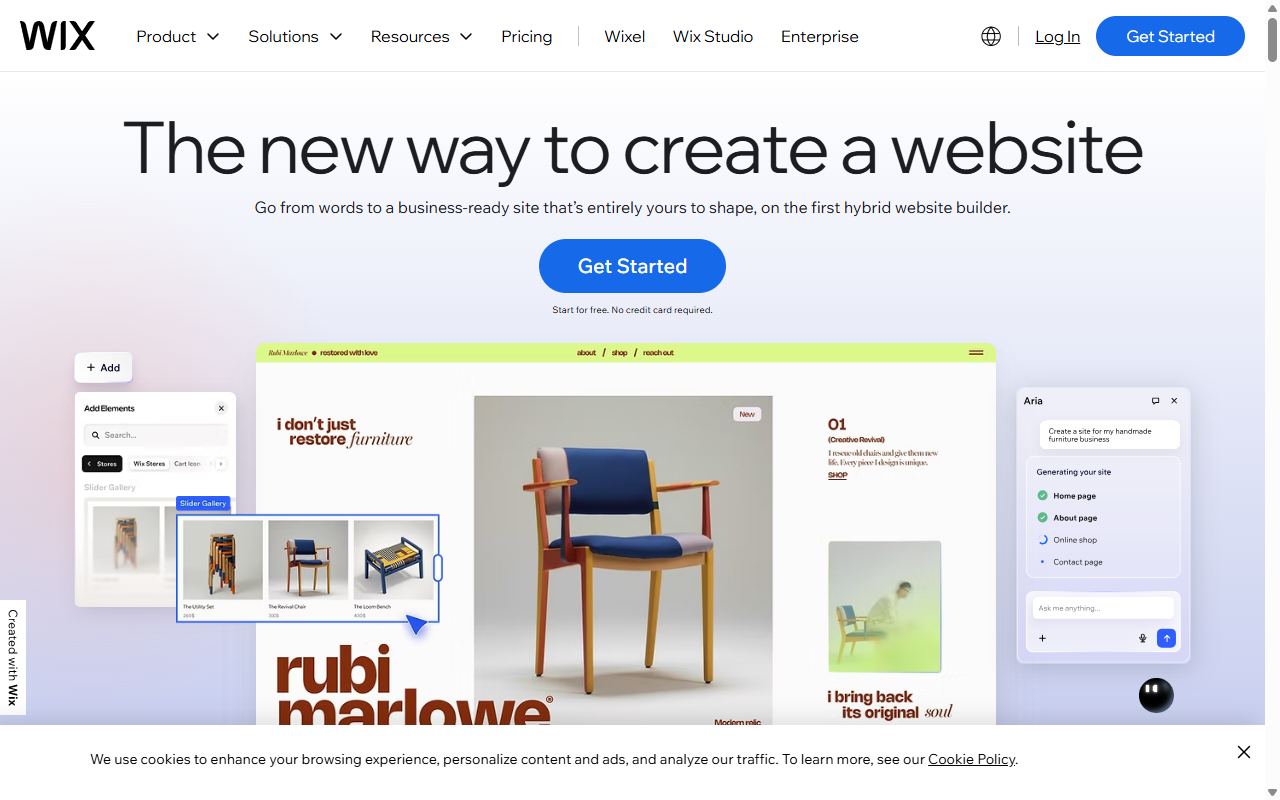
Wix is a fully hosted builder that’s been a small-business favorite for years. Its freeform drag-and-drop editor lets you place blocks, images, and buttons anywhere, no grid required. Guided setup tools can also build a starting site from a few quick questions.
Key Features
- Builds pages visually with a freeform editor.
- Includes hundreds of templates for restaurants, salons, and local services.
- Runs built-in scheduling for client bookings.
- Generates text and visuals with simple assistant tools.
- Handles hosting and security automatically.
- Adds marketing tools for newsletters and customer relationships.
Pros & Cons
- Pro – Total design freedom to place elements anywhere.
- Pro – A large app marketplace for adding features fast.
- Con – Switching templates later means recreating your content.
- Con – Easy to misalign elements on smaller screens.
Verdict: Wix suits anyone who wants a standard business site fast, with freedom to place elements anywhere.
2. Squarespace
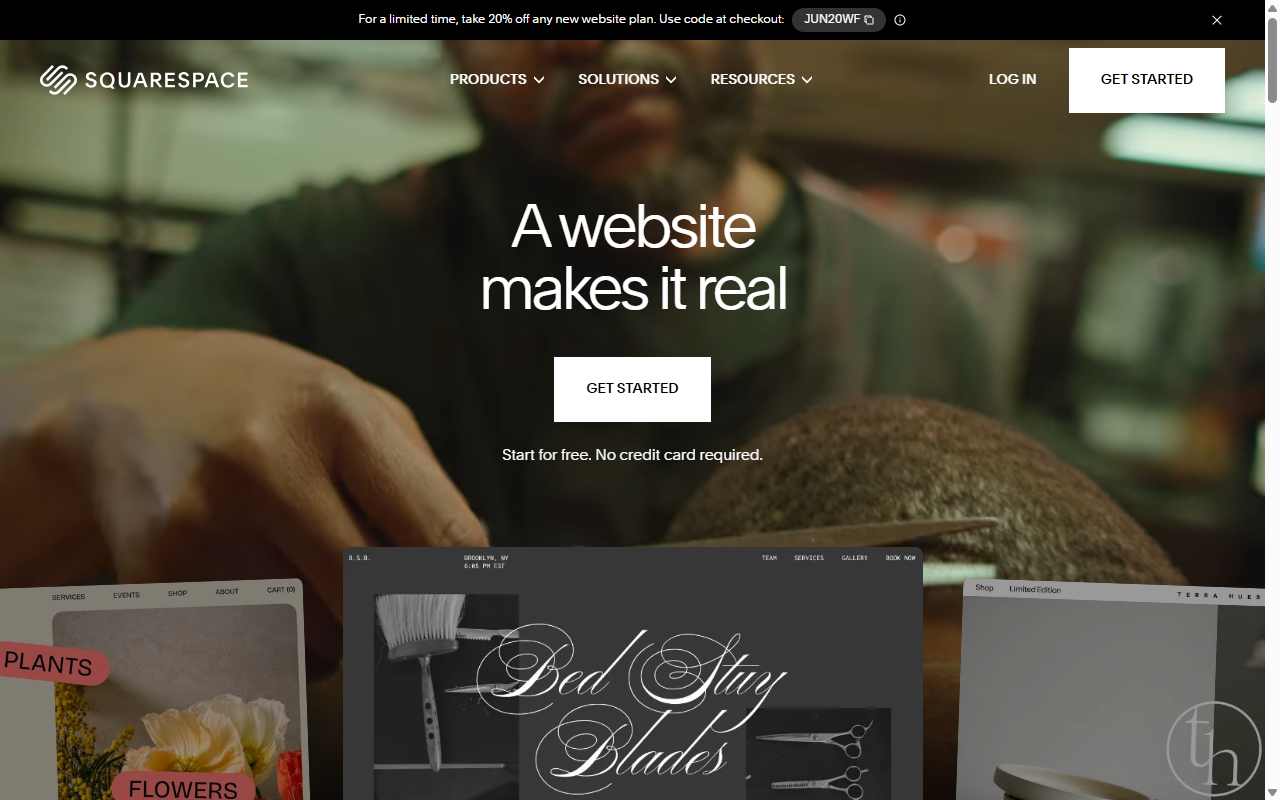
Squarespace is known for clean, design-focused templates. If you run a creative business, photography studio, or boutique restaurant, it helps your brand look polished, thanks to a structured grid that stays neat on every screen and gently guides you to keep blocks aligned.
Key Features
- Aligns elements beautifully with a structured grid layout.
- Includes professional templates built around strong photography and typography.
- Adds simple store features for goods, digital files, or services.
- Keeps layouts responsive across devices automatically.
- Runs built-in blogging tools for straightforward publishing.
- Connects directly to popular social platforms.
Pros & Cons
- Pro – Nearly impossible to make a Squarespace site look messy.
- Pro – Clean, high-end styling for premium-feeling brands.
- Con – The structured editor can feel restrictive for unconventional layouts.
- Con – Third-party integrations are more limited than on open platforms.
Verdict: Squarespace is the go-to for owners who prioritize visual design, clean styling, and photography.
3. Elementor Website Builder
If you want full freedom to build any site while keeping complete ownership of your data, the Elementor website builder is worth a close look. It runs on top of WordPress, turning a standard setup into a visual, drag-and-drop design studio, no coding required.
You get the visual ease of a drag-and-drop editor without being locked into a closed, proprietary platform, and you can tap the huge WordPress ecosystem for any tool you need later.
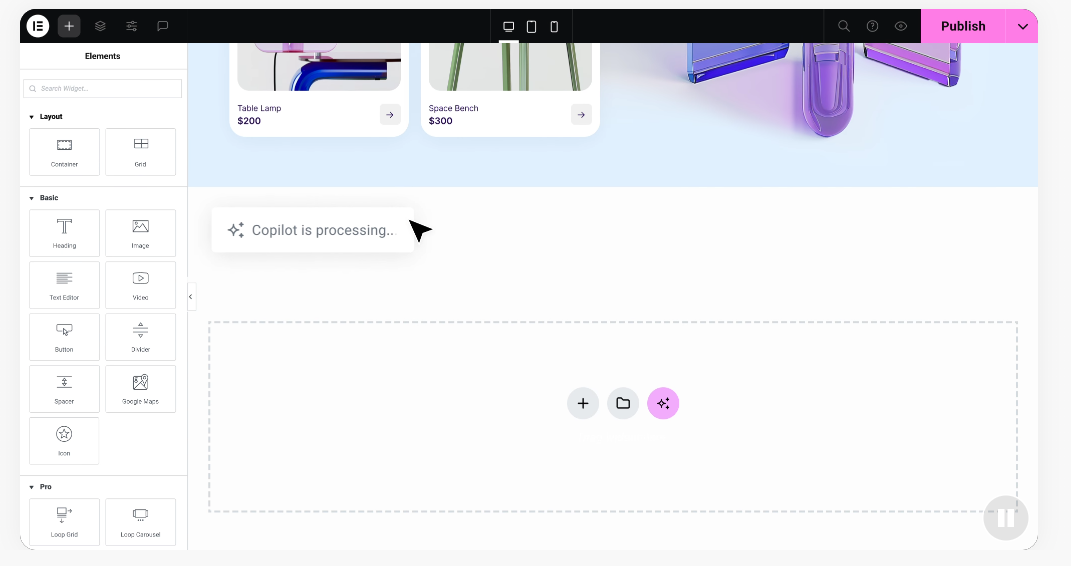
With Elementor features, you can adjust layouts per screen size, manage colors globally, and use built-in assistants to draft text or generate imagery. It gives you room to grow from a simple homepage into a full business site, and your content moves with you if you switch hosts.
Key Features
- Builds complex pages visually with a live editor on top of WordPress.
- Updates fonts and colors sitewide in one click.
- Includes over 100 design widgets for buttons, sliders, reviews, and forms.
- Saves hours of design work with 300+ professional templates and site kits.
- Optimizes layouts for mobile across up to seven device sizes.
- Works with WooCommerce for custom shopping experiences.
Pros & Cons
- Pro – Unmatched design freedom plus owning your own WordPress site.
- Pro – Professional templates that import and customize in seconds.
- Con – You’ll need your own hosting, though many providers offer painless one-click setups.
- Con – The range of design controls can feel like a lot at first.
See your options and find the plan that fits your business on the official Elementor pricing page.
Verdict: Elementor suits owners and freelancers who want visual design freedom without the limits of closed, proprietary builders.
4. WordPress.com
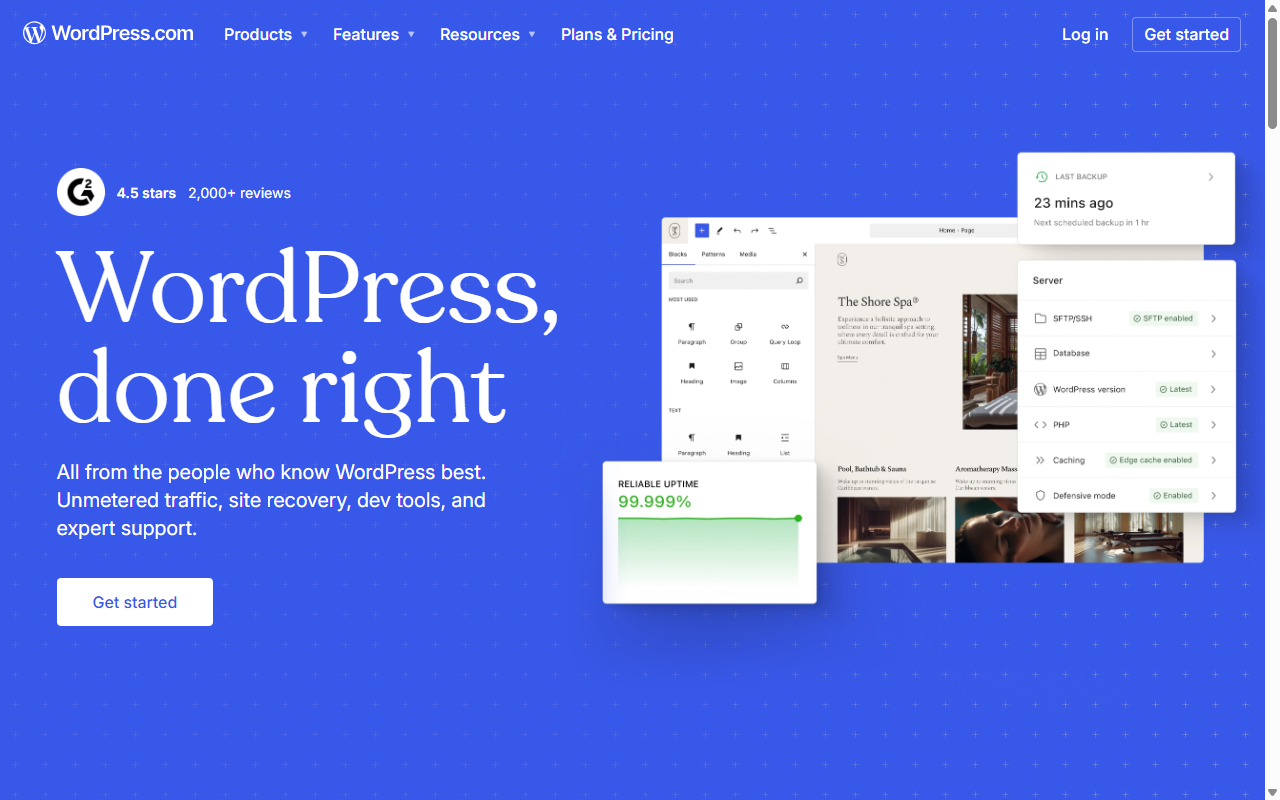
WordPress.com is a hosted version of the open-source WordPress platform, built to skip the hassle of managing servers, backups, and security updates. It’s popular for blogs and content-heavy sites, and bundles everything into one subscription so you can start small and add features as you grow.
Key Features
- Handles technical updates, hosting, security, and daily backups.
- Includes structured themes for writing, publishing, and business layouts.
- Unlocks plugin installs on higher-tier plans.
- Tracks traffic with built-in stats and social sharing.
- Adds dedicated support for setup questions.
- Protects your data with strong security protocols.
Pros & Cons
- Pro – A highly stable platform that handles maintenance for you.
- Pro – A smooth writing experience with an excellent block editor.
- Con – Powerful features and third-party plugins need higher-tier plans.
- Con – The editor favors structured content over freeform design.
Verdict: A reliable, hosted option for writers and small business owners who want WordPress without managing hosting.
5. Webflow
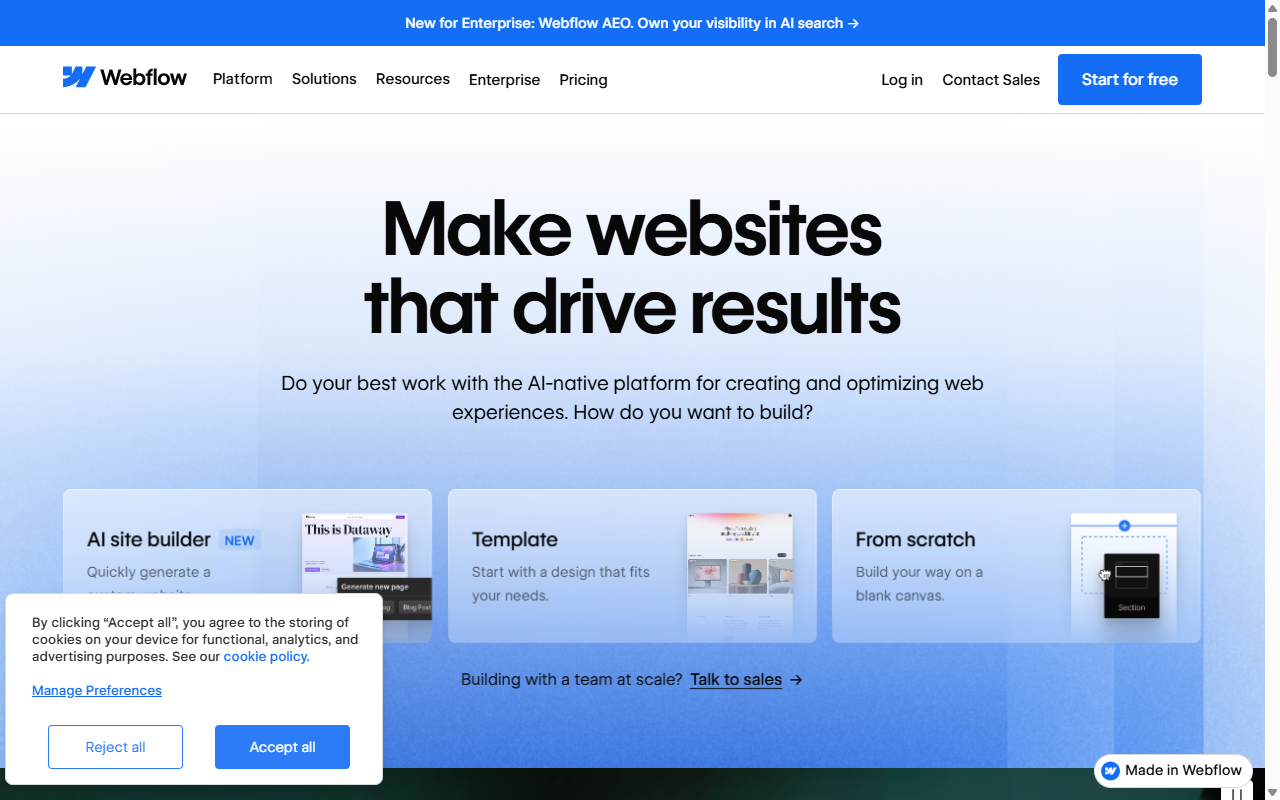
Webflow sits between coding and visual design. Marketed as no-code, it’s actually built on real HTML and CSS rules, with a steeper learning curve than simple drag-and-drop builders but a high level of control, why startups and design agencies often choose it.
Key Features
- Translates visual designs into clean, standards-compliant code.
- Controls spacing, flexbox, and grids through a visual sidebar.
- Builds advanced animations and transitions without writing Javascript.
- Manages dynamic content like team profiles or portfolios.
- Runs on fast hosting networks for quick load times.
- Lets you edit text on the live page for non-technical teammates.
Pros & Cons
- Pro – Precise control over layout behavior and custom animations.
- Pro – Generates clean, fast-loading code search engines tend to favor.
- Con – The interface can look complex at first, like design software.
- Con – You’ll need to learn basic layout concepts like boxes and margins.
Verdict: Webflow suits curious beginners willing to learn layout basics to build a custom, well-animated site.
6. Shopify
If your goal is selling physical items, tracking stock, and shipping packages, Shopify is a well-established, dedicated e-commerce engine that makes setup secure and straightforward. Theme templates let you customize your homepage, list products, set tax rates, and connect payments in a few clicks.
Key Features
- Manages entire inventories, including sizes, colors, and stock levels.
- Connects popular payment systems so you can accept cards securely.
- Builds clean shopping layouts for easy browsing and checkout.
- Handles secure checkout automatically, keeping data safe.
- Tracks shipments and labels from a central panel.
- Works with retail systems if you also sell in-store.
Pros & Cons
- Pro – Well-regarded for managing sales, inventory, and shipping.
- Pro – A secure cart system that handles busy sales periods.
- Con – Visual customization is more limited than dedicated design builders.
- Con – Monthly costs add up once you add paid apps.
Verdict: For a dedicated online retail business, Shopify keeps inventory and sales running smoothly.
7. GoDaddy Website Builder
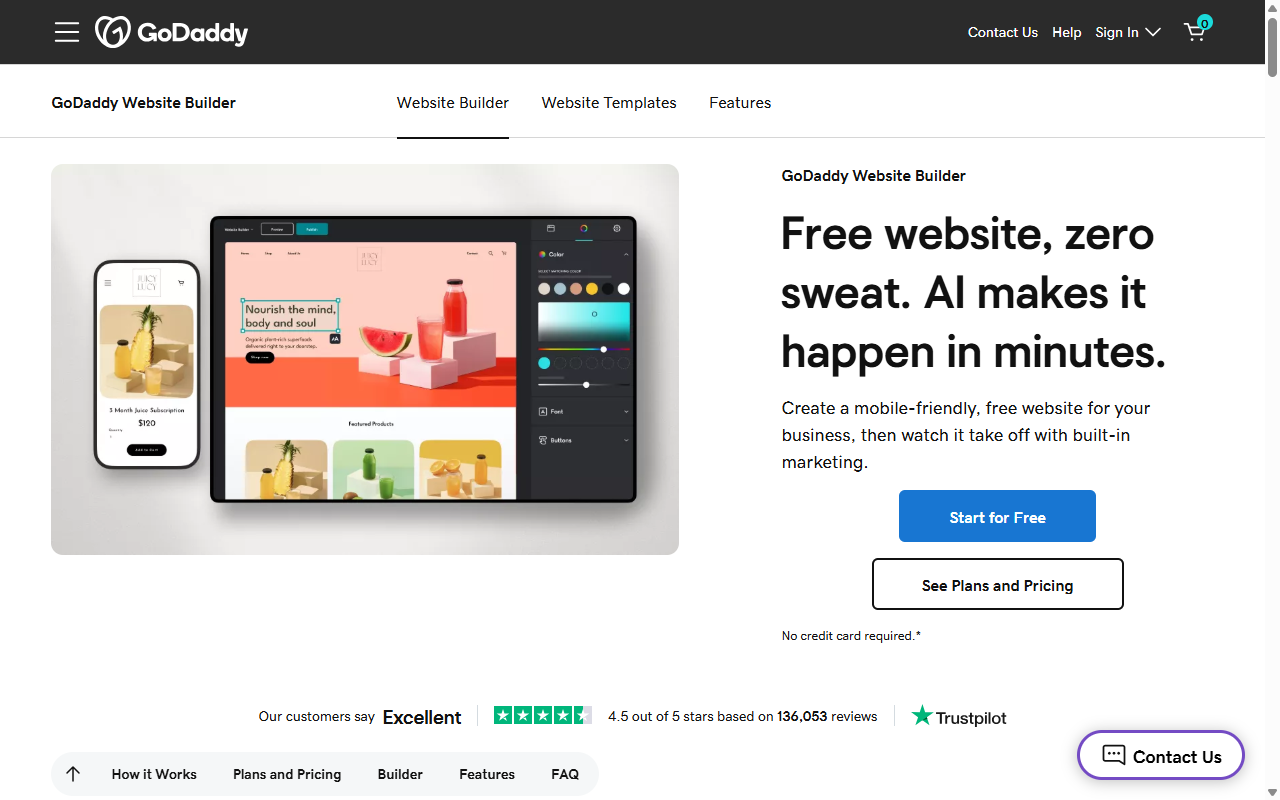
GoDaddy Website Builder is built for speed above everything else: click, type your information, upload photos, publish. It skips heavy customization to keep things simple, a fit for local service businesses like plumbers, accountants, or lawn care pros.
Key Features
- Builds pages quickly using pre-assembled visual sections.
- Runs simple email marketing tools to keep customers updated.
- Supports quick social posts from your dashboard.
- Adds clean contact forms for service quotes.
- Includes a built-in calendar for appointments.
- Keeps editing simple on mobile.
Pros & Cons
- Pro – Fast and simple setup, live in under an hour.
- Pro – A clean, uncluttered panel easy for first-timers.
- Con – Very limited design flexibility outside pre-set structures.
- Con – Not suited for complex sites needing custom databases.
Verdict: The fastest way to get a basic, professional presence online without design decisions.
8. Hostinger Website Builder
Hostinger Website Builder is a budget-friendly option that uses AI to help you launch quickly, a fit for personal projects, portfolios, and small businesses starting out. The setup wizard walks you through choosing a style, generating starter content, then fine-tuning with a drag-and-drop editor.
Key Features
- Generates custom design drafts based on your business description.
- Runs a simple grid editor that keeps things neat and aligned.
- Includes AI writing tools for pages when you’re stuck.
- Adds free domain registration and security certificates on most plans.
- Tracks visitor analytics to show how many people visit.
- Keeps page speeds fast on a globally distributed network.
Pros & Cons
- Pro – Cost-effective for small businesses testing the waters.
- Pro – AI tools speed up design and copywriting.
- Con – Lacks advanced integrations growing businesses might need.
- Con – Moving to another platform later usually means starting over.
Verdict: A budget-friendly start for small businesses that want a simple site with AI built in.
9. Weebly
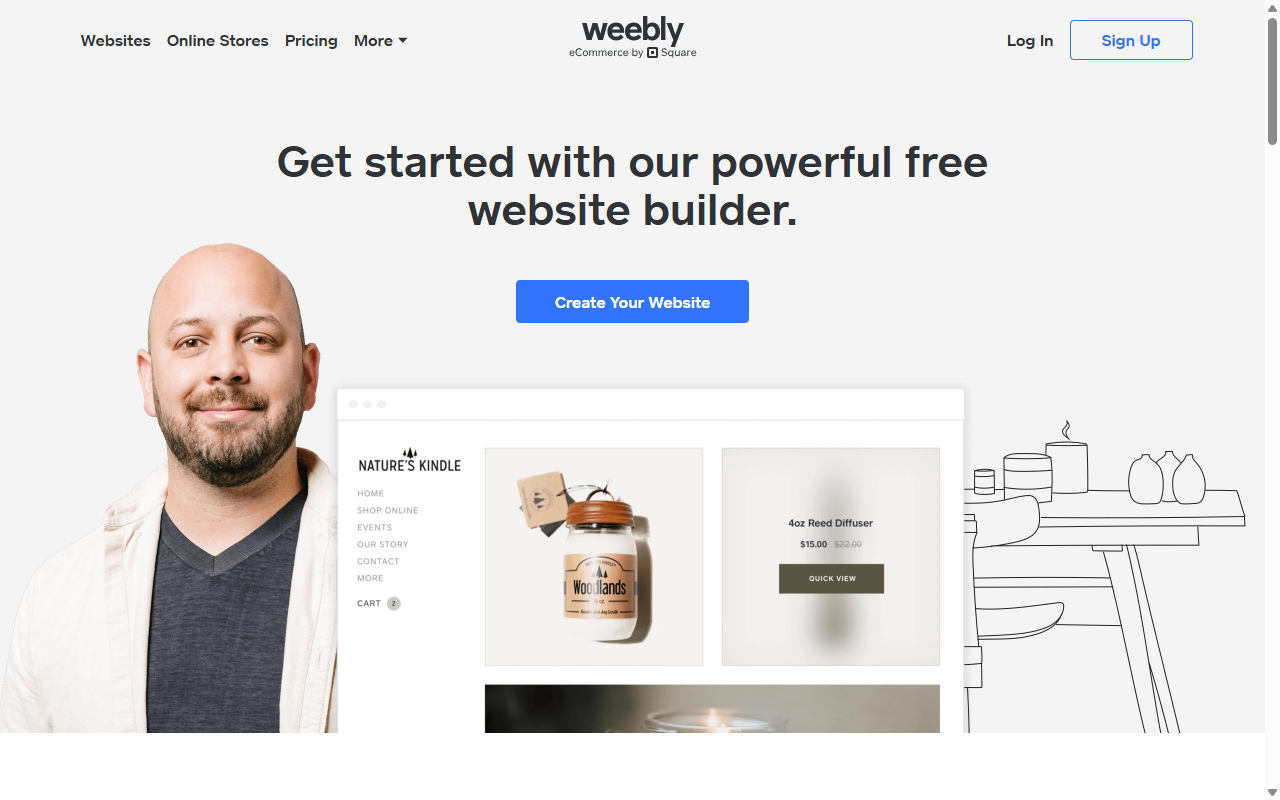
Weebly is one of the classic visual website builders, using a clean, structured grid where you drag images, text blocks, and maps into set columns and rows, hard to break if you’re new to this. Now owned by Square, it focuses on helping local businesses set up simple online ordering.
Key Features
- Keeps layouts neat using a structured column-based editor.
- Connects with Square Payments for fast card processing.
- Includes basic SEO fields to help customers find you.
- Runs simple membership portal setups for client areas.
- Builds clear contact form designs for inquiries.
- Allows easy site exports if you need to transfer files.
Pros & Cons
- Pro – A simple interface that’s stayed reliable over the years.
- Pro – Direct integration with Square for fast local transactions.
- Con – The template library looks dated next to modern platforms.
- Con – Updates to the platform have slowed in recent years.
Verdict: A reliable choice for local businesses using Square that want a clean, traditional setup.
10. Carrd
Sometimes you don’t need dozens of pages, just one. For a digital business card, a landing page, or a signup form, Carrd is fast, simple, and inexpensive. Pick a template, customize links, write a short bio, upload an image, publish.
Key Features
- Builds responsive single-page layouts that look great on mobile.
- Includes minimalist templates for portfolios, link pages, and signups.
- Allows custom domain mapping for your own business name.
- Adds simple contact form integrations for visitor messages.
- Keeps loading times fast with clean, lightweight code.
- Stays highly affordable for hobbyists and startup founders.
Pros & Cons
- Pro – Simple to use, a clean landing page in under 30 minutes.
- Pro – High-quality styling that feels modern and uncluttered.
- Con – Restricted to single pages, not for large or complex sites.
- Con – Doesn’t include database or dynamic content systems.
Verdict: The best option here if you just need a single-page site pointing to your profiles or store.
Step-by-Step Guide: Designing Your First No-Code Page
Building your site is easier when you break it into small steps. If you’re feeling nervous, that’s normal, you’ve got this. Just follow these phases and don’t worry about perfection on the first try.
- Pick your template. Choose a design close to the structure you want, colors and photos can change in seconds.
- Set your global styles. Choose brand fonts and colors so every new page stays on-brand.
- Structure your homepage. Build a hero section up top (headline plus call-to-action), then services, testimonials, and a contact form.
- Add your custom content. Swap in your own writing and photos, high-quality images make a real difference.
- Check the mobile view. Use your editor’s responsive preview to confirm things look aligned before launch.
- Connect your domain and launch. Register it, connect it via your builder’s guides, and press publish.
Your site doesn’t need to be perfect on day one. A clean, three-page site that’s live beats a complex, unfinished project sitting in a draft folder.
Frequently Asked Questions
Do I need to buy web hosting separately?
It depends. Wix, Squarespace, and Shopify include hosting in their fees. A WordPress builder like Elementor needs its own hosting, but gives you far more freedom over your data long-term.
Can I use my own custom domain name with these builders?
Yes, every builder here lets you connect your own domain, either bought through the platform or from a separate registrar.
Will my website work well on mobile phones automatically?
Yes, modern visual builders produce a mobile-responsive design automatically. Still worth checking your editor’s mobile preview before you launch.
Can I start with a entry-level plan and upgrade later?
Many builders offer entry-level plans or trials so you can explore before spending anything, and upgrading later is usually simple.
Can I add an online shop to my website later on?
Yes, store features can be added as you grow. Shopify is built for commerce from day one, and Elementor works smoothly with WooCommerce.
How do I make sure my website shows up on Google search results?
Modern builders include built-in SEO fields for page titles, meta descriptions, and organized headings, so search engines understand what your business does.
What happens if I want to switch my website builder in the future?
On a closed platform, moving usually means recreating your design and copy from scratch. With WordPress and Elementor, you can back up your site, move hosts, and keep your design intact.