This article provides step-by-step instructions to troubleshoot a Site Permission Error in Elementor AI Planner when the website is already approved and connected.
Issue
Some users have encountered a Site Permission Error when trying to access websites generated by Elementor’s AI Site Planner.
Before You Begin
Ensure that you have access to the WordPress dashboard and are logged in with an Administrator account.
Solutions
Approve the popup
You must give site planner permission to make changes to your site. This is done via a popup window. If you have a popup blocker, make sure you give permission for display of this popup.
Temporarily Deactivate All Plugins
Third-party plugins can sometimes interfere with AI Planner and cause permission errors.
- Deactivate all active plugins.
To learn how to deactivate plugins, see Activate and deactivate plugins. - Run Site Planner again to see if this resolves the issue.
If this resolves the issue, reactivate the plugins one at a time to identify any conflicts.
Confirm Permalink Settings
Proper WordPress rewrite rules are required for AI Planner to function correctly.
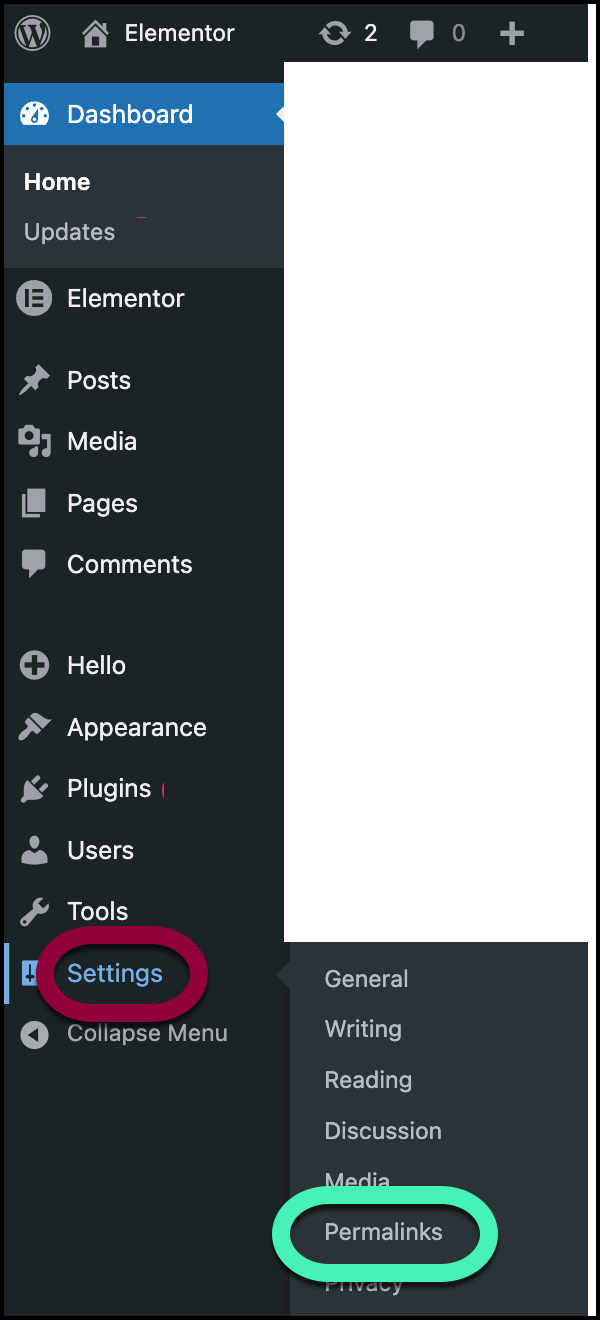
- From WP Admin, navigate to Settings>Permalinks.
- Ensure the permalink structure is not set to Plain.
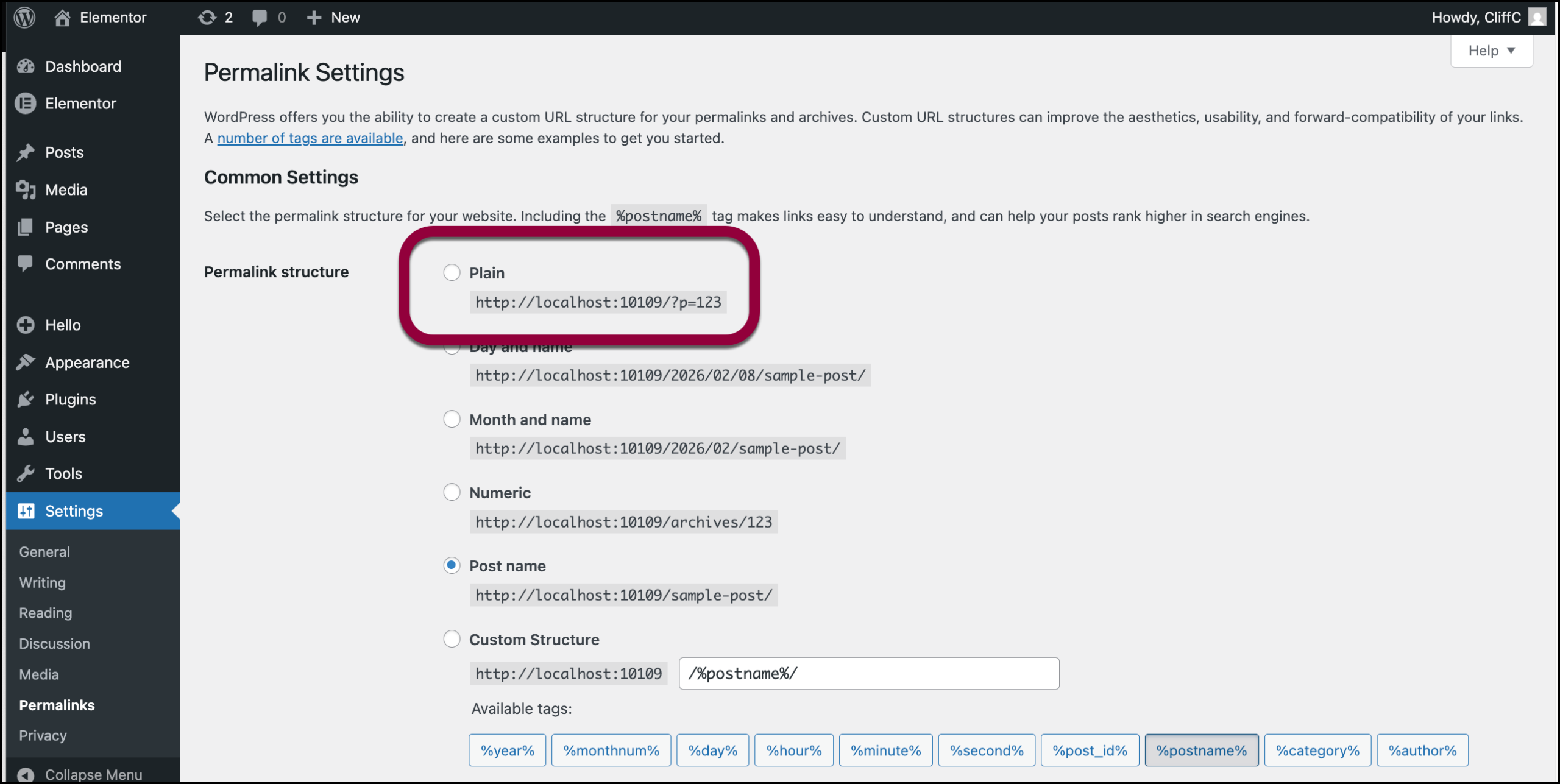
- If it is set to Plain, switch to another option, such as Post name.
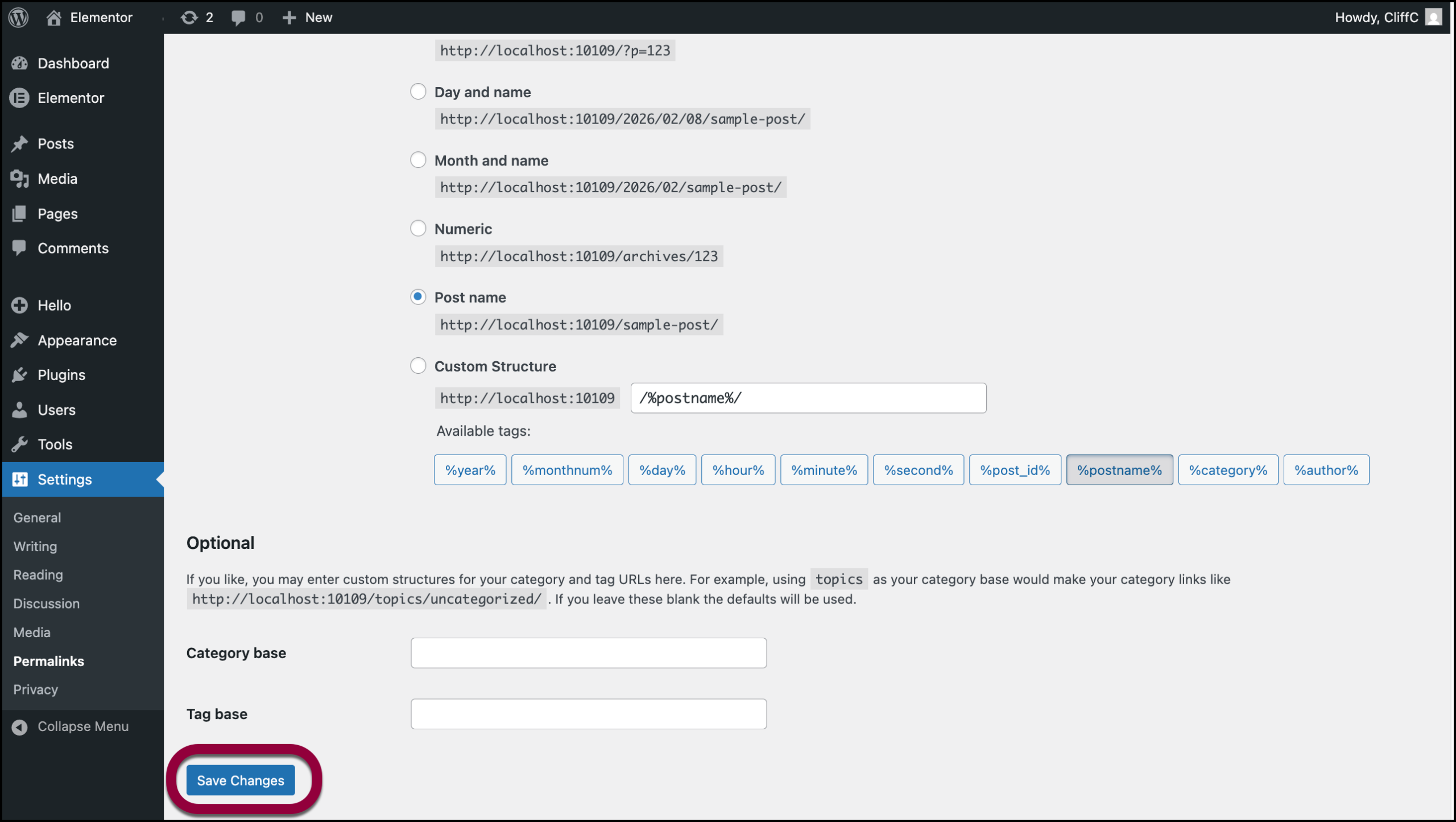
- Click Save Changes to refresh rewrite rules.
Verify the Default Kit
AI Planner depends on Elementor’s Default Kit. A missing or corrupted kit may trigger permission errors.
- From WP Admin, navigate to Elementor>Editor>Templates.
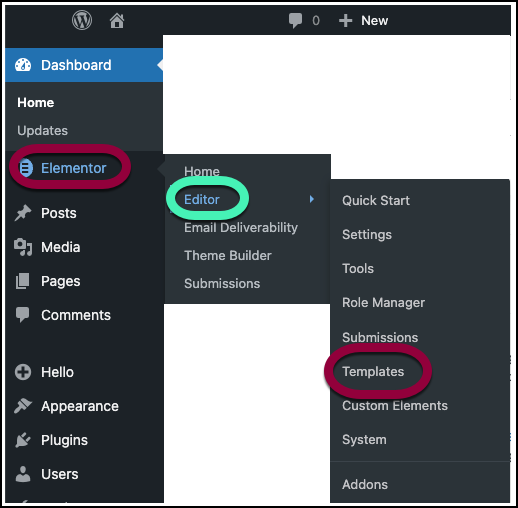
- Check if a Default Kit exists.
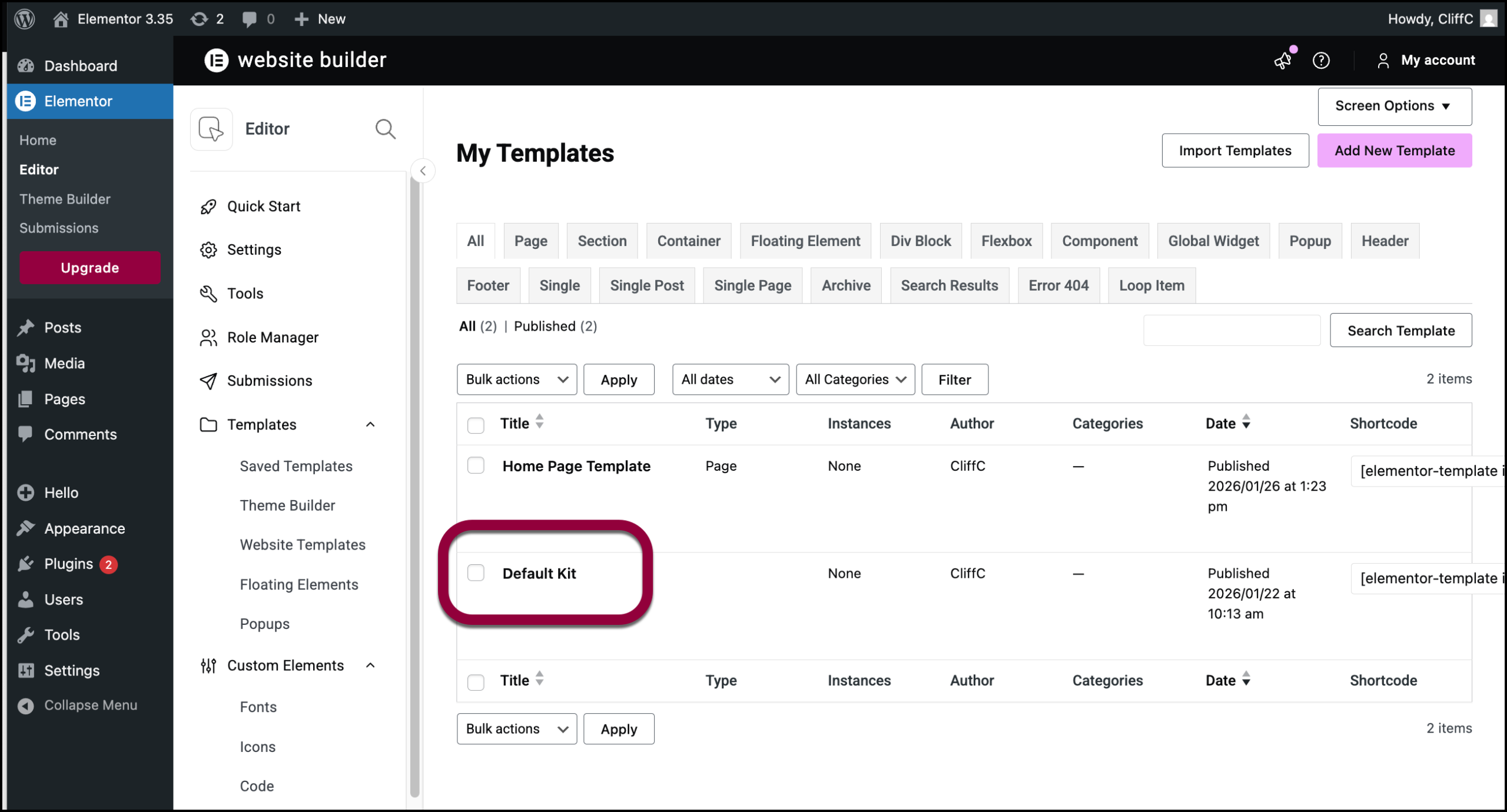
If no Default Kit is available, you need to clear the files and data. For details, see Clear Files and Data.
This should recreate the default kit.
Check Server Files and Regenerate .htaccess
Server-level files can override WordPress routing and block AI Planner access.
- Access the site’s file system via:
- A trusted third-party file manager plugin, or
- Your hosting provider’s file manager.
- Open the site’s root directory
- Look for a file named default.html and/or .htaccess
- If found, remove or rename it
- Regenerate the .htaccess file by navigating going to WP Admin and navigating to Settings>Permalinks.
- Click Save Changes.
This restores default WordPress rewrite rules and resolves potential routing conflicts.
Confirm permissions
- Confirm that /wp-json/elementor/v1/checklist/user-progress is allowed by your server.
Confirm site status
- Confirm that your website is live and not in Coming Soon or Maintenance mode.

