When you register as an Elementor user, an Elementor dashboard is automatically created for you. You can manage and edit all your Elementor sites from the My Elementor dashboard.
Sites
The My Elementor dashboard loads with the Sites tab open.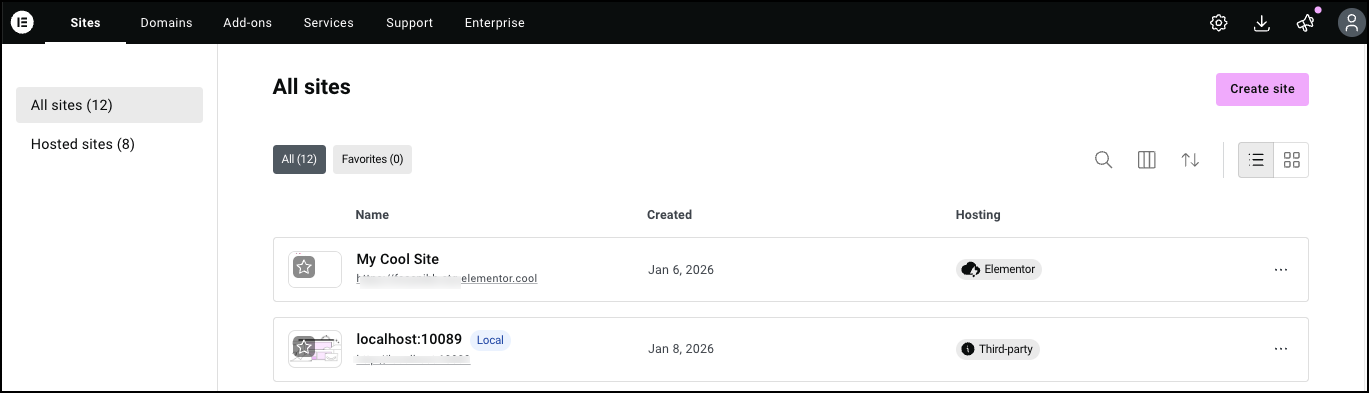
This tab displays a list of all your sites in the right window pane.
Use the left tab to filter Elementor Host sites.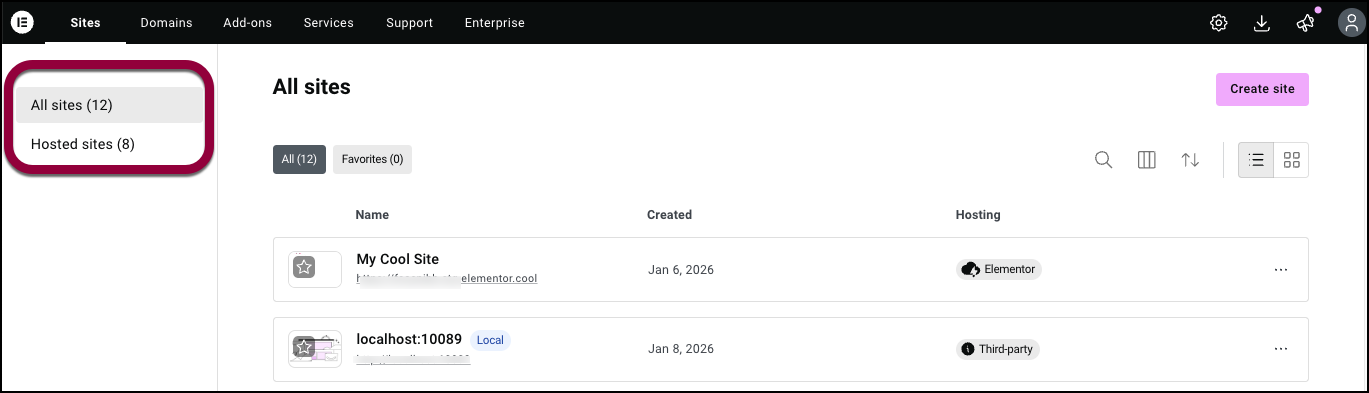
Hover over the site icon and click the star to mark it as a favorite. 
The use the Favorite tab to filter for these designated sites.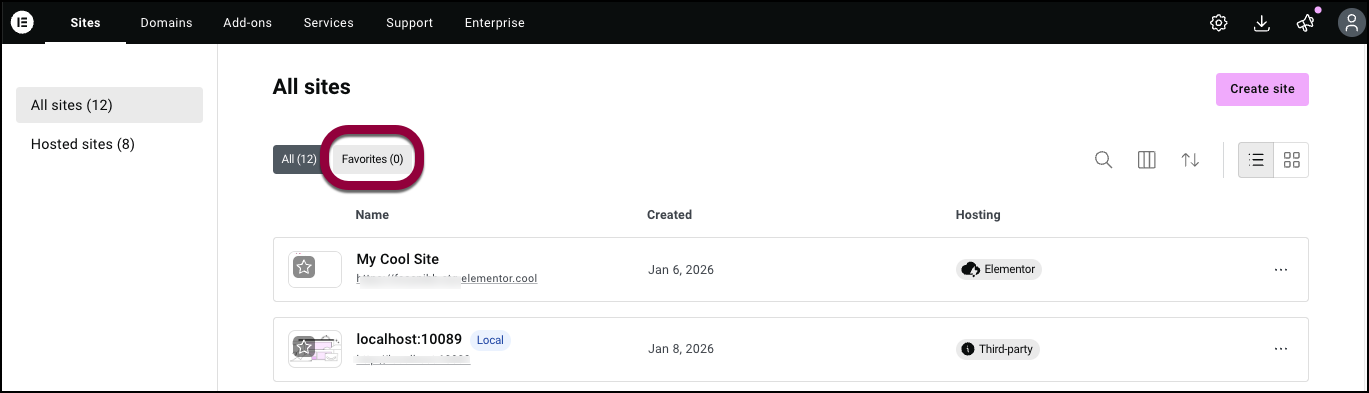
Click the search icon  to look for a specific site.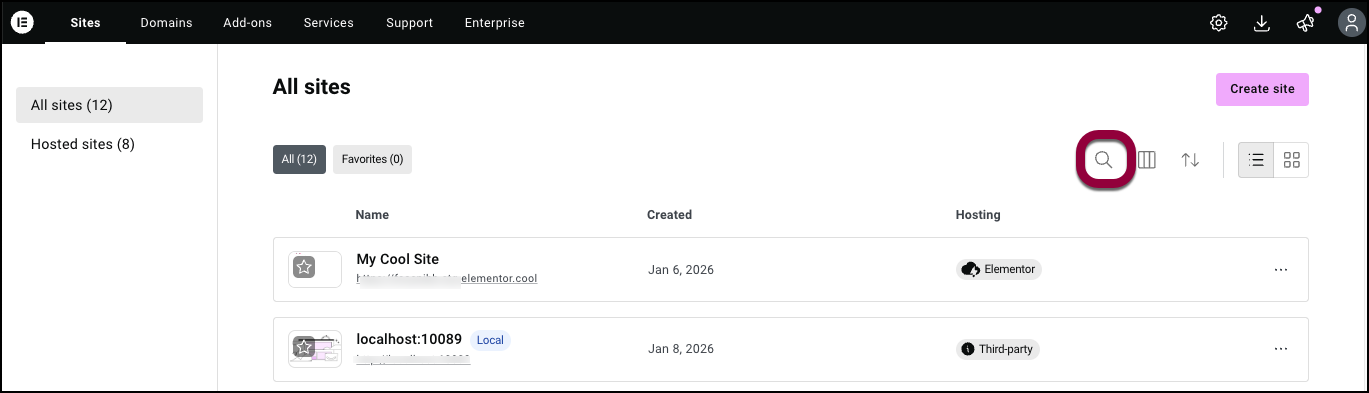
Click the customize columns icon  to select what information is displayed.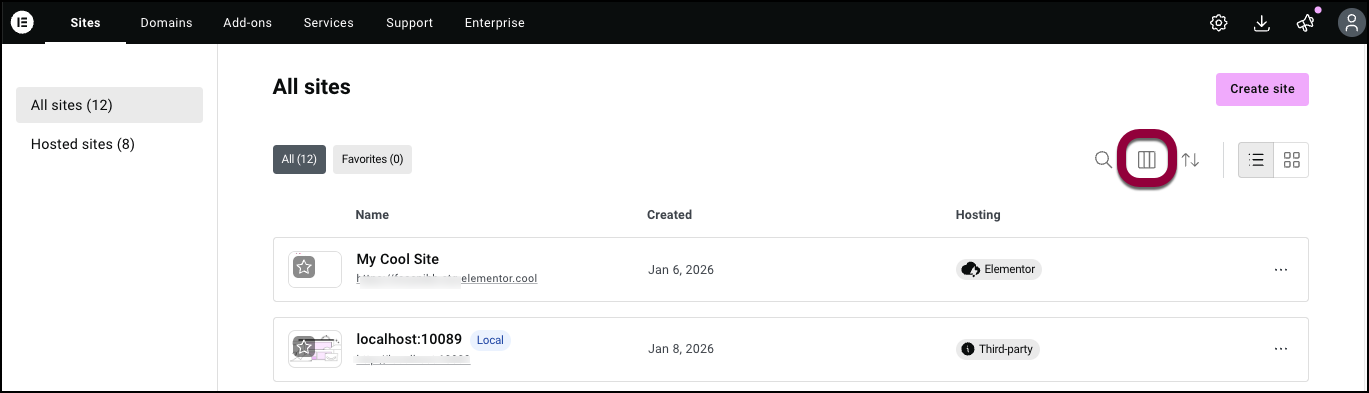
Click the sort icon  to order the sites by name or date created.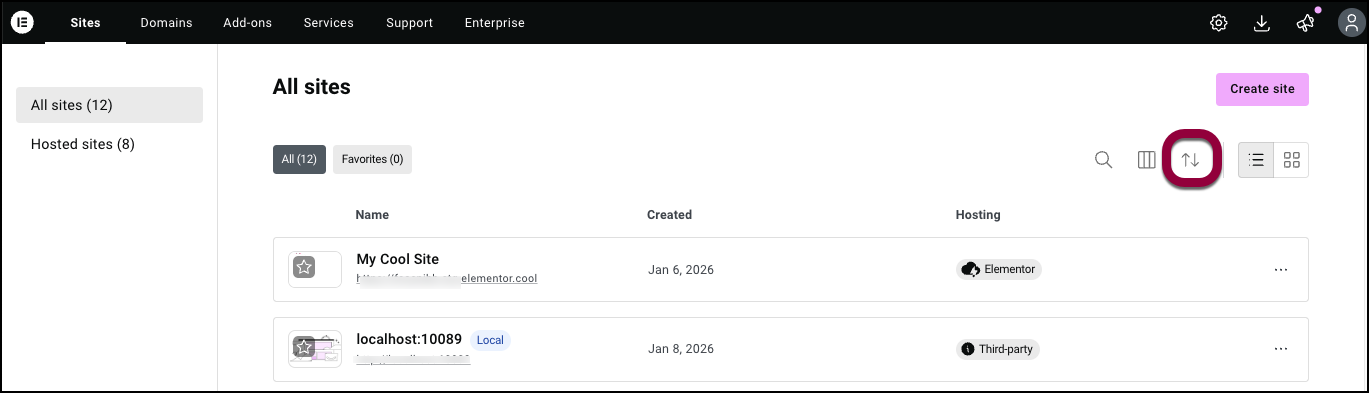
Click the card layout  icon to show the sites as website cards.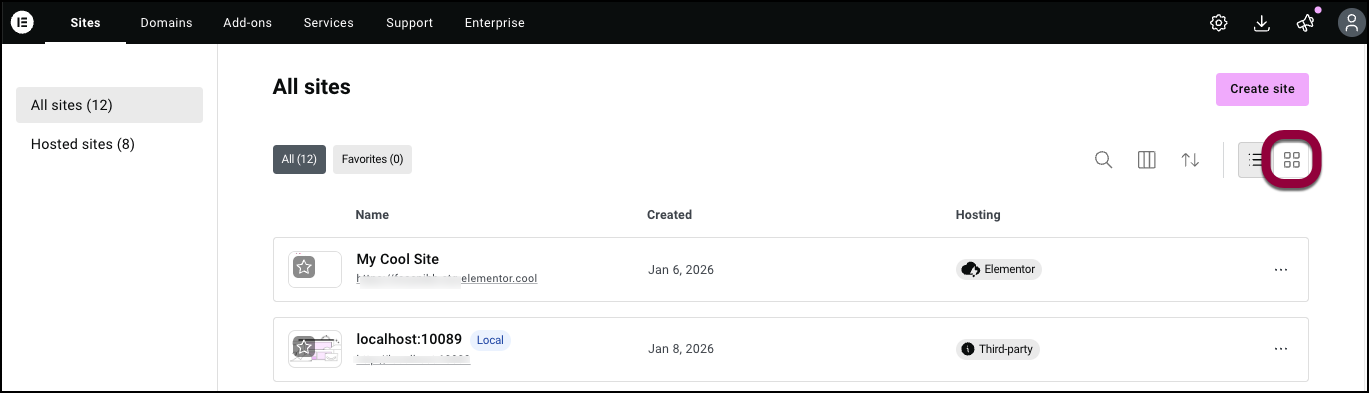
The list of sites includes their update status – if any of their plugins need updating – and where they are hosted.
Click the ellipses on the right to: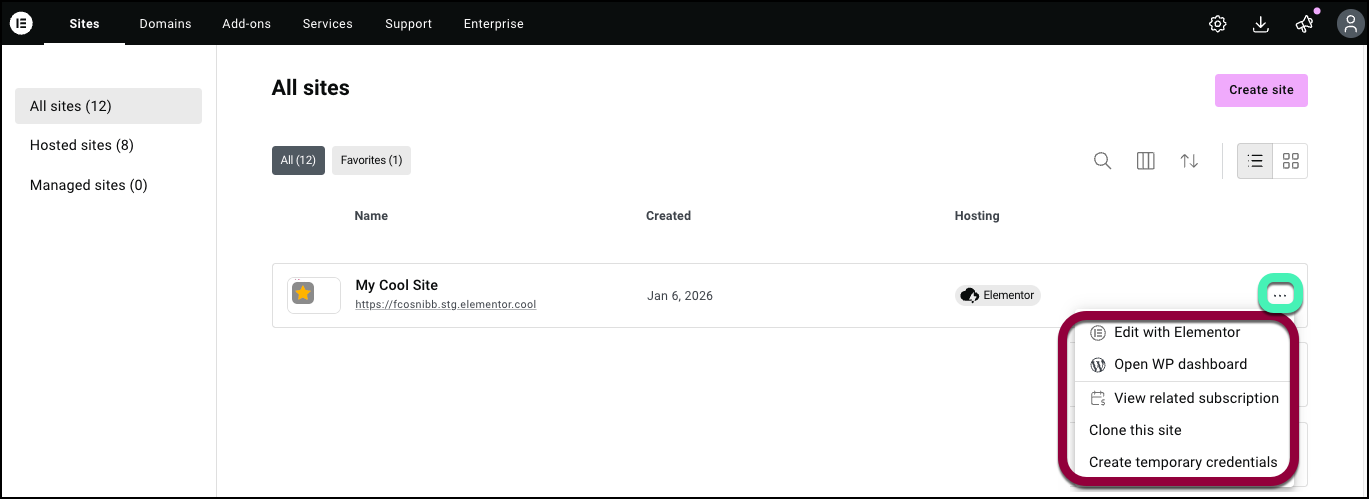
- Open a page in the Elementor Editor.
- Open the site’s WP Admin
- View the subscriptions related to the site
- Copy the site
- Create temporary credentials to allow Elementor support to access your site. For details, see How do I issue temporary credentials to support?
Domains
The Domains section is where control your domain name settings, if you purchased a domain through Elementor.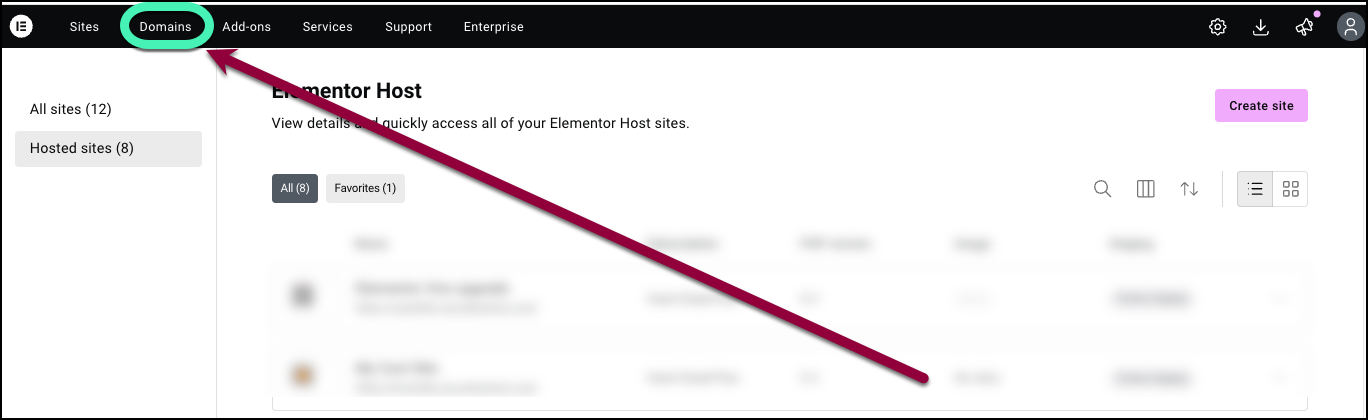
Here you can:
- Purchase a domain name. For details, see Purchase a domain.
- Manage your Elementor domain. For details, see, Domains.
Add-Ons
The Add-ons section contains a selection of useful plugins offering features you may need for website building. These include apps by Elementor such as, Ally, Image Optimizer, Site Mailer and Send.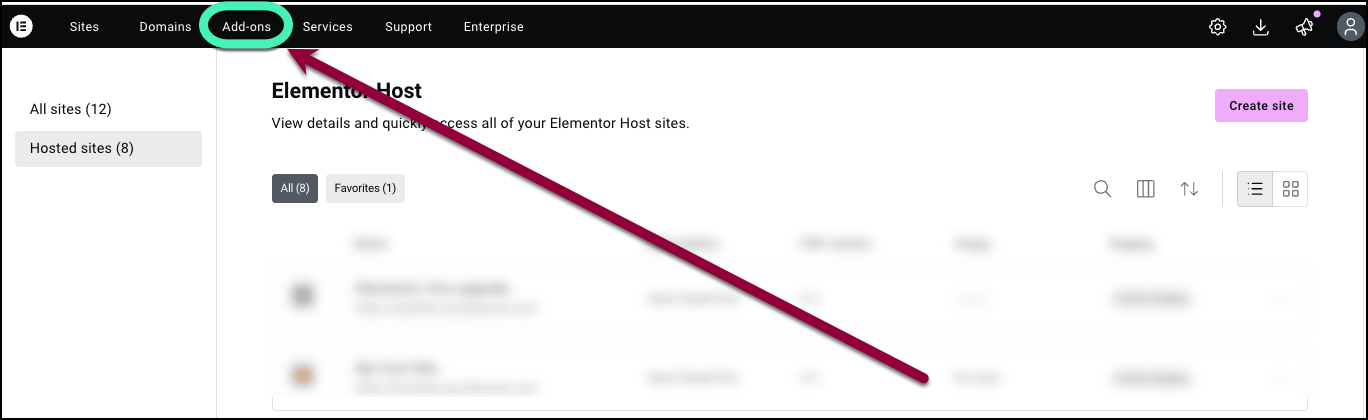
Services
The Services section contain links to elementor services for those who don’t want to get bogged down in the technical side of site creation and maintenance.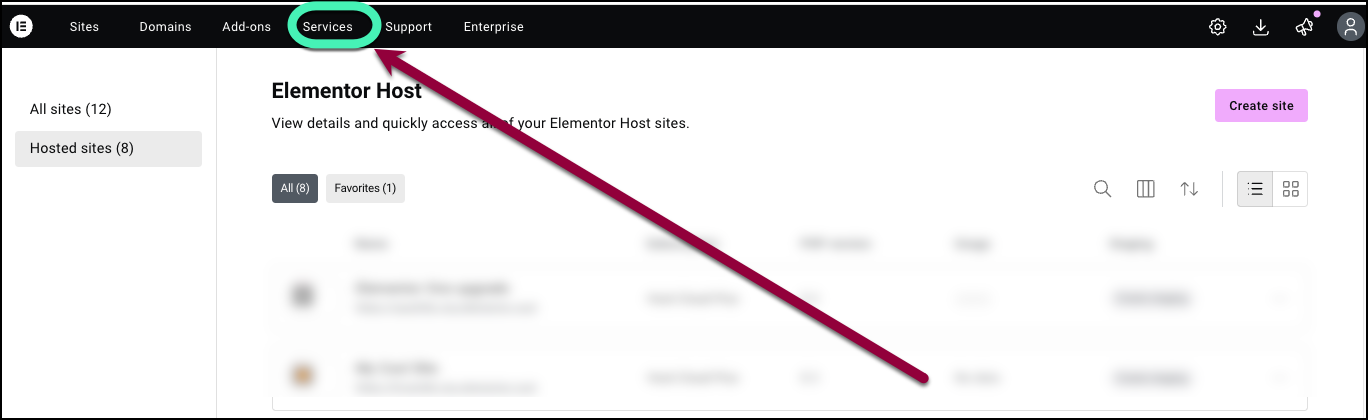
Support
The Support section contains different ways of getting support from Elementor. These include: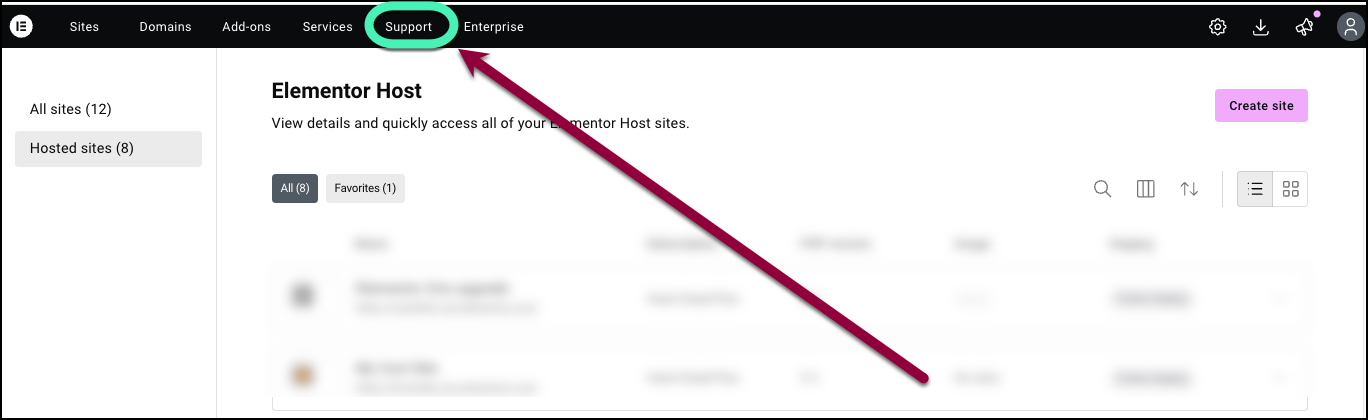
- An AI-powered chatbot
- Access you previous support requests
- A site maintenance report (for eligible subscribers only)
- Live chat (for eligible subscribers only)
- WhatsApp support (for eligible subscribers only)
- Contact your personal account manager (for eligible subscribers only)
This page also contains links for self or community help:
- New announcements
- The Elementor Help Center
- The Elementor Academy
- Elementor social media groups .
Download Elementor Pro
Click the download icon  to download a copy of Elementor Pro (for Elementor Pro users only)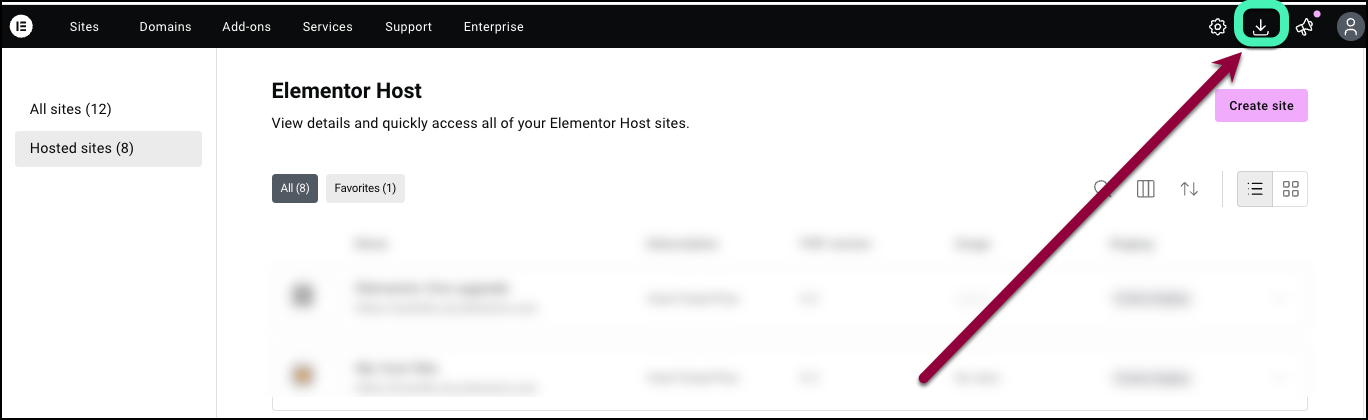
What’s new?
Click the announcements icon  to find out about new features and releases.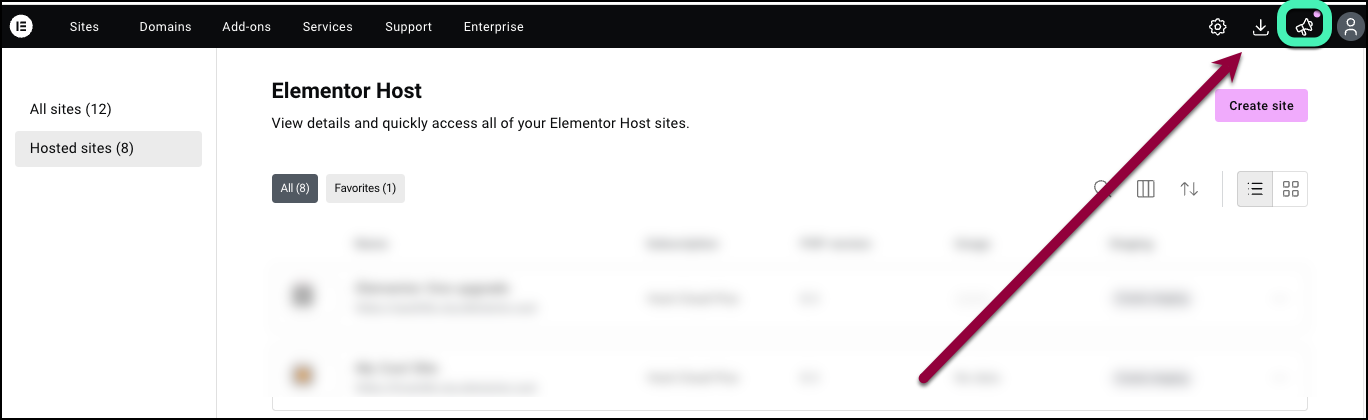
Accounts
Click the account icon  to open a dropdown menu with these choices: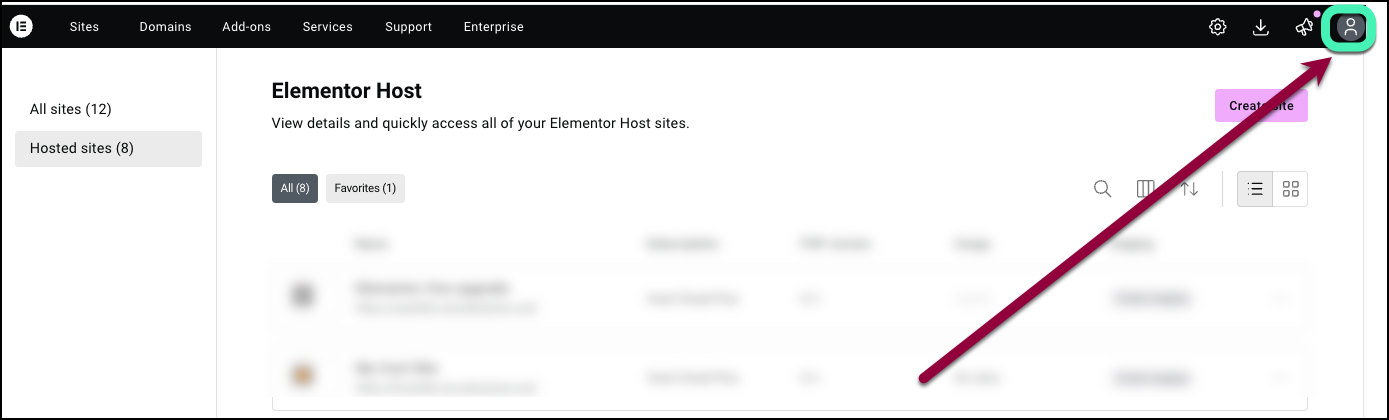
- My Profile: Access and edit personal information – Your name, email, password and two factor authentication.
- Billing details: Access and edit billing information – Billing address, payment method and billing history.
- Subscriptions: Access a list of all your Elementor subscriptions including details about storage and bandwidth use. See below for details.
- Share your feedback: Let us know how we can improve Elementor
- English (or what language you’ve selected): Use the dropdown menu to select the My Elementor dashboard display language.
- Log out: Log out of this My Elementor language.
The Subscription dashboard
Use the tabs to access:
- Elementor One subscriptions
- Other subscriptions
- One-time services
Click the search icon to look for a specific subscription.
Click the sort icon to order the subscriptions by name or date created.
You can also use the right panel to access the Profile and Billing screens.
Elementor One
The subscription dashboard displays:
- The amount of credits each app has used.
- How many credits you have left
- Subscription ID
- Number of remaining activations
- Renewal date
- A link to download a the plugin
- An option to upgrade (when relevant)
- A link to the Manage Subscription page where you can
- Transfer a subscription
- Deactivate a license
- Copy your subscription number or license key
Subscriptions
The subscription dashboard displays:
- Subscription ID
- Number of remaining activations
- Renewal date
- A link to download a the plugin
- An option to upgrade (when relevant)
- A link to the Manage Subscription page where you can:
- Transfer a subscription
- Deactivate a license
- Copy your subscription number or license key

