Use the guide below to deactivate an Elementor Pro license. The most common reason to deactivate a Elementor Pro license is to transfer Elementor Pro to a different site or domain.
Deactivate the license
Note
Deactivating a site will not affect the live site.
In order to deactivate a license:
- Go to your My Elementor dashboard.
- Click the My profile icon in the top right corner and then Purchases
This will bring up a list of your purchases.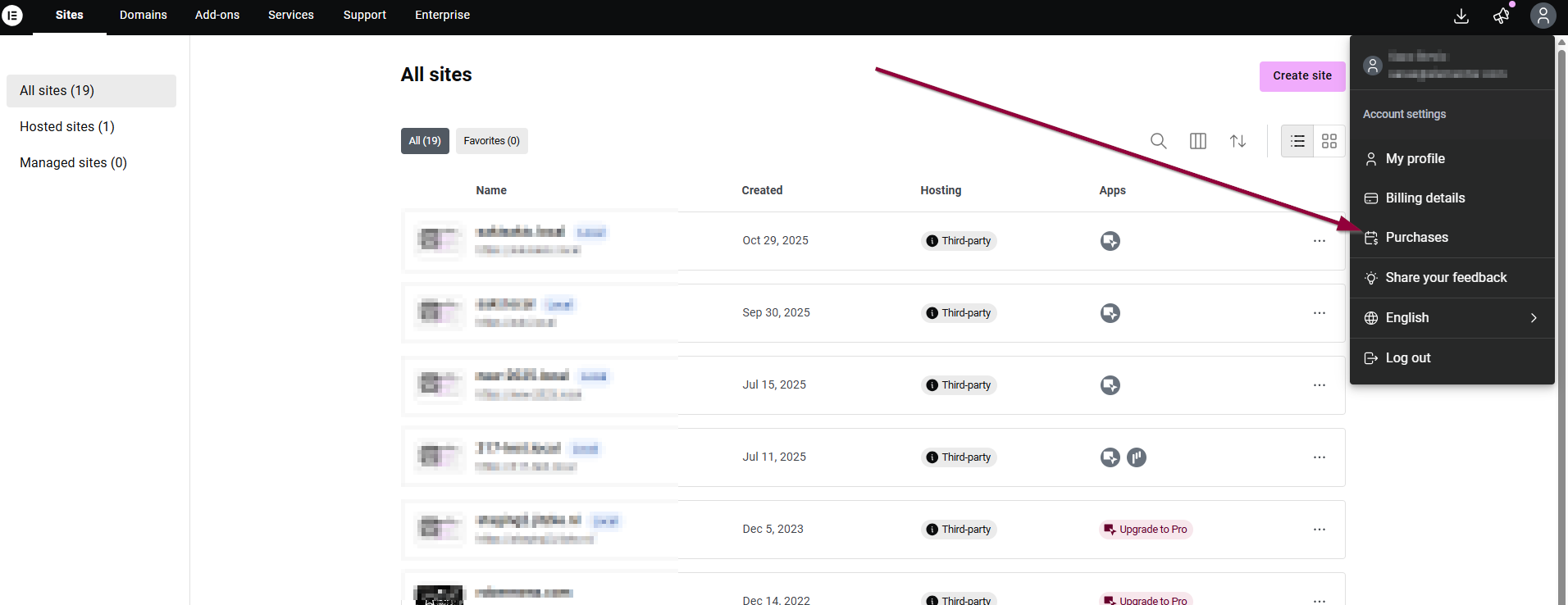
- Select the subscription containing the site you need to deactivate/activate and click on
Manage this subscription.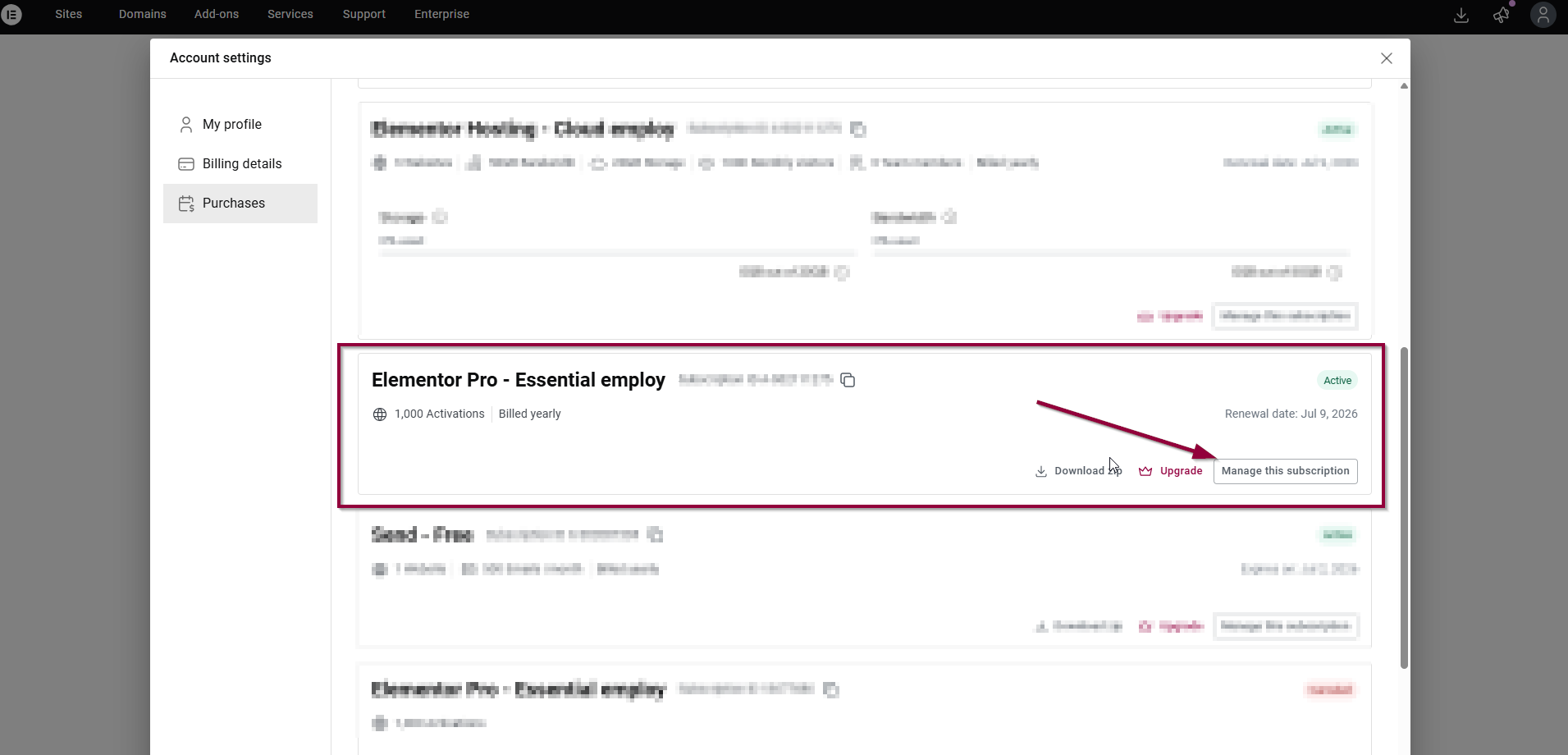
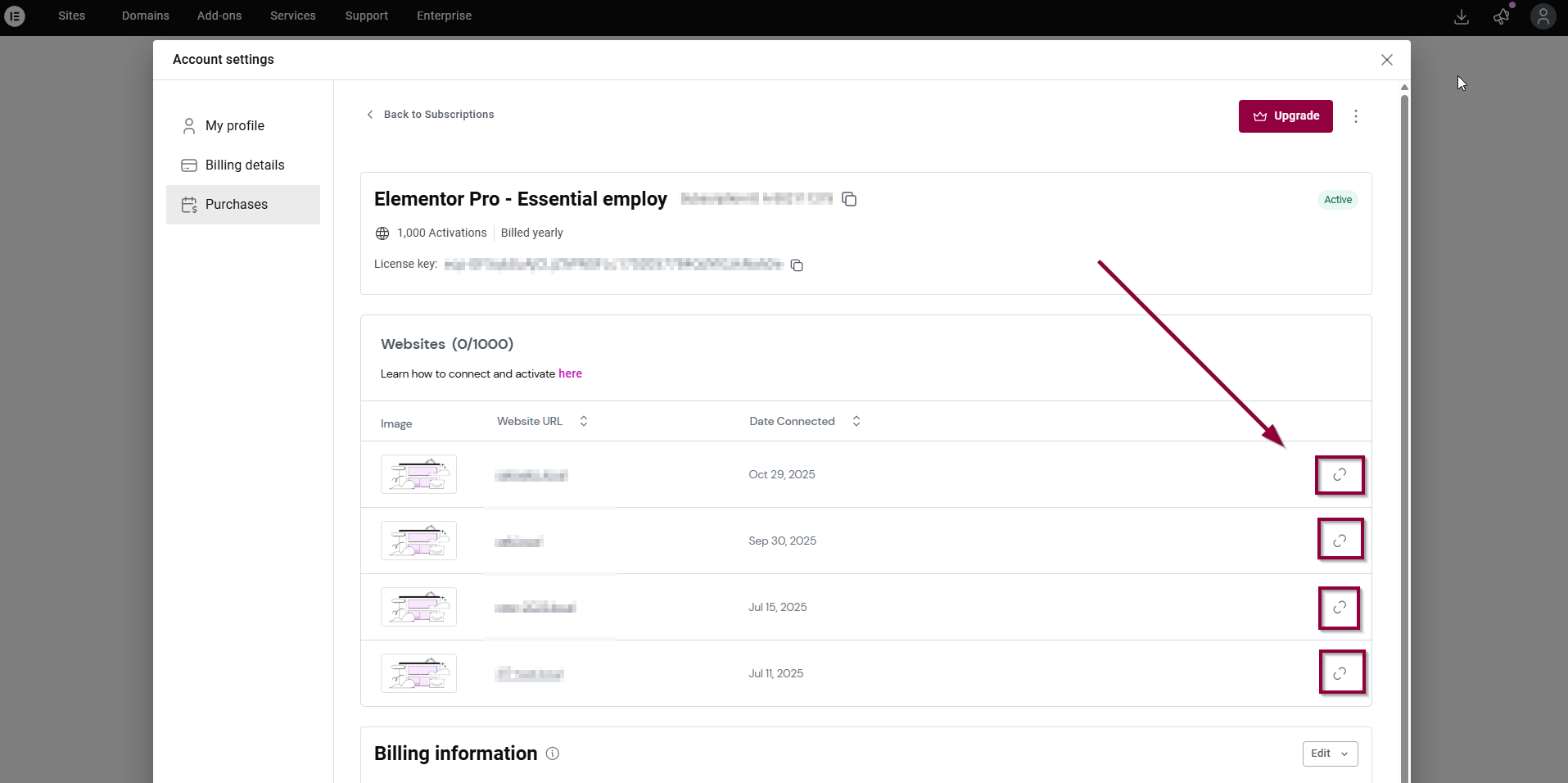
- You’ll see a list of sites associated with that subscription. Locate the site you’d like to deactivate and select Deactivate Website icon. This will deactivate the website and free up the activation.
Note
You can only activate an Elementor Pro license on a limited number of domains.
Note
Deactivating a license does not affect website functionality but you will not be able to update any Elementor Pro features.

