Starting a website can feel overwhelming, between the coding, servers, and databases, it’s easy to get stuck before you begin. But WordPress solves that. Today it powers roughly 43% of all websites on the internet, and you can join that group without writing a single line of code.
Key Takeaways
- WordPress.org gives you complete control and ownership over your website.
- Web hosting and a domain name are the only absolute prerequisites to start.
- Permalinks must be configured immediately to maintain clean, search-friendly URLs.
- Visual page builders let you design professional layouts without writing code.
Understanding the WordPress Ecosystem in 2026
Before you buy a domain, it helps to understand the two versions of WordPress, a split that trips up almost every beginner.
WordPress.org is the self-hosted platform: download the free software, install it on your own server, and get complete control over your code, files, and database. It’s the standard choice for professional businesses, bloggers, and store owners.
WordPress.com works differently. A private company hosts your site but restricts customization on the lower-tier plans, more like renting an apartment than owning a house.
Other builders exist too. Wix is a hosted website builder focused on visual editing. Squarespace is a hosted platform for websites and online stores, known for clean design templates. Webflow is a visual design platform built for designers who want custom code control. Each platform meets different needs, but WordPress stays the most flexible for long-term growth.
Setting Up Your WordPress Website
To get self-hosted WordPress running, you need two things: a domain name, your address on the internet, like website.com, and a web hosting account, the server where your website files live.
How do you choose the right web host?
Your host affects your site’s speed, security, and uptime, so skip the cheapest option and look for a provider that meets these core requirements:
- Supports PHP version 7.4 or higher.
- Supports MySQL version 5.7 or higher.
- Issues a free SSL certificate for secure HTTPS connections.
- Installs WordPress with a single click from the dashboard.
- Runs automated daily backups of your site database.
Installing WordPress in three simple steps
Most modern hosts make installation easy, with no more manual FTP uploads needed.
- Log in to your hosting account dashboard.
- Locate the Auto-Installer tool or the WordPress icon.
- Fill in your site details, username, and a strong password, then click install.
The system installs everything in the background, usually within two minutes, then hands you an admin login URL, typically yourdomain.com/wp-admin, so bookmark it right away.
Exploring the WordPress Dashboard
Your first login can feel intimidating, but you’ll get comfortable fast. The dashboard is your control center, everything happens here.
The admin sidebar covers several sections: Dashboard for status updates, Posts for blog articles, Media for images, videos, and PDFs, Pages for content like your homepage or contact page, and Comments for reader feedback. Further down sit Appearance for site design, Plugins for new features, Users for access, Tools for import and export, and Settings for global configuration.
What are the key settings to change first?
Before writing content, configure a few critical settings, it’ll save real headaches later.
- Permalinks, In Settings, click Permalinks and switch “Plain” to “Post name” for URLs readable by humans and search engines.
- Site Title and Tagline, In Settings, then General, enter your business name and a short description for browser tabs and search results.
- Membership, Under General settings, keep “Anyone can register” unchecked unless you’re building a membership site, it blocks spam registrations.
Leave permalinks on the default query-string structure and your pages look like yourdomain.com/?p=123, bad for search engine optimization and unprofessional. Change it right away.
Understanding posts versus pages
Beginners often confuse posts and pages since they look similar in the editor, but they behave differently.
Posts are timely content: blog entries, news articles, and updates. They’re organized by categories and tags, appear in reverse chronological order, and feed into your RSS feed automatically.
Pages are static content for timeless information, think About, Contact, or Privacy Policy. They skip categories, tags, and dates, though you can arrange them hierarchically, making one page a parent of another.
Designing Your Site: Themes and Builders
Your design shapes how visitors perceive your brand. WordPress uses a theme system for your visual style, and you can swap themes in a single click without losing content.
How do WordPress themes work?
A theme controls your layout, typography, colors, and general look. The official WordPress theme directory has thousands of free options, accessible from your dashboard under Appearance, then Themes.
When choosing a theme, focus on speed and simplicity, and avoid ones packed with built-in features that slow your site down. Look for a lightweight theme as a clean canvas, then add features with plugins later.
Visual page builders change the game
Writing custom code for unique layouts feels outdated. Drag-and-drop builders make page creation fast and intuitive, and this is where modern tools shine.
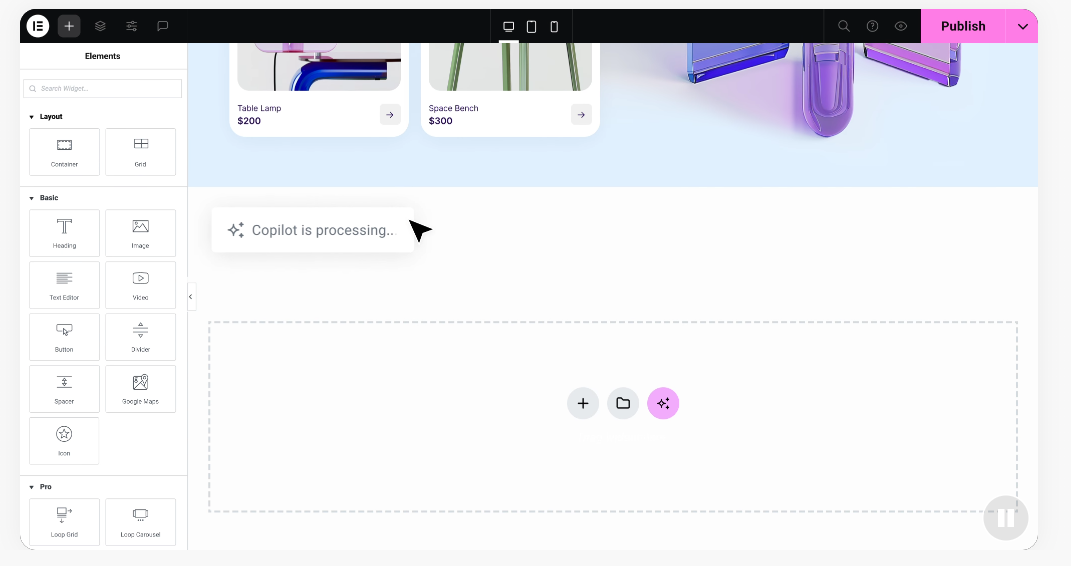
The Elementor website builder, one of the most widely used visual builders for WordPress, pairs a drag-and-drop editor with live editing so your design comes together in real time. It suits first-time builders, freelancers, and agencies, letting you customize every element with an instant mobile preview.
When evaluating visual builders, look for features that speed up your workflow. A solid builder should:
- Builds layouts visually with drag-and-drop columns and rows.
- Arranges elements using a library of pre-designed templates.
- Optimizes layouts for up to seven different responsive screen sizes.
- Creates cohesive designs using global typography and custom color palettes.
- Maintains fast page loads with integrated asset management tools.
For advanced styling, templates, and site-building tools, explore the Elementor features to see what fits your project.
Extending Functionality with WordPress Plugins
Plugins work like apps for your website, adding features the core software lacks. Need a contact form or want to sell products? A plugin adds either in minutes.
“The power of WordPress lies in its community-driven ecosystem. By carefully choosing high-quality plugins and a reliable visual builder, beginners can build enterprise-level websites with zero coding knowledge.”
– Itamar Haim, Web Development Specialist
But don’t go overboard, too many plugins can conflict, slow down your site, and create security vulnerabilities. Keep your plugin list lean.
What essential plugins does every website need?
You don’t need a hundred plugins, just a handful of core tools for security, performance, forms, and search engine optimization:
- SEO tools, Optimizes page titles and meta descriptions.
- Form builders, Creates contact forms and lead capture setups.
- Security tools, Scans for malware, applies firewall rules, and monitors logins.
- Caching tools, Speeds up loading by serving static HTML pages.
- Backup tools, Stores file copies safely in external cloud storage.
Managing updates safely without breaking your site
WordPress files, themes, and plugins need regular updates for bug fixes, new features, and security patches, ignoring them leaves your site vulnerable.
Updating everything at once can cause layout issues, so follow a simple routine: back up first, update plugins one at a time, check your live pages after each update, and restore the backup if anything breaks.
Managing Content and Customization
Now that your settings, theme, and plugins are in place, it’s time to write. WordPress’s block editor, Gutenberg, treats every paragraph, heading, image, and list as its own block you can drag, drop, and rearrange, previewing your text before you publish.
Creating your first blog post and page
The process is quick and straightforward:
- Navigate to Posts, then click Add New Post in your admin sidebar.
- Type your title into the top block, then press Enter to start your first paragraph.
- Click the plus (+) icon to insert blocks like images, galleries, or bulleted lists.
- Assign a category on the right-hand settings panel and upload a featured image.
- Click Publish in the top right corner to make your post live.
Creating static pages follows the same pattern: navigate to Pages, then click Add New Page. Since pages skip categories, focus on choosing a clear page template instead.
Setting up a custom navigation menu
A beautiful website doesn’t help if visitors can’t find their way around, so you need a clear navigation menu at the top of your header.
Go to Appearance, then Menus, or use the Site Editor. Name your menu, select the pages you want, and click Add to Menu. Drag items to reorder them, and to build a dropdown, drag one slightly right under its parent. Save your changes.
Securing and Optimizing Your WordPress Site
Building a website is only half the work. You also need to protect it and keep it fast: a slow or insecure site frustrates visitors and drops in search rankings.
Basic security practices to protect your data
WordPress is secure at its core, but its popularity makes it a hacker target. Most breaches trace back to weak passwords and outdated software. A few simple habits go a long way:
- Use complex passwords that include letters, numbers, and symbols.
- Avoid the username “admin”, it’s the first one hackers try.
- Install a security tool to limit consecutive failed login attempts.
- Enable two-factor authentication (2FA) for all administrator accounts.
- Keep your core WordPress installation, themes, and plugins fully updated.
Speeding up your site for better user experience
Nobody wants a slow website, and search engines penalize slow sites too. Improving speed doesn’t take a computer science degree.
First, optimize your images, the main cause of slow load times: resize before uploading, compress with web tools, and use modern formats like WebP instead of heavy PNGs. Second, add a caching tool, serving a static version of your pages instantly instead of querying the database every time, which cuts server load dramatically.
Comparison of WordPress Content Editing Methods
Choosing how to build your content can be confusing. WordPress offers three main ways to design and manage pages, let’s compare them to find the best workflow.
| Editing Method | Best For | Ease of Use | Design Flexibility |
|---|---|---|---|
| Default Block Editor (Gutenberg) | Standard blog posts and basic page layouts. | Medium | Basic grid layouts and text alignment. |
| Visual Builders (e.g. Elementor) | Custom landing pages, full websites, and visual designs. | High | Complete layout control, custom spacing, and effects. |
| Classic Code Editing (HTML/CSS) | Developers making advanced code adjustments. | Low (requires coding skill) | Unlimited code control, but slow to write from scratch. |
For standard articles, the block editor works well. But if you want a high-converting landing page, a visual builder is much faster, giving you pixel-perfect control without touching CSS.
Related: Elementor pricing.
Frequently Asked Questions
Is WordPress free to use?
Yes, WordPress software is open-source and free to download. You’ll still pay for third-party hosting and a domain to run it.
What is the difference between WordPress and hosted site builders?
Hosted builders like Wix and Squarespace manage everything on their own servers but limit backend code access. WordPress is self-hosted, giving you unlimited customization freedom.
Can I build an online store with WordPress?
Yes, the free WooCommerce plugin adds full ecommerce functionality: list physical or digital products, manage inventory, and process payments securely.
Do I need to know coding to use WordPress?
No, you don’t need to write HTML, CSS, or PHP. Modern visual page builders and intuitive dashboard settings let you manage your layout visually.
How do I backup my WordPress website?
Automated backup tools can save your database and files, and many hosts run daily system-level backups you can restore with one click from your hosting portal.
What should I do if my WordPress site breaks?
Don’t panic. Deactivate your recently updated plugins to check for a conflict. If you can’t access your dashboard, log into your hosting manager and restore your most recent backup.
How many plugins should I install?
There’s no hard limit, but keeping active plugins under 20 is a solid rule of thumb. Focus on plugin quality and regular updates over sheer quantity.

