Table of Contents
Look, building a business website in 2026 isn’t just about throwing up a digital brochure and hoping people call you. First impressions happen fast. Users form a solid opinion about your site in exactly 50 milliseconds. If you don’t grab them instantly, they’re gone to your competitor.
the team created over 140 custom WordPress sites during my career as a developer. The ones that actually generate revenue share a specific, repeatable DNA. We’re going to build that exact structure together today. You don’t need a computer science degree to follow along, but you do need to follow these steps precisely.
Key Takeaways
- Market Reality – 71% of small businesses have an official website, jumping to 85% by the end of 2026.
- Speed Matters – 40% of consumers abandon any website that takes more than 3 seconds to load.
- Platform Choice – WordPress powers 43.5% of the internet, making it the clear standard for scalability.
- Mobile Dominance – 58.67% of global website traffic comes from mobile devices.
- Security Risks – 43% of all cyberattacks target small businesses, requiring strict SSL and backup protocols.
- Visual Impact – 75% of consumers judge a company’s entire credibility based solely on website design.
Prerequisites You Need Before Starting
Honestly, I’ve seen too many people buy a domain name on a whim and immediately start dragging widgets onto a blank screen. That’s a recipe for a messy, unprofessional result. You need your assets organized before you ever touch a server.
Gathering your materials first saves you hours of frustration later. Here’s exactly what you need in your project folder right now.
- High-Resolution Logo Files – You need SVG formats for your primary logo, an alternate white version for dark backgrounds, and a square favicon (512×512 pixels).
- Exact Brand Colors – Don’t guess. Write down the specific HEX codes for your primary brand color, secondary action color, dark text color, and light background shade.
- Typography Choices – Pick two Google Fonts. One bold Sans-Serif for your headers, and one highly legible font for body paragraphs.
- Professional Photography – Skip the generic stock photos of people shaking hands. You need authentic photos of your team, your workspace, or your actual products.
- Written Copy Drafts – Have your basic homepage headline, about us story, and service descriptions typed out in a plain text document.
You also need to plan your budget. While WordPress itself is free, professional tools aren’t. Set aside $100 to $500 for your initial setup. This covers your domain registration, high-quality hosting, and a premium page builder license. Trying to build a business asset using only free, unsupported plugins always costs you more in lost sales down the road.
Pro tip: Create a dedicated Google Drive or Dropbox folder called ‘Website 2026 Assets’ and share it with anyone helping you with the project. Centralizing your files prevents version control nightmares.
Define Your Website Goals and Secure a Domain
What’s the actual purpose of this site? If you say ‘to get more business’, you aren’t being specific enough. You need to define the exact mechanical function the site serves.
Are you collecting qualified leads through a form? Are you selling physical products directly to consumers? Are you simply providing a portfolio to validate referrals? Global e-commerce sales are projected to hit $8.1 trillion by 2026. If you’re selling online, your technical requirements change drastically compared to a simple local service site.
Once you know the goal, you need an address. A domain name is your permanent digital real estate.
- Brainstorm Brandable Names – Keep it under 15 characters. Avoid hyphens entirely. If people have to ask how to spell it, you’ve already lost.
- Check Availability – Use a registrar to search. Standard .com domain registrations in 2026 typically range from $12.00 to $20.00 per year.
- Consider Modern TLDs – The .com extension still holds the most authority. But if your exact brand name is taken, modern alternatives like .ai.io, or .co are perfectly acceptable for tech and modern service companies.
- Verify Social Handles – Before you buy the domain, check if the matching handles are available on major social networks. Brand consistency matters.
- Register Promptly – Buy it immediately once you find the right fit. Set it to auto-renew so you don’t accidentally lose your brand identity next year.
Don’t overthink this step for weeks. Pick a strong, memorable name and claim it. The execution of the site matters far more than having a clever URL.
Select a Hosting Provider and Install WordPress
Hosting is the physical computer where your website files live. Treat this decision seriously. Putting a business website on a $3-a-month shared server is like opening a luxury retail store in a dark alley.
Have you ever clicked a search result and stared at a blank white screen for five seconds before hitting the back button? That’s bad hosting. You need a Time to First Byte (TTFB) under 200 milliseconds. Here’s a breakdown of your options.
| Hosting Type | Average Cost | Performance Level | Best For |
|---|---|---|---|
| Shared Hosting | $5 – $15 / month | Low to Medium | Hobby blogs, temporary holding pages. |
| Managed Cloud | $15 – $35 / month | Very High | Service businesses, lead generation, portfolios. |
| Dedicated VPS | $50 – $200+ / month | Enterprise | Large e-commerce stores, massive traffic volume. |
For most businesses, Managed Cloud is the sweet spot. Tools like Elementor Host Cloud use Google Cloud C2 servers and Cloudflare Enterprise CDNs. This gives you a guaranteed 99.9% uptime and a lightning-fast 109ms TTFB right out of the box.
Once you’ve purchased your hosting plan, installing WordPress is usually a one-click process.
- Log into your hosting dashboard.
- Locate the ‘Install WordPress’ or ‘New Site’ button.
- Enter your site name and create a secure admin username (never use ‘admin’).
- Generate a complex, 16-character password.
- Click install and wait about two minutes for the server to deploy the core files.
Pro tip: Immediately force HTTPS on your new installation. Browsers in 2026 will heavily penalize and block user access to any site trying to load over standard HTTP.
Install Elementor Pro and Choose a Theme
WordPress out of the box is pretty bare. To build a modern, high-converting design, you need a visual engine. Elementor is currently used by over 16 million websites globally. It gives you complete drag-and-drop control over every single pixel.
Before you install the builder, you need a theme. A theme in modern WordPress dictates the underlying code structure, while the builder handles the design. You want the lightest, fastest theme possible.
- Install the Theme – In your WordPress dashboard, navigate to Appearance > Themes > Add New. Search for Hello Theme. It’s forever-free, weighs under 30KB, and provides a perfectly blank canvas. Click Install, then Activate.
- Install the Free Plugin – Go to Plugins > Add New. Search for Elementor. Install and activate it.
- Upload the Pro Version – Purchase your Elementor Editor Pro license. Download the ZIP file from your account. Go to Plugins > Add New > Upload Plugin. Choose the ZIP file and activate it.
- Connect Your License – A prompt will appear asking you to connect and activate your Pro license. Click it, log into your account, and authorize the connection.
- Configure Site Settings – Open any page with Elementor, click the hamburger menu in the top left, and open Site Settings. Here, input those exact HEX codes and Google Fonts you gathered in step one. Setting these as Global variables now will save you countless hours later.
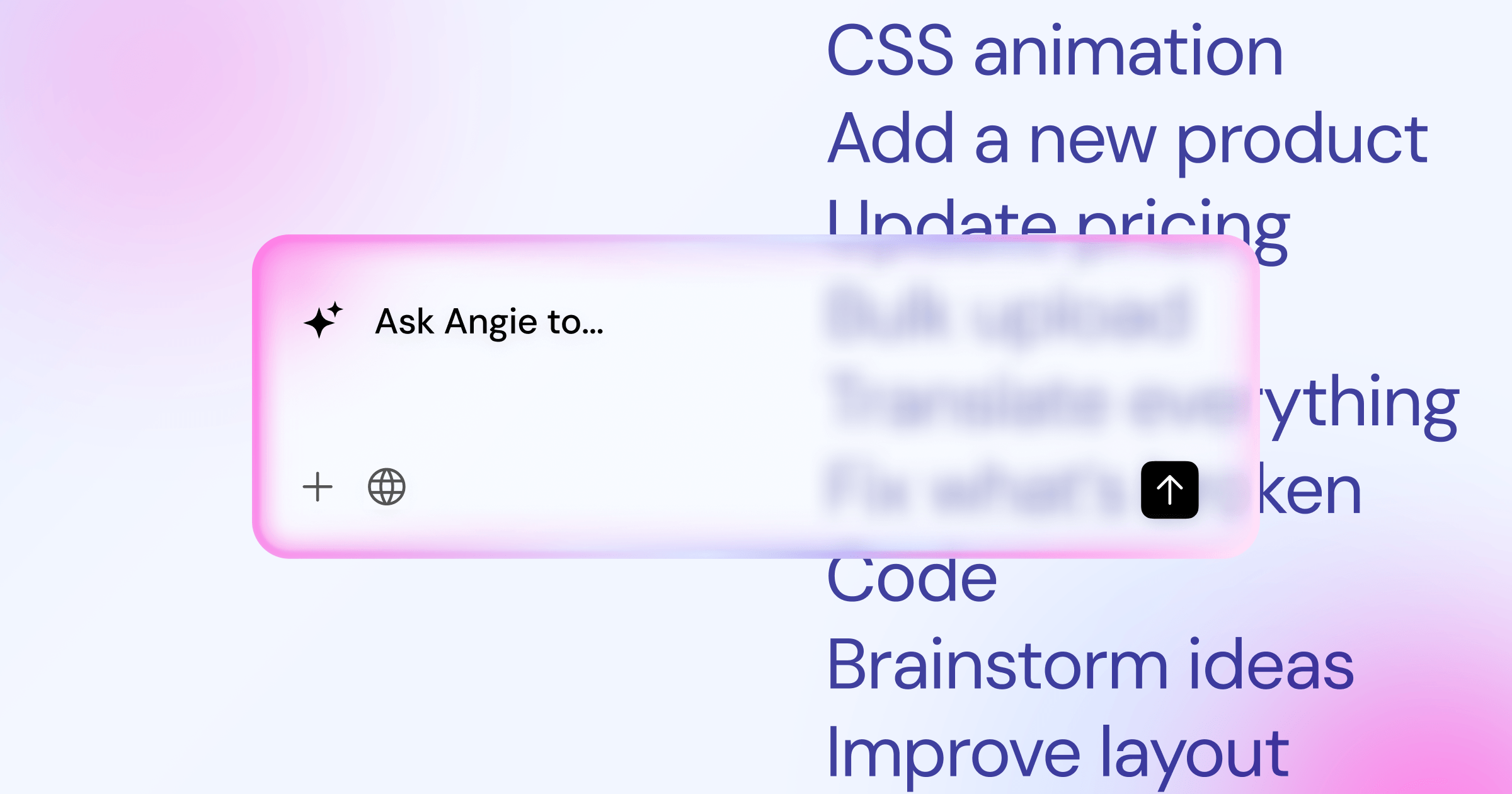
If you don’t want to build every layout manually from a blank screen, there’s a better way. Modern workflows use an agentic AI for WordPress like Angie. Instead of placing every container by hand, you simply tell Angie what you need. It creates production-ready assets directly from your conversation. You describe your business, and it generates the core structure automatically, perfectly integrated with your environment.
Building Core Business Pages with Elementor Editor Pro
Now we get to the actual construction. You need four foundational pages to launch a legitimate business presence. We’ll use the builder’s widgets to construct these fast.
Start with the Homepage. This is your digital storefront. The top section, called the Hero, needs to pass that 50-millisecond test. Use a full-width Container widget. Add a bold Heading widget that clearly states exactly what you do and who you do it for. Below that, place a Button widget linked to your contact form. Data shows that personalized Call-to-Action (CTA) buttons convert 202% better than generic ‘Click Here’ text. Make it say something actionable like ‘Get Your Free Consultation’.
Here’s what your Homepage must include as you scroll down:
- Social Proof – A logo carousel of companies you’ve worked with or media outlets that featured you.
- The Problem/Solution Agitator – Three icon boxes explaining the pain points your customers face, followed by how your service solves them.
- Testimonials – Real quotes from actual clients. Use the Testimonial Carousel widget. Include their photo and full name to build trust.
- Final CTA – A strong, contrasting section at the very bottom pushing users to your primary conversion goal.
Next is the About Page. People buy from people. Don’t write a dry corporate history. Use Image widgets to show your team working. Use Text Editor widgets to tell the story of why you started the company. Authenticity converts much better than corporate speak.
For your Services or Products Page, clarity is everything. Use the Price Table widget to display your tiers clearly. Break down complex offerings using the Toggle or Accordion widgets so you don’t overwhelm the user with massive walls of text.
Finally, build the Contact Page. Keep it stupidly simple. Use the native Form widget in the Pro editor. Ask for Name, Email, and a brief message. Every extra field you add drops your conversion rate by about 10%. Include a Google Maps widget if you’ve a physical location, and clearly list your operating hours using an Icon List widget.
Optimizing for Mobile-First Design and Speed
If your site looks great on a desktop monitor but breaks on an iPhone, you’re losing more than half your money. It’s a fact: 58.67% of global website traffic happens on mobile devices. You must design for the phone first.
Inside the editor, use the Responsive Mode toggle at the top of the screen. Switch to the mobile view. You’ll likely notice your desktop headings are way too massive, and your multi-column layouts look cramped.
- Adjust Typography – Click your headings, go to the Style tab, and drop the mobile font size down to 32px or smaller.
- Fix Padding – Desktop sections often need 100px of padding. On mobile, reduce that padding to 40px so content fits the narrow screen.
- Reverse Columns – If you’ve an image on the left and text on the right on desktop, they stack on mobile. Sometimes the image ends up below the text. Use the ‘Reverse Columns’ toggle in the Advanced tab to fix the visual flow.
- Hide Elements – Complex background videos or massive decorative images don’t belong on mobile. Use the Responsive settings to hide these specific elements on phones to save bandwidth.
Speed is the next critical factor. A heavy site kills conversions. Start by compressing your media. Never upload a 4MB photograph directly from your camera. Use tools like the Elementor Image Optimization to automatically compress files and convert them to modern WebP formats. This single step often yields up to a 60% file size reduction without noticeable quality loss.
Pro tip: Enable server-level caching if your host provides it. Caching takes your dynamic database queries and serves them as static, lightning-fast HTML files to your visitors.
Implementing SEO and Analytics
A beautiful website sitting on page six of Google doesn’t do you any good. Organic discoverability is mandatory. 68% of online experiences begin with a search engine, and the first three organic results hoard 54.4% of all clicks.
SEO isn’t powerful. It’s just clear communication with search engine crawlers. Here’s how to set up your technical foundation.
- Install an SEO Plugin – Add a tool like RankMath or Yoast. This gives you direct control over your metadata.
- Write Meta Titles – Edit the snippet for every single page. Your title should be under 60 characters and include your primary keyword (e.g., ‘Emergency Plumber in Chicago | Brand Name’).
- Craft Meta Descriptions – Write a compelling 155-character summary for each page. This acts as your ad copy in the search results.
- Add Alt Text to Images – Search engines can’t ‘see’ photos. Click every image in your media library and type a descriptive sentence of what the image shows. This is crucial for both SEO and accessibility.
You can also speed up this process using modern automation. Angie is incredible for this phase. You can converse with the AI, provide your target keywords, and it will generate properly structured, SEO-friendly landing pages directly into your WordPress environment.
To win in modern search, you must align technical performance with precise search intent. It’s no longer just about keywords; it’s about delivering the fastest, most relevant answer to the user’s immediate problem.
Itamar Haim, SEO Team Lead at Elementor. A digital strategist merging SEO, AEO/GEO, and web development.
Finally, you need data. Create a free Google Analytics 4 (GA4) account and a Google Search Console account. GA4 tells you what users do once they arrive. Search Console tells you exactly what they typed into Google to find you. Connect these tools using Google’s Site Kit plugin.
Managing Accessibility and Security Standards
Security isn’t a luxury in 2026. The stats are grim: 43% of all cyberattacks are aimed directly at small businesses. Hackers use automated bots to scan the internet for outdated WordPress sites. If you leave the door unlocked, they’ll get in.
Protecting your digital investment requires strict discipline.
- Enforce Strong Passwords – Require every user on your site to use a generated password and enable Two-Factor Authentication (2FA).
- Automate Backups – Configure your hosting to take daily, off-site backups. If the site breaks, you just roll back to yesterday’s version in one click.
- Keep Everything Updated – Outdated plugins are the number one vulnerability. Turn on auto-updates for your trusted plugins, and log in weekly to check core updates.
- Install a Firewall – Use a Web Application Firewall (WAF) to block malicious traffic before it even hits your server.
Just as important as security is accessibility. The internet must be usable for everyone, including people using screen readers or keyboard navigation. Alarmingly, 96.3% of home pages have detectable WCAG 2 failures. Businesses in 2026 face massive legal risks if their sites aren’t ADA compliant.
Use proper HTML heading structures (H1, followed by H2s, then H3s). Ensure high contrast between your text and background colors. If you need help identifying issues, tools like Elementor Ally can scan your pages for over 180 distinct accessibility violations and guide you on how to fix them.
Pro tip: Never rely on cheap ‘overlay’ widgets that claim to instantly fix accessibility. They don’t work, and they often make the site harder to use for disabled visitors. Fix the actual code.
Frequently Asked Questions
Why is my new website loading so slowly?
Slow speeds are usually caused by massive, uncompressed images or cheap shared hosting. Check your media library first. If you’ve images over 500KB, compress them immediately using an optimizer tool and convert them to WebP format.
How do I make my site ADA compliant?
True compliance requires proper structural design. You need descriptive alt text on all images, proper H1-H6 heading hierarchy, clear focus states for keyboard navigation, and high color contrast. Use scanning tools to identify and manually fix these core issues.
What happens if my WordPress site gets hacked?
If you’re compromised, don’t panic. Immediately contact your managed hosting provider to restore your most recent clean daily backup. Once restored, force a password reset for all admins, update all plugins, and run a malware scan to close the vulnerability.
Do I really need a .com domain in 2026?
While .com remains the most trusted and recognizable extension, it isn’t strictly mandatory anymore. Modern consumers fully trust extensions like .io.co, or niche TLDs like .plumbing, provided the website itself looks professional and loads quickly.
Should I hire an agency or build it myself?
If your budget is under $2,000, build it yourself using premium tools. If you’ve a budget of $5,000+ and need complex custom database integrations or bespoke animations, hiring a professional agency will yield a much higher return on investment.
Can AI actually build a functional website for me?
Yes, but it depends on the tool. Generic text generators just give you copy. Agentic AI tools like Angie actually execute actions within WordPress, building production-ready pages, inserting widgets, and structuring layouts based on your conversational prompts.
How often do I need to redesign my business site?
A well-built foundation should last 3 to 5 years. However, you should be updating the content, adding new case studies, and tweaking the conversion elements monthly based on your GA4 analytics data. Websites are never truly finished.
Looking for fresh content?
By entering your email, you agree to receive Elementor emails, including marketing emails,
and agree to our Terms & Conditions and Privacy Policy.

