Table of Contents
Knowing how to add custom CSS to WordPress is really what separates a standard site builder from a professional web developer. You don’t need to be a coding genius to tweak your site’s design. You just need to know where to put the code.
By late 2024, WordPress had reached a huge milestone: it now powers 43.5% of all websites. Even with all the visual builders available in 2026, you’ll still hit moments where only manual CSS gets exactly what you want. Our team has built over 140 sites, and CSS is always the final step for true customization.
Key Takeaways
- Your site’s design and layout account for 94% of a visitor’s first impression.
- For classic themes, the native Customizer is the safest way to make quick CSS tweaks.
- Modern Block themes use the Global Styles interface that WordPress introduced in version 6.2.
- Minifying your custom CSS can shrink file size by up to 20%.
- Elementor Pro adds widget-level CSS, so you avoid bloating your global stylesheet.
- Mobile responsiveness isn’t optional, since 58.67% of global traffic came from mobile devices in 2026.
- Always back up your site before you touch any core design files.
Prerequisites Before You Modify Code
Ever seen a site fall apart over one missing bracket? I have, more than once. Before you add custom CSS to WordPress, protect the layout you already have. Cowboy-coding on a live production server and hoping for the best isn’t worth the risk.
Research backs this up. A striking 73.1% of web designers believe non-responsive or broken design makes visitors leave right away. You won’t get a second chance once someone’s already gone.
Here are the steps worth taking before you write a single line of CSS:
- Create a full backup – Use a plugin like UpdraftPlus, or your host’s automated daily backups, so you always have a restore point.
- Set up a staging site – Never test CSS on your live domain. Most cloud hosting providers offer a one-click staging environment.
- Identify your theme architecture – Check whether you’re running a classic PHP-based theme or a modern Full Site Editing (FSE) block theme.
- Get a decent code editor – Skip the basic text tools and download VS Code or Sublime Text for offline drafting.
- Clear your cache – Turn off caching plugins temporarily so you can see your changes in real time.
Skipping these steps is the fastest way to ruin your weekend. Break your header navigation on a Friday night, and you’ll wish you’d spent three minutes on that backup button.
Pro tip: Test your backups by restoring them to a local environment before you actually need them. A backup you haven’t tested isn’t really a backup at all.
Using the WordPress Customizer for Classic Themes
If you’re using a classic theme, like GeneratePress or Astra, the WordPress Customizer is your best friend. It’s built right into core, so you won’t need extra plugins.
Why do so many developers still reach for this method in 2026? It gives you a live, real-time preview before you hit publish, handy when you’re tweaking padding or hex colors.
Here’s how to add your styles:
- Log into your WordPress dashboard and go to Appearance > Customize in the left sidebar.
- Scroll to the bottom of the Customizer menu and click the Additional CSS tab.
- Click inside the code box. The Customizer will warn you about editing safely, but you can dismiss that.
- Paste your custom CSS directly into the editor.
- Watch the live preview on the right. Changes apply instantly.
- Click the blue Publish button at the top left once you’re happy with the design.
Here’s the catch, though. The Customizer ties your CSS to whichever theme is active. Switch from Astra to OceanWP next month, and all that CSS disappears, since it’s stored in the database under that theme’s options.
It helps to understand how the browser prioritizes your rules. Specificity is calculated numerically: inline styles weigh 1000, IDs weigh 100, classes weigh 10, and basic elements weigh 1. Customizer CSS usually loads late in the document `
`, giving it a natural edge over the default stylesheet.Adding CSS in the Full Site Editor
The WordPress landscape changed a lot with block themes. If you’re using Twenty Twenty-Four or any other FSE theme, the old Customizer isn’t there. You’ll use the Global Styles interface instead.
WordPress 6.2 introduced this feature, and by 2026 it’s the standard way to handle block theme styling. The interface looks different, but it gives you finer control over individual site elements.
To add site-wide CSS in a block theme, use the Site Editor:
- Go to Appearance > Editor to open the Full Site Editor.
- Click the canvas to open the editing view, then click the Styles icon (the half-black, half-white circle) in the top right corner.
- Click the three vertical dots (the kebab menu) next to the Styles header.
- Select Additional CSS from the dropdown menu.
- Enter your CSS rules into the text area that appears.
- Hit the Save button twice to confirm your global changes.
You’re not limited to global styles, either. You can apply CSS to specific block types too. Say every Button block should share a custom hover animation: click Blocks within the Styles menu, select the Button block, and add CSS that applies only to buttons.
This keeps your code organized. Instead of one massive 500-line stylesheet, you’re attaching small snippets directly to the components that need them.
Pro tip: When you’re writing CSS for specific blocks in the Site Editor, you don’t need to guess the class names. The editor automatically scopes your custom rules to that block’s native wrapper.
Using Elementor Pro for Advanced Customization
If you’re running a serious business site, you’re probably already using a visual builder. Elementor Pro changes the whole approach to CSS in WordPress: instead of dumping everything into one global file, you get widget-level control.
Why does that matter? Global stylesheets tend to cause code bloat. Apply custom CSS directly to an Elementor widget, and that code only loads on pages where the widget appears, a real win for site performance.
Here’s what makes the Elementor approach different:
- Swaps `selector` in for the widget’s unique dynamic ID, so you never have to hunt down a specific class name.
- Adds breakpoint controls, letting you write media queries right inside the widget panel for mobile.
- Targets specific states like `selector:hover`, without touching anything else on the page.
- Houses site-wide rules in a Global Custom CSS area within Site Settings, for whenever you do need something global.
Say you want to add a glowing shadow to a pricing table. Click the widget, go to the Advanced tab, open Custom CSS, and write `selector { box-shadow: 0 0 20px rgba(0,255,0,0.5); }`. That’s really all it takes.
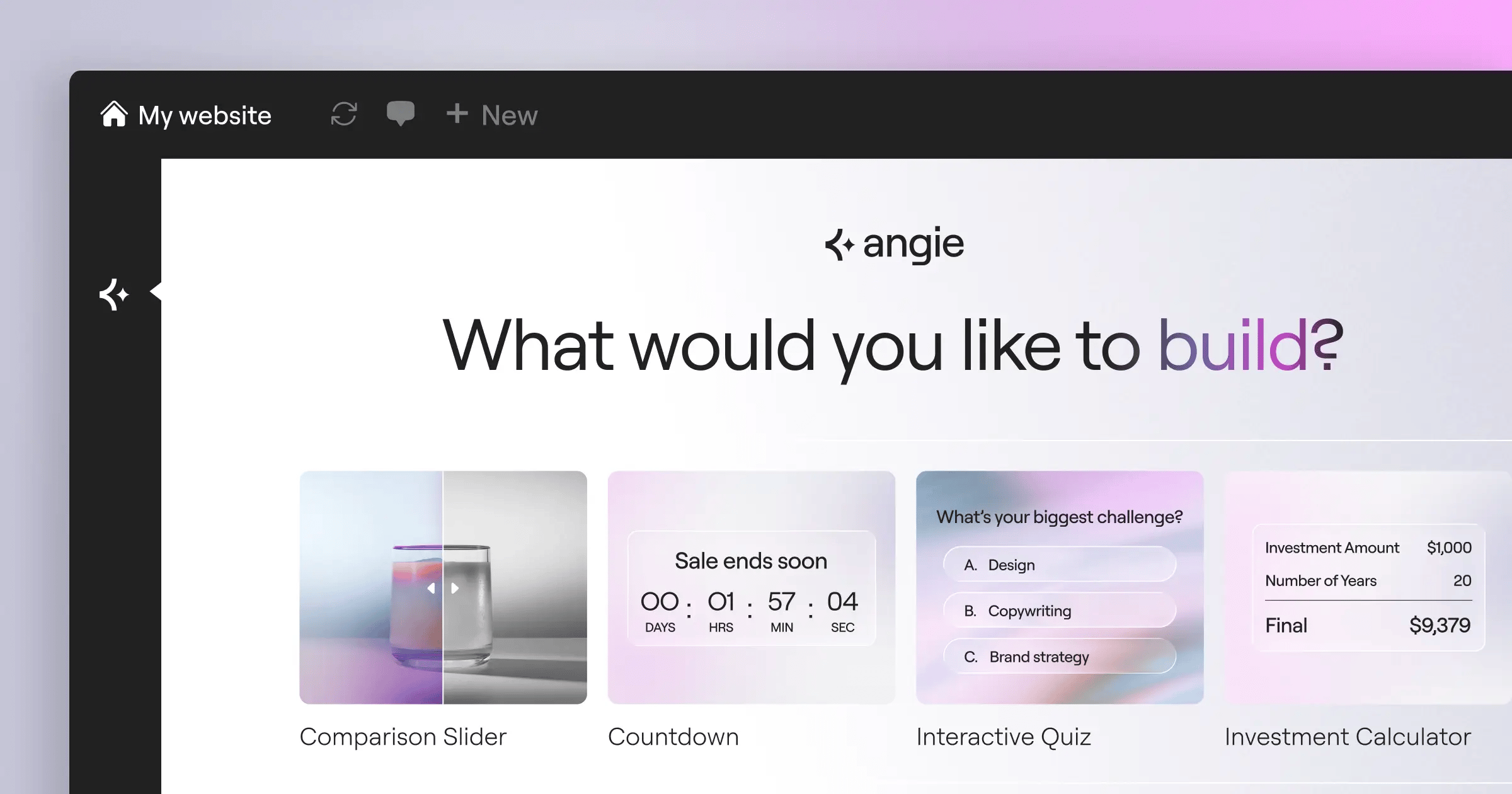
And if you’d rather just describe what you want, Angie by Elementor can help you put together custom snippets and widgets from a plain English description. It’s a nice option when you know the look you’re after but can’t quite recall the exact syntax.
When to Use a Child Theme for CSS
Sometimes the built-in tools aren’t enough. Overhauling an entire site’s architecture calls for a child theme. The global CMS market is projected to reach $27.3 billion by 2028, and enterprise clients expect clean, version-controlled code.
A child theme inherits everything from its parent but lets you override specific files safely. When the developer releases an update, your custom CSS stays intact.
Creating a child theme takes exactly two files to start:
- style.css – This is where you declare the theme’s metadata and write your custom style rules.
- functions.php – This is where you tell WordPress to load (enqueue) your new stylesheet after the parent theme’s styles.
Skip the outdated `@import` method for loading parent styles. It hurts performance, forcing the browser to download files one after another. Use the `wp_enqueue_style()` function in your PHP file instead, the professional standard for 2026.
You’ll write something like this in your functions file: `wp_enqueue_style(‘child-style’, get_stylesheet_uri(), array(‘parent-style’));`. This makes sure your custom styles load last, giving them the highest specificity weight in the cascade.
Child themes are overkill for a few font color changes. But for hundreds of lines of complex grid layouts or keyframe animations, a child theme keeps your workspace organized and professional.
Choosing the Right CSS Plugin
Don’t want a child theme, but also don’t love the small text box in the Customizer? That’s where dedicated CSS plugins come in, with full-screen editors, syntax highlighting, and better file management.
Demand for these tools is real. The Simple Custom CSS & JS plugin alone has over 900,000 active installations. Users clearly want a better way to manage external code.
Here’s how the top three options compare:
| Plugin Name | Active Installs | Best Feature | Target Audience |
|---|---|---|---|
| Simple Custom CSS & JS | 900,000+ | Adds code to header/footer easily | Developers needing clean file management |
| SiteOrigin CSS | 200,000+ | Visual point-and-click editor | Beginners who don’t know CSS syntax |
| Jetpack (Custom CSS Module) | 5 Million+ | Cloud-backed code revision history | Users already running the Jetpack suite |
SiteOrigin CSS works like a visual inspector. Click a paragraph on your site, use sliders to change the font size, and the plugin writes the CSS for you, a nice bridge for beginners.
Jetpack’s module is reliable, but its advanced bundles cost more than you need for CSS alone. If that’s all you want, stick to their free design module.
Pro tip: Check whether a plugin stores your CSS in the database or as an actual `.css` file. File-based storage is usually faster, since browsers can cache it.
Optimizing CSS for 2026 Performance
Writing custom CSS is only half the job. Your code also can’t wreck your site’s load speed. 47% of consumers expect a page to load in 2 seconds or less, and a slow stylesheet costs you money.
Google’s Core Web Vitals are stricter than ever: your Largest Contentful Paint (LCP) needs to happen within 2.5 seconds, and heavy CSS is the top cause of render-blocking delays.
A few specific strategies go a long way:
- Minify your code – Minification strips out spaces, line breaks, and comments. This can shrink your file size by up to 20%. Tools like Autoptimize or your host’s built-in caching engine handle this well.
- Defer non-critical styles – If you wrote custom CSS for your footer, the browser doesn’t need it right away. Load the above-the-fold CSS first.
- Adopt a mobile-first approach – Write your base styles for mobile screens first, then use `min-width` media queries to layer on desktop styling. That way mobile browsers skip processing rules they don’t need.
- Avoid the universal selector – Using the `*` selector forces the browser to calculate rules for literally every element on the page, which is inefficient.
It’s worth letting go of the `!important` tag, too. Beginners often reach for it like a sledgehammer, but that creates real headaches for the browser’s rendering engine, breaking the natural cascade and forcing constant specificity recalculation.
The biggest mistake I see in WordPress styling is the overuse of the !important tag. It’s a band-aid for poor CSS architecture. If you structure your specificity correctly using proper classes and child theme enqueueing, you’ll rarely need to force a style. Clean CSS directly correlates to faster rendering times.
Itamar Haim, SEO Expert and Digital Strategist specializing in search optimization and web development.
Fixing Common CSS Conflicts
You write what feels like perfect code, hit publish, refresh the page, and nothing happens. If that sounds familiar, you’re not alone, CSS conflicts are one of the most frustrating parts of web development.
When your custom CSS won’t apply, you’re usually fighting one of three things: aggressive caching, incorrect specificity, or a simple syntax error.
Here’s how you debug the problem like a professional:
- Bust the cache – This solves 90% of issues. Clear your WordPress caching plugin, clear your server-side cache, then hard-refresh your browser (Ctrl+F5 on Windows, Cmd+Shift+R on Mac).
- Inspect the element – Right-click the stubborn element on your live site, select “Inspect,” and open Chrome DevTools. Check the styles panel on the right.
- Check for strikethroughs – A line through your custom rule in DevTools means another rule is overriding it. You need more specificity.
- Find syntax errors – A single missing semicolon breaks every rule written below it. A free tool like CSS Lint can spot missing brackets automatically.
- Verify your media queries – If the code looks right on desktop but fails on mobile, double-check your `@media` rule syntax.
If you’re trying to override a theme’s style, you can temporarily add `!important` just to test whether specificity is the real issue. If the style suddenly works, rewrite your selector to be stronger instead, and remove the `!important` tag once you’ve fixed it properly.
Honestly, the Chrome Inspector is the most powerful debugging tool you have, so it’s worth learning well. You can test live CSS changes right in the browser before you ever paste the code into WordPress.
Frequently Asked Questions
Can I use custom CSS to change my WordPress admin dashboard?
Yes, but not through the standard Customizer. You’ll need a plugin like Admin CSS Mu, or a custom function using the admin_enqueue_scripts hook in your child theme, to target the backend specifically.
Why does my CSS disappear when I update my theme?
You probably edited the parent theme’s core style.css file directly. Theme updates overwrite all core files, so use the Customizer, a child theme, or a visual builder instead, and your changes will survive updates.
Does too much custom CSS slow down WordPress?
It can, especially when large, unoptimized CSS files delay the initial page render, since browsers have to download and parse all of it before displaying content. Keep your code clean, minify the output, and remove unused rules regularly.
What happens if I make a typo in the Customizer?
The Customizer actually has built-in linting. Miss a bracket or type an invalid property, and it usually shows a red error icon next to that line. Your site won’t crash, but the specific broken rule just won’t apply.
How do I target a specific page with CSS?
WordPress automatically adds unique body classes to every page. Inspect your site’s <body> tag to find the page ID (like page-id-42), then prepend that class to your CSS selector to limit the style to that exact URL.
Is inline CSS bad for WordPress SEO?
Not directly, though it does stop the browser from caching the styles, which means slower page loads on repeat visits, and that can indirectly hurt your Core Web Vitals scores.
Can I use CSS variables in WordPress?
Custom properties (variables) work in every modern browser. WordPress block themes lean on variables heavily in their theme.json architecture, so you can define a color once and apply it globally across your site.
What’s the difference between CSS and SCSS?
SCSS is a preprocessor that adds logic like nesting, variables, and mixins. Browsers can’t read SCSS directly, so you’ll compile it into standard CSS before adding it to WordPress, usually through a local build process.
Looking for fresh content?
By entering your email, you agree to receive Elementor emails, including marketing emails,
and agree to our Terms & Conditions and Privacy Policy.

