Troubleshooting the inability to drag and drop widgets in Elementor
To resolve issues where you cannot drag and drop widgets in Elementor, first update your browser or disable extensions in Incognito mode. If the problem persists, deactivate all plugins except Elementor to find conflicts, increase your PHP memory limit to at least 512MB, and enable the Switch Editor Loader Method in settings.
One of the core features of Elementor is its intuitive drag-and-drop interface. However, you may sometimes encounter a situation where you can select a widget from the panel but cannot drop it onto the canvas, or the widget panel itself appears grayed out.
This issue is often caused by a conflict between scripts, insufficient server resources, or browser incompatibility. This guide will walk you through the steps to troubleshoot and resolve the issue.
1. Check Your Browser
Elementor relies on modern browser technologies to function correctly. If you are using an outdated browser or one that is not fully supported, the editor functionality may be limited.
- Avoid Internet Explorer/Old Edge: Microsoft has discontinued support for these browsers, and they are not compatible with the Elementor Editor.
- Update your browser: Ensure you are using the latest version of Chrome, Firefox, Safari, or Microsoft Edge.
- Disable Extensions: Sometimes, browser extensions (especially ad blockers or page translators) can interfere with the editor’s scripts. Try opening the editor in “Incognito” or “Private” mode to rule this out.
2. Check for Plugin Conflicts
Plugins are small pieces of software that add functionality to your site, but they can sometimes conflict with one another. A conflict with another plugin is a common reason for the editor to freeze or block drag-and-drop actions.
To check for conflicts:
- Go to your WP Admin dashboard.
- Deactivate all plugins except Elementor and Elementor Pro. For details, see here.
- Check if the issue is resolved.
- If the drag-and-drop works, reactivate your plugins one by one, checking the editor after each activation to identify the culprit.
3. Increase PHP Memory Limit
Elementor is a powerful tool that requires sufficient server memory to run smoothly. If your site’s memory limit is too low, the editor scripts may fail to load completely.
You can check your current memory limit in the My Elementor dashboard:
- If you’re an Elementor Host user, see here to check your PHP settings.
- If you’re not an Elementor Host user, check your site host’s documentation to see how to check your PHP settings.
If your memory is low (e.g., 128MB), you may need to increase it. On Elementor Hosting plans, the default is often set high (e.g., 1024MB) to prevent these issues. If you need to adjust PHP settings or execution time to handle heavier tasks, you can do so via the PHP settings in the Advanced tab.
4. Switch Editor Loader Method
Sometimes, the server configuration can conflict with how Elementor loads the editor. Elementor includes a built-in switch to handle this.
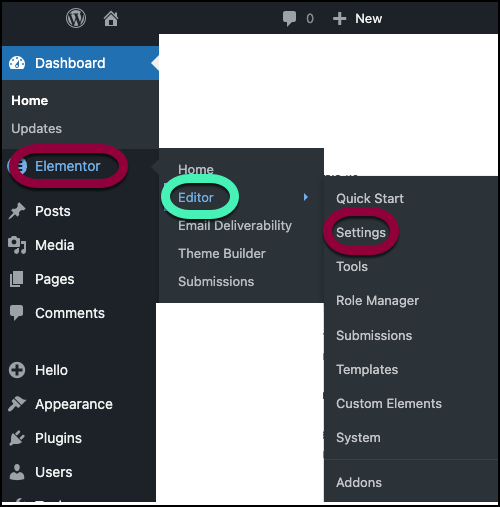
- From WP Admin, navigate to Elementor>Editor>Settings.
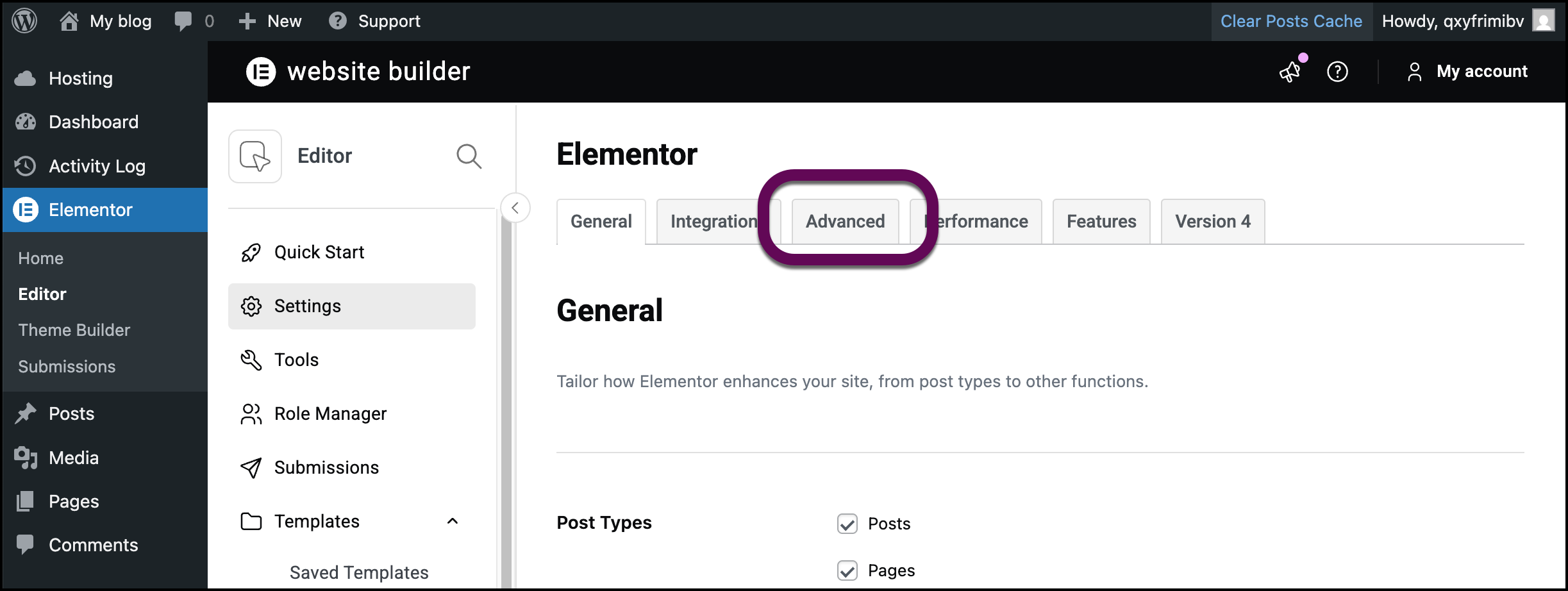
- Click the Advanced tab.
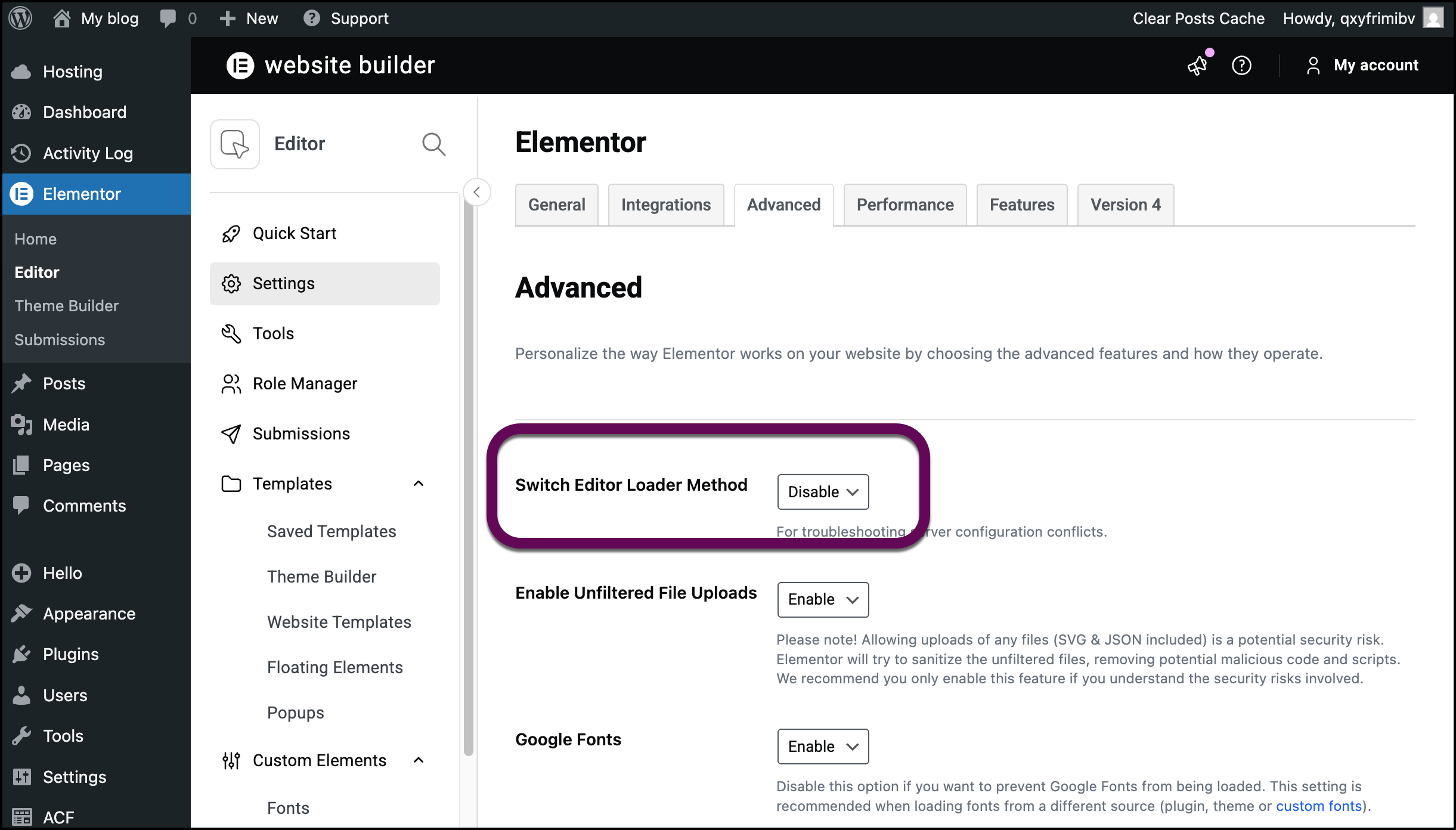
- Find the Switch Editor Loader Method option and select Enable.
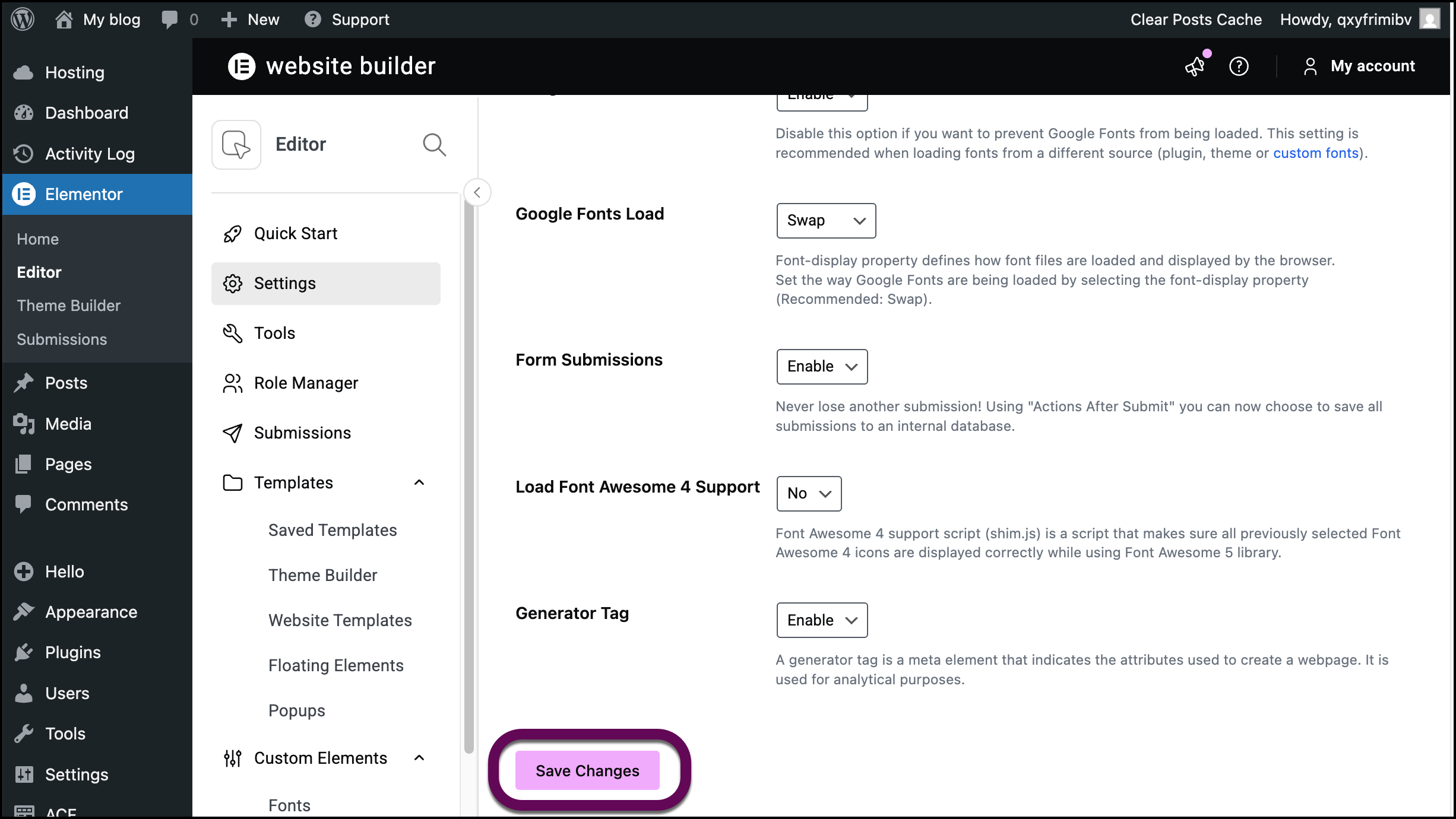
- Save changes and reload the editor.
5. Verify Elementor Pro License
If you are specifically unable to drag Pro widgets (while free widgets work fine), your license might be inactive or disconnected.
- From WP Admin, navigate to Elementor>Editor.
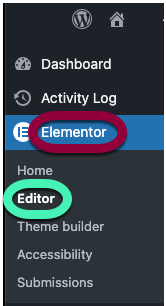
- In the left panel, scroll down and click License.
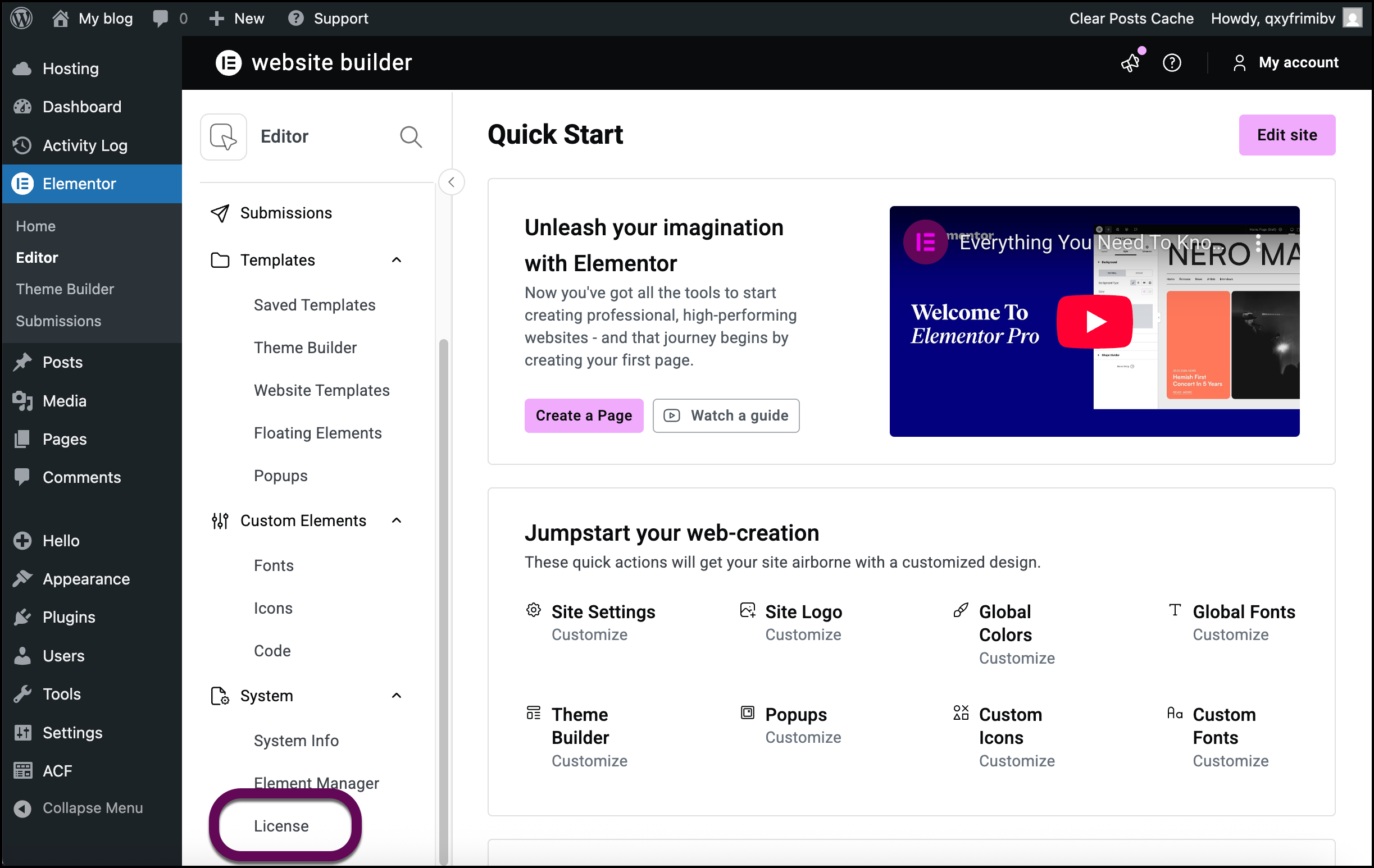
- Ensure your status says Active.
- If it is disconnected, click Connect & Activate.
6. Check for Javascript Errors
If the issue persists, a specific error might be blocking the interface.
- Right-click anywhere on the Elementor editor page.
- Select Inspect (or Inspect Element).
- Click the Console tab.
- Look for text in red. If you see errors related to files or scripts, it may indicate a specific plugin or theme issue. In that case, it’s best to contact the relevant plugin or theme support developers for further assistance.

