If you’re using the free version of Elementor and lose access to your Elementor account, you need to disconnect your website(s) from your old account and reconnect it to a new account.
If you’re an Elementor Pro user and lose access to your account, contact support.
Disconnect your Elementor account
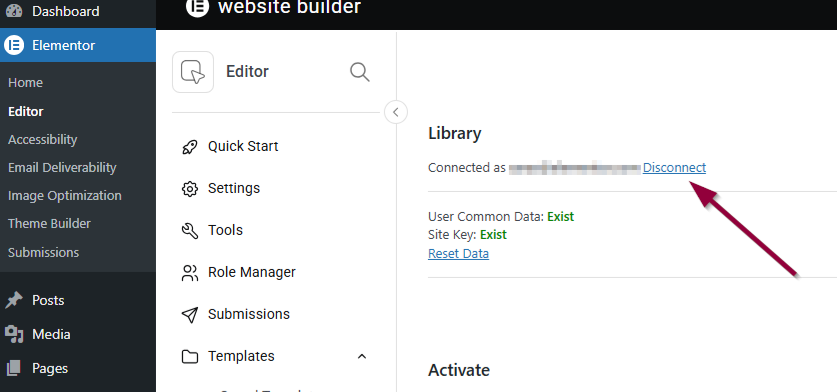
- In the browser’s address bar, enter your website’s URL and add the following: /wp-admin/admin.php?page=elementor-connect
For example: www.mysite.com/wp-admin/admin.php?page=elementor-connect - Under Library, click Disconnect.
Connect a new Elementor account
- Under System > License, click Switch Account.
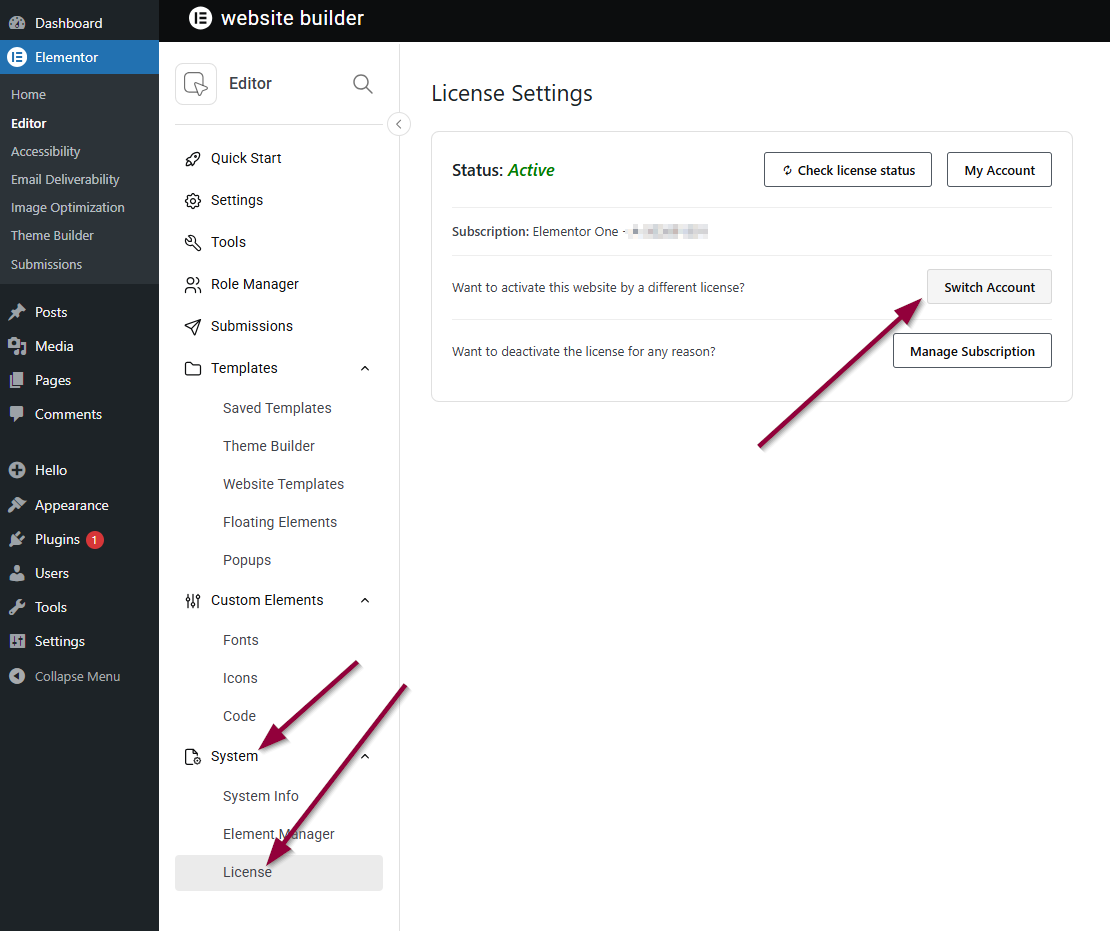
Now you need to connect to a new account. - From the connection page, click Switch User.
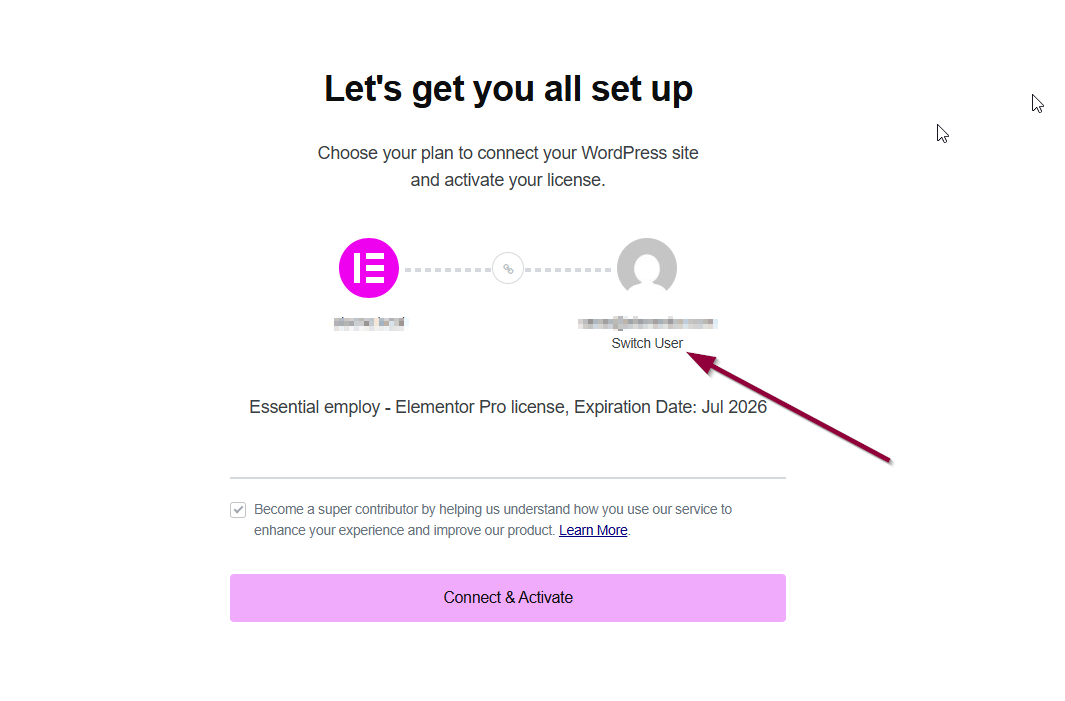
Switch users to create your new account. - From the Sign in to Elementor page, click Create an Account.
- Enter a valid email address and password and click Create account. Alternatively, you can use your Google account by selecting Continue with Google.
- You can now switch to your new account by clicking Connect & Activate.

