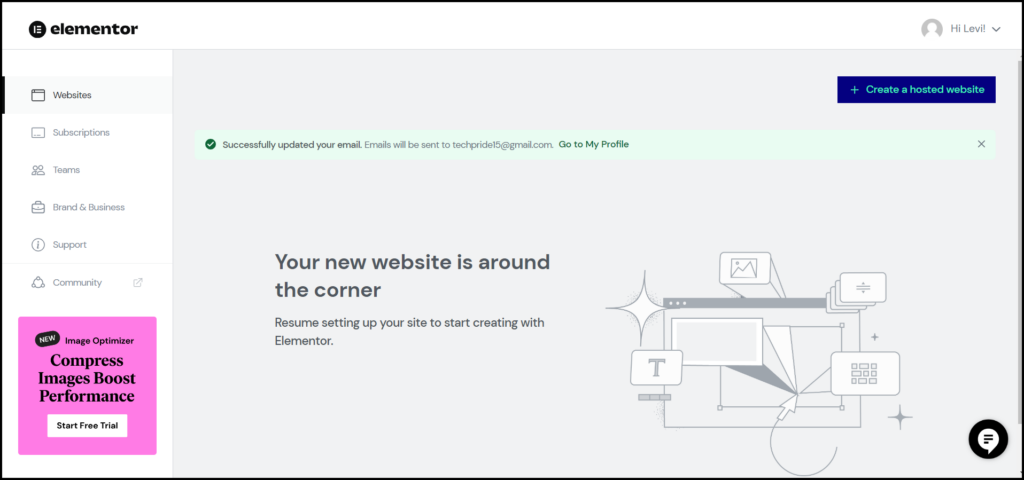
Updating your account information is essential to receive timely notifications and messages regarding your account and to facilitate smooth communication.
Note
In addition to updating your Account information, be sure to update your billing address and payment methods also.
Update your name
- Sign in to your account and navigate to My Elementor Dashboard.
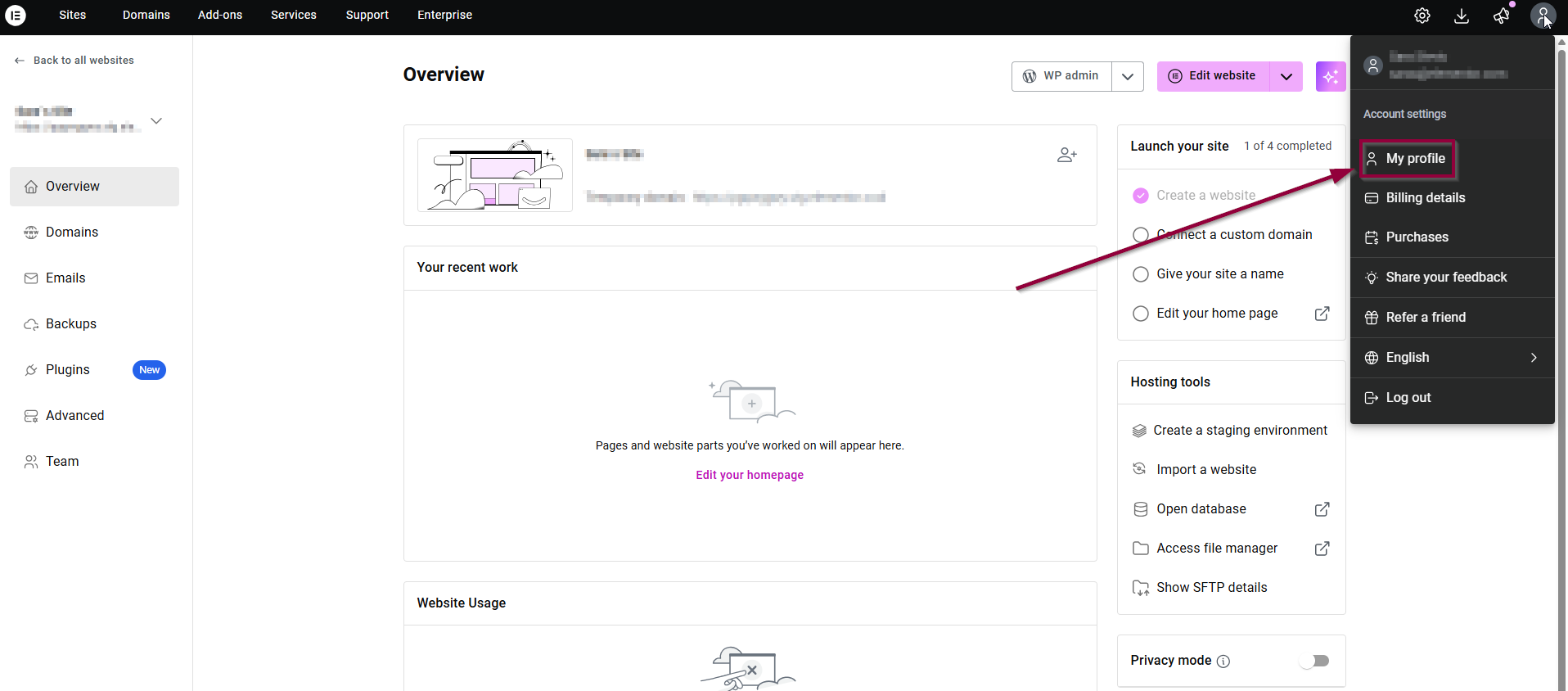
- On the upper right corner of the page, click the Profile icon to display a dropdown list.
- Click My Profile.
Your profile page appears.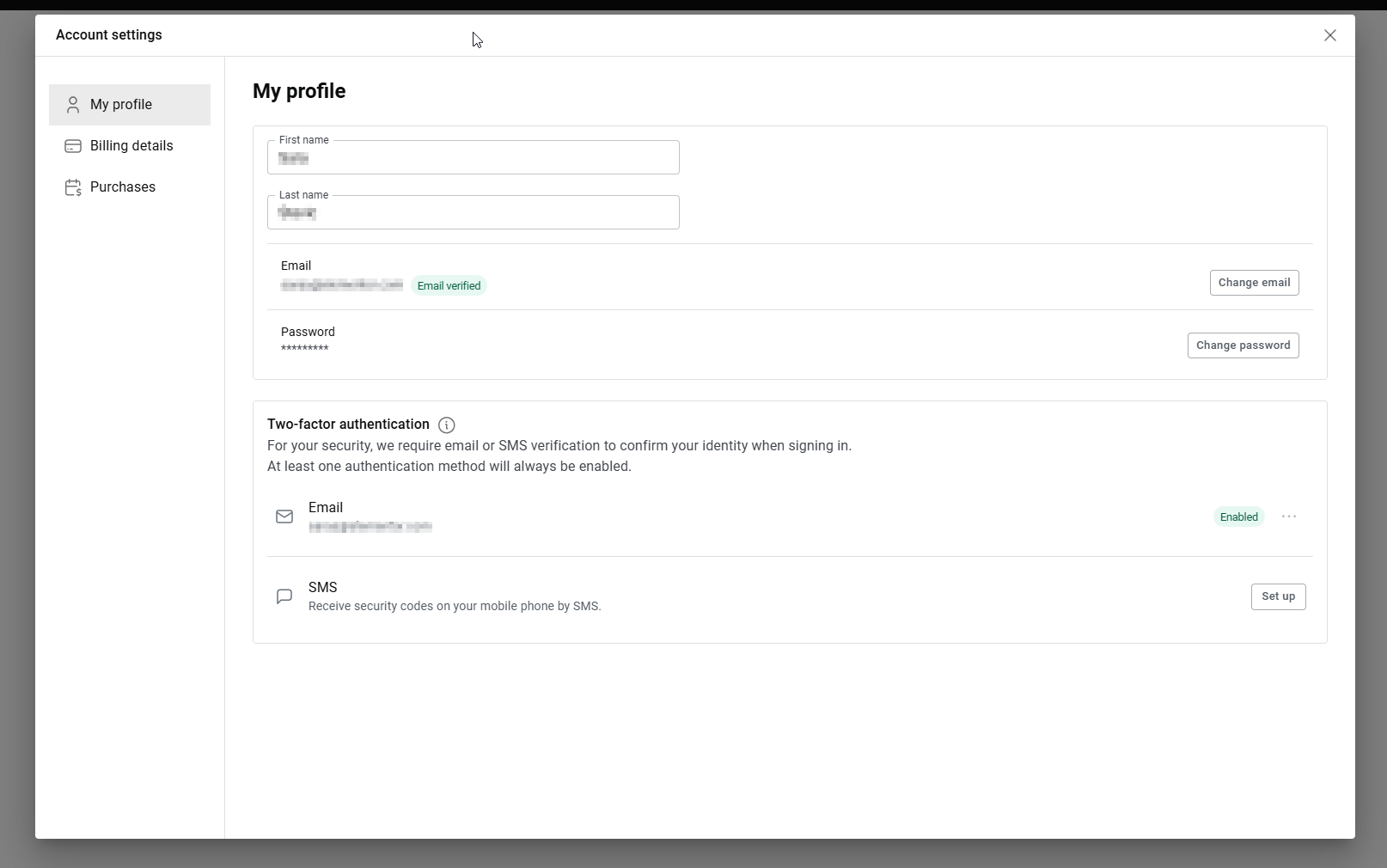
- To edit your first and last name, make the desired changes and they will be applied automatically.

The updated name reflects in the Profile panel.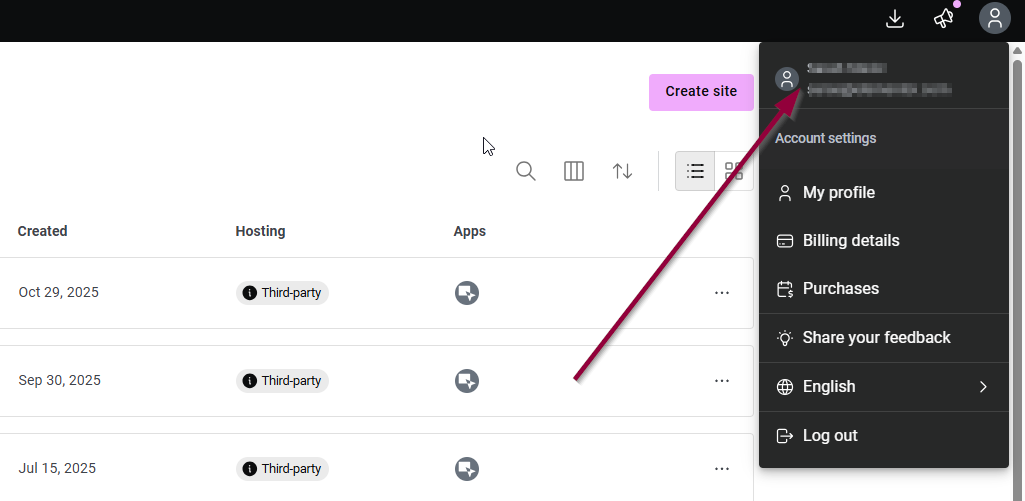
Update your email
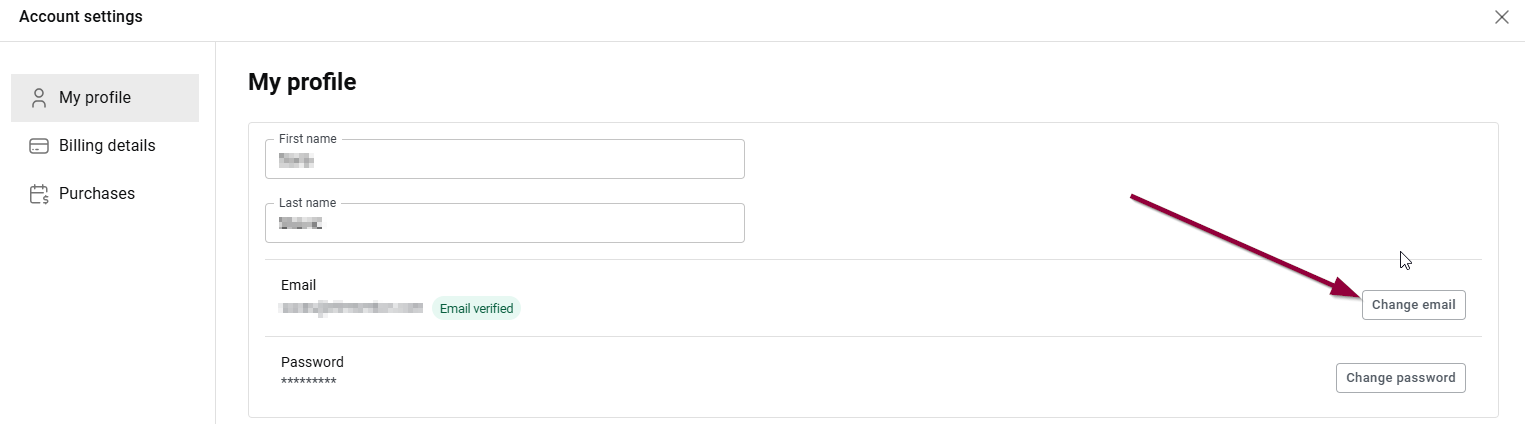
- In order to Update your email, click on the Change email button.
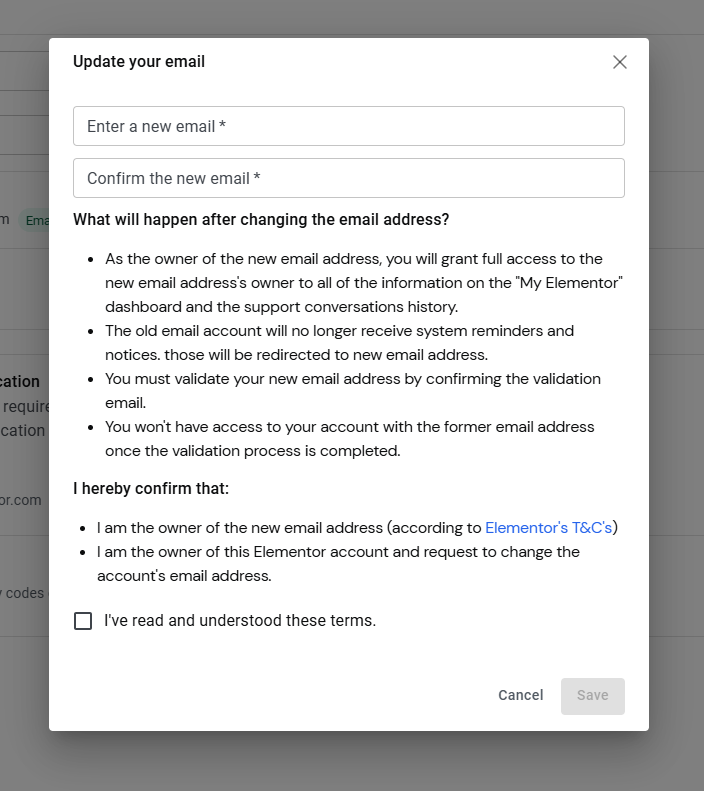
- In the Enter a new email field, enter the email address you wish to update.
- In the Confirm the new email field, enter the same email address to reconfirm.
- After thoroughly reading the terms and conditions regarding the consequence of changing the email address, check the box I’ve read and understood these terms.
- Click Save.
Note: An email is sent to the new email address for verification similar to when creating an account. - Navigate to your email inbox and open the email from Elementor. If you do not find the email in your Primary inbox, please check your Junk mail or Spam folders.
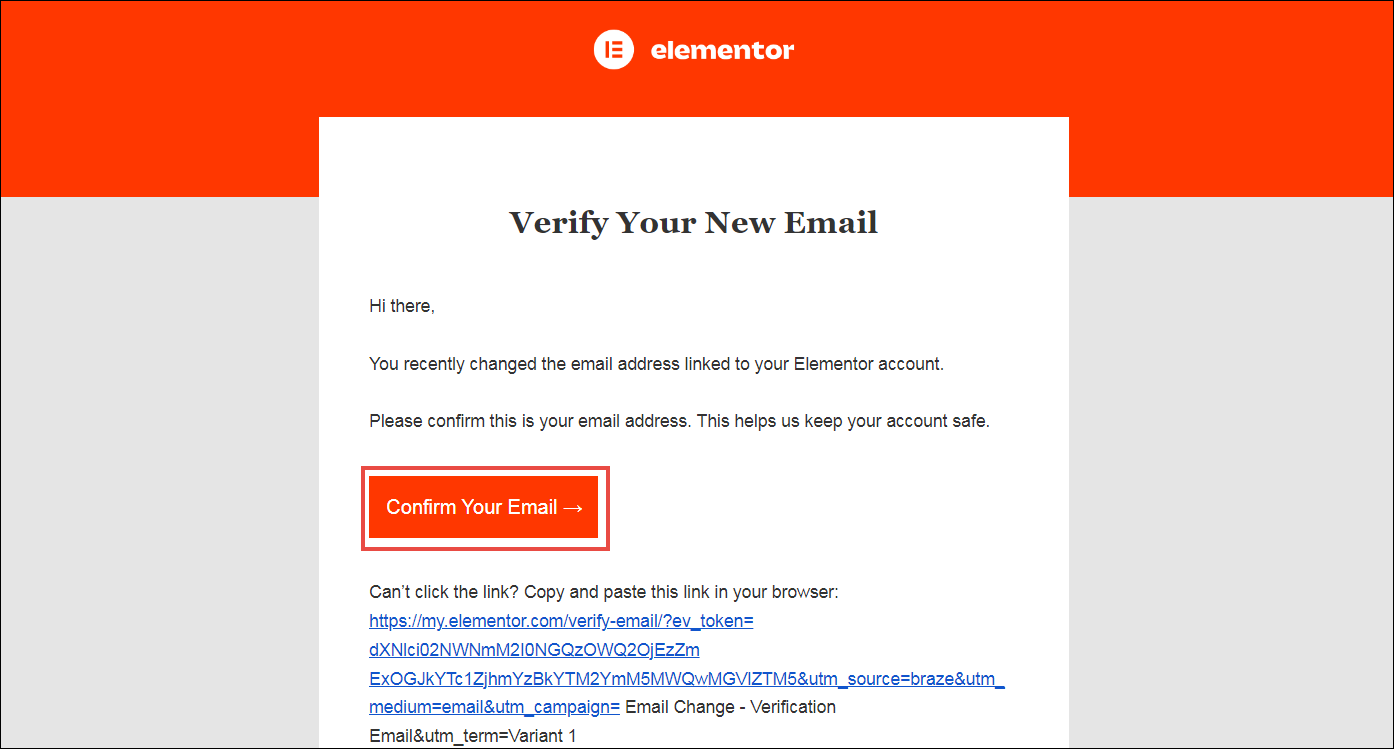
- Click Confirm Your Email.
You will be redirected to Let’s verify your account page.
Verify your email
You can now verify your email address from your email inbox.
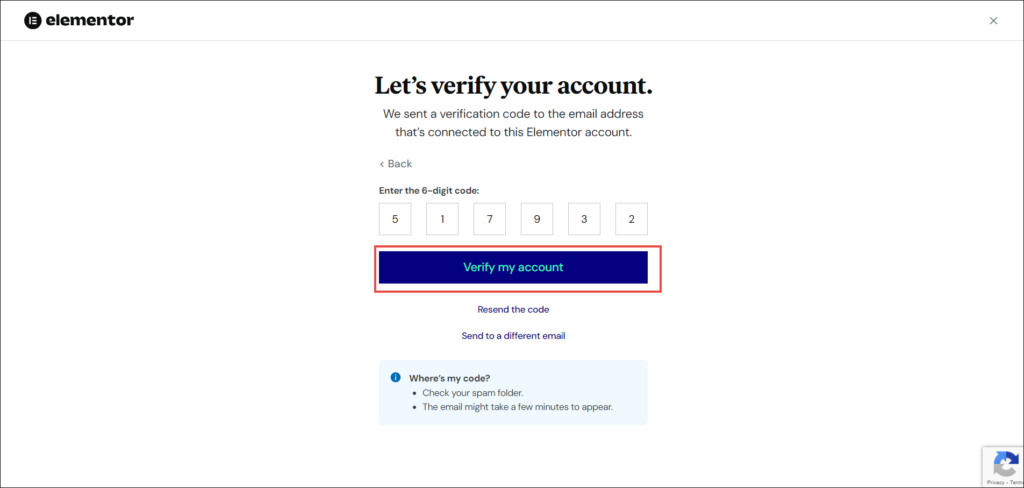
- Navigate to the email address registered with Elementor and open the email with the verification code from Elementor.
- Copy the verification code and back on the Elementor page, paste the code. You can also manually enter the code.
- Click Verify my account.
A success notification regarding email address update appears on your Elementor dashboard.