Creating a 404 Page Template using the power of Dynamic Content, can help you keep your site’s visitors happy even when they’re lost. You can display your recent posts, a search bar or anything you want.
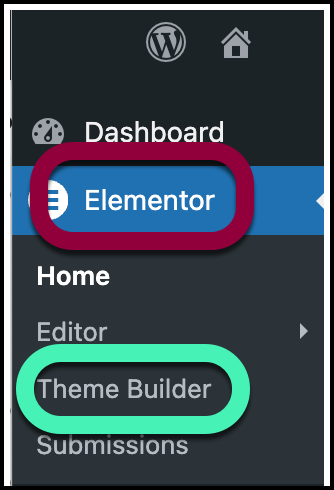
- From WP Admin, navigate to Elementor>Theme Builder.
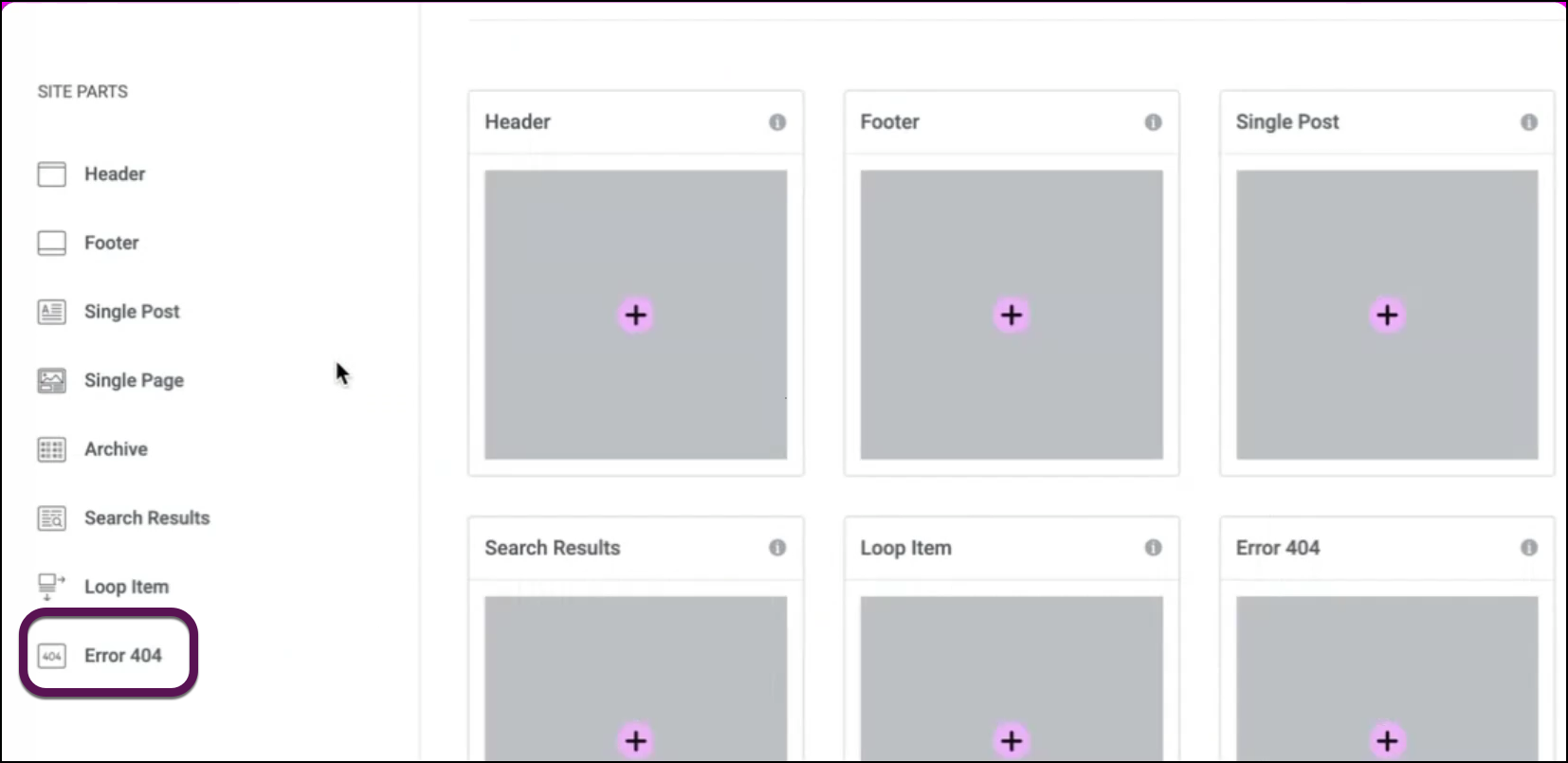
- In the left panel, click Error 404.
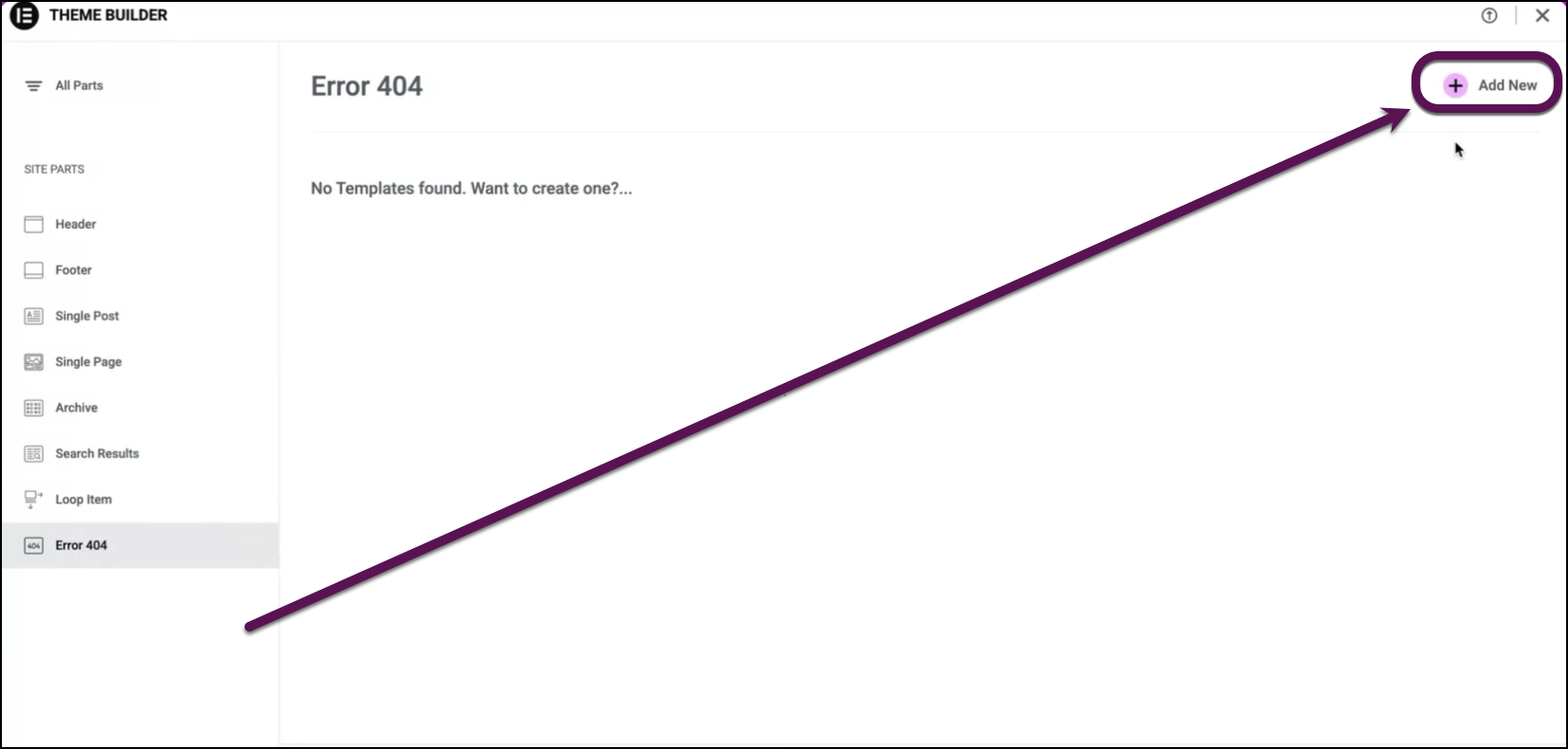
- On the right, click Create New.
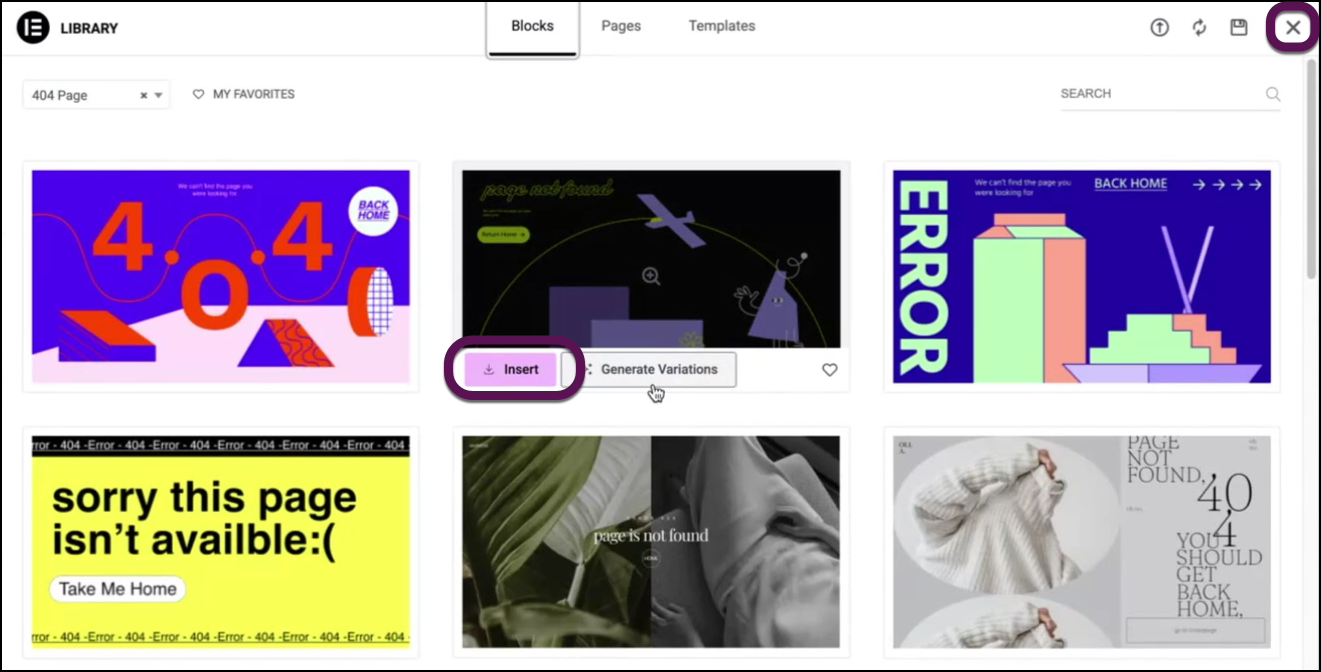
The Template library opens to a page of 404 page designs. - Hover over a design and click Insert to use that design or click the X in the right corner and close the library to design a 404 page from scratch.
The Elementor Editor opens. - (Optional) Edit the 404 page template with the Elementor Editor.
- After you’ve finished designing your template, click Publish.
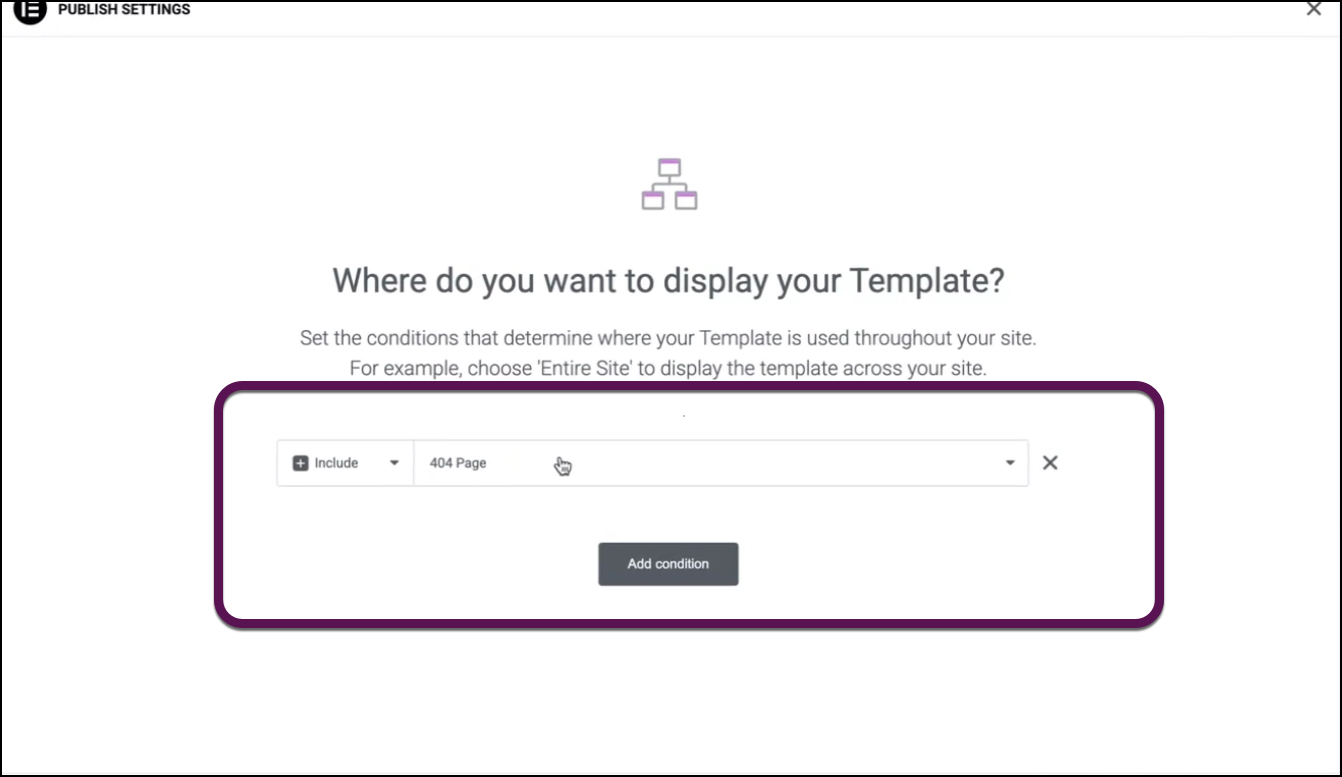
- Check the conditions under which your 404 page is displayed. For details, see Set conditions for site part templates.
Note: When naming your template, please do not begin the Template name with “404“. If the template name begins with 404, the resulting permalink will cause a redirect to the home page, when any non-existing page URL is visited. This happens due to the template library’s permalink. Since the library is private, if you hit any URL of the library, this will occur. If a user creates a 404 single template with the name”404 single”, for example, the permalink becomes http://mysiteurl.com/?elementor_library=404-single . Then, if a page like mysiteurl.com/404 is visited,the system will think it’s looking for that template file and redirect you to homepage. Just avoid naming the template with “404” in the beginning of the name, and this problem will not happen.

