Table of Contents
You’ve got a WordPress site. But you need it to do more than just publish blog posts and basic pages. You need a structured directory, a real estate listing platform, or a complex learning management system. That’s exactly where WordPress custom post types come in.
Out of the box, WordPress handles basic content well. But restricting yourself to the default post structure severely limits your options. By defining your own data architecture, you unlock the true power of this content management system. Let’s break down exactly how you build, manage, and scale these custom structures in 2026.
Key Takeaways
- WordPress market dominance holds steady in 2026, powering 43.5% of all websites globally.
- Heavy CPT usage is standard practice, with 60% of enterprise-level installations using at least 5+ custom post types.
- Performance matters. Complex queries slow down significantly when the standard
wp_postmetatable exceeds 100,000 rows. - Using custom database tables for your CPTs can improve query speeds by 50-80% for complex data sets.
- For full Block Editor compatibility, over 85% of new CPT registrations now use the
show_in_restparameter. - The headless CMS market, driven by CPT data exposed via REST API, is growing at a 20.1% CAGR through 2030.
- Developers heavily favor visual tools, as 72% of professionals prefer using a UI plugin over manual coding.
Foundations of Custom Post Types
Everything in WordPress is a post. Technically speaking. Behind the scenes, the database stores almost every piece of content inside a single table called wp_posts. Pages are just posts with a different label. Media attachments are posts. Navigation menu items are posts.
So what makes a custom post type different? It’s simply a new label you create for your specific content needs. You tell the database to treat this new label as a distinct category of content.
Here’s a breakdown of the default structure versus custom architectures:
- Posts: Time-sensitive content. They use categories and tags. They appear in RSS feeds.
- Pages: Hierarchical content. They don’t use categories. They rely on parent-child relationships.
- CPTs: Whatever you define them to be. You set the rules. You define the hierarchy. You control the taxonomies.
Are standard categories enough for your project? Usually, no. If you run a movie review site, you don’t want to mix your movie reviews with your standard blog updates. You want a dedicated “Movies” section in your WordPress dashboard. You want custom fields for “Director” and “Release Year”.
This structural separation keeps your database clean. And it prevents client confusion. When you hand over a website, clients shouldn’t have to guess where to add a new team member. They should just click the “Team Members” menu item. It’s an operational necessity. Research shows that 60% of enterprise-level WordPress installations use at least 5+ Custom Post Types to manage non-blog content.
Pro Tip: Never mix drastically different data formats into the default “Posts” bucket. If a piece of content requires more than three unique custom fields, it deserves its own dedicated post type.
How to Register a Post Type via Code
You can completely skip plugins. WordPress provides a built-in function called register_post_type() that handles everything. You just need to add a block of PHP to your theme’s functions file or a custom site-specific plugin.
the team created over 143 complex sites over my career. And writing the registration code manually is still my preferred method for lean, fast projects. It ensures your data structure isn’t dependent on a third-party tool.
Here’s the exact process for doing it right in 2026:
- Create the function: Wrap your registration code in a custom function so it fires at the right time.
- Hook into init: Use the
add_action( 'init', 'your_function_name' )hook. This is mandatory. If you fire it too early, WordPress won’t recognize it. - Define your labels: Write out the plural and singular names for the WordPress admin menu.
- Set the arguments: This is where you configure the behavior. You decide if it’s public, if it supports featured images, and if it appears in search results.
- Enable REST API support: Set
'show_in_rest' => true. This is non-negotiable today.
That last step is critical. If you omit the REST API parameter, your new post type won’t load the Gutenberg Block Editor. You’ll be stuck with the classic TinyMCE interface. This is exactly why over 85% of new CPT registrations in the WP repository use this parameter for modern editor compatibility.
You’ll also benefit from recent core optimizations. WordPress 6.5+ introduced a metadata lazy-loading optimization. This specific update reduces memory usage by up to 25% when processing large batches of entries. But you only get these benefits if your basic registration arguments are configured properly.
Top Custom Post Type Plugins Compared
Writing PHP isn’t for everyone. Most developers use visual tools to speed up their workflow. In fact, 72% of WordPress developers prefer using a plugin for registration over manual coding. It simply saves an average of 2-3 hours per project.
You’ve dozens of options. But only a handful dominate the professional market.
| Plugin Name | Primary Focus | 2026 Pricing (Single Site) | Key Differentiator |
|---|---|---|---|
| Advanced Custom Fields (ACF) Pro | Field creation & UI registration | $49/year | Used on over 2 million websites. The industry standard. |
| JetEngine | Dynamic content ecosystem | $43/year | Offers 17+ dynamic widgets out of the box. |
| Meta Box | Developer-focused performance | $49/year | Unmatched custom database table integration. |
| Pods Framework | All-in-one data management | Free (Open Source) | 100,000+ active installs with a 4.8-star rating. |
| Toolset | Legacy complex site building | $69/year | Deep granular access control features. |
Choosing the right tool depends entirely on your build process. If you want maximum compatibility with almost every theme on the market, ACF Pro is the safest bet. Their 2026 pricing model remains competitive at $49/year for 1 site, $149/year for 10 sites, and $249/year for unlimited sites.
But JetEngine shines when you need complex relations between different post types. It costs $43/year per site or $999 for a lifetime license. It treats dynamic data as a first-class citizen.
And don’t ignore the free options. The Pods Framework remains the leading free, open-source alternative. It proves you don’t always need a premium subscription to build enterprise-grade data structures.
Advanced Architecture: Metadata vs Custom Tables
This is where amateur builds fail. The standard WordPress database is a generic storage locker. It uses an Entity-Attribute-Value (EAV) model. This means every single custom field you add to a post gets stored as a completely separate row in the wp_postmeta table.
Think about that for a second. If you’ve a “Car” post type with 20 custom fields (make, model, year, mileage, color, etc.), saving just one car creates 20 rows in your database. Saving 5,000 cars creates 100,000 rows.
And that’s a massive problem. Standard WordPress wp_postmeta queries can slow down significantly once a table exceeds 100,000 rows. When you try to filter cars by both “year” and “color” simultaneously, the database struggles. Your server CPU spikes. Your page load times crawl.
You solve this by ditching the default meta table.
- Custom Database Tables: You create a dedicated SQL table specifically for your post type.
- Flat Structure: Instead of 20 rows per post, you get exactly 1 row per post. The 20 fields become 20 columns.
- Indexing: You can index specific columns (like “price”) for lightning-fast search queries.
Implementing Custom Database Tables can improve query speeds by 50-80% for complex data sets. Tools like Meta Box make this incredibly accessible. Meta Box offers a tiered model: $49/year for the basic bundle, $99/year for the Pro bundle, and a $699 one-time payment for the Lifetime bundle. The Pro bundle includes the custom table extension.
“Moving high-volume custom post types out of the standard postmeta table isn’t an optimization tactic anymore. It’s a strict architectural requirement if you want your WordPress site to survive its first major traffic spike without catastrophic database locks.”
Itamar Haim, SEO Expert and Digital Strategist specializing in search optimization and web development.
Taxonomies face similar scaling limits. While WordPress can technically handle millions of terms, performance begins to degrade after 200,000 terms in a single taxonomy due to term counting overhead. Keep your data mapped intelligently.
Real-World Scenarios for Complex Sites
Theory only goes so far. Let’s look at how this data mapping works in the real world. The monthly search volume for “WordPress Custom Post Type” exceeds 45,000 queries globally, proving thousands of developers are actively trying to solve these exact structural puzzles.
Consider a heavy-duty real estate platform. You don’t just dump houses into the blog.
- The Core CPT: You create a “Properties” post type. This handles the actual listing pages.
- Custom Taxonomies: You register “Locations” (City, State) and “Property Types” (Commercial, Residential). Taxonomies are meant for grouping.
- Custom Fields: You attach fields directly to the Property post type for specific data points. Price, square footage, bedroom count, and virtual tour URLs go here.
A Learning Management System (LMS) requires even stricter mapping. You need hierarchical relationships. A “Course” post type sits at the top. A “Lesson” post type acts as a child to the Course. A “Quiz” post type attaches to the Lesson. You link them together using relational custom fields.
These complex relationships are why proper initial planning is so vital. If you get the taxonomy versus custom field decision wrong on day one, you’ll spend weeks rewriting database entries six months later.
Pro Tip: Always draw your data structure on a physical whiteboard before writing a single line of code. Ask yourself: “Will I ever need to filter or sort by this piece of information?” If yes, it should probably be a taxonomy or an indexed custom field, not just plain text.
Designing Templates with Elementor Editor Pro
Registering the data is only half the battle. You still have to display it on the front end. In the old days, this meant writing custom PHP loop templates inside your theme folder.
Now, you manage this visually. Elementor Editor Pro acts as the bridge between your backend data and your frontend design. You build the template once, and it applies dynamically to every single post in that specific type.
The process is straightforward:
- Navigate to the Theme Builder and select “Single Post”.
- Choose your specific custom post type from the display conditions menu.
- Drag standard widgets onto the canvas.
- Instead of typing static text, click the dynamic tags icon (the small database cylinder) on any widget.
- Select the corresponding custom field from your ACF or Meta Box setup.
The visual editor pulls the data directly from the database. Elementor Pro supports dynamic tags for CPTs across 100+ widgets, allowing users to build templates for custom data without writing PHP. You can inject custom field data into headings, image backgrounds, button links, and even complex progress bars.
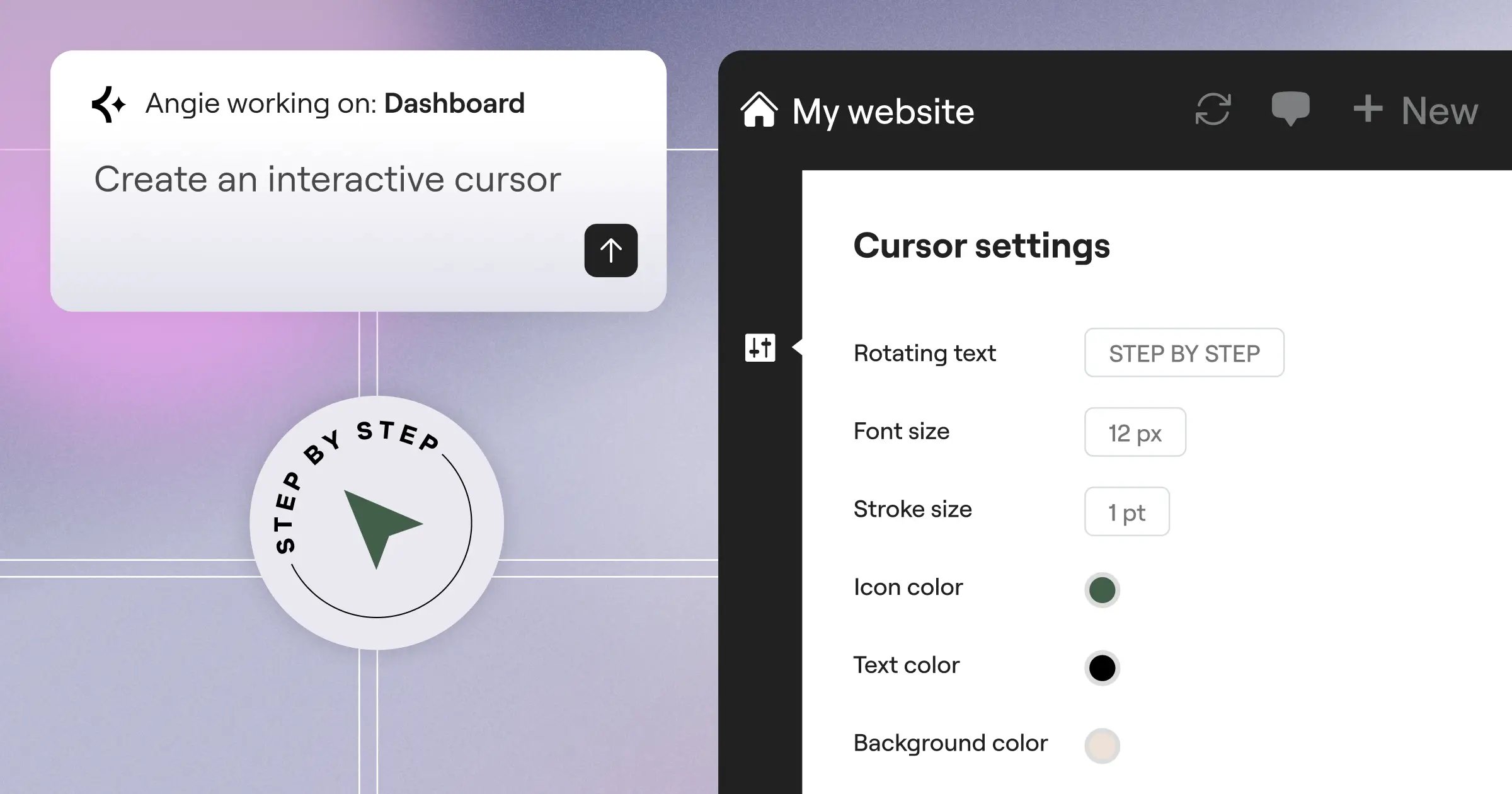
For a more AI-powered approach to WordPress customization, Angie by Elementor lets you create custom widgets and snippets through conversation. This handles the technical heavy lifting when you need highly specific visual outputs that standard widgets don’t quite cover.
Next, you build the Archive template. This is the index page that lists all your entries. You drop in the Posts widget, change the query source from “Posts” to your new custom post type, and format the grid layout. The system handles the pagination automatically.
Plugin-Based vs Code-Based Registration
We’ve discussed both methods. But which one should you actually use for your next client project? It’s a debate that sparks arguments at every developer conference.
Let’s look at the strict advantages of manual coding:
- Zero Dependencies: Your site won’t break if a third-party plugin developer goes out of business or pushes a bad update.
- Absolute Portability: The code lives in your theme or a custom site plugin. You can version control it perfectly via Git.
- Lean Output: You only load the exact PHP you need. No heavy UI dashboards running in the admin area.
But the plugin route has massive operational benefits:
- Rapid Prototyping: You can spin up a complex relational database structure in 15 minutes instead of two hours.
- Client Hand-off: If a client wants to add a new text field later, they can do it through the UI without calling you for a code change.
- Advanced Field Types: Coding a simple text field is easy. Coding a repeating Google Maps location field from scratch is a nightmare. Plugins handle the complex UI elements instantly.
Honestly, I mix the two approaches. I register the base custom post types via code to ensure structural stability. Then I use ACF Pro to handle the actual custom fields attached to those post types. It gives you the best of both worlds. You get rock-solid core architecture with flexible, fast field management.
The Ultimate CPT Launch Checklist
You’ve built the structure. You’ve designed the templates. You’re ready to launch. But missing one technical detail can ruin your site’s SEO or break your application entirely.
Run through this list before you push anything to a live server:
- Flush the Rewrite Rules: This is the most common error. After registering a new CPT, your single pages will return 404 errors. You must go to Settings > Permalinks and simply click “Save Changes” to flush the routing rules.
- Check the Slug Structure: Ensure your CPT slug doesn’t conflict with existing pages. If you’ve a physical page named “Services” and you register a CPT with the slug “services”, WordPress routing will crash.
- Verify Archive Support: If you want a master index page (yoursite.com/portfolio), make sure you’ve set
'has_archive' => truein your registration arguments. - Test User Permissions: Can your “Editor” role access the new post type, or is it restricted to Administrators? Map your capabilities properly.
- Validate API Output: Hit your site’s REST API endpoint (
/wp-json/wp/v2/your_cpt) in a browser. Ensure the data returns cleanly.
That final step matters more than ever. The headless CMS market is projected to grow at a CAGR of 20.1% through 2030. Custom post types are the absolute foundation for this. Because they’re exposed via the WP REST API or WPGraphQL, any modern JavaScript frontend can consume your data. If your API output is broken, your site’s future scalability is severely compromised.
Pro Tip: Use a tool like Postman to query your custom endpoints before launch. Verify that your custom fields are actually included in the JSON payload, as they often require explicit registration to appear in the API response.
Frequently Asked Questions
Can I convert standard posts into a custom post type?
Yes, you certainly can. You’ll need a free plugin like “Post Type Switcher”. It adds a simple dropdown to your post editor, allowing you to reassign existing content to your newly created structures without losing the associated data.
Do custom post types slow down WordPress?
The post types themselves don’t impact speed. But poorly constructed queries do. If you’ve thousands of entries and query them using complex meta-value filters, you’ll experience slowdowns. Using custom database tables solves this bottleneck.
Why am I getting a 404 error on my new CPT single pages?
You haven’t flushed your permalinks. Whenever you register a new data structure, WordPress needs to rebuild its URL routing. Just navigate to Settings > Permalinks in your dashboard and hit save. You don’t need to change any settings.
Can a custom post type share categories with the blog?
It’s possible, but I strongly advise against it. Sharing taxonomies across different post types creates messy archives and confuses search engines. It’s much cleaner to register a dedicated taxonomy specifically for your new content type.
Is there a limit to how many CPTs I can create?
There’s no hard limit coded into the WordPress core. You can theoretically create hundreds. However, every new type adds bloat to your admin menu and database schema. Only create them when the content structure genuinely requires separation.
How do I remove the slug from my custom post type URLs?
Removing the base slug (like changing /portfolio/project-name to just /project-name) requires intercepting the WordPress rewrite API. It’s highly risky because it can cause conflicts with standard pages. Stick to a clean base slug.
Do CPTs automatically appear in the native site search?
It depends entirely on your registration arguments. If you set 'exclude_from_search' => false, they’ll show up. If you use a UI plugin, there’s usually a toggle switch labeled “Include in Search” that handles this automatically.
What happens to my data if I deactivate the UI plugin?
Your actual database entries are safe. They remain in the wp_posts table. But your dashboard menu will disappear, and the frontend might break. You’d need to manually write the registration code to make them visible again.
Can I use Elementor to build forms that submit directly to a CPT?
Yes. Many developers use dynamic form handlers. You map the frontend form fields directly to your backend custom fields. When a user hits submit, it creates a new draft entry in your designated post type automatically.
How do custom post types affect SEO?
They offer a massive advantage. You get dedicated XML sitemaps for specific content silos. You can also assign unique schema markup to a specific post type. It allows search engines to understand that “Courses” are fundamentally different from “Blog Posts”.
Looking for fresh content?
By entering your email, you agree to receive Elementor emails, including marketing emails,
and agree to our Terms & Conditions and Privacy Policy.






