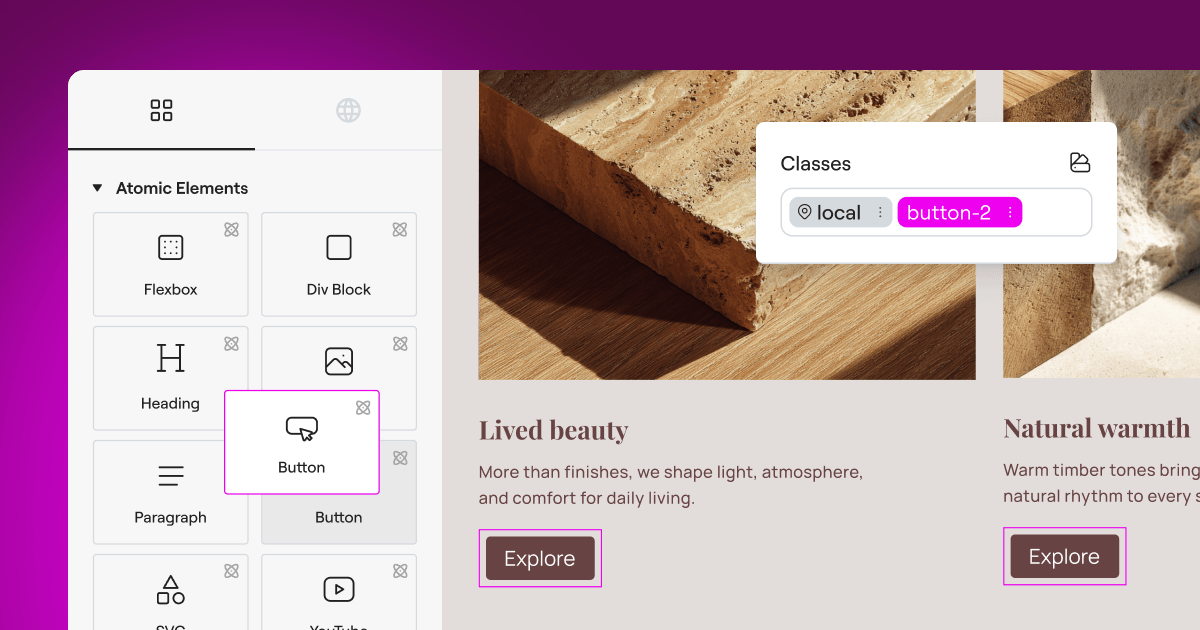
If you design websites for a living, you know privacy compliance isn’t optional anymore. Visitors expect clear choices, and global laws require them. But balancing a gorgeous design with strict legal rules can feel daunting, and the last thing you want is a clunky popup ruining the layout you built in Elementor. Good news: you don’t have to choose between beauty and compliance. Here’s a rundown of the best tools for staying compliant.
Key Takeaways
- Native tools win on speed – a native tool stays fast by skipping heavy external JavaScript.
- Google Consent Mode v2 is essential – if you run Google Ads or Analytics for EU visitors, your banner must support it.
- Design control matters – your consent banner is the first thing visitors see, so it should match your brand.
- Keep compliance inside WordPress – managing consent logs and cookie lists in your dashboard saves hours of admin work.
Why Privacy Banners Are Critical in 2026
Privacy rules have changed a lot lately. Regulators take consent seriously now, and a simple “we use cookies” notice won’t cut it. Visitors want granular control over which trackers they allow, whether you run a store, a client site, or a personal blog.
Three steps get you there:
- Audit your tracking scripts – identify every cookie your site drops, from Facebook Pixels to Google Analytics.
- Adopt Google Consent Mode v2 – link your banner to Google’s tag systems so data gets handled correctly.
- Maintain a secure consent log – keep a record of visitor choices in case a regulator ever asks.
Modern tools make this easy, fitting cleanly into your builder without hopping between platforms.
“True web compliance isn’t about slapping a generic banner on your footer and hoping for the best. It’s about respecting user choice with a clear, accessible interface that works smoothly alongside your site’s technical architecture.”
– Itamar Haim, Web Compliance Specialist
How the Leading Tools Compare
Here’s a quick comparison before the detailed reviews. Whichever you prefer, WordPress-native or enterprise cloud, this table’s a solid start.
| Tool Name | WordPress Native Dashboard? | Google Consent Mode v2? | Design Customization | Best For |
|---|---|---|---|---|
| Cookie Consent (by Elementor) | Yes (Fully Native) | Yes | Excellent (Native Editor) | Elementor users wanting a unified setup |
| Cookiebot | No (External Cloud) | Yes | Moderate (Requires CSS) | Large corporate websites with multi-site networks |
| CookieYes | Hybrid (Cloud Sync) | Yes | Good | Users looking for a quick cloud dashboard setup |
| Complianz | Yes | Yes | Good | Websites needing a wizard-style setup assistant |
| iubenda | No (External Cloud) | Yes | Moderate | Teams needing complete legal policy generation |
| Termly | No (External Cloud) | Yes | Basic | Small business owners needing legal templates |
| OneTrust | No (Enterprise Cloud) | Yes | Advanced (Complex) | Enterprise teams with dedicated compliance officers |
| Osano | No (External Cloud) | Yes | Moderate | Organizations focused on vendor monitoring |
| GDPR Cookie Consent | Yes | Yes | Basic | Sites looking for a straightforward, simple banner |
| Real Cookie Banner | Yes | Yes | Advanced | Developers looking for deep technical customizations |
The 10 Best Cookie Banner Options Reviewed
Let’s look closely at the top options, starting with the native, fast performers.
1. Cookie Consent (by Elementor)
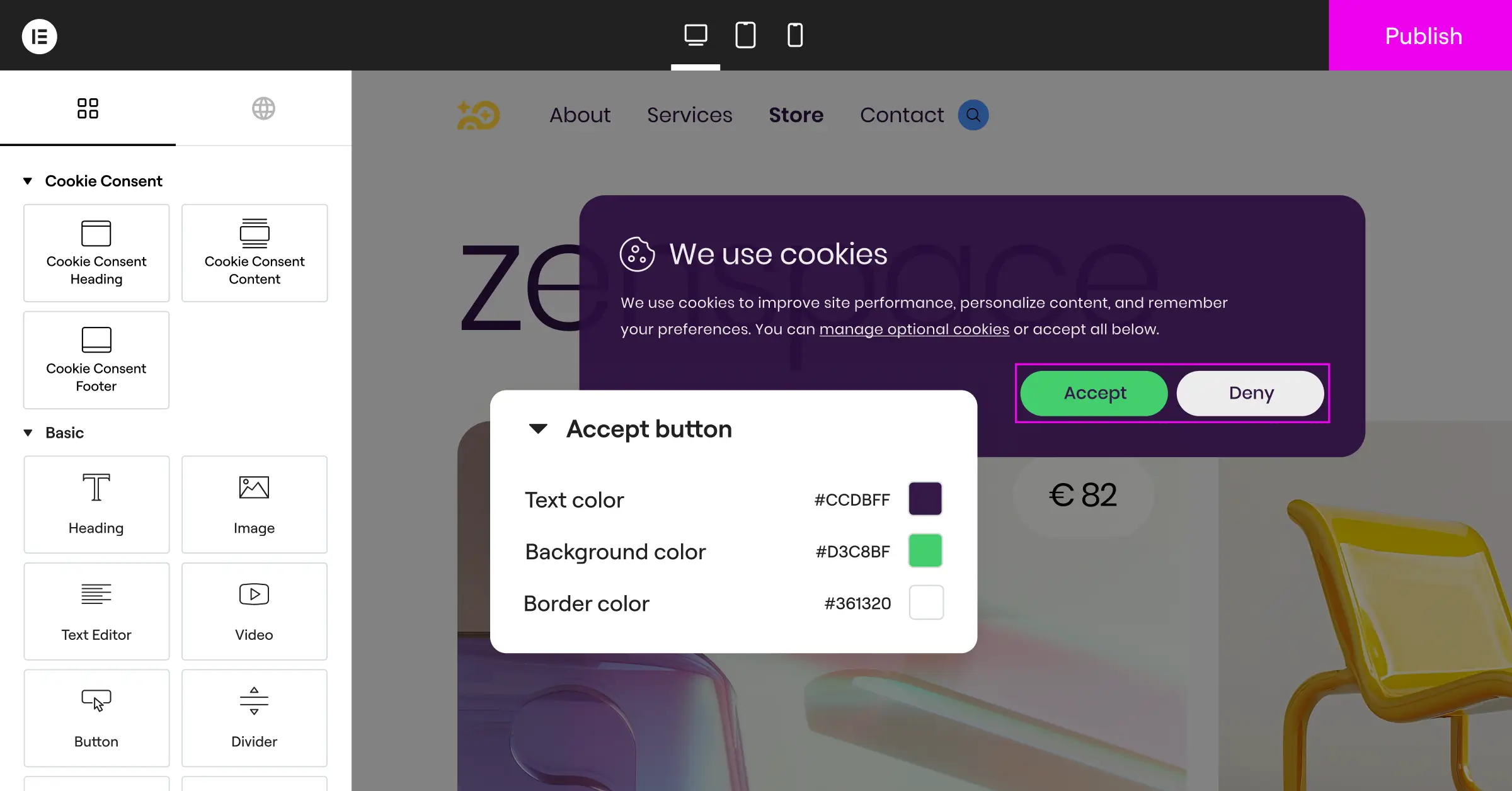
If you’re already building with Elementor, the easiest way to handle privacy is Cookie Consent, a built-in capability that handles GDPR and CCPA compliance right from your dashboard. Set it up in under five minutes: your banner inherits your theme styles automatically, no custom CSS needed.

- Manages compliance settings from your WordPress dashboard.
- Builds banners using your existing brand styles.
- Saves historical records for reliable audit trails.
- Supports Google Consent Mode v2 for marketing tags.
- Blocks unrecognized scripts until visitors give consent.
- Targets specific regions with geo-targeting for local compliance.
Agencies save too – no extra subscriptions per client site.
Pros & Cons
- Pro – Zero dashboard bloat, runs inside WordPress.
- Pro – Fast loading, no heavy external cloud dependencies.
- Pro – Intuitive interface matching the Elementor editor.
- Con – Best suited for sites actively using Elementor.
Our Verdict: The top choice for web designers on WordPress, keeping your whole workflow under one roof. Learn more about Cookie Consent.
2. Cookiebot
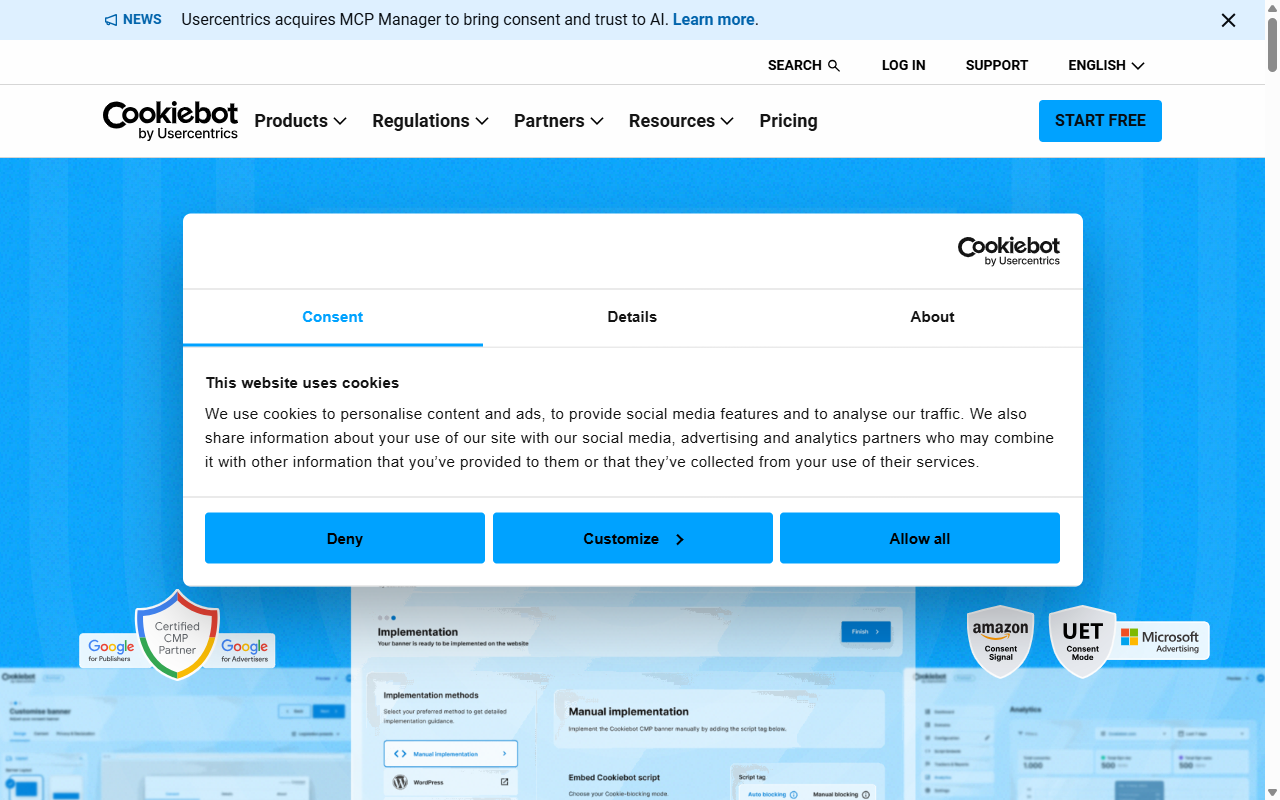
Cookiebot is a cloud-based platform for cookie compliance across multiple sites. It scans your site monthly, cataloging every tracker it finds, a practical pick for a hands-off approach. Setup happens outside WordPress: configure it on the Cookiebot site, then copy a script to render the banner.
- Scans your entire site monthly for new cookies.
- Generates automatic reports for your cookie policy page.
- Stores consent choices securely in the cloud.
- Adapts to regions using global IP detection.
- Shares consent preferences smoothly across multiple domains.
Pros & Cons
- Pro – Automated scanning saves time on large, dynamic sites.
- Pro – Reliable standards, maintained by privacy legal experts.
- Con – The external dashboard makes design tweaks slower.
- Con – Monthly costs can grow on large sites.
Our Verdict: A solid, automated option for multi-site setups needing hands-free audits.
3. CookieYes
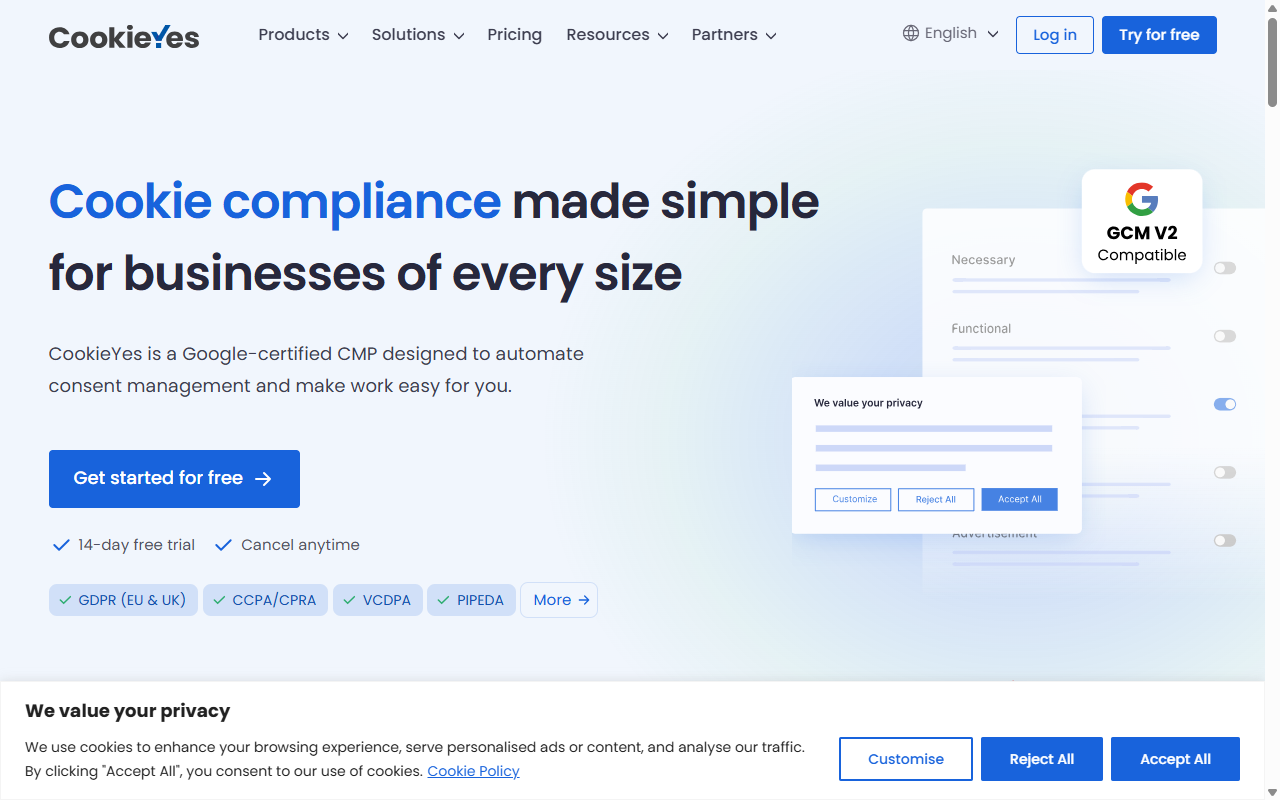
CookieYes pairs a WordPress plugin with a cloud dashboard, supporting almost every major compliance standard out of the box, including GDPR, CCPA, and LGPD. Setup is quick: pick a template and adjust the colors. It also blocks third-party scripts until visitors interact with your banner.
- Categorizes scripts automatically using an online database.
- Displays clean, responsive banners for mobile viewports.
- Tracks user consent actions with an analytics dashboard.
- Allows visitors to adjust their preferences any time.
- Integrates cleanly with popular tag management systems.
Premium plans add custom branding, geo-targeting, and expanded scanning limits.
Pros & Cons
- Pro – Intuitive setup with modern, clean templates.
- Pro – Good automatic categorization of common web trackers.
- Con – Full analytics requires an external cloud database.
- Con – The entry-level plan shows a distracting badge.
Our Verdict: A solid middle-ground pick for a simple setup with a consent-rate dashboard.
4. Complianz
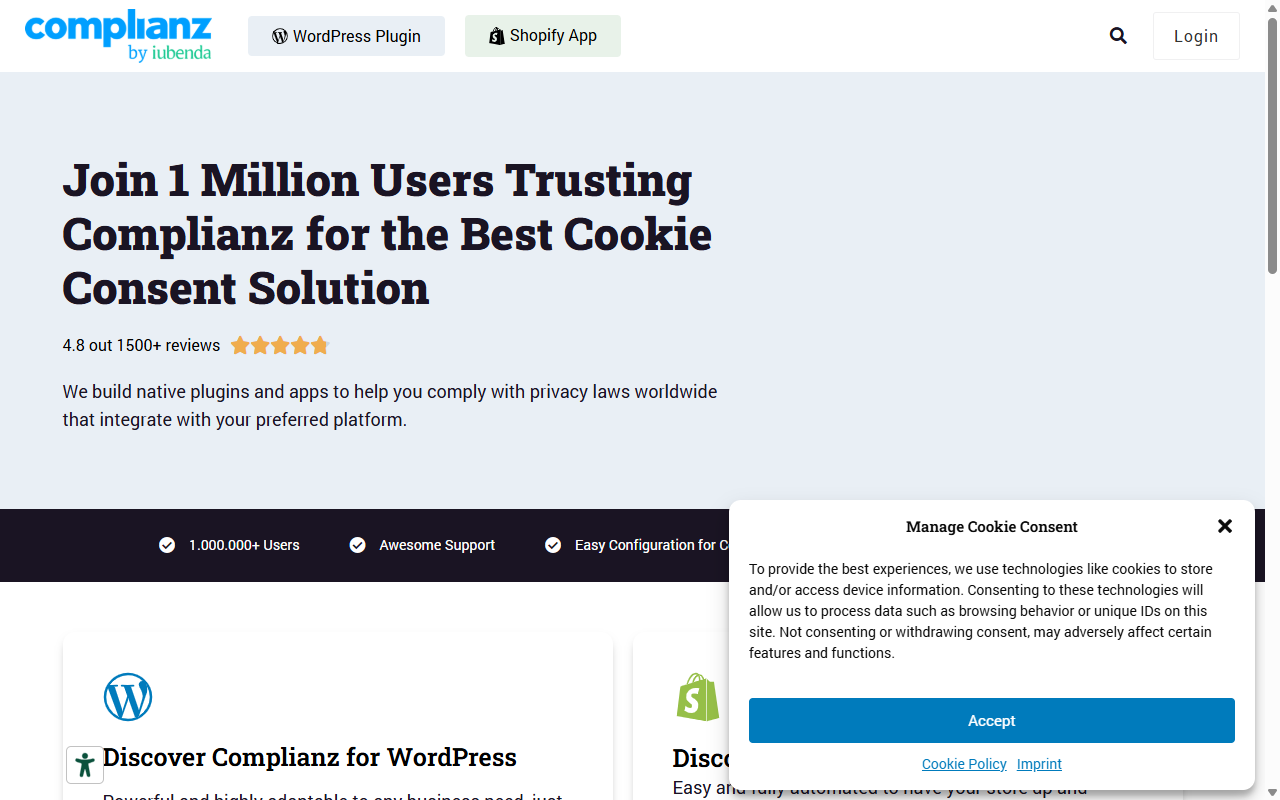
Complianz is a privacy suite for WordPress. Instead of just showing a banner, it walks you through a questionnaire about your business, then generates legal documents and configures your banner automatically. Your compliance data stays inside your own database, handling regional laws from California to Germany.
- Generates custom legal documents based on your business.
- Configures targeted banners based on geographic requirements.
- Detects localized tracking scripts dynamically in your code.
- Syncs with major translation tools for multilingual setups.
- Connects natively with many popular WordPress contact forms.
A free version is available at WordPress.org, and premium unlocks advanced legal documents, cookie scans, and country-specific settings.
Pros & Cons
- Pro – Fully native to WordPress, keeping data local.
- Pro – The step-by-step wizard is thorough and reassuring.
- Con – The interface can feel overwhelming at first.
- Con – Banner customization takes some practice to master.
Our Verdict: A great pick for WordPress users who want deep legal guidance and local data storage.
5. iubenda
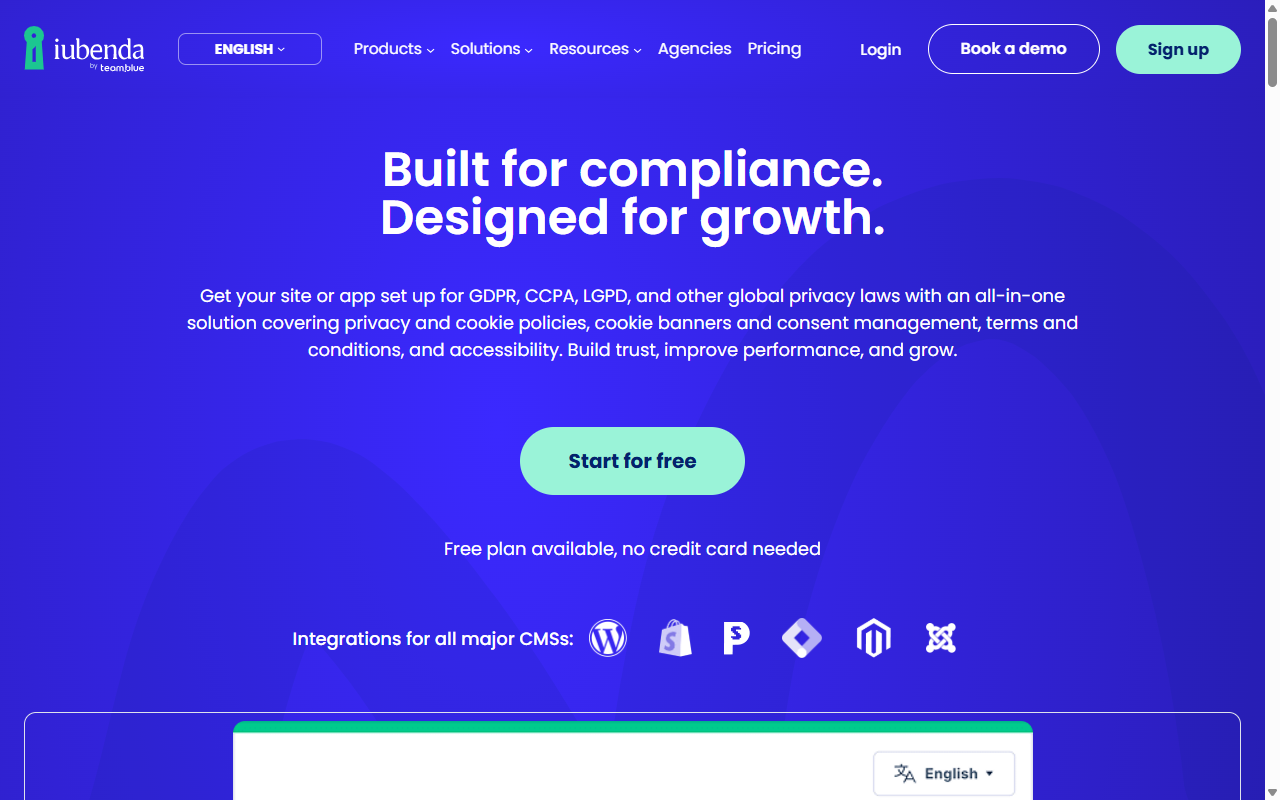
iubenda covers cookie consent, privacy policies, terms of service, and data consent mapping, a complete solution for sites of any size. Design your banner in the iubenda portal and copy a small embed code to go live. When a privacy law changes, iubenda updates the banner and policy content for you.
- Auto-updates policies whenever international regulations change.
- Generates legal documents connected directly to your banner.
- Handles consent tracking for mobile apps and websites.
- Blocks scripts dynamically before user consent is confirmed.
- Saves digital records of every user consent action.
Pricing uses license slots based on site complexity, page views, and legal documents needed.
Pros & Cons
- Pro – Thorough legal protection that updates as laws change.
- Pro – Dynamic legal document generation alongside the banner.
- Con – Pricing tiers can feel complex for variable traffic.
- Con – The design editor is fairly rigid.
Our Verdict: A dependable tool for agencies building complex international sites that want auto-updating legal terms.
6. Termly
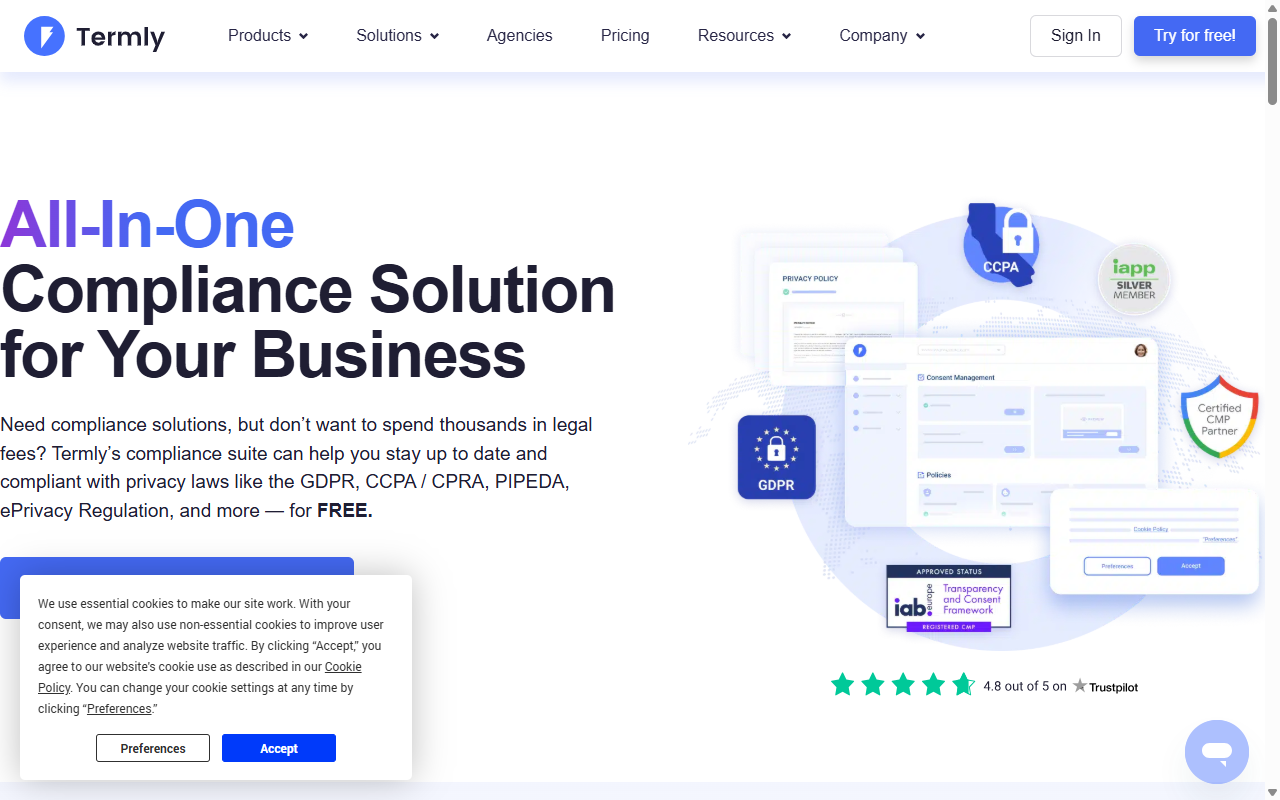
Termly is built for small businesses that want a straightforward, affordable way to handle legal compliance, with a policy generator, a terms builder, and a consent banner. It’s an external cloud service, but friendly for beginners, skipping the jargon, handy if a client will manage their own settings later.
- Simplifies compliance with an easy, jargon-free setup wizard.
- Builds custom privacy policies alongside your cookie banner.
- Categorizes common tracking pixels automatically.
- Delivers mobile-responsive designs for smartphones.
- Updates legal terms automatically as regulations change.
Paid tiers add custom branding, unlimited scans, and multiple policies.
Pros & Cons
- Pro – Accessible interface for non-technical users.
- Pro – All-in-one approach bundles policies and banner.
- Con – The entry-level plan is restrictive on high-traffic sites.
- Con – Styling options are limited compared to custom builders.
Our Verdict: A friendly option for small local business sites that need compliance without the learning curve.
7. OneTrust
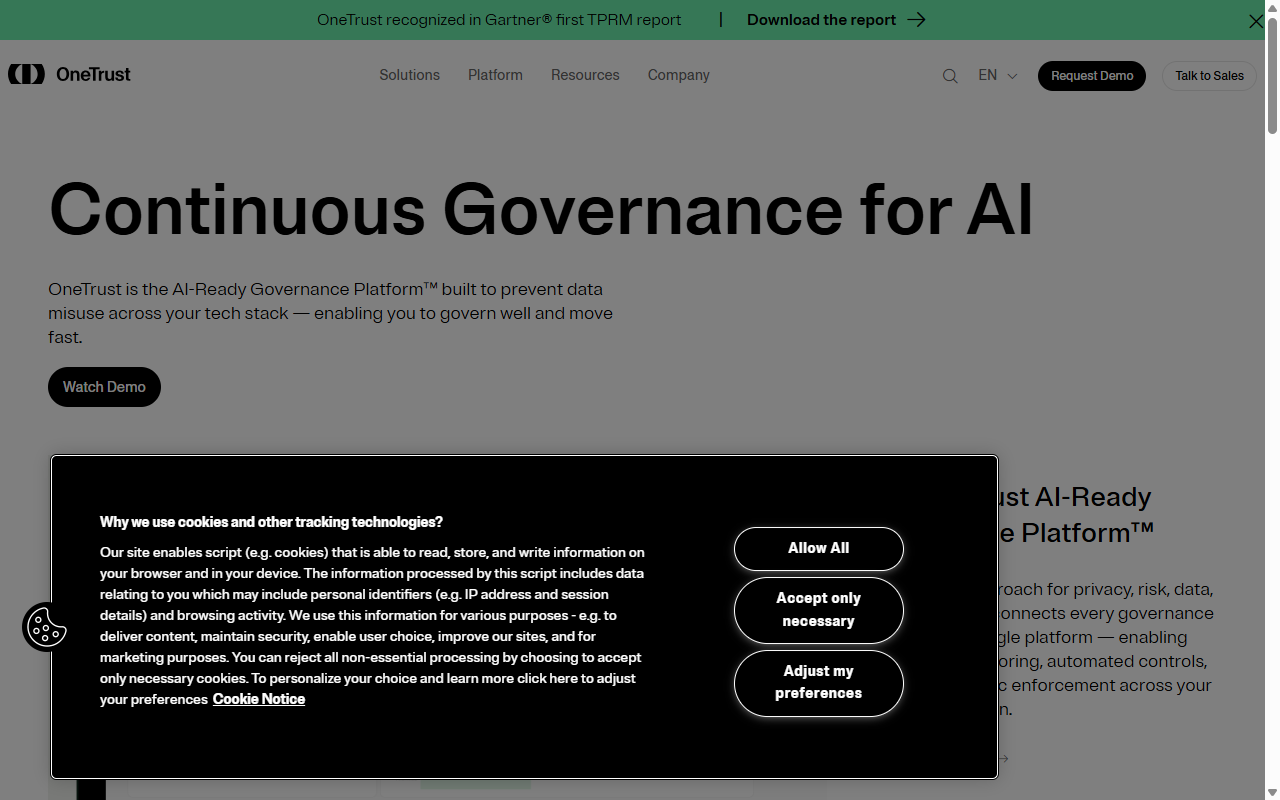
OneTrust is an enterprise-grade compliance platform used by large organizations worldwide, a common choice for major financial institutions, international brands, or regulated enterprise clients. It includes large cookie databases, advanced reporting, and customizable UX rules, though setup usually needs a dedicated administrator.
- Manages enterprise-level compliance across thousands of global domains.
- Delivers detailed reporting and consent metrics dashboards.
- Permits complex, conditional logic for different global regions.
- Integrates with customer relationship management (CRM) systems.
- Generates audit-ready documentation for corporate compliance teams.
Pricing is arranged through their sales team, built for enterprise use rather than standard WordPress needs.
Pros & Cons
- Pro – Well-established standard for enterprise-level legal compliance.
- Pro – Detailed control over every tracking element at scale.
- Con – Setup complexity is overkill for typical small sites.
- Con – Pricing is structured for enterprise budgets.
Our Verdict: The natural fit for enterprise sites with the resources for advanced corporate reporting.
8. Osano
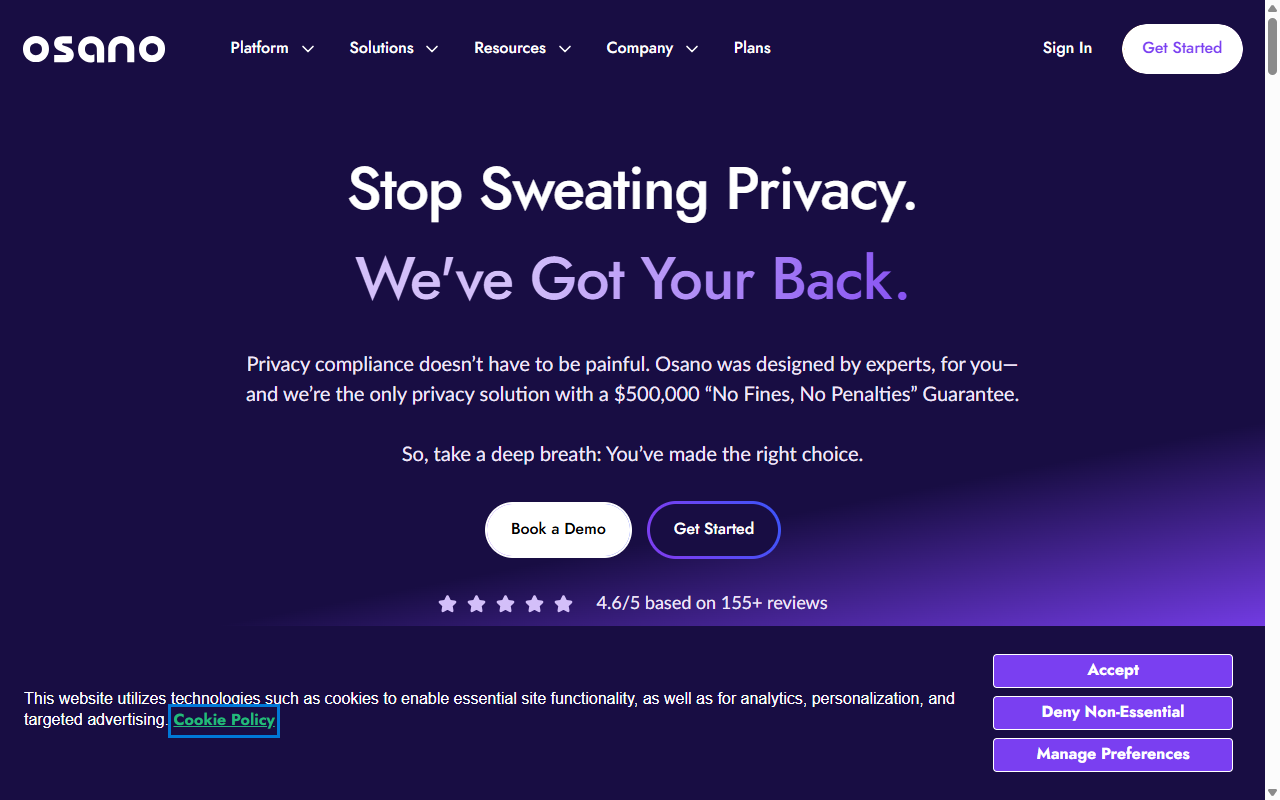
Osano is a cloud-first data privacy platform focused on transparency, with a rating database covering thousands of vendors, so you can spot if a script has questionable data handling. The banner is lightweight and quick to load, connecting to Elementor for geo-targeting, script blocking, and consent logging.
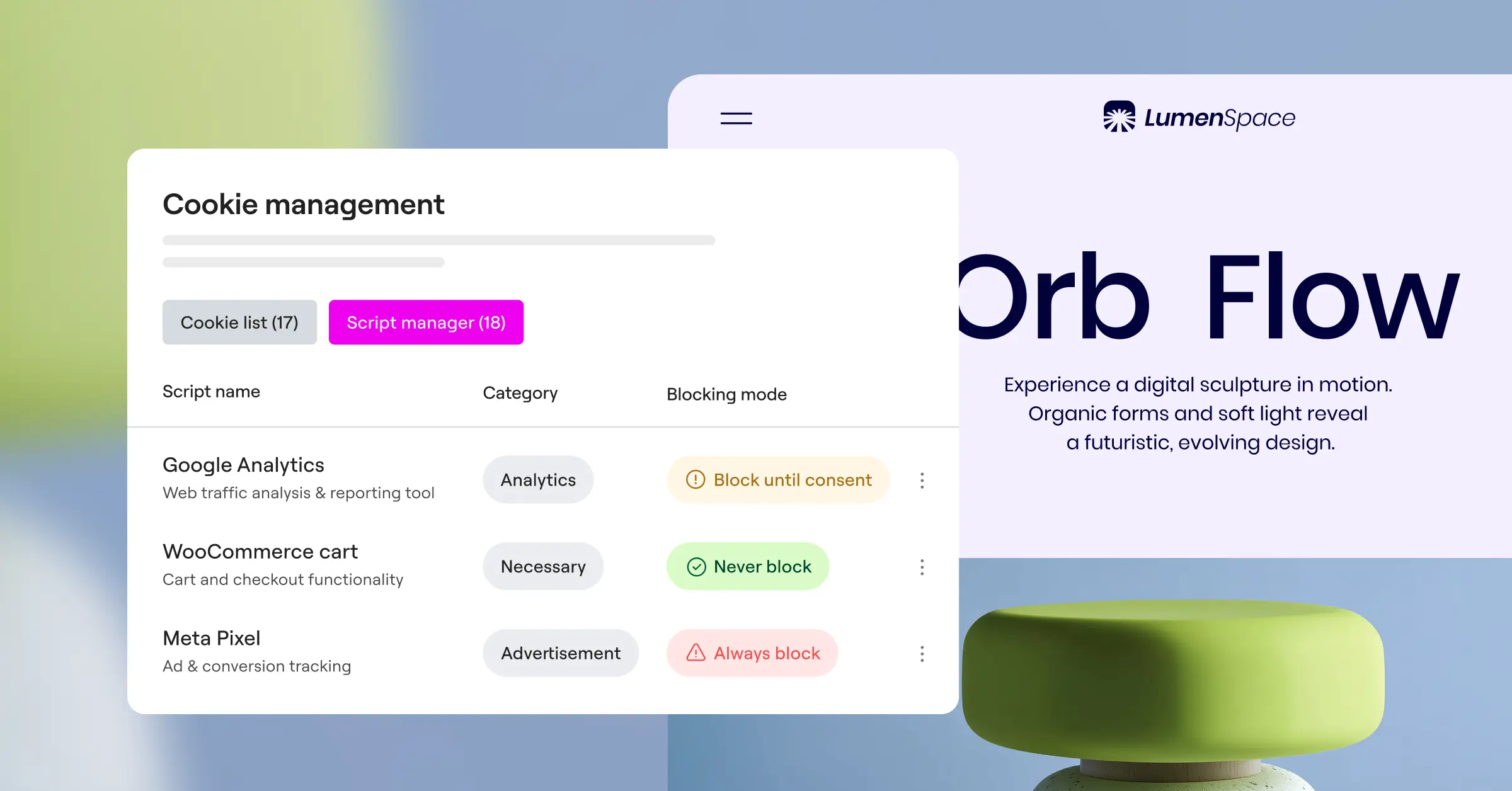
- Monitors vendor tracking practices for potential data risks.
- Translates banners into dozens of languages automatically.
- Saves encrypted logs of all user consent decisions.
- Prevents heavy scripts from slowing your site.
- Adapts layout positions dynamically for different screen sizes.
Plans are designed for growing businesses and mid-market organizations.
Pros & Cons
- Pro – Vendor safety ratings add useful risk visibility.
- Pro – Reliable script-blocking that rarely breaks site layouts.
- Con – Customizing fonts and colors means using a cloud panel.
- Con – Monthly costs can be significant for smaller agencies.
Our Verdict: A practical choice for growing tech companies that value vendor transparency.
9. GDPR Cookie Consent (by WebToffee)
This classic WordPress option has been around for years, with millions of downloads. Developed by WebToffee, it’s a straightforward plugin that builds a basic cookie compliance banner and manages which scripts run by user choice. The simple interface lacks native page-builder depth but gives a solid foundation with standard colors and positions.
- Categorizes cookies manually or automatically, your choice.
- Displays clean banners as headers, footers, or center popups.
- Blocks specific script categories until the user accepts.
- Allows visitors to toggle individual script categories.
- Generates a shortcode to list active cookies on any page.
The premium version unlocks automatic cookie scanning, geo-location, and advanced script-blocking controls.
Pros & Cons
- Pro – Straightforward and easy to understand.
- Pro – Good localized control over your banner layout.
- Con – The design can look dated without custom styling.
- Con – Requires an extra single-purpose plugin.
Our Verdict: A reliable workhorse for simple sites that need a basic, dependable banner.
10. Real Cookie Banner
Real Cookie Banner is a developer-focused, deep-integration option for WordPress, with templates for hundreds of services, so it knows how to block embedded Google Maps, YouTube videos, and social feeds until a user agrees. The builder lives in your WordPress Customizer for real-time style previews, ideal for complex media sites.

- Blocks specific embeds like videos and maps automatically.
- Renders a live visual preview inside the WordPress Customizer.
- Includes templates for over 150 popular third-party services.
- Tracks cookie changes to keep your policies current.
- Displays accessibility-focused designs suitable for screen readers.
A free version is available at WordPress.org; Pro is sold as an annual license.
Pros & Cons
- Pro – Excellent handling of complex embedded content.
- Pro – Built-in visual editor shows changes in real time.
- Con – The technical options can feel overwhelming for non-developers.
- Con – Setup takes longer than simpler, automated cloud alternatives.
Our Verdict: The technical choice for developers building media-heavy sites with complex, interactive embeds.
The Step-by-Step Compliance Checklist for Web Designers
Setting up your compliance banner doesn’t have to be a chore. Take it step by step, and you’ll be done in no time.
- Decide on native vs. cloud – a native tool like Cookie Consent keeps things fast and easy to manage.
- Set your legal regions – turn on geo-targeting for regions with strict laws, like the EU or California.
- Configure script blocking – keep tracking pixels blocked until the visitor clicks “Accept.”
- Set up Google Consent Mode v2 – connect your banner to Google Tags so ad analytics stay compliant.
- Style the banner – match typography, button shapes, and color scheme to your site identity.
- Test the experience – open an incognito window and confirm scripts stay blocked until you allow them.
Frequently Asked Questions
Is a cookie consent banner required for all websites in 2026?
Yes, if your site gets visitors from privacy-law regions like Europe (GDPR) or California (CCPA), which covers almost every business site today.
What is Google Consent Mode v2 and why should I care?
Google Consent Mode v2 lets your site pass visitor consent choices to Google services like Ads and Analytics, so campaigns run accurately while respecting privacy.
Will using a cookie banner slow down my WordPress site?
It depends on the tool. Cloud solutions that load external JavaScript can add to load times, while Elementor’s built-in cookie consent feature keeps your code clean and fast.
Can I customize the look of my banner to match my brand?
Absolutely. Some cloud tools limit you to basic color pickers, but native solutions let you style every element with familiar design controls, fonts, padding, border radii, and entry animations.
Do I need to keep a record of who accepted cookies?
Yes, keeping consent logs is a key part of GDPR compliance, so you can show a clear trail proving visitors gave active consent before trackers landed on their devices.
Can I hide the banner for visitors who live in regions without strict laws?
Yes, many tools include geo-targeting, checking the visitor’s IP address and showing the banner only to users in the EU, UK, California, or other strict-law regions.
What happens if I don’t use a compliance banner on my site?
Skipping proper consent choices can lead to significant penalties from regulators, and Google can limit or suspend your tracking accounts if it detects data collected without consent.






