Why use global fonts and colors?
When you’re building a website, your fonts and colors should be the same across your entire site to improve the overall look and reinforce brand identity. If fonts and colors vary among pages or parts, your users can become confused. This can negatively impact user retention and may cost you sales.
Note
For information about using global fonts, see View and edit global fonts.
Access your site’s global colors
From the WordPress Dashboard, navigate to Elementor>Editor.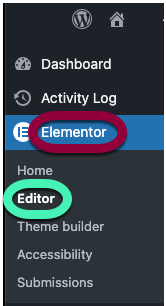
In the ‘Jumpstart your web-creation‘ section, click “Customize” under Global Colors.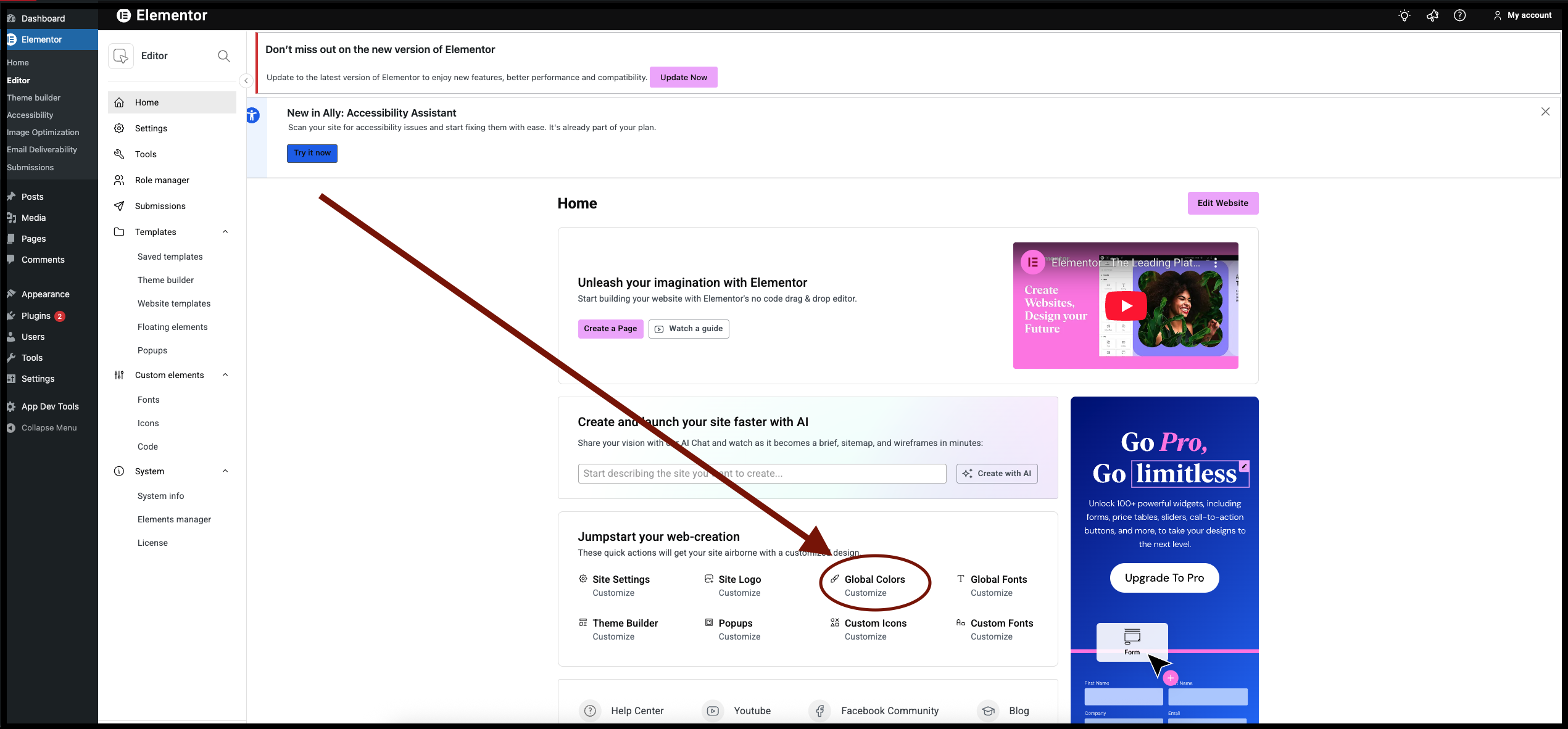
The list of global fonts appears. The canvas displays the different types of fonts.
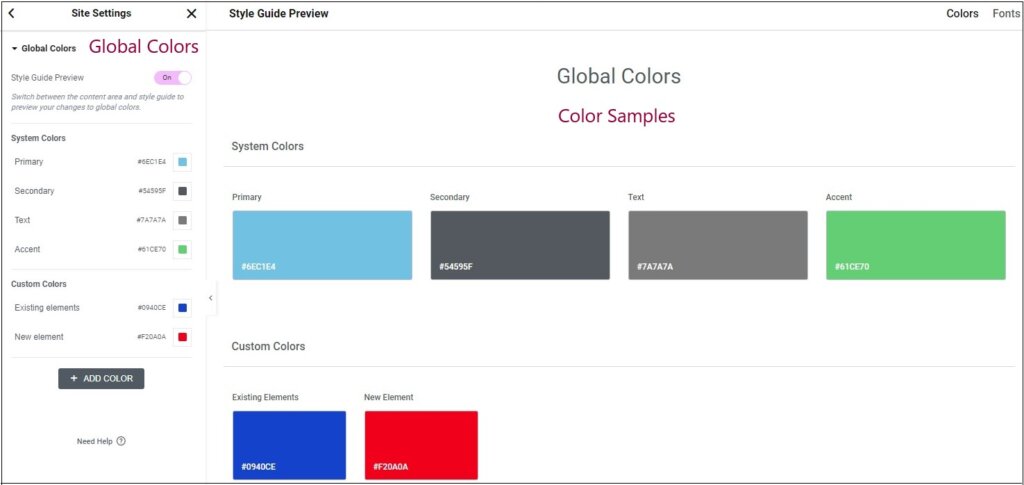
The panel contains a list of global colors. The canvas shows how the colors will appear on screen.
Note
You can also access Site Settings from the Elementor Editor. For details, see Configure Site Settings.
Edit your site’s global colors
To edit the global colors:

- Under Custom Colors, hover over the color swatch..
- To delete the global color, click the delete icon (
). You cannot delete any of the system colors.
- To reorder the global colors, click the arrows icon (
)
- To change the color, click the swatch (
)) the color picker and choose a new color.
- To delete the global color, click the delete icon (
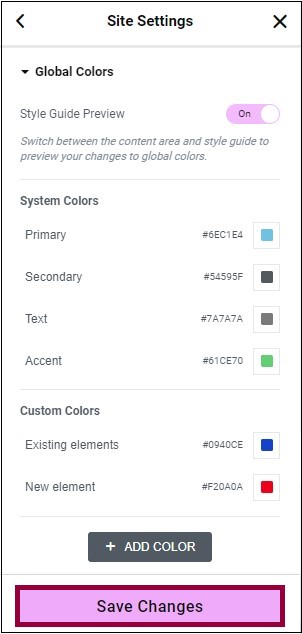
- Click Save Changes.
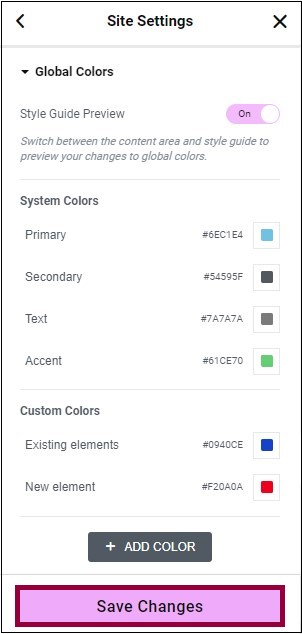
To change the name of the global color:

- Click the name of the global color.
- Enter the new name.
Add a new global color
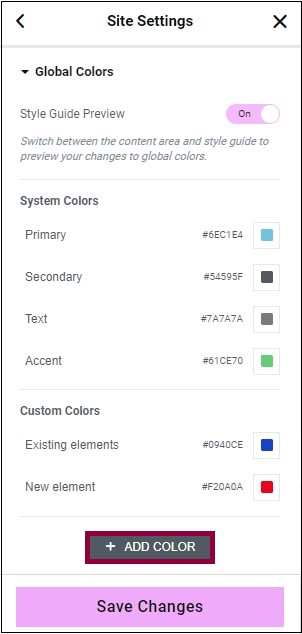
- Click Add Color. A New Item box appears.
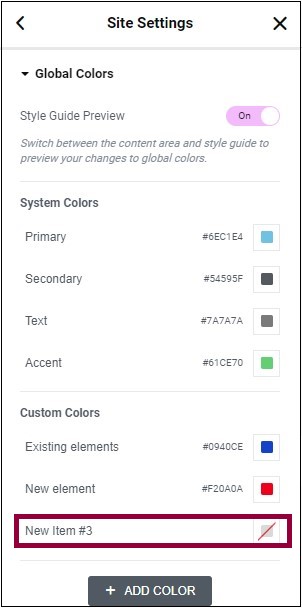
- Enter a new name for the color. See, Edit the new color.

