This centralized interface allows you to toggle specific addons on or off, install new features using the Add button, and process necessary plugin updates to maintain your Elementor site performance and credit usage. The Tool Manager is also used to connect addons that you may have purchased separately to your Elementor account.
To use the Elementor One Tool Manager, navigate to Elementor > Home in your WordPress dashboard and select Tool Manager.
How can I access the Elementor One Tool Manager?
The Tool manager is accessed from WP Admin using the Elementor tab.
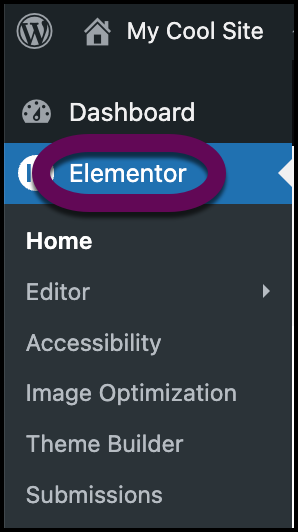
- From WP Admin, navigate to Elementor>Home.
- On the right side, click Tool Manager.
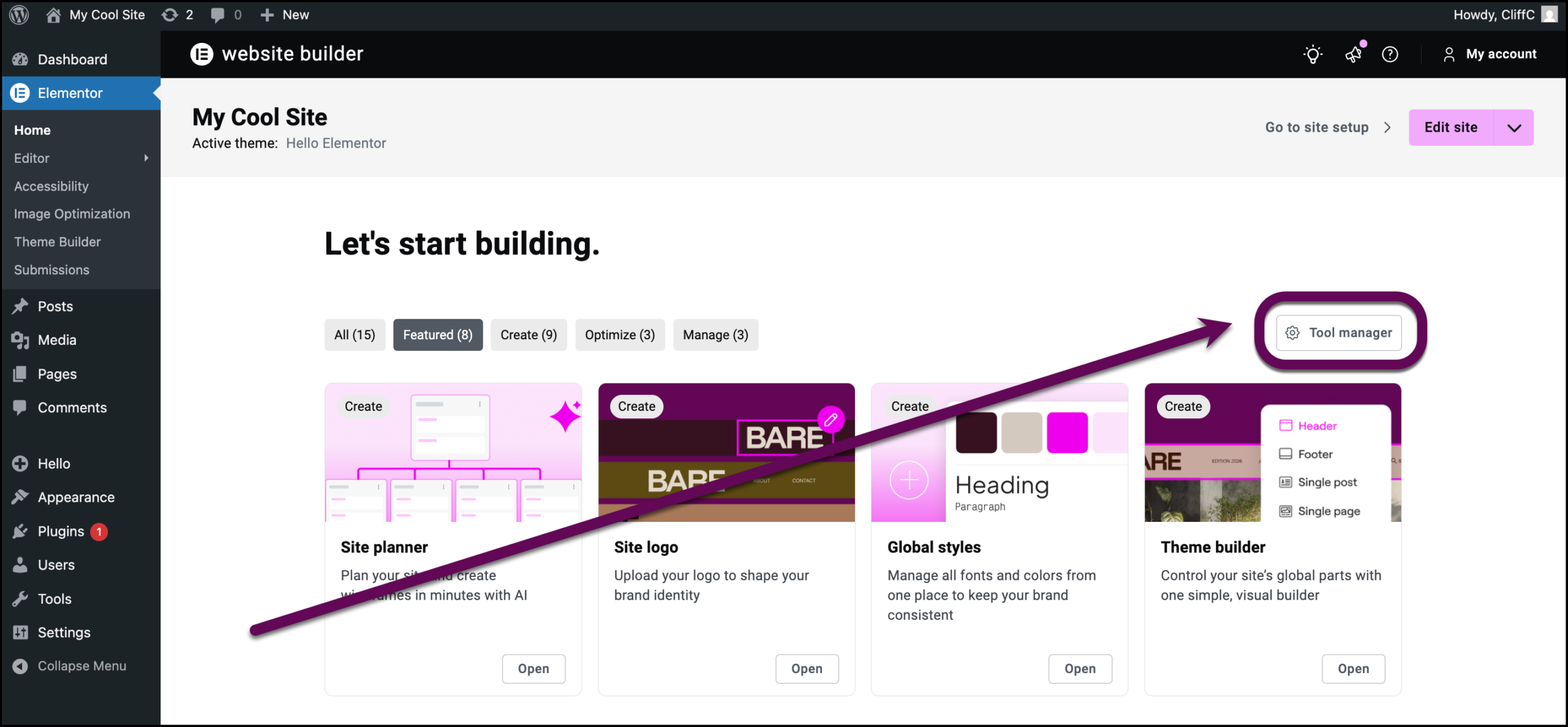
You’ll see a list of Elementor One features and their status:
- Active
- Inactive
- Uninstalled
- Need an update
Some addons may also display the features associated with them.
How do I add a new addon using the Tool Manager?
You can add addons to your Elementor One subscription by clicking the Add button in the Tool Manager.
- Open the Tool Manager.
- Locate the addon you want to install.
- Click the Add button on the right.
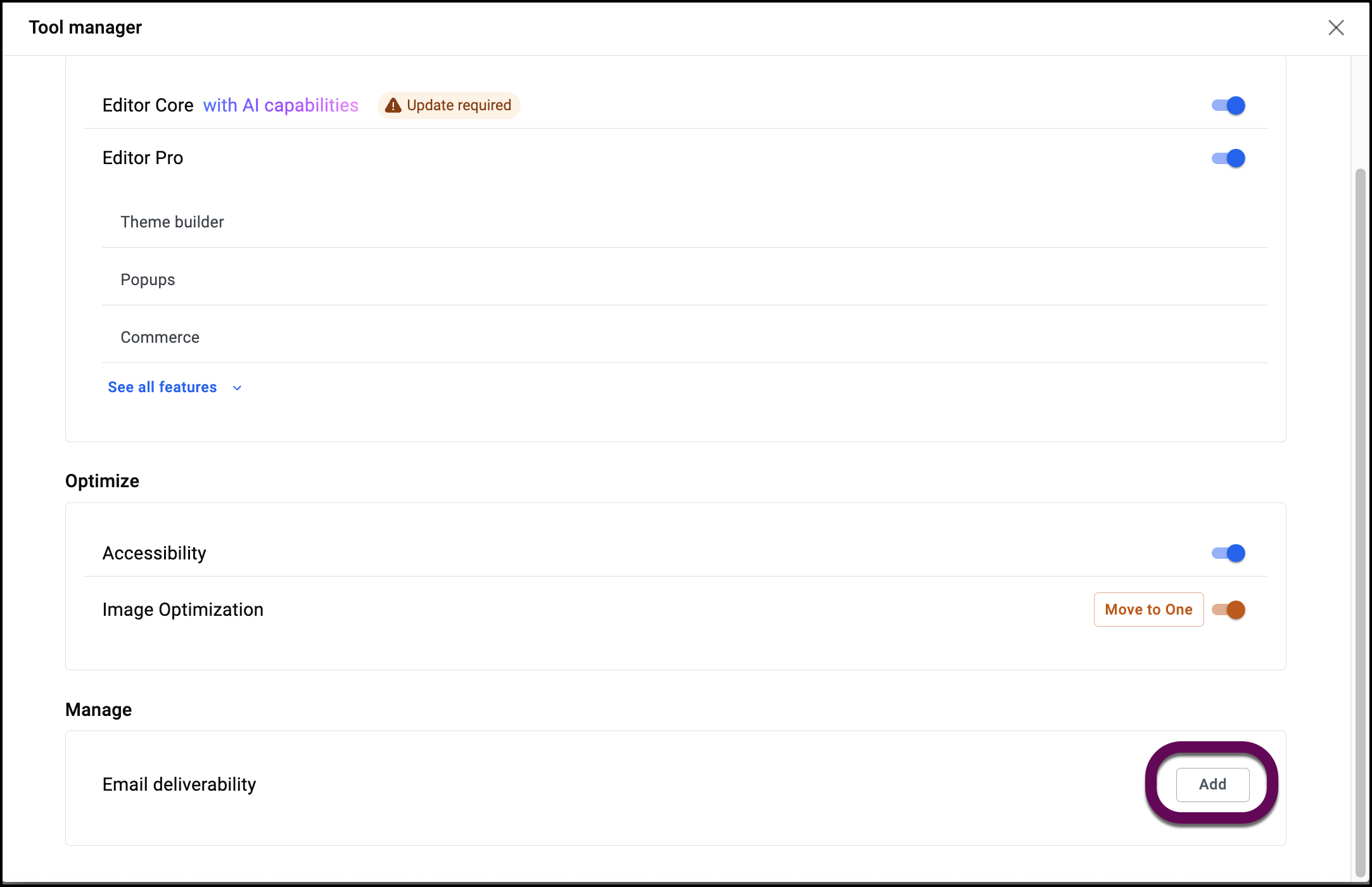
This installs the plugin needed for this feature.
How do I activate or deactivate an addon using the Tool Manager?
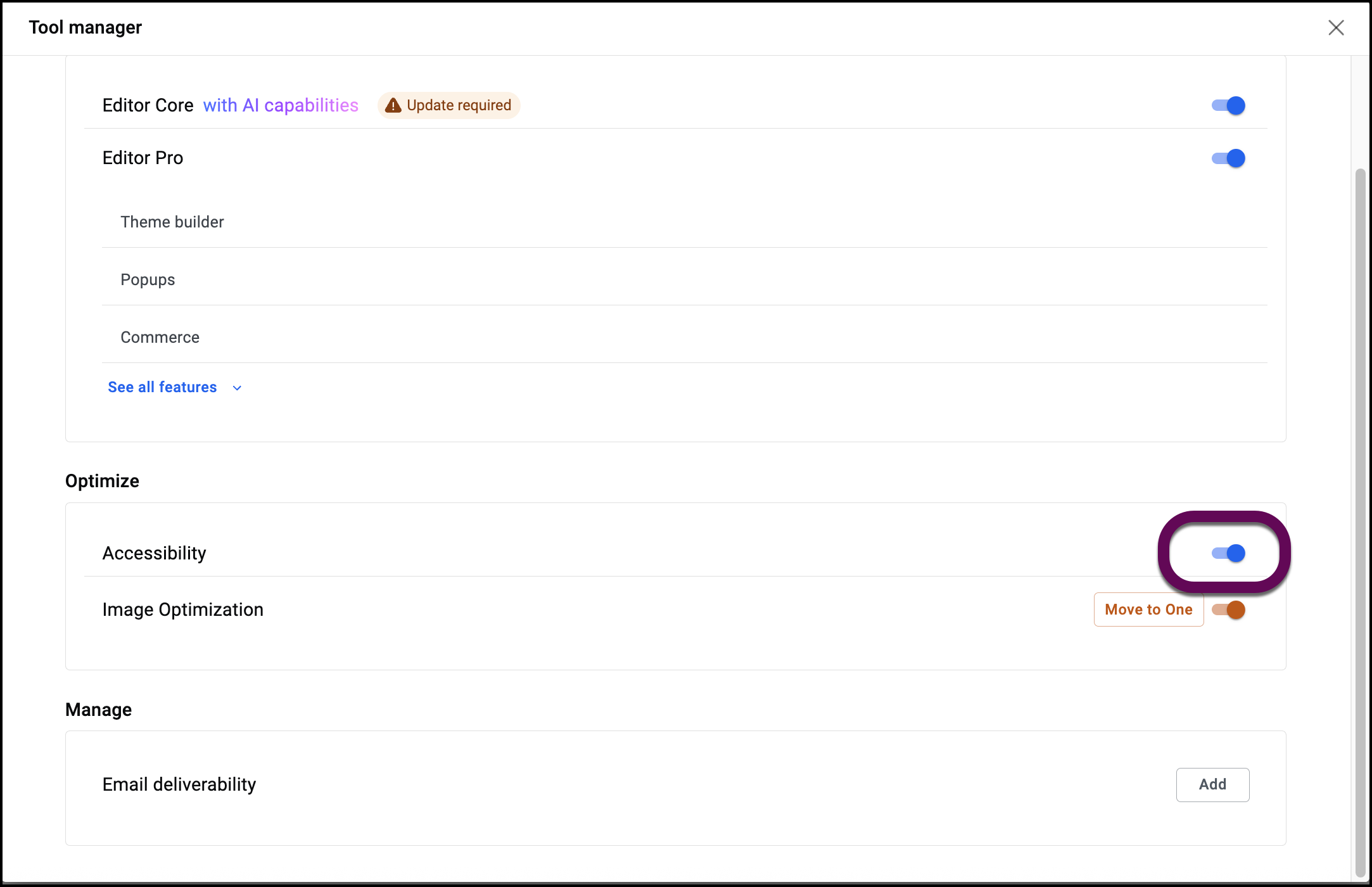
You can activate and deactivate addons by using the toggles in the Tool Manager. This can be a good way to control the number of credits addons can use.
- Open the Tool Manager.
- Locate the addon you want to activate or deactivate.
- Use the toggle to activate or deactivate the addon.
- If you’re deactivating the addon, you’ll have the choice of:
- Deactivating the addon
- Detaching the addon so that it no longer uses your Elementor One credits.
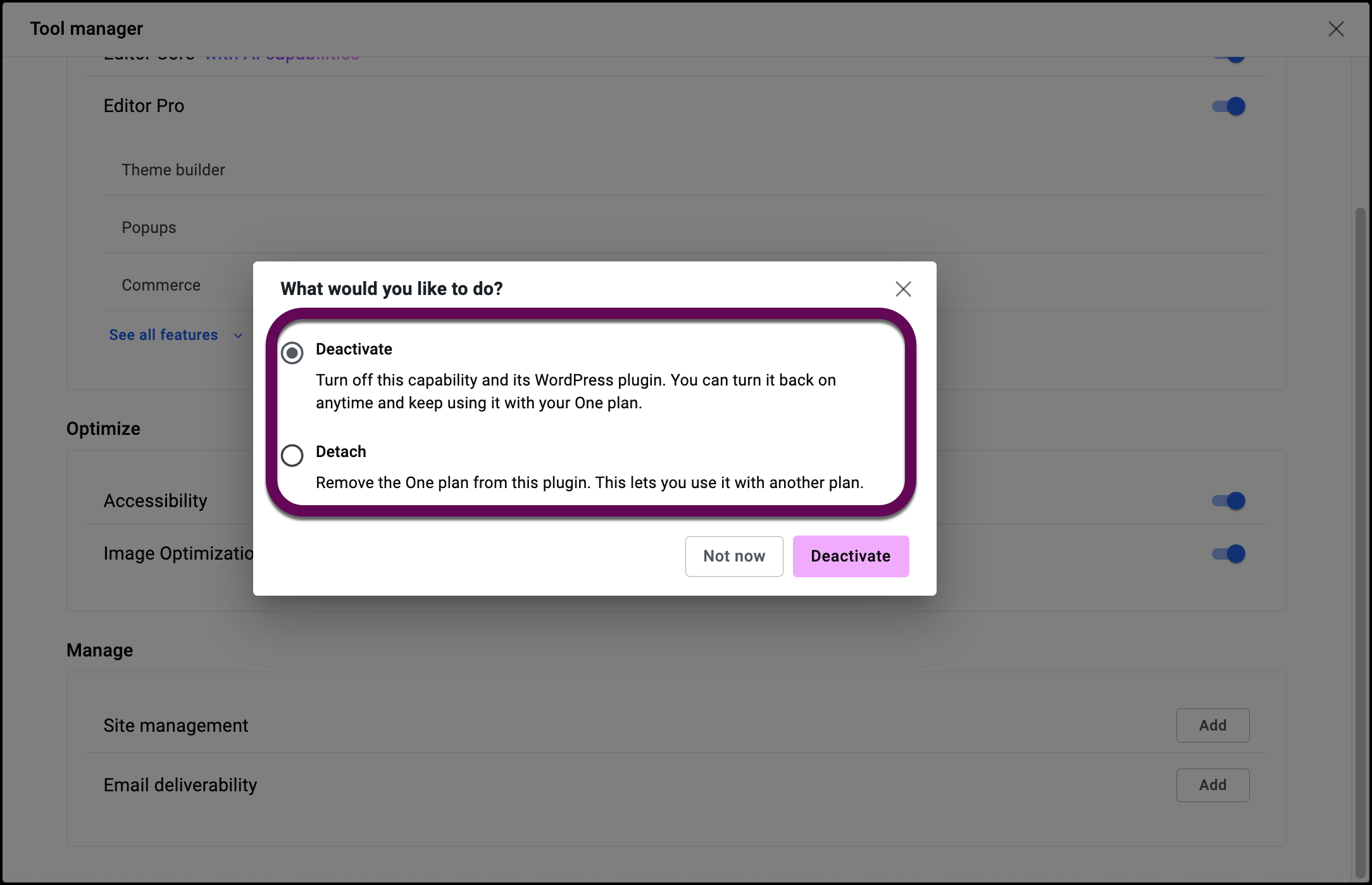
Warning: If you detach an addon from Elementor One, you won’t be able to use any functionality that uses credits unless you purchase a stand alone subscription for that addon.
How do I update an addon using the Tool Manager?
The Tool Manager can inform you when a plugin is outdated and can conduct the update for you by clicking on the notification.
- Open the Tool Manager.
- Check for any notifications of Update Required.
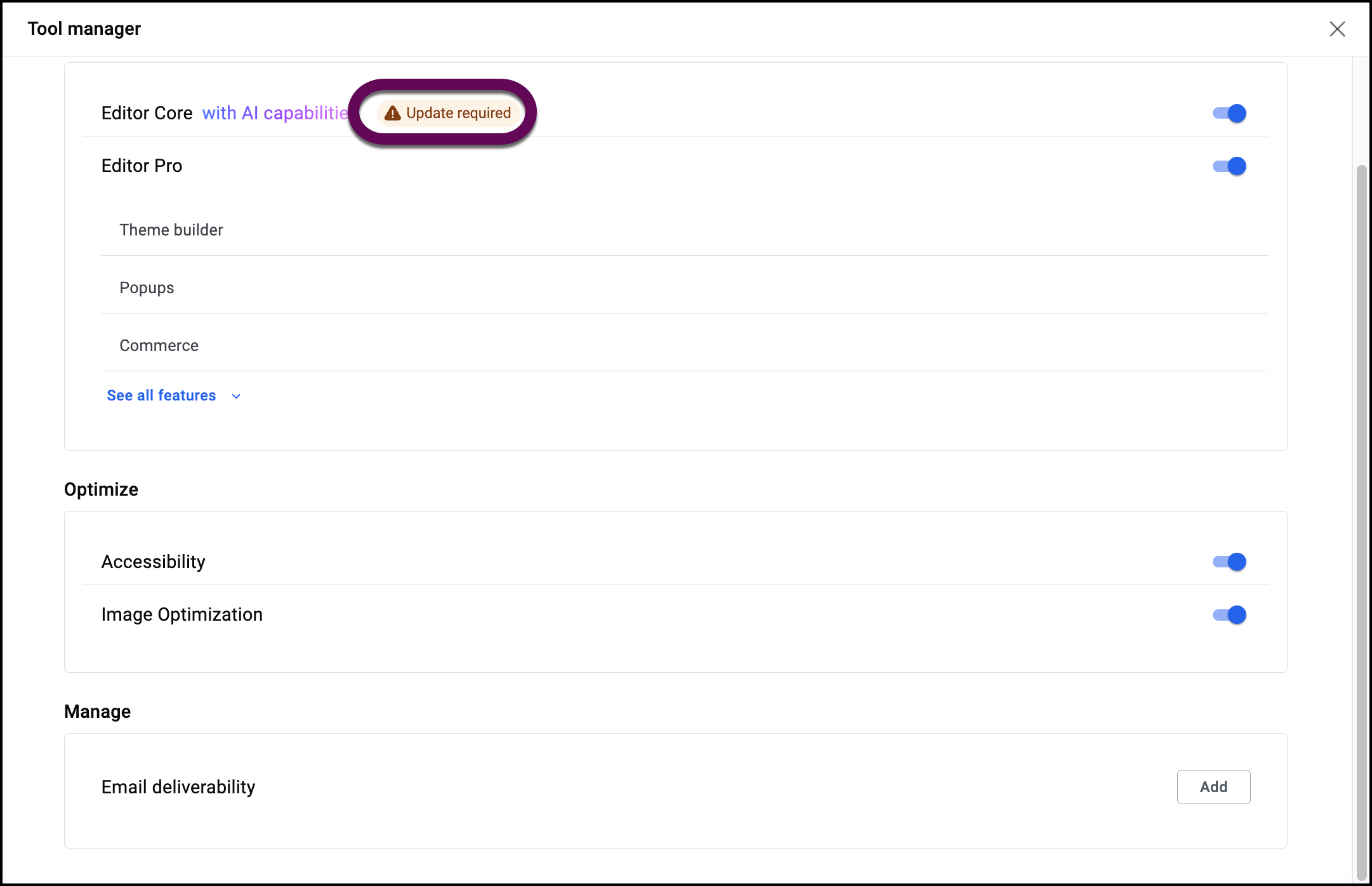
- Scroll over the Update Required notification and you’ll see an option to Update.
- Click Update.
The addon is updated.
How do I connect addons to my Elementor One account?
If you already have a subscription to an Elementor addon such as:
- Ally
- Image Optimizer
- Site Mailer
You can move these subscriptions to Elementor One so that you can take advantage of Elementor One pooled credits with these addons.
Note: If you move a subscription to Elementor One, the credits for the addon subscription are not merged with your Elementor One subscription.
To move an addon subscription to Elementor One, you’ll need to go to the Tool Manager and click Move to One.
- Open the Tool Manager.
- Locate the addon you want to move..
- Click Move to One.
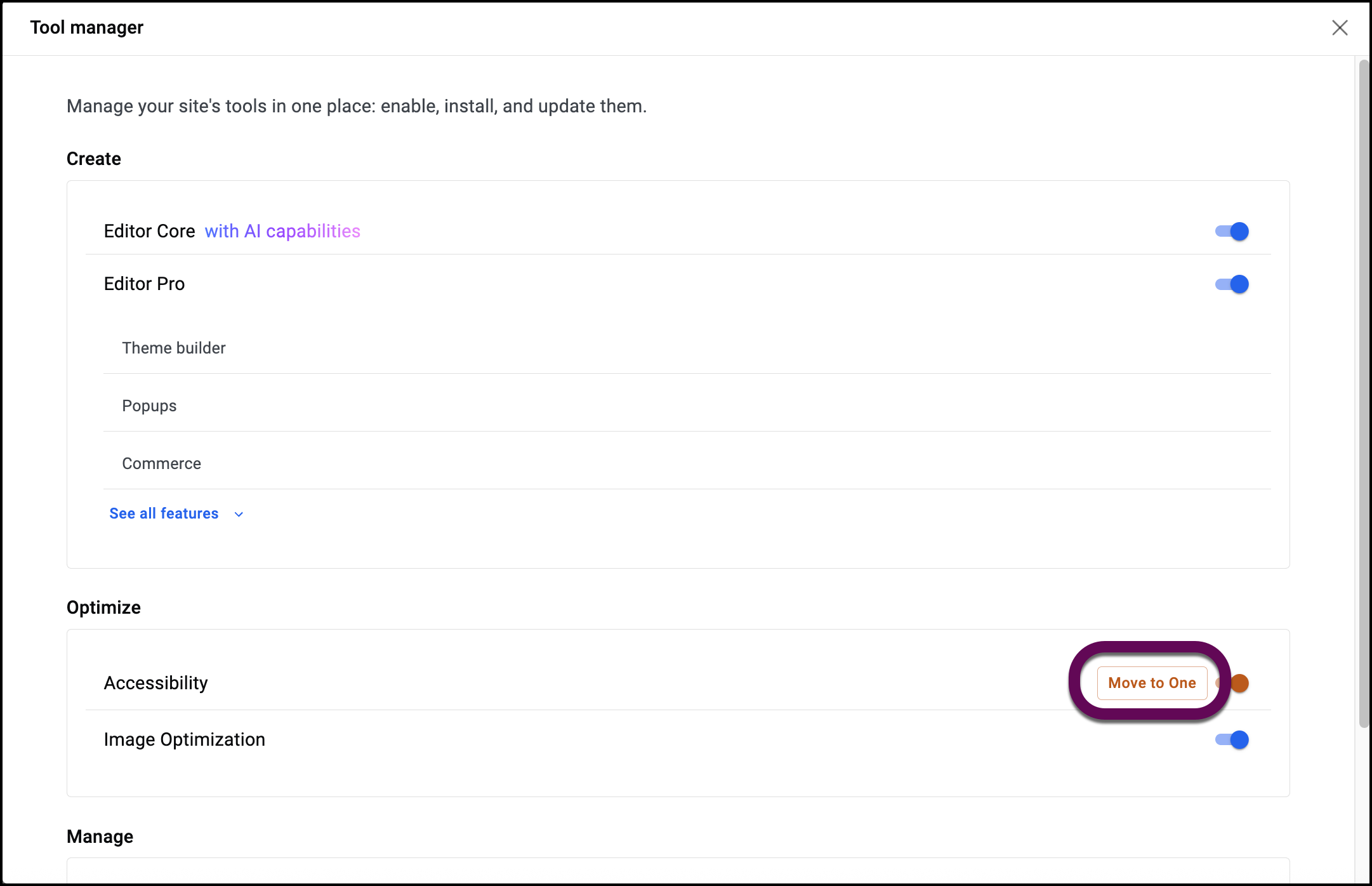
- Click Move to confirm that you want to move the addon to Elementor One.
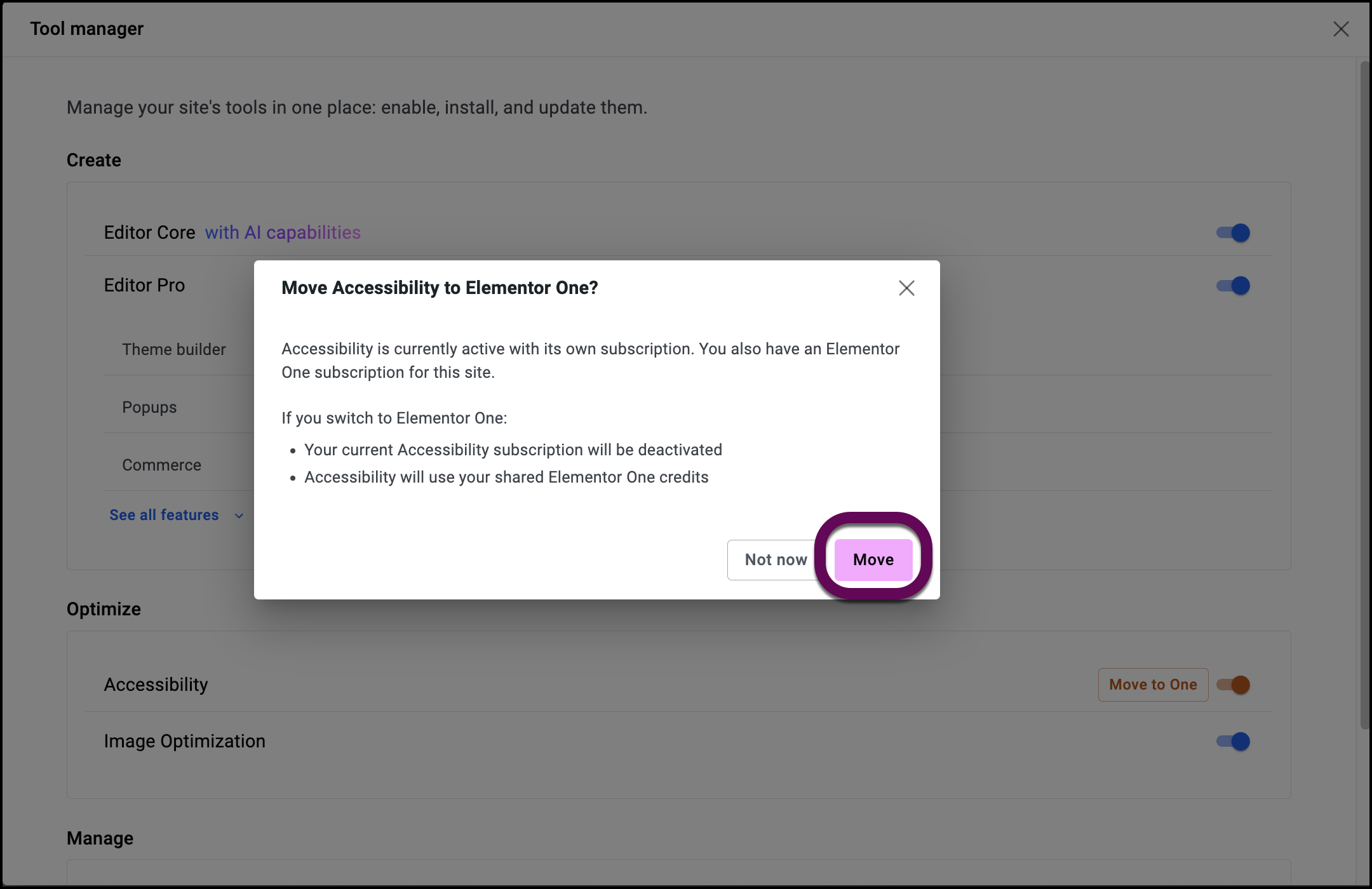
You can detach the addon from Elementor One as outlined here.

