To access the Managed Site View in Manage
- Go to your My Elementor dashboard.
- Under the Sites tab in the top bar, go to Managed Sites. You’ll see a full list of your managed sites.
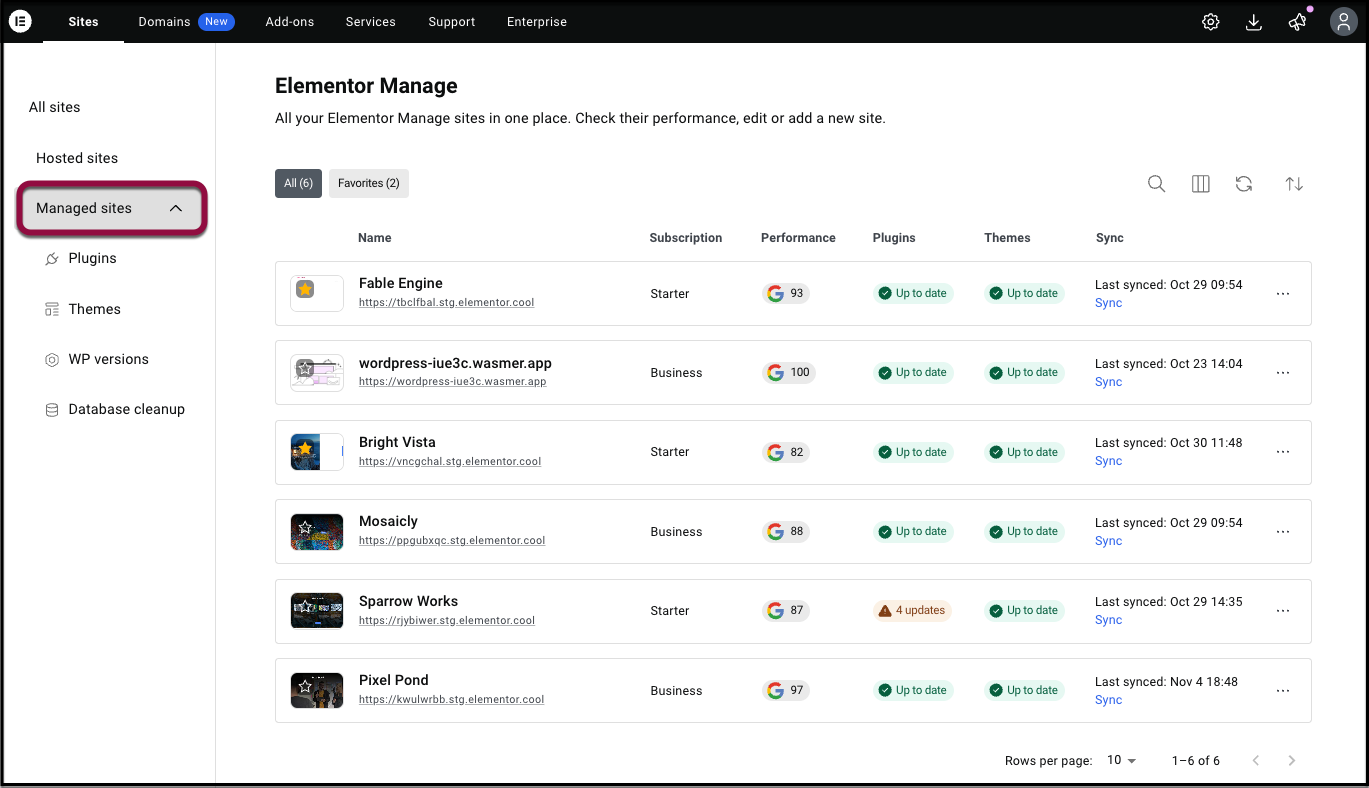
- Click on the relevant site to go into the Managed site view. From the Managed Site View, you can access:
- WP Tools (Plugins, Themes, WP Version)
- Monitoring (Performance, SEO, Accessibility)
- Database Cleanup tools
- The Activity Log
WordPress Tools
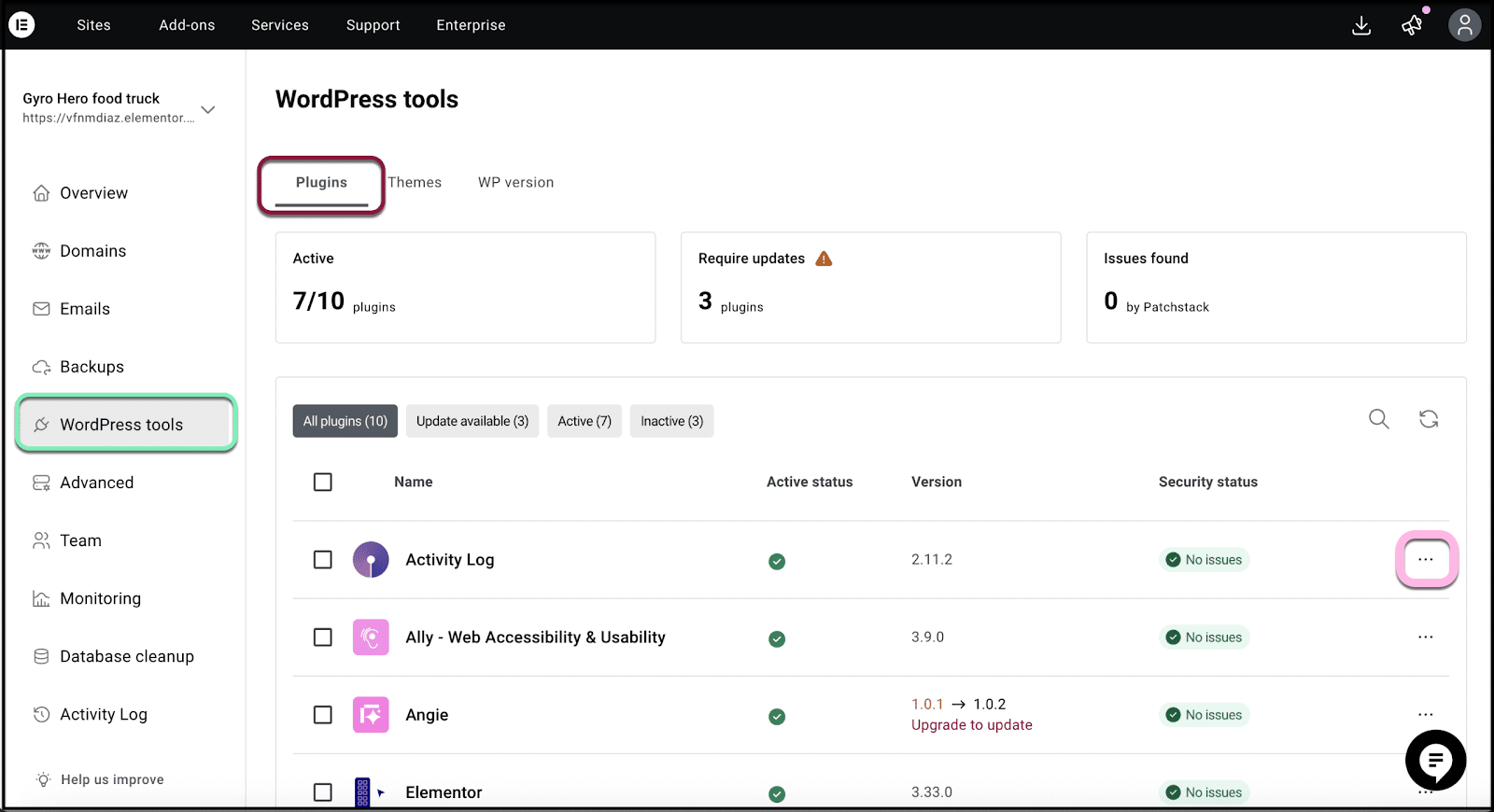
Perform single- site operations in bulk and perform database cleanup. See an overview of active plugins, plugins requiring an update, and issues found.
Plugins:
- Click the 3 dots menu to Deactivate, Update, Rollback and Delete plugins.
- You can see the plugin’s changelog from this view.
- Vulnerability information is displayed under security status.
Themes: Update or Delete Themes. The active theme is indicated and can be switched.
WP Version: Update the WordPress version.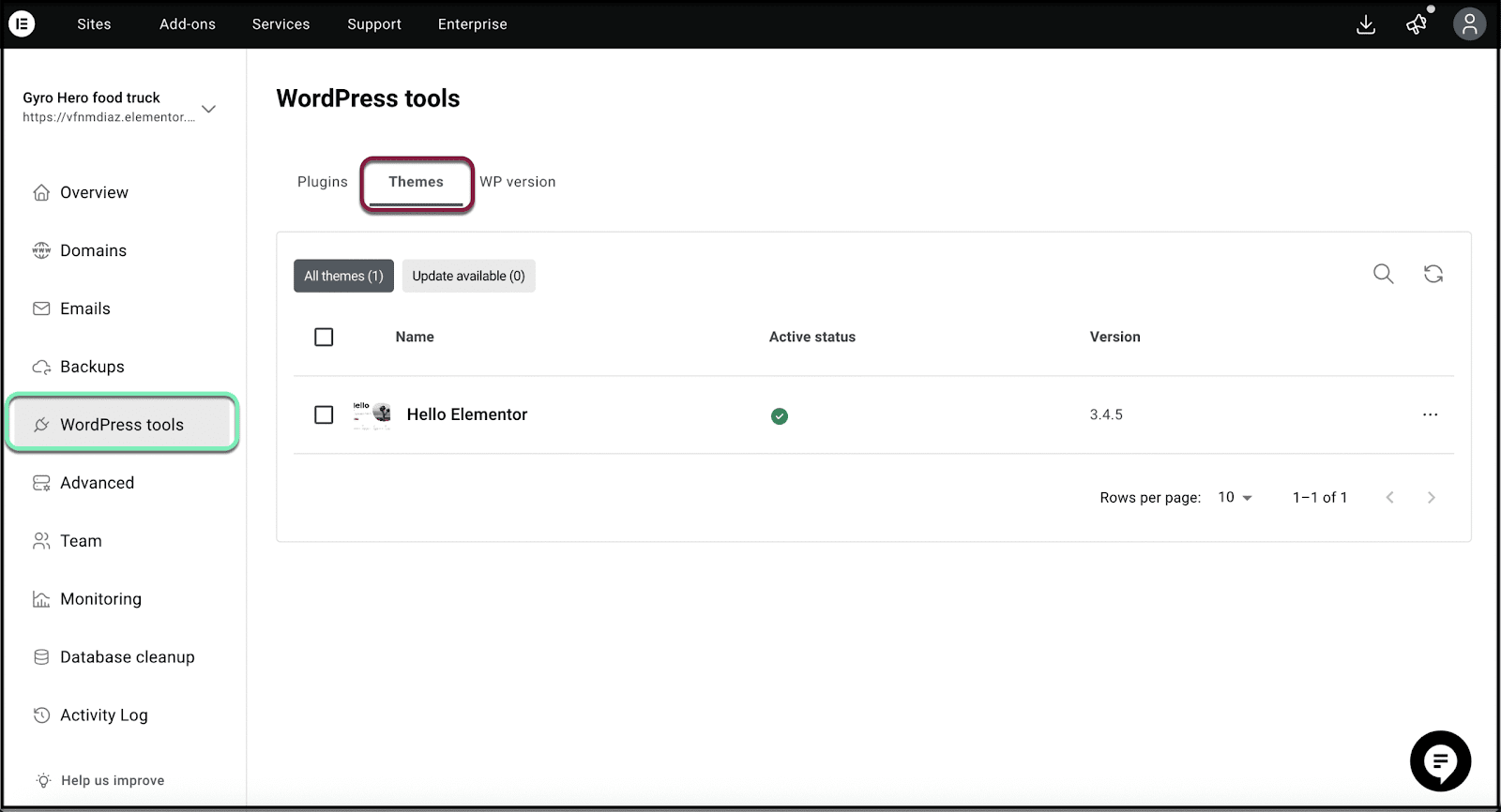
Monitoring
In the Performance tab, view the Performance score, Statistics, and Performance score history.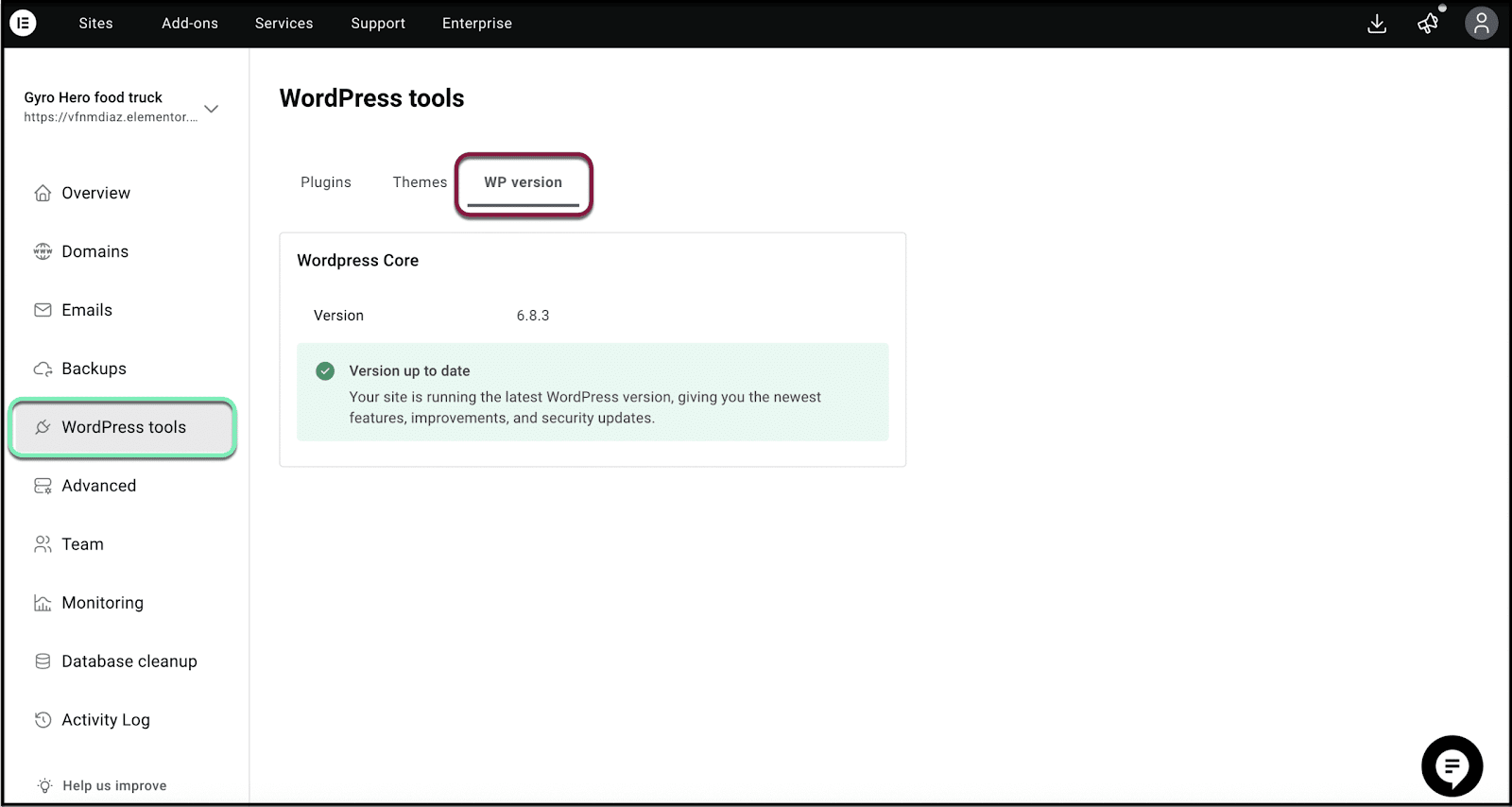
In the SEO tab, view the SEO score and Statistics. Click Show next to a statistic for more information.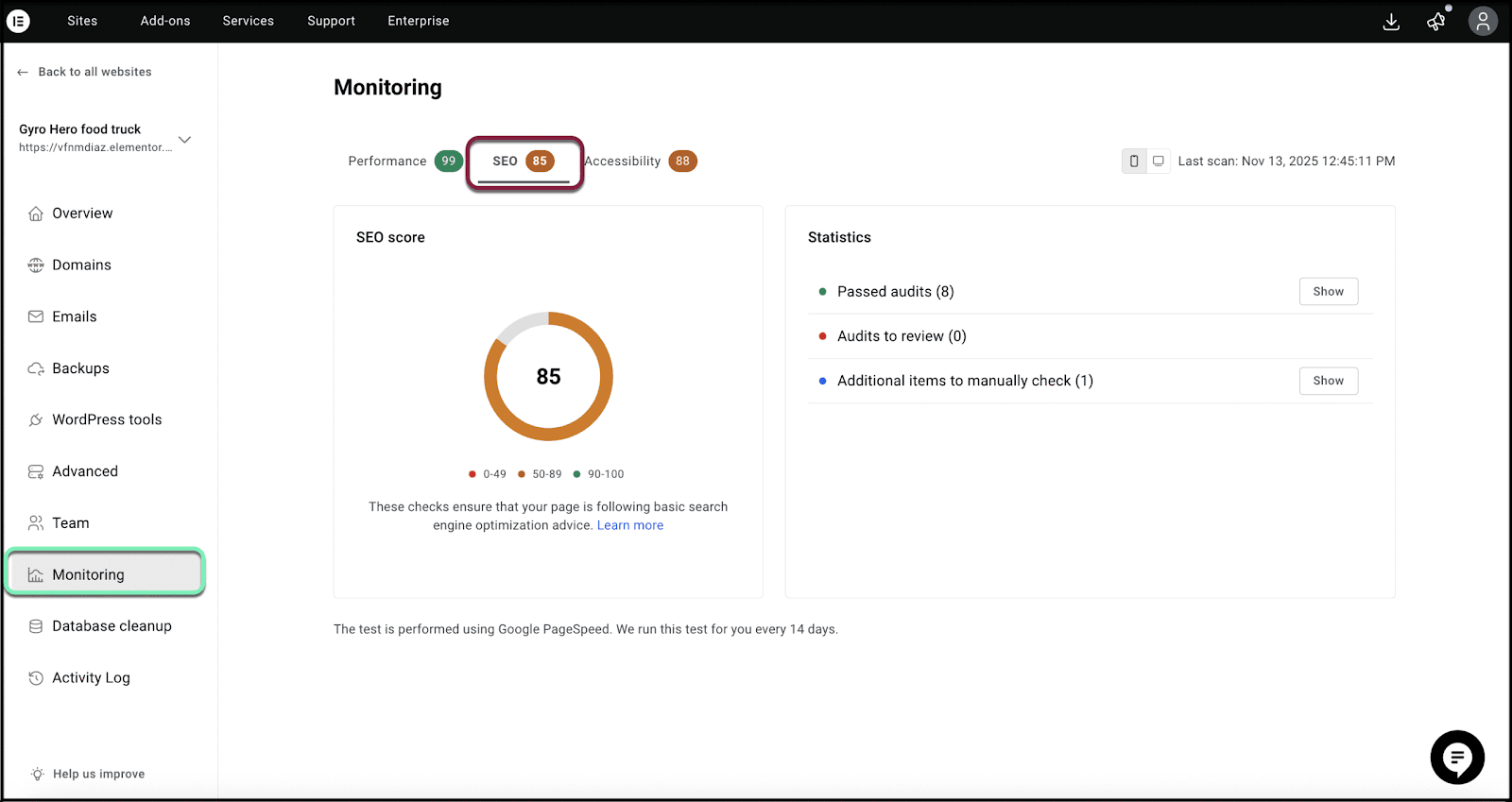
In the Accessibility tab, view your site’s Accessibility score and Statistics. Click Show next to a statistic for more information.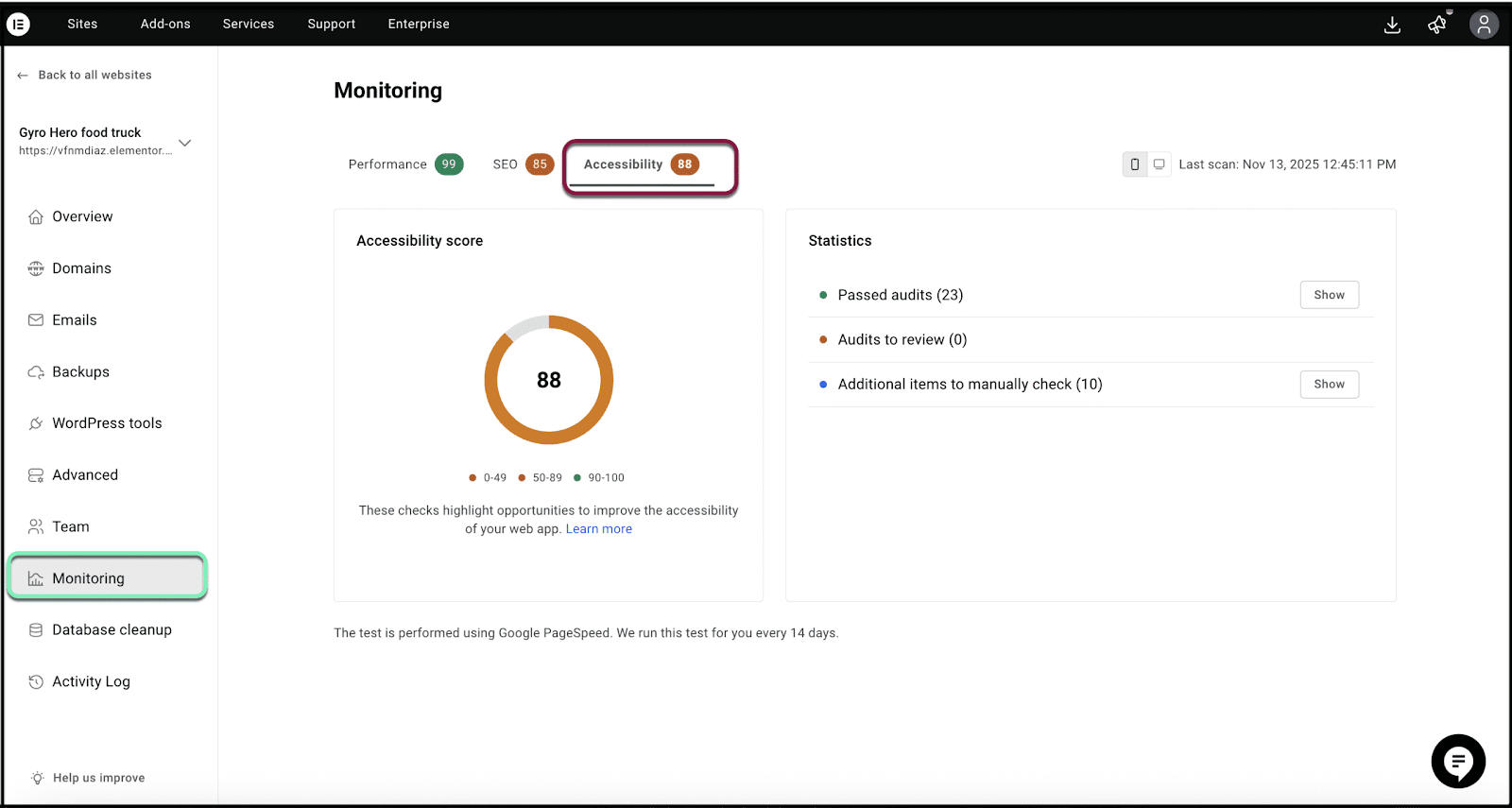
Note that Monitoring allows you to check these parameters for both Mobile and Desktop views, and it will let you know when the last scan took place.
See this Help Center article for more details: Monitor Performance in Manage
Database Cleanup
This tab allows you to free space and clean up unneeded data by reviewing and clearing unnecessary database entries.
Posts: Old revisions, auto-saved drafts, and trashed posts can bloat the database if not managed.
Comments: Spam and deleted comments that clutter the site and can be deleted.
Transients: Temporary cached data that’s expired but still stored in the database. It can be safely removed and regenerated if needed.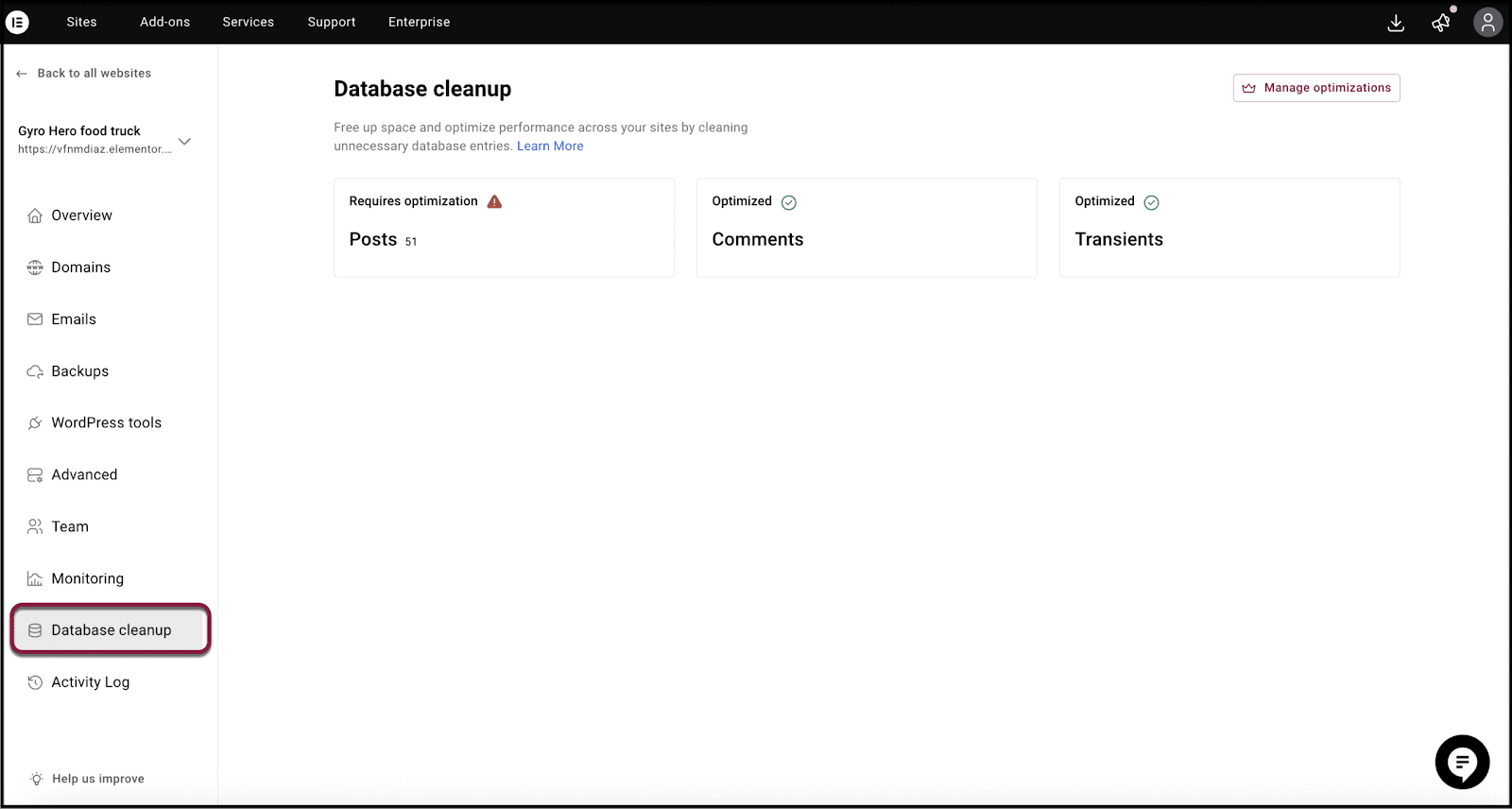
Activity Log
View a detailed record of all significant actions performed on your site through Manage. These can be related to Plugins, Themes, WordPress Versions, Database, and any automatic actions related to performance.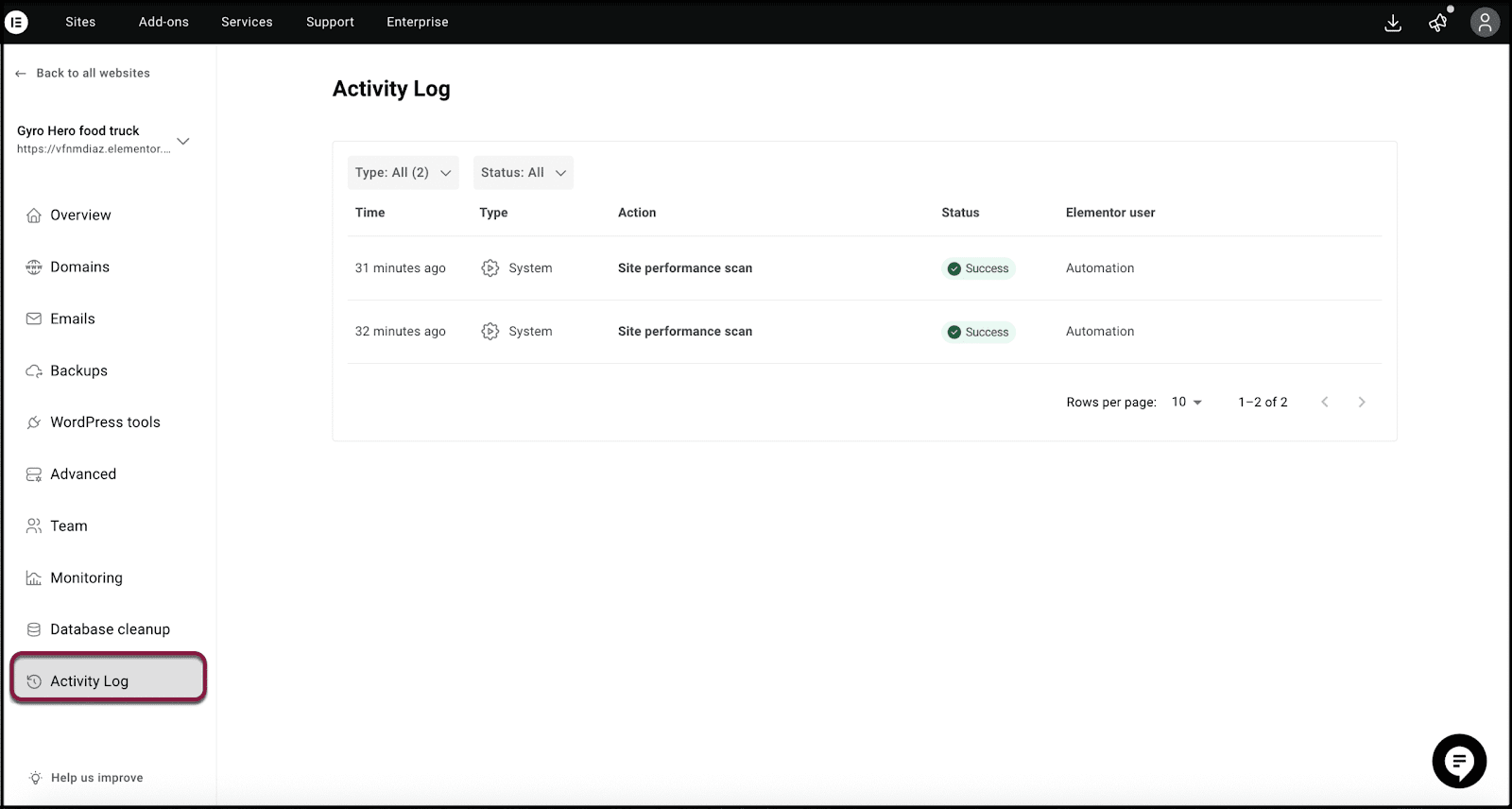
See this Help Center article for more details: Exploring the Manage Activity Log

