
This guide will walk you through why and how to customize your WooCommerce emails. We’ll explore different methods, from manual tweaks to powerful plugins, helping you find the right approach for your store.
Understanding the Role of Transactional Emails in eCommerce
Transactional emails are the automated messages your WooCommerce store sends in response to specific customer actions. Think about order confirmations, shipping notifications, and password resets. While they might seem purely functional, these emails are a core part of the customer journey.
Customers not only expect these emails—they open them frequently. Unlike promotional campaigns, transactional emails have incredibly high open rates because they contain information the customer is actively waiting for. This built-in engagement makes them a prime opportunity to do more than just deliver basic information.
What Are Default WooCommerce Emails?
Out of the box, WooCommerce provides a set of standard email templates to handle essential communications. These emails cover the entire order process, from the moment a customer places an order until it’s completed, and also handle account-related messages.
Here’s a quick rundown of the emails WooCommerce sends by default:
- New order: An email sent to the store admin when a new order is placed.
- Cancelled order: Notifies the admin that an order has been cancelled.
- Failed order: Informs the admin that an order has failed.
- Order on-hold: Sent to the customer, containing order details after it’s placed.
- Processing order: Sent to the customer after payment, confirming the order is being processed.
- Completed order: Sent to the customer once the order is fulfilled and complete.
- Refunded order: Informs the customer that their order has been refunded.
- Customer note: Sent when a store admin adds a note to an order.
- Reset password: Helps a customer reset their account password.
- New account: Welcomes a new customer after they create an account.
Each of these templates can be managed from your WordPress dashboard under WooCommerce > Settings > Emails. From there, you can enable or disable specific emails, change the recipients, and make minor text and color adjustments using the built-in options.
The Limitations of Standard WooCommerce Emails
While the default templates get the job done, they have significant limitations, especially for businesses focused on building a strong brand identity.
- Limited Visual Customization: The default customizer is quite basic. You can change header images, footer text, and some base colors, but that’s about it. Achieving a look that truly matches your website’s branding is difficult without diving into code. The generic, table-based layout can feel dated and fails to capture your unique brand personality.
- Static and Impersonal Content: The default emails use standard text and placeholders (like the customer’s name and order details). They lack the ability to include dynamic, personalized content that can enhance the customer experience.
- Reliability Issues: One often overlooked limitation is deliverability. Default WordPress emails rely on the wp_mail() PHP function, which lacks authentication and is frequently blocked by spam filters. No matter how beautiful your email is, it serves no purpose if it never reaches the customer’s inbox.
In short, the default emails are a starting point. They ensure your customers receive the necessary information, but they don’t help you build relationships or maximize revenue. To do that, you need to move beyond the basics and embrace customization.
Why Should You Customize Your WooCommerce Emails?
Investing time in customizing your WooCommerce emails pays off in several important ways. It’s not just about making things look pretty; it’s a strategic move that directly impacts your brand perception, customer loyalty, and even your bottom line.
Reinforce Your Brand Identity
Your brand is more than just your logo. It’s the entire experience you create for your customers. When your emails have the same look and feel as your website—using the same colors, fonts, and tone of voice—you create a cohesive and professional brand experience. This consistency builds trust and makes your brand more memorable.
Improve the Customer Experience
Customized emails allow you to provide more value to your customers. You can include helpful information that goes beyond simple order details. For example:
- Product care instructions: If someone buys a delicate item, include tips on how to care for it.
- Links to helpful resources: Share blog posts or video tutorials related to their purchase.
- Contact information and support links: Make it easy for customers to get help if they need it.
Increase Sales and Customer Lifetime Value
Customized emails are a fantastic channel for driving additional revenue. Because they have such high open rates, they are the perfect place to include marketing messages that encourage repeat purchases, such as personalized product recommendations or exclusive discount codes.
Gather Valuable Feedback
You can also use your customized emails to gather feedback from your customers. The “Order Completed” email is an ideal place to ask for a product review. Since the experience is still fresh in the customer’s mind, they are more likely to share their thoughts.
Methods for Customizing WooCommerce Emails
Now that you understand the “why,” let’s get into the “how.” There are a few different ways to customize your WooCommerce emails, each with its own level of complexity and flexibility.
1. Using the Default WooCommerce Settings
The simplest way to start customizing is by using the built-in options in WooCommerce. This method doesn’t require any coding and is a good first step for making basic changes.
To access these settings, navigate to WooCommerce > Settings in your WordPress dashboard and click on the Emails tab. Here, you’ll see a list of all the transactional emails. At the bottom of this page, you’ll find the “Email sender options” and “Email template” settings where you can add a header image, change footer text, and adjust base colors.
2. Overriding Email Templates via Your Theme
For more advanced visual changes, you can override the default WooCommerce email templates. This method requires a bit more technical comfort but gives you full control over the HTML structure and content of your emails.
This involves copying template files from the WooCommerce plugin folder into your theme’s directory and editing the PHP directly. While powerful, this method requires HTML/PHP knowledge and careful testing across different email clients.
3. Using Hooks and Filters
If you only need to add extra content to your emails rather than completely redesigning them, using hooks and filters can be a more efficient approach. WooCommerce provides a number of action hooks that allow you to insert custom content at various points within the email templates.
4. Leveraging Dedicated Plugins for Delivery and Design
For most store owners, the most effective strategy is using plugins to handle both the design and the delivery of the emails. While design plugins handle the visuals, delivery plugins ensure those beautiful emails actually bypass spam filters.
Top Tools for WooCommerce Email Customization & Delivery
When creating a professional email experience, you need tools that ensure your emails look good and arrive safely.
Site Mailer: The Foundation of Reliable Emails
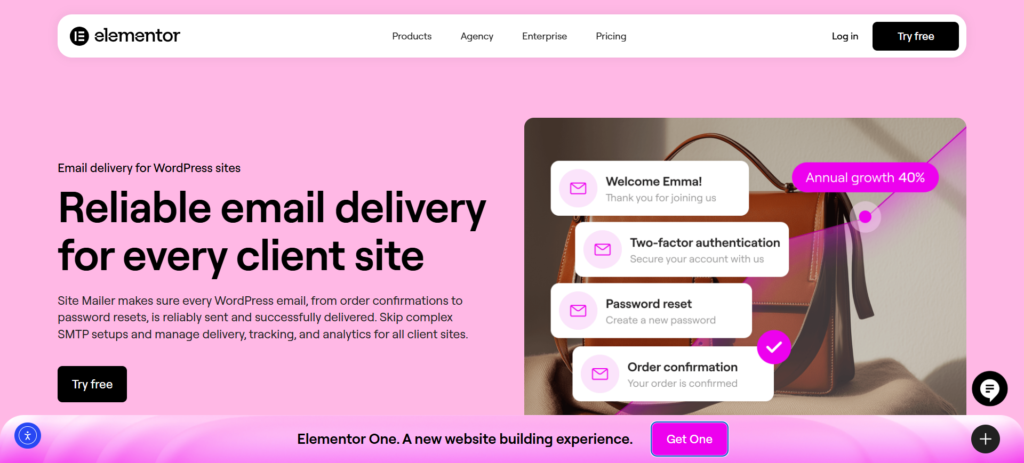
Before you worry about fonts and colors, you must ensure your transactional emails—like order receipts and password resets—are actually being delivered. This is where Site Mailer becomes essential for any WooCommerce store.
Many store owners customize their emails only to find them landing in the customer’s spam folder because default WordPress hosting environments aren’t optimized for email sending. Site Mailer solves this by replacing the unreliable default PHP mail function with a robust, one-step delivery solution.
Key features include:
- No Complex SMTP Setup: Unlike traditional solutions that require you to fiddle with ports and server credentials, Site Mailer works out of the box with a simple setup wizard.
- High Deliverability: It automatically handles complex authentication protocols like SPF, DKIM, and DMARC. This ensures your customized emails are recognized as legitimate by providers like Gmail and Outlook.
- Real-Time Analytics: You get a dashboard to view logs, open rates, and delivery metrics. If a customer claims they didn’t get their order confirmation, you can check the logs instantly.
- Troubleshooting & Resending: If an email fails, Site Mailer helps you identify the reason and allows you to resend it directly from the dashboard—a lifesaver for recovering lost orders.
Other Noteworthy Plugins
- MailPoet: A popular choice that lives inside your WordPress dashboard, offering a user-friendly email editor and automation features.
- YayMail: A drag-and-drop email customizer specifically for redesigning the default WooCommerce email templates with a visual editor.
- Klaviyo: A powerful external platform known for its robust segmentation and automation capabilities, often used by larger eCommerce stores.
Step-by-Step: Ensuring Your Customized Emails Reach the Inbox with Site Mailer
You can spend hours designing the perfect “Completed Order” email, but that effort is wasted if the email bounces or hits spam. Here is how to secure your email infrastructure using Site Mailer so your customizations are actually seen.
Step 1: Install and Activate
Get started by installing the Site Mailer plugin on your WordPress site. Upon activation, the plugin takes over the default wp_mail() function. This immediately upgrades your sending method from the basic server function to a dedicated delivery infrastructure optimized for transactional emails.
Step 2: Connect and Verify Your Domain
To look professional, your emails should come from your own domain (e.g., [email protected]) rather than a generic hosting address.
- Run the Site Mailer setup wizard.
- Follow the prompts to connect your domain.
- The plugin will guide you through the authentication process (SPF/DKIM), which is crucial for passing spam filters. This establishes your store’s reputation as a trustworthy sender.
Step 3: Send a Test Email
Before you assume everything is working, use the built-in testing feature.
- Navigate to the Site Mailer dashboard.
- Select the option to send a test email.
- Send it to your own inbox to verify that the “From” name and address appear correctly and that the email arrives in the primary inbox, not the spam folder.
Step 4: Monitor and Troubleshoot
Once your store is live, keep an eye on the Email Log.
- Check Statuses: Ensure emails are marked as “Delivered.”
- Resend if Needed: If a customer emails support saying they missed their receipt, simply find their order email in the log and click “Resend.”
- Track Opens: Use the open rate tracking to see if customers are engaging with your emails. If open rates are high, you know your subject lines and timing are working.
By securing the delivery pipeline first, you ensure that every subsequent customization you make—whether it’s a new logo or a discount code—is actually delivered to your customer.
Best Practices for Effective WooCommerce Emails
Customizing your emails is just the first step. To get the best results, you need to follow some key best practices.
1. Maintain Brand Consistency
Consistency is key. Your emails should be an extension of your website and overall brand. Use your brand’s logo, color palette, and typography consistently across all emails.
2. Prioritize Deliverability
Never assume your emails are being delivered. Use a dedicated tool like Site Mailer to monitor your sender reputation and ensure high inbox placement rates. Authentication is no longer optional; it’s a requirement for modern eCommerce.
3. Prioritize Mobile-First Design
A significant portion of your customers will open your emails on their smartphones. Ensure your emails are built on a responsive design that automatically adapts to different screen sizes. Keep paragraphs short and use large, clickable buttons for your calls-to-action.
4. Personalize the Content
Personalization makes your customers feel seen and valued. Leverage the data you have in WooCommerce to personalize content, such as using their first name or recommending products based on purchase history.
5. Test, Analyze, and Optimize
You won’t get everything perfect on the first try. Monitor your analytics closely. Pay attention to open rates and click-through rates. If delivery rates drop, check your Site Mailer logs immediately to identify if a specific domain is blocking your emails.
Conclusion: Elevate Your Customer Communications
Customizing your WooCommerce emails is a high-impact strategy that can significantly enhance your eCommerce business. By moving beyond the default templates, you unlock the potential to create a cohesive brand experience, provide exceptional customer service, and drive repeat sales.
However, the most beautiful email is useless if it’s never seen. That is why combining great design with reliable delivery is the ultimate winning strategy. Tools like Site Mailer ensure that your carefully crafted order confirmations, password resets, and shipping updates bypass the spam folder and land right where they belong—in front of your customer. By investing in both design and delivery, you’re building a professional, trustworthy store that customers will love to return to.






