This guide will walk you through everything you need to know about using GIFs in your emails. We’ll cover why they are so effective, how to find or create the perfect one, and the step-by-step process for inserting them into your campaigns. Most importantly, we’ll explore the best practices to ensure your animated emails look professional, load quickly, and drive results.
Why Bother with GIFs in Emails? The Data-Backed Benefits
Adding a GIF to an email might seem like a small tweak, but its impact can be substantial. In a competitive inbox, dynamic content helps your message stand out and connect with your audience on a deeper level. Let’s break down the core benefits of incorporating GIFs into your email marketing strategy.
Grabbing Attention in a Crowded Inbox
The average person receives dozens, if not hundreds, of emails every day. Most of these are text-based and visually similar. A well-placed GIF acts as a pattern interrupt. The human eye is naturally drawn to motion, so when a recipient opens an email and sees a subtle animation, it immediately breaks the monotony of static text and images.
This visual disruption forces a moment of focus. Instead of skimming, the reader’s attention is captured, increasing the likelihood they will engage with your message and absorb its key points. In an environment where you have only a few seconds to make an impression, a GIF can be the hook that keeps your audience reading.
Boosting Engagement and Click-Through Rates (CTR)
Once you have their attention, the GIF’s next job is to drive action. Because they are so engaging, GIFs have been shown to positively impact key email marketing metrics. Campaigns that include animated GIFs often see higher click-through rates compared to their static counterparts.
Why does this happen? The animation can be used to direct the viewer’s gaze. For instance, a GIF could feature an animated arrow pointing toward a call-to-action (CTA) button, or it could showcase a product in a way that makes the user want to learn more. This visual cue makes the desired action more obvious and appealing, encouraging more clicks and driving more traffic to your website or landing page.
Simplifying Complex Ideas and Showcasing Products
Sometimes, words aren’t enough. A GIF can often explain a concept or demonstrate a product more effectively than a lengthy paragraph or a series of static images. Think about the possibilities:
- Software Demonstration: A short GIF can loop a screen recording that shows exactly how to use a new software feature. This is much easier for a user to understand than reading a list of instructions.
- Product Showcase: An apparel brand can use a GIF to show a model turning in a new dress, giving customers a 360-degree view. A furniture company could show a piece of modular furniture being rearranged into different configurations.
- Step-by-Step Process: A recipe email could include a GIF that quickly cycles through the key steps of preparing a dish, making the process look simple and achievable.
By visualizing information, you make it more digestible and memorable, which enhances the customer experience and can lead to higher conversion rates.
Adding Personality and Building Brand Connection
Finally, GIFs are a fantastic way to inject personality into your communications. They allow you to convey emotion and tone in a way that plain text cannot. A humorous, celebratory, or empathetic GIF can make your brand feel more human and relatable.
Of course, this needs to align with your overall brand identity. A playful direct-to-consumer brand might use funny, pop-culture GIFs, while a sleek tech company might opt for custom-made, sophisticated animations of its logo or user interface. When used appropriately, this touch of personality helps build a stronger emotional connection with your audience, fostering loyalty and turning subscribers into genuine fans.
Before You Insert: Finding, Creating, and Optimizing Your GIFs
Before you can add a GIF to your email, you need to have the right file. Just grabbing any animation you find online can lead to problems with quality, file size, and even legal issues. A little preparation goes a long way in ensuring your email looks professional and performs well.
Where to Find High-Quality GIFs
If you need a GIF quickly, there are several excellent online resources. These platforms host massive libraries of animations, from movie clips to abstract designs.
- GIPHY: The largest and most popular GIF library on the web. It has a massive collection and excellent search functionality. You can find just about any reaction, scene, or animation you can think of.
- Tenor: Another huge player in the GIF space, Tenor (owned by Google) is integrated into many keyboards and platforms. Its library is comparable to GIPHY’s.
- Gfycat: Known for hosting smoother, higher-quality GIFs, Gfycat is a great option if you need something that looks a bit more polished than a standard reaction GIF.
A crucial note on licensing: When using GIFs for commercial purposes (like in a marketing email), you need to be mindful of copyright. While many reaction GIFs fall under fair use, using a clip from a movie or TV show to promote your product can be a gray area. For a safer approach, look for GIFs with a Creative Commons license or use platforms that provide royalty-free animations.
Creating Your Own Custom GIFs
The most effective GIFs are often the ones you create yourself. Custom GIFs ensure that the content is perfectly on-brand and directly supports the goal of your email. Whether you are an agency managing multiple clients or a freelancer, creating unique assets sets you apart. Here are two common ways to create them.
Option 1: From a Video File
If you have a short video clip, like a product demonstration or a company culture video, you can easily turn it into a GIF.
- Trim Your Video: First, trim the video to include only the short segment you want to animate. Most video editing software (and even your phone’s photo app) can do this. Keep it brief, ideally under 5 seconds.
- Use a Converter Tool:
- Online Converters: Websites like Ezgif or Kapwing allow you to upload your video file and convert it to a GIF. They provide simple tools to adjust the start and end times, crop the video, and change the frame rate.
- Professional Software: Tools like Adobe Photoshop offer advanced GIF creation capabilities. You can import a video file, and Photoshop will turn it into a layered timeline. This gives you granular control over the colors, frame rate, and compression settings, allowing you to create a high-quality, highly optimized GIF.
Option 2: From a Screen Recording
This method is perfect for tutorials, software demos, or showing off a website feature. For a designer, this is one of the most practical ways to showcase UI interactions.
- Record Your Screen: Use a screen recording tool to capture the process you want to demonstrate. You can use native tools like the Xbox Game Bar on Windows or the Screenshot tool on macOS. Dedicated apps like Loom or CloudApp also work well.
- Keep it Simple and Quick: Rehearse the action beforehand so you can capture it smoothly in one take. Avoid unnecessary mouse movements.
- Convert to GIF: Once you have your screen recording (usually an .mp4 or .mov file), you can use one of the video-to-GIF converter methods mentioned above to turn it into a looping animation.
The Golden Rules of GIF Optimization
This is the most critical step in the preparation process. An unoptimized GIF can ruin an otherwise perfect email. Large GIF files can cause major problems:
- Slow Loading Times: If your GIF is too large, it will load slowly, especially for users on slower internet connections. Many people will simply delete the email rather than wait.
- Email Client Clipping: Some email clients, most notably Gmail, will “clip” emails that are too large (over 102KB). A heavy GIF can contribute to this, hiding the bottom of your message.
- Data Usage: A large file uses more data, which is an important consideration for mobile users who may have limited data plans.
To avoid these issues, follow this optimization checklist:
- Keep Dimensions Reasonable: Your GIF doesn’t need to be 1920px wide. For email, a maximum width of 600-640 pixels is the standard.
- Limit the Number of Frames: The shorter your animation is, the fewer frames it will have, and the smaller the file size will be. Aim for a simple, quick loop.
- Reduce the Color Palette: GIFs are limited to a maximum of 256 colors. You can often reduce this to 128 or even 64 colors without a noticeable drop in quality, which can significantly shrink the file size.
- Use Optimization Tools: After creating your GIF, run it through an optimization tool. Websites like Ezgif have a great optimization feature, and desktop apps are also excellent. If you are already using an Image Optimization for your site, ensure you have a similar workflow for your email assets. These tools remove redundant data from the file without affecting its appearance.
- Aim for a Target File Size: A good rule of thumb is to keep your final GIF file under 1MB. If you can get it under 500KB, that’s even better.
Taking a few extra minutes to optimize your GIF will ensure a better experience for all your recipients and improve the overall performance of your campaign.
How to Insert a GIF in Your Email: Step-by-Step Tutorials
Now that you have a perfectly optimized GIF, it’s time to put it in your email. The process can vary significantly depending on whether you’re using a standard email client for personal messages or managing transactional emails on your website.
The Challenge with Different Email Platforms
Not all email clients treat GIFs the same way. While most modern clients like Gmail and Apple Mail support animated GIFs without any issues, some older versions of Microsoft Outlook (specifically Outlook 2007-2016) do not. In these versions, the GIF will appear as a static image, showing only the first frame of the animation. This is a critical piece of information to remember and will influence how you design your GIF.
Method 1: Inserting a GIF in Major Email Clients (Gmail, Outlook, Apple Mail)
For one-to-one emails, inserting a GIF is usually a straightforward process.
For Gmail
- Compose a new email.
- Place your cursor where you want the GIF to appear.
- Click the “Insert Photo” icon in the bottom toolbar.
- In the pop-up window, select the “Upload” tab.
- Drag your GIF file into the window or click “Choose photos to upload” and select it from your computer.
- The GIF will be inserted and will animate directly in the compose window.
For Outlook (Desktop App)
- Compose a new email.
- Click on the “Insert” tab in the ribbon menu.
- Click on “Pictures” and select your GIF file.
- The GIF will be inserted. Important: As mentioned, it may not animate in older versions of Outlook. Always design your GIF so that the first frame is clear and compelling on its own.
For Apple Mail
- Compose a new email.
- The simplest method is to drag and drop your GIF file directly from a folder on your Mac into the email body.
- Alternatively, you can go to File > Attach Files… and select your GIF.
- The GIF should appear and animate within the email.
Method 2: Ensuring Reliable Delivery for Your WordPress Emails
When you are running a business on WordPress, you often need to send automated emails that contain rich media like GIFs, think Welcome emails, Order Confirmations, or Password Resets. You might design these emails using code or templates, but the biggest challenge isn’t just inserting the GIF; it’s ensuring the email actually reaches the inbox.
Default WordPress emails use the PHP mail() function, which is notoriously unreliable. It lacks authentication, often fails spam filters, and is blocked by many hosts. This means your carefully crafted email with its beautiful GIF might never be seen. This is where a dedicated solution like Email Deliverability becomes essential.
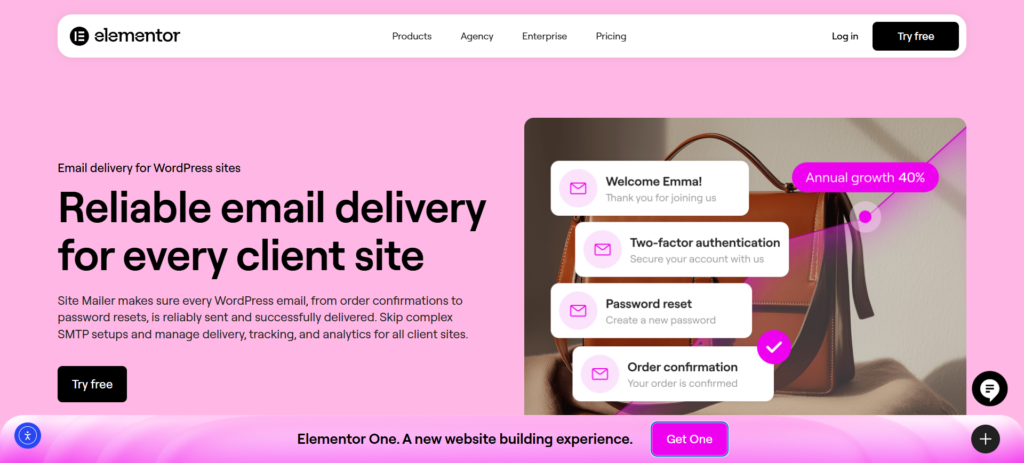
Reliable Delivery with Email Deliverability
Email Deliverability is a robust WordPress plugin designed to solve the chronic deliverability issues that plague many sites. It bypasses the unreliable default mail function in favor of a built-in, one-step delivery solution that powers over 34 million delivered emails.
Why Email Deliverability is the Pro Choice for Transactional Email:
- No SMTP Headaches: Unlike traditional SMTP plugins that require you to wrestle with external servers, ports, and API keys, Email Deliverability works out of the box. Its setup wizard eliminates technical complexity, allowing you to focus on your content.
- Automatic Authentication: To ensure your emails (and your GIFs) don’t end up in the spam folder, Email Deliverability automatically handles vital authentication protocols like SPF, DKIM, and DMARC. This secures your sender reputation and leads to a 95%+ average inbox placement rate.
- Custom Domains: You can easily verify and send emails from your own custom domain. This looks far more professional than sending from a generic hosting address and is crucial for maintaining trust with your customers.
- Full Visibility & Control: With a dedicated dashboard, you gain real-time insights into your email performance. You can view logs, track open rates, and monitor delivery status.
- Instant Resend Capability: If an email fails to deliver, the dashboard allows you to troubleshoot the exact reason and resend the email instantly with a single click. This ensures your customer never misses an important receipt or notification.
The Workflow:
- Install: Simply install and activate the Email Deliverability plugin on your WordPress site.
- Connect: Use the setup wizard to connect and verify your sender domain (optional but recommended for best results).
- Monitor: Once active, Email Deliverability takes over the delivery of all your WordPress emails. You can then go to the dashboard to ensure your emails, GIFs and all, are landing exactly where they should.
Whether you are using a WooCommerce store or a standard site, Email Deliverability ensures that the functional emails driving your business are as reliable as they are visual.
Best Practices for Using GIFs in Email Marketing
Now that you know how to insert a GIF and ensure its delivery, let’s cover the strategic rules that separate amateur emails from professional, high-performing campaigns.
Rule #1: Make it Purposeful
Don’t add a GIF just to have an animation. Every element in your email should have a purpose, and your GIF is no exception. It should support the primary goal of the email. Ask yourself: What do I want this GIF to accomplish?
- Is it demonstrating a product feature?
- Is it drawing attention to the CTA button?
- Is it setting a specific emotional tone for a sale announcement?
A GIF that is directly tied to your message will be far more effective than a random, distracting animation. Leveraging tools like Angie AI can help you generate copy that complements your visuals perfectly.
Rule #2: Mind the First Frame
We’ve mentioned this before, but it’s important enough to be a golden rule. Due to the limitations of older Outlook versions, you must assume that a portion of your audience will only see the very first frame of your GIF.
This means your first frame must:
- Be a high-quality, clear image.
- Make sense on its own.
- Ideally, include the key information or call-to-action if possible.
Think of the first frame as the poster for your animation. It needs to be compelling enough to stand on its own.
Rule #3: Don’t Overdo It
When it comes to animation in email, less is more. One strong, well-placed GIF is far more effective than three or four competing for attention. Multiple animations can make your email look cluttered, unprofessional, and even cause it to be flagged as spam. The movement should be a focal point that guides the reader, not a chaotic distraction that overwhelms them.
Rule #4: Accessibility is Non-Negotiable
Email accessibility ensures that all your subscribers, including those with disabilities, can understand your message. Using a comprehensive tool like Ally Web Accessibility on your site is great, but you must extend those principles to your email.
- Always Use Descriptive Alt Text: The alt text (alternative text) for your GIF is critical. It’s what screen readers will announce to visually impaired subscribers, and it’s what all users will see if their email client blocks images by default. Your alt text should clearly describe what the GIF depicts (e.g., “An animated GIF showing the three color options for the new running shoe”).
- Avoid Rapidly Flashing GIFs: Animations that flash or strobe rapidly can be a serious health risk for people with photosensitive epilepsy. Avoid them at all costs. Stick to smooth, gentle animations.
Rule #5: Test, Test, and Test Again
You should never send an email campaign without testing it first. This is especially true when it includes rich media like GIFs. Send tests of your email to different accounts (Gmail, Outlook, Yahoo, a mobile device) to check for the following:
- Does the GIF animate as expected?
- How does the first frame look in Outlook?
- How long does the email take to load on a mobile connection?
- Do all the links work correctly?
Using an email testing service can automate this process, but even manual testing is better than none at all.
Integrating GIFs with Your Broader Communication Strategy
The true power of GIFs is realized when they are used not just in one-off messages but as an integrated part of your site’s communication strategy. A thoughtful animation can significantly improve the performance of your most important automated emails.
In Welcome Series
When a new subscriber joins your list, your welcome email is your chance to make a great first impression. A friendly, on-brand GIF can make your welcome message feel more personal and dynamic, setting a positive tone for the relationship. If you are using a free domain name for a starter project or a premium custom domain, the professionalism of the welcome email matters equally.
In Abandoned Cart Reminders
Abandoned cart emails are a critical tool for recovering lost revenue, especially if you are using ecommerce hosting to run a store. A clever GIF can help your reminder email cut through the noise. You could use a GIF that showcases the abandoned product in use or a simple, humorous animation with a message like “Did you forget something?” to gently nudge the user back to their cart.
In Promotional Campaigns
GIFs are perfect for adding excitement to sales and promotions. You can use them to:
- Quickly showcase multiple products that are part of a sale.
- Create an animated countdown timer to build urgency.
- Reveal a “secret” discount code in a fun, eye-catching way.
While AI can help you generate ideas for these campaigns or even plan your site structure with an AI site planner, the delivery of the final asset is key. Using Email Deliverability ensures that these critical transactional touches, like the receipt after the sale or the password reset for the user account, are never lost in the ether.
Conclusion
GIFs are far more than a fleeting trend; they are a valuable and effective tool for modern email marketing. When used thoughtfully, they can capture attention, explain complex ideas, boost engagement, and add a much-needed touch of personality to your brand communications.
The key to success lies in preparation and strategy. By finding or creating high-quality, on-brand GIFs, meticulously optimizing them for performance, and adhering to best practices for accessibility and design, you can elevate your email campaigns. Furthermore, by ensuring your WordPress site is equipped with reliable tools like Email Deliverability, you guarantee that your visual efforts actually reach the recipient. Whether you are using Elementor to build your site or managing a high-traffic hosting environment, mastering small but impactful details like this is what ultimately separates a good digital strategy from a great one. Don’t forget, you can always start with a free download to see how these tools fit into your workflow.

