Free Accessibility Checker: Scan & Fix WCAG Issues
How it works
Scan your website, understand accessibility gaps, and take the next step toward improvement.
Enter your website URL
Paste the URL you want to check. The Ally Accessibility Checker works on any website, with no setup or installation required. It’s quick and easy to get started.
Run an accessibility scan
The tool scans your page and detects common accessibility issues aligned with WCAG 2.1 AA. It highlights areas like contrast, structure, aria labels and alt text.
Review results and take action
Get a clear breakdown of the issues found, along with guidance on what needs attention. If you’re using WordPress, you can use Ally to apply fixes directly and improve accessibility over time.
Free Accessibility Checker
Web accessibility has transitioned from a niche technical requirement to the cornerstone of a truly inclusive internet. For website owners, developers, agencies, and businesses, ensuring that web pages are accessible to people with disabilities is not just a moral obligation—it is a critical component of content quality, usability, brand reputation, and market reach.
The internet is the modern town square, yet for millions of users, it remains filled with invisible obstacles. Identifying these accessibility barriers manually across hundreds of pages can be a daunting, resource-intensive task. This is where Ally by Elementor, a powerful website accessibility checker, becomes an essential utility in your digital toolkit.
Ally offers a comprehensive journey starting with a free accessibility checker that diagnoses your site’s health via an automated scan, leading to a powerful WordPress plugin designed to fix accessibility issues directly within your workflow. Its core philosophy is “Accessibility without the complexity,” bringing practical accessibility practices to creators to reduce barriers.
If you are looking to fix accessibility issues and understand your current status regarding accessibility standards, you need a tool that is both powerful and actionable. This comprehensive guide explores how to use the Ally ecosystem, the importance of WCAG guidelines, and why combining automated testing with manual testing is the gold standard for creating a more accessible website.
Why web accessibility matters: turn it into a growth opportunity
Web accessibility ensures that people with disabilities—including those with visual impairments, auditory, cognitive, neurological, and motor disabilities—can perceive, understand, navigate, and interact with the web. When you improve accessibility, you are not just ticking boxes for compliance; you are transforming accessibility into a business advantage.
1. The human impact: expanding reach
Millions of users globally rely on assistive technologies to browse the website. This includes screen readers like NVDA and JAWS on desktops, or Android Talkback and VoiceOver for mobile devices.
If your site suffers from missing alt text, poor heading structure, or unlabeled interactive elements, these screen reader users are effectively locked out. Ally helps you design for everyone, expanding your audience reach and creating more inclusive experiences.
2. Navigating the legal landscape and European Accessibility Act compliance
Legal risk is a growing concern for businesses. Regulations such as the ADA (Americans with Disabilities Act) and the European Accessibility Act compliance requirements mandate that digital services meet specific accessibility standards.
While no tool can guarantee full compliance alone (and human judgment is always required), using Ally to identify violations helps you make real progress. It empowers you to address accessibility issues proactively rather than reacting to legal pressure. Regular accessibility testing minimizes risk.
3. SEO and user experience
There is a massive overlap between accessibility and SEO. Search engines act like blind users, crawling your web content for semantic structure. Accessibility practices directly improve your SEO rankings. Furthermore, Ally improves the experience for all users, not just those with disabilities, by ensuring cleaner code and better usability.
Why Ally by Elementor is different
Ally isn’t just another accessibility checker; it is a bridge between audit and remediation. It starts with an instant test via the online scanner and offers a direct path to a solution for WordPress users. While many scanners limit your audits, the Ally Online Scanner allows for unlimited per-URL scans. More importantly, it provides a holistic workflow: Ally goes beyond just identifying problems and allows you to actively fix them.
1. Instant online diagnosis with automated accessibility checks
Anyone can use the Ally Online Scanner to get an immediate health check of their website. It performs automated checks on your web pages for common accessibility issues based strictly on WCAG 2.1 AA guidelines, providing a clear report of what needs attention. It’s a free tool that delivers instant results.
2. Seamless fixes for WordPress
While the automated scan identifies the problems, the Ally Plugin is the tool for the solution. The interface invites you to install the plugin to fix accessibility issues directly within your WordPress dashboard.
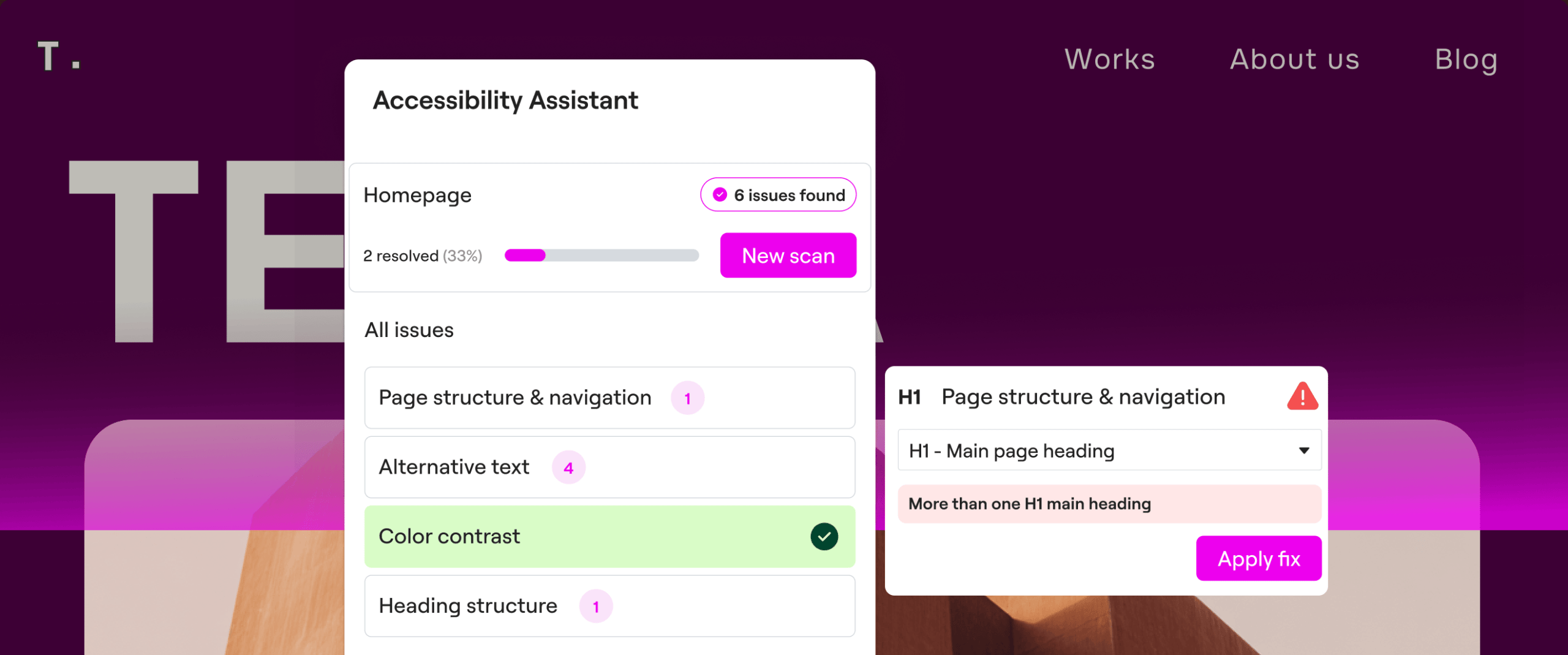
- Ally Assistant: This is your core scanning and remediation hub. It works inside the editor to identify issues and guide you through fixing them.
- AI Fixes: A powerful feature built inside the Ally Assistant. It uses AI to propose and automatically generate accurate fixes for complex challenges (e.g., generating alternative text or fixing code).
3. Usability Widget
Ally includes a frontend Usability Widget that allows visitors to customize their browsing experience (text size, color contrast, spacing) to their specific needs, signaling your commitment to accessibility and inclusivity.
4. Accessibility Statement Generator
Meeting accessibility standards isn’t just about fixing code; it’s about communication. Ally automatically generates a dedicated Accessibility Statement page with accurate language to help you communicate your efforts and intent to your users.
Understanding the “POUR” principles of WCAG guidelines
To utilize Ally effectively during your audit, it helps to understand what the tool is looking for. The Web Content Accessibility Guidelines (WCAG) are the benchmark, organized around four principles known as POUR:
1. Perceivable
Information must be presentable to users in ways they can perceive.
- The Scan: Ally checks for missing alt text on images and measures color contrast ratios to ensure content is visible to users with low vision or color blindness. A website must be perceivable to be accessible.
2. Operable
User interface components and navigation must be operable.
- The Scan: The Ally Accessibility Checker identifies common issues that can prevent users from interacting with your site, such as keyboard navigation problems, missing focus indicators, and elements that are not accessible via keyboard. It also highlights structural issues like improper heading hierarchy and missing or incorrect ARIA labels that can impact how users navigate and interact with the page. These insights help you understand where interaction barriers exist, so you can take the next steps to improve accessibility.
3. Understandable
Information and the operation of the user interface must be understandable.
- The Scan: Ally looks for accessibility issues like missing form labels and ensures navigation structures are predictable. Content quality is key here.
4. Robust
Content must be robust enough to be interpreted by assistive technologies.
- The Scan: The tool scans page structures, validates HTML parsing, heading tags, missing links, and ARIA attributes, ensuring strict compatibility with WCAG 2.1 AA standards for current and future user agents.
How to use Ally: from scan to solution
Ally simplifies the accessibility testing workflow by guiding you from detection to correction. Here is the recommended path for website owners:
Step 1: Run the free online scan
Start by entering your URL into the Ally Online Scanner. You do not need to install anything yet. The tool will test your web page against accessibility standards to detect over 180 potential violations. This automated scan is the first step in your audit.
Step 2: Review your audit report
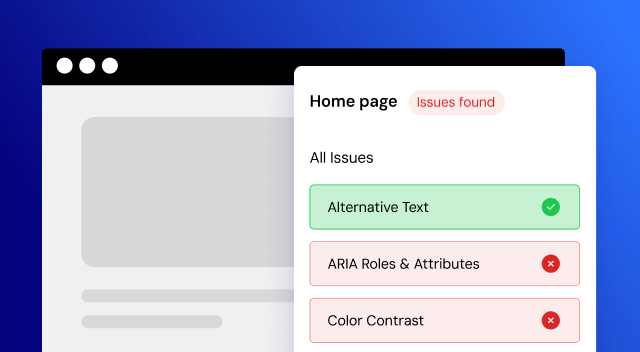
The comprehensive report provides a breakdown of your website health. It highlights critical issues, warnings, and passed tests. It provides a clear count of identified violations, giving you immediate visibility into where your site stands regarding accessibility gaps. (Note: Ally does not provide an arbitrary accessibility “score”, but rather an actionable list of violations to fix).
Step 3: Get the solution (Ally plugin)
To efficiently fix the identified accessibility problems, the interface will invite you to use Ally.
- For WordPress Users: This is where the magic happens. By installing the Ally plugin, you move from “seeing” the problems to “solving” them directly in your site backend.
Step 4: Fix with AI and guidance
Once the plugin is active, you can begin the remediation phase using the Ally Assistant:
- AI Fixes: Use AI to automatically generate fixes for text and code.
- Site-Wide Fixes: Instantly apply corrections to repetitive code issues across your entire website with a single click, drastically reducing manual work.
- Bulk Alt Text: Generate descriptive alternative text for multiple images simultaneously in bulk.
- Manual Fixes: Follow the clear guidance to adjust settings or content manually.
- Track Progress: Use the dashboard to see resolved accessibility issues as you work.
Step 5: Activate the Usability Widget and statement
Finally, customize and enable the Usability Widget on your frontend to give visitors immediate control over their reading experience, and generate your Accessibility Statement.
Common web accessibility issues to identify and fix
When you use the Ally accessibility checker, you will likely encounter specific web accessibility issues. Here is how the tool helps you handle them:
1. Missing alt text
- The Issue: Images without description are invisible to screen readers.
- The Fix: The plugin’s AI can analyze the image and suggest descriptive alt text automatically (even in bulk). Correct alt text is vital for screen reader users.
2. Low color contrast
- The Issue: Text that blends into the background is hard to read for people with visual impairments or color blindness.
- The Fix: Ally identifies elements with low color contrast ratios and provides guidance to adjust colors to meet WCAG 2.1 AA guidelines.
3. Empty links and buttons
- The Issue: Buttons without text labels (like icon-only buttons) provide no context to screen readers.
- The Fix: Ally flags these interactive elements and allows you to add aria-label attributes or hidden text to ensure they are understandable.
4. Improper form labels
- The Issue: Inputs without labels leave users guessing what to type.
- The Fix: Ally detects orphaned inputs and helps you associate them with the correct labels programmatically.
Advanced accessibility: moving beyond basics
While Ally is a powerful free tool, it is important to remember that accessibility is a journey. A single page test is not enough; you must test your entire website.
The power of AI and automated tools
Ally helps reduce manual work by combining AI-powered suggestions with automated tools. You can quickly identify and address common accessibility issues, apply bulk updates like alt text across multiple images, and make site-wide code-level adjustments more efficiently.
The Usability Widget further improves the experience for visitors without requiring code changes.
These capabilities make it easier to handle accessibility across multiple pages and maintain consistency as your site evolves.
The necessity of human judgment
However, no automated tool can guarantee 100% compliance. An automated scan cannot determine if the logic of a page makes sense or if the content is easy to understand.
- Context: AI can suggest alt text, but human judgment is needed to ensure it fits the context of your page.
- Manual Testing: Always pair Ally’s insights with manual testing (e.g., navigating your site using only a keyboard) to ensure a truly robust experience. Manual testing catches issues that automated checks miss.
- Expert Review: For complex sites, consider consulting accessibility experts.
Best practices for web creators and developers
To maintain an accessible website, integrate these practices into your development process:
- Scan Often: Use the online scanner or plugin to test new web pages before you publish. Regular accessibility testing is crucial.
- Use the Statement: Publishing an Accessibility Statement is a best practice that builds trust and transparency.
- Focus on Progress: Do not be overwhelmed by “compliance.” Focus on making your site more accessible today than it was yesterday.
- Mobile Accessibility: Test your website on mobile devices using Android Talkback or VoiceOver to ensure mobile accessibility is up to par.
- Interactive Elements: Pay special attention to interactive elements like menus and popups; test them thoroughly.
- Assistive Technologies: Familiarize yourself with how assistive technologies interact with your web content.
- Guidance: Follow the guidance provided by the accessibility checker to prioritize fixes.
Summary: your tool for a more inclusive web
Creating a more accessible web environment is a shared responsibility. By utilizing Ally by Elementor, website owners and developers can uncover hidden accessibility barriers and take meaningful steps toward inclusivity.
Recap of the Ally journey:
- Scan Online: Instantly detect violations with the free accessibility checker tool.
- Install Plugin: Move from diagnosis to action on WordPress to fix accessibility issues.
- Fix with AI: Resolve accessibility issues faster using smart automation, site-wide updates, and bulk actions.
- Empower Users: Add the Usability Widget for a better visitor experience.
- Test and Audit: Continuously test and audit your website to maintain high accessibility standards.
Start your journey today. Detect the barriers online, fix the issues with the plugin, and help build a better, more inclusive web for everyone.
Ready to make your site more accessible?
Disclaimer: Ally is a tool designed to assist in identifying and fixing common accessibility issues based strictly on WCAG 2.1 AA guidelines. No tool can guarantee full compliance with ADA, European Accessibility Act compliance, or other regulations. Full accessibility requires human judgment, manual testing, and continuous effort.