Every Elementor One subscription includes a set number of credits to help you build and maintain your website. As your site grows, you may need to upgrade your subscription to add credits to your account.
To get started, log in to your Elementor account. On the right-hand side of the top bar, click on “My Account.” 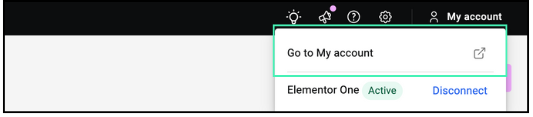
Once the menu opens, select Subscriptions. This will take you to a page displaying all the Elementor products and services you have purchased.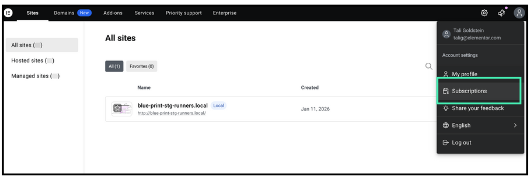
Locate Your Elementor One subscription. To upgrade and add more credits, click the Upgrade button next to the subscription details.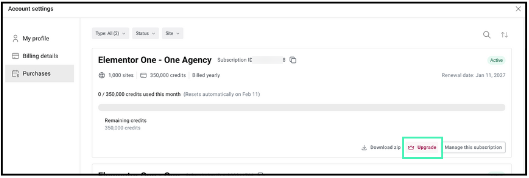
A new screen will appear, offering you two ways to expand your service:
- Add more websites: To use Ally on additional domains.
- Add more credits: To increase the scan limit for your current sites.
Click on Add Credits (or “Add More Credits”).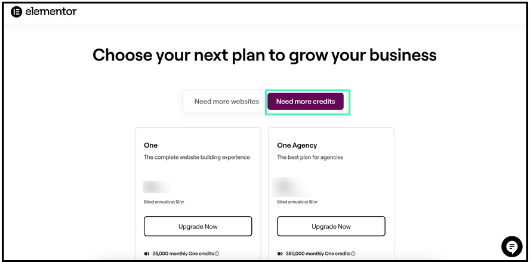
Choose the credit package that best fits your workflow. Follow the on-screen instructions to complete the checkout process. Once the purchase is confirmed, the new credits will be immediately available in your account.

