To increase security, it’s recommended that you change passwords on a regular basis.
To change your password:
- Go to your My Elementor dashboard.
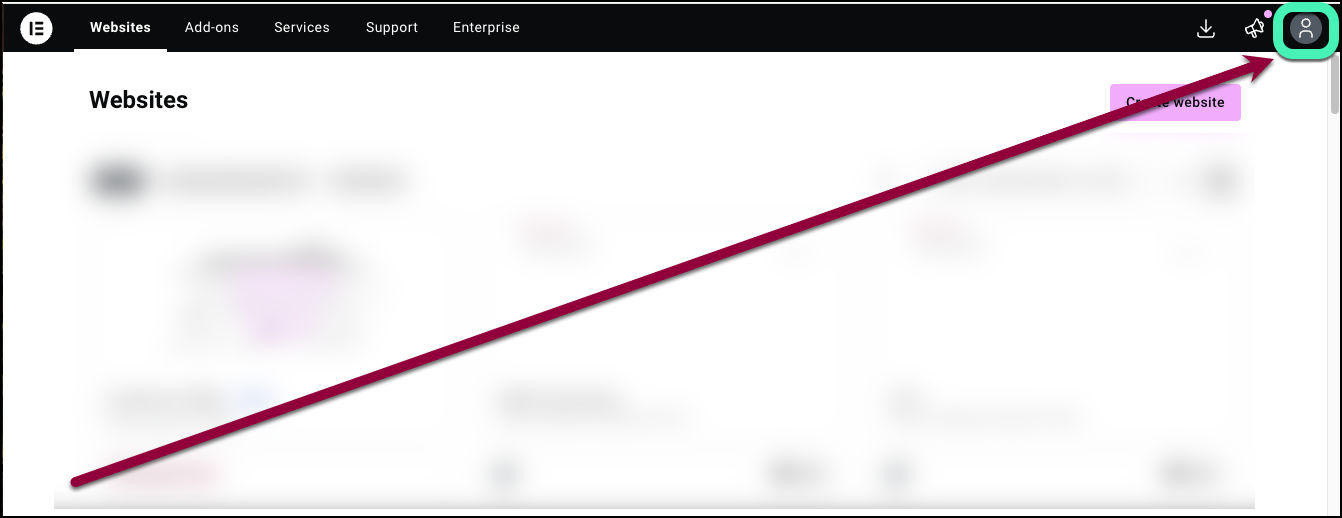
- Click the account icon in the upper right corner.
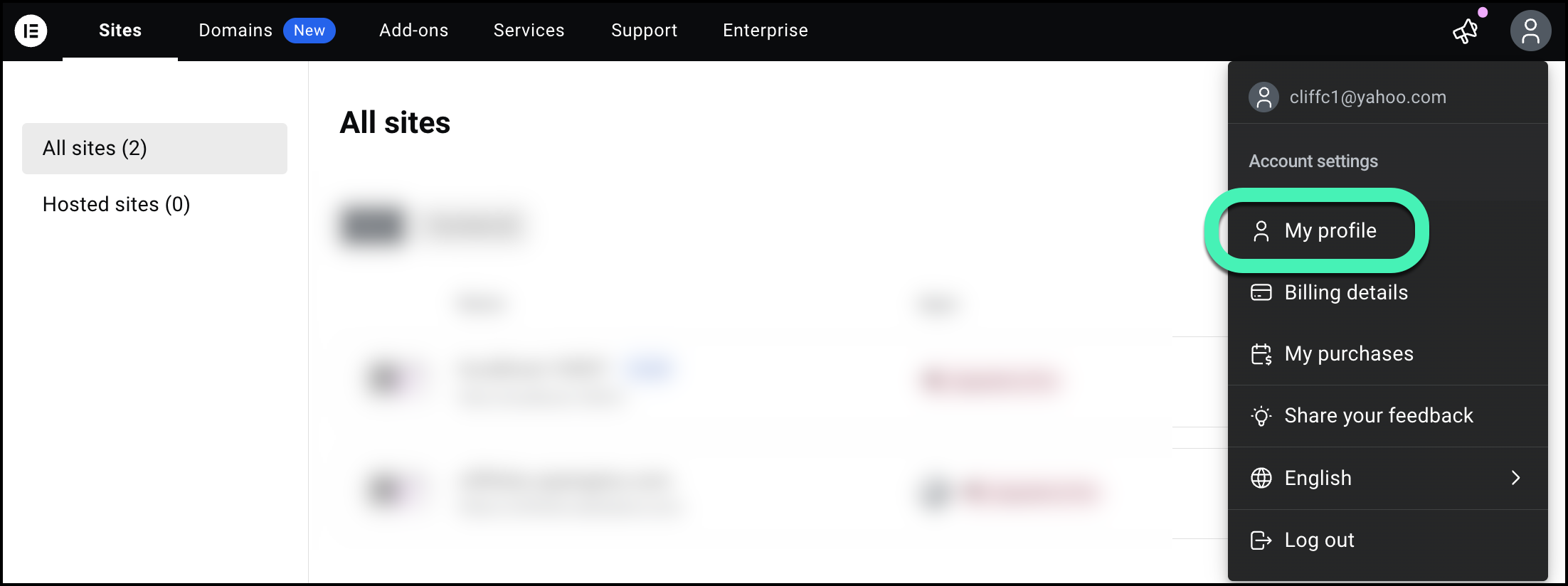
- Select My profile from the dropdown menu.
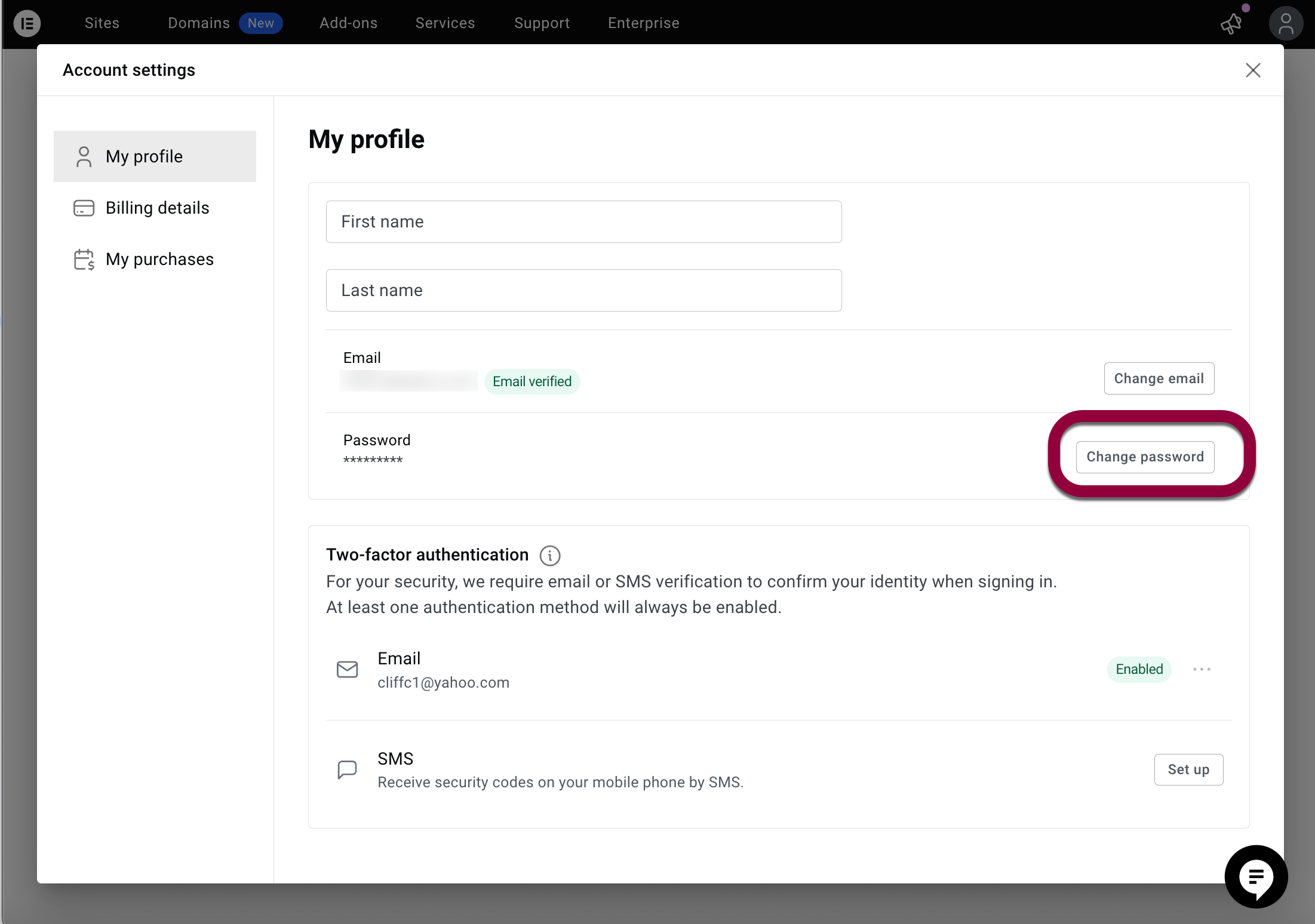
- Click Change password.
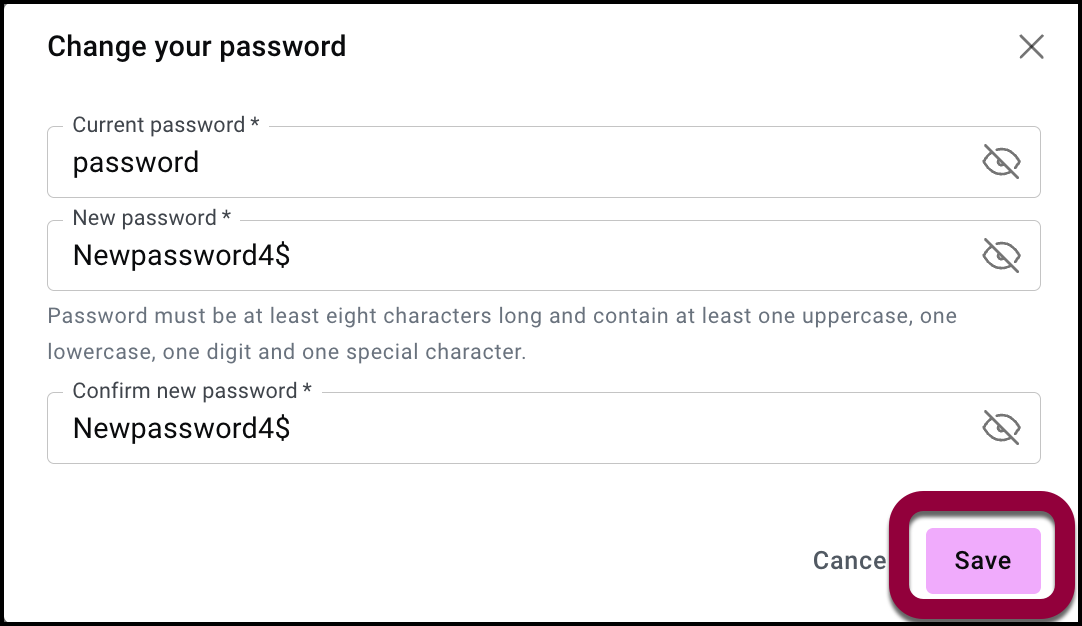
- Enter your current password.
- Enter the new password.NoteYour password must have at least eight characters including at least one capital letter, one number and one special character. Avoid starting or ending your password with a space.
- Confirm your new password.
- Click Save.
 TipIf you forgot your password, or if you want to start using your email instead of Google/Apple to log on, click Forgot password on the login screen.
If you have trouble resetting your password
- Refresh the page, then try again.
- Clear cache/cookies or use a private/incognito window.
- Try a different browser or device and ensure password-manager autofill isn’t interfering.
- Temporarily disable browser extensions that modify forms or content.

