Web Rules is an advanced traffic control feature available on Elementor Hosting that allows you to define exactly how incoming HTTP requests to your website are handled.
Running before WordPress or PHP even loads—Web Rules offers a faster, more reliable, and plugin-free way to manage redirects, security, and headers. This ensures your site’s high performance while handling complex traffic logic.
Using Web Rules, you can:
- Redirect visitors from old URLs to new ones (Essential for SEO).
- Rewrite request paths internally without changing the browser URL.
- Modify HTTP headers to improve security or integration.
- Block requests based on specific conditions like country or IP.
Access Web Rules
To access the Web Rules configuration:
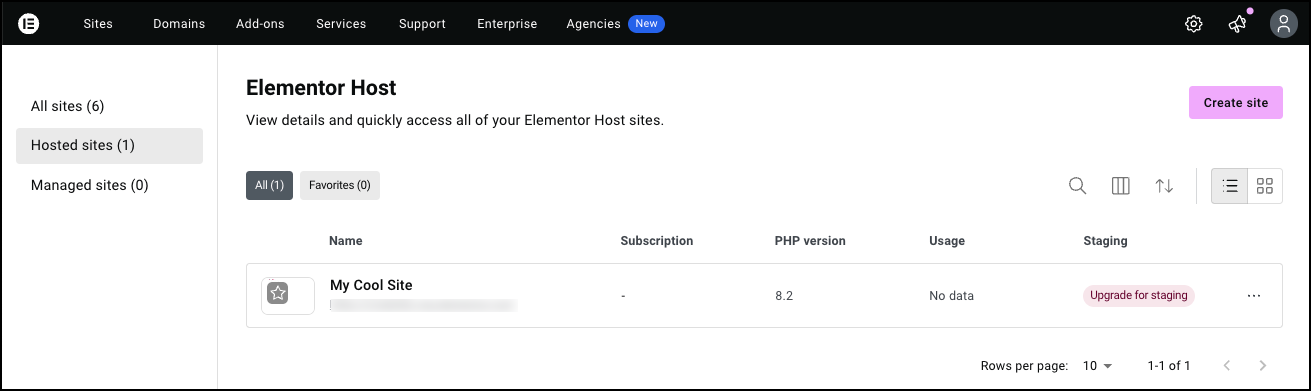
- Go to your My Elementor dashboard.
- Click the website you wish to manage.
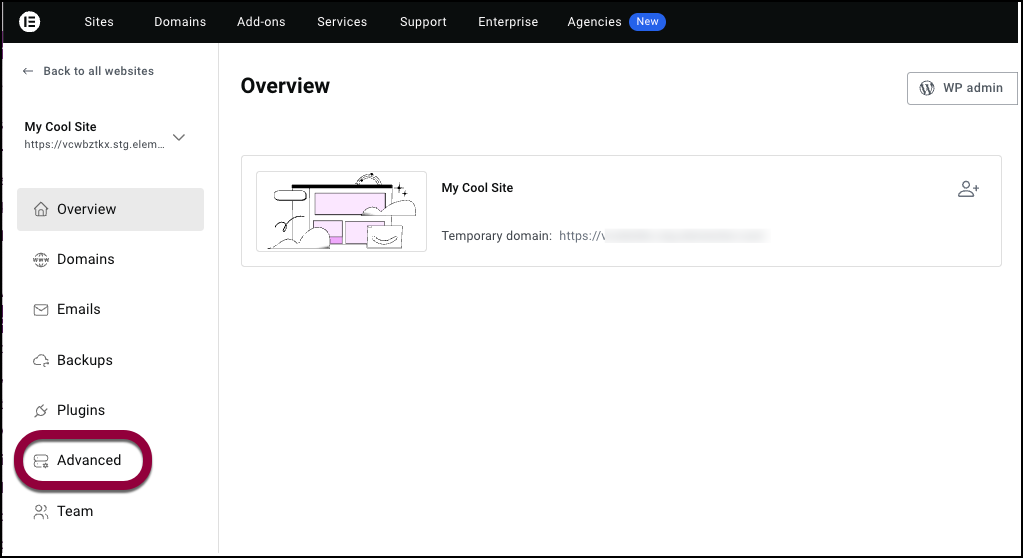
- Click the Advanced tab.
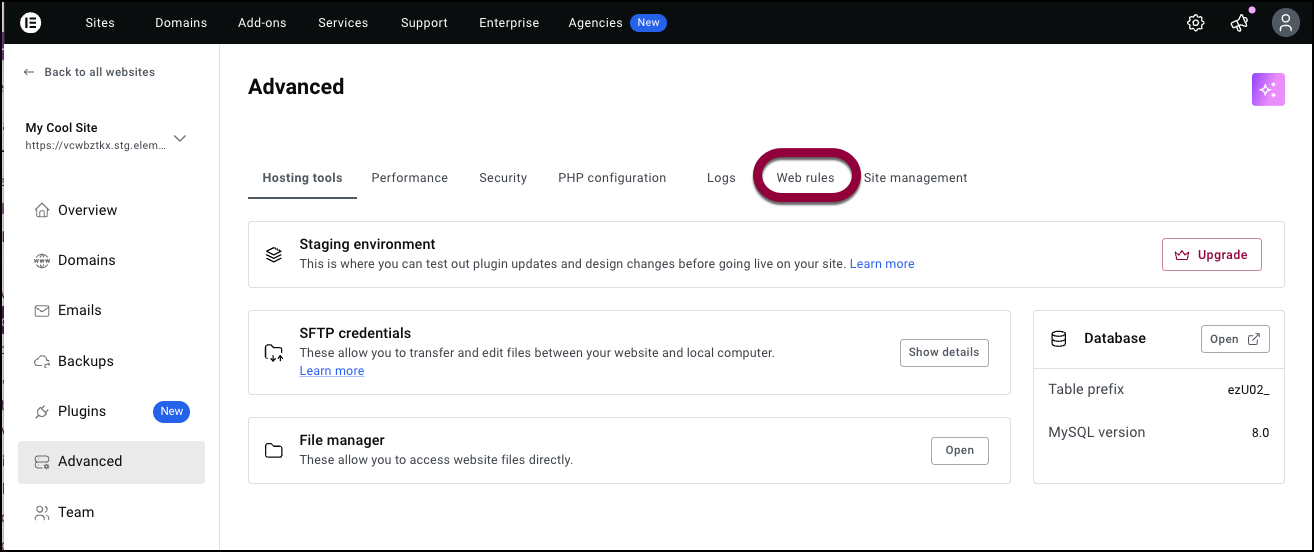
- Select Web Rules from the menu.
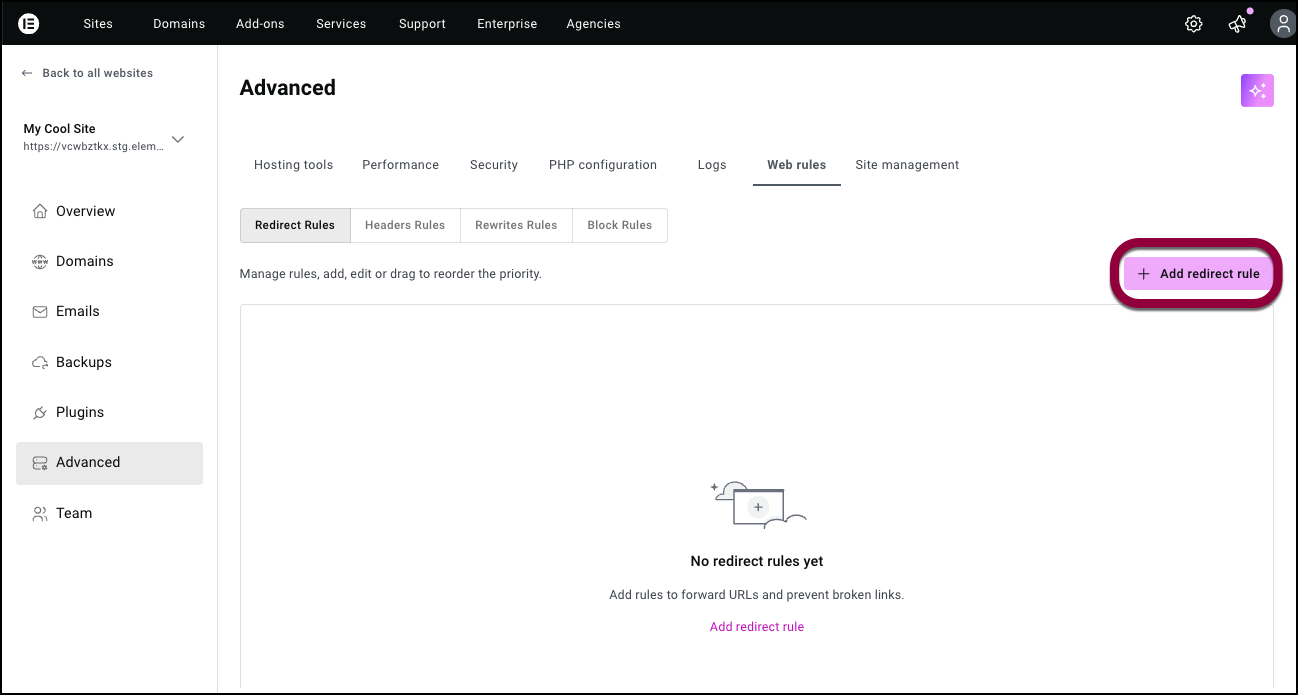
You will see tabs for the four available rule types: Redirect Rules, Headers Rules, Rewrite Rules, and Block Rules.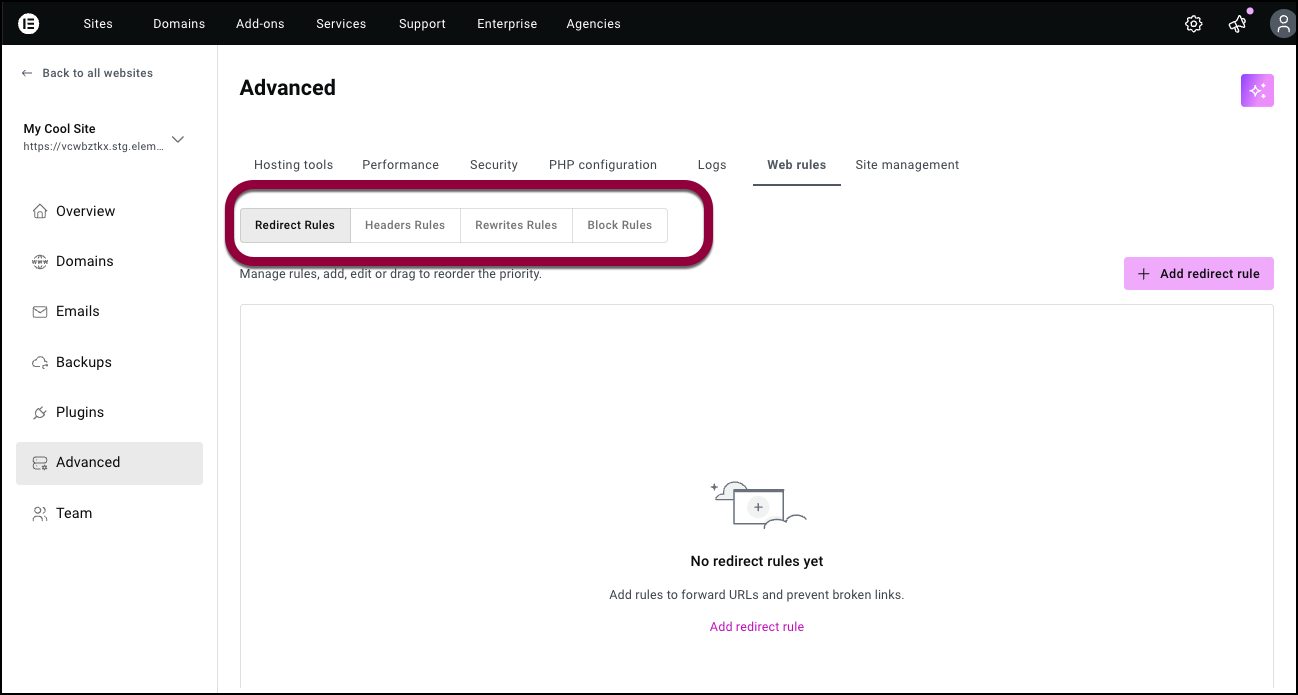
Redirect Rules
Redirect rules send visitors from one URL to another, updating the URL displayed in their browser. This is commonly used to fix broken links or update your site structure without losing SEO ranking.
- To add a redirect rule, click Add redirect rule.
Common Status Codes
- 301 (Permanent Redirect): Use this when a page has permanently moved. This transfers SEO value to the new URL.
- 302 (Temporary Redirect): Use this for short-term changes, testing, or marketing campaigns.
Configuration
When creating a redirect, you can enable Forward query parameters to preserve tags like UTMs (e.g., ?utm_source=google) during the redirect.
Headers Rules
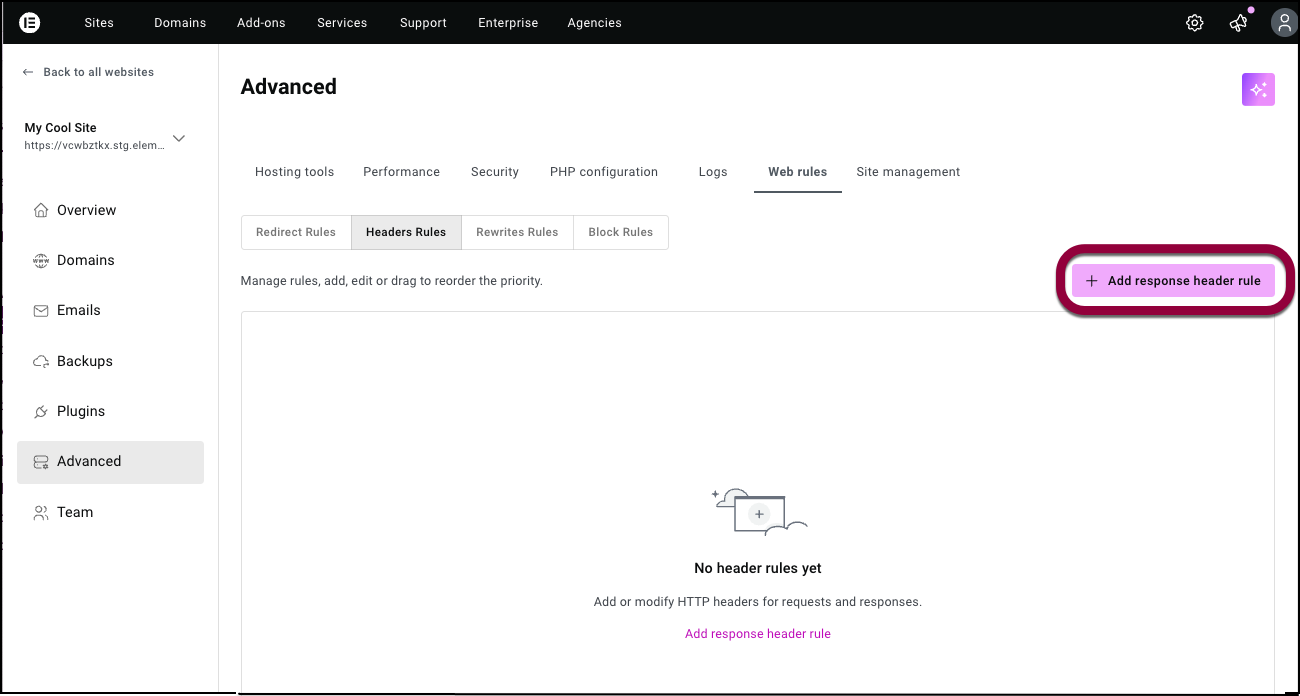
These rules allow you to Set or Remove HTTP response headers .
- To add a Headers rule, click Add response header rule.
Common use cases
- Security: Add headers like HSTS, CSP, or X-Frame-Options to improve site security.
- Privacy: Remove server-identifying headers to minimize your site’s footprint.
Rewrites Rules
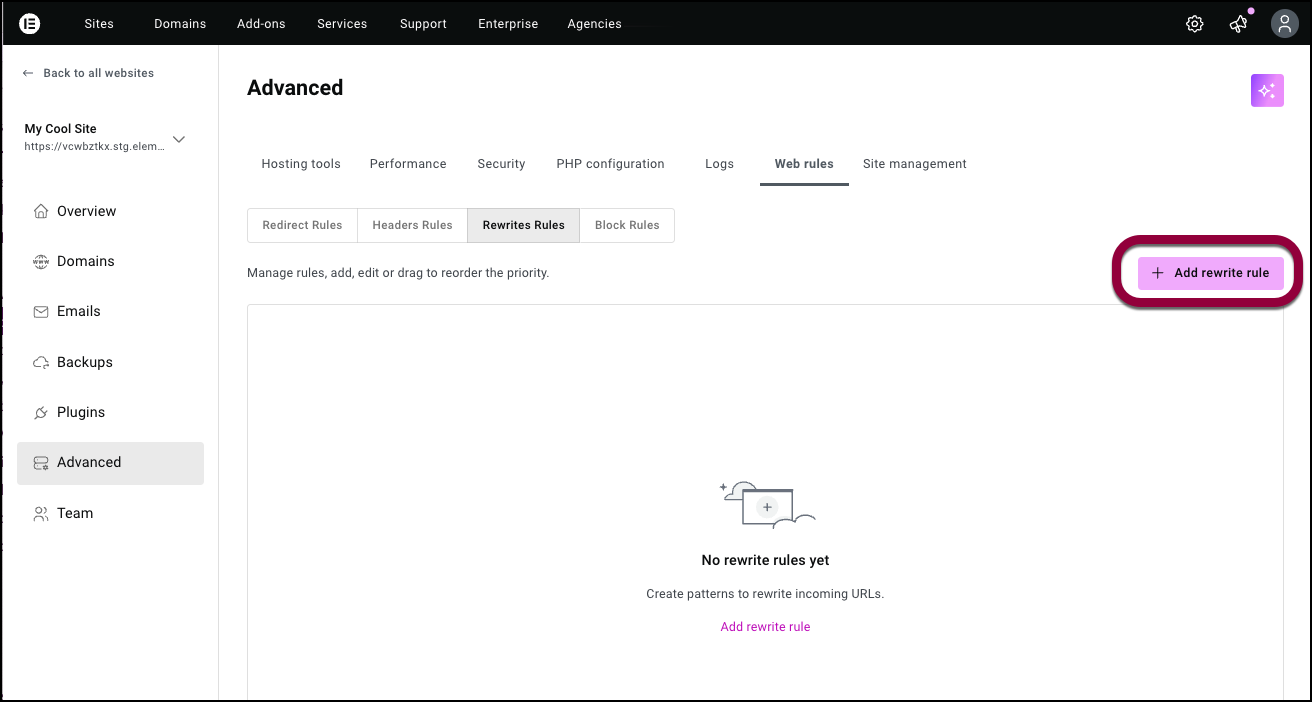
Unlike redirects, a Rewrite Rule changes the request path internally without changing the URL shown in the visitor’s browser.
- To add a rewrite rule, click Add rewrite rule.
Common use cases
- Internal Routing: Serve a different internal path while keeping the public URL clean.
- Headless Setups: Support custom routing logic for headless WordPress architectures.
- Migrations: Route legacy URLs to a new backend structure transparently.
Block Rules
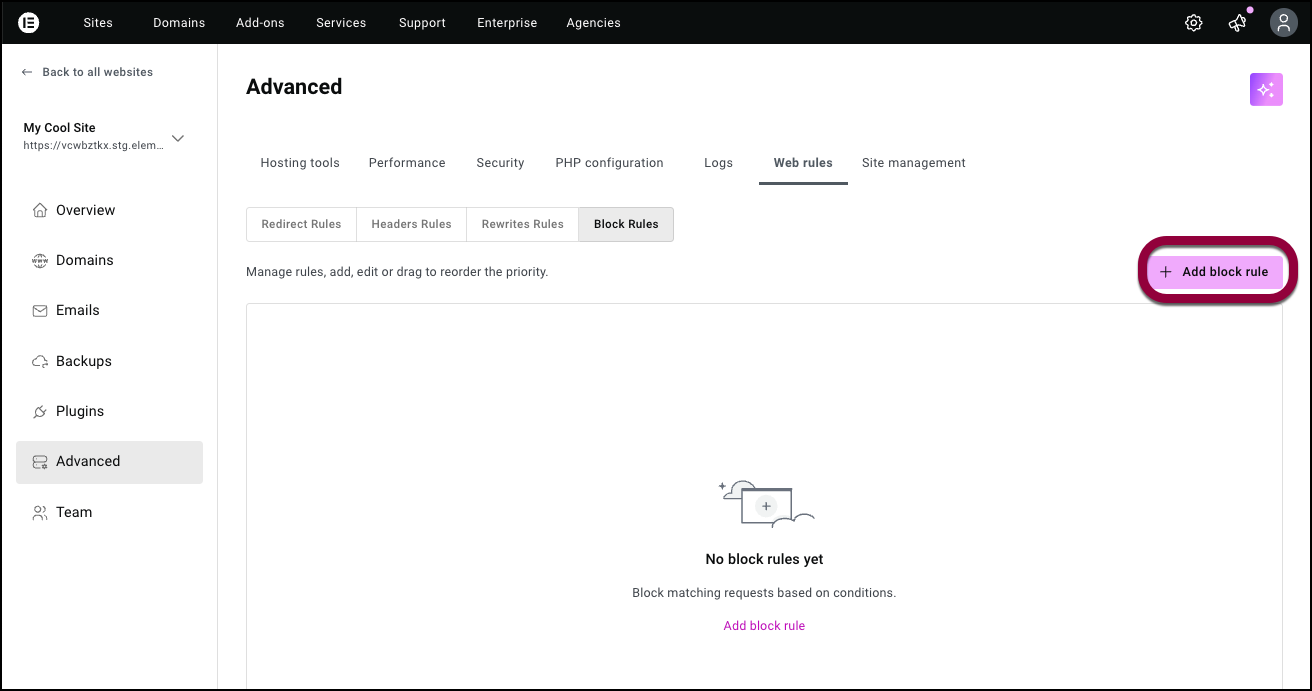
Block rules allow you to deny access to specific requests based on defined conditions. This is a powerful tool for security hardening and compliance.
- To add a blocking rule, click Add block rule.
Blocking Options
- 403 (Forbidden): The server understands the request but refuses to authorize it.
- 404 (Not Found): Makes the resource appear as if it does not exist. This is often safer for security-related blocking as it hides the existence of the page.
- 451 (Unavailable For Legal Reasons): Used for compliance restrictions.
Common Use Cases:
- Block access to /wp-admin from specific countries.
- Restrict bots or suspicious IP ranges.
Understanding Conditions & Priority
Rule Priority
Rules are evaluated from top to bottom. The first rule that matches the request conditions is the only one applied.
- You can drag and drop rules to change their priority.
- If two rules match a request, the one higher on the list wins.
Conditions Logic
You can apply rules to All Requests or define specific Conditions.
- Logic: All conditions within a single rule follow and logic; they must all be met for the rule to trigger.
- Types: Filter by Path, Country, IP Address, Cookie, User-Agent, and more .
- Operators: Use flexible operators like “Equals,” “Starts with,” “In CIDR,” or “Regex” .
Troubleshooting
If a rule is not behaving as expected, check the following:
- Check Priority: Is a higher-priority rule intercepting the request?.
- Verify Status: Ensure the rule is toggled to Active.
- Test Conditions: Try disabling conditions temporarily to isolate if the logic is too restrictive.
- Clear Caches: Changes usually apply quickly, but propagation can take a short time. Test in an Incognito window.

