A slow website doesn’t just frustrate users; it can actively hurt your search rankings and conversion rates. If you are using Elementor Hosting, you have several built-in tools at your disposal to streamline performance.+1
Here is how you can optimize your site’s speed, from server-level tweaks to media management.
Upgrade your PHP version
Your hosting environment plays an important role in performance. Newer PHP versions are more efficient and can execute website scripts faster.
To update your PHP version:
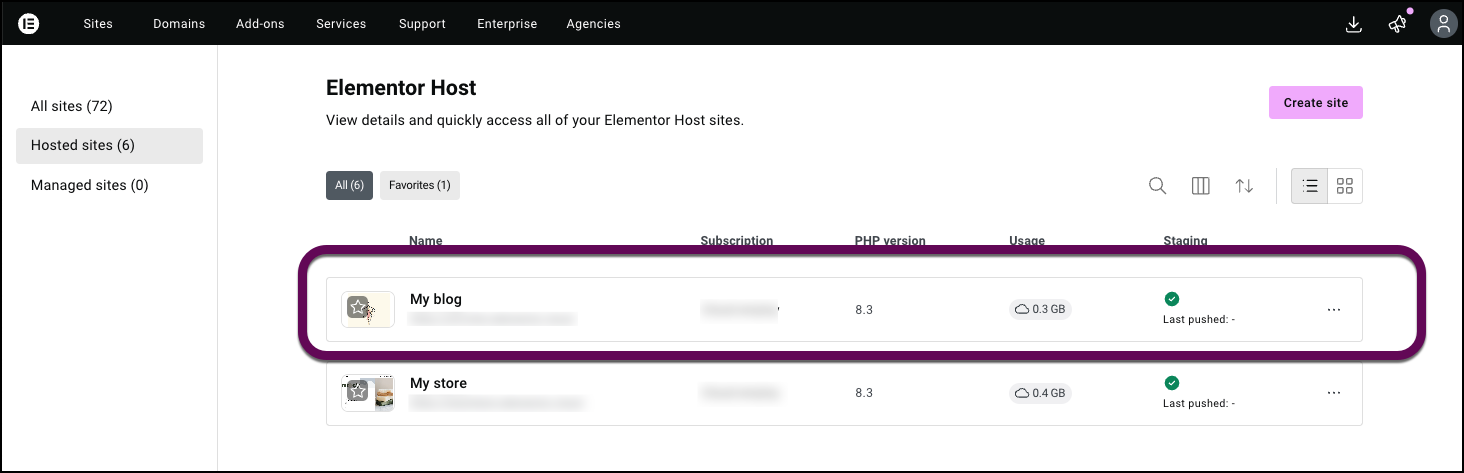
- Go to your My Elementor dashboard.
- Select the website you want to manage.
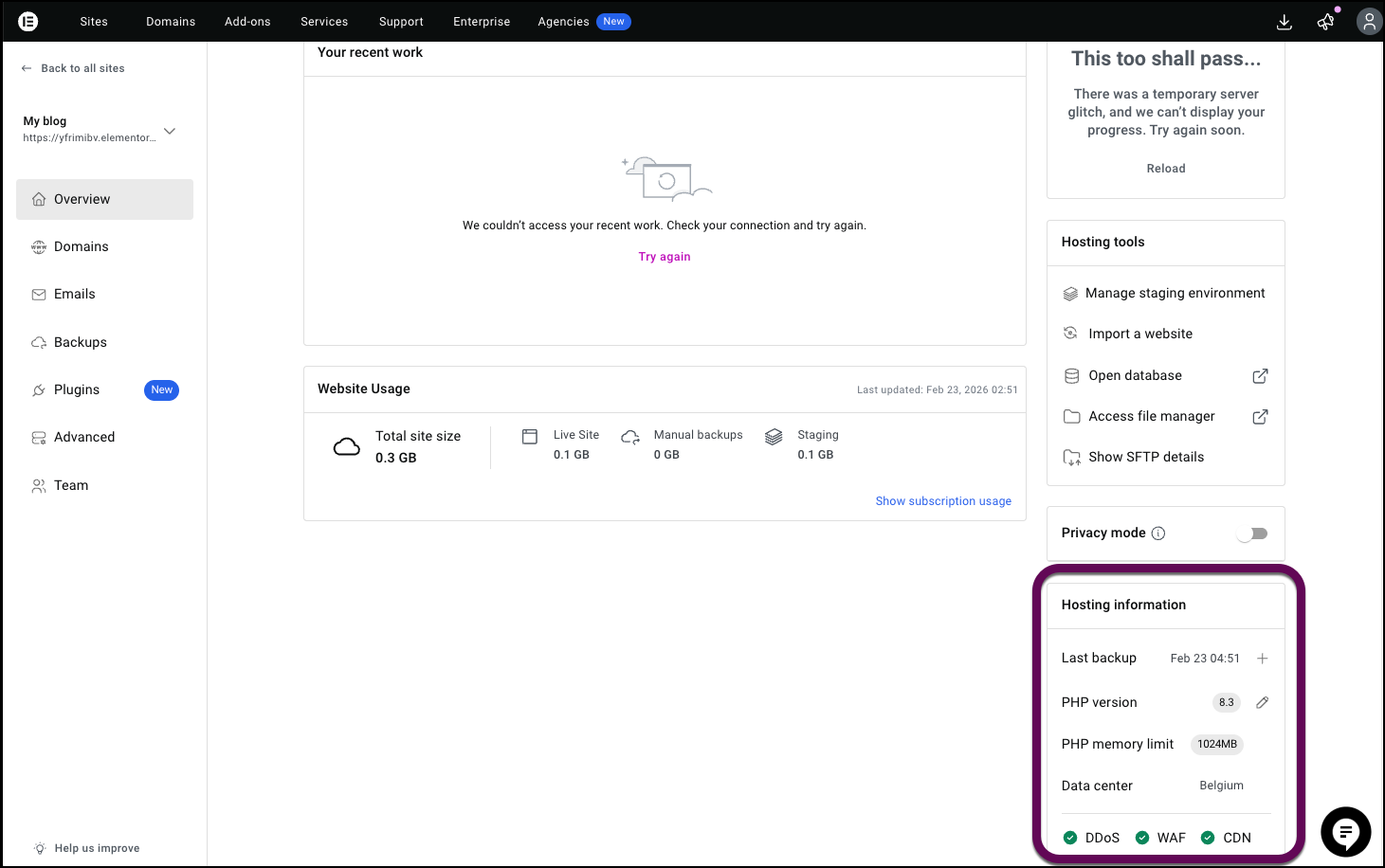
- Scroll down to the Hosting information section on the right.
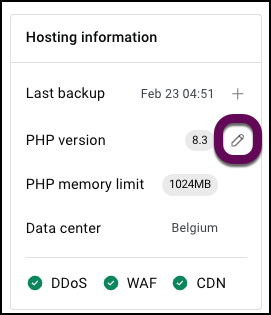
- Click the pencil icon next to PHP version.
- Select the latest available PHP version.
- Click Save.
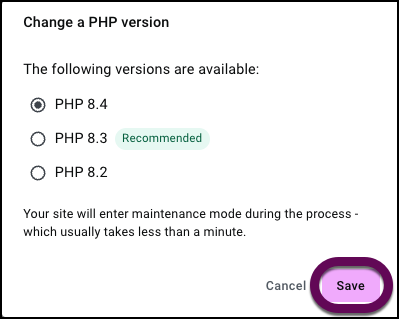
Your site will briefly enter maintenance mode while the update is applied.
Optimize your media
Large or uncompressed images are one of the most common causes of slow load times.
To improve media performance:
- Install an image optimization plugin to automatically compress images when uploading.
- Remove unused images and videos from your Media Library.
To delete unused media:
- Go to WP Admin.
- Open Media > Library.
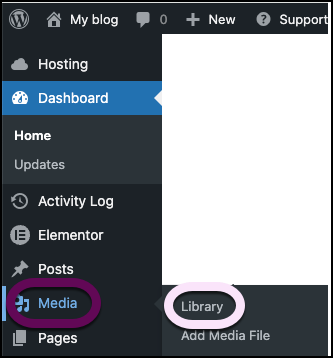
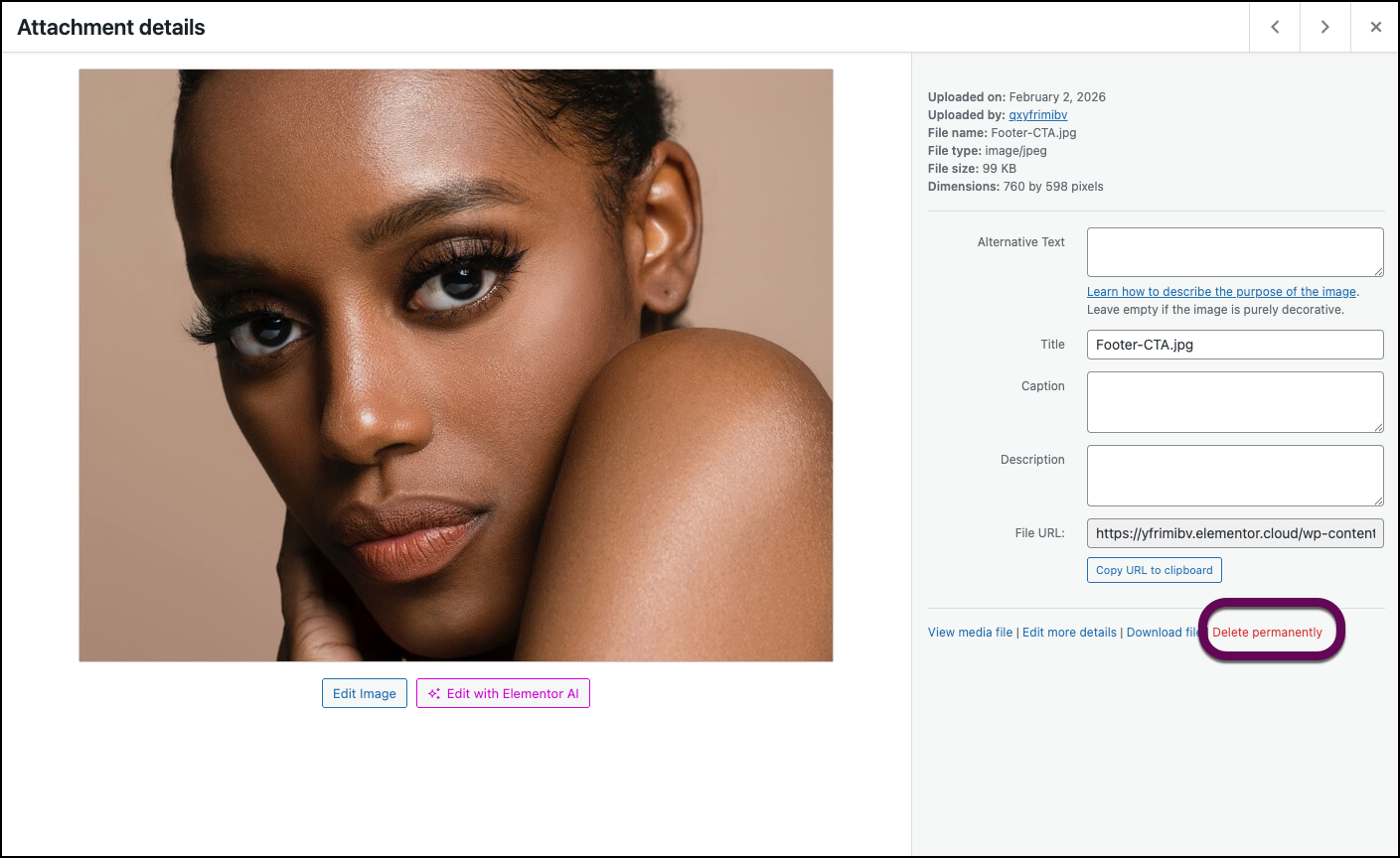
- Identify unused or large files.
- Click Delete Permanently to remove them.
Enable object caching
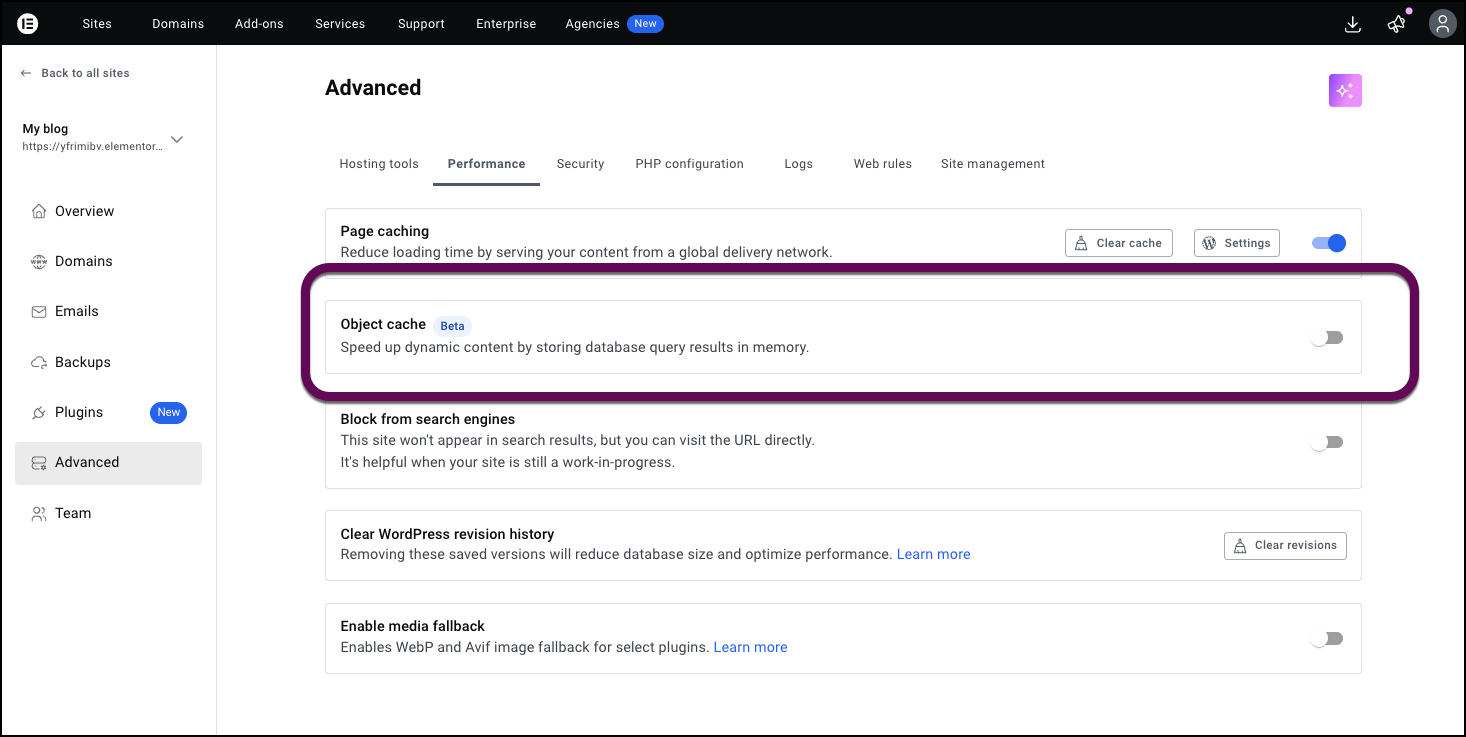
Object caching stores database query results in memory, reducing repeated database requests and improving response times.
To enable object caching:
- Go to your My Elementor dashboard.
- Select your website.
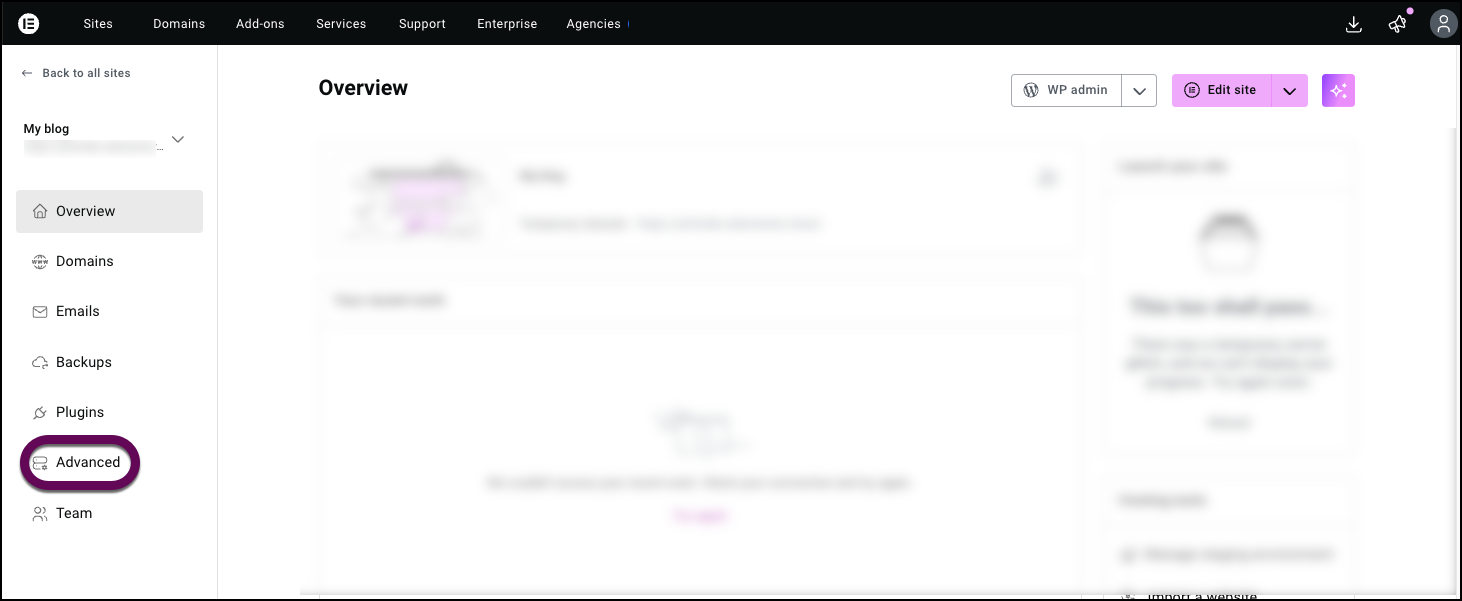
- Click the Advanced tab.
- Click the Performance tab.
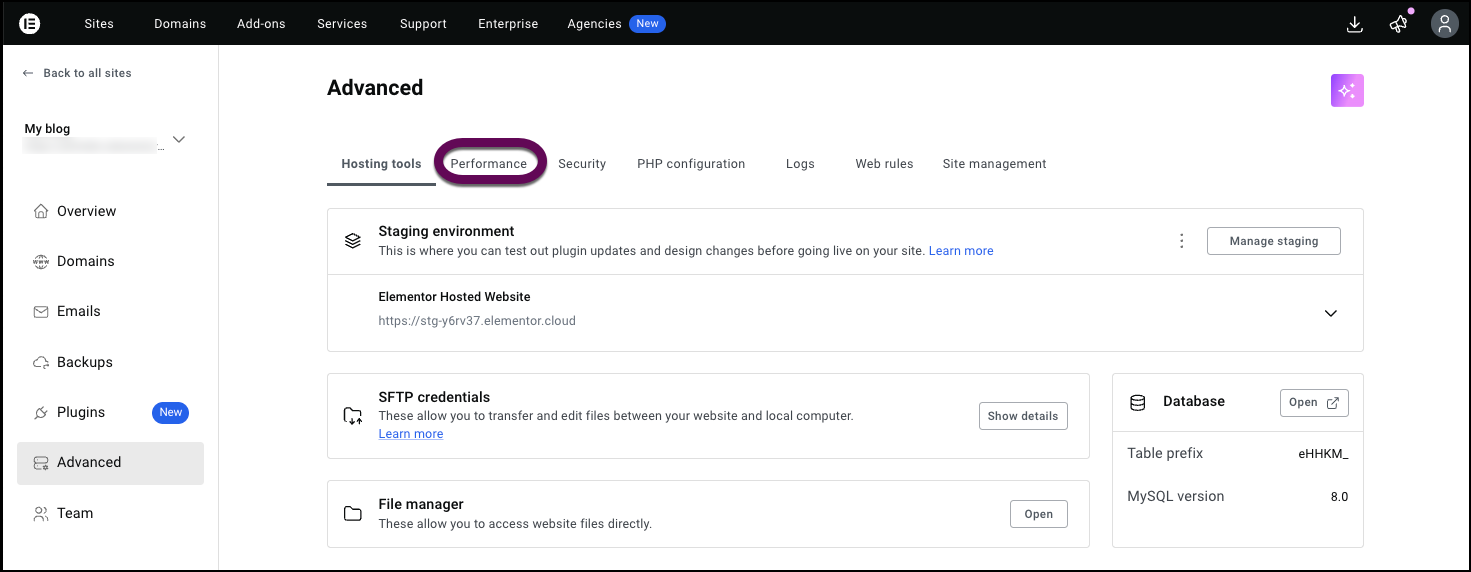
- In the Object Cache section, switch the toggle to active.
Troubleshoot and monitor resources
If your site remains slow after optimizing settings, review resource usage and logs.
Extend execution time
If optimizations don’t resolve the lag, you may need to look deeper into resource usage and logs:
- Go to your My Elementor dashboard.
- Select your website.
- Click the Advanced tab.
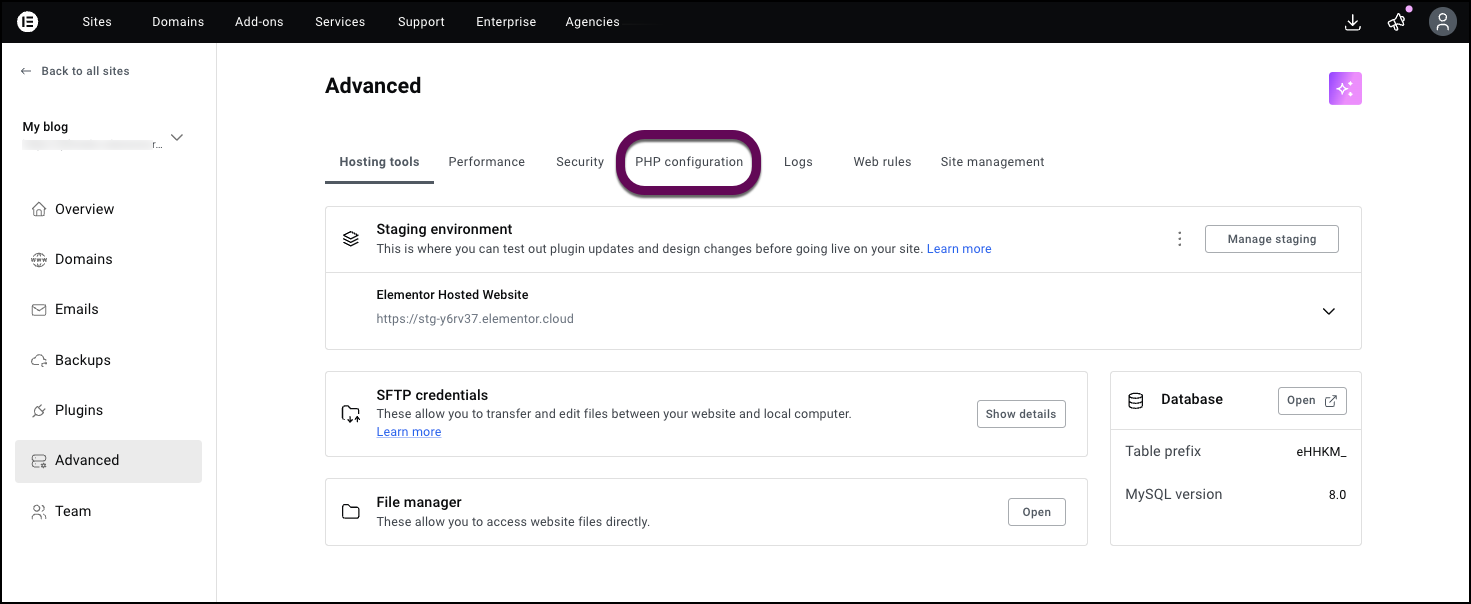
- Click the PHP Configuration tab.
- Click Extend execution time.
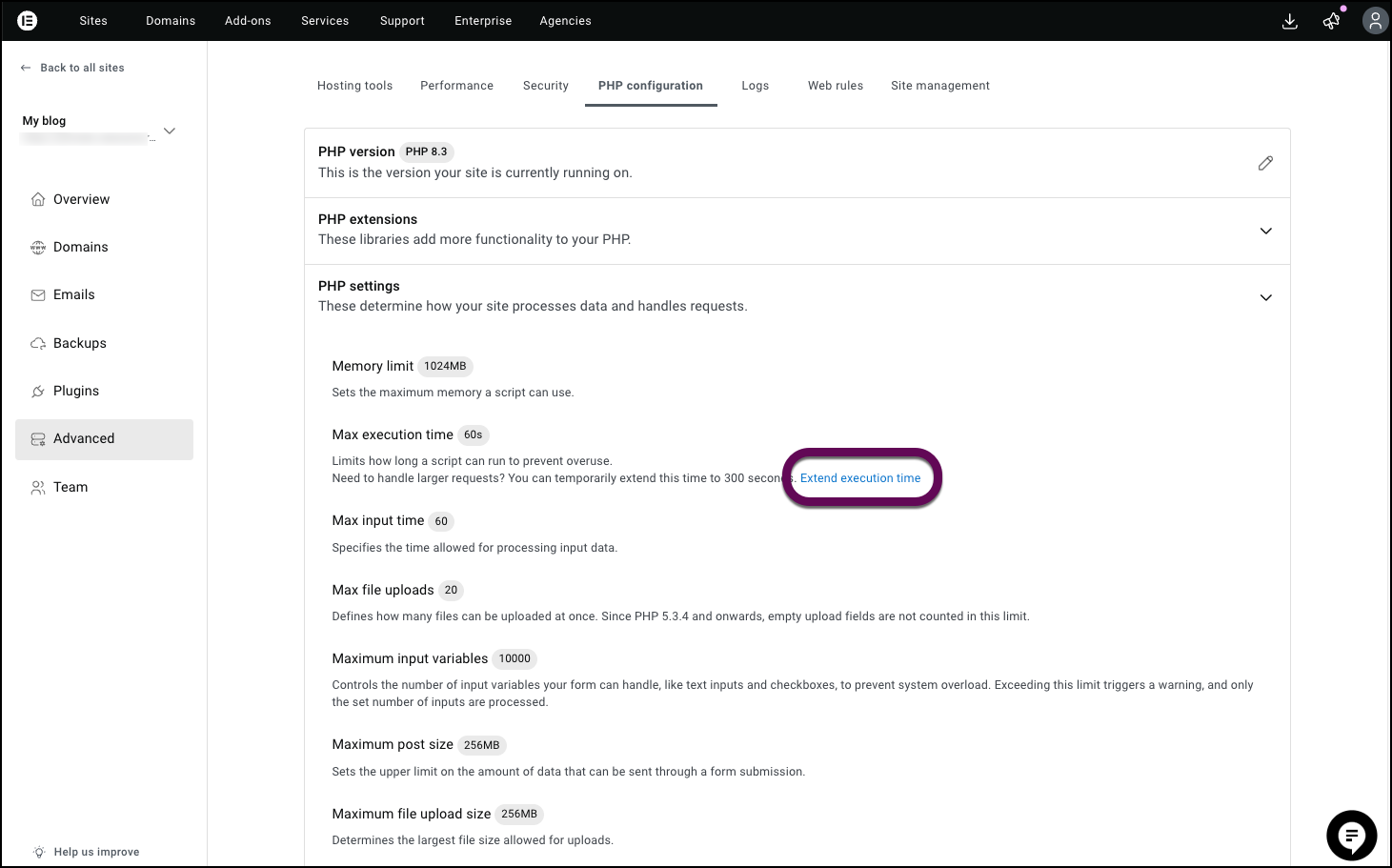
This increases the limit to 300 seconds for 24 hours.
Review error logs
Plugins generating repeated errors can impact performance.
To check logs:
- Go to your My Elementor dashboard.
- Select your website.
- Click the Advanced tab.
- Select Logs.
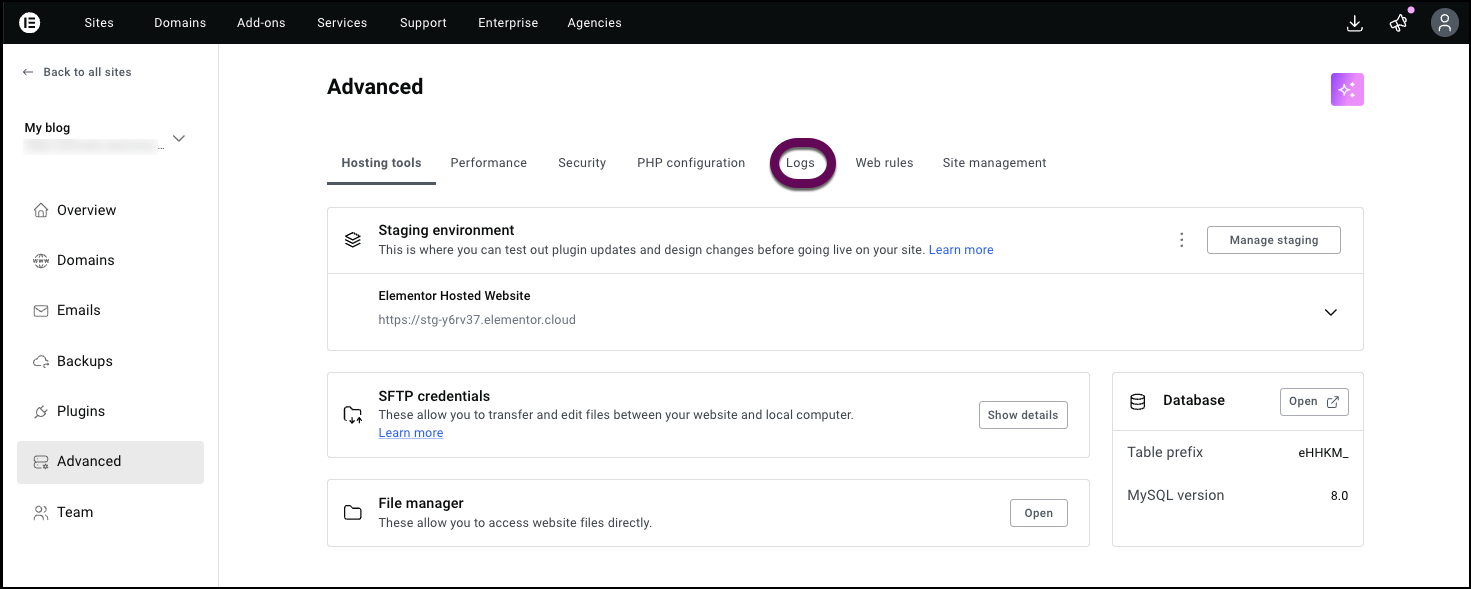
Review recent entries to identify plugins or scripts generating frequent errors.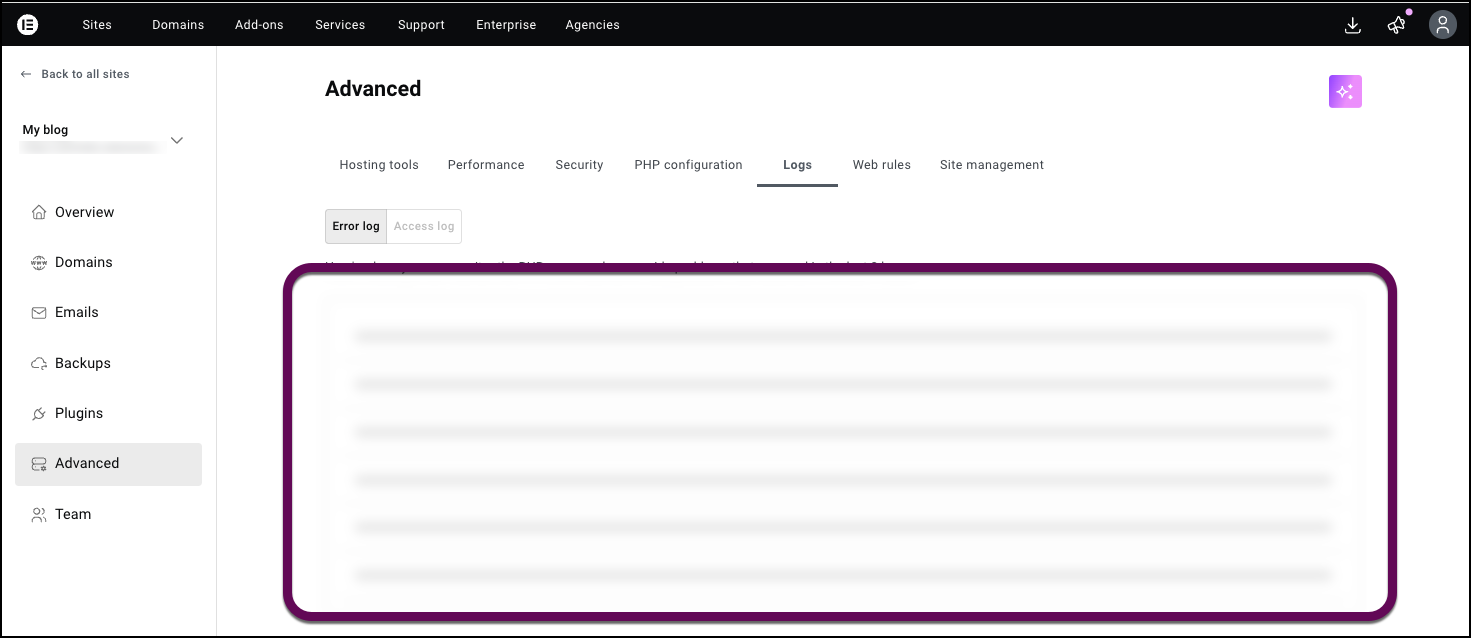
Maintain site security
Malware or outdated plugins may consume server resources and affect performance.
- Keep WordPress, plugins, and themes updated.
- Use strong passwords.
- Remove unused plugins.

