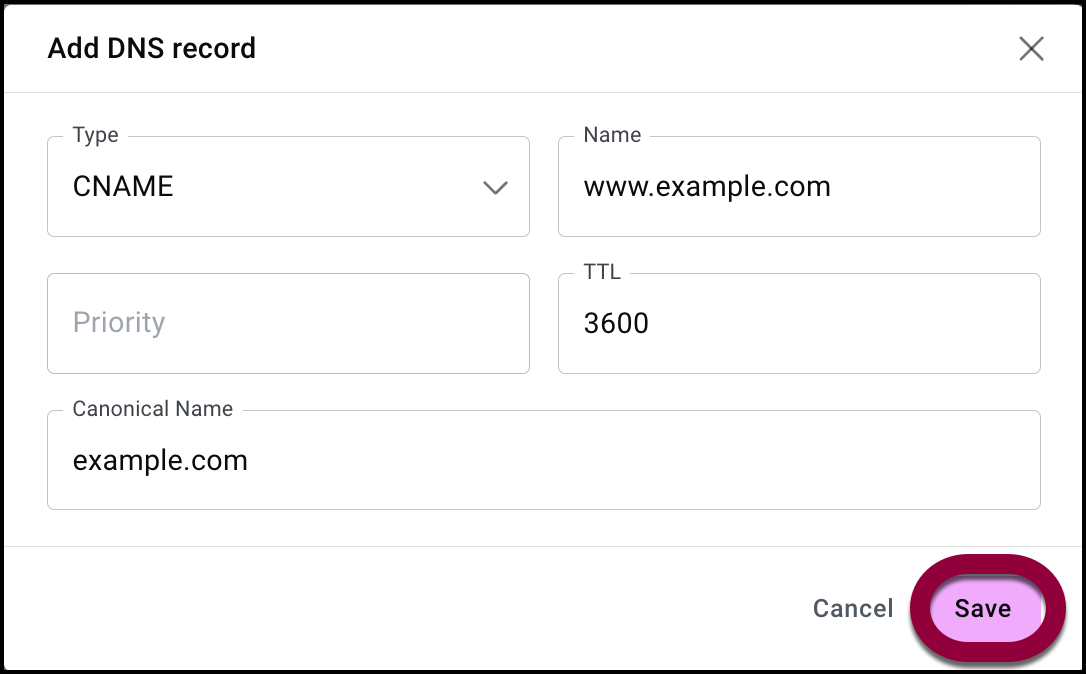
Adding a CNAME record lets users find your site when they type in www before the domain name. For Adding a CNAME record lets users find your site when they type in www before the domain name. For instance, if they enter www.example.com instead of just example.com.
- Use the Type dropdown menu to select CNAME.
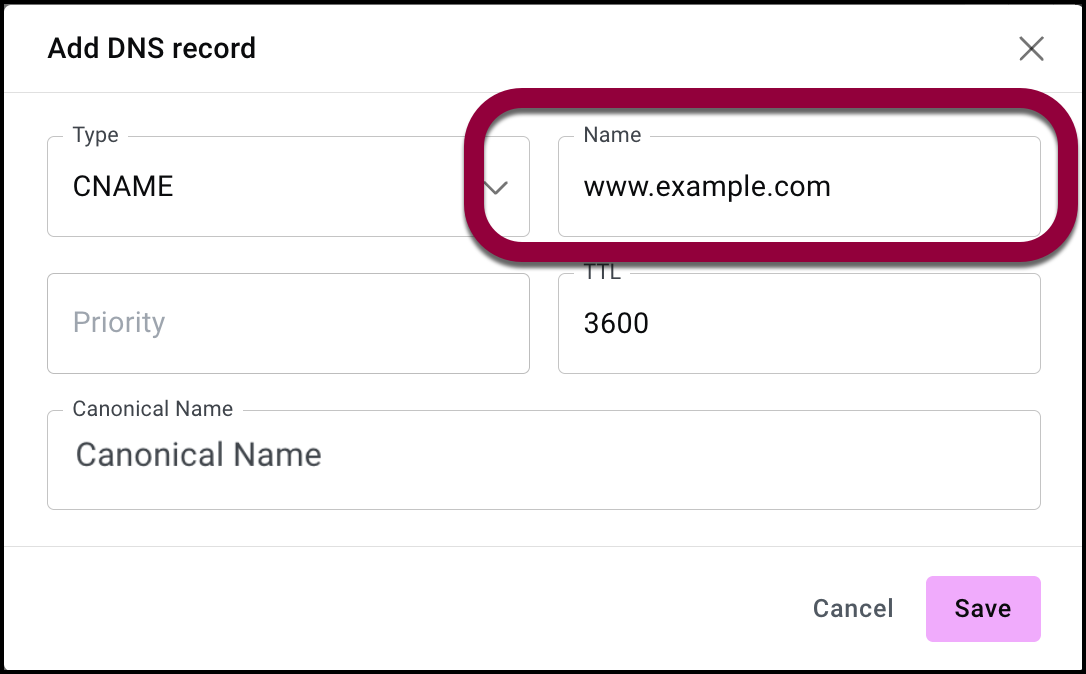
- In the Name field fill in the name you want users to be able to use. For example, www.example.com
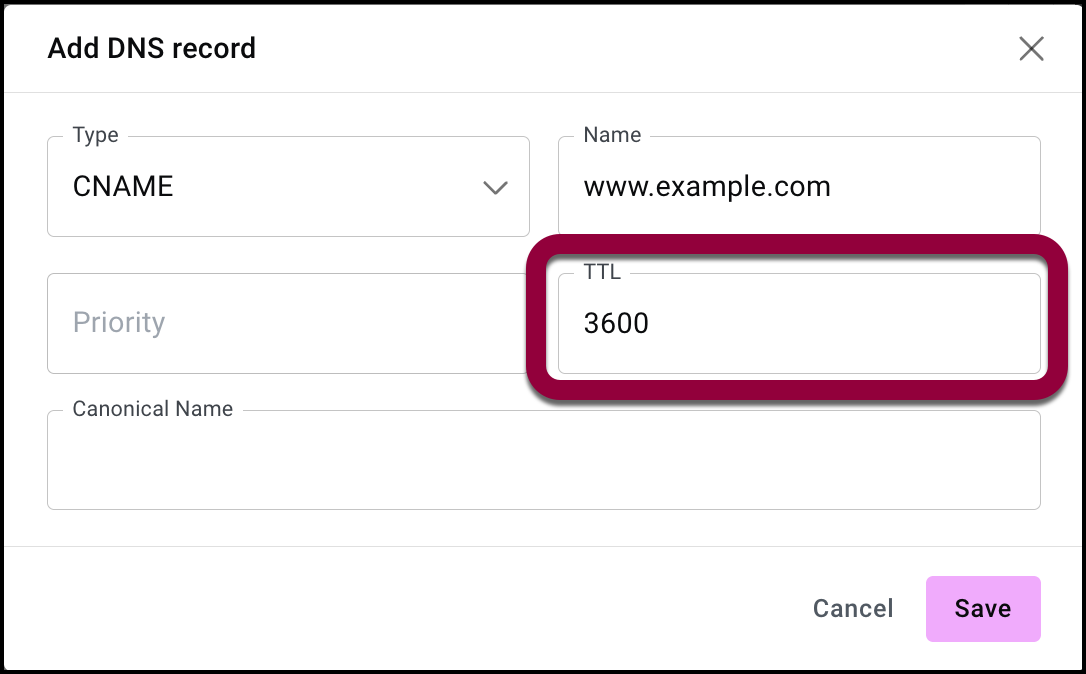
- (Optional) In the TTL field, you can fill in a Time-To-Live (TTL) value to replace the default value. TTL is the value (in seconds) that tells DNS resolvers how long they should cache (store) the record before checking the authoritative server for a new update.
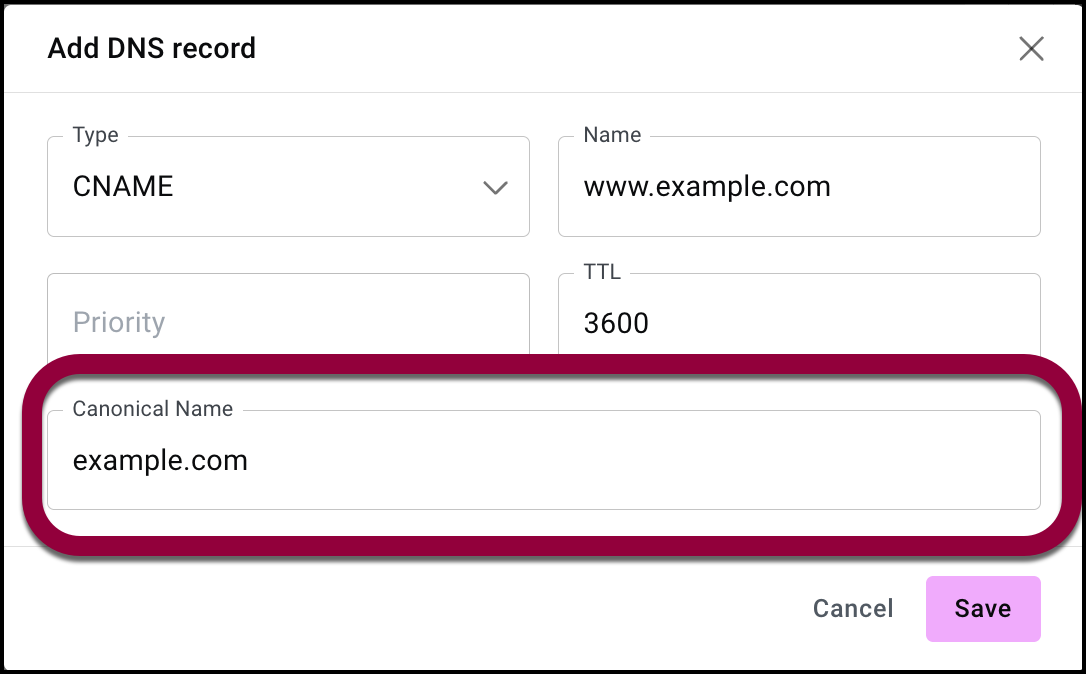
- Fill in your website’s canonical or real name. For example, example.com.
- Click Save to save the record.