An Elementor Partner applicant hands off a site by using the Transfer Flow within the My Elementor dashboard to shift billing responsibility to a client. This process involves selecting a domain, choosing a specific Elementor subscription plan, and generating a unique checkout link for the client to complete the purchase, while the agency remains the Agency of Record.
The handoff process is used when you are transferring a site from your agency account to a client. If the client is purchasing their own site, use the referral process described here.
Why should you use the Elementor site handoff flow?
Using the official handoff process provides several benefits for both the agency and the client:
- License Management: The transferred site is removed from your Agency subscription bulk limit, freeing up a license for new projects.
- Professional Handoff: The client assumes responsibility for payment while you maintain “Agency of Record” (AoR) status for management.
- Financial Incentives: You may qualify for revenue sharing on the new subscription the client purchases.
- Credits – Ensure that clients use their own credits, not yours.
How do I hand off a site to a client?
Prerequisite: You must be an Elementor Partner or an Applicant.
How do I hand off a site from the Partner dashboard?
- Go to your My Elementor dashboard.
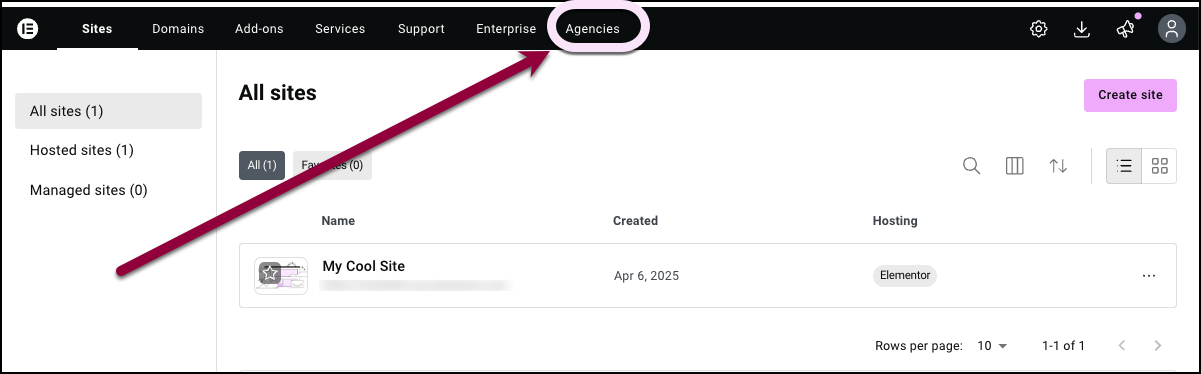
- In the top bar, click Agencies.
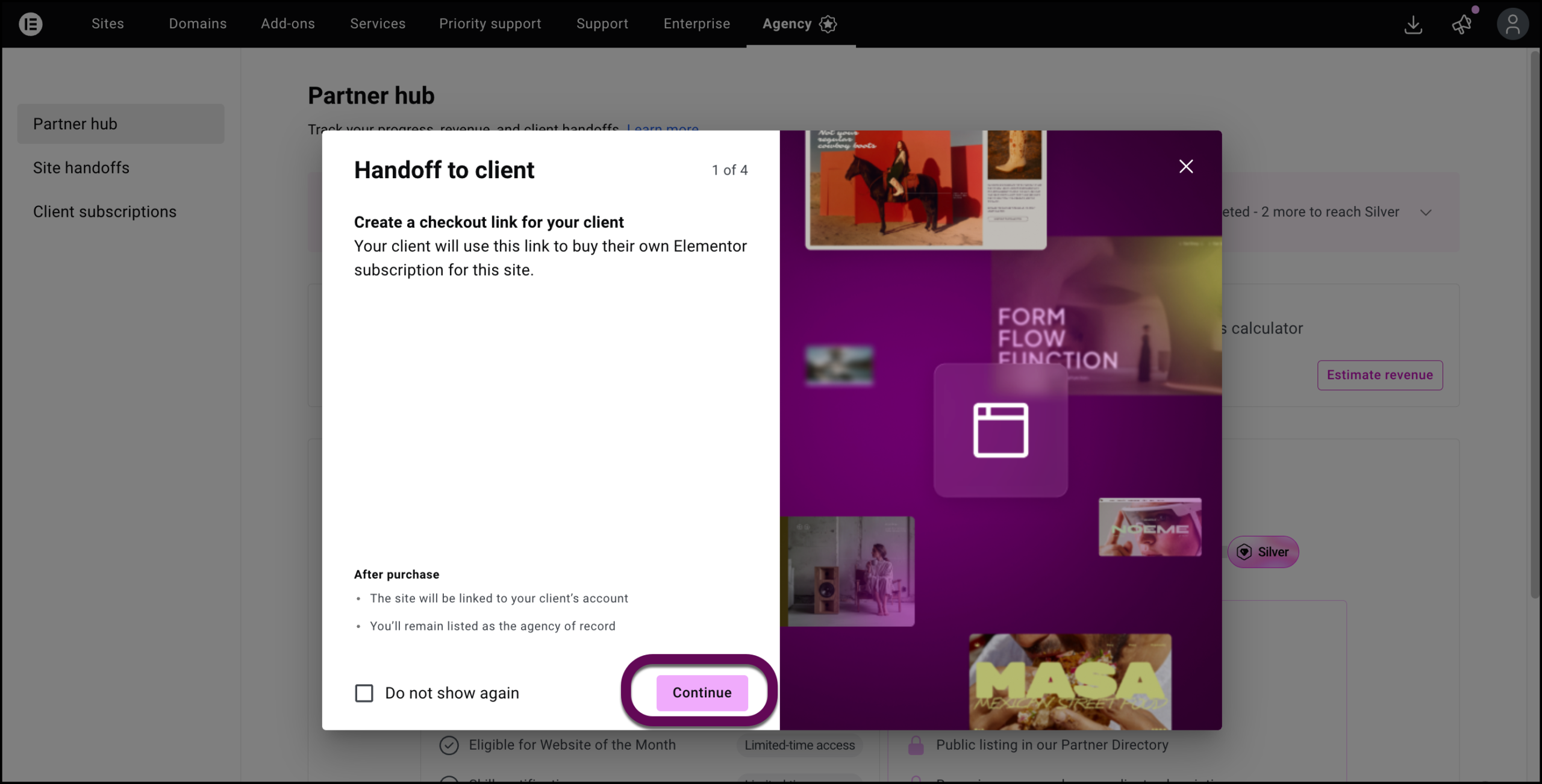
- In the Site handoffs card, click Hand off site.
- Click Continue in the confirmation window.
- Select the specific site you want to transfer to the client and click Continue.
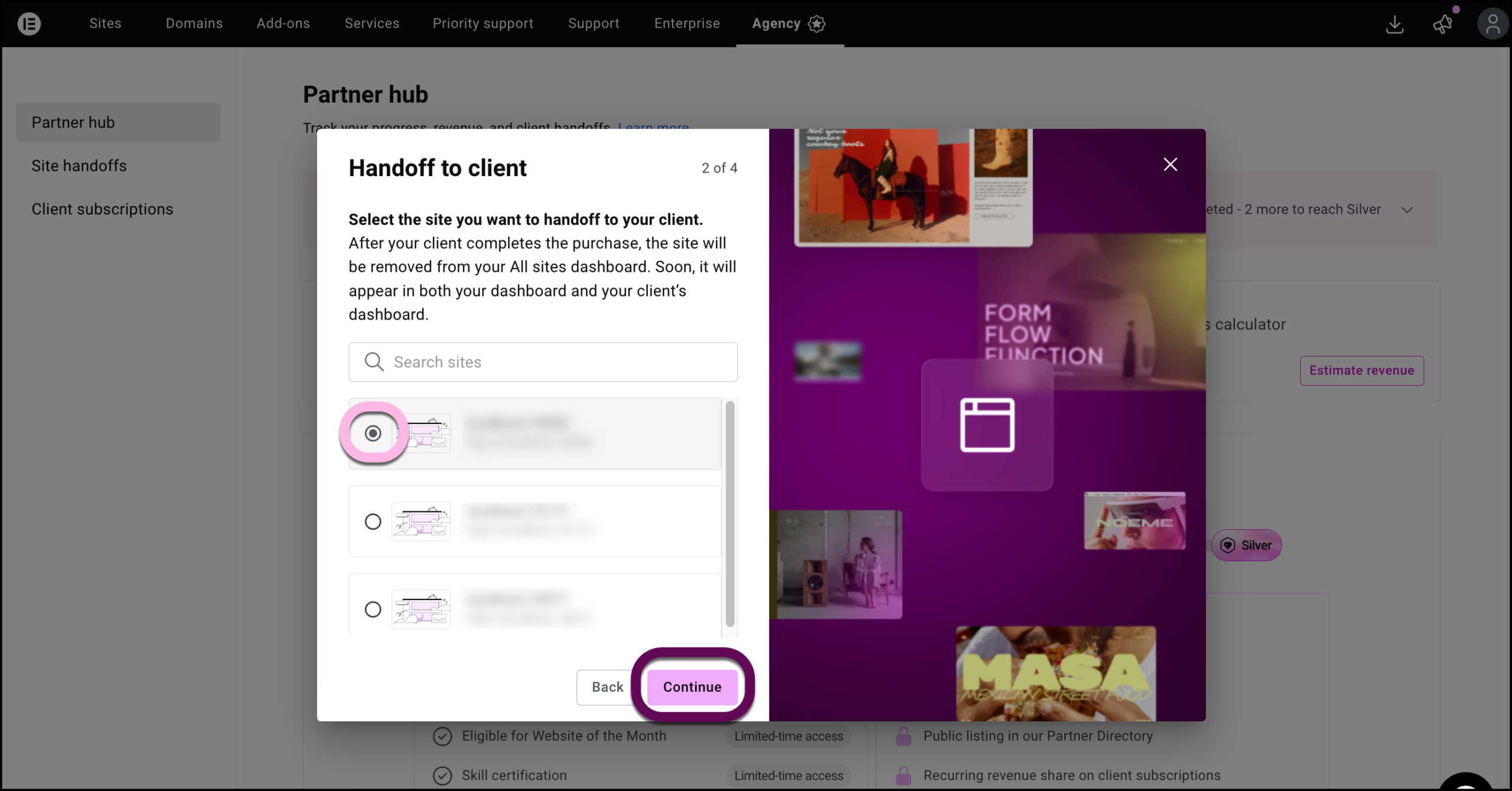
When you transfer the site, your client will have to purchase an Elementor subscription to support the site, which frees up one of the sites in your subscription. - Choose the type of subscription your client will need to purchase.WarningMake sure the subscription can support any features you used to build the site.
- Fill out the client’s email address. If the client has an Elementor account use that email address. If they do not have an Elementor account, they will have to create one and you should use the email address they plan on using to set up their account.[/callout]
- Click Continue.
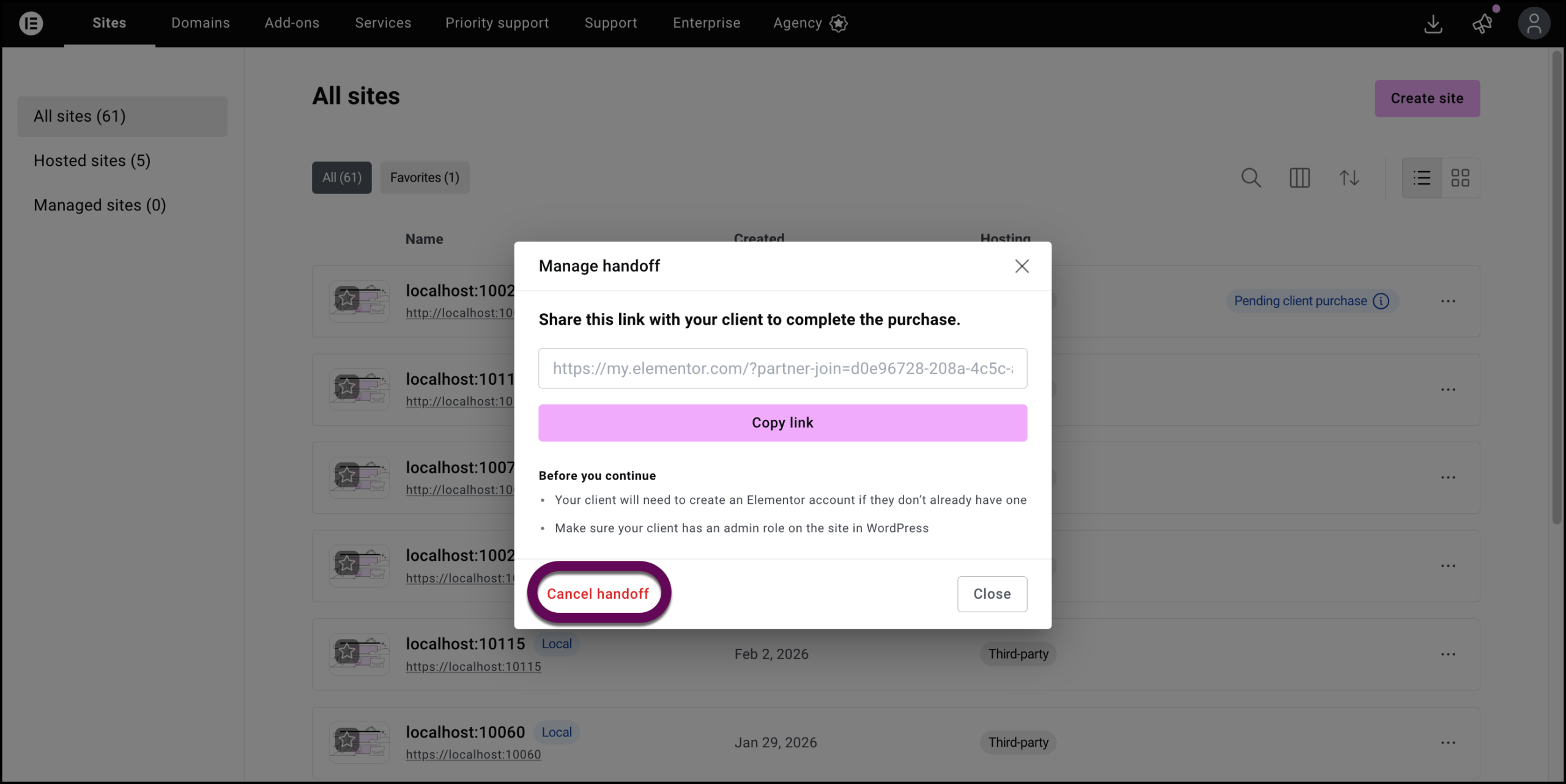
- Click Copy link. This is the link you need to send your client so that can complete the transfer process.
- Click Done.
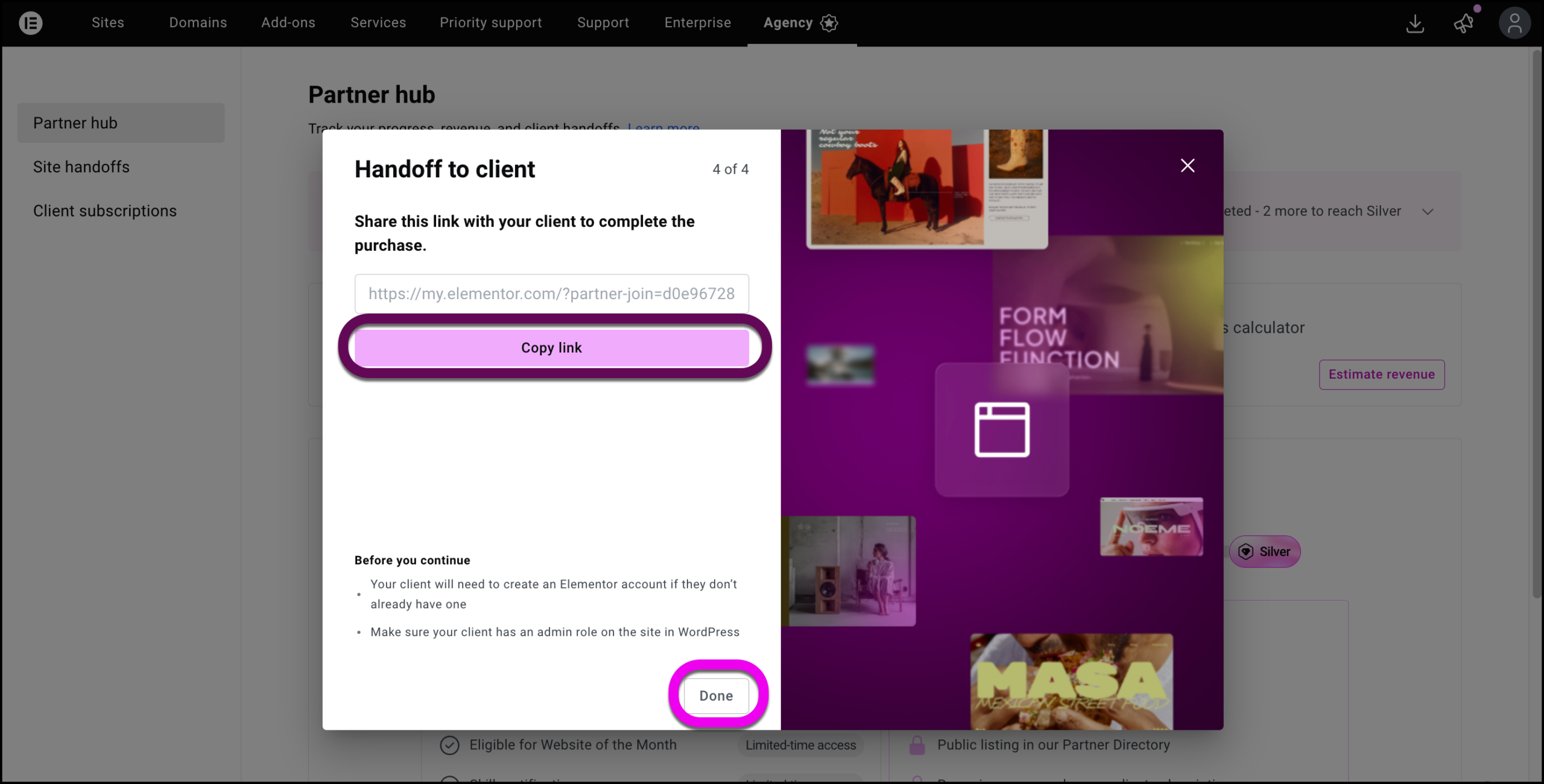
- Send the link you copied to the client.NoteThe transfer link is valid for five days.NoteYou can use this process to recreate the link if necessary.
How do I hand off a site from the Sites tab?
- Go to your My Elementor dashboard.
It opens with the Sites tab open. - Locate the site you want to transfer and click the ellipses to the right of the site name.
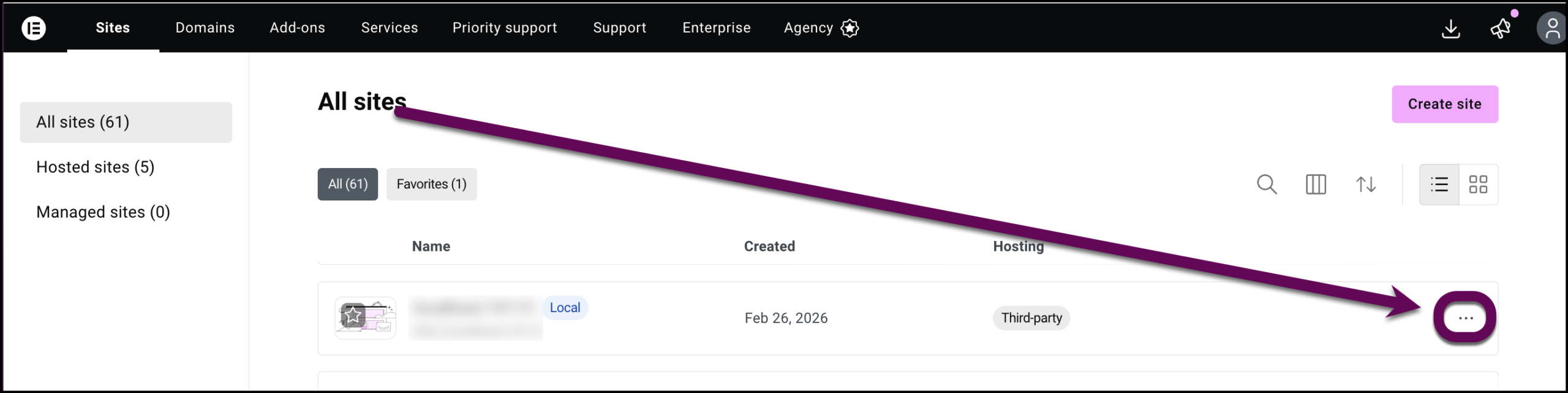 NoteThe site must be part of an Elementor Pro Expert, Elementor Pro Agency or Elementor One Agency subscription.
 - Follow the handoff process described above.
How does the client activate their new Elementor subscription?
- Click the link you sent them.
- They are prompted to log into their Elementor account or create one if they don’t have one.
- The client fills out payment details.NoteThe client can only purchase the plan you select.
- The client then needs to:
- Open their My Elementor dashboard and select the site.
- Click WP Admin.
- Click Elementor on the left panel.
- Click Activate.
What changes occur after the Elementor site transfer is complete?
- For the Client:
- They are responsible for billing.
- For the Agency (The Agency):
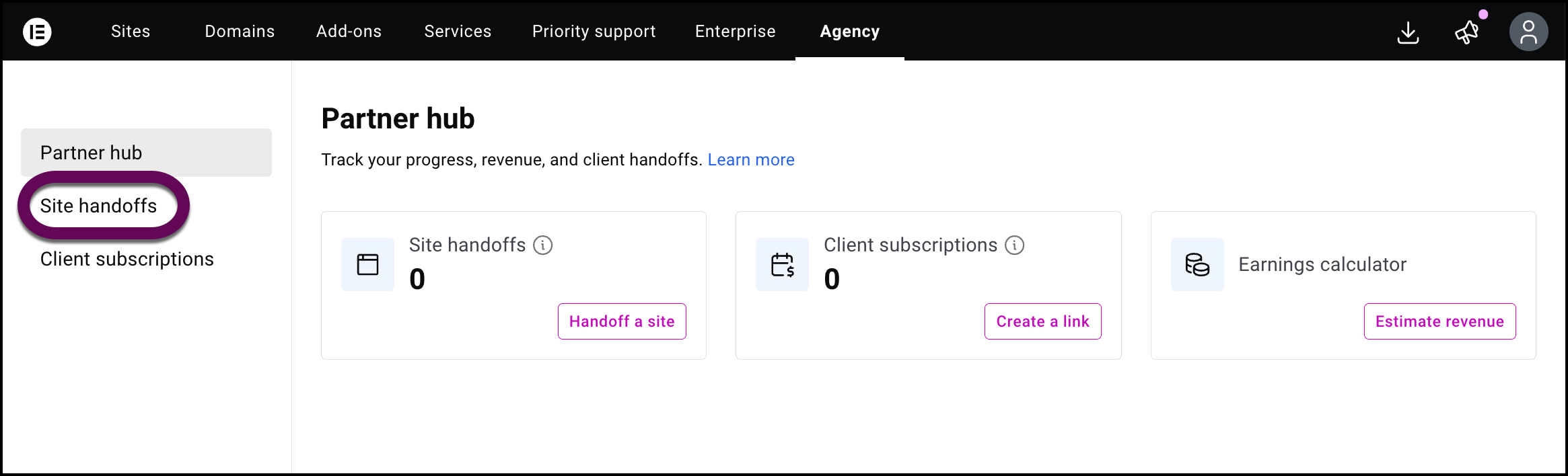
- The site is removed from your Agency subscription count.NoteThis site will no longer appear in your list of sites as it now belongs to your client. You can see a list of sites that you’ve handed off to clients by going to your dashboard and clicking Site handoffs.
- You remain the Agency of Record.
- The site will no longer appear under your account, but will be counted in your transfer sites pool in the Partners Dashboard.
- You retain access to manage the website via standard WordPress behavior.
- The site is removed from your Agency subscription count.
How do I recreate the handoff link?
- Go to your My Elementor dashboard.
- In the top bar, click Agencies.
- In the panel, click Site handoffs.
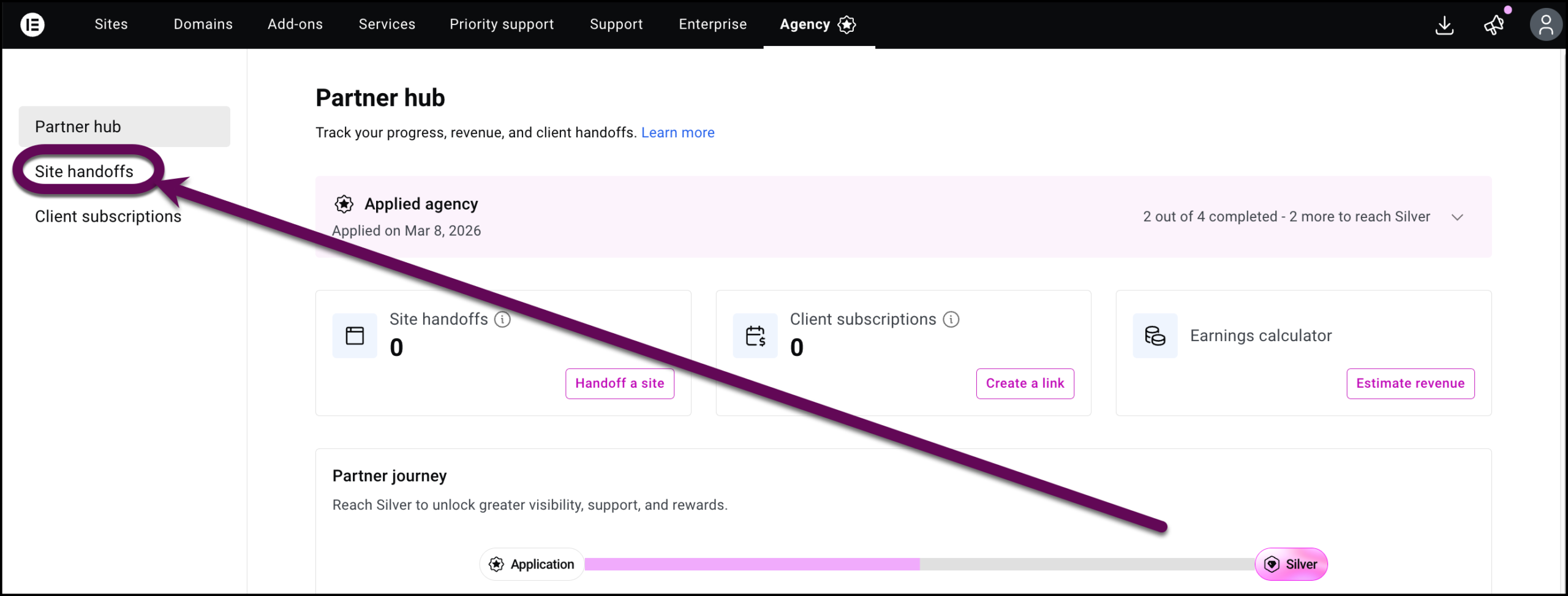
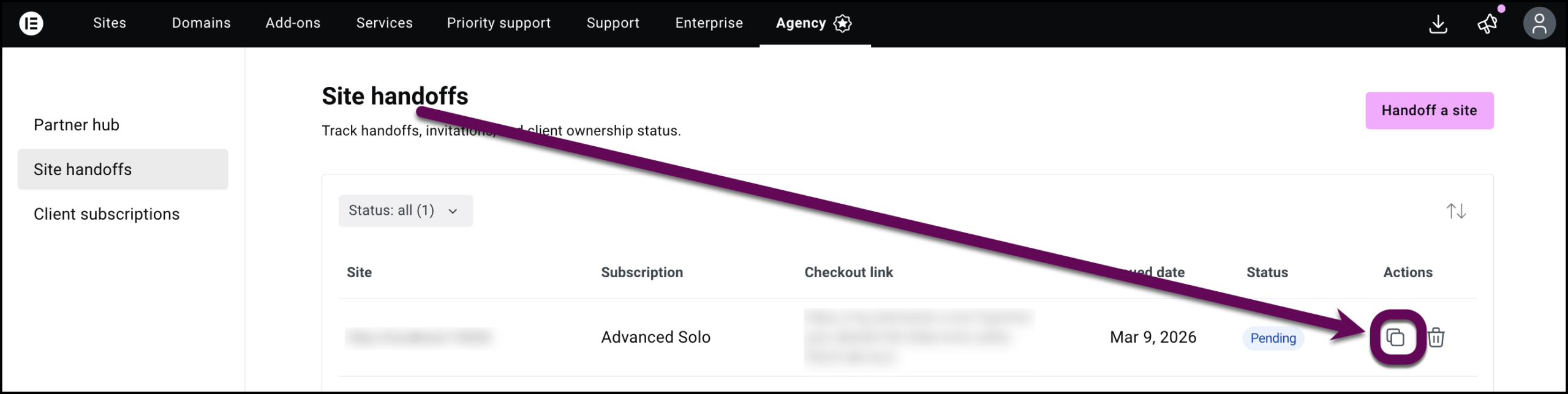
- Click the copy icon to the right of the site to copy the handoff link.
How do you cancel a pending site transfer?
If you sent a link by mistake and need to cancel:
From the Partner dashboard
- Go to your My Elementor dashboard.
- In the top bar, click Agencies.
- In the panel, click Site handoffs.
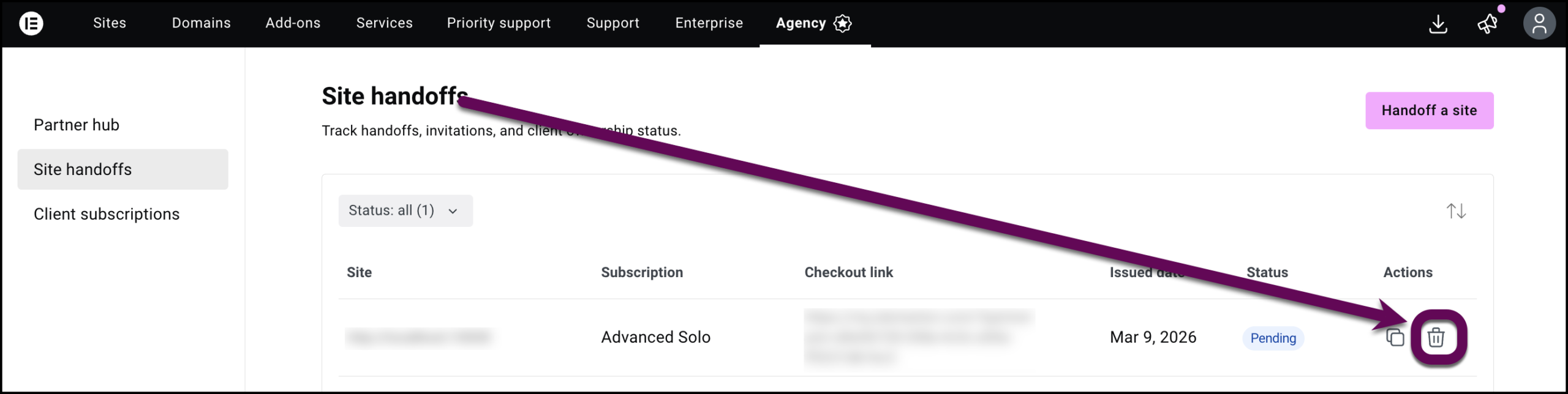
- Click the cancel icon to the right of the site to cancel the handoff.
From the Sites tab
- Go to your My Elementor dashboard.
It opens with the Sites tab open. - Locate the site you want to transfer and click the ellipses to the right of the site name.
- Select Manage handoff.
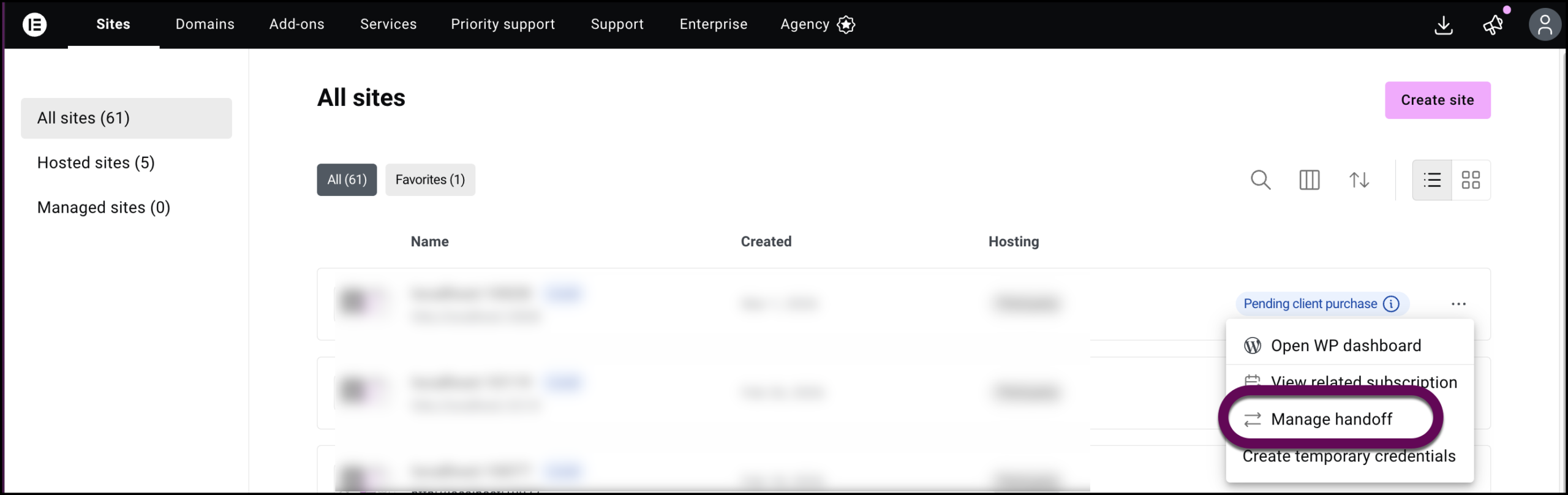
- Click Cancel handoff.