To add or edit a robots.txt file on Elementor Host, navigate to the Advanced tab of your website within the My Elementor dashboard and open the File Manager. This tool allows you to directly modify or upload the physical robots.txt file in the root directory, ensuring changes are saved despite WordPress security restrictions.
Why should I use the File Manager to edit robots.txt?
Direct file editing from the WP admin area is restricted on Elementor Host for security reasons. While many SEO plugins attempt to create a “virtual” robots.txt file, server-level permissions may prevent these changes from affecting the actual physical file.
Using the File Manager ensures:
- Physical File Control: You are modifying the actual file stored on the server.
- Permission Override: You bypass plugin limitations that often lead to “File not writable” errors.
- Configuration Accuracy: You ensure that search engine crawlers see the exact instructions you intended.
How do I access the File Manager in my Elementor account?
- To access the file manager, see Access the files of your Elementor Host site.
How do I find the root directory of my website?
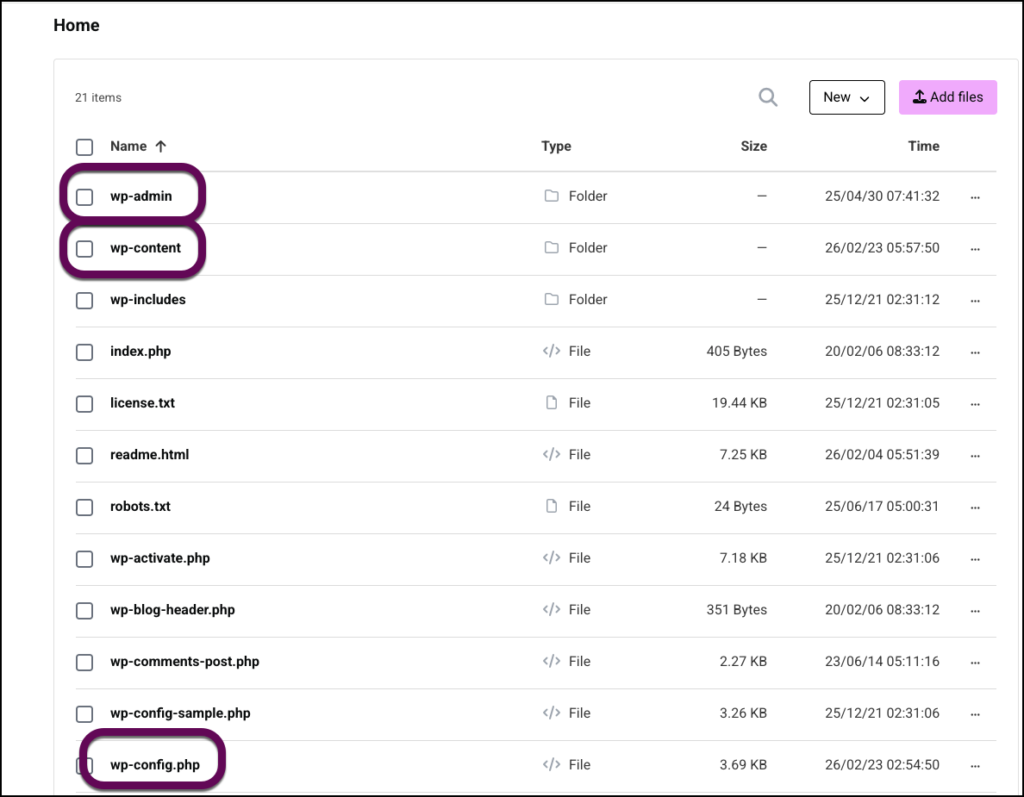
Once the File Manager interface opens, you will see your website’s internal file structure. The robots.txt file must be placed in the root directory.
- Identify the root directory by looking for the main folder containing:
wp-config.phpwp-contentwp-admin
How do I edit an existing robots.txt file?
If a robots.txt file is already present in your root directory, follow these steps:
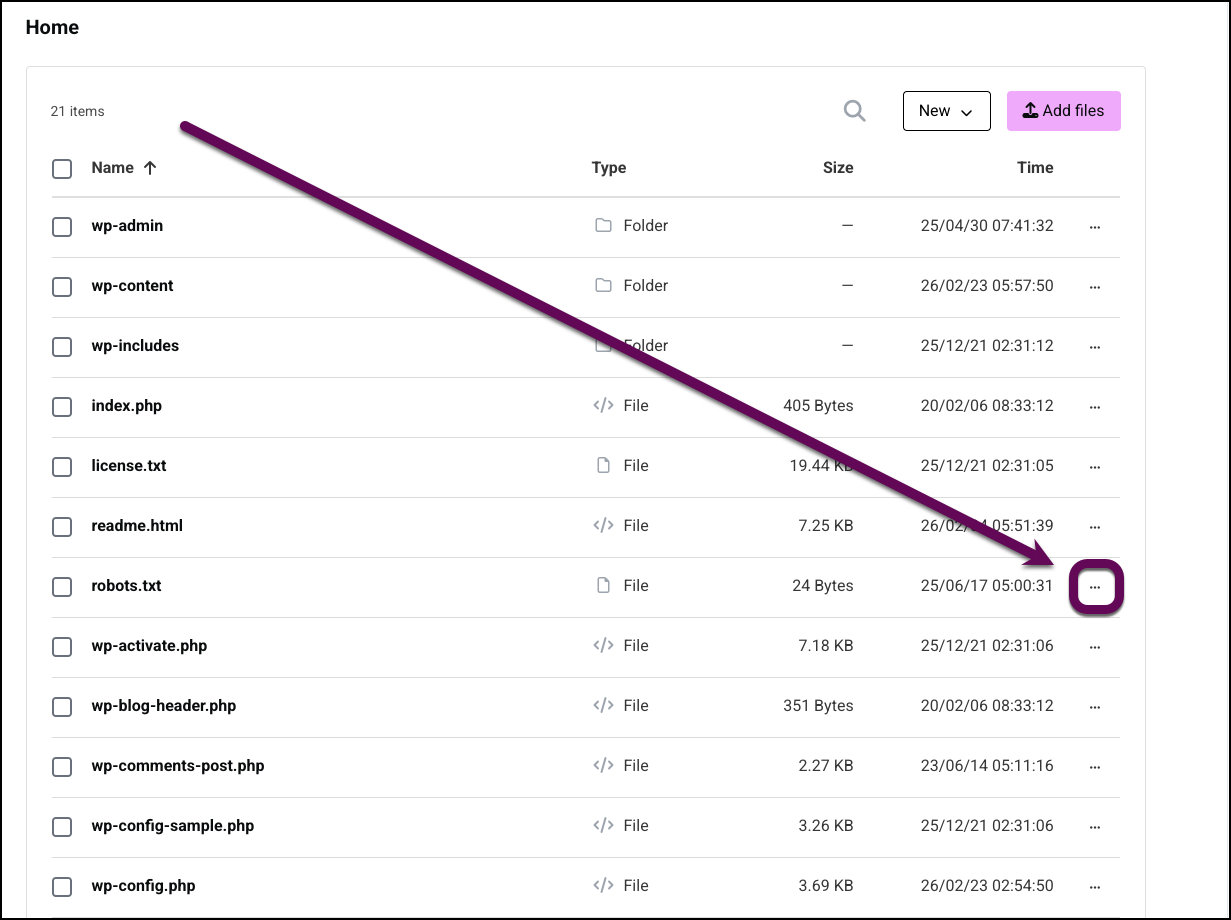
- Locate robots.txt in the root directory.
- Click the ellipsis (three dots) next to the file name.
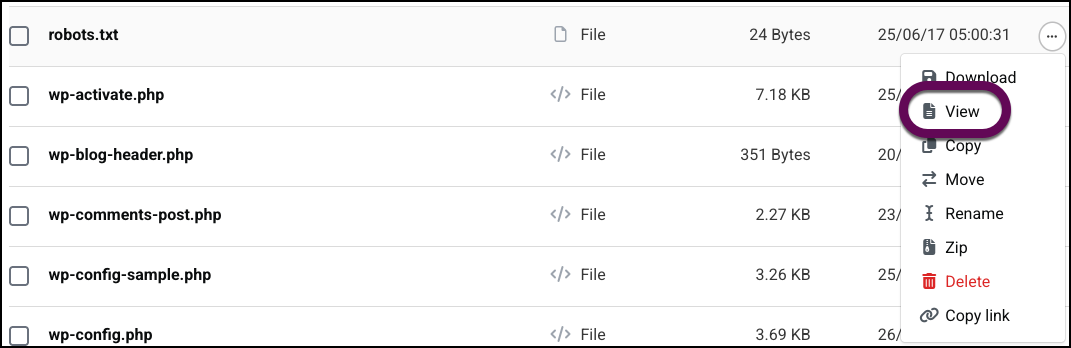
- Select View.
- Edit the file contents as needed.
- Click Save.
How do I create and upload a new robots.txt file?
If the file does not exist:
- Create a new text file on your computer named robots.txt.
- In the File Manager, click Add files.
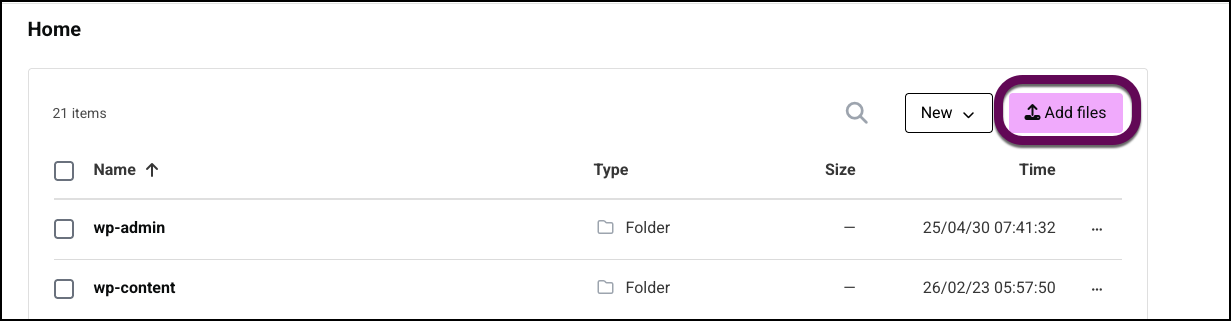
- Upload the file directly to the root directory.
What are the best practices for managing my robots.txt file?
To maintain optimal search engine visibility, follow these guidelines:
- Keep it simple: Guide crawlers away from sensitive private areas (like
/wp-admin/), but avoid overly complex exclusion rules that might accidentally block important content. - Perform regular reviews: Periodically check the file to ensure it has not been modified by third-party plugins or unexpected server updates.
- Verify live changes: After saving, visit
yourdomain.com/robots.txtin a web browser to confirm the file is live, readable, and displays the correct instructions.