A TXT DNS record stores arbitrary text information used primarily for domain verification and configuring email security policies like SPF, DKIM, and DMARC.
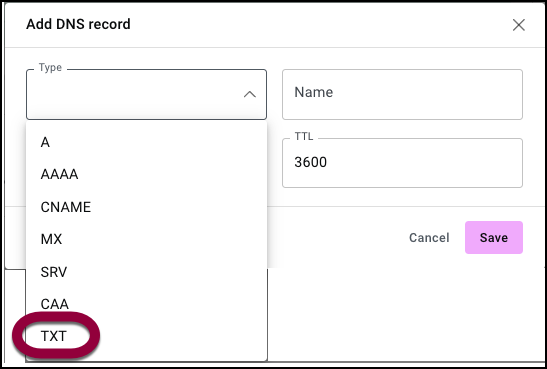
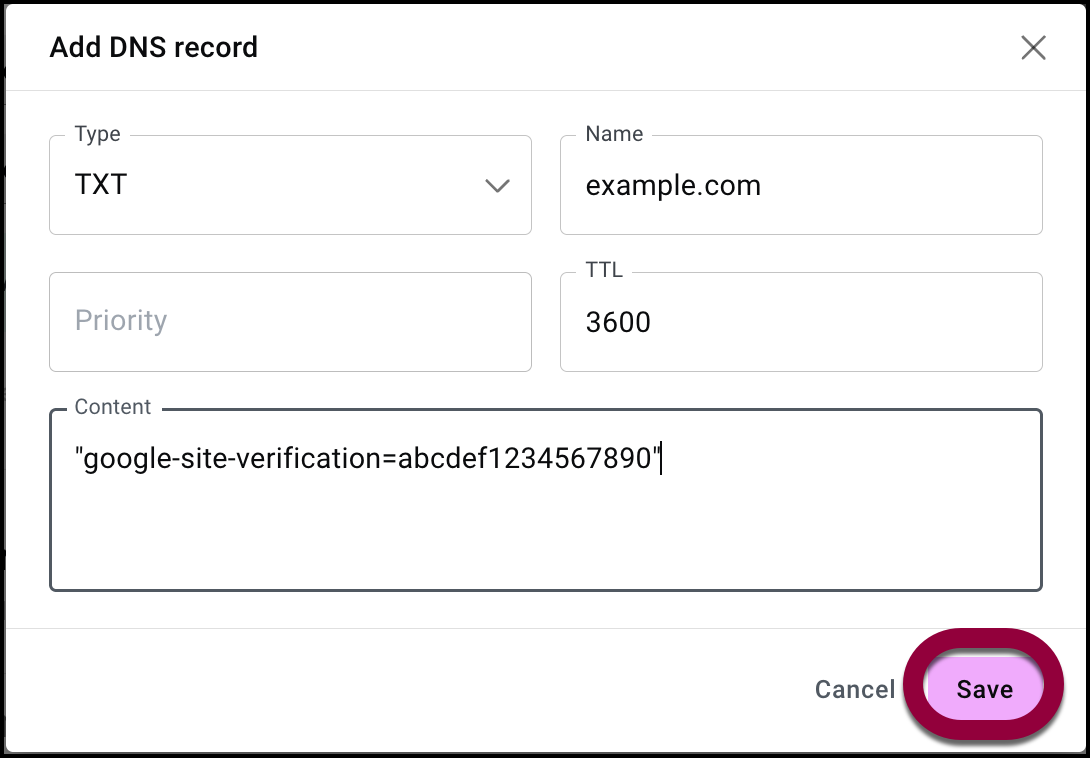
- Use the Type dropdown menu to select TXT.
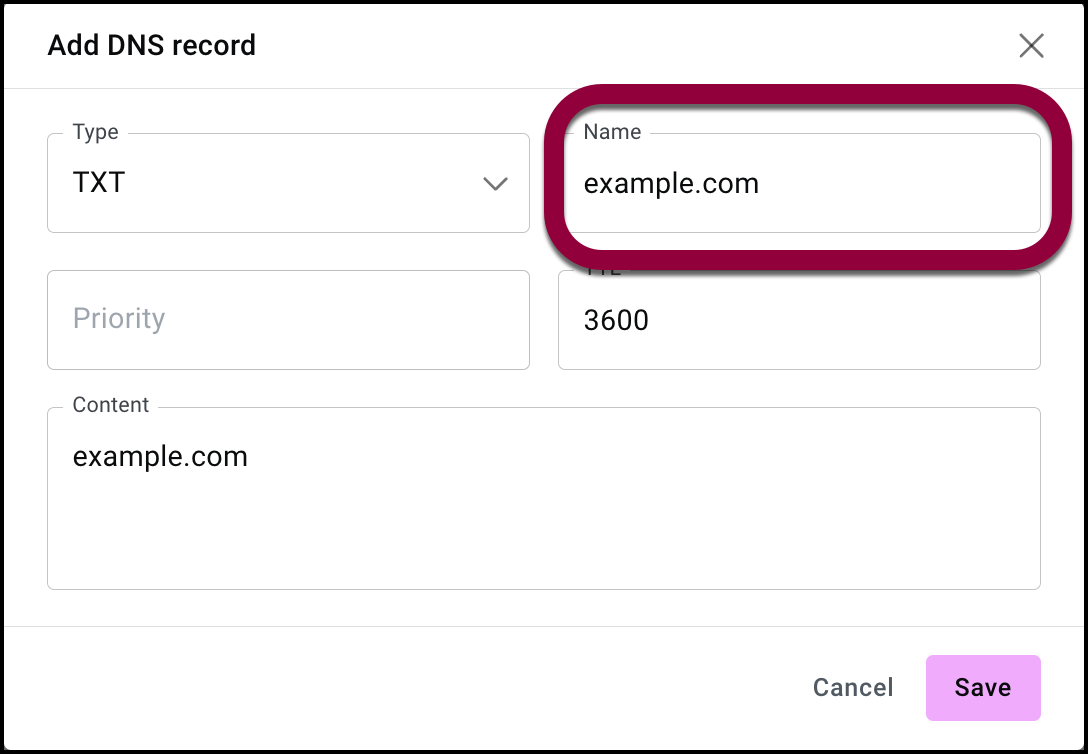
- In the Name field fill in your domain name. For example, example.com.
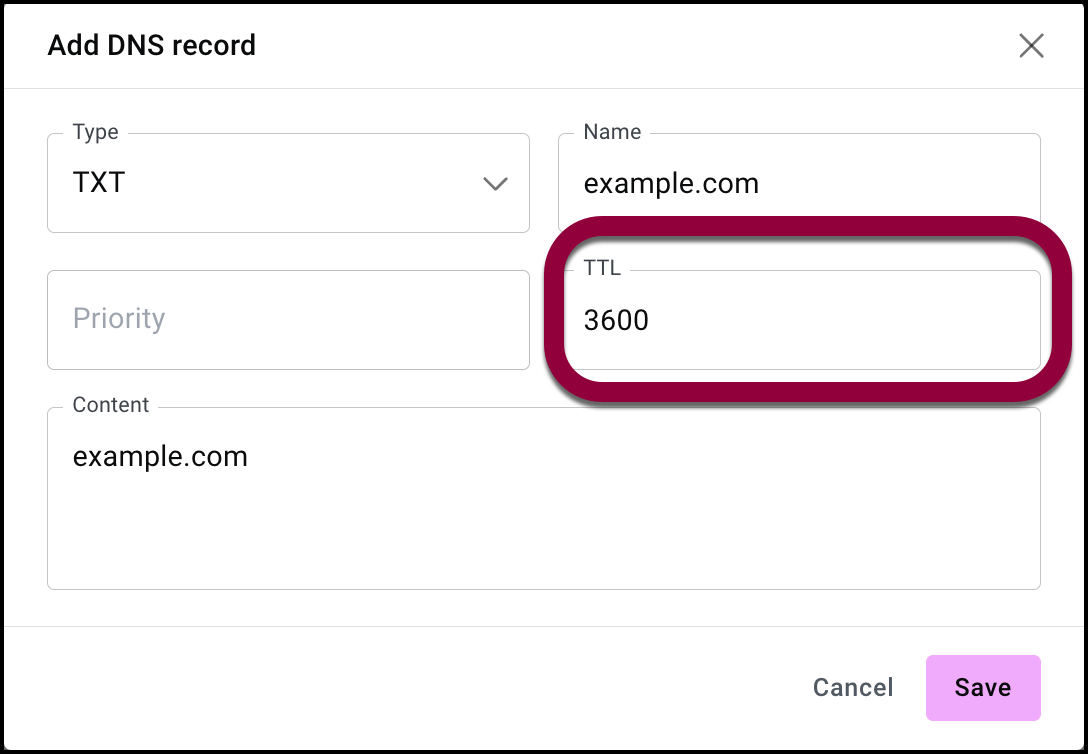
- (Optional) In the TTL field, you can fill in a Time-To-Live (TTL) value to replace the default value. TTL is the value (in seconds) that tells DNS resolvers how long they should cache (store) the record before checking the authoritative server for a new update.
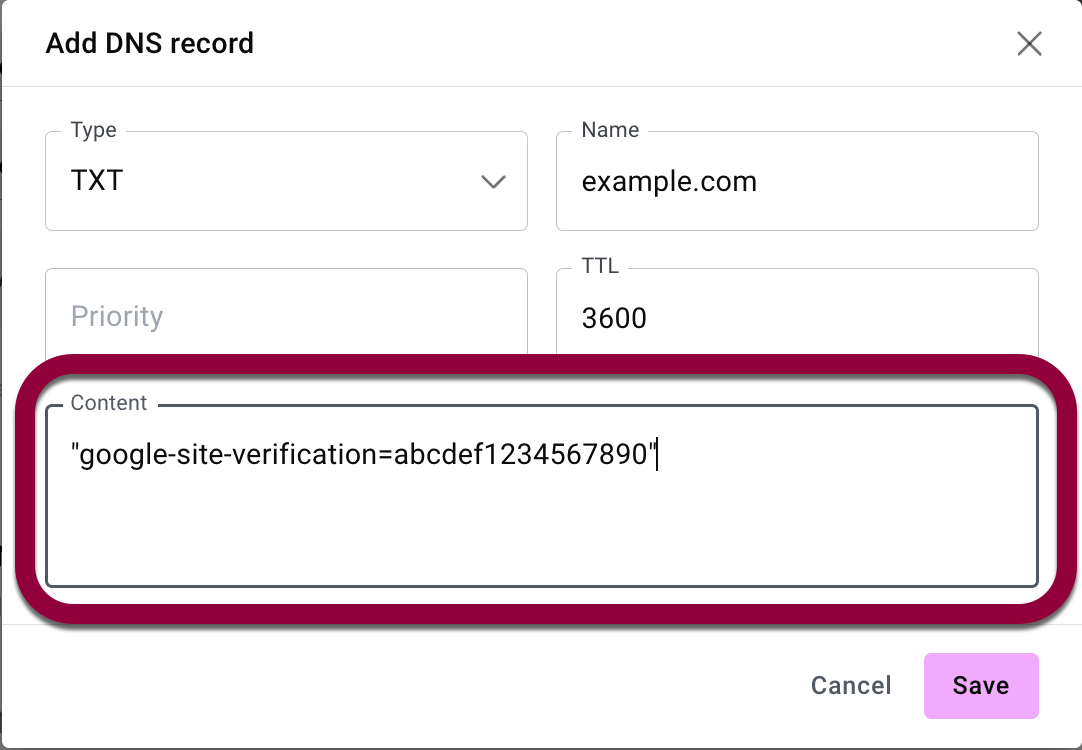
- Use the Content text box to enter the desired text. For example “google-site-verification=abcdef1234567890” for Google verification.
- Click Save.
Edit or delete a DNS record
You may need to edit a DNS record, for instance if you need your domain to point to a different server.
To edit or a DNS record:
- Go to your My Elementor dashboard.
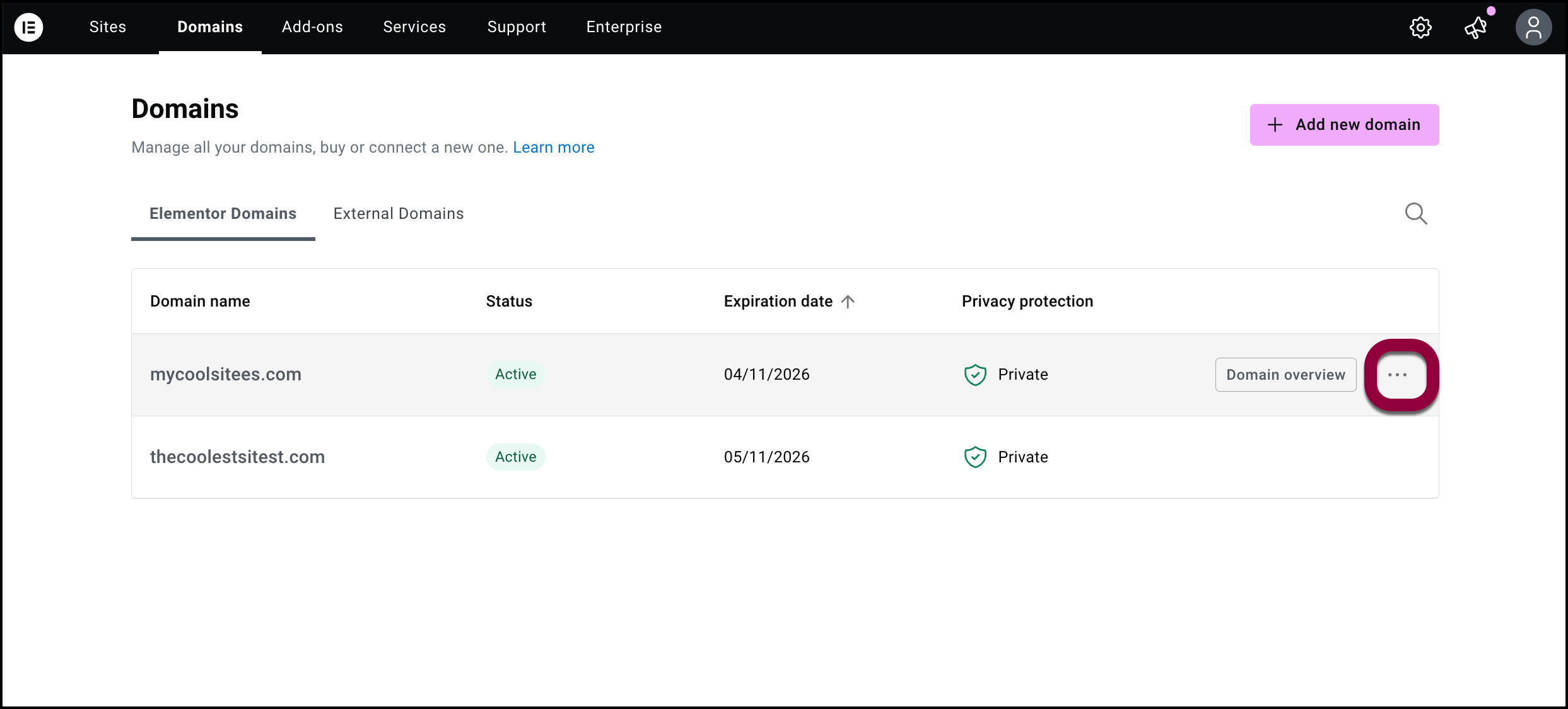
- In the top bar, click Domains.
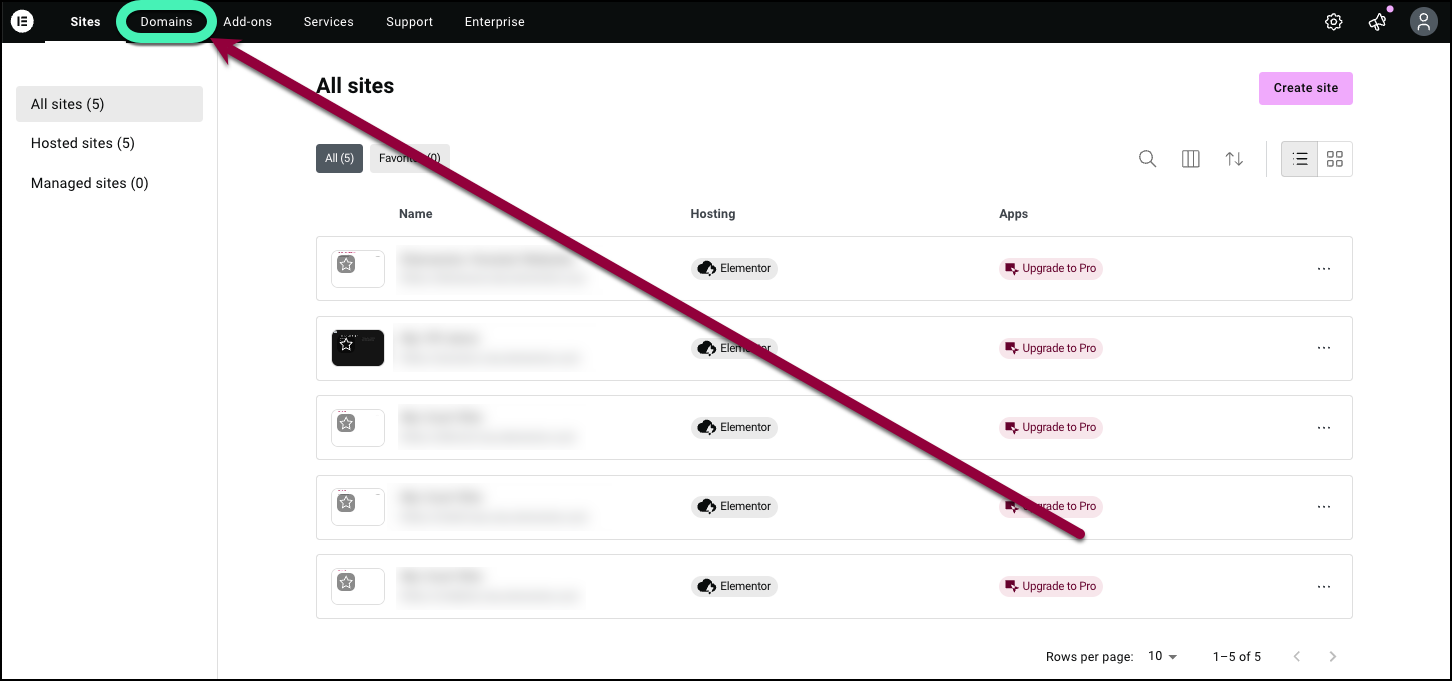
A list of your domains appears.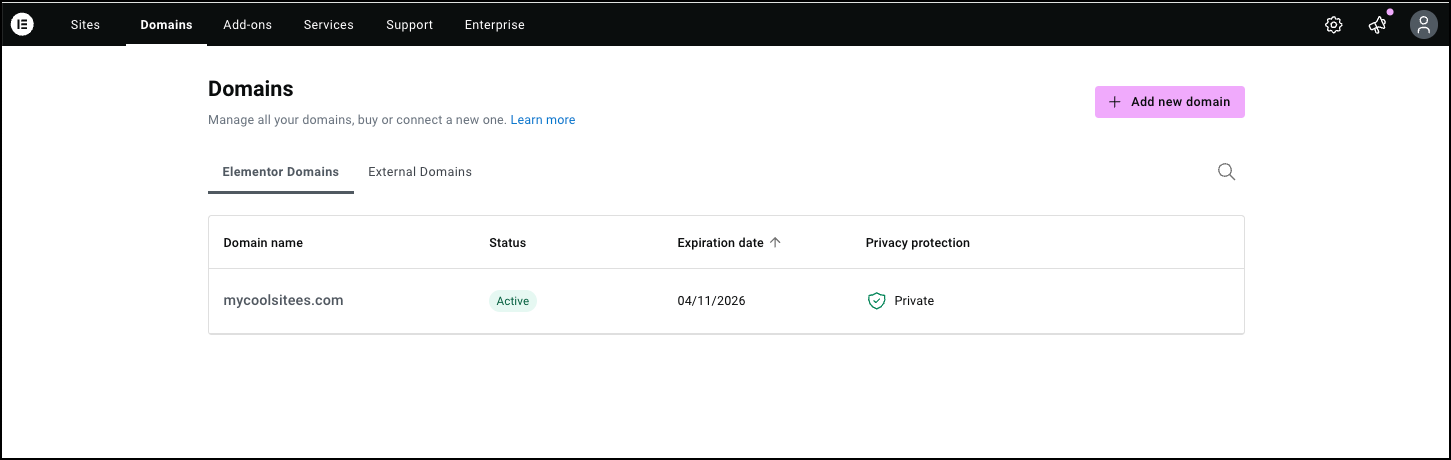
- Click the domain name you want to edit or delete.
The Domain Overview appears.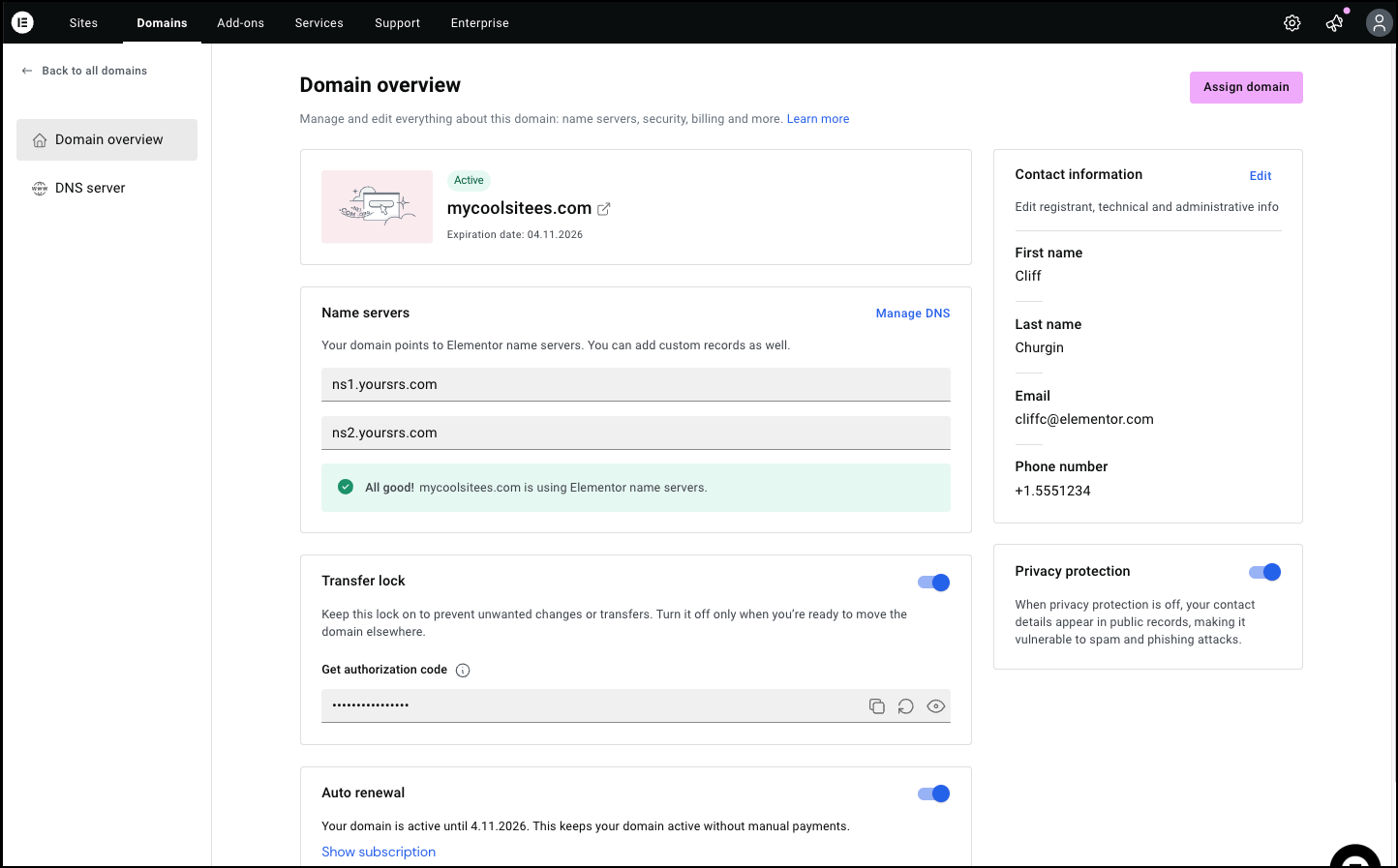
- Click Manage Domains.

The DNS servers screen appears. - Scroll down to the Manage DNS records section.
- Click the ellipses to the right of the domain name.
- Select Edit from the dropdown menu to edit the record.
- Select Delete to delete the record.
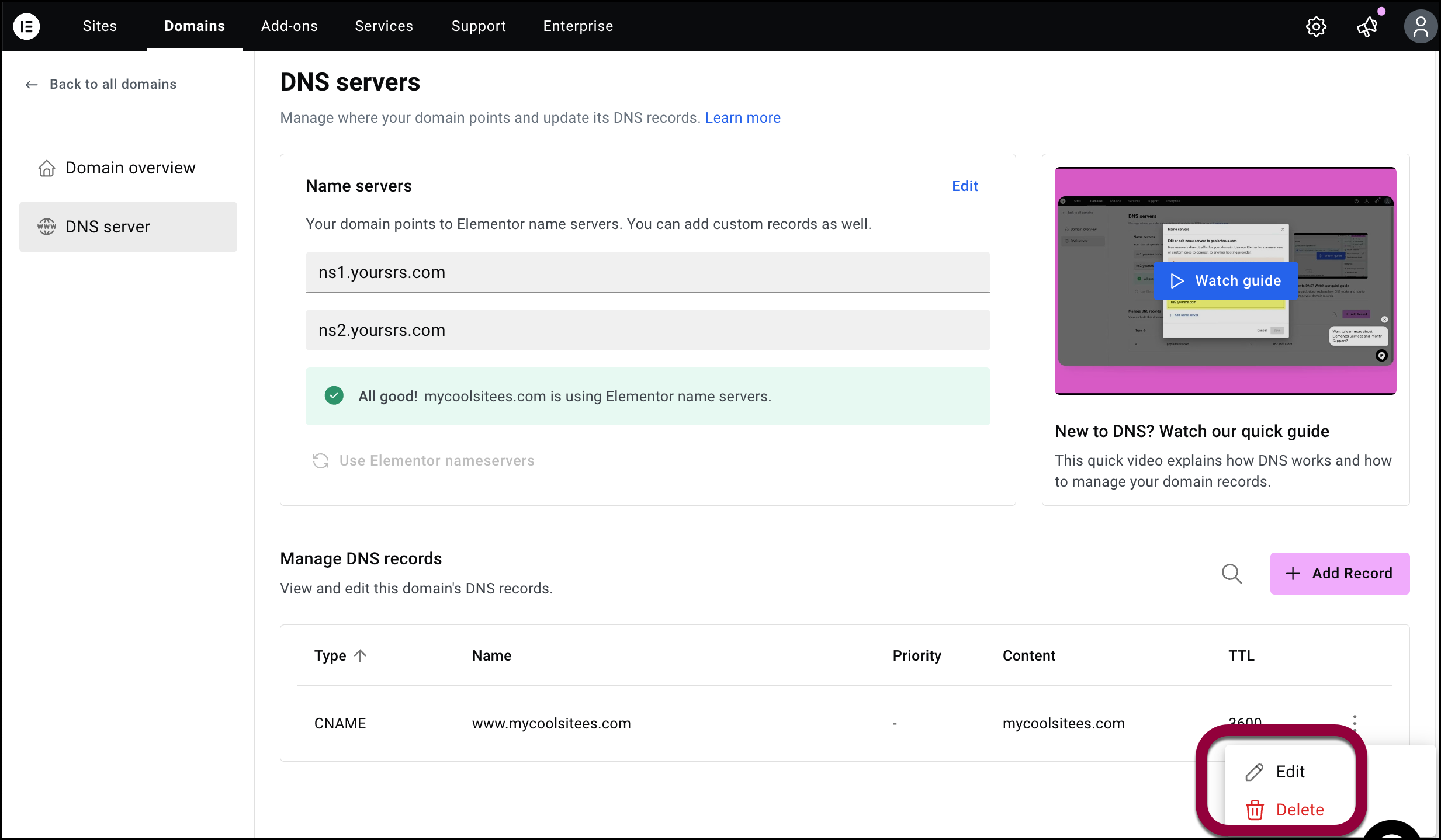 NoteIf you’re deleting a record, you’ll need to confirm your selection.