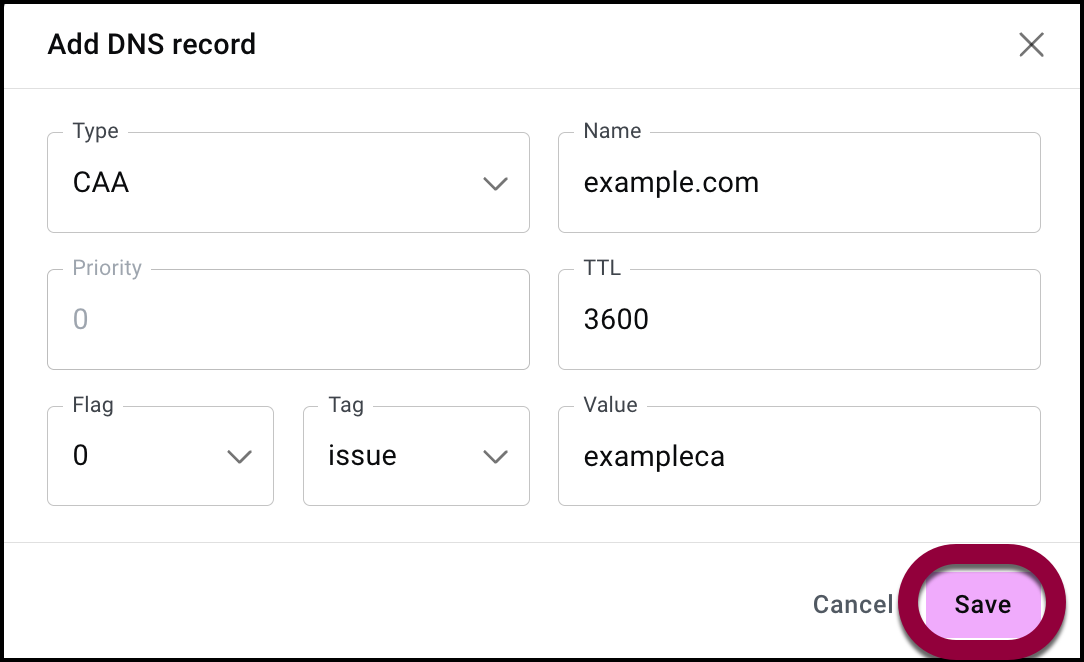
A CAA DNS record allows a domain owner to specify which Certificate Authorities (CAs) are authorized to issue SSL/TLS certificates for their domain. This can protect your site against fraudulent certificates.
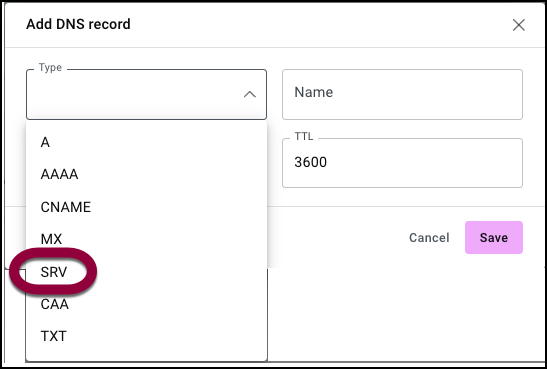
- Use the Type dropdown menu to select CAA.
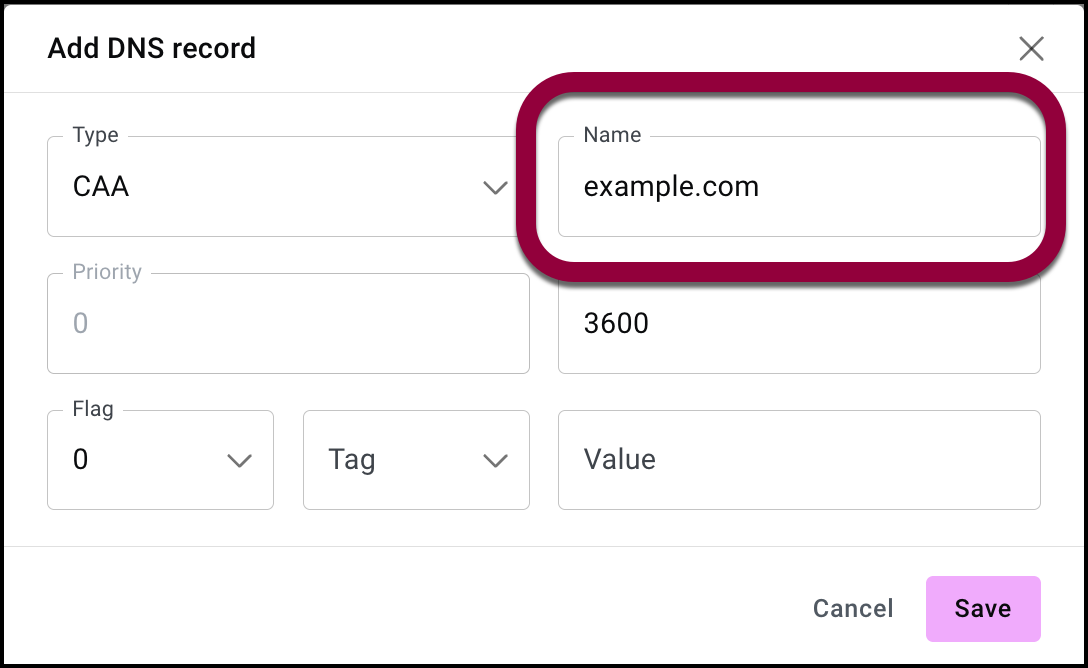
- In the Name field fill in your domain name. For example, example.com.
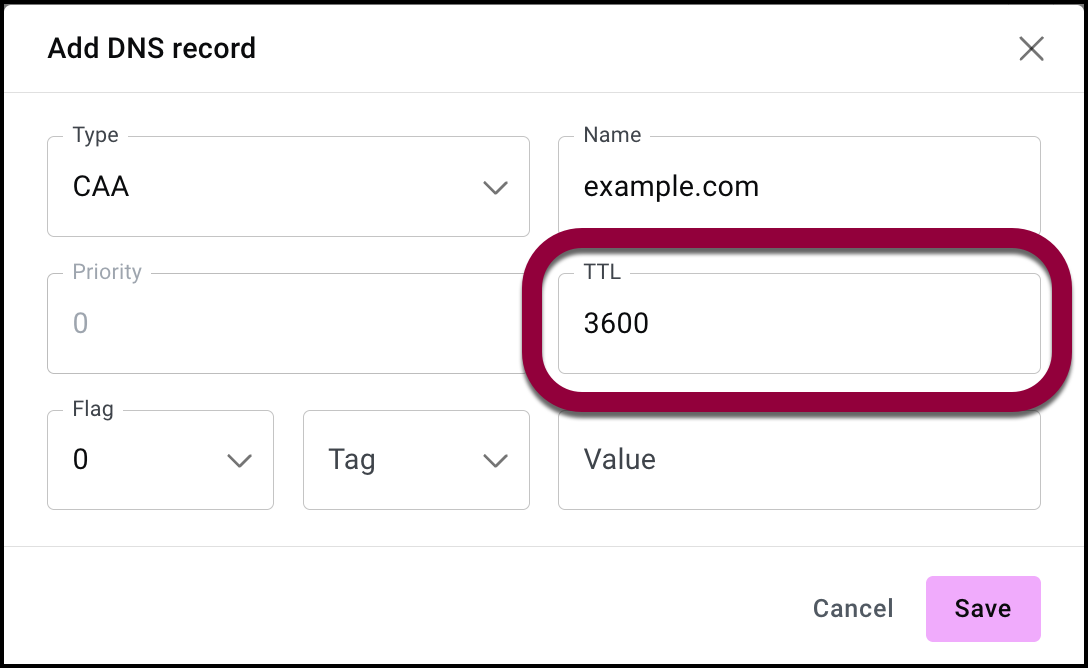
- (Optional) In the TTL field, you can fill in a Time-To-Live (TTL) value to replace the default value. TTL is the value (in seconds) that tells DNS resolvers how long they should cache (store) the record before checking the authoritative server for a new update.
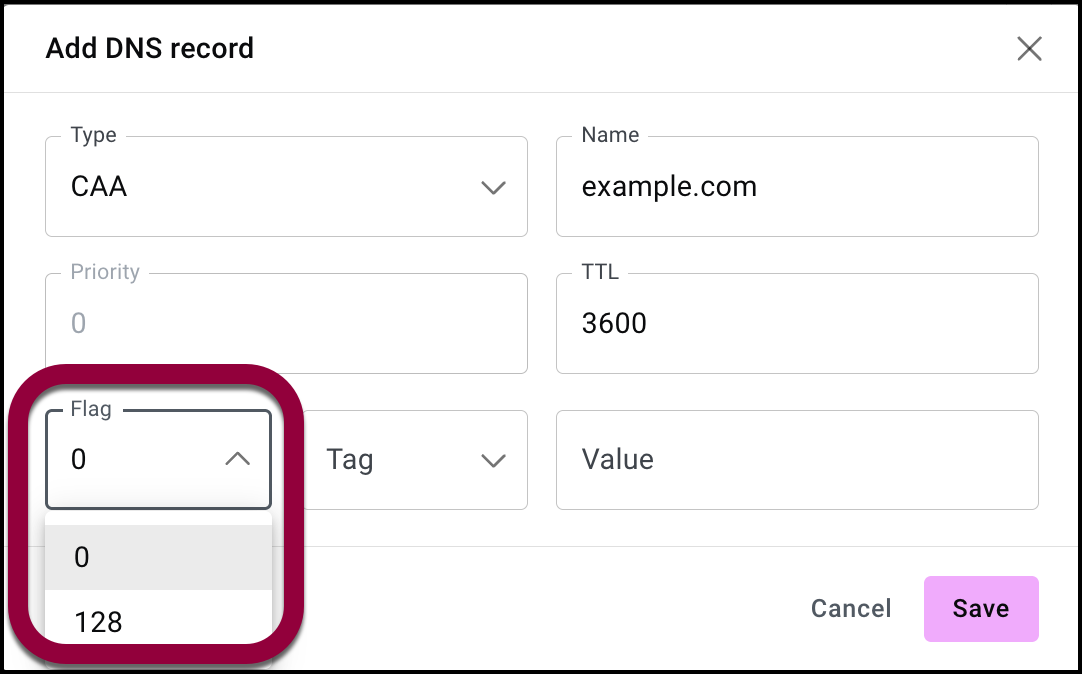
- Use the Flag dropdown to set the flag either 0 or 128:
- 0: Means if a CA encounters a record with a tag it doesn’t recognize or support, it can safely ignore that specific record and proceed with its issuance process based on the other records it does understand.
- 128: Means the entire CAA record is critical. If a CA encounters a record with this flag set and does not understand the accompanying tag, the CA must stop the certificate issuance process and report a policy violation.
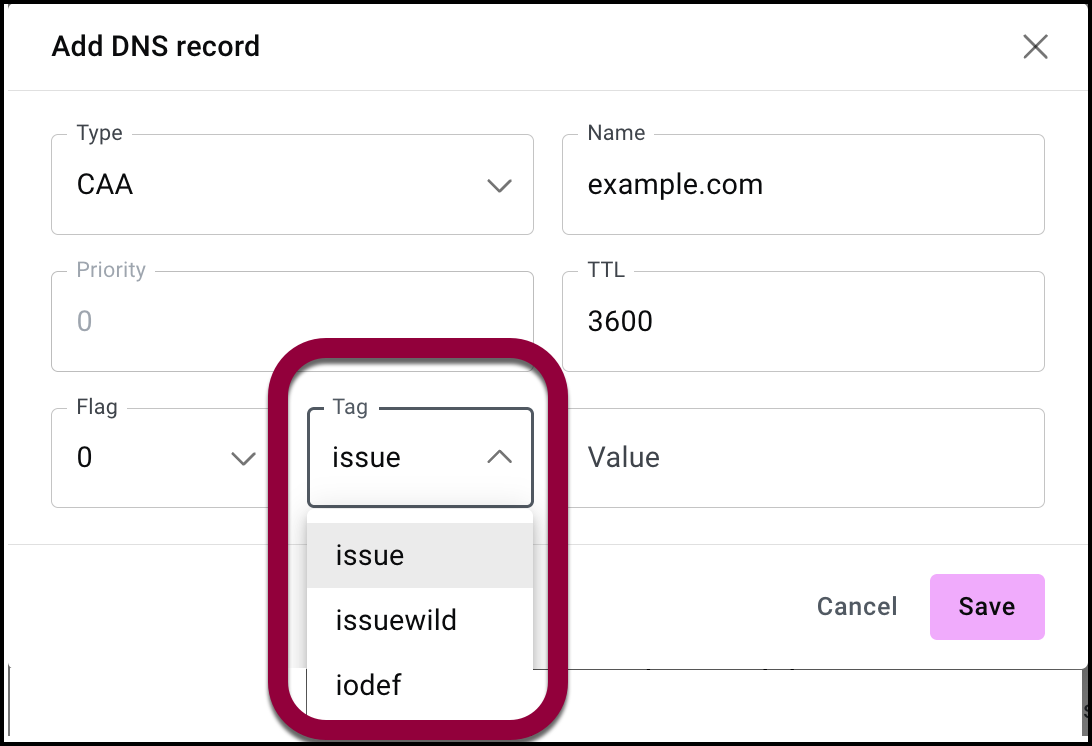
- Use the Tag dropdown menu to select a tag for the server:
- Issue: This tag authorizes a specific CA (named in the Value field) to issue specific, non-wildcard, SSL/TLS certificates for the domain.
- Issuewild: This tag authorizes a specific CA (named in the Value field) to issue wildcard SSL/TLS certificates for the domain.
- Iodef: This tag provides a reporting mechanism. It specifies a contact endpoint (usually an email address or URL) where a CA should report attempts to fraudulently or incorrectly obtain a certificate for the domain.
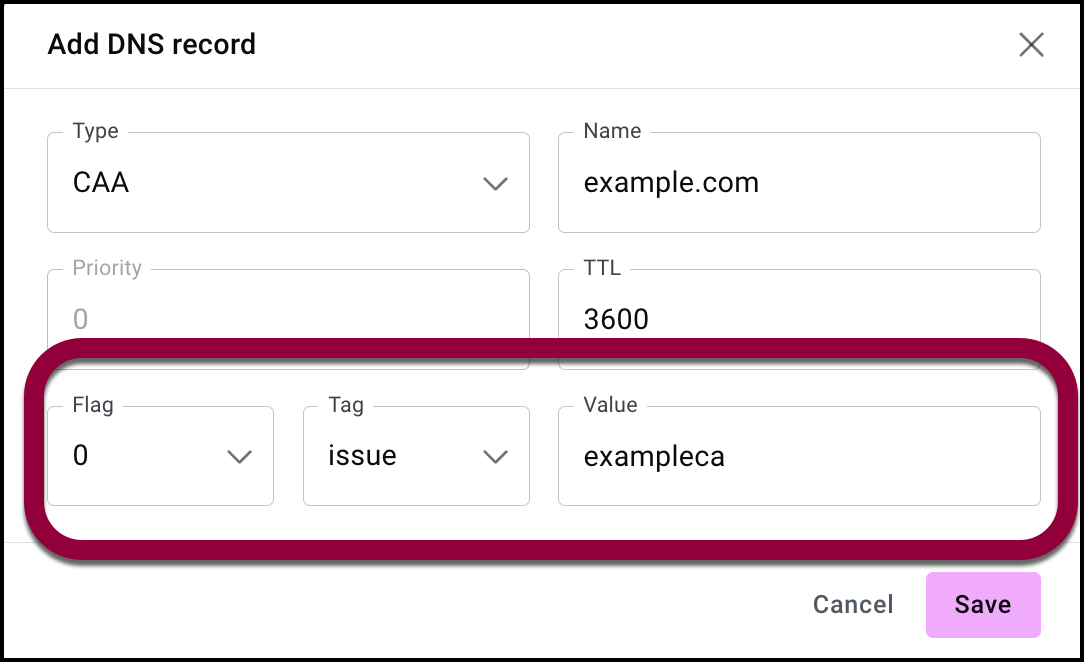
- Use the Value text box to enter the parameters for the Flag and the Tag. For example, if you want to give permission to exampleca to issue certificates for example.com without wildcards, you would use the following parameters:
- Click Save.